You’re sitting there, chilling, playing games on your latest PC build, then one moment your screen flickers, and the last thing you see is your reflection on a black screen. You’re utterly confused and surprised at the same time.
You still hear the audio coming in, but there’s no display. It goes on like this for a minute or two, then the screen comes back to life. You then see a message on the screen saying that the display driver was unresponsive. It recovered now and you’re thinking to yourself: what if this is the start of many display issues?
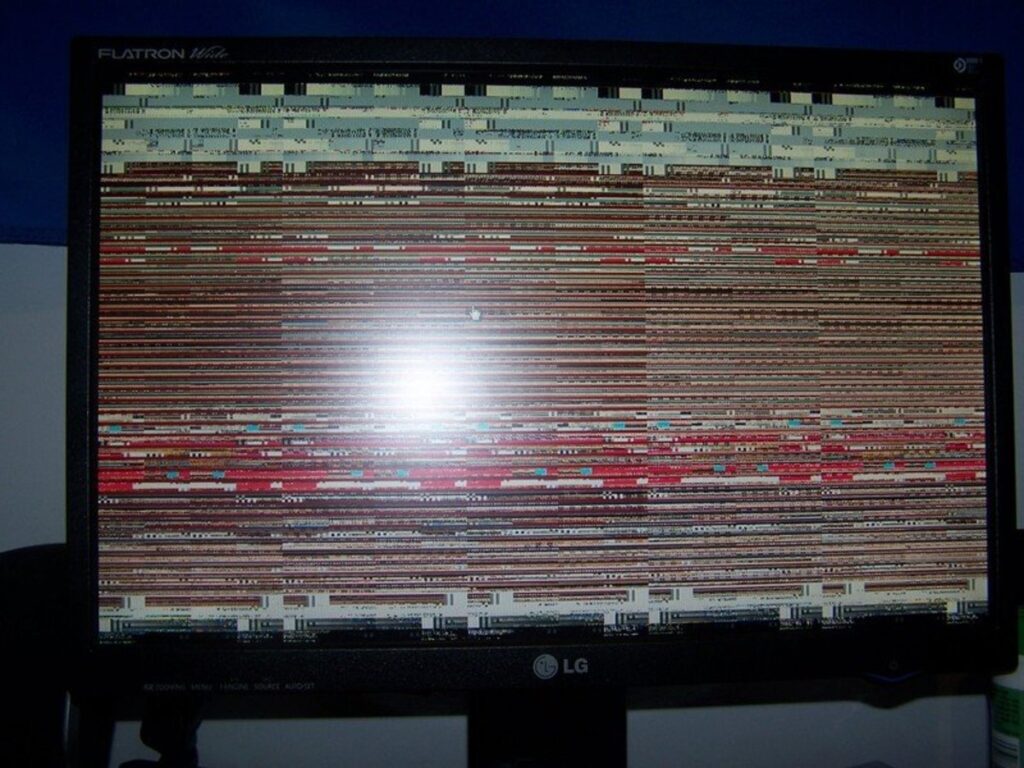
Has this ever happened to you? If it hasn’t, you should know that what has been illustrated isn’t a display issue but more of a driver issue. Don’t rush into thinking that you’re going to need to replace your graphics card soon.
All you really need to do to resolve this issue is to reset your graphics driver. But how to reset graphics driver, you might be wondering. For starters, problems with your GPU is mostly hardware-related most of the time, but there are rare cases when it’s the software or driver itself. In even rarer cases, you might just need to clean your graphics card every now and then to resolve certain display issues.
But if it’s a software problem, chances are you’re dealing with a faulty driver update or something to do with you overclocking your GPU. Your best solution here is to troubleshoot the device before it’s too late.
And the first thing you will always need to do is to restart graphics driver. And we’re going to show how to reset graphics driver, regardless of the manufacturer and how old it is.
How To Reset Graphics Driver the Right Way
A quick way to reset graphics driver is to press four buttons at the same time (Win+Ctrl+Shift+B), regardless of operating system. If you’re not a tech enthusiast, “win” refers to the Windows button on your keyboard.
Your screen will flicker to black and your graphics driver will automatically restart. It will also fix any issues you’ve been having that prompted you to restart in the first place. Doing the Win+Ctrl+Shift+B reset will not close your other programs, so you can instantly remedy instances of freezing issues and other display issues.
If you’re a gamer, chances are you have disabled your Windows key so be sure to enable it first before you use this method.
The Freezing Persists After Win+Ctrl+Shift+B Key Combination. What Do You Do Next?
After you restart graphics driver using the method above and the freezing persists, your display driver might have a more complicated problem. If the freezing persists, you can use one of these three methods:
- Update Windows
- Update The Graphics Card Driver
- Uninstall and Re-install Graphics Card Driver
#1 – Update Windows
When you still have to deal with a frozen screen, updating your Windows might be able to solve your problem.
- Press Win+I keys. This will open up the Settings Window. You can also click on the Windows Icon and click on the Gear Icon (if you’re on Windows 10) to go to the Settings Window.
- Go to “Update & Security” , then make your way to the right pane and click on the “Check for Updates” link/button.
- If there are pending updates, the system should automatically install after they have downloaded.
- Manually restart your PC to complete the driver installation
Wait and see if you still have freezing issues. You can do this by playing a game or running a program that’s taxing on your GPU. If the freezing still occurs, proceed to the second step.
#2 – Uninstall And Re-Install Graphics Driver
When updating your windows operating system doesn’t work, you might need to reinstall your graphics driver. You’ll have to uninstall your current graphics driver first to do this. Don’t worry because Windows will automatically find the right graphics drivers for your PC.
To do this, you need:
- Use the keyboard shortcut Win+R keys to open the Run dialog box
- Type in “Devmgmt.msc” (without quotes) and then press Enter. This will open Device Manager without using the Ctrl+Alt+Delete method.
- Click on Display Adapters and right click on your graphics card icon. This will open a short tab underneath. Click on “Uninstall Device”.
Once you successfully uninstalled your graphics driver, Windows will install a new one. You can also browse for the driver itself on the manufacturer’s website.
#3 – Update Graphics Driver To Latest Version
If you don’t want to uninstall your graphics driver, you can update the graphics driver instead. This might also fix the problem. There’s also a chance that your Windows PC might not reinstall your graphics driver after restarting.
- Navigate your way to the bottom left corner and right click on the Windows icon
- Click on Device Manager from the menu that pops up
- A new window will open. Look for Display Adapters and double click on it. This will show you your graphics properties, including the graphics drivers.
- Click Update Driver from the new window
- Restart your PC
Check for freezing by running a game or a graphically-demanding application.
Another thing to note is that you can use your manufacturer’s software to update your graphics drivers as opposed to right clicking on the start menu. If you’re using an Nvidia graphics card, you can update via Nvidia Control Panel instead.
What If My Display Drivers are Corrupted?
A corrupted driver is an uncommon problem for all hardware components. It usually happens when you’re currently updating and installing a driver but the process is interrupted. When you reset your graphics driver, you’re only trying to restart the graphics card. This will not fix a corrupted driver.
If you’re faced with a corrupted driver, you’re going to want to install a new graphics driver or the latest version.
To reinstall your graphics driver, just do the following:
- Open the Run dialog box by click on Start Menu or Windows Icon, or use the keyboard shortcut Win+R. Type in “devmgmt.msc” and hit Enter.
- Go to Display Adapters and click on it to expand the menu. Right click on your graphics adapter and click Uninstall.
- Restart your PC to complete the process.
This will then force Windows to install a new driver after restarting. Then do step #3 listed above this section.
What Are Some Precautions You Need To Be Aware Of?
If the problems still persists even after you’ve done all the other steps above to restart graphics driver or reinstalling them, chances are you might have a bigger issue than just your graphics drivers.
You don’t want to keep on resetting or refreshing your graphics card driver using the keyboard combination of Win+Ctrl+Shift+B because you might end up bricking the GPU itself. Just use this keyboard shortcut when you have to, or in dire emergencies when you have not saved your work but need to do something about your frozen screen.
If you’re unsure about why you’re still having problems after having done all of the steps above, it’s a lot safer to assume that you might have hardware issues. You’ll want to bring it to a computer technician and see what they can do from there.
How Do You Reset GPU Overclock Configurations?
An uncommon problem to frozen screens or display issues in general is when you overclock a GPU. Now not everyone overlocks but there are a few that do. Overclocking is when you’re trying to boost your GPU’s performance further by increasing its clock speed. Manufacturers will also make it clear that you can overclock their GPUs by adding the letters OC on their boxes.
If you overclocked your GPU, you can reset your configurations using the same software. If you’re using something like MSI Afterburner, you’ll find the reset button at the bottom of the UI.
How Do You Reset GPU Software?
When you install a certain brand of GPU (like Nvidia), you’ll also install a control panel of sorts that will help you manage your GPU. For Nvidia, you’ll have Nvidia Control Panel and Nvidia GeForce Experience. The latter, unfortunately, needs to be downloaded manually because it doesn’t install along with the Control Panel. For AMD, you’ll have AMD Radeon Settings. Both are found on your taskbar and are always turned on when you turn on your PC.
In rare cases, your GPU software might actually be causing some problems. For Nvidia, all you have to do to reset the software is to right click on the icon and open the Panel. Click on 3D Settings, and click Restore Defaults.
If you’re using AMD, right click on the icon to open the panel then click on the Preferences button. Click Factory Settings Default to reset the software. This process will take a few seconds to complete and might remedy your GPU issues if resetting graphics driver did not work for you previously.