Category: PC Builds

  • Building the Ultimate Machine Learning PC: A Step-by-Step Guide

    Building the Ultimate Machine Learning PC: A Step-by-Step Guide

    Are you planning to build your machine learning PC but need help figuring out where to start? Look no further! Building your machine learning PC can be daunting, but with the right guidance, it can be a rewarding experience. A machine learning PC is designed for running machine learning models and algorithms. It requires powerful hardware components such as a high-end graphics processing unit (GPU), a large amount of memory (RAM), and a fast central processing unit (CPU).

    Before you start building your machine learning PC, you need to determine your budget and the requirements of your machine learning projects. The budget will determine the type and quality of the components you can use. The requirements of your machine learning projects will determine the amount of memory, GPU, and CPU processing power you need. Once you have determined your budget and requirements, you can start selecting the components for your machine learning PC. The following sections will guide you through building your machine learning PC, from choosing the parts to assembling the PC.

    Hardware Components

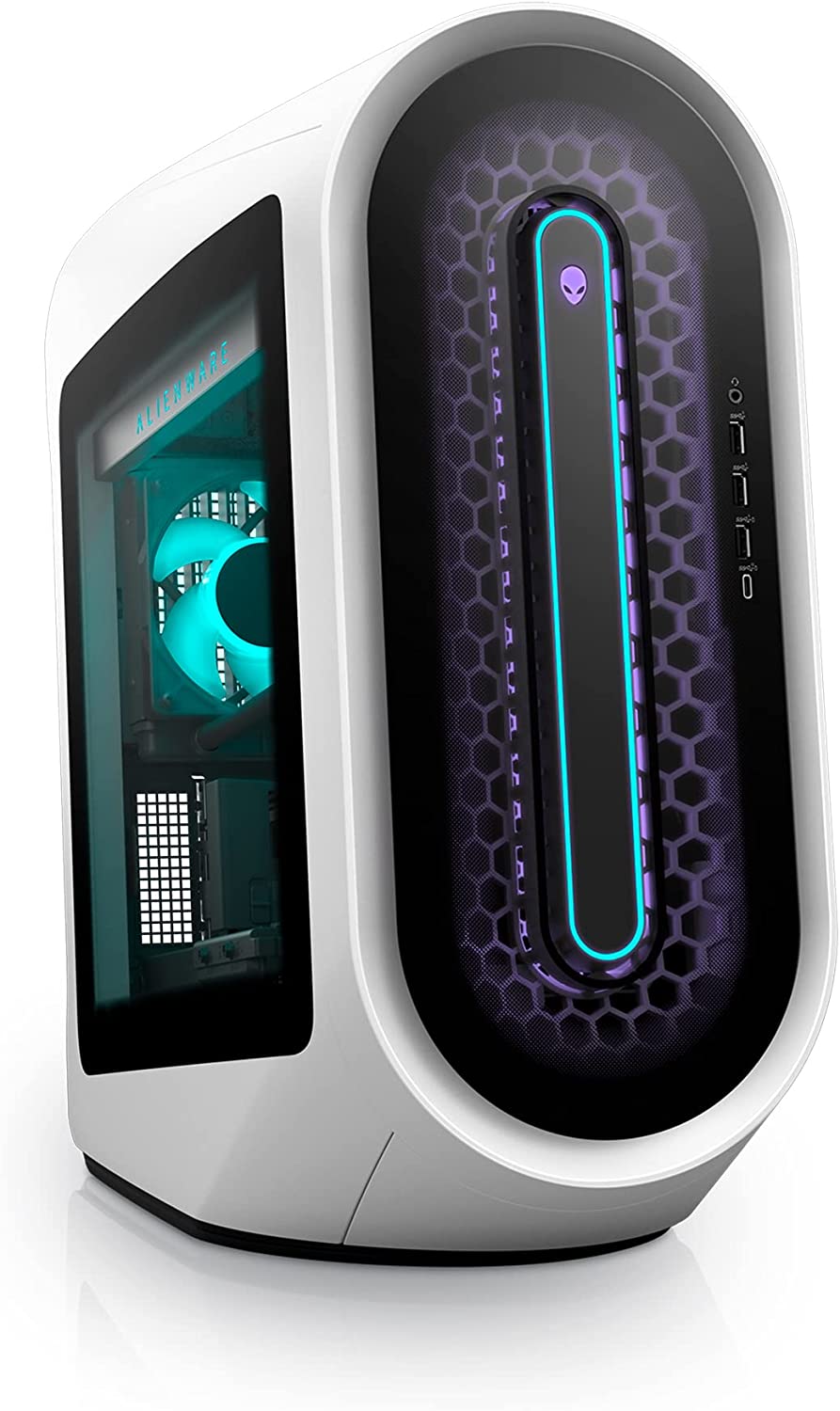
    High End PC Machine Learning PC

    When building a machine learning PC, choosing the right hardware components will help you achieve optimal performance is essential. Here are the key components you should consider:

    CPU

    The CPU is the brain of your machine learning PC. When choosing a CPU, you should look for a processor with a high core count and clock speed. Intel and AMD offer a range of CPUs that are suitable for machine learning tasks.

    GPU

    The GPU is the most important component of a machine learning PC. NVIDIA is the leading provider of GPUs for machine learning, and their GeForce and Quadro series are popular choices. When choosing a GPU, you should look for one with many CUDA cores and memory.

    RAM

    RAM is important for storing data during machine learning tasks. You should choose a RAM that has a high frequency and low latency. 16GB of RAM is the minimum requirement for most machine learning tasks, but you may need more depending on the size of your datasets.

    Storage

    Storage is important for storing your large data sets and models. You should choose an SSD for faster read and write speeds. A 500GB or 1TB SSD is recommended for most machine learning tasks.

    Motherboard

    The motherboard is the backbone of your machine learning PC. It would help if you chose a motherboard that is compatible with your CPU and GPU. Look for a motherboard that has a high number of PCIe slots for adding additional GPUs.

    Power Supply

    The power supply is vital for providing enough power to your machine learning PC. It would help if you chose a power supply with high wattage and 80+ certified for efficiency.

    Case

    The case is vital for keeping your machine learning PC cool and protected. It would help if you chose a case with good airflow and enough space for your components.

    Cooling

    Cooling is essential for keeping your machine learning PC running smoothly. It would be best if you chose a cooling solution suitable for your CPU and GPU. Liquid cooling is recommended for high-end components.

    GPU Selection

    When building a machine learning PC, selecting the right GPU is crucial. This section will discuss the different types of GPUs available, as well as their features and specifications.

    NVIDIA GPUs

    NVIDIA GPUs are the most popular choice among machine learning enthusiasts and the main choice for building high end computers. They are known for their high performance and excellent support for popular deep learning frameworks like TensorFlow and PyTorch. Some of the most popular NVIDIA GeForce RTX GPUs for machine learning include the 2080 Ti and the Titan RTX.

    AMD GPUs

    While NVIDIA GeForce RTX GPUs are the most popular choice for machine and deep learning models, AMD GPUs are also worth considering. AMD GPUs are known for their high memory bandwidth, which can benefit specific machine learning tasks and other AI workloads. However, they are less well-supported than a Nvidia graphics card regarding deep learning frameworks.

    GPU Memory

    When selecting a GPU for machine learning, it is essential to consider the amount of memory it has. The more memory a GPU has, the larger the models it can handle. Most modern GPUs come with at least 8GB of memory, but for larger models, consider a GPU with 16GB or more.

    Tensor Cores

    Tensor Cores are a specialized type of core found in certain NVIDIA GPUs. They are designed to accelerate matrix operations, a key component of many machine learning algorithms. If you plan on working with large models or datasets, a GPU with Tensor Cores can significantly speed up your model training times.

    CUDA Cores

    CUDA Cores are another important feature when selecting a GPU for machine learning. CUDA Cores are specialized processing units that are designed to accelerate parallel computations. The more CUDA Cores a GPU has, the faster it can perform certain machine learning tasks.

    In conclusion, selecting the right GPU is critical when building a machine learning PC. NVIDIA GPUs are the most popular choice, but AMD GPUs are also worth considering. When selecting a GPU, consider its memory, Tensor Cores, and CUDA Cores to ensure it can handle your machine learning demanding workloads.

    CPU Selection

    When building a machine learning PC, selecting the right CPU is crucial for achieving optimal performance. Here are some factors to consider when selecting a CPU.

    Intel CPUs

    Intel Core i9-11900K PRO Machine Learning PC

    Intel CPUs are known for their strong single-threaded performance, making them a popular choice for workstation and for machine learning applications. The Intel Xeon W and Intel Core i9 processors are excellent machine learning options. The Xeon W is higher budget, designed for workstation use and offers high core counts and support for ECC memory, while the Core i9 is a more affordable option with a high clock speed and good single-threaded performance.

    AMD CPUs

    AMD Ryzen™ Threadripper™ PRO Machine Learning PC

    AMD CPUs offer better multi-threaded performance than Intel CPUs, making them an excellent choice for machine learning applications that require parallel processing. The AMD Ryzen Threadripper Pro is a popular choice for machine and deep learning workstations, offering high core counts and support for PCIe 4.0. The AMD Ryzen 9 is a more affordable for deep learning workstation PCs, with good multi-threaded performance and a high clock speed.

    CPU Cores

    The number of CPU cores is important when selecting a CPU for machine learning. More cores allow for more parallel processing, greatly improving data science performance. However, more cores also mean a higher price tag. A CPU with at least eight cores is recommended for the PC build capable of most machine learning applications.

    Clock Speed

    Clock speed is another important factor when selecting a CPU for machine learning. A higher clock speed means faster single-threaded performance, which is important for some machine learning applications. However, a higher clock speed also means more heat and power consumption and can come at a premium price. For most machine learning applications, a CPU with a clock speed of at least 3.5 GHz is recommended.

    Memory Selection

    When building a machine learning PC, selecting the right memory is crucial for optimal performance. Here are key factors to consider when selecting memory for your machine learning PC build.

    RAM Speed

    The speed of your RAM can significantly impact the performance of your machine learning PC. Faster RAM allows quicker data transfer between the CPU and RAM, improving the speed of data processing and training. When selecting RAM, look for options with a higher clock speed, such as DDR4-3200 or DDR4-3600.

    DDR4 Memory

    DDR4 memory is the current standard for PC memory and is the recommended option for machine learning PCs. DDR4 memory provides faster data transfer rates and improved power efficiency compared to older DDR3 memory. When selecting DDR4 memory, consider the capacity you need. For most machine learning applications, 16GB or 32GB of DDR4 memory should be sufficient.

    VRAM

    In addition to system memory, your machine learning PC will require dedicated video memory (VRAM) if you use a GPU for training. VRAM is used to store data that the GPU is processing. When selecting a GPU, consider the amount of VRAM it has. A GPU with at least 8GB of VRAM is recommended for most machine learning applications.

    Selecting the right memory is crucial for building a powerful machine learning PC. Consider the speed of your RAM, the capacity of your DDR4 memory, and the amount of VRAM in your GPU when making your selection. By making informed choices, you can ensure that your machine learning PC is optimized for performance and can handle even the most demanding applications.

    Storage Selection

    When building a machine learning PC, the storage space is an important consideration. You need to ensure that your storage solution is fast, reliable, and able to store your data and applications. This section will discuss the different types of storage available and which one you should choose for your machine learning PC.

    SSD Selection

    Solid-state drives (SSDs) are faster and more reliable than traditional hard drives and disk drives (HDDs). They use flash memory to store data, which means they have no moving parts. This makes them less prone to failure and faster than HDDs. When selecting an SSD or hard drive for your machine learning PC, you should consider the following factors:

    • Capacity: SSDs come in different capacities, ranging from 128GB to 4TB or more. Choose an SSD with a capacity that meets your needs.
    • Interface: SSDs connect to your motherboard via a SATA or PCIe interface. PCIe SSDs are faster than SATA SSDs but are also more expensive.
    • Brand: Choose a reputable brand when selecting an SSD. Some of the most popular brands include Samsung, Crucial, and Western Digital.

    NVMe SSDs

    NVMe (Non-Volatile Memory Express) SSDs are even faster than traditional SSDs. They use the PCIe interface and the NVMe protocol to deliver faster read and write speeds. When selecting an NVMe SSD for your machine learning PC, you should consider the following factors:

    • Capacity: NVMe SSDs come in different capacities, ranging from 256GB to 2TB or more. Choose an NVMe SSD with a capacity that meets your needs.
    • Interface: NVMe SSDs use the PCIe interface, which is faster than the SATA interface used by traditional SSDs.
    • Brand: Choose a reputable brand when selecting an NVMe SSD. The most popular brands include Samsung, Western Digital, and Corsair.

    HDD Selection

    Traditional hard disk drives (HDDs) are slower and less reliable than SSDs. However, they are also cheaper and have larger capacities. When selecting an HDD for your machine learning PC, you should consider the following factors:

    • Capacity: HDDs come in different capacities, ranging from 1TB to 10TB or more. Choose an HDD with a capacity that meets your needs.
    • Interface: HDDs connect to your motherboard via a SATA interface. They are slower than SSDs but are also cheaper.
    • Brand: Choose a reputable brand when selecting an HDD. Some of the most popular brands include Western Digital, Seagate, and Toshiba.

    When selecting storage for your machine, deep learning workstation, or PC, you should consider your capacity, speed, and reliability needs. SSDs and NVMe SSDs are faster and more reliable than HDDs but are also more expensive. HDDs are cheaper and have larger capacities but are slower and less reliable. Choose the storage solution that meets your needs and budget.

    Motherboard Selection

    When building a machine learning PC, choosing the right motherboard is crucial. It is the backbone of your system and determines the compatibility of all your other components. Here are some factors to consider when selecting a motherboard for your machine learning PC.

    PCIE Slots

    PCIE slots are essential for any machine learning PC as they provide the bandwidth for high-speed data transfer between your GPU and CPU. When selecting a motherboard, ensure it has at least one PCIE 3.0 x16 slot to accommodate your graphics card. If you use multiple GPUs, look for a motherboard with multiple PCIE slots, preferably with PCIE 3.0 x16 bandwidth.

    Form Factor

    The form factor of your motherboard determines the size and shape of the board. The most common form factors are ATX, Micro-ATX, and Mini-ITX. ATX motherboards are the largest and offer the most expansion slots and features. Micro-ATX motherboards are smaller and have fewer expansion slots but are still suitable for most machine learning PC builds. Mini-ITX motherboards are the smallest and have limited expansion capabilities but are perfect for compact builds.

    When selecting a motherboard, consider the form factor of your case and the size of most tasks your other components. For example, if you plan on using a large CPU cooler or multiple GPUs, you may need an ATX motherboard to accommodate them.

    In summary, when selecting a motherboard for your machine learning PC, ensure it has the necessary PCIE slots and form factor to accommodate your processor and other components. Consider the size of your case and other components, and choose a motherboard that offers the features and expansion capabilities you need.

    Software Components

    You must have the right software components to build a machine learning PC. These include the operating system, machine learning frameworks, libraries, and package managers. Here’s what you need to know about each of them.

    Operating System

    The operating system you choose can affect the performance of your machine learning PC. Most machine learning frameworks and libraries work well with Linux-based operating systems, such as Ubuntu, Debian, or CentOS. You can also choose to use Windows 10 or macOS, but you may need to install additional software or drivers to get everything working smoothly.

    Machine Learning Frameworks

    Machine learning frameworks are essential for building and training machine learning models. Some popular frameworks include TensorFlow, PyTorch, and Keras. TensorFlow is an open-source platform for building and training machine learning models, while PyTorch is a popular deep learning framework that provides dynamic computation graphs. Keras is a high-level neural networks API that is easy to use and supports both TensorFlow and Theano backends.

    Libraries

    Libraries are collections of pre-written code that you can use to build machine learning models. Some popular libraries include Scikit-Learn, OpenCV, Numpy, Matplotlib, and Pandas. Scikit-Learn is a machine learning library for Python that provides simple and efficient tools for data mining and data analysis. OpenCV is a computer vision library that provides real-time computer vision and machine learning capabilities. Numpy is a Python programming language library that supports large, multi-dimensional arrays and matrices. Matplotlib is a plotting library for Python that provides high-quality 2D and 3D plots. Pandas is a library for data manipulation and analysis.

    Package Managers

    Package managers are tools that make it easy to install and manage software packages. Some popular package managers include Anaconda, pip, and Conda. Anaconda is a package manager, an environment manager, and a Python and R programming languages distributor. Pip is a package manager for Python that allows you to install and manage software packages easily. Conda is a package and environment manager that allows you to create virtual environments for different projects and manage the dependencies of your projects.

    In summary, to build a machine learning PC, you need to have the right software components, including the operating system, machine learning frameworks, libraries, and package managers. Choosing the right components can affect the performance of your machine learning PC, so it’s essential to do your research and choose wisely.

    Building the PC

    Building a machine learning PC can be daunting, but with the right guidance, you can easily build one that suits your needs. This section will guide you through building your machine for ai deep learning, PC, from assembly to installation, computing power, and configuration, and finally, testing.

    Assembly

    Before assembling the PC, you must ensure that you have all the necessary hardware components. You should have a motherboard, CPU, RAM, GPU, storage device, power supply, and a computer case. Once you have all the components, you can start the assembly process.

    1. First, attach the CPU to the motherboard, ensuring the pins are aligned correctly.
    2. Install the RAM into the motherboard’s memory slots, ensuring that the side clips click into place.
    3. Install the GPU into the PCIe slot on the motherboard, ensuring it clicks into place.
    4. Install the storage device into the appropriate slot in the computer case.
    5. Attach the motherboard to the computer case, ensuring it is securely fastened.
    6. Connect the power supply to the motherboard and other components.

    Installation and Configuration

    Once you have assembled the PC, you must install and configure the necessary software components. You should install the operating system, drivers, and machine learning libraries.

    1. Install the operating system of your choice, such as Windows, Linux, or macOS.
    2. Install the drivers for your hardware components, such as the GPU driver.
    3. Install machine learning libraries like TensorFlow, PyTorch, or Keras.

    Testing

    After installing and configuring the software components, you should test the system to ensure that almost everything works correctly. You can run benchmark tests to evaluate the system’s performance.

    1. Run benchmark tests like TensorFlow’s benchmark suite to evaluate the system’s performance.
    2. Ensure that the GPU is utilized correctly by running a GPU stress test.
    3. Verify that the machine learning libraries are working correctly by running sample code.

    Building a machine learning PC is a challenging but rewarding task. Following the steps outlined above, you can build a powerful machine learning PC that meets your needs. Remember to take your time and ensure you have all the necessary hardware and software components before starting the building process.

    Conclusion

    Building a machine learning PC can be daunting, but with the right knowledge and tools, it can be a rewarding experience over a decade. Here are some key takeaways to keep in mind when building your machine learning PC:

    • Choose the right GPU: The GPU is the most important component of a machine learning PC. Make sure you choose a GPU that is optimized for machine learning tasks.
    • Consider your CPU and RAM: While the GPU is the most important component, you still need a good CPU and enough RAM to support your machine learning tasks.
    • Invest in good cooling: Machine learning tasks can be very demanding on your PC, so investing in good cooling is crucial to ensure your PC runs smoothly and doesn’t overheat.
    • Choose the right power supply: Make sure you choose a power supply that can handle the power requirements of your machine learning PC.
    • Remember storage: Machine learning tasks can require a lot of storage, so make sure you choose a fast storage option with enough capacity.

    Overall, building a machine learning PC can be a great way to save money and get the maximum performance that you need for your machine learning tasks. With the right components and a little knowledge, you can build a machine learning PC that can handle even the most demanding tasks.
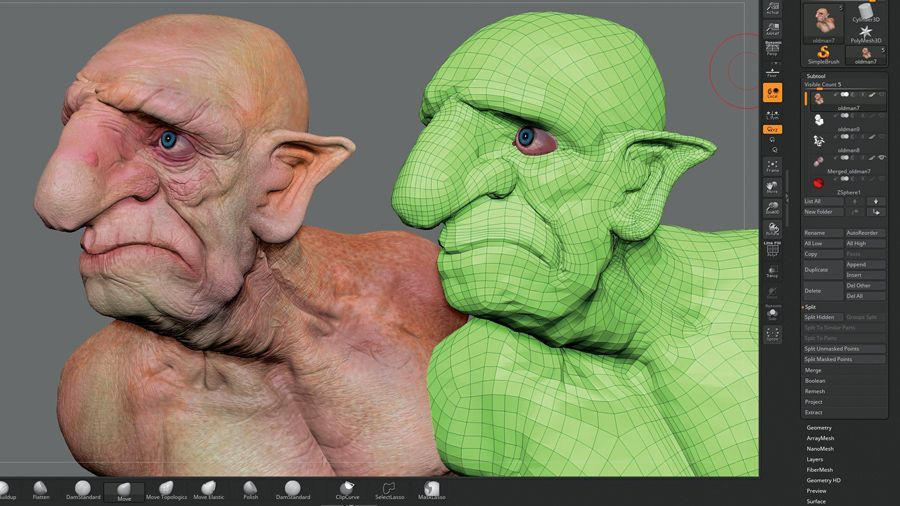
  • How Do You Build The Best Computer for ZBrush?

    How Do You Build The Best Computer for ZBrush?

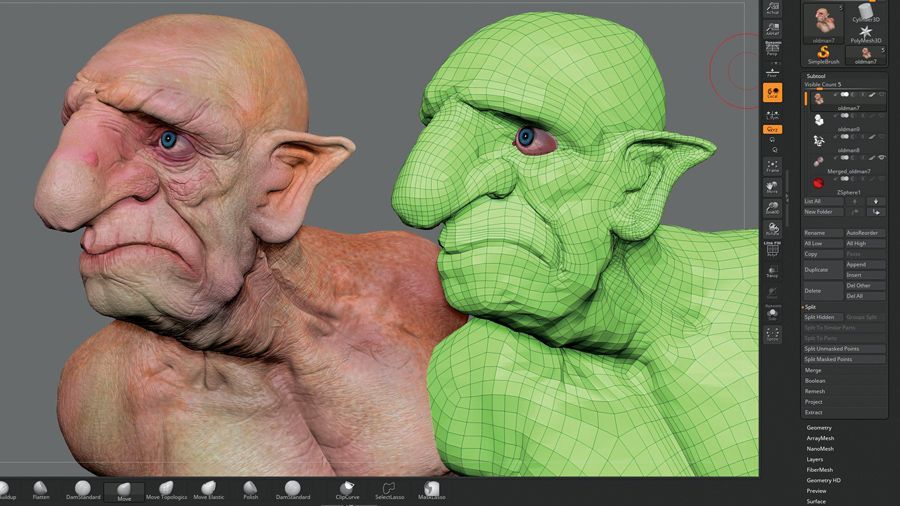
    ZBrush is a powerful 3D digital sculpting and painting software that has revolutionized the world of graphics design and animation. Developed by Pixologic, ZBrush has become a favorite tool for designers, animators, game developers, and artists, thanks to its impressive features and capabilities. In this blog post, we’ll delve deeper into ZBrush, exploring its features, uses, and benefits.

    ZBrush Features

    ZBrush has a wide range of features that make it stand out from other 3D sculpting and painting software in the market. Here are some of its most notable features:

    1. Digital Sculpting: ZBrush allows designers to create highly detailed and complex 3D models and sculptures using a variety of digital sculpting tools. The software uses a proprietary technology called Pixol, which allows users to work with models that have billions of polygons without sacrificing performance.
    2. Dynamic Brushes: With ZBrush, designers can create dynamic and expressive brush strokes, allowing them to sculpt and paint their models with great precision and accuracy.
    3. 3D Texturing: ZBrush allows designers to create stunning and realistic textures for their models. The software comes with a library of pre-made textures, and designers can also create their own custom textures using a range of tools.
    4. UV Master: ZBrush’s UV Master tool makes it easy for designers to unwrap their models for texturing and rendering. The tool automates the UV mapping process, saving designers time and effort.
    5. Polypainting: ZBrush’s Polypainting feature allows designers to paint directly onto their models. The software supports high-resolution textures, allowing designers to create highly detailed and realistic textures for their models.

    What Are The Uses of ZBrush?

    ZBrush is used by designers and artists for a wide range of applications, including:

    1. Film and Animation: ZBrush is widely used in the film and animation industry for creating highly detailed and realistic characters, props, and environments. Its digital sculpting tools and dynamic brushes make it a favorite tool for creating intricate and complex models.
    2. Game Development: ZBrush is also popular in the game development industry for creating 3D models and textures. Its ability to handle high-poly models and its UV Master tool make it ideal for creating high-quality game assets.
    3. Jewelry Design: ZBrush is also used by jewelry designers for creating intricate and detailed 3D models of jewelry pieces. Its digital sculpting tools and dynamic brushes make it easy to create highly detailed and realistic jewelry models.
    4. 3D Printing: ZBrush is also used in the 3D printing industry for creating highly detailed and intricate 3D models. Its ability to handle high-poly models and its precise sculpting tools make it a favorite tool for 3D printing enthusiasts.

    Minimum System Requirements

    The minimum system requirements for ZBrush are as follows:

    • 64-bit editions of Windows or macOS
    • CPU: i5/i7/Xeon processor
    • RAM: 8 GB required for working with high-resolution models
    • HDD: 100 GB of free hard drive space for installation
    • Monitor resolution: 1280×1024 monitor resolution with 32-bit color
    • Video card: Most cards manufactured 2008 or newer. Must support OpenGL 3.3 or higher

    While these are the minimum system requirements, it’s important to note that they are only suitable for basic usage of the software. If you plan on using ZBrush for more demanding projects, you’ll need a more powerful computer system.

    Recommended System Requirements

    The recommended system requirements for ZBrush are as follows:

    • 64-bit editions of Windows or macOS
    • CPU: Intel i7 or AMD equivalent with 4+ cores
    • RAM: 16 GB or more
    • HDD: 100 GB of free hard drive space for installation
    • Monitor resolution: 1920×1080 monitor resolution with 32-bit color
    • Video card: Most cards manufactured 2014 or newer. Must support OpenGL 3.3 or higher.

    The recommended system requirements are suitable for most professional-grade usage of ZBrush. If you plan on working with extremely high-resolution models, you may need an even more powerful computer system.

    What Specs Do I Need To Build The Best Computer For ZBrush?

    Much like graphics design, animation, and video editing, doing 3D work on your PC or gaming laptop requires a lot of power. Now you don’t need a powerful system right off the bat, but your gaming laptop or personal computer needs to be past the minimum system requirements for any software.

    In this case, what kind of hardware power do you need when it comes to guaranteeing ZBrush performance?

    Best CPU for ZBrush

    AMD Ryzen 9 5950X Best Computer for Zbrush

    First we need to make sure that you have a powerful CPU for your ZBrush workstation. You don’t need an Intel Core i9 or an AMD Threadripper, but you do want at least:

    • 12 to 24 cores
    • Great single-thread performance
    • Great multi threaded performance

    Now if we want a multi threaded CPU, then we can work with AMD processors. For single thread performance, we can go for the Intel Core i7 and Intel Core i9 processors. A higher core count AMD processor would immediately guarantee performance for ZBrush or any rendering software.

    Our list of CPUs would be:

    What’s The Best GPU for ZBrush?

    PNY GeForce RTX™ 4080 Best Computer for Zbrush

    A dedicated graphics card is a requirement for running ZBrush or any graphics design, modeling, or animating software. Integrated graphics cards can do the work, but they’re not going to be as powerful as a dedicated graphics card.

    The difference in performance between an integrated graphics card and dedicated graphics card is astronomical. The former is sufficient enough if you just want to browse the Internet or even watch movies. But the latter is required for graphically-intensive tasks and programs.

    You’re probably thinking about getting an integrated GPU because you’ve read about how expensive GPUs are at the moment. Thankfully, pricing has dropped significantly for the hyper-inflated models.

    Having said that, what do you really need from your GPU? You’d probably do well enough with at least 4GB of VRAM (Virtual RAM).

    What do we recommend?

    • High end graphics cards but expensive: Nvidia GeForce RTX 3060/3070/3080, or anything from the RTX 4000-series would be a worthwhile investment.
    • Midrange graphics cards: Nvidia GeForce RTX 2060/2070/2080

    Going for the best RTX 3060 laptops with a dedicated GPU isn’t a bad thing either, as long as you go for the laptops with these aforementioned graphics cards.

    What’s The Best RAM (Memory) for ZBrush?

    Unlike CPUs and GPUs, RAM doesn’t really affect your ZBrush performance greatly. You could do with 8GB of RAM, but you’ll want more if you’re going to be switching between apps and games.

    The sweet spot is at least 16GB, depending on the CPU that you have. An older CPU would struggle with higher RAM capacities, resulting in bottlenecking issues. You’ll also want at least 3600mHz for our RAM modules. Going higher would have diminishing returns, depending on the RAM capacity.

    Corsair Vengeance or G.Skill RipJaws are great brands to keep an eye out for. Both are known for their performance, value, and aesthetics.

    On a personal note, I’ve always used Corsair Vengeance RAM kits. Their kits carry an affordable price tag without sacrificing performance.

    Storage Setup for ZBrush

    Data storage for ZBrush is intensive, which is why you need a pair of storage devices. ZBrush is notoriously known for their large save files and .obj exports, which is why you need something reliable and robust.

    Now, you’ll need a storage space to hold all these files and another storage space for your operating system and applications. Your setup will look like this:

    • NVMe SSD or SATA SSD – Solid state drives are faster than traditional hard drive, so you’ll preload everything on here. Operating systems, video games, and your ZBrush applications go into the SSD. Try to get at least 1TB, or shoot for 2TB capacity.
    • Traditional HDD – This is where you’ll store all of your files, outputs, and renders. You don’t want to store anything on the SSD.

    What’s The Best Motherboard for ZBrush?

    Naturally, you want a motherboard that would be able to house all of the components necessary to guarantee the overall performance of ZBrush or any other software.

    What motherboard you’ll end up using is reliant on what kind of CPU you’ll go for. If you’re going for the high end processors, then you’ll want to go for a high end motherboard.

    Here’s what we would be recommending:

    • AMD Socket AM4: MSI X570 Unify if you want a high-end build or MSI Tomahawk B550 for value
    • Intel Socket LGA-1200: MSI Gaming MAG Tomahawk Z490

    Different PC cases can also determine what kind of motherboard you’re getting.

    What’s The Best Monitor for ZBrush?

    ZBrush doesn’t really require you to have a stunning display, but with all the power underneath your PC, it would be a shame to not be able to see its full potential.

    A high resolution display would be a great choice for ZBrush or any painting program. But don’t expect too much from ZBrush as you’ll only see different shades of grey.

    Screen size wouldn’t be an issue and will not affect the way you work with ZBrush, but just in case, you might want to go for at least 27″ to 32″ to see all the finer details that ZBrush has to offer.

    What If I Want a Laptop For ZBrush?

    Using a laptop for Zbrush is good if you’re on the move a lot, but it doesn’t mean you want something compact. The perfect laptop for ZBrush would have to be any kind of gaming laptop. Laptops that meet system requirements, matches one of our CPU recommendations and GPU recommendations, and more.

    Important factors to consider here will always be the CPU and GPU. RAM and storage space are easily upgradable, but the CPU and GPU aren’t. There are gaming laptops out there with a reasonable price, but we’d be lying if we say that if you really want good performance, you’re going to want to spend more on your ideal PC or laptop.

    The Wrap Up

    In conclusion, ZBrush is a powerful software that requires a robust computer system to run smoothly. By ensuring that your computer meets the minimum or recommended system requirements, and following the tips for optimizing your computer system, you can use ZBrush to create stunning 3D digital sculptures and paintings with ease.

  • How Do You Build the Most Powerful PC for 3DS Max?

    How Do You Build the Most Powerful PC for 3DS Max?

    3D animation and modeling requires a powerful workstation PC. There’s no denying that. Powering through the animation workload is one thing, and rendering performance is another. CPU rendering and GPU rendering are commonly used by most animation software, but the latter isn’t as heavily used. Because CPU rendering is the most reliable way to process animation workloads, you’ll need a CPU with the highest possible clock speed that you can get your hands on. Higher clock speeds mean faster rendering and better workload management.

    In this article, we’ll go over what it takes to build the best computer possible for 3DS Max or any other 3D animation/modeling software.

    What Is 3DS Max?

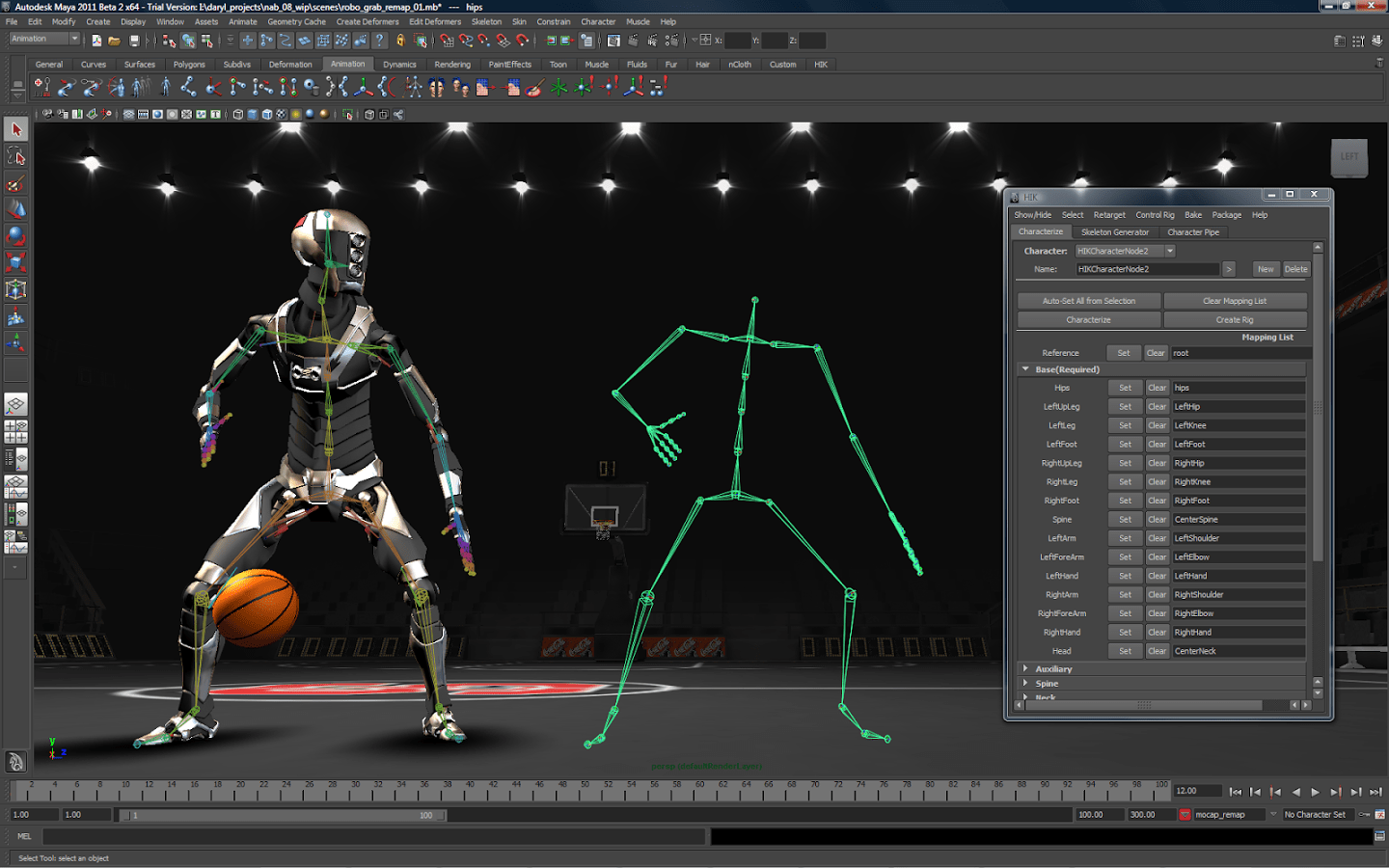
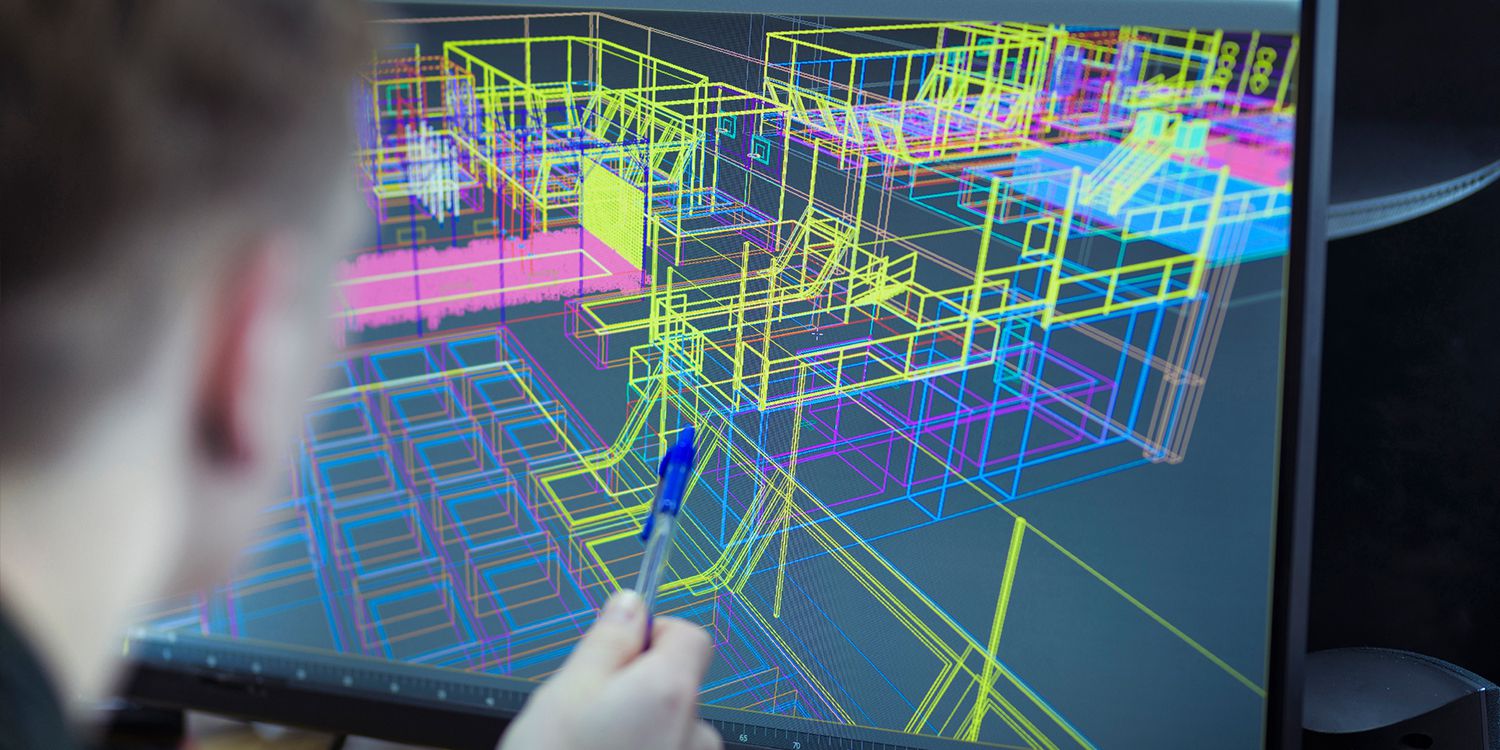
    Animating a Cloud Most Powerful PC for 3DS Max

    As a 3D animator, one of the most popular software tools in the industry is 3DS Max. This software is widely used in the film, game development, and architectural industries. The fact that professionals are using Autodesk 3DS Max heavily means that the software requires the best performance possible from a single workstation.

    What Advantages Does Autodesk 3DS Max Have To Offer?

    Comprehensive Toolset

    3DS Max offers a comprehensive toolset that includes modeling, texturing, animation support, and rendering tools, making it an all-in-one solution for 3D artists.

    Customizability

    3DS Max allows for extensive customization, with its open architecture and flexible scripting language, making it an excellent tool for creating complex animations and workflows.

    Wide Industry Usage

    3DS Max is widely used in the film, game development, and architectural industries, meaning that there is a large community of users who share tips, tutorials, and assets.

    Integration with Other Software

    3DS Max integrates seamlessly with other software tools, including Adobe Photoshop, After Effects, and Autodesk Maya, allowing for a more streamlined workflow.

    What Are The System Requirements for Autodesk 3DS Max?

    1. Operating System: Windows 10 (64-bit) or higher.
    2. Processor: Intel or AMD multi-core processor, 3 GHz or higher.
    3. Memory: 8 GB RAM (16 GB recommended).
    4. Graphics Card: DirectX 11 compatible graphics card (NVIDIA or AMD) with 4 GB VRAM or higher.
    5. Hard Drive: 9 GB free disk space.

    What Goes Into Building The Most Powerful PC for Autodesk 3DS Max?

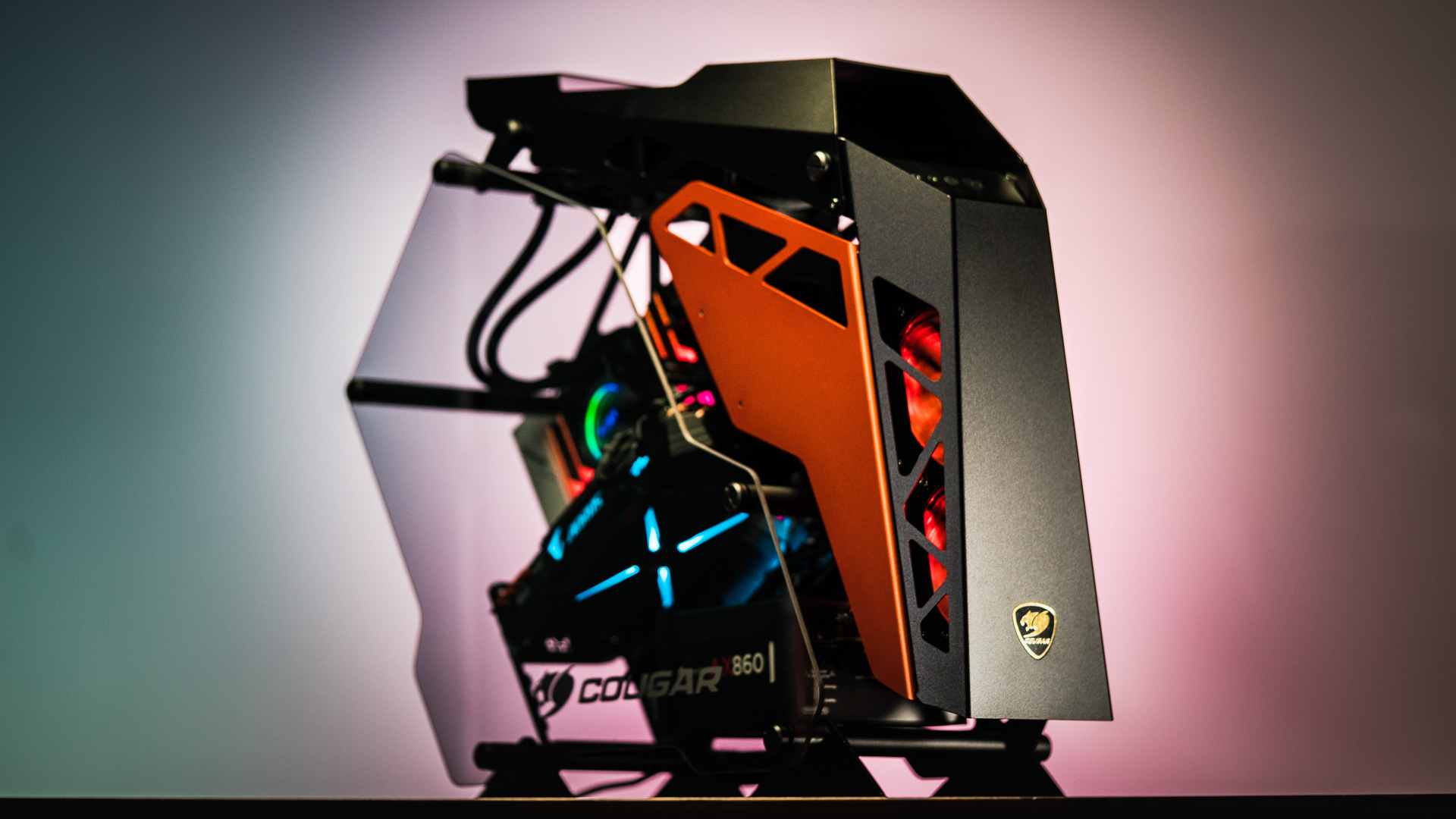
    PC with a Cougar Case Most Powerful PC for 3DS Max

    Building a powerful gaming and 3D animation computer requires a careful balance of hardware components that can handle the intense processing requirements of both tasks. In this blog post, we will discuss the pros and cons of building a powerful gaming and 3D animation computer and the hardware components required to build one.

    Pros of Building a New Workstation

    High Performance

    Building a powerful computer for gaming and 3D animation ensures that you have a high-performance machine that can handle even the most demanding tasks.

    Customization

    Building your computer allows you to choose each component carefully and customize your machine to suit your specific needs.

    Cost-Effective

    Building your computer can be more cost-effective than purchasing a pre-built machine with similar features and specifications.

    Future-Proofing

    Building a powerful computer allows you to future-proof your machine and upgrade components as necessary to keep up with advancing technology.

    Cons of Building a New Workstation

    Technical Knowledge

    Building a powerful computer requires technical knowledge, and mistakes can result in damage to hardware components.

    Time-Consuming

    Building a powerful computer can be time-consuming, as you need to research and select each component carefully. Then there are issues of stock availability as well. most users would probably just

    Compatibility Issues

    Selecting the wrong hardware components can result in compatibility issues that affect the overall performance of your machine.

    Hardware Components Required for a Powerful Gaming and 3D Animation Computer:

    1. CPU: The central processing unit is the brain of your computer and should be a high-performance model from Intel or AMD.
    2. GPU: The graphics processing unit is critical for gaming and 3D animation and should be a dedicated model from NVIDIA or AMD.
    3. RAM: A high amount of RAM is essential for gaming and 3D animation and should be at least 16GB, with 32GB recommended.
    4. Storage: A solid-state drive (SSD) is recommended for fast boot and load times, and a high-capacity hard drive should be included for storage.
    5. Cooling: A high-quality cooling system is necessary to prevent overheating and prolong the life of your hardware components.

    What Does The Most Powerful PC For 3DS Max Look Like?

    Building a powerful PC is an exciting and rewarding process that can provide you with a high-performance machine capable of handling the most demanding tasks. In this blog post, we will discuss the hardware specifications required to build a powerful PC.

    Central Processing Unit (CPU)

    Intel Core i9-11900K Most Powerful PC for 3DS Max

    The CPU is the brain of your computer, and its performance determines how fast your computer can perform tasks. The Intel Core i9-11900K and AMD Ryzen 9 5950X are currently two of the most powerful CPUs on the market. The Intel Core i9-11900K has a base clock speed of 3.5 GHz and can turbo boost up to 5.3 GHz, while the AMD Ryzen 9 5950X has a base clock speed of 3.4 GHz and can turbo boost up to 4.9 GHz. Both CPUs have multiple CPU cores, making them ideal for multi-threaded applications and CPU rendering.

    AMD Ryzen 9 5950X Most Powerful PC for 3DS Max

    Consider the following specifications:

    • A minimum CPU core count of four cores and eight threads for multi-tasking
    • A clock speed of 3.5 GHz or higher for fast processing
    • Intel Core i7 or i9 or AMD Ryzen 7 or 9 for high-performance

    Graphics Processing Unit (GPU)

    MSI Gaming GeForce RTX 3080 Most Powerful PC for 3DS Max

    The GPU is responsible for rendering images and video, and its performance is critical for gaming, video editing, and 3D rendering. NVIDIA GeForce RTX 3080 and AMD’s Radeon RX 6900 XT are two of the most powerful GPUs available. The GeForce RTX 3080 has 8704 CUDA cores and 10 GB of GDDR6X memory, while the Radeon RX 6900 XT has 5120 Stream Processors and 16 GB of GDDR6 memory.

    Consider the following specifications:

    • A dedicated graphics card with at least 4GB of VRAM for gaming and GPU rendering
    • NVIDIA GeForce RTX or AMD Radeon RX are powerful GPU series from Nvidia and AMD respectively. Consider those brands. If you want more power, consider something from the RTX 3000-series or the Radeon 6000-series.
    • A high number of CUDA cores for faster processing
    • Ray tracing and DLSS for improved graphics quality
    • If your motherboard can handle multiple cards, go for the same graphics cards.

    System RAM

    Corsair Vengeance LPX 32GB (2x16GB) Most Powerful PC for 3DS Max

    RAM is responsible for temporarily storing data and instructions that your computer needs to access quickly. A minimum of 16 GB of RAM is recommended for a powerful PC, with 32 GB or more recommended for demanding tasks like video editing and 3D rendering. Corsair Vengeance LPX and G.SKILL Ripjaws V are popular choices for high-performance RAM.

    Consider the following specifications:

    • A minimum of 16GB of RAM for gaming and video editing
    • 32GB or more for 3D rendering and other memory-intensive tasks
    • DDR4 with a clock speed of 3200 MHz or higher for fast processing

    Storage

    Samsung 970 EVO Plus Most Powerful PC for 3DS Max

    There are two types of storage devices to consider when building a powerful PC: solid-state drives (SSD) and hard disk drives (HDD). SSDs are faster and more expensive, while HDDs are slower and more affordable. A combination of both is recommended for a powerful PC, with an SSD for the operating system and frequently used applications, and an HDD for data storage. The Samsung 970 EVO Plus and Western Digital Black are popular choices for high-performance SSDs, while the Seagate Barracuda and Western Digital Red are popular choices for high-capacity HDDs.

    Consider the following specifications:

    • An SSD with at least 512GB of storage for fast boot and load times
    • An HDD with a high capacity, such as 2TB or more, for storing large files
    • Consider using NVMe SSDs for even faster performance

    Power Supply Unit (PSU)

    Corsair RM750x Most Powerful PC for 3DS Max

    The PSU is responsible for delivering power to all the components in your PC, and its capacity should be chosen based on the power requirements of your components. A 750-watt power supply is recommended for a powerful PC with high-end components. The Corsair RM750x and EVGA SuperNOVA 750 G3 are popular choices for high-performance PSUs.

    Consider the following specifications:

    • A minimum of 600W or higher for high-performance systems
    • 80 Plus Gold or Platinum for energy efficiency
    • Modular cables for better cable management

    Cooling

    Corsair H100i Elite Capellix Most Powerful PC for 3DS Max

    Cooling is essential to prevent overheating and prolong the life of your hardware system memory and components. A combination of air and liquid cooling is recommended for a powerful PC, with a high-quality CPU cooler like the Noctua NH-D15 or Corsair H100i Elite Capellix and multiple case fans like the Noctua NF-A14 or Corsair ML140 PRO RGB.

    Consider the following cooling options:

    • Liquid cooling for high-performance CPUs and GPUs
    • Air cooling with high-performance fans for entry-level and mid-range systems

    The Wrap Up

    In conclusion, building a powerful PC requires careful selection of hardware components. For a high-performance machine, consider a CPU with a minimum of four cores and eight threads, a dedicated GPU with at least 4GB of VRAM, a minimum of 16GB of RAM, an SSD with at least 512GB of storage, liquid cooling for high-performance CPUs and GPUs, and a PSU with a minimum of 600W or higher. By carefully selecting hardware components, you can build a powerful PC that can handle even the most demanding tasks.

  • How Do You Build A Desktop For Animation?

    How Do You Build A Desktop For Animation?

    As a graphics designer, animator, architect, or 3D artist, you need a powerful computer to carry out certain tasks. But how powerful your PC needs to be depends on the kind of workload you’re carrying out. For 3D animation or 2D animation, you need something beefier. And animation computers are usually not cheap.

    If we want to build a desktop for animation, we’d need something potent, powerful, and within the price range that we want. But can we really meet all those criteria?

    We’ll find out in this article as we show you how to build a desktop computer meant for 3D animation and modeling.

    Starting from Scratch: Building a Computer for Animation

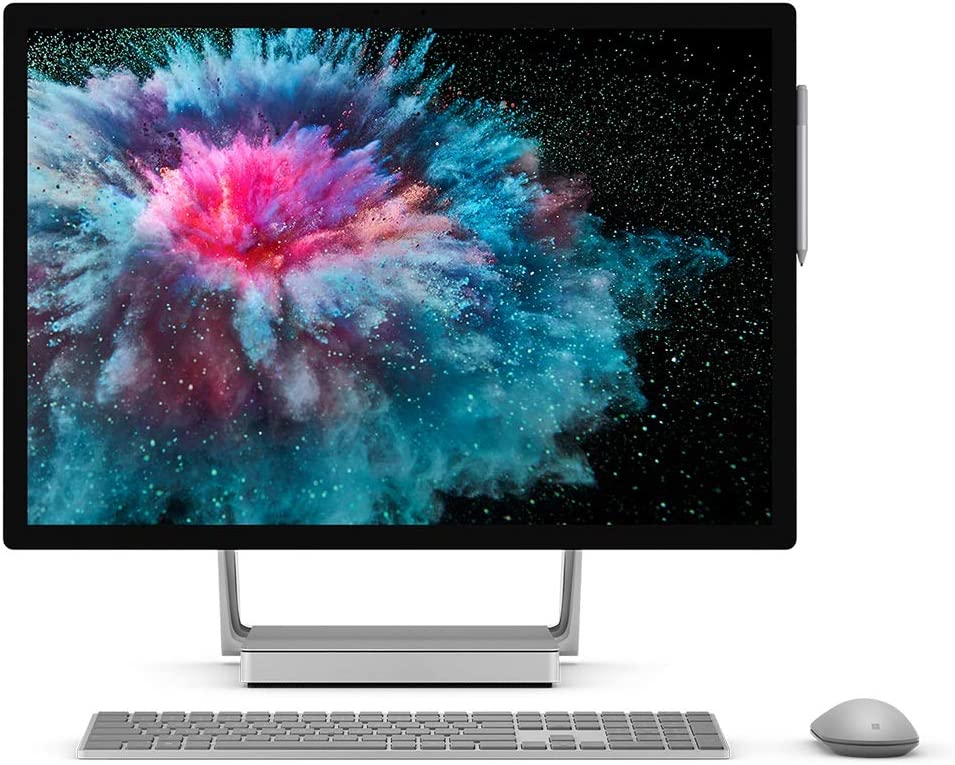
    Sample 3D Animation Desktop for Animation

    Believe it or not, it’s possible to build a desktop for animation that’s affordable but powerful at the same time. When we say powerful, we are referring to a PC that can carry out animation tasks without difficulty.

    Here’s a short cheat sheet of the kind of hardware components you need for building a decent desktop for animation. This also applies to window shopping for a laptop for animation too.

    CPU and RAM Combination

    CPU and RAM need to be fast enough to power through all the animation software, 3D modeling software, and other software support for animation projects.

    You’ll need at least 32GB DDR4 RAM sticks with a frequency of 3600MHz up to 4000MHz. For processors, you’ll need at least an Intel Core i7 9th generation or 10th generation, or an AMD Ryzen processor equivalent to the Intel Core i7,

    GPU or Graphics Card

    Building a computer for animation requires a dedicated graphics card. While you could power through 3D animation projects with an integrated graphics card, it will be relatively slower than having a dedicated graphics card.

    Popular software such as Adobe After Effects have yet to fully take advantage of GPU rendering, but it doesn’t mean you should be ignoring your GPU. Nvidia graphics cards have better Adobe After Effects support than AMD graphics card, so we recommend getting an Nvidia Geforce RTX 3060 at the very least.

    Storage Space

    Animators, modelers, and graphic designers need a lot of storage space. Period.

    Not only are you dealing with renders, but you also have to store project files, assets, and other resources. These take up a sizeable amount of your hard drive, especially when you’re doing major projects.

    You’ll need at least two storage drives. One of them should be an SSD or solid state drive to host your software and operating system, and the other should be a traditional HDD to house all the files and renders.

    Your combination would probably be at 1TB NVMe SSD and 2TB/4TB HDD. Of course, if you can afford more capacity for SSD, then go for more.

    Motherboard

    While the motherboard doesn’t really affect the overall build, you’re here to consider how the motherboard supports all the other hardware components listed above.

    An Intense Debate: Mac or PC?

    Mac vs PC Desktop for Animation

    Between getting a desktop computer for animation and a Macbook, which one’s actually better for 3D animation, modeling, and graphics design?

    The practical answer here is this: it depends.

    It depends on:

    How big is your budget?

    Apple products are always going to be expensive but you’re getting premium pieces of hardware. The specs of the current generation Macbook Air and Macbook Pro can easily compete against gaming PCs that run old graphics cards or CPUs.

    Gaming laptops are similarly priced as Macbooks, depending on their GPU and CPU. Laptops running RTX 3000-series or their AMD equivalent combined with an Intel Core i7 or i9 processor or their AMD equivalent will cost the same, if not more, as a Macbook.

    A gaming PC will slightly be more affordable than the two, but you don’t really have mobility. Unless you plan on working when you’re traveling, then your best option is to get a desktop PC for 3D animation and more.

    How big are your projects?

    The best computer that you need for animation and modeling depends on how big your projects are. Even if you’re just starting out, you should be future-proofing your build by thinking about the size of your animation work.

    Your own computer should be prepared to handle the biggest animation workloads possible even if you’re just not there yet.

    How mobile do you have to be?

    Mobility is something to consider when you’re doing animation work outside of your home. A portable laptop is the answer for mobility issues, or an Apple Macbook. You’ll need a laptop with dedicated GPU, a decent battery life, and a processor capable of CPU rendering.

    You will never get the right answer from places like Reddit because you’ll only hear biased inputs from their proponents.

    Fact of the matter is, a desktop computer will always be more powerful than a Macbook. There’s just no denying that. Apple may be proud of their CPUs and iGPUs, and they’re just as capable of running the heaviest animation software possible, but the power is just limited.

    Think of it this way. It’s like arguing who defeats who: Batman or Superman?

    Superman Batman GIF Desktop for Animation

    However, if your desktop computer for animation has lower specs than a Macbook, then the latter is going to be better.

    Most people would often go for a gaming PC or a laptop as their go-to system for their animation workstation computer. But a gaming PC just offers the most flexibility and versatility. An animation PC can be built and upgraded on a whim without difficulty. Laptops can’t be upgraded, save for their RAMs and storage but even then it’s not that much.

    Sample Builds From The Internet

    The following builds were curated from the Internet and come in various price ranges. This is how you’d probably assemble your desktop computer for 3D animation and more.

    These builds are more than capable of doing other tasks such as video editing, graphics design, and other animation tasks.

    Having said that, let’s go over what makes a decent computer for animation and how much you’re more likely to spend with each build.

    Uncapped Budget a.k.a Money Is Not An Issue

    Estimated cost: About $4,500 to $5,000

    Ideal for: Established professionals in the industry who need a powerful animation workstation computer at home

    All righty, first up we have this insanely powerful computer if budget is not an issue. We’re talking about having enough disposable income that you have no second thoughts when buying any of the hardware components above.

    You’re getting an AMD Ryzen 9 7950X with 16-cores and 32-threads. Unlike the other CPUs down the line, the AMD Ryzen 9 7950X runs at full speed and on max power. You’re also getting the beastly RTX 4090 and 64GB of RAM.

    1TB SSD and up to 20TB of HDD storage to house all the files for your animation projects. The CPU and GPU cost more than half of the entire rig. Of course, every other component can still be tweaked, like the casing, cooling system, and power supply. But even then,

    Cost-Effective Build

    Estimated cost: $700+ at the very least

    Ideal for: animators who’re just starting or those who just want a decent computer for animation without breaking the bank

    Above, we have an all-out computer build if you’re not concerned about the budget. This next build is for people on the other side of the coin. The budget starts off at the $700 mark, so there’s enough room for a couple of upgrades down the line.

    The build that we have takes advantage of the AMD processors, a steady amount of RAM, and a mid-tier graphics card, and a decent storage capacity. This is already a powerful gaming PC as it stands, and it’s more than capable of running most animation software and video editing software.

    A Balanced Mid-Range Build

    Estimated cost: $1,200+

    Ideal for: People who want the best computer with competitive hardware components without the risk of overspending.

    Right here is what we’d consider the Goldilocks build. Not too expensive but not too cheap, but just right.

    We have a decent combination of AMD CPU, a high-end GPU, and enough storage capacity for bigger animation projects. The SSD can be upgraded to 1TB when you have more budget, and you can expand the HDD storage.

    This desktop PC will roughly cost you about $1,200 at least, making it a solid animation PC and gaming PC at the same time.

    How to Choose the Best Laptop for Animation

    Choosing the best laptop as an alternative for animation PC or animation desktop PC is ideal if you’re constantly traveling or if your office doesn’t have a spare computer for animation.

    Majority of the gaming laptops you see in the market are more than capable of running any animation software, but they’ll probably be more expensive than building a gaming PC.

    Your only point of concern here would be battery life. Now it’s not recommended to render animation projects when you’re running on battery life since the laptop switches to the integrated GPU for rendering. You’ll blow through the entire battery in 30 minutes or less, and it’s not ideal.

    The best laptops for gaming and doing animation work are those with at least an Intel Core i7 processor and at least an Nvidia GeForce RTX 3060 to carry out complex animations. You could also go down in budget if you go for the RTX 2000-series laptops.

  • What’s The Best Computer for Blender? (Jul 2026)

    What’s The Best Computer for Blender? (Jul 2026)

    3D animation, modeling, and rendering are daunting in their own right. A PC, workstation, or even a laptop needs to have enough processing power to carry out 3D-related workloads.

    But that’s easier said than done since your machine needs to run powerful components. We’re talking about mid range processors, graphics cards, RAM, and even storage devices. Let’s not forget about the peripherals too.

    If you want a laptop for Blender or for any 3D software, then you’ll need something that’s just as powerful.

    In this article, we’ll be talking about the best computer for Blender, or laptop for that matter. We’re also going to give you a small cheat sheet at the final section of the article if you want to build your own computer.

    [affiliatable id=’179545′]

    What is Blender?

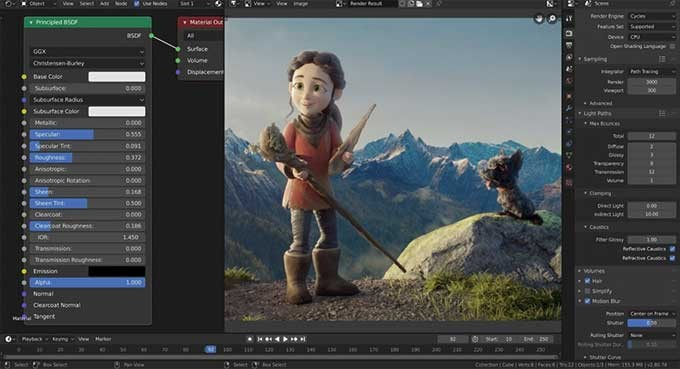
    Blender Screenshot Best Computer for Blender

    Blender is a free and open-source 3D Creation Suite, as defined by their company. The software is capable of running the entire 3D pipeline, from modeling to rigging to motion tracking to game creation and so on.

    Blender is one of the best 3D software suite for creative professionals and studios, so you can imagine just how powerful this engine is. But Blender users will need a high end machine to run this software smoothly.

    What’s The Best PC or Laptop For Blender?

    The list is not arranged in any particular order and is a curation of different recommendations from users and studios.

    HP Omen Obelisk

    A Premium Prebuilt Gaming PC for the Serious Blender User

    OMEN HP Obelisk Gaming Desktop Best Computer for Blender

    Specs

    • Intel Core i7-9700K
    • NVIDIA(R) GeForce(R) RTX 2070 SUPER(TM)
    • 16 GB
    • 1 TB
    • Windows 10 Pro

    Now if you want to go down the expensive route, you might want to consider the HP Omen Obelisk, a beast of a gaming PC that could last you for a good five or ten years without upgrading a single thing.

    Don’t get us wrong. You’re paying close to $2,000 for this machine, but you’re getting the best of the best. For starters, you have a 9th generation Intel Core i7 processor combined with the Nvidia GeForce RTX 2070 Super. Complimenting this build is 16GB of RAM and 1TB of SSD storage space, with room for upgrade. Their gaming laptops under the same name also have the same specs.

    You can use this PC for gaming, video editing, and yes, for Blender or any other 3D software. Unfortunately, there are no other configurations but you can upgrade individual computer hardware like the CPU, GPU, and RAM if you want more power.

    Acer Nitro 50 N50-600

    Compact and Powerful Blender PC

    Acer Nitro 50 N50-600 Best Computer for Blender

    Specs

    • Intel Core i7-9700 Processor
    • NVIDIA GeForce RTX 2060
    • ‎16 GB DDR4
    • ‎1 TB Mechanical Hard Drive
    • ‎Windows 10 Home

    Much like HP Omen, Acer Nitro is another recognizable brand when it comes to gaming PCs and laptops. The Acer Nitro 50 N50-600 is on this list for a couple of reasons.

    First, we have the processor and graphics card combo. The Acer Nitro 50 N50-600 packs an Intel Core i7 9th generation processor and an Nvidia GeForce RTX 2060 graphics card. Both extremely powerful then, and still as powerful as the latest generations now.

    Second, you’re getting computer hardware to complement the CPU/GPU tandem. You’re getting 16GB of RAM, 512GB SSD, and 1TB Mechanical Hard Drive (HDD).

    And lastly, these are all upgradeable. Mind you, the CPU and GPU won’t need any replacement for the foreseeable future. You can upgrade to more storage space and more RAM.

    For the price you’re paying, this PC does it all.

    SkyTech Blaze

    A Perfect Option for Creatives On A Budget

    SkyTech Blaze Best Computer for Blender

    Specs

    • Ryzen 5 1600 6-Core 3.2 GHz (3.6 GHz Turbo)
    • NVIDIA GeForce GTX 1050 Ti 4GB GDDR5
    • 8GB DDR4 2400 Gaming Memory
    • 500 GB- 1TB 7200 RPM HDD
    • Windows 10 Home

    GPU rendering is a major point of consideration when it comes to choosing PCs or laptops with the right computer hardware. But some of the major Nvidia GPUs are quite expensive, so what choice do you have?

    Well, the Skytech Blaze is first on the list and is perfectly capable of running simple tasks on Blender. There are several upgraded configurations to choose from, but the basic configuration should be a good start.

    And for less than $1,000, you already got yourself a good CPU and one of the midrange Nvidia graphics cards that enable GPU rendering. With the Ryzen 5 1600 processor, you can easily run Blender.

    Acer Predator Orion 3000

    Acer Predator Orion 3000 Best Computer for Blender

    Specs

    • 11th Generation Intel Core i7-11700F
    • NVIDIA GeForce RTX 3070
    • 16 GB DDR4 RAM
    • 512GB SSD + 1TB HDD
    • Windows 10 Home

    If you want something powerful that looks the part, then the Acer Predator Orion is a no-brainer of a choice.

    The Acer Predator Orion comes with 5 different configurations. The basic config runs an 11th-generation Intel Core i7 processor and RTX 2060 graphics card and will cost you about $1,700. The ultimate configuration runs an 12th-generation Intel Core i7 and an Nvidia GeForce RTX 3080, one of the most powerful Nvidia GPUs in the market right now. The RTX 3080 configuration will cost you about $2,500.

    This PC is one of the best for running Blender and the more intensive 3D software apps. If you’re running more resource intensive tasks, then upgrading the RAM should be a priority. Or you could always go for the Intel Core i9 if you’re underwhelmed by the i7.

    iBUYPOWER Pro Gaming PC Trace 4

    A Budget Friendly Alternative to the SkyTech Blaze

    iBUYPOWER Pro Gaming PC Best Computer for Blender

    Specs

    • AMD Ryzen 5 3600 3.6GHz (4.2GHz Max Turbo)
    • NVIDIA GT 730 2GB
    • 8 GB DDR4 RAM
    • 240GB SSD
    • Windows 10 Home

    Another budget-friendly alternative is the iBUYPOWER Pro Gaming PC Trace 4, hovering just a smidge below the $1,000 price point. And just like the SkyTech Blaze 4, you’re getting what you pay for.

    The iBUYPOWER Pro Gaming PC Trace 4 is nothing to scoff at. You get an AMD Ryzen 5 3600 processor, an Nvidia GT 730 2GB graphics card, and about 8GB of DDR4 RAM. Now, all of these parts are upgradeable but it would beat having to choose a budget option.

    As it stands, the graphics card might struggle to run complex tasks in Blender or any other 3D software. The RAM is also less than what we’d like it to be. How much RAM you need for 3D rendering and modeling is definitely a huge factor, and 8GB is not enough.

    The graphics processing unit isn’t impressive either with 2GB, but if you just want to get a prebuilt PC and upgrade slowly by slowly, this might be a decent pick. But you’re probably just better off with the SkyTech Blaze while you’re at it. But before you do decide to buy this prebuilt PC, be sure to check out our other options.

    What Are The Best Parts For Building Your Own PC For Blender?

    If you don’t like the prebuilt PCs listed above, you can always go for a custom build. And in this section, we’ll go over what you need for that perfect PC build.

    CPU Recommendations

    The CPU or central processing unit is one of the two biggest focal points for you when it comes to building your PC. The bulk, if not half, of the rendering time, is dictated by just how powerful the CPU is.

    You don’t need the most advanced processor there is, but you will need adequate processing power. A 10th-generation Intel Core i5 is sufficient, but we recommend getting the Intel Core i7 of the same generation. If you’re an AMD fanboy, you can go for the Ryzen 5 at the bare minimum.

    If you want to spend more money, get the best one there is right now, which is the Intel Core i9 processor or righteously known as the Golden Waffle. The AMD Ryzen 9 5900X is the counterpart.

    GPU Recommendations

    To guarantee the best performance possible for a Blender PC, you’ll need a graphics card that’s just as powerful as the CPU.

    Unlike CPUs, there are several options to choose from, and each one of them as good as the next one. But the biggest factor that will determine what kind of graphics card you’ll be using relies on your budget.

    Nvidia GPUs and AMD GPUs have returned to normal pricing and availability after a tumultuous two years. If you’re thinking about going for a professional-grade graphics card, you’ll want to go for the Nvidia GeForce RTX 3000-series or the 4000-series if available.

    You’ll want a good GPU such as an Nvidia RTX 3060 if you want to enable GPU acceleration on your system. Having this GPU and combined with the Intel Core i9 will give you a futureproof and powerful PC.

    RAM Recommendations

    We’re not going to be particular about the brands here, but more focused on the memory capacity. At the bare minimum, you want at least 16GB DDR4 RAM for your workstation. 32GB is ideal, but 64GB might be overkill.

    If you do want recommendations for brands, you’ll want to go for something made by Corsair or Kingston.

    The Wrap Up

    If you’re thinking about getting a good laptop for Blender, you’ll need something just as powerful as the rest of the gaming desktops on here. Larger laptops are also going to be your main target, mostly because you’ll want bigger batteries, strong CPU, a powerful GPU, and at least a 15-inch or 17-inch HD display. Budget gaming PCs are possible options so as long as they meet minimum requirements for Blender.

  • What’s The Best Revit Computer?

    What’s The Best Revit Computer?

    Revit is a powerful BIM or building information modeling software used by architects, engineers, and contractors to help them design buildings in 3D, access building information, and design building components in 2D and 3D models.

    Simply put, it allows certain professionals to help them design things for houses, buildings, and more. This is why you need a powerful Revit computer or laptop to help you run this software.

    Why do you need a powerful workstation or laptop?

    Well, you’re doing a lot of 3D modeling, simulation, and designs. This kind of workload will require a hefty amount of processing power. Having said that, you’ll need to build Revit workstations or get a laptop that’s capable of handling Revit smoothly.

    1. What Are The Minimum Requirements?
    2. Operating System: Windows 10 64-bit or Windows 11. macOS 10.13 (“High Sierra”) or higher for Apple
    3. CPU: Single-Core or Multi-Core Intel, Xeon, i-Series processor or any AMD equivalent with SSE2 technology.
    4. Memory: 8GB
    5. GPU: DirectX 11 capable GPU with Shader Model 5 and 4GB VRAM.
    6. Storage: 30GB Disk Space
    7. Display: 1280×1024 with true color, or Ultra High 4K monitor

    As you can see, a workstation or laptop that ensures the best Revit performance is no joke. If building a Revit computer is too much for you, we can make it easy by recommending the best performance laptops in the industry right now capable of running Revit and more.

    What Are The Best Revit Laptops?

    Razer Blade 15

    Best Overall Laptop for Revit Software, Gaming, and More

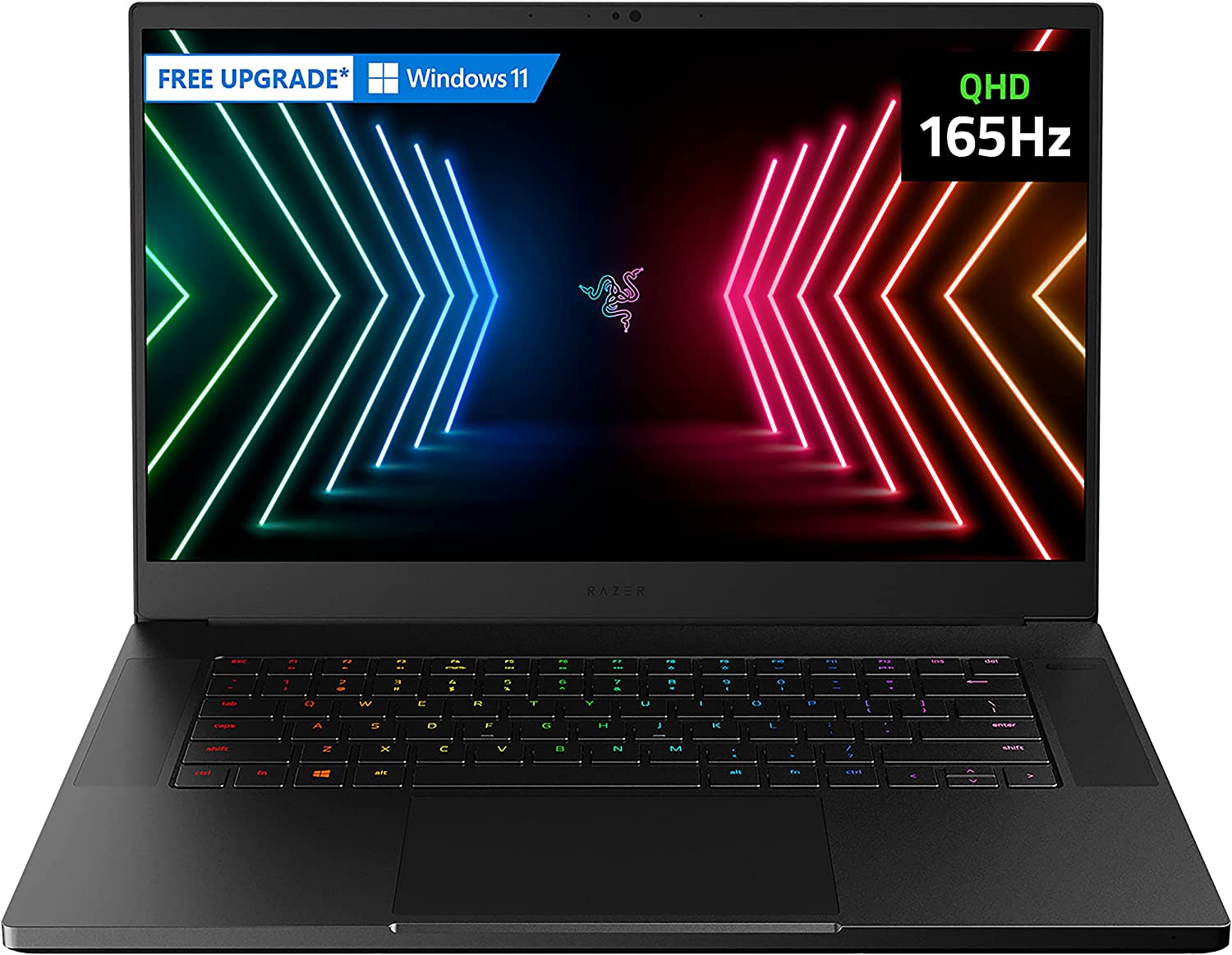
    Razer Blade 15 Revit Computer

    Specs:

    • 12th Generation Intel Core i7
    • Nvidia Geforce RTX 3070
    • 16GB DDR4 RAM
    • 1TB SSD

    First on the list we have the Razer Blade 15, packed with a 12th generation Intel Core i7 CPU, Nvidia GeForce RTX 3070 graphics card, and a beautiful high resolution Full HD IPS monitor. If you’re looking for the best PC for Revit, consider the Razer Blade 15.

    With the 12th generation Intel Core i7 CPU, you’re getting multiple cores and faster clock speeds than most of the CPUs on here. For me, the keyboard size on the Razer Blade 15 is relatively small, so it will be difficult to manipulate it comfortably.

    With 1TB SSD for storage and 16GB of RAM (with option to add more, I should say), Revit users should also be able to do some gaming on the side with the Razer Blade 15.

    Apple MacBook Pro 2021

    Best Apple Product For Revit Workstation

    Apple 2021 MacBook Pro Revit Computer

    Specs:

    • Apple M1 CPU
    • M1 Pro Graphics Processor
    • 16GB RAM
    • 512GB SSD

    Designers left and right love using Apple products, and the Apple MacBook Pro 2021 is no exception. You’re getting a boosted workstation for Revit software and other programs, perfect for your industry-hardened structural engineers to your ever creative graphics designers.

    The M1 Chip system is more than capable of handling rendering workloads, even with an integrated graphics card.

    It’s also smaller compared to its other competitors on here, which might be a deal breaker for a lot of people. As it stands, it only has a screen size of 14.2 inches.

    ASUS ZenBook 15 Ultra-Slim Laptop

    Very Portable Revit Workstation

    ASUS ZenBook 15 Ultra-Slim Laptop Revit Computer

    Specs:

    In terms of portability and power, we’d have to place the Asus ZenBook 15 Ultra-Slim right beside the Razer Blade 15 above.

    But it’s not only the power of the Asus ZenBook 15 Ultra-Slim that we’re drawn to. We’re also drawn to its amazing and versatile touchpad. The operation area of the touchpad is about 5.65 inches, which is a lot bigger than the other models.

    The touchpad also operates as a second mini-monitor that provides you with better desktop control. No need to attach the Asus ZenBook 15 Ultra-Slim to an external monitor unless you really need to.

    The specs of the Asus ZenBook 15 Ultra-Slim is as impressive as the touchpad itself. You’re getting enough power to run Revit and other programs without a hitch, but still be able to pack it easily in a messenger bag.

    MECH 15 G3R 2022

    Works Well Under Pressure

    Eluktronics MECH 15 G3R Revit Computer

    Specs:

    • Intel Core i7-12700H processor
    • choice of either 16GB or 32GB RAM
    • Nvidia GeForce RTX 3060
    • 1TB SSD
    • 15.6 QHD screen

    You’ve probably never heard of this brand of laptop, but it’s on this list for a good reason.

    The Eluktronics MECH 15 G3R is a powerful laptop with high-end CPU and GPU, choice of 16GB or 32GB of RAM, and 1TB SSD. Everything you need to install Revit and more are found in the Eluktronics MECH 15 G3R.

    But you’re probably thinking: with all that horsepower, how’s it deal with high temperatures?

    The Eluktronics MECH 15 G3R is equipped with high-performance fans and adequate heatsink holes that allows it to cool down efficiently even when working under heavy loads.

    If the fans are not enough, it can be connected to the external water cooler (as seen in the image). The external liquid cooling device can be purchased separately for about $199.

    But the Eluktronics MECH 15 G3R isn’t as portable as the rest of the Revit workstations on here. It’s bulky and heavy, but you get what you pay for.

    ASUS ROG Scar 15

    High-Performance Autodesk Revit Workstation

    ASUS ROG Strix Scar 15 Revit Computer

    Specs:

    • Intel Core i9 12900H
    • NVIDIA GeForce RTX 3070 Ti
    • 15.6” 300Hz IPS FHD Display
    • 16GB DDR5
    • 1TB SSD

    You don’t need external devices when you’ve got the ASUS ROG Scar 15, an impressive gaming and all-around laptop packed with a Core i9 processor and RTX 3070Ti GPU but still as light as it can be.

    The monitor is a beautiful 300Hz IPS FHD display. Anything displayed on it looks really good. whether it’s for graphic design or running Revit files.

    16GB of RAM and 1TB SSD storage make the ASUS ROG Scar 15 capable of running even the most complex models built on Revit without difficulty.

    With the best CPU and a powerful GPU installed in the laptop, it’s no surprise why this laptop comes with a hefty price tag.

    Alienware R4 RTX

    Powerful Laptop with Multiple Connectivity Options

    Alienware m15 R4 Revit Computer

    Specs:

    • Intel Core i7-10870H
    • 16GB DDR4 RAM
    • NVIDIA GeForce RTX 3070 8GB GDDR6
    • 1TB SSD

    Alienware is a brand that needs no introduction. It was one of the first brand names ever to be associated with gaming laptops. Now, they’ve moved on to developing high-powered gaming desktops.

    On this list, we have the Alienware R4, equipped with a powerful GPU/CPU tandem and a longer battery life than any of the other laptops on here. And much like the Eluktronics laptop above, the Dell Alienware R4 is bulky and heavy. It’s also just as expensive as the

    Acer Nitro 5 AN517

    Large and In Charge!

    Acer Nitro 5 AN517-54-79L1 Revit Computer

    Specs:

    • Intel Core i7-11800H
    • NVIDIA GeForce RTX 3050Ti GPU
    • 17.3″ FHD 144Hz IPS Display
    • 16GB DDR4
    • 1TB NVMe SSD

    The Autodesk Revit software doesn’t require multiple processors or a hefty count of CPU cores, but it does need you to work with a large-sized screen if you want to see the finer details of some Revit designs.

    And what better way to see all the details than with the Acer Nitro 5 AN517, a bulky and sizey laptop with a whopping 17-inch 144Hz IPS display? Majority of the laptops on this list have 15-inches at most, but the Acer Nitro 5 AN517 beats them out by a couple more.

    You’re already getting 144Hz FHD display with enough power to run Revit and a lot of the modern games. Cooling won’t be an issue, thanks to the Acer CoolBoost technology that improves the cooling fan’s performance by up to 10%.

    Buying Guide For Building a Revit Workstation

    We’ve showcased some of the best laptops in the market, but what if you want to build a PC for Revit?

    Skytech Prebuilt PC Revit Computer

    From the list, you’ll need a powerful PC capable of handling Revit or any other 3D modeling software. That means your shopping list is going to look like this:

    • Intel Core i7 or its AMD Ryzen counterparts
    • 16GB DDR4 RAM for system memory
    • 1TB Solid State Drive and additional 2TB/4TB HDD for storing files
    • Nvidia GeForce RTX 20-series or 30-series GPU or its AMD counterparts
    • 23-inch FHD Monitor with least 120Hz refresh rate

    We’re going for an Intel Core i7 at the very least because you need more CPU cores when it comes to rendering, modeling, gaming, and animation. AMD Ryzen 5 or 7 is a solid choice if the Intel Core i7 is too expensive for you.

    For the graphic cards, we’re going to go with the Nvidia RTX 20-series at the very least. They’re probably the best value GPU for building a PC for Revit. Most users would probably go for the 20-series or its AMD counterparts, but the Nvidia RTX 30-series are slowly becoming more affordable.

    You’re also going to want 16GB of RAM at the very least and at least 1TB SSD, so save times are going to be faster. You can upgrade to more RAM and SSD when you need to down the line.

    Now the bigger question: can you build a PC on a budget?

    You could, but you won’t get the speed or performance to carry out the heavy Revit design tasks. We’re not saying the PC will not run, but it will definitely struggle.

  • What Is The Best Laptop or Computer for Animation?

    Animation tasks can be daunting, from the process itself to generating the final output. This is why you need a high-end desktop PC or one of those well-built gaming laptops.

    The biggest consideration you’ll ever make is whether or not your computer is capable of running majority, if not all, of the available animation software in the industry. We’re talking about software that covers 2D and 3D animation tasks, on top of other software for video editing, graphics design, and even some video games.

    At its core, the setup that you want for your future computer for animation is close to what you’re getting for a gaming PC or gaming laptop.

    With that being said, we’ll take a look at some of the best computers and laptops for animation tasks and more. We’ll feature both high-end systems as well as a budget option for your consideration.

    What Is The Best Laptop or Computer for Animation?

    HP OMEN 30L

    Best Prebuilt Computer For Animation

    HP OMEN 30L Computer for Animation

    Specifications at a Glance

    • Operating System: Windows 10 Home
    • Processor: Intel Core i9-10900K (Up to 5.30GHz)
    • RAM: Up to 64GB Memory
    • GPU: Nvidia GeForce RTX 3080
    • Storage: 1 TB PCIe NVMe M.2 SSD and 2 TB 7200RPM SATA HDD

    What’s Good?

    • A powerful and robust workstation for animation and other tasks

    What’s Bad?

    • Prebuilt PC, so less room for customization and/or upgrades

    All right, this is one of the best prebuilt gaming PCs you’ll ever lay your hands on. Though we mentioned you barely have enough room for upgrades, you don’t really need to.

    You’re getting an Nvidia GeForce RTX 3080 for your graphics card, which is one of the best graphics cards in the market right now (outside of the RTX 4000 series), an Intel Core i9-10900K processor, choice of up to 64GB RAM, and a 1TB SSD combined with 2TB HDD for storage. Is it powerful enough to compete against 120Hz gaming laptops? You get.

    This is probably the only desktop computer you’ll ever see on this list, mostly because you can always build one yourself following the same specifications as the HP OMEN 30L, or better.

    Just from the CPU and GPU itself, you’re getting two of the best models in the market right now. You won’t be getting bottlenecked as both the CPU and GPU are capable of powering through anything you throw at it.

    You’re probably spending a few more dollars on here to upgrade the RAM up to 64GB, which is more than enough for any animation software. Storage-wise, you’re getting 1TB of SSD so you can preload all your games and software into this beast without worrying about running out of space.

    Apple MacBook Pro

    A Solid Pick From Apple

    Apple 2021 MacBook Pro Computer for Animation

    Specifications at a Glance

    • Processor: Apple M1 Pro or M1 Max (Up to 10-core CPU)
    • RAM: Up to 64GB Memory
    • Integrated GPU: Up to 32-core GPU
    • Storage: Up to 8TB SSD

    What’s Good?

    • Up to 21 hours of battery life, depending on usage
    • Powerful and compact

    What’s Bad?

    • Expensive but worth it

    Apple fans should rejoice as the 2021 MacBook Pro is on this list, and for good reason. Unlike the MacBook Air, the 2021 MacBook Pro does not hold out on power. You’re getting enough processing power for even the most demanding animation software. And yes, the display itself is a thing of beauty. There’s no surprise here as to why animators are huge fans of the 2021 MacBook Pro.

    The Apple M1 Pro competes with the likes of Intel Core i7 and AMD Ryzen 7 processors without difficulty. Its also got a 32-core integrated GPU supported by 64GB of RAM and up to 8TB SSD.

    ASUS ProArt StudioBook Pro X

    A Workstation That’s Disguised As a Laptop

    ASUS ProArt StudioBook Pro Computer for Animation

    Specifications at a Glance

    • Processor: Intel Core i7-9750H (Up to 4.5 GHz) to i9-9980HK (Up to 5.0 GHz)
    • RAM: 16GB to 64GB DDR4 Memory
    • GPU: Nvidia Quadro RTX 3000 to Quadro RTX 6000
    • Storage: 1TB+1TB to 2TB+2TB PCIe NVMe SSD with RAID 0 with Physical TPM chips

    What’s Good?

    • This thing is packed and powerful

    What’s Bad?

    • Probably the most expensive computer on this list.

    Where do we even begin with the ASUS ProArt StudioBook Pro X? This has everything you need to run video editing software, graphics design apps, and yes, even the most demanding 3D animation software.

    If we were to give you just the specs alone, you’d probably assume that this was a prebuilt gaming PC or a powerful workstation. The fact that the ASUS ProArt StudioBook Pro X is a laptop makes it even more impressive.

    You’re getting either a 9th generation Intel Core i7 or 9th generation Intel Core i9 processor, up to 64GB of RAM, and an Nvidia Quatro RTX 3000 to Quadro RTX 6000 series graphics card. Your storage is either choice of 2x 1TB PCIe NVMe SSD or 2x 2TB PCIe NVMe SSD. You’ll have enough power and storage room for a plethora of animation projects.

    At this point, upgrading to the maximum specifications possible won’t put a dent in your wallet. This is already an expensive workstation, so you might as well go all out for this machine.

    To sum it up, if you need a powerful computer that you can bring around, the ASUS ProArt StudioBook Pro X is a solid pick. There’s enough power for tedious CPU rendering processes, a decent enough battery life that allows you to work on the go without plugging it in, and hardware that puts a midrange gaming PC to shame.

    Acer Nitro 5

    A Budget Laptop For The Animator On The Go

    Acer Nitro 5 Gaming Laptop Computer for Animation

    Specifications at a Glance

    • Processor: Intel Core i5-9300H (Up to 4.1 GHz) to i7-11800H (Up to 4.6 GHz)
    • RAM: 8GB to 16GB DDR4 Memory
    • GPU: Nvidia GeForce GTX 1650 to RTX 3050Ti
    • Storage: 256GB to 1TB PCIe NVMe SSD

    What’s Good?

    • Affordable and powerful enough for mid-range animation projects

    What’s Bad?

    • Specs could be better, but you get what you pay for

    Let no one ever tell you that there’s something wrong with going for budget options. Just because it’s cheap doesn’t mean it’s subpar, at least for laptops. For animators on a tight budget, the Acer Nitro 5 is the best pick for you.

    At the very least, you’re probably spending about $800 to $1,300 for this option because of its upgrade options. For a few hundred dollars more, you could set yourself up with a powerful computer.

    Let’s talk about the specs. You’re getting at least an Intel i5 processor and at least 8GB of RAM with an Nvidia GeForce GTX 1650 for the GPU. You get at least a 256GB SSD for storage space. The base setup is probably about $600 to $700. If we’re pushing the limits, you could upgrade the Acer Nitro 5 with an Intel i7 processor, 16GB of RAM, Nvidia GeForce RTX 3060 (or RTX 3050Ti), and up to 1TB SSD for about $1,300.

    The Acer Nitro 5 also boasts of a 15″ HD display with a 144Hz refresh rate, which should give graphic designers and animators enough screen real estate to work with. This portable laptop is light enough to carry around, so you can work on the go.

    And as expected from Acer, we get high quality USB ports and HDMI slots if you want to run dual monitors. For those who want to invest in animation projects, this is a good starting point.

    Acer Predator Helios 300

    Overall Best Value Pick for 3D Animation Work and More

    Acer Predator Helios 300 Gaming Laptop Computer for Animation

    Specifications at a Glance

    • Processor: Intel Core i7-10750H (Up to 5.0 GHz)
    • RAM: 16GB DDR4 Memory
    • GPU: Choice ofNvidia GeForce RTX 2060, RTX 2070 Max-Q, or RTX 3060
    • Storage: 512GB NVMe SSD (2 x M.2 slots; 1 slot open for easy upgrades)
    • Display: 15.6 to 17.3 inches; Full HD

    What’s Good?

    • Solid value in terms of performance and price

    What’s Bad?

    • Mediocre battery life

    The Acer Predator Helios 300 might be one of the best laptops for animation just because of its impressive spec sheet. It’s packing a lot of processing power because of the graphics cards and its incredibly powerful processor.

    The Acer Predator Helios 300 comes with a 10th generation Intel i7 processor, 16GB RAM, choice of GPU between the Nvidia GeForce RTX 2060, RTX 2070 Max-Q, or RTX 3060. There’s room for upgrades if you want to boost your RAM or storage space. To say that the Acer Predator Helios 300 will give you an impressive performance is an understatement.

    For animation projects that need Maya or other advanced software, the Acer Predator Helios 300 has enough RAM for the heaviest animation work. Just don’t run two animation programs side by side. If you want to push it to the limit, you can upgrade to 64GB.

    If we’re running on the battery life for animation tasks, then you’re probably going to be disappointed. It’s estimated you’re getting 6 hours of battery life, which isn’t terrible but it’s not ideal either. Remember, you’re probably running browsers and other programs on top of the animation software. So, realistically speaking, you’re hitting about 3 to 4 hours.

    What’s The Right Computer Hardware?

    We’ve seen great laptops and a premium PC listed in this article. But if you want to build the best desktop PC for 3D animation or want the best laptops for animation, then you want to pay attention to what kind of hardware you’re getting.

    And with 3D animation, video editing, and even graphic design, you need mid-range hardware. You don’t need the most powerful laptop or PC for that matter, but you want to make sure that you’re getting the power and performance that you need.

    Having said that, what are you looking out for?

    Processors

    One of the two components you need to pay attention to is your processor. You want something that has the highest clock speed and max turbo speed possible, and that should fit your budget.

    We’re not saying you should invest in an Intel i9 or AMD Threadripper, but they’ll probably go a long way in terms of helping you edit and render 3D animation work.

    Graphics Cards

    Another non-negotiable component is the graphics card, and we’re sorry to say that your integrated GPU might not be enough. Keyphrase there is “might not be enough”. The CPU you get will dictate how far you can take your integrated GPU, but if you want something reliable, then a dedicated GPU is a must.

    If you want a solid graphics card that could power through any animation work, you’ll need at least an Nvidia GeForce GTX graphics card (probably 1650 or 1660). You can work with the RTX series as well (RTX 3050, 3060, 3070, and 3080).

    If you want something more expensive but with a more impressive performance to price ratio, then you’ll need workstation GPUs. These are more expensive than the usual graphics cards you see in the market, but they are more robust and reliable.

    RAM

    Your PC or laptop’s rendering capabilities are also reliant on your RAM, so the more RAM you have, the better.

    You probably want to settle for at least 16GB, and that should get you enough speed to switch between animation software, web browsers, and other programs. If you want to push it to the extremes, you can probably hit up to 128GB of RAM if the motherboard allows it.

    Storage

    Storage is pretty much an important component for two reasons:

    • You need something fast to store your operating system, applications, and games.
    • You need something robust to store all the raw files and outputs.

    For this setup, you want to go with an SSD storage to house everything, from your operating system to your games to your animation software and so on. SSD is a thousand times faster than traditional HDDs, but they’re a bit on the expensive side if you want a bigger capacity.

    Which is why you want to go for a traditional HDD as your backup storage. You’ll be storing all your files and everything else that doesn’t rely on faster load times.

    We recommend going with a 1TB SSD and up to 2TB HDD. You can scale up higher with a 2TB SSD and 4TB HDD, but prepare to shell out a lot of money for the SSD.

    Display

    Whether you’re on a gaming laptop or on animation CPU, you’ll need to work with a great monitor. But performance-wise, it doesn’t really affect your system as a whole.

    The reason you want a great display, or set of displays, is you want to have the best view possible when working. This means you get just the right brightness and contrast, the right RGB setting, and even the right refresh rate.

    What do you want at the bare minimum?

    • Go for anything that’s at least an 1080p full HD (FHD) screen.
    • For an animation CPU, you want to pair it with at least a 15-inch screen. But bigger will always be better.
    • For laptops, you want at least a 15″ FHD or UHD screen. 13″ screens are too small.

    What’s Our Pick?

    If we’re talking about the best laptop for animation projects and more, we’ll go with the ASUS ProArt StudioBook Pro X. It’s a portable workstation that’s meant for handling even the most challenging task for animating, rendering, and more.

    It’s the best computer for animation you’ll ever lay your hands on, but it’s going to cost you a few thousand dollars. But hey, consider it an investment in the long run.

  • Can You Upgrade a Prebuilt PC?

    Can You Upgrade a Prebuilt PC?

    Avid computer enthusiasts make it a point to build their own PCs. They’ll source their own PC components to build a new rig, or purchase the necessary PC upgrades for their current one. But for some of us, as much as we want to DIY, we don’t have the luxury or possibly the budget.

    This is why some of us resort to buying a pre built PC. But is a prebuilt computer worse than a custom-built computer? Can you upgrade a prebuilt PC even?

    We’ll answer those questions and more in this article…

    What The Heck Is A Prebuilt PC?  

    Alienware Aurora R13 Can You Upgrade a Prebuilt PC

    A prebuilt computer can be defined as is. It’s a plug-and-play PC with all the components installed. Pre built PCs have different specs according to brand, much like a mobile phone. Some pre built PCs are meant for office work so it may not have an upgraded CPU and it may also have outdated RAM generation.

    However, there are also pre built PCs that are meant for gaming. Brands such as Alienware are known for their top-tier prebuilt gaming rigs and already contain all the PC upgrades that you need for gaming.

    Much like laptops, retailers will offer the option to upgrade certain PC hardware like the graphics card, RAM, storage, or CPU even. But it might cost you a few more bucks to do a GPU upgrade.

    Now, there are three categories for prebuilt PCs:

    • Standard Prebuilts are your regular PC and will contain the standard PC parts necessary for a full desktop PC.
    • Factory Prebuilts are manufactured in a factory and will probably contain exclusive versions of certain parts like CPU and GPU unavailable to the public.
    • Boutique Prebuilts are the most expensive amongst the three as they’ll have all the high-end computer parts and are shipped from the manufacturer to the customer directly.

    Can You Upgrade a Prebuilt PC? 

    For the most part, yes, you can definitely upgrade a prebuilt PC. Some give you the option to upgrade GPU, CPU, RAM, HDD/SDD, and even power supply unit.

    What you really want to look out for in determining whether or not a prebuilt PC can be upgraded to your liking is motherboard compatibility.

    Because the motherboard acts as the backbone of the system, you have to make sure that the upgraded major components that you’re getting can be accommodated by the motherboard. Otherwise, you’ll have spent your money for nothing.

    Fpr example, many pre built PCs may not have motherboards that have a PCIe x16 slot, so upgrading your video card may be out of the question.

    What Parts Can You Upgrade?

    Prebuilt gaming PCs, or a standard PC for that matter, will give you enough room for upgrades. CPUs and GPUs are two common components that people will choose to upgrade first, but other components such as RAM, power supply units, and cooling fans can be upgraded too.

    Take into consideration that prebuilt PCs are specific to their brand, so you might want to check the exact model number of your PC first.

    Why Do You Need to Upgrade the Prebuilt PC?

    There are two reasons to upgrade a prebuilt PC:

    • to replace outdated parts
    • if a system’s components are defective or no longer as efficient as they need to be

    More often than not, people upgrade their PC with costly components to improve speed, remove CPU bottlenecks, add cooling setups, or just improve in game performance.

    How Do You Upgrade a Prebuilt PC?

    For this section, we will assume a few things:

    • First, you have a motherboard that’s capable of accommodating modern components such as CPU and GPU
    • Second, you have enough RAM slots
    • Third, you have a decent enough power supply that will complement your desired upgrades.

    How Do You Upgrade Your GPU?

    A lot of prebuilt PC owners will almost always upgrade their GPU first above anything else. Unless you’re the proud owner of an Alienware Aurora with an RTX 3070, then a GPU upgrade is probably the first thing on the list. Or in some cases, an assembled PC might not have a GPU installed, to begin with.  

    First and foremost, you’ll need to make sure that your motherboard contains a PCIe x16 slot so you can replace your current GPU with an RTX graphics card, or something recent. What’s amazing about this PCIe slot is that it’s backward and forwards compatible, so you can use graphics cards that are either recently released or to be released soon (we’re looking at you RTX 40-series).

    On the other hand, if your motherboard doesn’t have a PCIe x16 slot, then you can’t upgrade your GPU. You’ll need to purchase a motherboard with said PCIe slot and then upgrade the GPU.  

    How Do You Upgrade RAM? 

    The biggest problem with upgrading RAM isn’t the lack of available RAM slots, but rather it’s inability to be backward compatible. Some motherboards on prebuilt PCs will only take in DDR3 modules, so they may not accommodate DDR4 RAMs.

    And it’s a complete waste of money if you’re replacing DDR3 RAM with the same generation, so much like upgrading graphics cards, you’re just going to have to replace the motherboard if you want to use next generation RAM.

    How Do You Upgrade Storage?

    Prebuilt PCs will always come with an HDD storage preinstalled, but it’s another thing to see preinstalled SSDs. In case you have a preinstalled SSD, you can simply just look at the PCIe SSD slot in order to determine what upgrade to purchase.

    You should prioritize upgrading storage capacity first if your SSD is lower than 500GB. If your motherboard can accommodate an NVMe SSD, then go for that one instead.

    Always Prioritize Your Upgrades

    Now that you’ve determined what parts can be upgraded, it’s time to decide on which upgrade to go for first. If you’re going to do some gaming most of the time, then you’ll need to upgrade your GPU and SSD storage capacity.

    Is It Worth It To Upgrade A Prebuilt PC?  

    A prebuilt PC is kind of similar to a laptop. You have enough wiggle room to upgrade certain components, but you’re kind of limited in terms of how big of an upgrade you want. A prebuilt gaming PC will almost always have the latest parts installed, but sometimes, we just want more power out of our prebuilt gaming PC.

    Based on personal experience with having owned prebuilt computers back in the day, upgrading was worth it for a couple of reasons:

    • There was a huge improvement in performance after upgrading
    • I was using these prebuilt computers for work and for gaming so it made sense to upgrade

    A few years down the line, I transitioned into building my own PCs and that meant sourcing my own GPUs, RAM modules, CPU and CPU cooler, and other parts. But my point of reference for building were prebuilt gaming PCs and trying to base my build on their exact specs, or something close to it.

    If you’re in the market for a new PC, a prebuilt PC with modern GPUs and a new CPU will probably be a good investment for you. If you want a big upgrade from your old system, then you can either go for the high-end rigs like Alienware Aurora. They’ll cost you about a few thousand dollars, but they can last you for more than five years.

  • Building a 3D Modeling Computer

    Building a 3D Modeling Computer

    A 3D modeling computer might be the most decked out computer rig you’ll ever build, and for a good reason.

    Working with 3D modeling and rendering takes up a lot of CPU and GPU power. And to speed things up, you’ll need the top of the line processor with enough CPU cores for CPU rendering, and a graphics card to help supplement CPU and GPU rendering.

    In this article, we’re going to help you build the best PC possible for 3D modeling and rendering, as well as cover some important topics that will help you make the best decision possible.

    But first, we need to understand first two things: 3D modeling and 3D rendering.

    What Is 3D Modeling?

    Sample Scene 3D Modeling Computer

    3D modeling can be defined as is: it’s the creation of 3D models used for different purposes such as animation and design. With the introduction of 3D printers in the market, 3D modeling has become more widespread than ever. People who’re in the business of 3D printing need to work with 3D software to design and prep whatever it is they need to print.

    What Is 3D Rendering?

    3D Rendering 3D Modeling Computer

    Rendering is the visualization of a 3D game or object or scene using a rendering software. When you’re creating a 3D model or animation, you’re working with the raw file which is not accessible to anyone. Rendering will finalize whatever it is that you’re working on and produce output that’s made available to the public through a variety of file formats.

    For both 3D modeling and rendering, the need for a high powered workstation computer is high. Rendering needs a lot of processing power to carry out the necessary mathematical computations required.

    Sample PC Builds for 3D Modeling and Rendering

    Some caveats here: the budgets listed may be higher or lower than intended, depending on where you are located and the availability of certain parts.

    The builds listed here should also be taken with a grain of salt. They’re designed to give you a lot of rendering power for programs such as Blender, Maya, and Modo to name a few.

    Lastly, keep in mind that the best computer might depend on the specs, but ultimately, it will boil down to helping you meet your needs the most. The best computer doesn’t necessarily have to be expensive, but it also doesn’t mean you can skimp out on the graphics cards or processors. Remember, a 3d modeling and rendering PC should be considered an investment.

    With that being said, let’s go over some sample builds.

    $700: A Cost-Effective Build

    The first build that we have makes use of AMD’s budget CPUs and one of the more decent Nvidia GPUs, the GeForce 1650. Combined with 16GB of RAM and a 512GB SSD, you’re looking at a competent rig with enough 3d modeling and rendering power.

    $1200: A Balanced Build

    Spending a few more hundred dollars from the cost-effective build above would probably yield you a build something like this.

    You’re getting a 6-core CPU, one of the more powerful midrange Nvidia GPUs, enough RAM and storage, and futureproof.

    If you noticed, you’re getting 2 sets of storage devices: one SSD and one HDD. The SSD will house your OS, software, and other applications. Your HDD will store all your raw files and rendering output.

    Unlike the first build, you’re getting a CPU cooler to help keep the Ryzen 7 processor cool while rendering. The computer graphics power is also sufficient for most GPU render engines.

    $1700 – High Performance Build

    This would probably be considered the best workstation computer because you’re getting an excellent processor with superior clock speed and one of the best graphics cards on the market right now.

    With this build, you’re getting a high-performing PC capable of running most of the popular graphics software and 3D modeling software computer programs thanks to the Intel i5 CPU and the 3060Ti graphics card, complemented by 32GB of RAM and enough SSD storage to host any computer program.

    $2900+: Professional Setup

    At this point, money is no longer an issue for you. You want the best graphics card, the best processor, and the best of everything to give you the best computer possible.

    You’re getting an i9 processor combined with an RTX 3080Ti graphics card, though you could also upgrade to a 3090Ti too. Speed is everything in this build, from the insane clock speeds to the incredible read/write speeds from your SSD.

    As for futureproofing, this beast will last you for at least five years. There’s nothing in the market that could ever be a mile above either the RTX 3080Ti or the Intel i9-13900K.

    PC Building Guide – How To Choose Your Computer Components?

    The builds above are just templates, so you don’t necessarily have to follow them to the T. Remember, the best PC for you is the one that’s capable of meeting your needs without forcing you to spend too much money.

    For the builds listed above, we’ve stuck to the budget specified but you could always mix and match depending on your needs.

    How Do You Choose A CPU?

    How To Choose a CPU 3D Modeling Computer

    If this article was made a decade ago, we’d have put more thought into choosing a CPU more so than any other component. And the reason being is that the CPU was involved the most in the rendering process.

    Now, GPU rendering overtake CPU rendering, but not by a lot. CPU is still as important as ever in the rendering process, but you get better rendering speeds with a GPU in tow. Now you’ll also use the CPU for other things like gaming and productivity-based computer programs so it doesn’t hurt to invest in something that’s futureproof.

    A good start would be AMD’s budget processors or something as powerful as an Intel Core i5 processor if you want some computing power without blowing your entire budget.

    How Do You Choose Your Graphics Card?

    Graphics Card 3D Modeling Computer

    Unlike graphics design, rendering relies on the strength of your graphics card as it determines how fast it will take to complete the process. GPU rendering, so long as it’s available, is ten times faster than CPU rendering.

    With power and strength in mind, you won’t want to work with an integrated GPU. A good and solid choice would be one of the Nvidia graphics cards, preferably RTX. But Nvidia GeForce GTX isn’t a bad choice either, so as long as you’re going for a GTX 1660.

    But why are we promoting Nvidia GPUs? Why isn’t AMD GPUs being considered?

    Between AMD and NVIDIA’s GPU rendering, Nvidia’s CUDA has better rendering performance than AMD-backed OpenCL. OpenCL is available for other graphics, but CUDA is only for Nvidia.

    If your rendering engine can support CUDA, you might as well grab an Nvidia graphics card. If the app is split between CUDA and OpenCL, Nvidia is still the ideal pick. Hopefully, OpenCL has wider support, allowing for better performance.

    How Do You Choose RAM?

    RAM and the rest of the components aren’t going to be your main concerns, as they’ll only minimally affect any active working process.

    For the lower-end builds on here, you’ll notice that we’re sticking with 16GB DDR4 RAM while the midrange and high-end builds have 32GB DDR5. Dual-channel RAM kits are affordable and compatible with the latest motherboards. But if you want exceptional performance, you’ll need to shell out more money to get quad-channel RAMs. You’re looking at spending a few hundred dollars for these quad-channel RAMs, but they are the best hardware components for the RAM category. A single RAM kit may not be sufficient for 3d complex modeling.

    The rule of thumb is this: you’ll need at least 8GB of RAM if you want to build a computer for 3D modeling and rendering but you’ll want to shoot for 16GB. More RAM doesn’t necessarily hurt and it will help you speed up things.

    How Do You Choose Storage?

    A computer for 3D modeling doesn’t need as much storage as a computer for video editing or gaming. Modeling files, images, assets, and raw data have smaller file sizes than expected. But it doesn’t mean that you should be stingy about choosing which storage component to use.

    But for the purpose of this article, you’ll need to consider using two different devices, each with their own purpose for storage space.

    SSDs or Solid State Drives

    Your own computer should have an SSD because while it may not affect rendering performance, it does affect how programs and OS load. SSD read and write times are 100x faster than traditional HDD.

    At least 500GB of SSD is more than enough for 3d modeling, graphic design, gaming, and more. If you can shell out a few more hundred dollars for storage, get 1TB SSD. As much as possible, you want to store every program on the SSD so they load faster. You can literally do multiple tasks with ease on an SSD.

    HDDs or Hard Disk Drive

    Unless you’re getting a 2TB SSD, it makes sense to have a traditional HDD to store your files. And HDDs are relatively cheaper than SSDs.You can easily secure 4TB and it’d still be cheaper than paying for a 1TB SSD.

    How Do You Choose Power Supply Units?

    Power consumption is something that you’ll need to consider for PC building. A budget PSU may not be ideal since your processor and GPU will have more cores and have high clock speed, so their power consumption is high.

    Your rendering workstation should work with a high-quality PSU so you don’t get gimped on power limits while ensuring that you’re protecting all the other computer parts.

    FAQs about Rendering Process

    We’ve talked about the different builds and the process of selecting computer hardware for the PC build.

    For this section, we’ll go over some of the major questions on the render process itself and why rendering images need a lot of hardware power.

    Why Does Rendering Take Long?

    The rendering speed depends on software and hardware, and the options you have in place. Let’s take a look at a sample scene to illustrate why rendering might take long.

    Imagine a simple scene, like panning from left to right on a flower. Not a lot of details to work with here. You’ll have some gradients and lighting involved, different polygon angles, and other complex modeling involved.

    Your own PC is trying to compute and repeatedly estimate different things at once, ranging from the changing of the color gradients to light bouncing off of reflective surfaces, creating shadows, and so on. Depending on how detailed the flower is, each petal might house hundreds if not thousands of polygons at one time.

    To keep it simple, the PC carries out complex mathematical equations on the fly to simulate what the human eye is seeing. A high clocked CPU and a GPU with enough video memory can make short work of rendering compred to another rendering workstation that’s a bit underpowered than the former.

    Do You Need a Powerful CPU or GPU?

    For the previous section, we were talking about rendering a flower panned from left to right. But what if we’re rendering something complicated, like visual effects or a detailed 3d model of a human being, then you’ll definitely need a powerful CPU.

    Processing data at this level will take up a lot of video memory and will work more cores than rendering a flower scene. This will vary amongst different GPU render engines, or any render engine for that matter. What matters here is that you get the CPU with the highest clock speed and as many cores possible that money can buy, sufficient wattage, a decent amount of RAM slots, and GPU with maximum speed.

  • This Year’s List of the Best Computers for Video Editing and More

    This Year’s List of the Best Computers for Video Editing and More

    Video editing is a lot heavier on the system unit than you think. In some cases, video editing and 3D rendering are more intensive than AAA gaming.

    If you’re editing videos in 4K, 8K, or a higher resolution, you’ll need a powerful computer for that. Video editing or 3D rendering on a computer that’s not specifically built to withstand that amount of processing power is the equivalent of putting a high-powered bullet into an old gun.

    It’s an exaggeration and we’re not saying that your PC might explode if it’s not specced for video editing, but it will crash.

    So what makes the best computer for video editing? It’s a combination of a lot of components, namely:

    • Powerful processor
    • A robust graphics card
    • Lots of memory
    • Large storage capacity
    • SSD
    • high resolution or high fidelity monitor

    Is there a catch to assembling the best computer for video editing? There is. Assembling a video editing computer is going to be expensive.

    Fortunately for you, we got this list of the best video editing computers that won’t need assembly.  Some of them will come with their own monitors or displays, while others are just system units or workstations.

    Come check out our curated list of some of the best video editing computers in the market right now.

    2021 Apple iMac (24-inch)

    The Best Machine for Video Editing

    2021 Apple iMac Best Computer for Video Editing

    What are the specs?

    • CPU: Apple M1 chip with 8‑core CPU
    • Graphics: Integrated 7-core – 8-core GPU
    • RAM: 8GB – 16GB unified memory
    • Storage: up to 2TB
    • Screen: 24-inch 4.5K Retina display

    Why buy it?

    • Screen quality is excellent
    • Compact and powerful

    Why avoid it?

    • No discrete GPU
    • Not enough ports

    On the top of our list, we have the latest generation of the Apple iMac computers. By far, this is the best computer for video editing as they’re just the perfect balance between price, performance, and power.

    The computer’s processor is capable of handling multiple streams of 4K video in an editing software. The 4.5K resolution on the 24-inch monitor makes everything looks vibrant and crisp. But if you are working on anything higher than 4K resolution, this might not be the best workstation for you.

    You also get access to their video editing program called Final Cut Pro, which is one of the best video editing software right now.

    The only couple of downside we see with this unit is the absence of a discrete GPU, so if you’re planning on using something like a heavy-duty program like DaVinci Resolve, then this workstation might lag. You’re better off with a MacBook Pro in this instance.

    HP Envy 32

    Another All in One Computer for Gaming and Video Editing

    HP Envy 32 Best Computer for Video Editing

    What are the specs?

    • CPU: Intel Core i9-9900K (3.60 GHz, 8 cores)
    • Graphics: NVIDIA GeForce RTX 2080 (8 GB VRAM
    • RAM: 32GB
    • Storage: 1TB SSD (PCIe)

    Why buy it?

    • Large 4K screen
    • With Thunderbolt support

    Why avoid it?

    • Expensive!
    • Ports behind the unit may be hard to access
    • Not exactly easy to move around

    What do you get when you combine the externals of an iMac Pro with the power of Windows components? You get the HP Envy 32, and by gosh, it’s one of the best video editing computers in the market for a couple of reasons.

    The HP Envy 32 comes with an Intel i9 processor, 32GB of RAM, and up to Nvidia GeForce RTX 2080 graphics card. This makes it a very powerful video editing PC that could run any video editing software with ease.

    The HP Envy 32 comes with Gigabit Ethernet and built-in WiFi 6. On the side ports, you’ll get an SD Card reader and a USB-A. Behind the unit, you get an RJ45 port, Thunderbolt 3, HDMI-IN if you want to use the HP Envy 32 as a monitor for another PC, and an HDMI-Out if you want to use another monitor. And because it’s a premium build, you’re not getting a cheap PC case. Everything about the HP Envy 32 spells “PREMIUM”.

    But with its 4K resolution, we see no real benefit to using a larger screen or TV for external display unless it’s way better than the HP Envy 32’s. All in all, if you have the money to throw around and you want the best video editing computer, the HP Envy 32 is up for consideration.

    Mac Studio

    A High-Performance Video Editing Machine from Apple

    Mac Studio Best Computer for Video Editing

    What Are the sepcs?

    • CPU: M1 Max 10-cores / M1 Ultra 20-cores
    • Graphics: 24-core GPU / 48-core GPU
    • RAM: 32-128GB
    • Storage: 512GB-8TB SSD
    • Screen: None

    Why buy it?

    • 8K video editing? Say no more.
    • Almost quiet

    Why avoid it?

    • Expensive!

    The Mac Studio is a video editing workstation from Apple, though you might say it has other capabilities outside of just video editing. The Mac Studio is the ultimate tool for professionals in the creative industry, from graphics designers to video editors.

    The Mac Studio comes with Apple’s own M1 Max processor, or some variants may have the M1 Ultra. The M1 Ultra is double the cores, bandwidth, and memory compared to the M1 Max. Both chips are powerful, regardless.

    With this kind of processing power, it didn’t surprise us when we found out that the Mac Studio did creative tasks without difficulty or lag. Editing 8K footage is definitely a breeze for the Mac Studio. Rendering 3D via Houdini was also easily handled by the Mac Studio.

    If you are doing all of the tasks in the previous paragraph, this is the best desktop computer for you and will be worth every penny. If not, there are other alternatives out there.

    Microsoft Surface Studio 2

    An All-In-One Workstation From Microsoft

    Microsoft Surface Studio 2 Best Computer for Video Editing

    SPECIFICATIONS

    • CPU: Intel Core i7-7820HQ
    • Graphics: Nvidia GeForce GTX 1060 6GB -GTX 1070 8GBRAM: 16-32GB
    • Storage: 1-2TB SSD
    • Screen: 28-inch 4500×3000 resolution IPS display

    Why buy it?

    • Decent graphics card
    • High resolution touch screen

    Why avoid it?

    • Outdated CPU compared to other competitors

    The Microsoft Surface Studio 2 is a decent alternative to the Apple iMac if you fancy Windows over MacOS. On some levels, the Microsoft Surface Studio 2 is way better and scores higher points for us than the Apple iMac.

    First, the Microsoft Surface Studio 2 allows you to switch between two different color profiles, from sRGB to DCI-P3. This isn’t something that you’d commonly find in competitor workstations.

    You also have this beautiful 28-inch display with a resolution of 4,500 x 3,000 pixels and touch screen capability. But like the Apple iMac, the Microsoft Surface Studio 2 has a downside. For one thing, the GPU isn’t that impressive, but the Microsoft Surface Studio 2 is far more capable of handling very demanding video editing tasks than the Apple iMac.

    Lenovo ThinkStation P340 Tiny

    Small and Powerful Video Editing Computer

    Lenovo ThinkStation P340 Tiny Best Computer for Video Editing

    What are the specs?

    • CPU: Intel Core i9 10900T (1.90 GHz, (4.50 GHz boost) 10 Cores)
    • Graphics: NVIDIA Quadro P1000 4GB VRAM
    • RAM: 32 GB DDR4-2933 (64GB Max)
    • Storage: 1 TB M.2 PCIe SSD
    • Screen: None

    Why buy it?

    • Compact and takes up minimal desk space
    • Lots of ports and expandability option

    Why avoid it?

    • No Thunderbolt support

    The Lenovo ThinkStation P340 is a small workstation, but don’t underestimate its size. Underneath this compact workstation is a deca-core Intel Core i9 processor with 32GB of RAM, 1TB SSD for storage, and Nvidia Quadro P1000 graphics card (4GB VRAM).

    Impressive, right?

    It’s roughly 7 inches wide and 1.4 inches thin, so it doesn’t take up a lot of desk space. On the technical side of things, the Intel Core i9 processor is powerful enough to carry out video editing applications despite the lack of the discrete GPU graphics. When it comes down to heavy editing tasks or rendering tasks that require some graphics power, the Lenovo ThinkStation P340 might relatively fall short.

    HP Omen 30L

    A Gaming PC and Video Editing Computer Rolled Into One Unit

    HP Omen Best Computer for Video Editing

    What are the specs?

    • CPU: AMD Ryzen 5 5600G
    • Graphics: Nvidia GeForce RTX 3060 (upgradeable to RTX 3080 or RTX 3090)
    • RAM: 16GB
    • Storage: 1TB SSD
    • Screen: None

    Why buy it?

    • A really solid build for both gaming and video editing
    • It’s a desktop computer, so you can swap components

    Why avoid it?

    • Single cooling fan on a RTX 3060 (1 fan for intake, 1 fan for exhaust)

    Gaming computers are just as good for running video editing applications, as long as they have the specifications for it. And a good example of these gaming computers is the HP Omen 30L.

    The newer variant of the Omen 30L has an AMD Ryzen 5 5600 processor and an Nvidia GeForce RTX 3060. Previously, you had an Intel i7 processor with an RTX 2080 Super, which is also a decent setup for gaming and editing.

    This processing and graphics power is combined with 16GB of RAM and 1TB SSD for storage. You can run the most demanding games on ultra settings or do some serious editing/rendering tasks.

    On the aesthetic side, you have this sleek black casing with a heavy glass side panel that allows you to peek inside. Granted, this kind of aesthetic design may not be for everyone.

    On paper, this is a great system to work with or game with. But there’s a downside. The HP Omen 30L only has one cooling fan for intake and one for exhaust, so it will get too noisy when it gets too hot. Other than that, the computing power and the graphics power of the HP Omen 30L still supersedes the cooling fan issue. Creative professionals who’re also into gaming might find this one of the best choices for

    Lenovo ThinkStation P620

    Robust, Compact, Affordable, with Room For Expansion

    Lenovo ThinkStation P620 Best Computer for Video Editing

    What are the specs?

    • CPU: AMD Ryzen Threadripper PRO 3955WX (3.9 GHz, 16 cores)
    • Graphics: NVIDIA Quadro RTX4000 8GB
    • RAM: 32GB 3200MHz RDIMM ECC (2 x 16 GB)
    • Storage: 1TB M.2 SSD

    Why buy it?

    • On-site support available for three years
    • Expandability is superb
    • TPM 2.0 module for Windows 11

    Why avoid it?

    • Custom built and takes up to two months before you get it
    • No HDMI or legacy DVI ports

    Just like the P640, the Lenovo ThinkStation P620 is another compact workstation that packs a punch. You get expandability options through the roof as well with support for up to half a terabyte of RAM, five SATA HDDs, and room for up to four graphics cards. The processor is an AMD Ryzen PRO 3955WX with 16 cores and clocked at 4.30Ghz.

    On the official Lenovo store, you’ll find four configurations for the Lenovo ThinkStation. If you want video editing, you want the Ryzen Pro CPU with an 8GB Quadro RTX 4000 graphics card. You also get 1TB SSD with an option to upgrade to 2TB for a small price. Video editing performance on the Lenovo ThinkStation P620 is excellent, but it may struggle with 3D rendering.

    However, we find that the lack of HDMI and legacy ports is a bit of a nuisance since you’d need to purchase adapters from their website.

    Lenovo Legion Tower 5i

    A Powerhouse Gaming and Video Editing Computer

    Lenovo Legion Tower 5i Best Computer for Video Editing

    What are the specs?

    • CPU: Intel Core i7 -12700
    • Graphics: Up to NVIDIA GeForce RTX 3070 Super
    • RAM: Up to 16 GB DDR4 2933MHz
    • Storage: Up to 2 TB HDD + 1 TB SSD
    • Screen: None

    Why buy it?

    • A beefy and high end video editing and gaming computer
    • One of the best computers we’ve seen that’s prebuilt

    Why avoid it?

    • No USB Type C connection at the front

    The Lenovo Legion 5i is one of the best computers we’ve seen yet on this list, and no, we’re not talking about the laptop too. The Lenovo Legion 5i is an all in one computer for video editing, 3D rendering, office tasks, and of course, gaming.

    The latest iteration of the Lenovo Legion 5i comes with a 12th-generation Intel processor combined with an RTX 3070 graphics card. Previously, we had a 10th generation Intel Core i7 CPU and an RTX 2070 Super, which aren’t that bad for modern gaming.

    The Lenovo Legion 5i comes with 16GB of RAM and up to 1TB SSD for storage. If you need more RAM or storage, well the Lenovo Legion 5i has room for upgrades.

    Dell Precision 3650

    A Powerful Computer for Video Editing

    What are the specifications?

    SPECIFICATIONS

    • CPU: Intel Core i9 11900K, 3.5GHz (5.3 GHz turbo), 8 cores
    • Graphics: NVIDIA Quadro RTX 4000 (8 GB)
    • RAM: 64 GB 3,200MHz DDR4 UDIMM (2×32)
    • Storage: 2TB SSD (M.2) + 8TB HDD (3.5” SATA)

    Why buy it?

    • Guaranteed next business day onsite service
    • Three-year warranty
    • Robust build
    • Quality components for editing video

    Why avoid it?

    • Expensive
    • You can’t have both 10G Ethernet and Thunderbolt 4.

    The Dell Precision 3650 is categorized by the company as an entry level desktop workstation, but it’s far from being entry level. Creative professionals, from designers to video editors, will find the Dell Precision 3650 more than capable of handling most video editing software, graphics design software, and other creative software.

    Under the hood, we have an 11th generation Intel processor or Xeon W-1300 processor and can be expanded to up to 128GB RAM, additional PCIe Gen 4 SSDs, and options for either Nvidia or AMD graphics cards.

    If you want the best computer for video editing, you’ll want to combine an Intel processor with an Nvidia Quadro RTX 4000 GPU, and a 2TB SSD with 8TB of SATA HDD for video file storage. You can also add either a Thunderbolt 4 or an Ethernet port, but you can’t have both.

    Now, video editing tasks on this computer is just flawless. Outside of not being able to combine both Thunderbolt 4 ports and Ethernet ports on a workstation, everything else is a good reason as to why this is considered the best video editing computer for serious creative professionals.

    Asus PB60G Mini Business PC

    Great Value Computer for Video Editing and More

    Asus PB60G Mini Business PC Best Computer for Video Editing

    What are the specs?

    • CPU: Intel Core i9-9900T (2.1 GHz / 4.4 GHz boost, 8 cores)
    • Graphics: NVIDIA Quadro P620 (2GB VRAM)
    • RAM: 16 GB (64GB build available)
    • Storage: 1 TB HDD (1TB SSD + 2TB HDD build available)

    Why buy it?

    • Great value
    • Superb connectivity options
    • Can support up to three 4K monitors
    • Plenty of ports

    Why avoid it?

    • No Thunderbolt support

    Last but definitely not the least, we have the Asus PB60 Mini PC. It’s a powerful PC with laptop components, so don’t even think about underestimating this beast. Think of it as a prebuilt Mini ITX PC, if you will.

    For variants, you’ll either get an Intel i5 or an Intel Core i7 (up to Intel Core i9). This CPU is combined with 16GB of RAM (can upgrade up to 64GB if you want more speed to edit video footage), and 1TB HDD (though you can upgrade for a small price to get a 1TB SSD + 1TB HDD combo).

    The best variant you could possibly get would be an Intel Core i9 processor with 16GB of RAM, 1TB SSD, and Nvidia Quadro P620. This setup is fairly capable of running Adobe Premiere or any editing software without difficulty.

    The design of the Asus PB60 Mini PC leaves a lot to be desired because it’s looks like stacked pizza boxes. The bottom box contains the graphics card, and the rest are on the upper box. There’s sufficient air vents located throughout the unit, so even if you’re running heavy video editing tasks, it should stay sufficiently cool and quiet.

    How Do You Determine What Makes a Good Computer for Video Editing?

    When it comes to setting up a video editing PC, there’s no denying that hardware will always play the biggest role in determining what goes into a PC.

    For starters, a typical video editing workflow requires some processing power and graphics power. As the load for editing goes higher, so will the computing power required. A good video editing computer should be equipped with the latest generations of processors and graphics cards. A good example would be the 12th Generation Intel Core i7 or i9 processors, and Nvidia GeForce RTX 30-series graphics cards (RTX 3050, RTX 3060, and so on).

    The best computer for video editing is also subjective at some point when it comes to RAM and storage. These are flexible enough to where you can just have enough above minimum. It’s recommended that you do get at least 16GB to 32GB RAM and about 1TB of SSD storage. If you are going to be saving editable files, you need a secondary storage space. The secondary storage space can be an HDD instead of an SSD, but hey, you do you.

    Any of the machines listed above could be considered the best computer for video editing by different creative professionals. It just boils down to their video editing needs and their needs outside of video editing.