Stress testing is something you may already be familiar with, or it may be something that is new to you, and you are attempting to get to grips with. While it sounds quite complicated and difficult, once you know the basics, it is fairly easy to get your head around.
The most important thing you need to know about stress testing is the different programs you can use, and which one is the most suitable option. As there are different kinds of stress testing you can carry out, you will need to choose the correct option.
In this article we have broken down stress testing into the three options you will want to consider — the CPU, GPU, and RAM. All of these are important to test every so often. In addition to this, we will be talking you through the best options to choose, and why stress testing is important.
What Is Stress Testing?
Before we get into the best tools to use for stress testing, let’s talk about what this is in more detail. Stress testing is a simple concept, and it helps to determine what your PC can and can’t handle.
While it is not overly needed for prebuilt PCs, if you have built your own PC, or if you own an older PC, it is useful. It will help to gain a better understanding of your PC and its component’s limits, and how much the PC can safely be overclocked.
In addition to this, if you are experiencing issues with your PC it can help you to identify what the issue is, and with what component the issue is linked to. From here, you will be able to figure out what needs to be fixed with your PC.
Hardware Monitoring Tools
If you are looking to use stress testing tools, you will want to ensure that you are monitoring your Hardware. This will help to ensure that you are not pushing the PC over its limits.
In addition to this, it will help you to monitor both the load levels and temperatures of the components. All of these Hardware Monitoring Tools can be used alongside the Stress Testing Tools.
1. GPU-Z
One of the most popular Hardware Monitoring Tools is GPU-Z. It is a great choice overall, and will allow you to monitor your GPU in particular. It is a great option when you are doing GPU stress testing.
GPU-Z will help you to keep track of aspects such as the temperatures, load, fan speed, memory, and clock speed. These are the aspects that will be affected with carrying out the stress test. Given this, it is useful to monitor how these will change as the stress test progresses.
2. Core Temp
When you are stress testing your CPU, Core Temp is a fantastic option to consider. In a similar vein to GPU-Z, Core Temp will keep track of your CPU benchmarks. Given that the CPU is the core of the PC, it is important to ensure that the stress testing is carried out safely.
By using Core Temp, you will be able to keep an eye on the temperature the CPU reaches. It is important to make a note of the maximum temperature for the CPU before carrying out the stress test, to ensure that it does not reach above this. Temperatures over the maximum will cause lasting damage to the CPU.
In addition to tracking the temperature, Core Temp will allow you to monitor the load of the CPU as a whole and for each of the cores within the CPU.
3. HWiNF064
If you are looking for a more in-depth monitoring tool, you will want to consider HWiNF064. It allows you to keep an eye on your CPU, GPU, and RAM. If you are looking to stress test all of these components, this is a useful tool to consider. It also allows you to keep an eye on your motherboard too, which is useful.
You can track many things with this hardware, from the temperatures while stress testing, to how well the components are working. You can also monitor aspects such as loads, and fan speeds, which is useful.
While this is more complicated to get your head around, if you are someone that is used to hardware tools, it is a great option to consider.
4. MSI Afterburner
Last, but not least, we have MSI Afterburner. This is another popular choice that is used specifically to track the GPU hardware. It can also be used for utility purposes to an extent too.
It works similarly to GPU-Z, as you can keep an eye on temperate and general benchmarking. You are also able to overclock while using this hardware, and record gameplay too. It’s one of the better options if you have a gaming PC.
GPU
Having a GPU that performs well is essential in a gaming PC. As a result, carrying out GPU stress testing is important. All the options featured below are the most popular and are great ways of testing the GPU limits.
However, you will need to ensure that you only use these tools sparingly. It is not wise to push your GPU to its limits often.
5. 3DMark
3DMark is a favorite for many, and is a great option for not only PCs, but for laptops, and tablets too. As it is the most versatile option, it is easy to see why it is so popular.
When 3DMark is benchmarking, it allows you to keep an eye on aspects such as the load, temperatures, clock speeds, and frame rate. While you can pay for the extended version of this software, the free tool is great too.
If you are stress testing for the first time, this is the option we would recommend. You do not have to pay for it, it is easy to use, and it does not place too much pressure on the GPU as a whole.
6. FurMark
While FurMark is a great GPU stress tool, it is not the most popular choice. This is because of the amount of stress it places on the GPU. While it is great at letting you know the GPU limits, many people believe the amount of stress it places on the GPU is unnecessary.
If you have overclocked your GPU, it could be a great option to use occasionally. However, it is not an option you will want to use often as it could potentially damage the GPU. You will want to use this tool sparingly.
7. Heaven & Valley Benchmarks (Unigine)
When it comes to the best GPU stress tools, many people, gamers in particular, will recommend Heaven & Valley. Overall, it is a fantastic stress tool and can be used for older GPUs and those that have recently been overclocked.
What is great about this stress tool is that it does not put too much unnecessary strain on the GPU in comparison to some other tools. It is a useful option if you are looking to see how the GPU will perform under normal circumstances, in addition to when stress is placed on it.
Heaven & Valley Benchmarks also feature VR options, which is useful, especially given that VR is becoming more popular. It allows you to test how stable your GPU is as a whole. This tool when paired with GPU-Z is a great combination.
CPU
The CPU is essentially the brain of the computer. As a result, it needs to be functioning correctly in order for you to get the most out of your PC. All of these tools will help to determine how well your CPU will function when pushed to its limits.
8. Aida64
Aida64 is one of the more preferred options because it is user-friendly. It is set out easily, and it allows the stress test to act as “normally” as possible. When looking at other tests, they will focus on aspects that are not practical within the CPU.
However, Aida64 places the CPU under stress in a more realistic situation, in the same way that it would be put under stress for everyday use, just in a more extreme way. This is why it is a preferred option for many.
In addition to this, the load it places on the CPU is at 100%, which will push your CPU to its limits.
9. IntelBurn Test
IntelBurn is another fairly popular choice. Just like with Aida64, it ensures that the CPU has been pushed to its limits, and places a high load on it to determine how it copes with this stress.
It is simple to use, and is a good way of testing the stability of the CPU. However, given that it pushes the PU to the max, it is not recommended for regular use. Many people do not like how much stress it inflicts, which is understandable, especially with overclocked CPUs.
10. Prime95
Prime95 is a fairly popular stress testing tool that was created by GIMPS. It is clever in how it operates as it, like the name suggests, focuses on prime numbers by using equations.
By doing this, it tests your CPUs capabilities, focusing specifically on aspects such as operation. It ensures that the cores and threads are working as they should be. It is particularly useful to use if you have recently overclocked your CPU, too.
While this is a useful tool, it is not the most user-friendly in comparison to some other stress tools. As a result, it is often avoided by beginners.
RAM
While testing the RAM isn’t as essentially as checking your CPU and GPU, it is still useful. The RAM is responsible for your PCs memory. Given this, you will want to ensure that it is functioning correctly.
This is useful to check after a PC has been overclocked. The last thing you want to happen is for the RAM to not function, and you lose your memory.
11. MemTest86
MemTest86 is a great way of determining whether your RAM is acting accordingly. It will help to notify you of any problems it encounters.
This is important as you want to avoid RAM issues. If your RAM is working incorrectly, this will cause problems with the system memory, and the saving of programs and games.
It is created by PassMark, and is an option that is popular with many users. It is fairly easy to use on the whole, and the way it is set up is simple.
12. Prime95(Blend Test)
While we have already covered Prime95 in the CPU section, did you know that it can be used to test your RAM too? While it is a tool we would not recommend using often due to how much stress it puts your PC under, it is a useful option.
If you have recently overclocked your PC, it is a useful option. But, it is worth keeping in mind that overusing a stress tool will put unnecessary strain on the PC and the RAM.
If you are planning to use Prime95, you will want to choose the Blend Test option, as this is what will stress test the RAM. However, it does not allow you to check for errors. If you are looking to check for this, we would recommend MemTest86 as an alternative.
Summary
We hope that you have found this article useful. These stress tests and hardware tools are all great options. While some will work better than others, it all depends on what you are looking to test, and the PC build itself.
While it is useful to stress test your PC, especially with an older system, or just after overclocking, this is something you will not want to make a habit out of doing.
Though it helps you to see how your PC and components manage when put under stress, carrying out too many tests, or carrying out a test for too long can have a negative impact on how well your PC operates.
Building a small form factor gaming computer means you need a smaller form case to hold all of your components. One of the best reasons to opt for this type of gaming PC build is because it is more budget friendly. There are plenty of motherboards to choose from as well as small form factor cases.
One of the best affordable small form factor cases is the micro-ATX. These cases tend to be slightly smaller than most traditional ATX mid tower cases. They are also slightly larger than some of the more popular mini-ITX cases.
But the factor that makes micro-ATX cases and motherboards stand apart from these competitive cases is how they are much more affordable.
For most gamers trying to stick to a budget, mini-ITX cases and motherboards are out of their price bracket. So this makes micro-ATX cases and motherboards the better choice because of their lower price point.
However, there are still lots of micro-ATX cases to choose from. To help you find the best micro-ATX case for your needs, we’ve put together a helpful buyer’s guide. We’re going to show you 11 of the best micro-ATX PC cases that are suitable for use with building a new budget friendly high end gaming PC.
Best Micro-ATX cases
Short on time? We’ve highlighted all 11 of our products in the helpful graph below. We’ve highlighted our clear winners, as well as what the other micro-ATX cases on our list will be best for.
Name
Specs
Price
Best overall: NZXT H400i
Suitable for GPUs up to 16.2” long Can fit CPU coolers up to 6.5” tall Can hold up to 5 fans max4 different colors to choose from
The most recent H series from NZXT has been highly praised for its RGB control features, PSU shroud, unique design, and its tempered glass side panel.
The H400i in particular is one of the best choices as it gives you a fair amount of room for all of your components. This particular micro-ATX case is one of the most spacious on our list. It’s capable of holding graphics cards up to 6.5” in height and 16.2” in length.
What’s really great about this particular micro-ATX case is that it can hold up to 5 different fans. It can also hold a smaller AIO cooler on either the front or the rear case. As long as this AIO cooler is either 120mm or 140mm, it should be the perfect fit.
The H400i case also features an Adaptive Noise Reduction design. So no matter what components you pack into it, it should be capable of much quieter operation.
The H400i is pretty similar to the Phanteks EVOLV micro-ATX case we’ve reviewed in more detail below. However, this particular micro-ATX case gives you more internal room for your components. It’s also available in more color schemes.
On the whole the NZXT H400i micro-ATX case easily earns the top spot on our list. This is even one of the best small form factor cases on the whole market, and not just out of all the micro-ATX cases available! If you have the budget to accommodate it, we’d definitely recommend going for this particular case.
The Phanteks EVOLV micro-ATX case is just as impressive as our top pick, the NZXT H400i. What’s really interesting about this micro-ATX case in particular is that it comes with a PSU shroud and a tempered side glass panel.
It’s worth bearing in mind that the Phanteks EVOLV mATX doesn’t come with as much clearance for graphics cards as our top ranked model, which makes it our runner-up out of the two. The Phanteks EVOLV micro-ATX can only hold cards which are up to 12.5” long.
However, 12.5” gives you more than enough room to choose some of the best GPUs on the market. There are even models such as the RTX 2080 and RTX 2080 Ti that come in at under 12.5” in length.
So even though it doesn’t have as much internal clearance as the H400i, you should still have plenty of room for your preferred components.
One of the benefits of the Phanteks EVOLV micro-ATX is that it comes in slightly cheaper than the H400i. So if you’re unsure which case to opt for out of the two, that may influence your decision. It can help you save more towards the other components of your gaming PC build!
Otherwise, the difference in features between the H400i and the EVOLV is pretty minimal. If you prefer the H400i’s style, then we’d suggest going with that model instead.
There are plenty of cube style micro-ATX cases to choose from. However, we think the Thermaltake Level 20 VT easily comes out on top.
This particular case is a newer release, and has received lots of praise for its innovative design. It features 4 tempered glass panels on its sides, top, and front. What’s really interesting about these is that 3 of them are removable.
The Thermaltake Level 20 VT gives you plenty of room to play with in terms of space for graphics cards and CPU coolers. It can accommodate components which are up to 13.8” long and 7.3” tall. This should give you more than enough clearance for all of your preferred models.
There’s also plenty of support for liquid cooling, and there’s even room for radiators up to 280mm in length. You could fit dual 240mm radiators on the top of the case if you wanted to as well.
Sounds too good to be true? The only catch with the Thermaltake Level 20 VT is that it comes with a hefty price tag compared to competitive cube styles on our list. This particular cube style also isn’t able to offer as much airflow as some of the other cube styles we’ve highlighted.
It is worth bearing in mind that the Thermaltake Level 20 VT can hold up to 9 fans. There is also plenty of support for liquid cooling to help you make up for this lower level of airflow.
Looking for better out-of-the-box cooling? Then the Corsair Carbide Air 240, Thermaltake Core V21, or the Thermaltake Core X2 is the way to go. We’ve reviewed these in more detail below.
Looking for the best value for your money? Then the Antec P6 should easily be your go-to pick. This is because the Antec P6 comes with a range of great features to suit a variety of gamers, no matter what they’re looking for in a micro-ATX case.
It comes with the much coveted PSU shroud as well as a tempered glass side panel. It features a sleek all black design which isn’t too plain or too ostentatious.
This particular micro-ATX case also comes with a generous amount of internal clearance so that it can fit graphics cards of up to 15.4” in length. This should be more than enough room for the vast majority of graphics cards on the market. It can accommodate CPU coolers of up to 6.3” in height.
The Antec P6 also gives you room for radiators up to 240mm in length, providing your fans and radiator aren’t more than 55mm thick. This means that liquid cooling is also an option with this particular case.
The best part of the Antec P6 is that it’s available at a competitive price. So if you’re searching for an attractive micro-ATX case which will still give you plenty of room for all of your favorite components, then the Antec P6 is definitely worth a look.
One of the cheapest options on our list is the Thermaltake Versa H15. This makes it a great budget choice for those who aren’t wanting to spend a small fortune.
The only thing to bear in mind is that only 1 fan comes pre-installed. However, you do also have the option of adding more of these over time should you wish to.
Another great feature of this micro-ATX case is how minimalistic the design is. There’s a fully perforated front panel to give you an impressive amount of dust-free airflow as well as air intake.
A vented top also gives you more room for air circulation. This will be great for those who are particularly worried about their components overheating while they’re gaming.
But what really sets this Thermaltake Versa H15 apart from competitive budget micro-ATX is its internal clearance for your components.
This particular micro-ATX can fit graphics cards that are up to 12.4” in length and CPU coolers which are up to 6.1” in height. This should allow you to fit some of the best components into your new Thermaltake Versa H15 micro-ATX case.
When you consider that this case comes in at a highly competitive price, this makes it the perfect choice for gamers working on a budget. It should mean that you won’t have to compromise on the more expensive parts that you’re after.
If you have your heart set on a cube style case, then the Fractal Design Node 804 is another fantastic choice. This particular case gives you a sleek, all black design that makes it the ideal selection for those who don’t want a case that’s too flashy. The Fractal Design Node 804 will give you the minimalistic design that you’re after.
You’ll get plenty of clearance in the Node 804 for your preferred components. This particular micro-ATX case is capable of supporting graphics cards of up to 12.6” in length, and CPU coolers of up to 6.3” in height.
There’s also the option of fitting liquid coolers to the case, too. Providing that they are up to 280mm in length, you should be able to fit a high-end AIO cooler or custom liquid cooler in your new gaming PC build.
The only negative to the Fractal Design Node 804 is its price point. When you compare it to some of the other cube style micro-ATX cases that we’ve included on our list, it comes out on the more expensive end.
However, some gamers may feel that the price difference is worth the investment. If you’re on the more budget-sensitive side of the spectrum, then it may be best to opt for one of the other cube styles that we’ve reviewed in more detail.
Are you a fan of the signature BitFenix Prodigy design? Then the BitFenix Prodigy M is the best pick for you. This particular case features a slightly larger format than its smaller mini-ITX cousin.
It’s also available in a variety of colors so you can choose the best for your desired setup. The case itself features helpful handles which you can use to move the gaming PC around once you’ve put it all together.
The BitFenix Prodigy M is one of the more compact cases on our list. So this makes it a great fit for those who want to build a small form factor gaming PC.
In terms of clearance, you’ll be able to fit graphics cards up to 12.6” long and CPU coolers up to 6.3” in height. This particular case can also hold up to 5 fans. There’s even room for a 120mm or 140mm radiator should you wish to add one of these to your build.
Overall the BitFenix comes with the best range of color choices out of all the cases on our list. It’s also a great pick for those who like the BitFenix Prodigy design but want to opt for something at a more competitive price.
You’re spoilt for choice when it comes to cube styles. The Corsair Crystal 280X is another fantastic option for those of you who prefer the cube style micro-ATX case.
This particular micro-ATX case comes with three tempered glass panels as well as an all black color scheme. So it won’t be too flashy for those who would prefer a more minimalistic style.
The Corsair Crystal 280X comes with a reasonable amount of space for you to add all of your desired components. It has enough clearance to fit graphics cards up to 11.8” long as well as CPU coolers that are up to 5.9” in height.
If you’re particularly concerned about cooling, there’s space for liquid cooling radiators which are up to 240mm on the bottom, front, or top of the case.
This particular case also comes in a variety of styles. You can choose between the standard version or the RGB edition. The RGB edition comes with tempered glass. The standard edition also comes with tempered glass, but it is available in either black or white.
If you’re not that fussed about a case which has tempered glass, you can opt for the Corsair Carbide Air 240. This is basically the same case but without the tempered glass panels.
So if you prefer the cube style micro-ATX cases, the Corsair Crystal 280X is probably one of the better choices. While you’ll have to pay a bit more for the RGB style, the standard style is available for a fair price.
Want to pass on the cube styles that we’ve reviewed so far? Then the Thermaltake Core X2 may be the cube style micro-ATX case for you.
This particular case gives you more internal room for your components than some of the other styles we’ve reviewed. It also gives you more support for fans if those are important to your preferred method of building.
You may be impressed to learn that the Thermaltake Core X2 can actually fit larger graphics cards, CPU coolers, as well as more fans and radiators than any of the micro-ATX cases we’ve reviewed on our list.
This particular case can hold up to a very impressive 15 fans. It can even hold radiators that are up to 360mm long as well as these! So you arguably could run up to 6 different radiators in the Thermaltake Core X2.
In terms of clearance, the Thermaltake Core X2 can hold graphics cards up to 18.9” in length and CPU coolers up to 9” in height.
The great news is that these measurements are larger than any existing CPU coolers and graphics cards, so you’ll have plenty of room for adding any of the components you want to without having to worry about space.
So if you’re wanting a cube style micro-ATX case that comes with the best amount of space for your needs, the Thermaltake Core X2 is the best choice for you.
The range of Thermaltake cases is impressive. It’s worth mentioning another of their micro-ATX cases, the Thermaltake Core V21. This particular case won’t be as spacious as the Core X2 and can’t support as many different radiators. However, it’s available at a much more competitive price, making it worth a mention.
There’s also a generous amount of clearance in this particular case. It can support graphics cards up to 13.8” long as well as CPU coolers up to 7.3” tall.
It can also support radiators which are up to 280mm long and house up to 11 fans. So even though it can’t support as much as the Core X2, it still gives you a generous amount of room.
Rounding off our list is the MasterBox Lite 3.1. This particular micro-ATX case makes use of a modular design so that you can fit more components into your case. Weighing in at 9 pounds, it’s also one of the lightest and most compact cases on the market.
The MasterBox Lite 3.1 case is able to hold graphics cards up to 14.9” in length and CPU coolers of up to 6.2” in height. So you’ll be able to build one of the best high-end machines but in a more budget friendly case!
You can even show off your new build thanks to the transparent side panel included with the micro-ATX case.
All in all, you get an impressive amount of space for the price. So if you’re looking to build a small form factor gaming PC but at a budget price, the MasterBox Lite 3.1 is the case for you. You can also grow into the space provided as you upgrade certain components in your new gaming PC build.
In Summary
No matter what you’re looking for in a micro-ATX case, our list should have you covered.
We’ve made sure to choose a good mix of micro-ATX cases so that you can find the perfect model for you.
Peruse our reviews in more detail above to find the best micro-ATX case for your gaming needs.
We all dream of building our own gaming PC, don’t we? Creating a setup that works perfectly for us, with a state-of-the-art motherboard, cooling system, super-fast CPU, and the ability to run beautiful graphics is the dream.
But for many of us, the high cost of PC components puts this out of our reach. Instead, we are gaming on laptops or old and outdated PCs that are certainly destined for PC heaven. It gets us down, especially when we spend our time drooling over other people’s setups.
At this point, we would take any improvement on our current setups, yes? So what if we told you there was a way you could game on a PC without spending more than $300?
Did you do a double-take? We did at first when we added up the costs, but you can create an affordable and powerful gaming PC without needing to break the bank! While you won’t be able to game in 4K, you can enjoy good quality graphics and play most of today’s popular games with ease.
Want to know more? Just keep reading for the PC build that is sure to change your life and a detailed guide about your new gaming PC!
Overview
When it comes to gaming PCs, we all know that they are expensive. We find ourselves watching video after video of people sharing their builds and mesmerized by their power and performance capabilities.
But we don’t always need to spend a fortune on them. Whether you are upgrading an older desktop or laptop, this PC build is a fantastic option today.
You can play your favorite games and more than likely enjoy enhanced graphics compared to your current setup! And after reading our guide today, you won’t need to!
So what do you get? Well, we have created this build to run today’s most popular games on lower settings on a 1080P (full HD) monitor.
You can enjoy games in their minimum settings and should be able to stream an HD movie or two, too. To do this, you get a Ryzen 3 34200G CPU that comes with an integrated graphics card.!
You get 8GB of DDR4 memory, which is more than enough to run these games without lag or performance issues.
Remember, poor internet connection can also hinder your gaming performance. There is also 240GB of SSD storage included in the build, which is ample space to store your games and any files you wish to save.
It’s worth noting that this isn’t tons of memory, but it should still be an upgrade for those on an older laptop! You can also look at upgrading this storage too if needed (more on that later).
To complete this build, we also included a 500W power supply. There’s plenty of power to add a mid-range graphics card if you have the budget to do so later too! It will power your build easily and have plenty of power for an upgrade later down the line.
In a few simple steps, you can transform this PC into a mid-range gaming PC! You must accept the limitations of the PC. You won’t be gaming in outstanding 4K quality, but you will still be gaming and in fairly decent quality! For any upgrade ideas, keep on reading as we walk you through that later!
For the budget, this is certainly one of the best PC builds on the market! You can consider used components too if you wish to keep the cost down, but most of these are affordable as new products!
Sounds like the PC for you? Keep reading to find out what components you need and what you can expect from this affordable gaming PC.
What do I need?
To build this PC, you will need the following components. Remember, you need all components to ensure your PC operates and runs smoothly.
OS – Windows 10 (the installation cost of Windows 10 isn’t included in the budget. Don’t worry, we cover this later and some fantastic free options too!)
You can also purchase the PC pre-built if you wish to save yourself the time and hassle! It’s worth noting that the pre-built option is more expensive than building it yourself and tips you over the $300 budget.
If you do wish to purchase the pre-built PC, though, you can do so here. Remember you will still need to purchase a monitor, keyboard, and mouse separately too. Don’t worry; we have some fantastic recommendations for these coming up soon!
Breakdown
Those with a bit more time on their hands or just want to know more about the PC they are building, keep reading! We will look at the components included and what you can expect from your new PC!
Games and framerate
As we mentioned earlier, the graphics on your Ryzen 3 2200G are good enough to run most games on a 1080P monitor, but you will need to run them on lower settings. So what does that mean for you and your games?
Well, you can expect your new gaming PC to:
Run AAA titles (Rise of the Tomb Raider, Middle Earth: Shadow of War, etc.) at ~30FPs on lower settings
Run eSports titles (League of Legends, Overwatch, Dota 2, etc.) at ~50-60FPS on medium or higher settings.
For those that play competitive eSports games that aren’t too demanding, then you are covered! But for those playing AAA titles, you will need to run them at lower settings.
It means you won’t get a high framerate at 1080P, but reducing your monitor’s resolution can help here and ensure you still enjoy your gaming experience.
Why 8GB of RAM?
We have opted for a single 8GB stick of RAM instead of a 2x4GB kit in this build. Usually, these are used to utilize dual-channel memory but are expensive.
We opted for the single stick to keep the cost down and also leave you with space to add a second stick of RAM should you choose to upgrade your PC at any point!
As your motherboard only has two DIMM slots, adding a dual RAM means you can’t upgrade to larger RAM in the future without replacing your kit. The single stick of RAM provides you with the space you need and still leaves room for an upgrade if you want one later!
What about Windows?
The $300 budget we gave ourselves only applied to the build of the PC tower itself, meaning you still need to pay for an operating system. You will need one to ensure your PC runs correctly, but they aren’t cheap!
These days Windows can set you back almost a third of what you paid to build the PC! While plenty of people suck it up and pay the fee, we can share ways around it that we can share with you now.
Linux
You can abandon Windows altogether and instead use a Linux-based operating system. It’s free to install and run, making it a cheaper option for many on a tight budget.
However, not all modern games run on a Linux-based system. In the future, we might see it change and run more games, but at present, you are limited with what you can play on a Linux-based operating system.
It’s worth doing your research beforehand to check that your games will run before installing Linux as an operating system.
Third-party options
Another way to keep your cost low is to purchase Windows from a third-party marketplace. Some sites sell a Windows 10 key (the activation code you need to install and run Windows) for a fraction of the price.
It’s not everyone’s ideal solution and does pose some risks, but it’s an option to consider if you want Windows without paying the hefty price tag.
Windows for free
For those that cannot afford to pay for Windows either directly or through a third-party site, you can install Windows for free! You can install the operating system and use it on your computer without buying the activation key.
It’s a welcome relief to many, but not without its flaws. You will be limited with what you can do, mainly when it comes to your customization options. So if you can live without a customized wallpaper, you can use Windows 10 for free on your computer!
There is often a watermark on the bottom of the screen, too, and innovations to enter your key and purchase the operating system, but after a few days, you tend to forget about them!
Can I upgrade the build?
As time goes on, your budget might increase, you might enjoy PC gaming more than you realized, and be considering upgrading your machine. What’s great about this budget PC is that it can be upgraded easily!
With just a few small upgrades, you can take your entry-level gaming PC and turn it into a mid-range gaming PC that can max out virtually any game you play!
Sounds like a dream? Let’s take a look at four ways you can upgrade the PC if you want to.
1. Add a mid-range GPU
At present, your GPU is integrated into your CPU. While that is fine for now, an integrated GPU will never perform as well or fast as a dedicated graphics card. For gamers, this should be your first upgrade to your PC! Adding a GPU will allow you to run more demanding graphics and should allow you to play games in higher settings.
You want one that can handle any game on a 1080P monitor and ideally have enough power to do this for a few years to come! Opt for ones that also use the same power supply, so you won’t need to upgrade this too!
Fantastic options are:
RX 5600 XT
GTX 1660
GTX 1650
We would go for either of the top two, but any of the three will be a welcome addition to your PC, and you are likely to notice a difference when gaming!
2. Upgrade your CPU
The processor is a vital part of your PC, so upgrading it is sure to enhance your gaming PC! You will need to check that any new CPU is compatible with your motherboard beforehand to receive the necessary BIOS updates.
For mid-range updates, we recommend the following two CPUs:
Ryzen 5 3600
Ryzen 5 3600X
You could also check out older Ryzen models if you wish, especially if you can make use of their additional cores. You could also look at the Ryzen 7 3700X, but this model might be overkill in your current gaming PC.
For those on a moderate budget, stick to the two Ryzen 5 models we suggested, and you are sure to enjoy a faster and more powerful PC!
3. Add more RAM
It’s an affordable upgrade to make, but adding a second 8GB of RAM will provide you with more than enough memory for your gaming needs! While most games run at 8GB of RAM, we can expect this to change as time goes on and technology advances.
Upgrading now saves you the hassle down the line and allows you to run games with ease.
4. Add more storage
Your build currently has 240GB of storage, which some see as a downside. Yes, it will hold most games for a while, but at some point, those low storage messages will flash on your screen. Thankfully, adding storage is easy and doesn’t cost too much either.
Just check beforehand that your new storage is compatible with your current build, and you are good to go! SSD storage is a fantastic option, but you can get away with HDD if needed.
Once you have made these upgrades, you will be left with a mid-range gaming computer. It should handle and max out any game on a 1080P monitor without even upgrading the RAM!
Why not treat yourself to an upgrade when you have some more money to spend on your PC? Those with a slightly higher budget could purchase these upgraded options straightaway if they wanted, but this will drive the overall cost of your budget gaming PC up.
Added extras?
Now that you have built your computer, you will need some added extras to go along! Remember, all we did was build the PC itself, so you need to purchase a monitor, mouse, and keyboard if you don’t already have them.
If, like with building the PC, you are on a tight budget, you can still pick up some good quality extras that will complete your gaming station! Remember to measure your desk space first to ensure that you have plenty of space for them.
For those on a budget, we recommend the following:
It’s affordable, full HD, and features an ultra-thin frame to allow for more viewing space of your games! You can tilt the screen too and enjoy plenty of colors, brightness, and fast refresh rates!
The monitor is well-paired to the performance your gaming PC can realistically offer you too.
Again, it’s affordable and perfect for gaming! The RGB lights give it a high-end look, and its options and the included software allows you to enhance your gameplay! You can adjust and customize the mouse to suit your needs.
It’s compatible with various software and operating systems and comes with a 6-inch cable and USB connection.
The affordable keyboard features a color-changing LED backlighting and aunty-ghosting membrane to enhance your gaming experience. The anti-spill design is a nice added feature and allows you to game with peace of mind.
It’s not too loud either, so your frantic clicking shouldn’t keep anyone up! You can adjust and customize the keys, too, as you would with more expensive keyboards. It also doubles as a nice keyboard to type on if you use your PC for work.
Final Thoughts
And just like that, we have come to the end of your gaming PC journey together. As you can see, it is possible to build a gaming PC on a tight budget, but you need to be realistic about what it can do!
Yes, you won’t be able to play some high-demanding games like Borderlands 3 and enjoy outstanding quality, but you will be able to run non-demanding games.
For avid gamers or fans with a tight budget and who are in dire need of an upgrade, this is music to your years! Remember that you will need to adjust the settings on your games, and you can enjoy a mid-range computer and basic gaming station.
What are you waiting for? Get your upgrade started now!
When building a PC, it is important to choose the correct components. One of the most important components is the motherboard. As there are a handful of motherboards to choose from, it can be difficult to know which is the best option for you.
In this article, we will be chatting you through these options, focusing on factors such as cost, size, and specifications.
Motherboard Size Comparison
When choosing a motherboard, its size is important.
If you choose a motherboard too small for your build, you will not be able to connect all the components needed. If you are creating a smaller PC, you do not need an overly large motherboard.
Here are the sizes of each motherboard:
ATX – 12 inches x 9.6 inches Micro-ATX – 9.6 inches x 9.6 inches Mini-ITX – 6.7 inches x 6.7 inches
When comparing the sizes of the motherboards, there is a significant difference, especially when comparing the Standard ATX to the Mini-ATX. As the Micro-ATX has the same width dimensions, it is quite similar to the ATX. However, its smaller height means it can fit into smaller builds.
When looking at standard builds, the vast majority feature a standard ATX motherboard. It is a popular choice given its size, and it has enough sockets, and PCIe connections, which is important for a gaming PC.
Even though the Mini-ATX is significantly smaller, it is still a great option if you are looking for a small form factor PC. It allows the tower to be more compact, and while it features fewer sockets and PCIe lanes, this is not a dealbreaker for some people.
The main reason why you need to look at the size of the motherboard is to ensure that the motherboard can fit into your PC case. PC cases are available in a number of different sizes, and you will want to choose a motherboard with the correct height and width.
The larger the PC case is, the more you will be able to customize the components and the build. Larger cases allow you to use all the components you want, without worrying that there will not be enough room.
However, larger PC cases are not always the best option as they can be quite heavy, and will take up a lot of space. Some people prefer to have a smaller form factor, which is understandable.
We would recommend researching the type of PC you are looking to purchase, along with the types of components you need. This will then give you a better idea of the type of motherboard that is the best option for you.
Motherboard Cost Comparison
In addition to the size, you will want to ensure that the motherboard you are purchasing fits within your budget. While there are different motherboards in each form factor that suit different budgets, the prices do vary between the form factors.
Budget Friendly
If you are looking for a budget friendly option, we would recommend the Micro-ATX. While the Mini-ATX is a fairly inexpensive option, the Micro-ATX form factor is the best value for the money overall.
The Micro-ATX is great because it will fit into smaller PC cases, which tend to be less expensive. In addition to this, because it features fewer sockets and PCIe channels, it is not as expensive as the Standard ATX motherboards.
If you are someone looking to build their first PC on a budget, this is the best option to choose. It will allow you to connect the essential components (GPU, CPU, and RAM), but does limit other connections, which can be an issue if you want to go all out.
High End
If you have enough room in your PC case, and are not worried about shopping on a budget, the Standard ATX is by far the best option for you. It does not limit you with the amount of connection you can have, and there is plenty of space to upgrade and change your build in the future.
These are the most popular types of motherboard, and as a result, they do tend to have better specifications. Though you can purchase ATX motherboards on a budget too, there are more options available on the whole.
The Pros of Each Motherboard
ATX
As we have already discussed, this is by far, the most popular type of motherboard. Given this it is going to have the most models available to purchase. In addition to this, it is the best when you take into consideration the connections and PCIe lanes that are available. It is also great to look at aesthetically too.
When it comes to performance, it is not uncommon for gamers to overclock their motherboards. This will improve the performance, and this motherboard is particularly great for this.
Finally, the ATX motherboards will allow you to have more RAM in your build overall. This can be a dealbreaker if you are looking for a motherboard that has the highest specs for gaming.
Micro-ATX
Being the middle size of the three motherboards, this option is the best of both worlds in some respects. As it is still a reasonable size, it is a great option if you want more connections than the Mini-ATX.
As it is a good size, the amount of RAM it can hold is a great amount. It is enough for gaming, and will help with the overall performance. In addition to this, it is not overly expensive to purchase, and is typically cheaper than the Standard ATX motherboards.
If you are looking to only use one graphics card, it is the perfect size, and it can fit a good amount of PC cases, giving you plenty of options to choose from.
Mini-ATX
While this is the smallest motherboard, this is not necessarily a bad thing. It is great if you are on a budget, or you are looking to create a PC with a smaller form factor.
The cases that are purchased for Mini-ATX cases are cheaper on the whole, and will take up less space. When you look at the cases and the RGB lighting, this is far better for Mini-ATX motherboards in comparison to the other sizes.
The Cons of Each Motherboard
Where there are pros, there are also cons, and each motherboard does have its own set of drawbacks. While these may not be enough to stop you purchasing a certain form factor, it may help to decide which is the better option for you.
ATX
ATX motherboards are the most expensive option, which can be off putting for those looking to build a PC on a budget. In addition to this, they also need larger PC cases, which in general are bulkier and more expensive too.
Micro-ATX
As this is a smaller motherboard, only one GPU can be connected, and these motherboards are not the best when it comes to overclocking. When it comes to the aesthetics of these motherboards, they often do leave something to be desired.
Mini-ATX
Even though they are the smallest motherboard, they are more expensive in comparison to the Micro-ATX. As they are so small, you will want to purchase a smaller PC case, as they are too small for the larger options.
Just like with the Micro-ATX you cannot connect more than one GPU, and there are a limited number of connections available. These motherboards cannot be heavily overclocked, and have a limited amount of RAM slots available.
Summary
To summarize, it depends on the individual as to which motherboard they purchase. You will want to assess the options closely to figure out which is the better option for your individual needs. They all have their positives and drawbacks, but are ultimately great choices in their own right.
It’s a common misconception that building your own gaming PC can cost a small fortune. While it may be true that a gaming PC at the higher end of the scale will cost more than a console upfront, it’s not true that a gaming desktop has to cost you the earth.
Today we’re going to show you how to build your own gaming PC for under $500. We’re also going to cover its specs and what you can expect from your new gaming PC.
That’s right! You can build your very own gaming PC from as little as $500. It will even give you an arguably better performance than a PS4 or Xbox One!
We’ve listed all the components you’ll need for your new gaming PC build down below. These will be ideal for those of you who are trying to stick to a budget, but still want to play your favorite games. These components should be able to handle medium resolution settings on a 1080p monitor.
Building a PC for under $500 overview
It may not surprise you to learn that building your own PC from scratch will work out much cheaper than if you buy a pre-built model. This is because you can pick and choose which components go into your PC case.
Building your very own PC isn’t that hard to do, either!
Of course, if you don’t want to build your own gaming PC, you can opt for a pre-built model. However it’s worth remembering that you won’t be able to choose the components you get in these desktops.
You will have to spend additional money if you want to swap anything out for a better performing alternative. We’d recommend opting for the Kepler gaming PC for a similarly priced pre-built model.
A gaming PC that you build yourself will have much better components. This particular gaming PC can be built for around $500, and comes with a range of great specs to give you the more immersive gaming experience that you’re looking for.
It’s also worth remembering that prices can differ for certain components depending on supply and demand of certain materials.
The great specs include an Intel Core i3-10110f quad-core (eight-thread) processor, 8GB of DDR4 memory, a GTX 1650 Super graphics card, and a 480GB SSD. This custom built gaming PC will be able to max out the high frame rate of non-demanding games such as Fortnite, League of Legends, Rocket League, Valorant, and other games of this type.
What’s really great about this gaming PC build is that it can also give you 60 FPS or higher for your favorite more intensive games, too.
Our custom built gaming PC is the ideal choice for those gamers who want to build their very own model without spending a small fortune.
This will give you a solid entry level gaming PC that will be much better than most of the pre-built gaming PCs available on the market. It should also allow you to play all of your favorite games without too many issues.
This particular gaming PC build also comes with a 650W power supply. This should easily allow you to upgrade for a higher end graphics card in the future.
All in all, if you’re looking for a powerful machine that won’t cost you an arm and a leg to put together, this is the gaming PC build for you. We’ve listed all of the parts you’ll need for your new gaming PC in the graph below.
Frequently Asked Questions About Building This PC For Under $500
Below we’ll cover some of the questions that you may be thinking about after seeing the components we’ve selected for our gaming PC build under $500.
Why not choose AMD’s new APU?
The new AMD Ryzen Accelerated Processing Unit (APU) is one of the more popular choices of processing units that those working with a budget usually opt for.
This is because it can bring your build in under a certain budget. The integrated graphics are also powerful enough to cope with most games when they’re playing on the lowest settings.
So while it’s true that AMD’s Ryzen APUs are an excellent choice if you’re looking for a budget processor and graphics combination, the Intel Core i3-10100f and GTX 1650 Super combination give you a more powerful pairing.
The components we’ve picked for our build will deliver a much more impressive performance overall than an AMD Ryzen APU and Ryzen 5 3400G combination.
APUs can of course make a great choice if you’re looking for an even cheaper custom gaming build. But to get the better results from your gaming, we think that our selected GPU/CPU combo is the better choice out of the two.
Ryzen 3 3100 vs Intel Core i3-10100f
It is of course a difficult decision when it comes to choosing between the impressive Ryzen 3 3100 and the Intel Core i3-10100f. You may even be thinking to yourself that the Ryzen 3 3100 is the better processing unit.
However, it mostly comes down to market price and general availability. At the time of writing, the Intel i3-10100f was on the whole much easier to find, and not to mention cheaper than the Ryzen 3 3100. There is also a whole range of affordable motherboard options that are suitable for use with the Intel i3-10100f more readily available.
We found that the Ryzen 3 3100 tended to fluctuate in and out of stock too frequently. It is also slightly more expensive than the Intel i3-10100f. This might not seem much at first glance, but it will all add up once you’ve bought all of your other components.
So yes, you could argue that both of these processors are suitable for your needs. However, the Intel i3-10100f is the better choice out of the two at the moment.
GTX 1650 vs RX 580 vs GTX 1650 Super
It’s true that the GTX 1650 and the RX 580 are great choices when it comes to building your own gaming PC. However, at the time of writing, the GTX 1650 Super is the best graphics card at a reasonable price point. This makes it the better option out of the three for your custom gaming PC.
Our preferred graphics card also gives you an impressive performance. It’s able to battle on par with the RX 580 for the majority of games, and it also beats its cousin the GTX 1650 in terms of performance.
Providing that the GTX 1650 Super is able to stick to this lower price point, it makes the perfect choice for your gaming PC under $500.
It’s also worth noting that either of the alternative options are a great choice. If you prefer the RX 580, you can of course opt for this instead. Or if you wanted to cheapen the overall cost of your PC build, you can always opt for the GTX 1650 instead of the GTX 1650 Super.
Personally, we would stick with the GTX 1650 Super, but it does of course come down to personal preference and what you like to get out of your graphics card!
Why does the price differ from $500?
Unfortunately the downside to trying to build your own gaming PC is that the components can fluctuate in price. The prices won’t stay the same as they appear at any one time because of how the demand for certain materials differs.
So you shouldn’t be surprised if at any one time the prices will push this custom gaming PC build under or over the $500 limit. They should stay in the same region, but it will be dependent on the availability of the components that you’re after. The price could even be vastly different in just a couple of hours’ time!
If the components that we’ve highlighted go over your budget, you may need to adjust the models you’re after. This should help you to bring the price of your build down. Your other option will be to be patient and wait for the price to come down again, but there’s no way of knowing when that will be.
At the time of writing, the easiest way to lessen the price is to swap out the graphics card. The GTX 1650 Super can easily be switched for the GTX 1650, RX 560, or even the RX 570.
Windows 10 isn’t included in the price?
You may have noticed that we haven’t included the price of Windows 10 in our gaming PC build. There are a couple of reasons for this. You will of course need an operating system for you to use your new gaming PC build to play your favorite games.
Of course, the easiest option is to pay for a Windows 10 license. However, there are a couple of cheaper alternatives that you can use to get an operating system installed on your PC build.
We’ve covered three alternative solutions to paying for a Windows 10 license upfront or show you how to get it for a discounted price.
Linux as an alternative
It’s important to note that Windows 10 isn’t the only operating system that you can use for your custom gaming PC build. It is of course one of the more readily available systems, but you can instead opt for the free Linux-based operating system instead.
The only downside to Linux is that it isn’t able to support as many PC based games as Windows 10 can. However, if you really don’t have the money to pay for that Windows 10 license, Linux offers a great free alternative for you to use in the meantime.
It’s an excellent starting point to get your gaming PC up and running until you can afford the Windows 10 license you need for your favorite PC games.
Cheap Windows 10
You should also be aware that you don’t necessarily have to pay the full asking price for Windows 10. If you were to go straight to Microsoft, you would of course have to pay between $90-$100 upfront.
However, you can find a copy of Windows 10 on sites such as Kinguin.net. This can have Windows 10 keys for as little as $30.
There is some question as to whether sites such as these are legit, so it’s always best to exercise some caution when you purchase keys from here.
If you don’t mind the somewhat morally questionable nature of sites such as Kinguin, then you should make sure to opt for the Kinguin Buyer’s Protection to keep yourself protected.
It’s also worth noting that if you serve in the military or are a college student, you can get Windows 10 at a discount. The Microsoft store will offer you a 10% discount when you buy Windows 10 directly from them.
Getting Windows 10 for free
Surprisingly you can also get a copy of Windows 10 for free. You can head straight to the Microsoft Windows download page to find the Windows 10 media creation tool.
Download this straight to a USB drive, and you can boot this from your new computer. This should allow you to install a copy of Windows 10 onto your new gaming PC without having to use a key.
Plus you’ll actually get a copy of Windows through this method! The only issue with this free version of Windows is that it won’t be officially licensed until you buy a legitimate key. Some people argue that you don’t actually lose much in terms of functionality if you don’t register this copy of Windows, though.
Another option is that you can carry on with building your gaming PC as normal and install this free version of Windows 10. This allows you to use a version of Windows so that you can play your favorite games until you can save up for an official license.
It will also give you an extra $100 or so that you can spend on your PC build, which will give you much better performance overall.
Additional accessories for your new gaming PC
So now that you’ve got all the essentials that you need to build your gaming PC, you will need to think about the additional accessories you will need to go with it.
These will of course include a monitor, a mouse, and a keyboard. It would be a bit difficult to try and play your favorite games without one of each to go with your new gaming PC build!
You can find plenty of 1080p monitors to suit a budget that will still work extremely well with the gaming PC build for under $500 that we’ve detailed above. There is also a range of keyboards and mice that will be perfect for your needs.
We’ve listed our top picks for you down below.
Best budget monitor
As much as you might like it to be, your new gaming PC build for under $500 won’t be suitable with 4K gaming. This is because it can’t push a 144Hz 1440p monitor.
Remember that even though this is a cheaper alternative, and you can play your favorite games on it, it still won’t be able to cope with the more demanding games that use higher resolutions and graphics.
To get the right monitor for your new gaming PC, you should opt for a 1080p monitor. This should be more than a match for your new gaming PC build, as it will be able to perfectly handle games at 1080p.
You should be able to find plenty of affordable 1080p monitors on the market. Even if you don’t already have one ready for you to use, you should be able to find one that doesn’t cost you a small fortune.
Your keyboard is a very important aspect of your gaming experience. You’ll be hard pressed to do anything if you don’t have one attached to your computer!
You may think that a gaming keyboard is more of a luxury item in terms of PC gaming. However, there are plenty of affordable options on the market so that you can game properly.
If you’re looking for a fairly inexpensive gaming keyboard that won’t break the bank, we’d suggest opting for the Redragon K552 KUMARA. This particular keyboard will be the perfect combination with your new $500 gaming PC build.
Best budget gaming mouse
It’s incredibly important that you have a high quality gaming mouse in your possession. This is because if you can’t handle your mouse properly, it will affect your gaming. You won’t be able to reach the high scores that you’re after if your mouse is of poor quality.
So it’s always important to opt for a better quality mouse. You should choose a mouse that has a good range of DPI adjustments as well as several programmable buttons.
These should help you to better tune your mouse to suit your preferences. So you’ll be able to smash through your favorite games!
So there you have it! You can indeed build a gaming PC for under $500. The custom gaming PC build that we’ve detailed above should be perfectly suitable for a 1080p monitor. You can even swap out any components as and when you need to over time to increase the power of the PC build itself.
This is of course one of the main advantages in opting for a gaming PC over a console. You can’t exactly upgrade aspects of a console. This system will give you an excellent entry point into PC gaming if you’re trying to stick to a budget.
Gaming laptops are designed for gaming, so it’s expected that these are going to be more powerful than any standard office laptop. It’s also expected that they’re going to cost more money too. You’re probably thinking about spending at least a couple thousand dollars for a decent one, right?
But what if we told you that you can buy the best gaming laptop under $500? These budget gaming laptops may not even come close to the powerful high-end laptops, but they can still satisfy your gaming needs on-the-go.
What are the best gaming laptops under $500, and just how good are they compared to the high-end brands?
Considered as the best gaming laptop under $500, the Lenovo IdeaPad 3 14 gives you a lot of value and power without compromising features.
The Lenovo IdeaPad 3 14 offers tremendous value for money by offering the most powerful specs you can get in a laptop under $500 that too without compromising on any other features!
The Lenovo IdeaPad 3 14 is powered by AMD Ryzen 5 5500U. This CPU has 6 cores and integrates beautifully into the Radeon Vega 7 Graphics on the chipset.
The laptop also comes with 8GB RAM and 256GB NVMe SSD, which should give you enough speed and power to run non demanding games without waiting too long to load.
The display of the Lenovo IdeaPad 3 14 is just as impressive as the hardware underneath. The laptop comes with a 14-inch full HD display (IPS Panel) so it has wide viewing angles with vivid colors. It also has a backlit keyboard, which makes for easier typing at night.
Note that the Lenovo IdeaPad 3 14 might cost more than $500 in some parts, but it doesn’t exactly kill your budget either.
If you want a machine that’s both great for office productivity that allows you to play your favorite games, the Lenovo IdeaPad 3 14 should be on top of your list.
Hardware Specifications of Lenovo IdeaPad 3 14:
Processor: AMD Ryzen 5 5500U Hexa-Core Processor (Turbo up to 4.0 GHz)
Another Lenovo laptop on this list is the Lenovo IdeaPad 3i 15. It’s not powered by AMD Ryzen like the Lenovo IdeaPad 3 14, but instead, it comes with an Intel Core i5-1135G7 processor. Hence, the “i” on the Lenovo IdeaPad 3i 15 name.
The screen is also bigger than the Lenovo IdeaPad 3 14, measuring at 15.6 inches with touchscreen capability. This should give you a better and more intuitive gaming experience.
The Lenovo IdeaPad 3i 15 comes with a backlit keyboard and fingerprint scanner with Wi-Fi 6 Wireless Connectivity, so you can do some online gaming without getting lag.
The Lenovo IdeaPad 3i 15 is guaranteed to run on Windows 11, so they should be able to use the new Game Mode feature of the OS.
And yes, these specifications remind us a lot about a gaming PC on a mini ITX case. It’s small but it’s powerful.
Hardware Specifications of Lenovo IdeaPad 3i 15 Laptop:
Processor: Intel Core i5-1135G7 2.4 GHz Quad-Core Processor (Turbo up to 4.2 GHz)
RAM: 12GB DDR4 RAM
Storage: 256GB NVMe SSD
Graphics: Intel Iris Xe Graphics
Display: 15.6-inch Full HD IPS Touchscreen display
HP (Hewlett Packard) is known for making some of the best office productivity laptops and now they’re venturing into gaming laptops. The company manufactures high-end gaming laptops and budget gaming laptops as well.
The HP Pavilion 14 is their entry for gaming laptop under $500, and it’s impressive enough for the price you’re paying.
It’s a sleek, compact, and lightweight laptop that comes with a 14-inch screen. The HP Pavilion 14 weighs 3.1lbs and is about 0.6 inches thin, making this the most ultraportable budget gaming laptop on this list.
But a budget gaming laptop is only as good as what’s underneath, right? Well, the HP Pavilion 14 comes with a six-core AMD Ryzen 5 processor with 8GB RAM, AMD Radeon Vega 7 Integrated Graphics, and 256GB SSD for that extra speed.
Such power underneath this great gaming laptop, and it will only cost you $499. This makes it a great choice for students and travelers who want the power of a gaming desktop inside their backpacks.
Hardware Specifications of HP Pavilion 14 Laptop:
Processor: AMD Ryzen 5 5500U 2.1 GHz Quad-Core Processor (Turbo up to 4.0 GHz)
RAM: 8GB DDR4 RAM
Storage: 256GB SSD
Graphics: AMD Radeon Vega 7 Integrated Graphics
Display: 14-inch Full HD IPS Display (250-nits)
Operating System: Windows 10 Home (Free upgrade to Windows 11)
Another entry from HP into the budget gaming laptop market is the HP 15-dy2024nr. The name is a handful, but don’t let this title fool you.
The HP 15-dy2024nr is capable enough of running games such as CS:GO, GTA 5, and Fortnite without issues. Even if you can’t run them at high settings, don’t worry because the games will run and look just as beautiful at lower settings. All thanks to its 1080 IPS display.
The HP 15-dy2024nr is a good budget laptop with decent specs and is capable of running most games at low or medium settings.
Let’s talk hardware first. The HP 15-dy2024nr comes with an Intel Core i5 that can be clocked up to 4.2GHz using Turbo Boost Mode. It comes with an 8GB RAM and 256GB NVMe SSD for storage. Multitasking should not be an issue here because you run most games at 60FPS, and carry out multiple office productivity tasks at the same time.
Hardware Specifications of HP 15-dy2024nr 15-inch Laptop:
Processor: 11th Gen Intel Core i5-1135G7 Quad-Core Processor (Turbo up to 4.2 GHz)
Dell has always been associated with the best gaming laptop, and this is all due to their Alienware lineup. But they’re just as good at manufacturing cheap gaming laptop under $500 or so.
For their entry into the affordable gaming laptop market, we have the Dell Inspiron 14 5410. It may not be an Alienware laptop, but the Dell Inspiron 14 5410 is just as impressive.
The Dell Inspiron 14 5410 comes with an Intel Core i3 processor, backed by 8GB of RAM and 256GB SSD. The processor may be a little underwhelming but don’t be fooled. This is a 4-core processor which can be boosted up to 3.7GHz. This power should allow you to run non demanding games without any difficulty, or even some of the most modern games on low to medium settings.
The Dell Inspiron 14 5410 comes with a backlit keyboard, a large trackpad, and a beautiful 14-inch FHD display with almost zero bezels. It comes in an all-metal exterior, which is atypical of most cheap gaming laptops on this list or in the market.
If you need more power on this laptop, you can upgrade the RAMA and storage drive too. This laptop should last you four to five years, and should make fore a more serious gaming machine that’s portable.
Hardware Specifications of Dell Inspiron 14 5410 Laptop:
Processor: Intel Core i3-1125G4 Quad-Core Processor (Turbo up to 3.7 GHz)
RAM: 8GB DDR4 3200MHz RAM
Storage: 256GB M.2 PCIe NVMe SSD
GPU: Integrated Intel HD Graphics (UHD)
Display: 14-inch Full HD Anti-Glare LED backlit Display with Narrow bezels
The third entry from HP into the roster of the best gaming laptop under $500 is the HP 17z-cp000, considered as one of the highest performing laptops in the market.
The HP 17z-cp000 comes with an AMD Ryzen 5 processor with Integrated Radeon Vega 7 Graphics. You’re getting enough gaming power from the CPU and the onboard GPU, backed by 8GB of RAM and 256GB NVMe SSD. You can run GTA V on scaled down settings at 60FPS, which is a feat in itself. Much like the Dell Inspiron, the HP 17z-cp000 can be upgrade (RAM and SSD), so future-proofing won’t be an issue here.
For its display, the HP 17z-cp000 comes with a 17.3-inch HD+ display that gives off sharp visuals and vivid colors. The laptop itself is sleek and lightweight even for its size, so that’s a huge bonus. If you want to play games on the go, or just have something powerful to bring around on trips, the HP 17z-cp000 is the perfect gaming laptop under $500.
Hardware Specifications of HP 17z-cp000 High Performance 17-inch Gaming Laptop:
Processor: AMD Ryzen 5 5500U Hexa-Core 2.1 GHz Processor (Turbo up to 4.0 GHz)
RAM: 8GB DDR4 3200MHz RAM
Storage: 256GB SSD
Graphics: AMD Radeon Vega 7 Graphics
Display: 17.3-Inch HD+ WLED-backlit Display with 1600 x 900 Resolution (250-nits)
Operating System: Windows 11 Home
Battery Life: Up to 7 hours with fast charging support
When it comes to productivity and gaming, the HP Pavilion X360 gives you the best of both worlds. Not to mention this is the only convertible gaming laptop on this list.
Not only is it one of the best gaming laptops under $500, but it’s also one of the best touch screen laptops under $500.
The HP Pavilion X360 comes in three different colors: silver, blue, and black. But regardless of the color you choose, you’re getting a powerful gaming laptop under $500.
This is a touchscreen laptop with a 14-inch display. it’s powered by an Intel Core i3 processor with a base clock speed of 1.20GHz and can be maxed up to 3.50GHz. To support the processor, the HP Pavilion X360 is also equipped with 8GB DDR4 SDRAM and a 256GB NVMe SSD.
The HP Pavilion X360 has a long lasting battery life, spanning up to 9 hours of continuous backup. Of course, with gaming, you might be running less than that but should still get you a few hours in when you can’t plug in.
Specifications
Processor: 10th Generation Intel Dual-Core Core i3-1005G1 CPU (1.2GHz up to 3.4GHz)
GPU: Integrated Intel UHD Graphics Card
RAM: 8GB DDR4 2933MHz
Storage: 256 SSD
Screen: 14-inch HD SVA Anti-Glare micro-edge WLED-Backlit Touch Screen (1366 x 768)
Acer may be one of the top contenders for high-end gaming laptops, but they’re also quite popular in the budget gaming laptop market.
Their entry is the Acer Aspire 5, and is considered one of the best gaming laptop under $500. It comes in a metal casing, so it’s durable enough to handle travel stress. It’s also a thin and lightweight notebook that packs a lot of power underneath the hood.
The Acer Aspire 5 comes with an AMD Ryzen 3 3200U with a frequency of 2.6GHz and can be boosted up to 3.5GHz. The GPU is an integrated AMD Radeon Vega 3, so it should allow you to play games at high FPS.
The display is a 15.6 inch full HD widescreen LED-backlit IPS that gives you up to 1920x1080p resolution. You get enough color clarity and sharper contrasts for games, videos, and images.
The storage is a little bit on the underwhelming side of things as it comes with a 128GB PCIe SSD, but it is backed by 500GB HDD. Rest assured that you’re booting on the SSD and storing files on the HDD. For games, you should be able to store them on your SSD so they run faster.
Is it the best gaming laptop in the market? It’s competitive, to say the least. Is it as good as the rest of the other gaming laptops under $500 on this list? The Acer Aspire can give them a run for their money.
Specifications of the Acer Aspire 5
CPU (Processor): AMD Ryzen 3 3200U processor (2.6 GHz up to 3.5 GHz), 2 Cores, 4MB L3 Cache
GPU: Integrated with AMD Radeon Vega 3 Graphics
RAM: 12GB DDR4
Storage: 256GB PCIe SSD
Screen: 15.6 inch Full HD Widescreen (1920 x 1080) LED backlight IPS Display
For the budget-conscious gamer, the ASUS Vivobook 15 is a gaming laptop that costs under $500 and we’ll tell you why it should be on your shopping list.
The ASUS Vivobook 15 is a capable device that comes in a sleek and lightweight design, so lugging this machine around shouldn’t be a hassle. The ASUS Vivobook 15 weighs 3.53lbs or 1.6kg, making it one of the most compact gaming laptops around.
Don’t let the size fool you because there’s a lot of power underneath. It has an AMD Ryzen 5 3500U processor with a base clock speed of 1.1GHz with maximum speed of 3.6GHz.
The ASUS Vivobook 15 comes with an AMD Radeon Vega 8 GPU, 8GB DDR4 RAM, and 256GB PCIe NVMe SSD. Both RAM and SSD can be upgraded, so future-proofing this beast shouldn’t be a problem.
It may not be the best gaming laptop under $500, but it’s competitive enough that it made its way on this list. The display of the ASUS Vivobook 15 is a 15.6-unch FHD LED Display with max screen resolution of 1920x1080p and 80-percent screen-to-body ratio.
As for the battery life, you’re getting about 8 hours on standby, about 6 to 7 hours on web browsing or office productivity, and about 4 to 5 hours for playing video games.
All in all, the ASUS Vivobook 15 is a robust and decent gaming laptop under $500. It’s not exactly a game changer, but it should get you the best of both worlds for productivity and light gaming.
Specifications
CPU (Processor): AMD Ryzen 5 3500U Processor (2M Cache, up to 3.6Ghz)
Last but definitely not the least is the ASUS VivoBook 15 Thin. This is considered the best budget gaming laptop if you want to play Minecraft or any light gaming because of its amazing 15.6 inch full HD display with an 88% screen-to-body ratio.
It’s also one of the best choices for both students and professors because it can run Google Meet and other conferencing software without a hitch.
The ASUS VivoBook 15 Thin’s power should not be underestimated. The laptop comes with an 10th generation Intel Core i3-1005G1 processor with a 4MB cache memory. The processor can run up to 3.4GHz on boosted speed, making it the best ASUS gaming laptop.
To supplement the processing power, you’re also getting 8GB DDR4 RAM and 128GB PCIe NVMe SSD storage. You also get some free slots for memory and storage for future upgrades. You may not be able to upgrade the GPU as you would with your own gaming desktop, but having the ability to upgrade storage and RAM on a laptop is simply amazing.
It has a lovely ergonomic backlit keyboard with a fingerprint sensor-activated via Windows Hello, an outstanding feature at this price range.
Specifications
CPU (Processor): 10th Gen Intel Core i3-1005G1
GPU: Integrated Intel UHD Graphics
RAM: 8GB DDR4
Storage: 128GB PCIe NVMe M.2 SSD
Screen: 15.6 inch Full HD (1920×1080) 4-way NanoEdge bezel display
Weight: 3.75 pounds (1.7 kg)
Battery Life: Up to 7 hours
Gaming Laptop Buying Tips
We’ve now given you a list of the best gaming laptops under $500, but how do you decide on which one’s the right one for you?
There are several things to consider here if you want to get the best gaming laptop that should meet your productivity needs and light gaming needs.
Here are a few things that you can consider when you’re deciding between which of the best gaming laptops on this list is the right one for you.
GPU / Video Card
Not all video games are made equal, and it’s not exactly reassuring to know that the latest video games right now need more power than usual to guarantee the best gaming performance possible.
For the gaming laptops under $500, you’re getting integrated or onboard video cards with limited VRAM. But it doesn’t mean that you’re getting gimped here either.
If you want to purchase a gaming laptop, you should keep an eye out for those with dedicated video cards (as opposed to integrated graphics), but you’ll end up paying more.
RAM
Most of the gaming laptops on this list have about 8GB of RAM. Very rarely will you ever see a cheap gaming laptop with more than 8GB of prebuilt RAM. If you need to add more RAM into your laptop, you should keep an eye out for models that will allow you to upgrade the RAM.
A few things to consider here would be your warranty. In case you upgrade your RAM, some manufacturers void your warranty. If this is something that concerns you, you’re better off with purchasing a gaming laptop that already has the desired RAM you need.
Screen Size
Obviously, you’re not getting screens with 300Hz refresh rates like you would with the more expensive gaming laptops and you’re not exactly getting curved screens here either like you would with a gaming desktop.
But with a budget laptop, you should always go for the Full HD Screen resolution. All of the gaming laptops on this list have Full HD resolution, so that shouldn’t be an issue. On average, you’re settling for at least 14-inch displays on a budget and hover at about 15.6 inch screens. We do have a 17-inch screen laptop on this list, but they’re uncommon for the price bracket.
If you really want more resolution or a higher refresh rate for your games, you can always attach an external monitor.
Display capabilities are also affected by the GPU and CPU power, so it goes without saying that a cheap gaming laptop will not have maxed out display features. Higher refresh rates need higher VRAM and higher CPU power, so that means you need a dedicated GPU. This means that you’re going to spend more than $500.
Processor
For budget laptops under $500, don’t expect to get the high-powered processors. You’re more or less getting 10th or 11th generation Intel CPUs or AMD Ryzen 3’s or 5’s. Make no mistake since these processors are still capable of carrying out productivity tasks (photo editing, light video editing, and so on), and some light gaming.
It’s also rare for many gaming laptops to be able to upgrade CPU power. Other laptops that cost more than a few thousand dollars can’t even give you this capability.
You can upgrade RAM and storage, but never CPU power. If you want to upgrade CPU, you’re better off with just going for stationary PC gaming. You can overclock CPU with Turbo Boost technology, but that’s about it.
Size and Weight
Gaming laptops are not meant to be light, but manufacturers can try their hardest to make it so. If you do get such laptops that weigh less than 3lbs, you might not be able to do some gaming at all.
For size and weight, other laptops that are intended for gamers will average at about 4lbs to 5lbs, but you’ll find other laptops with a thin and light design that could still run games.
A gaming laptop is merely a portable machine that allows you to stay entertained while on the go, or carry out various tasks without being slowed down.
Accessories
If you want to take your gaming experience to a next level on a budget laptop, you’re going to want to buy accessories.
Accessories will include an external mouse, an external keyboard, and a laptop cooling pad. While these are unnecessary, using a separate mouse and keyboard will definitely help your laptop last longer. You don’t get to abuse the trackpad and prebuilt keyboard when you’re gaming.
Most of the budget gaming laptops we’ve listed on this article have your usual USB Type C port, some USB 3.0 slots, USB 2.0 Slots, HDMI-support, and more. Accessorizing should not be an issue here. It just boils down to how much you can fit in a messenger bag or a backpack.
Gaming Performance
The sad and unfortunate reality of a gaming laptop under $500 is that you’re not going to play games at high FPS most of the time (unless the titles are a couple of years old), and even so, that’s pushing the button. An even more affordable laptop will not be able to support heavy games, so that’s also something to consider. The price bracket of $500 to $1000 is already stretching it thin enough as it is, especially if you’re looking for a budget laptop with the complete package.
For some of these laptops, they can run GTA V on low to medium settings, hovering at about 40FPS minimum. Going for high or ultra settings when you play non demanding games might get you more than 60FPS, but if it’s something like GTA V, then you’re going to deal with about 20FPS or so.
If you’re into online gaming, you might be able to play World of Warcraft or even Final Fantasy XIV without scaling the graphics down too much. If you want power but consumes less desk space, then consider building mini ITX PCs.
If you can push your budget to something higher, like let’s say $1000 or so, you should be able to expand your choices because there are many gaming laptops within that price range that can give you a better gaming performance. You
A good gaming laptop that’s under $1,000 or so will allow you to run high end games at medium settings. And that’s the cold hard honest truth here with buying an affordable laptop. If you want to do more gaming at higher FPS, go for the more expensive laptops.
Color Replication
Again, high end games won’t look as good on a cheap gaming laptop as it would on expensive laptops. But even on a $500 budget, the gaming laptops here can still get you sufficient color gamut if you just want to play games. If you want to do other work, like video editing or photo editing, you might not be able to find a laptop with 100% sRGB.
Battery Life
An affordable gaming laptop will not have a long battery life. On average, you’re getting between 6 and 9 hours of standby time. Web browsing or office-related tasks might last you for 5 hours or so, and gaming will have you running no more than 3 to 4 hours.
Even the best budget gaming laptop will not guarantee a long battery life, but the lifespan should be more than enough to help you do things unplugged.
Storage
All of the gaming laptops we installed here come with an SSD installed, but they’re not as sizeable as the more expensive gaming laptops that come with an Nvidia GeForce GTX dedicated GPU.
But still, you should still be able to run games without wasting too much time on the loading screen.
For gaming laptops within the $500 price bracket, you’re getting between 128GB and 256GB NVMe SSD. It’s not that much if you’re playing games that occupy close to 100GB storage (we’re looking at you, Call of Duty).
But even if there are laptops of the same specs here, not all of them can be upgraded. If you are concerned with storage, go for the laptop that allows for storage upgrade.
A new SSD with 1TB or 2TB storage capacity should cost you a couple hundred dollars, but you need to make sure that the laptop can accommodate such size.
It’s not exactly uncommon for these gaming laptops to be able to upgrade to 1TB SSD, but still check with the manufacturers.
Aesthetics and Others
The last thing that you should ever consider for a gaming laptop under $500 is their aesthetics. Color choices are not going to affect the gaming performance, but how the laptop is built will matter more.
For example, a gaming laptop with a metal housing will probably have issues with heating and cooling, even if you have a lot of fans installed on the machine. Take into consideration that if you do go for metal laptops, rest assured that they will be heavier by more than a couple of pounds for non-metal laptops of the same specs.
The laptops on this list should also have a backlit keyboard, which help you type or game at night but they’re not going to be of mechanical build like you’d see on the more expensive gaming laptops. Again, you have to pay more than a few hundred dollars above your budget if you want a mechanical and backlit keyboard.
The Bottom Line
There you have it, the best gaming laptops under $500 and that’s saying something. These are all coming from the best brands in the industry, so you don’t really have to worry about the quality or the entire build of the laptop.
Playing games on a budget laptop should not be an issue as long as you play non demanding games. Otherwise, your machine will struggle with the latest games. If you want to game at higher FPS and at higher settings, you need a more serious gaming machine and those will cost you more than $500.
You know what’s going to complete your game room? You’ve got your gaming rig, your gaming desk, maybe some gaming supplements even, but what you really need is a gaming chair. They beat out traditional office chairs in terms of comfort and ergonomics, and it’s essential that you stay as comfortable as possible whenever you game.
But the gaming chair market is growing at an exponential rate, so it’s hard to pinpoint the best gaming chair that’s a perfect fit for you. In fact, not all gaming chairs are made equal and if you check out any of the best gaming chairs on this list, you’ll probably be able to spot manufacturers that just put “gaming” and “chair” together to sell something that resembles a gaming chair.
For our list, we’ll give you the best gaming chairs in the market. Some might be more expensive, a few might be more ergonomic than the others, and the designs may even affect your decision to buy one.
Regardless, any of them could be the best gaming chair. They’re worth the investment and we’ve done hours of research to make this list so you don’t have to.
If you’re looking for dedicated gaming chairs, the Corsair T3 Rush is Corsair’s latest addition to their gaming chair lineup. The Corsair T3 Rush boasts of a memory foam lumbar pillow and uses soft fabric for the upholstery as opposed to faux or PU leather. Because of the soft fabric, you’re left feeling fresh and comfy instead of sweating through the PU leather.
The Corsair T3 Rush, much like the NeueChair, appeals more to gamers who want a more traditional design of gaming chairs, but it doesn’t mean that the design affects the overall comfort.
Speaking of comfort, we’ve already talked about the soft fabric that doesn’t feel hot to the touch even after prolonged periods of sitting down. The Corsair T3 Rush reclines to 180-degrees too if you want to lie down and sleep right in your workstation.
The only downside to the Corsair T3 Rush is that it’s not meant for large framed users, which is something that the Secretlab gaming chairs and other future brands have catered to. So if you’re about 6ft tall or so, the Corsair T3 Rush might feel uncomfortable for you so this isn’t going to be the best gaming chair for you.
But for what it’s worth, the Corsair T3 Rush is a premium gaming fabric chair that provides you endless comfort for gaming sessions.
Looking to enhance your gaming setup? You might want to consider the Noblechairs Hero and just like the rest of the other brands on here, this brand promises comfort and ergonomics for the price you’re about to pay.
When it comes to most gaming chairs, users tend to forget what they’re really after. Most people are drawn by the sheer design of certain brands partnered with a leading digital publisher, like the Jinx-themed chair from Secretlabs. Granted, you don’t really consider much of the potential comfort a gaming chair has to offer when it looks that good.
For the Noblechairs Hero, this is the perfect gaming chair for PC gamers who want something stylish but still extremely comfortable. The Noblechairs Hero is made with cold-cure pressed form, so it’s firm to the touch but still really comfy. Unlike many gaming chairs, you don’t sink into the Noblechairs Hero the moment you sit down. It’s firm enough that you’re sitting with adequate lumbar support and posterior support but gradually softens down in the long run. Its upholstery is a black uPVC leather that makes it look like something a high-end executive or a minimalist gamer would use.
The pivoting armrests are also a nice touch and makes it easy for you to move in and out of the chair without hitting one of them on the way out or in. The width of the armrest is also really impressive and perfect for people who like to lean on their armrests a lot, especially for those who play with controllers. It’s worth mentioning that seat width and height are adjustable, which makes it great for small-framed users and large-framed users alike.
The downside to the Noblechairs Hero is that it’s a bit difficult to put together. Overall, the assembly is easy except for the part where you have to install the back to the seat, so you might want to find some helping hands for this part.
Is Noblechairs Hero the best gaming chair in the market? It has the potential to be for a certain demographic of gamers or even for professionals who want high standard comfort and ergonomics that can’t be found in a traditional computer chair. Even with the absence of neck pillows, the Noblechairs Hero is still one of the best gaming chair options.
Logitech G x Herman Miller Embody
Herman Miller is a premium brand when it comes to office chairs. Their known for their very ergonomic designs, and now they’ve jumped into the gaming chair market. Introducing the Logitech G x Herman Miller Embody, or just the Herman Miller Embody.
The Herman Miller Embody gaming chair was inspired by earlier models of the brand’s older Embody designs. The Logitech G x Herman Miller Embody dons a blue and black colorway, with another option for just a plain black colorway. You’ll also find the Logitech G logo brand on the rear.
For this crossover, we’re seeing a slight variation from the racing style design of gaming chairs, and the result is a premium gaming chair that’s comfortable even after prolonged use. The chair easily fits any body frame and actively supports a healthy posture.
You also get an amazing warranty with this premium gaming chair. You get 12 years warranty for the chair, so your chair is going to last you a decade or two. If money is of no issue here, any gaming chair, or just office chair, made by Herman Miller is a worthwhile investment.
Your back and buttocks will thank you for it too.
Secretlab Omega
Much like the Herman Miller gaming chair, Secretlab is no stranger to the gaming chair market, and they’re notoriously known for having some of the best gaming chairs in the market right now. It’s also no secret that they’re partnered with major game publishers such as Riot Games for game-specific gaming chairs.
On this list, we have the Secretlab Omega, and it’s a finely constructed chair. Unlike the Titan Evo 2022, Secretlab Omega is relatively more popular because it’s a quality gaming chair that’s affordable. What you really get with the Secretlab Omega is extreme comfort, and it’s perfect for people who want to have an ergonomic gaming chair that guarantees comfort over a prolonged period of sitting down.
Even if it’s considered a budget gaming chair, the materials of the Secretlab Omega are anything but cheap. The lift mechanism, the base, the casters, and seat back are made from the best materials available to a PC gaming chair and definitely beats out any cheap office chair out there. The chair also features high-quality cold cured foam to provide comfort and support for the user. The lumbar cushion and head pillow are made from velour memory foam.
All in all, the Secretlab Omega feels tough and sturdy with its high density foam, memory foam pillows, and high-quality PU leather (faux leather). If you’re in the market for a new gaming chair but don’t want to spend an arm and a leg for a premium gaming chair, the Secretlab Omega is one of the budget gaming chair options on this list that’s worth adding to your shopping list.
The downside here is that you won’t find Secretlab Omega or any Secretlab products on any third-party retail site because they’ve cut out the middlemen. The company is known for selling directly to their customers, so they can offer premium discounts without cutting into their profits.
Secretlab Titan Evo 2022
Another entry from Secretlab is the Titan Evo 2022, and it’s one of the best gaming chairs in the market right now. This is the type of gaming chair where all other gaming chairs are judged against. Secretlab Titan Evo 2022 is the gold standard when it comes to the best gaming chair.
To earn that honor of being the gaming chair standard, the Secretlab Titan Evo 2022 has everything you could ask for in a gaming furniture: it’s comfortable, it’s ergonomic, and it’s a good-looking chair.
The Secretlab Titan Evo 2022 is Secretlab’s attempt into reaching out to a wider audience by providing three available sizes: small. regular, and extra large. You’re probably wondering why they have sizing for their gaming chair. Well, it’s so people will no longer find a different gaming chair to fit them. The sizes provided by the Secretlab Titan Evo 2022 should cover a lot of bases, including players who’re on the heavy side of the scales.
The Secretlab Titan Evo 2022’s seat base has a minor curve that keeps you sitting at a healthy posture all the time, so prolonged gaming periods here is comfortable. To say that the Secretlab Titan Evo 2022 is a good chair is a complete understatement.
More on their design, you have a highly adjustable built in lumbar support, which is also adjustable. You also get 4D armrests, magnetic head pillow, and a seat cushion with lots of high density foam. And yes, the magnetic head pillow is to do away with a traditional computer chair’s head pillows with their flimsy straps.
But the Secretlab Titan Evo 2022’s level of comfort is all thanks to the adjustable lumbar support. Their system works by retracting or extending an internal support from in and out and up and down. You can toggle this dynamic lumbar support system by using the two dials found on the side of the chair. You’re not just relying on an awkward or poorly lumbar pillow here. You can actually sit down and make the adjustments at the same time. The Secretlab Titan Evo 2022 is made from SoftWeave Plus Fabric, which is known for durability and comfort. Playing games on the Secretlab Titan Evo 2022 will make you think like you’re sitting on top of a cloud with a sturdy lumbar support.
To sum it up, Secretlab Titan Evo 2022 is a good combination of Titan and Omega series from the Secretlab brand. But even with Secretlab Titan Evo 2022 in competition for the best gaming chair with other brands on here, they’re not sweating it out with the price tag. You’re getting exactly what you want from the chair, which is an investment into prolonged comfort and high level ergonomics.
DXRacer Craft Series
Third in contention for the best gaming chairs in the market is the DXRacer Craft Series, which comes in a wide range of colors and designs. The DXRacer Craft Series appeals to gamers who want more than just having a drab and black designed gaming chair. And with all of the gaming chairs on here, the DXRacer Craft Series does not hold back in terms of ergonomics and comfort.
The DXRacer Craft Series looks a lot like a racecar’s seat with 4D armrests, removable head pillow, and lumbar support. It also comes with two paddles for height adjustment and reclining. Everything about the chair feels premium. Unlike the Secretlab Titan, the lower lumbar cushion isn’t adjustable so you have to make do with the position of the pillow.
Having been a DXRacer gaming chair user myself, I can personally vouch for the brand’s promise of comfort, ergonomics, and longevity. Even after years of using this chair, I haven’t heard the paddles, casters, or even the hinges creak. The chair works and functions like I just bought it yesterday.
On top of that, the DXRacer Craft Series is an affordable gaming chair but the materials are high-quality. You get a good combination of PU leather with foam padding, which is typical of many gaming chairs on this list. But you do get that slight tinge of worry about peeling and cracking the PU leather and faux leather are susceptible to. My DXRacer chair has been with me for more than 6 years now and there are minimal cracking and peeling, but it’s anticipated. It doesn’t really affect the overall comfort of this chair, so you shouldn’t be too worried about the DXRacer Craft Series.
Secretlab Titan will probably still be the best gaming chair for those who aren’t worried about spending a couple hundred dollars more than the DXRacer Craft Series, but the latter is still a good investment if you’re in the market for gaming peripherals.
For what you’re paying for the DXRacer Craft Series, you can play games for hours without feeling chaffed or sore. The neck and lumbar pillows could be positioned better, but the level of comfort you’re getting with the DXRacer Craft Series is as close to the comfort guaranteed by Secretlab and other brands.
Secretlab NeueChair
The Secretlab Neuechair is a mild deviation from the gaming chair design that we’re used to from Secretlab. But we’re not exactly talking about just the design of the Secretlab Neuechair here. If you’re the type of person who wants functionality over style, the Secretlab Neuechair is a good choice.
The design of the Secretlab Neuechair isn’t stylish but it’s not exactly over-the-top boring either. You’re getting a muted obsidian or flashy silver color options with perfectly placed curved back supports with an attractive mesh. This is probably the only mesh gaming chair that we’ll ever see on this list.
For comfort and ergonomics, everything about the Secretlab Neuechair is adjustable, from the lumbar support system to the height and depth of the backrest. As for the materials, the NeueChair follows the Secretlab tradition for using high quality materials. You’re getting a solid and sturdy chair that’s made to last for years. Assembly is also a breeze because you just put together two parts together and install the casters.
The Secretlab Neuechair is probably the best office chair for PC gamers if they’re not into the racecar seat designs. And in Secretlab tradition, the price tag is pretty steep but should make it worth investing on if you’re looking for gaming chair deals.
AndaSeat Kaiser 3 XL
The Kaiser 3 XL is a new addition into the long line of AndaSeat gaming chairs that caters to the larger users. This gaming chair has two sizes: large and extra large. The large size is for users measuring 4’11” up to 6’2″ (150 to 190cm respectively), while extra large is for gamers who’re 5’11” to 6’9″ (181cm to 210cm respectively).
The AndaSeat Kaiser 3XL is all about options, because you’re not only getting options for sizing but also for the materials. First, you have the option of their chair made from either premium PVC leather or linen fabric. The premium leather variant has 7 colors, including blue, pink, and orange. Meanwhile, the linen fabric gaming chair has two colors, namely ash gray and carbon black.
The seat can recline up to 165 degrees and comes with two levers. The first lever controls the tilt while the second lever controls the height. You can raise the chair by as much as three inches. All of these make the AndaSeat Kaiser 3XL as comfortable as a gaming chair can be for a wide demographic of users.
Still on the comfort side of things, the 4D adjustable armrests are magnetic, similar to the Secretlab Titan Evo’s head pillow. They’ll easily pop right into the armrest and are made from high quality PU foam that’s comfortable to lean on. You can also find three buttons – the one placed outside of the armrest controls the height, while the button inside positions the armrest forward or backward, and the third button found underneath moves the positions from left to right.
The AndaSeat Kaiser 3XL has a magnetic neck pillow, which is another feature it shares with the Titan Evo. You don’t have to deal with straps anymore and you don’t have to deal with a flimsy neck pillow that’s constantly adjusting as you do. As for the lumbar support pillow, there isn’t any with the AndaSeat Kaiser 3XL, but you do have a built in lumbar support, and controlled by two knobs on the left and right hand side of the chair.
All in all the AndaSeat Kaiser 3XL is one of the best gaming chairs in the market because it caters to a wide demographics of users and provides premium comfort for the price you’re paying.
What Makes a Chair a Gaming Chair?
Your typical gaming chair may not look like a traditional computer chair or office chair, but it’s wrong to assume that anything that looks like a car seat is already a gaming chair.
The overall form and function of a gaming chair are based on comfort and ergonomics, at least from a heavy gaming session point of view. What we mean here is that a traditional office chair might not be as comfortable to sit on for prolonged periods of time as compared to a gaming chair. You’ll probably feel your lower back hurt because an office chair won’t have the adjustable lumbar support that a gaming chair might have.
But what exactly makes a chair a gaming chair? First, it’s the design and the style options. Secretlab, one of the best manufacturers for gaming chairs, makes use of vibrant colors with a good mixture of premium faux leather and/or fabric. Some of their designs are also tied with with leading game publishers. For example, you’ll even find a couple of their League of Legends series gaming chair. While most of the PC gaming chairs we tackled on here resemble a lot like a racing car seat, there are still a handful of brands out there that follow the traditional design route. Quite frankly, a racing car seat design doesn’t guarantee if gaming chairs good or not.
A second factor that makes the chair a gaming chair is its adjustability. Remember that a gaming chair is about comfort and ergonomics for prolonged gaming sessions. As such you’ll find a lot of things in a chair that are adjustable, like the lumbar support and arm rests. Traditional chairs don’t really have these adjustability features for either lumbar support and for arm rests.
A third factor is their ability to recline. Office chairs are only limited in terms of their angle of reclining but a gaming chair allows you to reach up to 180 degrees without compromising the entire structure. The best gaming chairs 2022 can recline as far as 180 degrees and can give you enough to let you watch a movie as if you’re seated on a lounge chair.
But not all gaming chairs are made equal. The best gaming chair will be made from the best material possible but at a cost. Gaming chairs like the Secretlab and Herman Miller brands are on the expensive side of the spectrum while DXRacer and Corsair are on the affordable side of things. Regardless, several things still come into play for the pricing of a gaming chair.
What’s The Best Size For A Gaming Chair?
Comfort means everything for the best gaming chair, and one key element that affects comfort is sizing. Gamers aren’t exactly fixed into one body type or size, so you’ll find that there are chairs out there that aren’t going to fit some body sizes. In some cases, you’ll find a gaming chair that may be perfect for smaller users but not exactly as worth it for larger users, and vice versa.
At most, a standard gaming chair can support up to 300lbs in weight, depending on the model and brand of the chair. Larger and heavier-duty chairs can support weights up to 450lbs. But weight isn’t the only thing being considered here for sizing. Seat dimensions are also part of sizing for gaming chairs. Larger gaming chairs tend to deeper and wider than the standard gaming chairs, and for a good reason. Remember that comfort is the name of the game here, and these larger gaming chairs are made to ensure that their users are comfortable enough without being edged into the armrests or being too tucked in.
What Makes A Gaming Chair Comfortable?
We’ve talked a lot about how size plays into guaranteeing comfort for PC gaming or doing office work. A chair’s materials can also affect how comfortable it will be. We’re not talking about the upholstery but also what’s inside the chair.
Most gaming chairs would use PU or polyurethane leather, which is a faux leather material or leather-like material, for their covering and then high-quality dense foam for the padding. Of course, you can go for other options such as fabric upholstery or genuine leather, but the latter will be a lot more expensive.
All the chairs on this list will share the same foam padding, with the exception of those that use memory foam padding. The only difference for some of these chairs is how much foam is being used. In most cases, you want a gaming chair that’s firm enough to handle your weight without sinking you too deep into the chair that you’re already edging on the chair’s frames. The back or lumbar cushion will also need to be firm enough to support a healthy posture. If a gaming chair doesn’t have a lumbar cushion or back padding, their alternative is a mesh fabric, which is typically seen in a lot of traditional office chairs and even the Herman Miller chairs.
A few things to consider here when it comes to determining how comfortable a gaming chair will be:
How hot or cold is it where you live? – The best gaming chair for you might be a combination of soft fabric with a mesh seat or back support if you’re living in tropical climates. Soft fabric and mesh gaming chairs are usually better for heat dissipation and doesn’t make you sweat that much for prolonged periods of gaming. On the opposite side of things, you can go for leatherette/faux leather materials as a more comfortable gaming chair for you if you live in cold climates. Faux leather doesn’t really do well with humidity and moisture, so sweating through them might cause damage in the long run.
How long do you plan on sitting down? – The best gaming chairs in the market are guaranteed to give you comfort for prolonged usage. But how long you actually want to sit down will depend on where you live (see point above). For my DXRacer gaming chair, it wasn’t exactly the best gaming chair for a state where it’s constantly hot and dry. Even with air-conditioning, I sweated through my clothes and it seeped into the PU leather. Caveat is that there weren’t exactly a lot of gaming chair options either back when I first purchased this more than five years. For that time period, it was the best gaming chair. Period.
Do You Have A Preexisting Issue with Posture? – Not even the best gaming chair with a memory foam can help remedy for a gamer who has back or posture issues, unless this gaming chair’s lumbar support is really good. You’ll know you have posture or back problems when it becomes too uncomfortable to sit on a gaming chair for long gaming sessions. If this problem persists, you might want to get checked out first before buying a gaming chair.
How Big Is Your Budget? – There’s no denying that there are affordable gaming chairs in the market right now, but they still cost a couple hundred dollars more than the traditional desk chairs. Granted, you might be able to find the best budget gaming chair that meets your needs. But don’t expect it to be as close to being comfortable as the more expensive gaming chairs.
Test Gaming Chairs Before Buying
It’s always a good idea to visit your local stores and try out all the chairs available and see what fits you. Written texts and descriptions about a particular gaming chair can only do so much in terms of convincing you to buy one.
When you test out gaming chairs, you actually get to feel how their lumbar pillows feel, how their gaming seat can fit snugly around your buttocks, if the seat depth is to your liking, and more. With the three points we mentioned in the previous paragraph, you’ll be able to identify the nuances between the available brands. Sometimes, it may not even be the price tag that convinces you to buy the best gaming chair for you. Sometimes, it might be the fit and overall comfort the moment you sit down on the bucket seat for the first time. Or it may even be the feel of the materials that might convince you.
If you’re the type of PC gamer to go after the latest games after they’ve been announced, there’s no doubt that you need the best gaming PC possible. We’re talking about a powerful gaming machine, regardless if it’s a prebuilt gaming PC or a fully-customized gaming PC.
But sometimes, you don’t need to spend more than a couple thousand dollars to build powerful gaming PCs. Budget gaming PCs can still be powerful as long as you know what you’re looking for.
This article will cover the different budget gaming PC builds with some sample hardware specifications for easier shopping. And by BUDGET, we mean getting you to a sweet spending spot that allows you to invest practically in these hardware.
$300 for an entry-level gaming PC may not be considered as one of the best cheap gaming PCs, but it’s a good start nonetheless.
Prebuilt Gaming PC $300 budget
[affiliatable id=’115918′]
In hindsight, you could technically purchase a gaming console and run the most played games at high settings, but there’s something about a gaming PC that does the job does right.
Build Your Own Gaming PC $300 Budget
If you want to build your own, here’s a shopping list for a $300 budget:
[affiliatable id=’115944′]
Unlike most of the best budget gaming PCs on this article that run on an Intel CPU, this build has you running on AMD Ryzen 3 3200G, which is both discrete GPU and CPU altogether.
To help provide gaming power, you’re running this system on 8GB DDR4 RAM and on 240GB SSD storage. You should be able to run games without waiting on load times.
At $300, this is a good start for new PC gamers who’re transitioning from consoles. But there’s nothing wrong with stretching the budget either.
Later in the article, we’ll show you what kind of power you can expect from different price points. At $300, you shouldn’t be expecting much because this is the literal definition of a budget PC. You don’t even have a separate GPU. With the shortage of supplies worldwide, an Nvidia Geforce RTX can cost you double than the entire cost of this entire PC. That’s why you don’t have a dedicated GPU.
$400 Budget – Best Cheap Gaming PC
At a $400 budget, you’re still making compromises in terms of 0verall performance. You’re limited with your choices for graphics cards, RAM, and other important hardware that affects your gaming experience.
Prebuilt Gaming PC $400 Budget
[affiliatable id=’115949′]
Budget gaming PCs at this price point aren’t exactly capable of giving you high FPS most modern games, but it doesn’t really hurt your overall gaming experience either. Just manage your expectations here and there when it comes to the best gaming PCs priced at $400 or so. You’re not exactly getting the high end PC cases here with this budget because you’re after function over form.
Even at $400, there’s still some impressive gaming power here. You’ll probably not be able to play the latest games, but playing older games on your library should not be an issue.
The build comes with an Intel Core i3-10100F processor, at least 8GB DDR4 RAM and 240GB SSD for storage. Expanding both RAM and storage will push your budget by a hundred bucks or more.
As for the GPU, you’re looking at the XFX RX 550 4 GB. Note that you might have issues with getting one because this is one of many graphics cards that are affected by the global shortage. But if you’re able to get your hands on this graphics card, this should tide you over until your next upgrade (which should be one of the RTX or GTX series, or from AMD Radeon.
For the most demanding games on this build and budget, your graphics settings might be scaled down to low and hover at about 20 to 30FPS, but you should still experience smooth gameplay overall.
All in all, $400 is not exactly a bad start to decent PC gaming. Manage your expectations when it comes to building budget gaming PCs because you’re skipping some power for budget.
$500 Budget – A Cheap Gaming PC For Slaying Consoles
This section is not intended to hate on consoles and their power. Rather, we’re here to provide you with a cheap gaming PC that could compete with one of the latest gaming consoles in the market right now.
And you can do that for $500 budget, give or take. The next-generation consoles, such as the PS5, are giving gaming PCs a run for their money. Despite being portable, these next-gen consoles are capable of running modern games at 1080p resolution or 4K even without any difficulty. Needless to say, not even the best cheap gaming PCs can go against the likes of these consoles.
But don’t worry because we’re here to give you a spec list for a best budget gaming PC that can go toe-to-toe against next-gen consoles.
When you’re about to spend above $500 for a cheap gaming PC or a gaming laptop, you’re about to take your gaming experience to the next level.
You’re getting an Intel Core i3-10100F processor, backed by an 8GB DDR4 RAM and 480GB SSD for storage. Even at limited RAM, you’re still getting intense gaming experience using 1080p resolution.
As for the graphics card, you’re getting the budget friendly MSI GTX 1650, which is not as powerful as some of the video cards on here, but it does an incredible job for playing your favorite games at high-resolution.
Stretching your budget to above $600 will give you more power and should be able to play even the most demanding games at low to medium setting.
$600 Budget – Mid Range Gaming PC
Now we’re at the $600 budget, which is pushing specs and pricing a bit further past what’s considered a cheap gaming PC. And based on video game statistics, users spend an average of about $600 or more for building their PCs.
This kind of budget hits the sweet spot for ample gaming performance. You should be able to stretch your budget more if you’re planning to upgrade. Here’s your shopping list:
You’re getting a 10th generation Intel Core i3-10100F CPU, which is a bit older and a bit of a downgrade compared to the i5-11400F. But make no mistake because this CPU still packs some punch, especially when gaming at 1080 resolution.
To boost its gaming performance further, you’re running on 16GB DDR4 RAM and 480GB SSD for storage. Load times on this bad boy are greatly shortened while giving you multi-tasking capabilities.
For GPU, you’re getting the XFX RX 5500XT, capable of handling most of the demanding games at 1080p (albeit slightly scaled down to low or medium). Note that just like the high-end GPUs from Nvidia and AMD Radeon, the XFX RX 5500XT is one of those cards hit by the shortage.
You also have a 16GB DDR4 RAM and 480GB SSD for storage, so you should be gaming without waiting on horrendous load times.
$700 Budget – Best VR Ready Budget Gaming PC
Whoever said VR gaming is expensive is probably lying through his teeth. You don’t need to spend a thousand dollars to get a gaming PC that’s capable of VR gaming. You can actually do it for $700 or so, and here’s your list:
For its CPU, we have the Intel Core i5-11400F because you actually need serious processing power to run VR games. To speed things up further, you’re running on 16GB DDR4 RAM and 500GB SSD storage.
But the highlight of this build is the GPU, which is the ASUS GTX 1660 Super, which is one of the best forming graphics cards in the industry right now. It’s capable of handling latest games at high settings and is completely VR ready.
$800 Budget – Best Budget Gaming PC
This is probably the best price you can spend to build a desktop that’s meant for some heavy PC gaming.
At this price range, you’re getting high-quality parts that have serious power behind them. You’ll be able to carry out 1080p gaming at high FPS and at high settings, or some gaming at 1440p resolution at medium settings.
Let’s take a look at what you’re shopping list will look like:
The Intel Core i5-11400F is one of the best CPUs in the market right now, completely outpricing the AMD Ryzen 5 cards but not without providing serious performance. The CPU sits at a base clock speed of 4.6GHz, but unfortunately, this CPU can’t be overclocked.
For the GPU, you’re getting the Radeon RX 5600XT graphics card, which puts up some serious competition against Nvidia GeForce GTX cards. The card runs on a 650W Power Supply, which is a 60+ Bronze Rating for efficiency.
For storage, you’re getting 480GB SSD, which should you give you enough room to accommodate most of the newer games while storing video and audio files. You can upgrade to a higher storage capacity, but you’ll need to stretch your budget by about $50 or so.
To add more speed to this beast, you’re running on 16GB DDR4 RAM, which is kind of like the bare minimum for intense PC gaming sessions.
What’s Up With Graphics Cards And Their Prices?
Before we continue with the discussion on buying or building the best budget gaming PCs, let’s talk about the prices of graphics cards and why they severely affect your budget.
As of this writing, graphics cards prices have skyrocketed by as much as 200% to 300% their MSRP. This is caused by several factors, but the biggest factor is international supply. And there’s no denying here that the main reason why there’s a shortage is because of cryptocurrency miners and scalpers.
You can’t even get an Nvidia GeForce GTX 1660 without paying two or three times its SRP. The Nvidia GeForce RTX series are worse in terms of supply and pricing. The total price of any best gaming PC deals will have at least 50% of its cost covering just the GPU.
If you’re planning to build your own gaming desktop to play games or do some video editing, then you might have trouble securing stocks for a powerful GPU. And no, a dedicated graphics card will not suffice for either games or videos.
Prebuilt Or Build It Yourself?
Without a doubt there is an ongoing debate as to which option is better though: is it worth it to purchase a prebuilt gaming PC, or are you better off building your PC on your own?
It depends on which you have access to in the market, be it locally or online. One PC Gamer might find it easier to order an entire prebuilt gaming PC from Amazon, while another PC gamer might find it easier to just order the parts themselves from sites like Amazon or NewEgg.
If you’re undecided between going for a prebuilt gaming PCs or assembling your own gaming desktop, take a look at these several factors.
Go for prebuilt gaming PCs if you:
don’t know how to assemble a gaming desktop from the ground up.
are unfamiliar with different hardware specifications
have the budget to purchase a high-end prebuilt gaming PC
don’t have access to certain pieces of hardware due to market supply (i.e. PC cases, GPUs, CPUs)
On the other side of the spectrum, go for DIY gaming desktop assembly if you:
know how to navigate your way through the many options for CPUs, GPUs, etc.
understand different hardware specifications and how well they work together or against (i.e. bottlenecking, overclocking, etc.).
have access to different parts locally or online without worry.
Note that in this article, we have not considered liquid cooling because this is an additional expense and is only meant for high-end PCs. You’ll also find liquid cooling on a prebuilt PC, depending on the leading digital publisher.
You’ll probably spend a couple hundred dollars more over your budget to accommodate liquid cooling, so that’s also one thing to consider.
Computer parts like your CPU and RAM are very easy to find out, especially if you know how to check for your system summary in your PC and find all the information you want. You probably need to answer the question “what motherboard do I have?” to find out what computer parts are compatible with it, or if you’re overdue for an upgrade.
Depending on your operating system and motherboard model, there are a few steps to answer the question “what motherboard do I have?”
How To Retrieve Motherboard Information and Motherboard Brand
#1 – Use The Windows Command Prompt
If you know your way around running Windows Command Prompt, this method will work for you.
To open your Command Prompt, do the following:
Type CMD in the Windows Search Bar and press Enter.
In the Command Prompt window, enter the following command “wmic baseboard get product,Manufacturer” without the “”, then press Enter.
You’ll see your motherboard model information along with the name and manufacturer displayed on the Command Prompt window.
#2 – Open your Computer Case and Check What Motherboard You Have
Another way to locate your motherboard manufacturer info or find out what your motherboard model is specifically is to open your computer case.
You’ll see specific information printed on your motherboard, as seen below:
Here’s a complete list of the popular manufacturers for most motherboards to help you locate their name on your board:
Gigabyte
Biostar
EVGA
MSI
ASRock
ASUS (or ASUSTeK)
As soon as you locate the manufacturer’s logo or brand name on your motherboard but you’re unsure about the model name or can’t find this information, check the motherboard’s chipset.
You want to look for a 4-digit code. This code will consist of a letter and three numbers. As seen on the screenshot above, they have a Z370 chipset motherboard. If you can find this particular 4-digit string on your motherboard, you’ll have located your motherboard’s model number.
A quick Google search will let you know what specs you have for your motherboard and give you access to additional motherboard information such as number of RAM slots, compatible graphics cards, and so on.
#3 – Check Motherboard Model with System Information in Windows
You should also be able to find the same information above by using the System Information menu. Here’s how to access it:
Type System Information in the Windows Search Bar, and press Enter
Scroll down till you find the System Summary Tab. This will show up on the left side of the window. Locate “motherboard manufacturer” or “baseboard manufacturer” in the window.
You’ll want to find these texts on the System Summary Tab:
‘Motherboard/BaseBoard Manufacturer’
‘Motherboard/BaseBoard Model’
‘Motherboard/BaseBoard Name’
This method might also be considered as the easiest way to answer the question “what motherboard do I have?”, but it’s sometimes hit or miss. But you should still be able to find the manufacturer information for your motherboard, regardless, as seen below:
#4 – Use Third Party Software Or Motherboard Checkers
If you don’t want to make use of the command prompt to find out what motherboard you have, you can download third-party software such as CPU-Z and Speccy that will let you know what motherboard type you have. For Speccy, you need to pay $19.95 in order for it to show what your computer’s hardware are. CPU-Z will display all the motherboard information for free.
Belarc Advisor is also another free program that can help you locate your motherboard’s model name among other things.
What Do You With These Motherboard Details?
Now that you have your motherboard info, what do you want to do with this information? Well, you’ll be able to find out if you need to upgrade your motherboard, or if one of the components you’re planning on upgrading (like graphics card, RAM, or SSD) are compatible with the motherboard’s model. Who knows, you might even be in the market for a new motherboard model to accommodate future upgrades.
The motherboard is an important component in all computers. Without it, computers won’t be able to run at all. If you’re in the market for a new motherboard, here are a few shopping tips.
Form Factor (Size)
Form factor is a sizing category that most motherboards, if not all, follow. You’ll need to pay attention to the form factor because your computer case takes this into consideration as well. For example, if you have a tower case, you can accommodate an ATX or even an EATX motherboard. But if you have a small case and you want to get an EATX, you’ll need to change your case.
PCI Slots
The PCI slot is a port located on your motherboard. These have been the standard expansion slots for years and will allow you to install expansion cards on your motherboard. If you’re a gamer, you might want to get a motherboard that has a PCI-e x16 slot. You’ll need a motherboard with multiple PCI-e slots if you plan on using more than one video card. Other expansion slots would allow you to install wi-fi adaptors, sound cards, and other connectivity hardware.
Memory Slots
RAM, or Random Access Memory, slots are also another points for consideration when it comes to buying a new motherboard. The motherboard that you want to purchase needs to be able to accommodate the number of RAM you want installed, and its frequencies. If you were to purchase a new motherboard, consider a model that can accommodate at least 16GB even if you don’t plan on using 16GB of RAM. Having these slots will be helpful in the future if you do decide to upgrade your RAM.
The Processor Socket
Another thing to look out for is the processor socket. You’ll find three different processor sockets, namely LGA, BGA, and PGA. Intel processors use LGA while AMD processors use PGA. BGA sockets aren’t as popular because these sockets are permanently attached to the motherboard, so they can’t be replaced, upgraded, or serviced even. If you are particular about the kind of CPU you’re using, then you need to be aware of what sockets your motherboard has.
SATA
If you’re buying a new motherboard, consider the number of SATA ports it has. You’ll need a SATA port for optical drives and storage drives, like an SSD or HDD. Some motherboards will now have NVM.e slots for the newer SSD models, so if you want to upgrade to something like that, you’ll need to make sure your motherboard has NVM.e slots.
To Summarize The Shopping List
You need the right socket for CPU – Your motherboard needs to be able to accommodate either AMD or Intel sockets if you ever need to purchase a new mobo.
You need to find the right size – Remember, the smaller the motherboard model, the less features it has. Unless you have an ITX case, there’s no reason for you to get a MicroATX or Mini-ITX motherboard. You should always stick with the ATX or EATX motherboard models.
Motherboards aren’t that expensive – You can find a decent motherboard with everything that you need for less than $200. If you do plan on overclocking your CPU or GPU, you might need to spend more than $200 for the motherboard.
If you’re reading this, you’re probably one of two kinds of people: you’re eager to get started with the Assassin’s Creed Franchise but don’t know where to begin, or you’re a big AC fan who just wants to scroll down memory lane and see if you’ve missed any games released.
Either way, you’ll be surprised to know that we’re listing down all the Assassin’s Creed games in order, based on date of release and in chronological order (history).
Assassin’s Creed is one of the biggest video game franchises in the industry and is developed by Ubisoft. The main story of the games revolves around the conflict between two groups – the Assassins and the Templars. Players play the role of certain Assassins throughout different periods of time and navigate their way to unraveling whatever conspiracy the Templars and their cohorts are up to.
Assassin’s Creed is one of the pioneers of open world exploration, and maintained this philosophy in all of their main games. But Ubisoft Montreal didn’t exactly plan out the Assassin’s Creed series. Rather, the game was born out of the ideas for planning a sequel to one of their other games: Prince of Persia – The Sands of Time. This is why the original Assassin’s Creed game had similar mechanics to PoP, but with more refined and flashy movements.
A Look At The Main Assassin’s Creed Series in Release Order
As we mentioned earlier, Assassin’s Creed released several main games over the years, and a few spinoffs. Down the line, the newer Assassin’s Creed games released were independent from one another, meaning you can play latest game without having played the previous game.
For those who want to get started with the Assassin’s Creed games, here is a complete list of every game under the Assassin’s Creed series.
Assassin’s Creed (2007)
Release date: November 13, 2007
Platforms: PlayStation 3, Xbox 360, Windows
The first game was launched back in
2007 and was received positively by gamers because of the unique gameplay. The graphics aren’t as impressive as the later games in the series, but fans have dubbed the first Assassin’s Creed game as one of the best games in the franchise.
The titular game has you playing Altair Ibn La-Ahad, an assassin roaming through the Middle East during the medieval ages. The first game of the Assassin’s Creed series will introduce you into the main plot points and establish the baseline of the Ezio trilogy. Here, you’ll learn about how the Animus works, about how genetic memories make it possible for Desmond Miles to become Altair, and the Templars themselves.
Assassin’s Creed II (2009)
Release date: November 17, 2009
Platforms: PlayStation 3, PlayStation 4, Xbox 360, Xbox One, Windows, OS X
The sequel to the first game, Assassin’s Creed II, takes place in a different time with a different Assassin. The second game now has Desmond Miles tapping into Ezio Auditore da Firenze, who lived in Italy at the time. And yes, through genetic memory, Ezio is one of Desmond’s ancestors.
Because his family was betrayed, Ezio joined the Assassins to take revenge against the Templars and those who betrayed his family. The new storyline did a great job establishing itself as an independent story while making decent callbacks to the previous game. Assassin’s Creed II also brought the seriez’ first DLCs, Battle of Forli and Bonfire of the Vanities. Both were released in 2010.
Assassin’s Creed: Brotherhood (2010)
Release date: November 16, 2010
Platforms: PlayStation 3, PlayStation 4, Xbox 360, Xbox One, Windows, OS X
Assassin’s Creed: Brotherhood is the third game of the series and follows Ezio once more, who’s now become a Master Assassin. This time, Ezio has taken himself out of the Middle East and is now exploring Rome to help reestablish the Assassin Brotherhood and take down the Templars at the same time.
The third game follows the events of Assassin’s Creed II and the first game, but if you haven’t played either, don’t worry. Assassin’s Creed: Brotherhood’s storyline makes sure that you’re caught up with previous events (albeit only the major details from the previous games are highlighted).
There was also a new game feature in the third installment where you could recruit assassins to help you carry out your missions. You filled out the gauge as you explored Rome and took on the main quests and side quests. You could then call on these assassins to fight alongside you, or send them on missions for rewards.
Following in the footsteps of Assassin’s Creed II, Assassin’s Creed: Brotherhood also had DLCs: Copernicus Conspiracy, Animus Project Update 1.0, 2.0, and 3.0, and The Da Vinci Disappearance.
Assassin’s Creed: Revelations (2011)
Release date: November 15, 2011
Platforms: PlayStation 3, PlayStation 4, Xbox 360, Xbox One, Windows
The fourth installment of the series follows Ezio once more for the last time. Assassin’s Creed: Revelations continues the events that transpired from Brotherhood and concludes the Ezio Trilogy.
Players find themselves exploring much of Rome, Firenze, and other Italian cities, and Istanbul. Assassin’s Creed: Revelations also added new features such as the Hookblade, where you can travel via zipline within the city. The Assassin’s Creed: Revelations also has three DLC’s namely Ancestors Character Pack, The Lost Archive, and Mediterranean Traveler Map Pack.
Assassin’s Creed III (2012)
Release date: October 30, 2012
Platforms: PlayStation 3, PlayStation 4, Xbox 360, Xbox One, Windows, Wii U, Switch
Assassin’s Creed III introduces a fresh start into the Desmond Miles storyline as well as a huge time jump. This time, you now take on a Native American named Ratonhnhaké:ton during the American Revolutionary War. A handful to pronounce, we know. But your American name is Connor, which helps you blend into American society. Similar to the previous games, Connor turns from an awkward and reluctant Assassin into a Master Assassin to help fight the Templars and defend his tribe.
Assassin’s Creed III may not have as much of a storyline impact as the Ezio Trilogy, but the game does a good job into exploring a wider open world with an enhanced multiplayer mode. You also get new game features such as animal hunting, weather changes, and naval combat, which is a lot of fun. You also get introduced to new weapons, with my favorite being the Tomahawk.
Assassin’s Creed IV: Black Flag (2013)
Release date: October 29, 2013
Platforms: PlayStation 3, PlayStation 4, Xbox 360, Xbox One, Windows
Right after Assassin’s Creed III
, Assassin’s Creed IV: Black Flag was the next installment. The game takes place several decades prior to the events of Assassin’s Creed III. Here, you take up the mantle of Edward Kenway, who just so happens to be the grandfather of Connor. In the previous game, Edward Kenway was mentioned a little bit during the early parts.
Assassin’s Creed IV: Black Flag uncovers the life of Edward Kenway and how he became an Assassin. With his obsession with power and wealth, it didn’t really take long for him to cross paths with the Templars.
But what really set Assassin’s Creed IV: Black Flag apart from Assassin’s Creed III was the improved naval combat. It makes sense for Ubisoft to improve this system that was introduced in AC III. In Assassin’s Creed IV: Black Flag, your naval battles now have you boarding other ships and controlling ports using your ship.
Assassin’s Creed: Rogue (2014)
Release date: November 11, 2014
Platforms: PlayStation 3, PlayStation 4, Xbox 360, Xbox One, Windows
Following i
n the footsteps of Assassin’s Creed IV: Black Flag, Assassin’s Creed: Rogue takes place in the colonial era, but unlike the other games, you now take the role of a Templar. You play as Shay, an ex Assassin who decided to jump ships (see what I did there) and switched to the Templars.
Even if you joined the other side of the ancient secret societies, the gameplay is pretty much the same. All the mechanics as you’d have with an Assassin are the same as you’d play a Templar. Of course, you were an assassin initiate to begin with. The naval battles aren’t as in-depth or as plentiful as Assassin’s Creed: Black Flag, but it’s still really good.
Assassin’s Creed: Unity (2014)
Release date: November 11, 2014
Platforms: PlayStation 4, Xbox One, Windows
Assassin’s Creed: Unity w
as released together with Rogue, and as you predicted, both games are tied together. The ending of Rogue ties in with the beginning of Unity. Assassin’s Creed: Unity takes you to Europe once more during the French revolution, but what makes Assassin’s Creed: Unity so memorable is the gameplay.
Shifting from Rogue, the gameplay experience was unlike any other. The parkour and combat mechanics were smoother, along with in-depth character customization. There was also the addition of cooperative multiplayer mode where players could work together as opposed to fighting one another.
Unfortunately, cooperative multiplayer was only found in Assassin’s Creed: Unity. It was never implemented in the future titles. You also get new weapons in Assassin’s Creed: Unity, including the Phantom Blade. The Phantom Blade was the lovechild of the Hidden Blade and Crossbow. I’ll let your imagination do the rest.
Assassin’s Creed: Syndicate (2015)
Release date: October 23, 2015
Platforms: PlayStation 4, Xbox One, Windows
One year after the release of Unity and Rogue, Assassin’s Creed: Syndicate was introduced to AC fans old and new alike. The game takes players ahead of both Rogue and Unity’s timeline because now you’re in Victorian-era London.
This is the first Assassin’s Creed games where you have the option of playing two characters: Jacob and Evie Frye, who are twins. You can switch between the two characters at any time. Jacob focuses on aggressive combat while Evie takes on a more stealthier approach.
The gameplay experience of Assassin’s Creed: Syndicate is similar to all AC games, but Assassin’s Creed: Syndicate has a slightly different approach. Ubisoft introduced a leveling system where enemies have levels, and in order for you to beat them, you need to be at least the same level as them or higher. You can defeat high-level enemies but it’s challenging. A lot of AC fans were disappointed with the leveling system, but to some, it was a breath of fresh air.
Assassin’s Creed: Syndicate was a fun game and provided players with different things to do on top of the main quests.
Assassin’s Creed: Origins (2017)
Release date: October 7, 2017
Platforms: PlayStation 4, Xbox One, Windows
Assassin’s Creed: Origins broke the mold for the previous games. Before Origins, all the other games followed the same formula, and players were starting to feel like every other sequel after the first trilogy was nothing more than rehashed content.
Rather than introducing a new title every year, Ubisoft took a sabbatical and started to focus on newer gameplay concepts. The end result of this sabbatical was Assassin’s Creed: Origins. The story of Assassin’s Creed: Origins takes you back to how the Assassin Brotherhood was established, which is what every fan (new and old) should experience.
Assassin’s Creed: Origins takes players back to the time of Ptolemaic Egypt (ancient Egypt) and brings with it an entirely new and different combat system. The open world was more spacious and bigger compared to the previous games. Everything about Assassin’s Creed: Origins was a refresh of the other games.
Fans were a bit skeptical about their reception for Assassin’s Creed: Origins, with some even calling it the end of the AC franchise. But later on, Assassin’s Creed: Origins became a fan favorite.
Assassin’s Creed: Odyssey (2018)
Release date: October 5, 2018
Platforms: PlayStation 4, Xbox One, Windows
Following up on the hype brought by Assassin’s Creed: Origins, Ubisoft announced Assassin’s Creed: Odyssey for release in 2018. This time, the game takes you to the Peloponnesian War and in the Hellenic World. You take the role of Alexios, who didn’t know that his family existed apart from knowing that his father left him out in the world to die.
His journey to uncovering the truths about his family brings him to the front doors of a cult hell-bent on dominating the world. The main storyline will tell players about the different truths about Alexios and his family while bearing witness to the rise of the Templars.
Assassin’s Creed: Odyssey wasn’t without criticism though. For starters, this was the first AC game that didn’t have the Hidden Blade. This disappointed a lot of the old AC fans because this was always one of the things they looked forward to. Its removal, however, chronologically made sense because this was during the time when the concept of stealth and assassination was relatively non-existent.
Assassin’s Creed: Odyssey was just as big as Origins in terms of the RPG elements and open-world experience. There were new weapons, new game modes, and a return of a fan-favorite mechanic: naval battles. The storyline and dialogue were also streamlined. Now, you can choose your dialogues, with each choice leading you to different outcomes. In simpler terms, you get different endings for whatever path you chose.
Assassin’s Creed: Valhalla (2020)
Release date: November 10, 2020
Platforms: PlayStation 4, PlayStation 5, Xbox One, Xbox Series X|S, Windows, Stadia
The latest Assassin’s Creed game is Valhalla, and is possibly the first game to utilize Google Stadia, a cloud-based game streaming platform. And as expected from the teased images and trailer, you play as a Viking. The game takes you to the Viking Invasion of Britain, and as Eivor, you’re trying your best to protect the creed.
Assassin’s Creed: Valhalla follows in the footsteps of Origins and Odyssey in terms of game mechanics, open-world exploration, and even though it’s not the viking way, the stealth element.
Are There Assassin’s Creed Spin-Offs?
The main games weren’t the only games that made the AC franchise as big as it is today. There are several spinoffs that gave players a chance to play the game without relying on the main games’ storyline.
Here’s a short list of all the spinoffs according to release date:
Assassin’s Creed Games In Order (Chronological Order)
If you’re one of those fans who’ve played every AC game on the list, you might want to amp up your experience by playing it in chronological order, or in the time periods when each game took place.
Here’s the list arranged according to time periods:
Assassin’s Creed: Odyssey (2018) – All game events took place in 431 BC
Assassin’s Creed: Origins (2017) – All game events took place in 49 to 43 BC
Assassin’s Creed: Valhalla (2020) – All game events took place in 873 AD
Assassin’s Creed (2007) – All game events took place in 1191 AD
Assassin’s Creed II (2009) – All game events took place in 1459 AD
Assassin’s Creed: Brotherhood (2010) – All game events took place in 1500 to 1507 AD
Assassin’s Creed: Revelations (2011) – All game events took place in 1511 AD
Assassin’s Creed IV: Black Flag (2013) – All game events took place in 1712 to 1722 AD
Assassin’s Creed: Rogue (2014) – All game events took place in 1752 to 1760 AD
Assassin’s Creed III (2012) – All game events took place in 1754 to 1783 AD
Assassin’s Creed: Unity (2014) – All game events took place in 1776 to 1783 AD
Assassin’s Creed: Syndicate (2015) – All game events took place in in 1868 AD
What Happens Next?
Things will only get better for the franchise, as long as it follows in the footsteps of the last three games previously released (Origins, Odyssey, and Valhalla). The sky’s the limit for the franchise, so one can only hope as to what the next story will be about.
While we’re not expecting a modern time period for Assassins and Templars any time soon, fans are clamoring for the following time periods:
Age of the Samurais and Ninjas
Another trip to the medieval ages
A deeper exploration into the world of the Templars, maybe even having a player take up a role of someone who becomes a Templar grand master in the future.
World War 1 and 2
Note that these are just what fans want for the next Assassin’s Creed games. Ubisoft has not made any announcement for any new AC game after Valhalla.
Conclusion
There you have it, a list of every Assassin’s Creed games in order. Without a doubt in the world, the Assassin’s Creed franchise is one of the biggest and most successful franchises in video game history. The franchise spawned books and even a Hollywood adaptation starring Michael Fassbender. With Origins, Odyssey, and Valhalla reinvigorating the AC fans all across the world, it shouldn’t even surprise us that Ubisoft might have another one in the works.
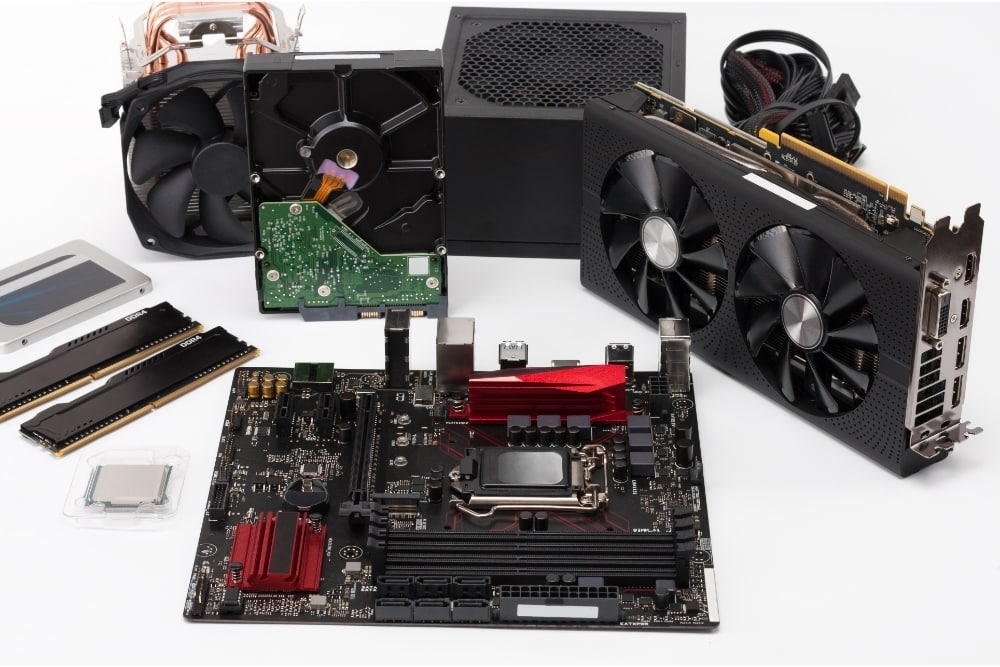

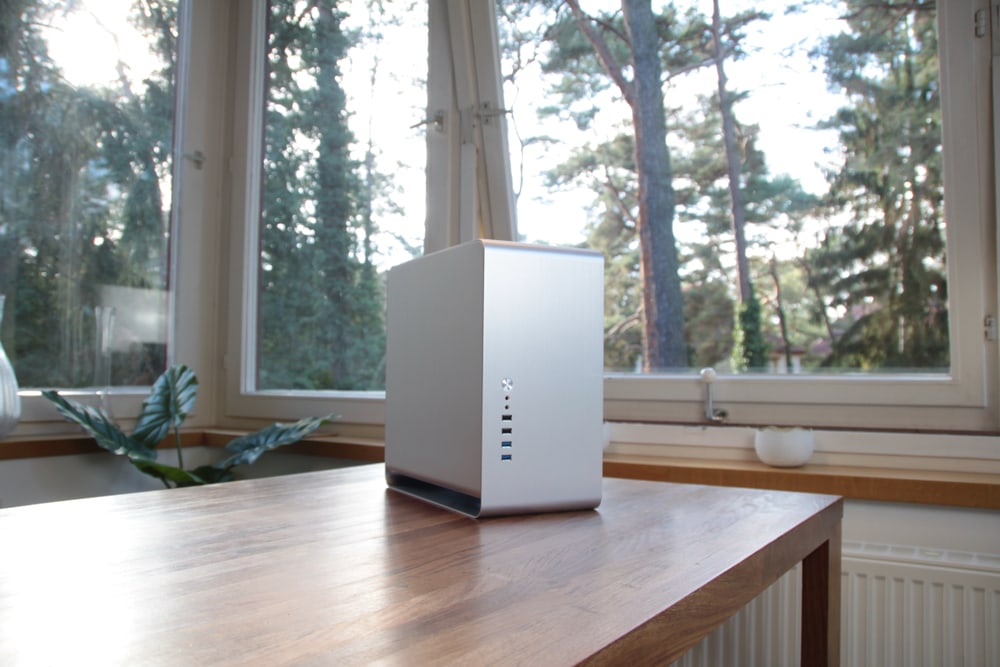

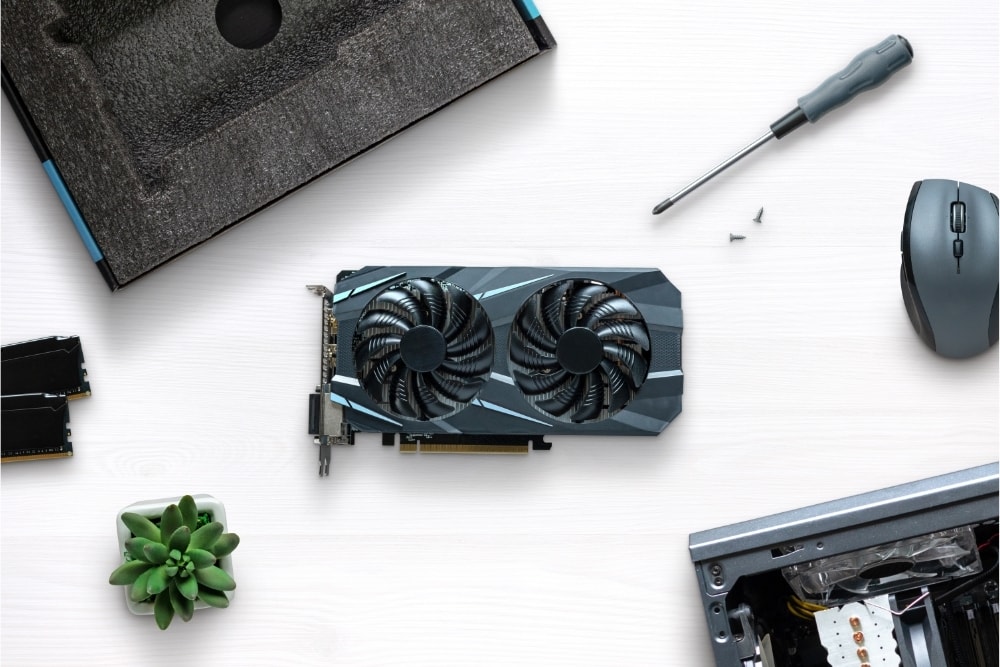

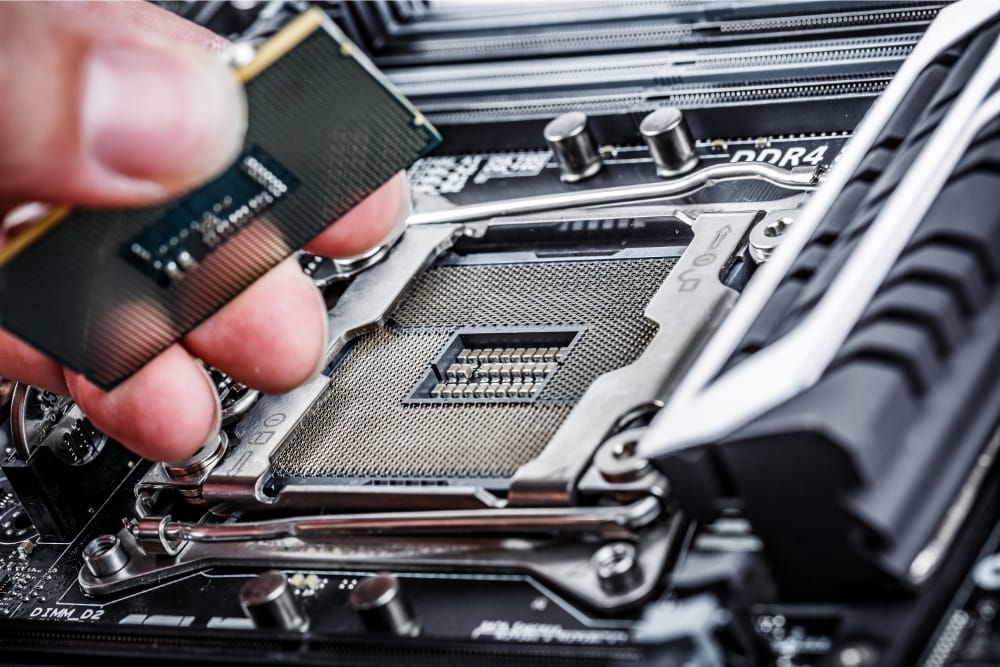

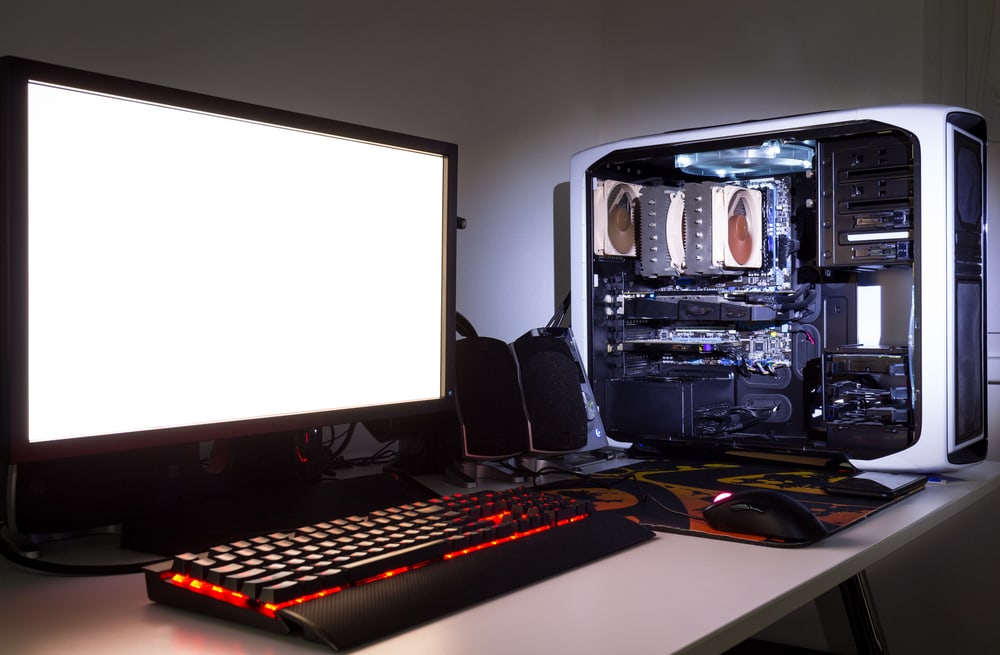

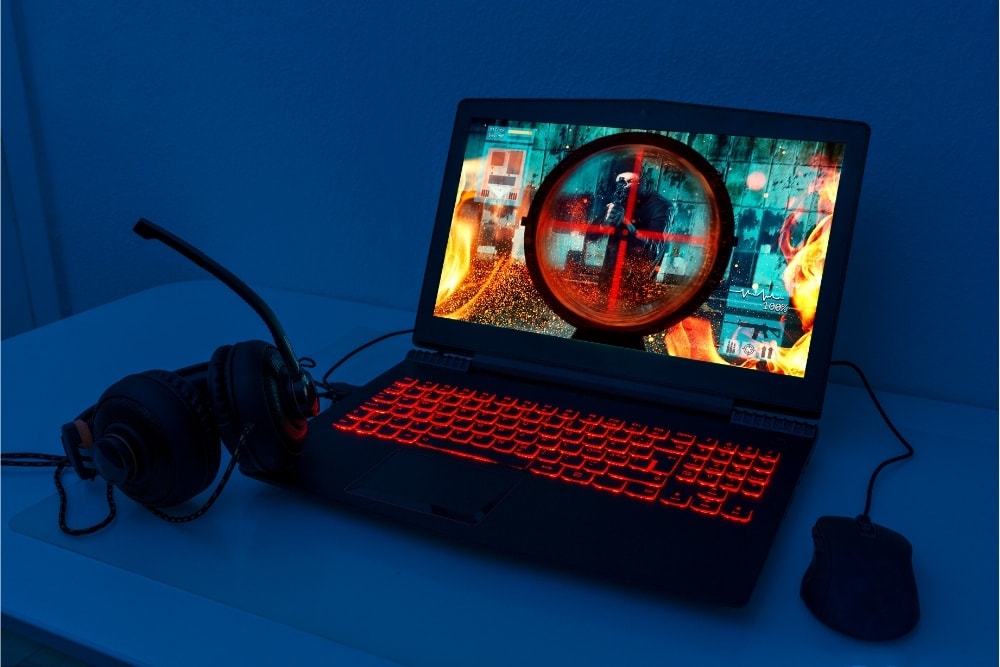






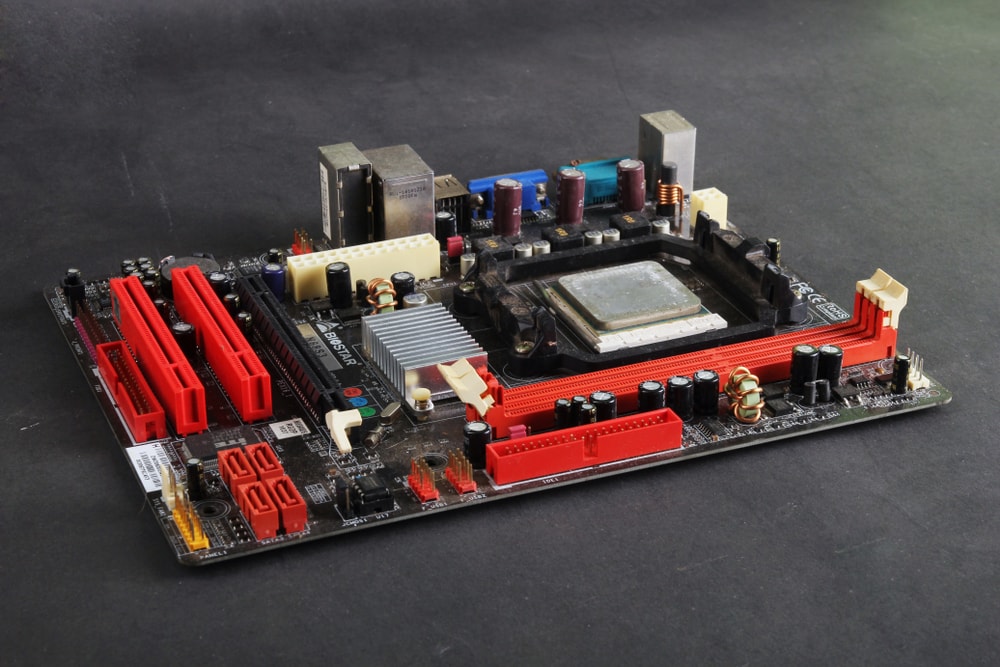


![All Assassin’s Creed Games in Order [UPDATED]](https://www.epicwinapp.com/wp-content/uploads/2021/07/All-Assassins-Creed-Games-in-Order-UPDATED.jpg)


