Author: Jim Stephenson

  • Do You Need a GPU For a PC?

    Do You Need a GPU For a PC?

    We know how graphics cards can greatly improve your PC’s performance, both gaming and otherwise. But did you know that just because you have a PC doesn’t mean you need a GPU?

    A decade or so ago, laptops were designed to be miniature and compact versions of personal computers. A laptop’s parts were completely made different compared to a traditional PC part. Before technology became better, laptops were only a fraction of what PCs were capable of back then. Nowadays, laptops still run on integrated graphics but there are models out there that already have their own dedicated graphics cards.

    If laptops back then could run without a dedicated graphics card, why couldn’t PC’s do the same? Do you need a GPU for a PC to begin with?

    We’ll be answering those questions and more in this article.

    What’s The Difference Between a Dedicated Graphics Card and Integrated Graphics Card?

    A graphics processing unit, or GPU, better known in non-technical jargon as a graphics card is responsible for processing data to create and display images on an output device (like a monitor).

    Now there are two types of graphics processing unit that you want to pay attention to: the integrated graphics processing unit and dedicated graphics processing unit.

    The difference between the two of them is night and day, but their functions are one and the same.

    • An integrated graphics card takes processing power from the CPU itself, hence the name. Modern motherboards are also equipped with their integrated graphics so it doesn’t put too much strain on the CPU.
    • A dedicated graphics card is a separate piece of hardware and is installed into the motherboard. This allows the CPU to run at its fullest capacity. The dedicated graphics card will be responsible for processing data necessary for generating images on an output device.

    Why Do You Even Want To Go For Integrated Graphics Card?

    Integrated GPU Do You Need GPU For a PC

    Integrated graphics cards allow you to save up money, for starters. They’re also very power efficient compared to dedicated GPUs. Desktop and laptop computer CPUs are standardized in more ways than one, so there aren’t going to be major issues in terms of compatibility. Using a modern Windows PC, the OS or operating system will take care of everything for you.

    But there is a downside to integrated GPUs, and that’s their performance. They’re not intended for graphically intensive tasks such as video editing and 3D editing, but they can carry their own weight for light games, browsing the web, doing office tasks, and maybe a bit of Netflix.

    In addition, an Integrated GPU will share CPU resources, including your RAM. When you’re taking up too much graphics processing power, you’ll immensely slow your entire system down.

    Why Do You Even Want To Go For a Dedicated Graphics Card?

    RTX Graphics Card Do You Need GPU For Your PC

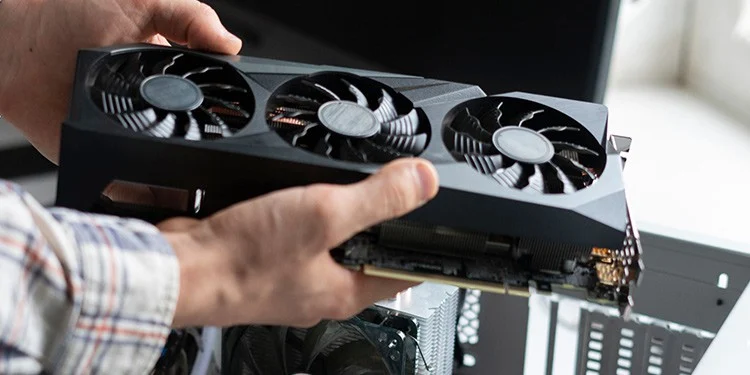
    An integrated GPU can only do so much, so where does a discrete graphics card come in? A discrete GPU is a standalone graphics card that allows you to process graphics without tapping into the CPU and other resources.

    Integrated graphics processors are gimped in terms of processing power, so you can only do so much. On the other side of the spectrum, a discrete graphics card delivers performance for a price.

    Discrete graphics processing units give you a level of performance that an integrated GPU can’t match. We’re talking about giving you more power for gaming, rendering video or 3d models, and so on. You also get access to added video ports such as HDMI and DVI as part of a few benefits of owning a dedicated GPU.

    But its upside is also its downside. You see, for this level of performance, you end up spending more money to let your motherboard run a dedicated graphics card. In most cases, running a new graphics card on an older desktop PC will force you to make other upgrades such as a new power supply unit. Push comes to shove, you’ll end up spending more money than you need to.

    But hey, that’s the price you pay for being able to play video games, run multiple monitors, and do other tasks.

    Do You Really Need a Dedicated Graphics Card?

    We know that a dedicated graphics card is way more powerful than integrated graphics, but do you really need a graphics card for a lot of things?

    Ideally, you want your personal computer or laptop to have its own dedicated graphics card, even if it’s not one of the high-end ones. The reason is that you want your CPU to be untouched when it comes to doing certain tasks, and by untouched, we mean that the CPU only focuses on what’s important to make the system run.

    On the other hand, you’re probably thinking about upgrading from integrated graphics to a dedicated one. Here are some interesting questions that will help you determine as to whether or not you really need to get one.

    Can Your Current PC or Laptop Handle Games or Other Graphic-Intensive Apps?

    If the answer to this question is a NO, and you want to play games or use graphic design apps, then you’ll need to purchase a dedicated GPU.

    If you are running an old CPU and the graphic card is outdated, you’ll probably want to upgrade to a newer model. Again, if you need a graphics card, it doesn’t have to be a high-end model. There are several budget graphics cards out there that won’t cost you an arm and a leg.

    Are You Planning On Using Multiple Monitors In The Future?

    Multiple Monitors Do You Need a GPU For Your PC

    Today’s integrated graphics cards might be able to support multiple monitors, but chances are you won’t be able to use it to their maximum potential.

    Even with the latest integrated graphics cards, you’re only able to accommodate a handful of HDMI and DVI slots, depending on the motherboard. You’ll also need to reconfigure a BIOS setting that will let you use these ports for display.

    So, if you really need to use multiple monitors without all the hassle of BIOS configuration and all that, then you need a graphics card that will support multiple displays and with multiple display ports.

    When Should You Consider Buying a Graphics Card?

    Not all CPU models are capable of giving you the integrated graphics processing power necessary for some light gaming and a bit of professional editing on the side. The CPUs that are powerful enough to get you this kind of processing power isn’t exactly affordable either, but they’re not that expensive, to say the least.

    If we’re talking about purchasing Intel CPUs, somewhere along the lines of an i7 or an i9, then you should be able to run web browsing, common desktop tasks, some photo editing apps, and some light video games. An AMD CPU, like a Ryzen 5 or Ryzen 7, can give you the integrated graphics processing power that you need.

    But it’s still a different story when you have a dedicated video card as a separate component so your CPU won’t be too taxed when it comes to processing data. Even with a low-end or a mid range GPU, the performance of your entire system will improve a hundredfold. And we’re not even exaggerating at this point.

    Without a GPU, you’ll have to rely on your CPU to provide you with graphics processing. Even with a mid range dedicated RAM and other components (like an SSD), the system performance won’t come close to another system unit that has its own GPU.

    If you are planning on buying a GPU, whether it’s a powerful GPU or not, here are a few points for consideration for non-gamers:

    • A dedicated GPU mght not be the most important component but we’re talking about giving your PC some extra power and speed when it comes to doing tasks and games.
    • Dedicated GPUs can last you for a few years and can give you added benefits such as running extra monitors and playing high-resolution video games when possible.
    • Most motherboards should be able to support the newer models of graphics cards, so there’s no need to do massive upgrades unless you’re getting the high end video cards.

  • How Much VRAM Do I Need For Gaming?

    How Much VRAM Do I Need For Gaming?

    When purchasing a new video card, one of the things that you’re on the look out for is its VRAM or Video Random Access Memory. But what exactly is this VRAM and why is VRAM usage one of the most important factors for shopping around?

    We’ll talk about the basics of video memory, how graphics cards work with video RAM, and much more in this article.

    What Is VRAM And What Is Its Use?

    VRAM, or Video RAM, or Video Random Access Memory, works a lot like your system RAM. But the Video RAM stores graphics data so the graphics processor can access it and displays it accordingly on the screen.

    Simply put, it’s RAM but intended for the usage of graphics cards only. Your system will not be tapping into the VRAM unless it has something to do with graphics. Graphics cards, by default, will have different VRAM sizes. Your system memory will be handling everything else to make sure that your computer is running smoothly. Both the System RAM and graphics card VRAM are completely different and totally independent from one another if we’re talking about data processing.

    VRAM used to be referred to as DDR SGRAM and transitioned into GRDDR2 RAM. Nowadays, we’re running video cards with GDDR6 RAM with memory clock speeds going higher than 1125MHz and transfer rates of more than 144GB/s.

    ZOTAC Gaming GeForce RTX™ 3080 Ti How Much VRAM Do I Need

    A good example of this video card is the NVidia GeForce RTX 3080Ti, which was 12GB GDDR6X RAM and a memory clock speed of 1800MHz.

    The more GB of VRAM a video card has, the higher the graphics settings you could go for in a video game and the higher the GPU’s processing power.

    How Much VRAM Do I Need For Gaming and Apps?

    How much VRAM you need will depend on what you’re using the PC for to begin with. If we’re talking about video games, then you’ll need a bare minimum of about 2GB VRAM. Most modern games aren’t that demanding when it comes to VRAM usage.

    VRAM can affect gaming performance and is usually where dedicated GPU memory comes into play. A lot of modern games can run 1080p resolution with a 6GB video card (at least a GDDR5 or higher). But 4K gaming will have you running more than that.

    What you should also consider is that more VRAM doesn’t mean better gaming performance. If you’re on an 800×600 monitor, then you won’t need anything higher than 4GB of VRAM. But then again, who’s gaming on an 800×600 monitor nowadays, right?

    However, VRAM requirements for graphics design, 3D modeling and animation, and video editing will be a lot higher than for playing video games. You’ll need a dedicated VRAM of at least 4GB to 6GB GDDR5 if you want to do these graphically-intensive tasks.

    ASUS GeForce RTX 2060 Overclocked How Much VRAM Do I Need

    A lot of industry professionals would recommend at least anywhere between 6GB to 8GB GDRR6 VRAM if you want to tackle the largest and most complex projects. A decent-sized card would be the Nvidia RTX 2060, which has 6GB of VRAM.

    What Else Can Affect VRAM?

    Playing games and using graphically-intensive applications are just half of what affects how much VRAM you’ll need for your PC.

    The Type of Video Game Affects VRAM Usage

    We’ve talked about the quality settings of video games affecting your VRAM usage, but it really boils down to the type of video game you’re playing. Playing an older video game like Dishonored at Ultra Settings is going to be completely different than playing Elden Ring or Microsoft Flight Simulator at similar settings. This is because both of the modern games mentioned require a ton of graphics processing power to display landscapes and other details properly.

    Ultimately, playing video games at the highest possible settings capped at the desired frame rates will dictate how much VRAM capacity is perfect for you. And by perfect, we mean you have enough VRAM to power through those games or graphically-intensive apps without making your graphics card work too hard.

    With that being said, you’ll need to invest in a future proof graphics card and about 6GB of VRAM at the bare minimum. You’ll have enough dedicated memory to power through video games and apps without breaking a sweat. But if you have more money to spend, 8GB of VRAM is up for consideration.

    And you don’t even need to be tech-savvy to understand the details on the graphics cards’ packaging. The VRAM capacity is easily read and accessed on the box. Any other detail like clock speed are slightly inconsequential unless you’re planning on overclocking.

    Your Screen Resolution Matters Too

    Let’s talk about your gaming PC or laptop’s display. If your display has a large resolution, then you’ll need more VRAM. Processing 1 frame will utilize your VRAM and the more pixels there are in a frame, the more VRAM is required.

    Between a 1080p monitor and 1440p monitor, you’ll end up using less VRAM for the former. A 4K monitor sitting at 3840×2160 resolution will consume more VRAM than another monitor with 2560x1440p resolution.

    Your In-Game Settings Will Affect Your VRAM Usage

    As gamers, we always want to go for the highest settings possible. There’s nothing more beautiful to look at than high resolution textures paired with uncapped frame rates.

    A lot of the modern games like Elden Ring will require more memory compared to games like League of Legends and Valorant. But even with these types of games, pushing to higher settings will still need more VRAM than necessary.

    Any PC game running on an old GPU will need to compromise between consistent frame rates and higher texture quality. Settling for the latter might lower frame rates, while settling for frame rates will result in lower texture quality.

    And believe us when we say that texture quality doesn’t completely affect gaming experience. If you have an older GPU want to run something like Elden Ring, you’ll probably need to scale down on the in-game settings.

  • What’s The Best CPU With Integrated Graphics?

    A dedicated graphics card is the bare minimum for being able to play certain video games. But more often than not, laptops and some desktop PCs aren’t exactly well-equipped to have one. Laptops with their own graphics card end up being more expensive than those without, so you’re often choosing the latter to save up on money.

    Laptops with integrated graphics take their processing power from the CPU, but it doesn’t take away a lot from it. Integrated graphics cards, or iGPUs, are enough to help the laptop display images and videos based on their minimum specifications. For the newest CPUs, you can play video games with the integrated graphics, but don’t expect top notch gaming performance.

    But when you’re PC gaming, you need more than just a CPU with integrated graphics.

    Why Are We Even Talking About Integrated Graphics Card?

    Not every PC or laptop is equipped with the best graphics card, and there are people all over the world who don’t really play video games. It wouldn’t make sense for these people to get a PC or laptop with a discrete GPU unless they’re planning to do some video editing or graphic design.

    In some cases, there are people who’ll shop around intentionally for a laptop with CPU with integrated graphics because it’s more affordable than a laptop with a discrete graphics card.

    A CPU with integrated graphics is also a great lifeline to have if your dedicated graphics card decides to give up. The CPU can pick up the processing workload, but again, don’t expect too much.

    Are CPUs With Integrated Graphics Worth It?

    From a personal and professional point of view, there’s some value to getting CPUs with integrated graphics. They’re worth it so as long as you know what you’re getting out of it. People with integrated graphics are people on a limited budget, so they want to make sure they get everything, from affordable PC cases to graphics cards.

    Desktops that use CPUs with integrated graphics tend to be more power-efficient as there’s no dedicated graphics card. Nowadays, an integrated graphics processor is capable of powering through old video games, at least those that aren’t graphically intensive. You definitely won’t use integrated graphics on high-end prebuilt gaming PCs.

    Laptops that use CPUs with integrated graphics also end up being more affordable and accessible, as well as being more portable than their gaming laptop counterparts. These newer laptops are equipped with the latest AMD and Intel processors that are more than capable of playing old video games and allowing you to watch videos in HD.

    With that being said, we’ll look at our handpicked selection of the best CPUs with integrated graphics. In case you’re looking for a laptop or prebuilt PC with an integrated GPU, then you’ll need to keep an eye out if they have one of these five processors.

    The Top 5 CPUs with Integrated Graphics

    AMD Ryzen 5 5600G

    Best Overall CPU with Integrated Graphics. Hands Down.

    AMD Ryzen 5 5600G Best CPU with Integrated Graphics

    We’re inclined to give this title to the AMD Ryzen 5 5600G as the best CPU with integrated graphics. The AMD Ryzen 5 5600G is a 6-core and 12-thread CPU desktop processor along with Radeon integrated graphics to boost your system’s performance.

    Being an AMD CPU, the AMD Ryzen 5 5600G is relatively more affordable compared to Intel CPUs. We also dubbed this as one of the best integrated graphics processors because of its capability to play Counter-Strike: Global Offensive at 165FPS and up to 165Hz at low to medium settings. That’s more than enough for integrated graphics card, if you ask me.

    Laptops powered by an AMD Ryzen 5 should also be able to enjoy similar levels of gaming performance compared to a desktop.

    Intel Core i5-9400

    2nd Runner Up For Best CPU with Integrated Graphics

    Intel Core i5-9400 Best CPU with Integrated Graphics

    Amongst the Intel CPUs, the Intel Core i5 9400 is probably the one that stands out. We’re talking about a 9th generation Intel Core i5 processor with Turbo Boost Technology, allowing you to do more than just gaming. You’ll be able to do some video editing at 4K resolution and even watch 4K movies.

    The Intel Core i5 9400 is a 6-core, 6-thread CPU and is packed with 9MB cache memory. The Intel Core i5 9400 has an Intel UHD Graphics 630, so gaming performance is also at par compared to the AMD Ryzen 5 5600G.

    What’s interesting to note here is that the Intel Core i5-9400 is based on a Hexacore architecture and supports LGA 1151 socket, so it’s no wonder why this is a popular choice for those who want to build a gaming PC on a budget or pair it with a midrange graphics card such as an Nvidia RTX 2060 or RTX 2070.  

    The bottom line: if the AMD CPU above won’t cut it, the Intel Core i5-9400 is a solid pick from the rest of the CPUs with integrated GPU.

    Intel Core i7-6700K

    Best Midrange CPU with Integrated Graphics

    Intel Core i7-6700K Best CPU with Integrated Graphics

    If we’re talking about the best CPU with integrated graphics at midrange specifications, then the Intel Core i7-6700K is a solid contender. It has a lot to offer, and it’s faster than the Intel Core i5 processor listed above.

    The Intel Core i7-6700K runs on a Skylake architecture and runs at a base clock speed of 4.0GHz and maximum clock speed of 4.2 GHz. The Intel Core i7-6700K comes with an 8MB L3 Cache and a lot of tuning options. Definitely not the best gaming performance from this processor, but the Intel Core i7-6700K is capable of handling high-end productivity apps.

    AMD Ryzen 7 5700G

    A Premium CPU With Integrated Graphics

    AMD Ryzen 7 5700G Top Best CPU with Integrated Graphics in 2022 2023

    If money is not an issue, and if you want the best multi core performance that money can buy, then you’re going to want to buy the AMD Ryzen 5 5700G. The AMD Ryzen 5 5700G is an 8-core and 16-thread CPU. It has a 3.8Ghz base clock speed and a max clock speed of 4.6Ghz. As you can see, that’s a powerful CPU.

    With the Zen 3 Architecture, the AMD Ryzen 5 5700G is capable of gaming at decent enough frame rates. The Vega-based integrated graphics card actually makes it feel like you have a low end dedicated GPU.

    The AMD Ryzen 5 5700G is only a bit less expensive than the Ryzen 9 models, but it’s as powerful.

    AMD Athlon 3000G

    The Best Budget Pick

    AMD Athlon 3000G Best CPU with Integrated Graphics

    Repeat after me: budget does not mean terrible.

    And there’s nothing terrible about using a budget CPU with integrated graphics. If you do decide to go this route, you’re going to want the AMD Athlon 3000G. I know what you’re thinking: wasn’t Athlon like something that came from the 90s or early 2000s?

    You’re right to assume that, and yes, it’s an old line of AMD CPU. AMD Athlon competed for head to head against Intel Pentium, back when both processors were at their peak popularity. But even with Ryzen as the flagship of AMD CPUs, Athlon CPUs are still being produced.

    At $50. the AMD Athlon 3000G is more than enough for basic office and computing tasks, but it struggles with the other high-end productivity programs.

  • The Best Keyboard With Silent Switches (Jul 2026)

    The Best Keyboard With Silent Switches (Jul 2026)

    Mechanical keyboards have a certain appeal to them, and no, we’re not talking about their RGB lighting. What actually draws people into getting mechanical keyboards is listening to the nostalgic sound of the keys that take us back to the time when typewriters were a thing.

    But not everyone appreciates the clickety-clacking of the mechanical switches, and more often than not, even the owners themselves get tired of listening to the sound of the loud switches.

    What most people don’t realize is that there are actually mechanical switches that are incredibly silent. And by silent, we mean they don’t make as much noise as other switches. And that’s what we’ll be looking into today.

    If you’re in the market for a new mechanical keyboard and if you’re looking for the quietest switches, then this article will help you.

    What Are The Best Silent Mechanical Switches?

    Mechanical keyboard switches vary from one keyboard to another. You’ll one keyboard quieter than the other because they have different colored switches.

    If it’s your first time purchasing a mechanical keyboard, then you should know that mechanical keyboards and their noise levels are dictated by their color switches. Blue switches are often the loudest of them all, and reds are often the best silent switch. You don’t even need to open the box or ask for a demo to know how noisy a particular keyboard is. Jsut look at what colored switches they have.

    Whether you’re buying a mechanical keyboard for the first time or thinking about getting switches to upgrade your hot-swappable keyboards, we’ve curated this simple list of the best silent switches.

    Gateron Silent Reds or Gateron Silent Blacks

    Gateron Silent Red Silent Switches

    If you ask around for what are the best silent switches right now, Gateron silent switches will probably be recommended by a few people. And if you’re going for Gateron switches, look out for the Gateron Silent Red and Silent Black.

    Both the Silent Red and Black are linear switches, so they’re really quiet. Keyboards with Gateron switches are also more affordable compared to their Cherry MX counterparts. And they’re a lot smoother to the touch too.

    Cherry MX Silent Red or Cherry MX Silent Black

    Cherry MX Silent Red Silent Switches

    If you want premium silent switches, or keyboards with premium switches, then go for the Cherry MX Silent Reds and Blacks. The Cherry MX Silent Reds are quieter than any of the Cherry MX silent switches and have a completely different feel.

    The switches come with a rubber dampening mechanism on the stem, which keeps the switch from making a lot of noise on impact. The only downside is that Cherry MX silent switches feel kind of heavy to the touch as they give off a muddy feeling for each keystroke. But this is what you get when you have complete noise reduction. If you’re playing World of Warcraft and you don’t want to wake people up at night, this is the switch for you.

    Matias Quiet Linear

    Matias Quiet Linear Silent Switches

    The Matias Quiet Linear Switch is perfect for office workers who want to bring their own keyboards to work but don’t want to make a complete ruckus when typing.

    The Matias Quiet Linear Switch’s spring is designed in a way where the resistance is higher at the start of the keypress and decreases as the spring is compressed. As a result, you’ll have a much noisier key press compared to the other switches on the list but not as distracting to other people around you.

    ZealPC Healios

    ZealPC Healios Silent Switches

    The ZealPC Healios is another silent switch from ZealPC, and is possibly the quietest linear switch in the market right now. The Healios comes with a silencing bumper that dampens both upstroke and bottom-out sounds. What this means is that the key is silent when pressed and released.

    ZealPC Zilents V2

    ZealPC Healios Silent Switches

    Another linear switch from ZealPC is the Zilents V2. The ZealPC Zilent V2 is a tactile switch and provides tactile feedback to the owner. What this means is that tactile switches give off a bump at the start of the key press with no pre-travel.

    A keystroke does not happen unless you clear through this bump, so accidentally pressing or half-pressing a key is minimal at best.

    What Are The The Best Keyboards With Silent Switches?

    We’ve gone over the best silent switches to have if you’re planning on upgrading your keyboard switches. If you want to shop around for a new keyboard, then we have a short list of the best silent switch keyboards.

    These are not arranged in any particular order.

    Ducky One 2 Mini

    The Best Keyboard With Silent Switches For Gaming

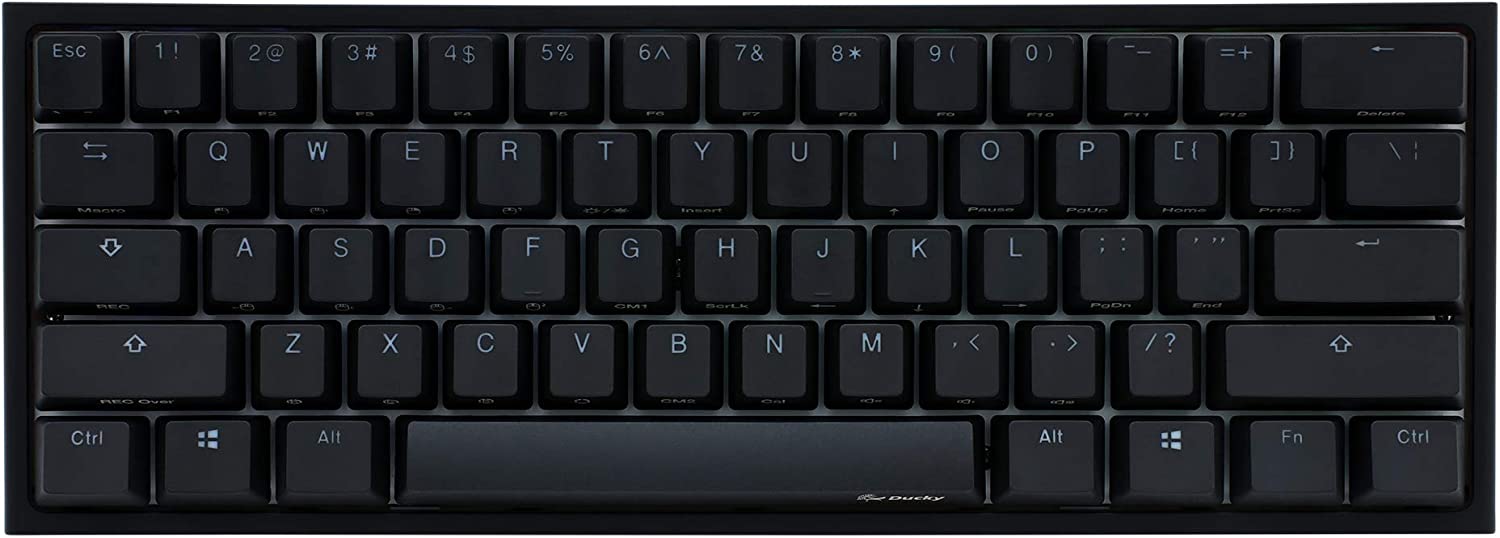
    Ducky One 2 Mini SIlent Switches

    The Ducky One 2 Mini is at the top of this list because it’s the best quiet keyboard that we’ve seen yet. And frankly speaking, this is coming from a personal experience.

    I’ve had the Ducky One 2 Mini for a good couple of years and it had a silent linear switch that didn’t sound as annoying and as flat when pressed. I’ve transitioned to a full 100% keyboard since, but I’ve kept the Ducky One 2 Mini for use with my gaming laptop.

    At 60%, it’s compact and small enough that it fits into a backpack without taking up a lot of space. The typing feel is excellent, to say the least. I’ve played World of Warcraft and League of Legends with the Ducky One 2 Mini KB and even when I’m spazzing out on the keys, my fingers don’t hurt as much compared to a keyboard with a tactile switch.

    Keychron K6

    A Solid Keyboard With All the Right features

    Keychron K6 SIlent Switches

    The Keychron brand is a favorite among keyboard modders and enthusiasts for a few good reasons. First, the build quality is insanely amazing. Its mechanical keyboard switches are often Gateron silent switches, but some models carry the proprietary Keychron switches and Cherry MX switches. Lastly, the keyboard is fully customizable, so you can upgrade the switches and keycaps as you see fit.

    On this list, we have the Keychron K6, quite possibly the best quiet mechanical keyboard out there. And the good things I have to say about the Keychron K6 are also based on experience as it is what my wife has been using with her Macbook for a year now.

    The Keychron K6 is a budget friendly keyboard, unlike some of the models that are on the pricier side. You’ll have different variants with Gateron Red, Gateron Blue, and Gateron Brown switches to choose from. If you want a completely silent keyboard, the Gateron Red switches will suffice. But the Gateron Brown variant isn’t a bad choice either.

    Durgod Taurus K320

    The Best Keyboard For Office Use

    Durgod K320 SIlent Switches

    The Durgod Taurus K320 has one of the smoothest stabilizers out there, and the build quality of their keyboards is insanely high. You’re getting a premium feel with the Durgod Taurus K320 and its black/grey minimalistic theme makes it so appealing for both modders and office workers.

    Like the Ducky One 2 Mini, the Durgod Taurus K320 is equipped with Cherry MX Silent Reds (or Blacks), so there’s hardly any noise when the key is pressed. But if you want the Durgod Taurus K320 to be a bit noisier, well, there are other variants out there with different colored switches.

    What’s Our Pick?

    If you want a premium keyboard without worrying about replacing it in the immediate future, then the Ducky One 2 Mini is what we recommend. It’s a quiet option and a perfect partner for use with a gaming laptop. It doesn’t make as much noise, so when you’re in a coffee shop, it doesn’t bother the rest of the customers.

  • A Beginner’s Guide On How To Clean GPU

    A Beginner’s Guide On How To Clean GPU

    You’re in the middle of an intense gaming session when all of a sudden, you hear loud whirring noises coming from within your CPU and your FPS starts to wobble up and down. The sounds grow louder and it was only when you turned the PC off that things went quiet.

    You open up your PC case, only to find that your graphics card has accumulated all the dust inside your room. You probably don’t even know when the last time you cleaned the GPU. Don’t fret though, as we’ll teach you how to clean GPU so you can game without any disturbance.

    Why Is It Important To Keep Your GPU Clean?

    Dirty Card How To Clean GPU

    Keeping your graphics card clean is as important as keeping your room or house clean. PC components accumulate dust buildup from the air that goes in and out of your room. Your intake fans, the one responsible for bringing cool air into the system, will be bringing along these dust particles as they enter the PC. But not all of them will go out through the exhaust fans.

    These smaller dust particles will settle on any surface they could land on, from your graphics cards to your fan’s blades to your power supply. When there’s too much dust buildup, your GPU fans, case fans, and your CPU fans will slow down eventually.

    So, the biggest reason why you really want to keep your GPU clean is to make sure that your desktop computer stays in top shape. Cleaning your PC regularly will help you remove all stubborn dust particles and other debris.

    What Kind of Cleaning Process Is Meant For Graphics Cards?

    When you clean your graphics card, you do it one of three ways:

    • There’s the basic maintenance where you remove all the dust buildup with compressed air, a brush, and a clean and dry microfiber cloth.
    • You can do deep cleaning, which requires you to remove the graphics card and clean the GPU fans, heatsink, and more.
    • And there’s another way to do deeper cleaning, and this is for when your graphics card has been submerged in water (like it’s been flooded), and this will require some level of technical expertise

    The third option is only for worst-case scenarios, but the first two options are intended to clean GPU without difficulty.

    Note that the first option will have a different set of cleaning tools and the second option has other cleaning tools that you’ll need to use.

    How Often Should You Clean your Graphics Card?

    There’s no solid answer when it comes to how often you should be cleaning your graphics card. More often than not, it boils down to when the need actually arises.

    The rule of thumb for some enthusiasts is that you should clean your graphics card every three to six months, depending on how fast it gets dirty.

    How Do You Clean A Graphics Card?

    As mentioned earlier, there are three ways for you to clean your graphics card. The first two options are doable, while the third one is reserved for worst-case scenarios. Unless you’re a computer technician, the third option isn’t something that you want to DIY.

    Regular Cleaning

    Regular Cleaning How To Clean GPU

    Regular cleaning is something that you can do to keep not only your graphics card clean, but also your PC clean as well. Whether you have a simple setup or even the peskiest buildups, regular cleaning is easy to do.

    You need the following items to get started:

    • A can of compressed air
    • Lint-free cloth
    • Brush

    The premise of regular cleaning is simple:

    1. Power down your PC first and unplug all the cables.
    2. Completely remove the side panel so you have access to the graphics card.
    3. Get your can of compressed air and be sure that the tiny straw that comes with the can is attached to the nozzle.
    4. Aim the nozzle to the fans of the graphics card and blow away the dusts with short burts of air.
    5. Wipe the stubborn dust with the soft cloth then continue to blow in short bursts.
    6. Repeat the process until the fans are free of dust.
    7. Clean the rest of the PC surfaces with the compressed air and cloth so you’re not leaving residue from the dust that was blown off from the GPU.

    Do this every three months or so to keep your graphics card periodically clean.

    Deeper Cleaning

    Dirty Card How To Clean GPU

    Deeper cleaning is what most PC builders do if they want to fix connections to their graphic card, replace thermal paste, or if they just want to completely clean the entire thing.

    For this process, you’ll need the following:

    • Q tip or cotton swabs
    • 99% pure isopropyl alcohol
    • soft bristled brush
    • compressed air

    And here’s a rundown of how you can do deeper cleaning:

    1. Remove the GPU from the motherboard. Make sure there’s no cable attached to the GPU.
    2. Start by cleaning the outside surface with a can of compressed air and the soft cloth combo.
    3. Once the outside surface is free from debris and most dust, you can remove screws to take apart your GPU and access the GPU’s heatsink
    4. Use the soft brush to clean in between the heatsink’s fins. If there is more dust, try to get it with compressed air.
    5. Dip the Q tip into the alcohol. Don’t get it too wet. You just want it damp, not dripping wet.
    6. Use the alcohol-laden Q tip if there are greasy dust particles that weren’t removed by both the compressed air and the brush.
    7. If you want to replace the thermal paste, use a cotton swab with alcohol to remove the old thermal paste. Make sure that the surface is dry before you add a fresh layer of thermal paste.
    8. Make sure the graphics card is completely dry before reinstalling it into the PC.

    Deeper cleaning is a daunting task, so it’s not really recommended if it’s your first time to clean a graphics card.

    Tips For First Time Cleaners

    If you’re going to clean your graphics card for the first time, there are several tips that you’ll need to consider.

    1. Avoid using microfiber cloths. Dry microfiber cloths tend to create static, which may damage the GPU’s internal circuitry.
    2. Use only 99% pure isopropyl alcohol. This is a potent liquid for helping you clean your GPU without damaging its parts.
    3. Don’t remove stickers if your graphics card is relatively brand new. You might void warranties.
  • Can My PC Use NVMe SSD Drives?

    Can My PC Use NVMe SSD Drives?

    A few years ago when people told you to upgrade to an SSD, you were probably hesitant because they were pretty expensive. A SATA SSD would cost you a hundred bucks or so, and the storage isn’t that impressive. Even more expensive was the NVMe SSd, which was almost double or triple the price of SATA SSDs.

    Nowadays, NVMe SSDs have become the standard for storage devices for both laptops and PCs. If you’re gaming and want to upgrade to something faster, then an NVMe drive is what you need. But how will you know your motherboard supports NVMe SSDs? Can you easily upgrade without buying a new motherboard?

    We’ll find out the answer to those questions and more in this article.

    What Is An NVMe SSD?

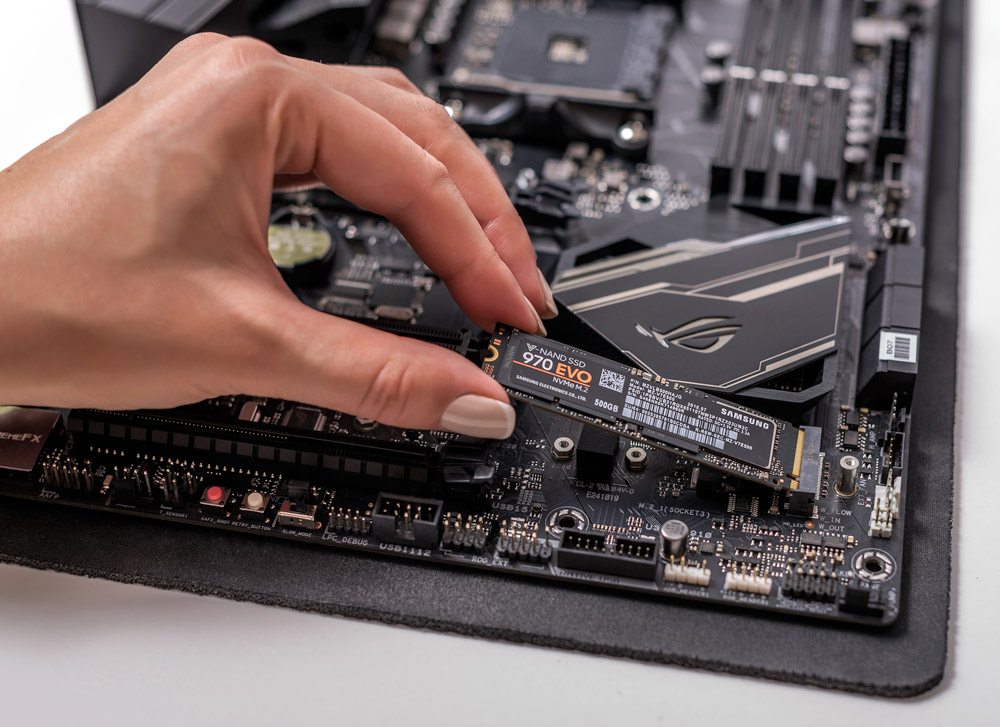
    SSD Installation Can My PC Use NVMe SSD

    NVMe stands for non-volatile memory express and is a storage interface that was launched in 2013. The term “non volatile” refers to the concept of storage not being deleted when the computer reboots, while “express” refers to how the data travels via the PCIe interface on the motherboard. So an NVMe SSD has a more direct link to the motherboard. The data does not pass through a Serial Advanced Technology Attachment (SATA) controller.

    This makes NVMe SSDs way faster than any SATA SSD. The latest iteration, the PCIe 5.0 SSD can get you up to 13,000Mbps Read and 12,000Mbps Write speeds. But they’re only compatible with the current generation Intel CPUs and processors with Raptor Lake architecture.

    Can My PC Use NVMe SSD Drives?

    Corsair SSD Can My PC Use NVMe SSD

    The majority of newer motherboards support NVMe SSDs, but one way of determining if an old motherboard supports NVMe is to check the specs.

    But what exactly are you looking for?

    If you’re going to find out what kind of SSD your motherboard is capable of supporting, then you’ll need to differentiate between two interfaces namely a PCIe interface and SATA interface.

    The PCIe Interface and SATA Interface are both used by SSDs. SATA SSDs are relatively slower than NVMe SSDs, however, the SATA 3 is capable of transfer speeds up to 6GB or 750MB/s.

    The PCIe interface is found in the PCIe lanes of the motherboard and is used by the NVMe SSDs. PCIe Gen 3 NVMe SSDs can go as fast as 3500 MB/s while the latest PCIe Gen 4 NVMe SSDs go as fast as 5500MB/s.

    It’s understandable enough to know that a SATA SSD is different from an NVMe SSD in more ways than one. Another thing to note is that a PCIe SSD and NVMe SSD are one and the same.

    So, if your motherboard supports NVMe SSD, then you’ll read it on the spec sheet as “Supports PCIe SSD”.

    How Does an NVMe SSD Work?

    An NVMe SSD connects through the M.2 or PCIe slot, and manufacturers will let you know if what you’re getting is an NVMe SSD or SATA SSD.

    If you plan to purchase an NVMe SSD, then you need to determine if your motherboard supports NVMe, to begin with. Motherboards that support NVMe will have a PCIe slot or an M.2 connection for newer motherboards.

    Can Motherboards Support NVMe SSDs and SATA SSDs At The Same Time?

    While both SATA SSD and NVMe SSD are different types of SSDs, it’s worth mentioning that all motherboards support SATA SSDs (as long as there are SATA ports), but not all of them might be able to handle NVMe SSDs. Newer motherboards will typically support NVMe as long as there is an M.2 slot or a PCIe slot.

    Note that just because your motherboard has an M.2 Slot doesn’t automatically mean it supports NVMe protocol. NVMe and SATA drives are also not interchangeable, so a single M.2 can’t support both. But your motherboard specs might show that you’ll have different M.2 slots that accept both NVMe and SATA SSD.

    But if you do have enough M.2 slots, it also doesn’t mean that your motherboard supports both NVMe and SSD at the same time.

    What Generation of NVMe Do I Need For My Motherboard?

    Your motherboard chipset and CPU will determine what kind of NVMe SSD is supported by the motherboard. A Gen 4 and Gen 3 NVMe SSD are totally different from one another. That’s because the Gen 3 NVMe SSD will follow the PCIe 3.0 protocol and Gen 4 SSDs will follow the PCIe 4.0 protocol.

    Gen 3 SSDs can go as high as 3500Mbps, while Gen 4 SSD types go for up to 5500Mbps. There aren’t a lot of Gen 4 NVMe SSDs in the market right now due to their cost, and they’re considered high-performance devices. You won’t be seeing them installed in prebuilt gaming PCs anytime soon.

  • Can We Upgrade Laptop Graphics Card?

    Can We Upgrade Laptop Graphics Card?

    Can we upgrade laptop graphics card?

    It’s one of the most asked questions that laptop owners have. Decades ago, you’d have scoffed at the idea of laptops getting their own discrete graphics card, but here we are now. Laptops have literally become somewhat of a mobile version of a desktop, mostly because the former and the latter are built similarly in more ways than one.

    And if you have a gaming laptop, you’re probably wondering as to whether or not you can upgrade your laptop GPU. After all, it wouldn’t make sense to buy a new laptop just to upgrade a GPU right?

    Well, we’ll answer those questions and more in this article.

    How Different Is a Laptop’s Graphics Card from a Desktop Graphics Card?

    A graphics processing unit, or GPU, in a laptop works the same way as a desktop GPU. The graphics card is responsible for rendering images, videos, and graphics, and powering through graphics-intensive tasks.

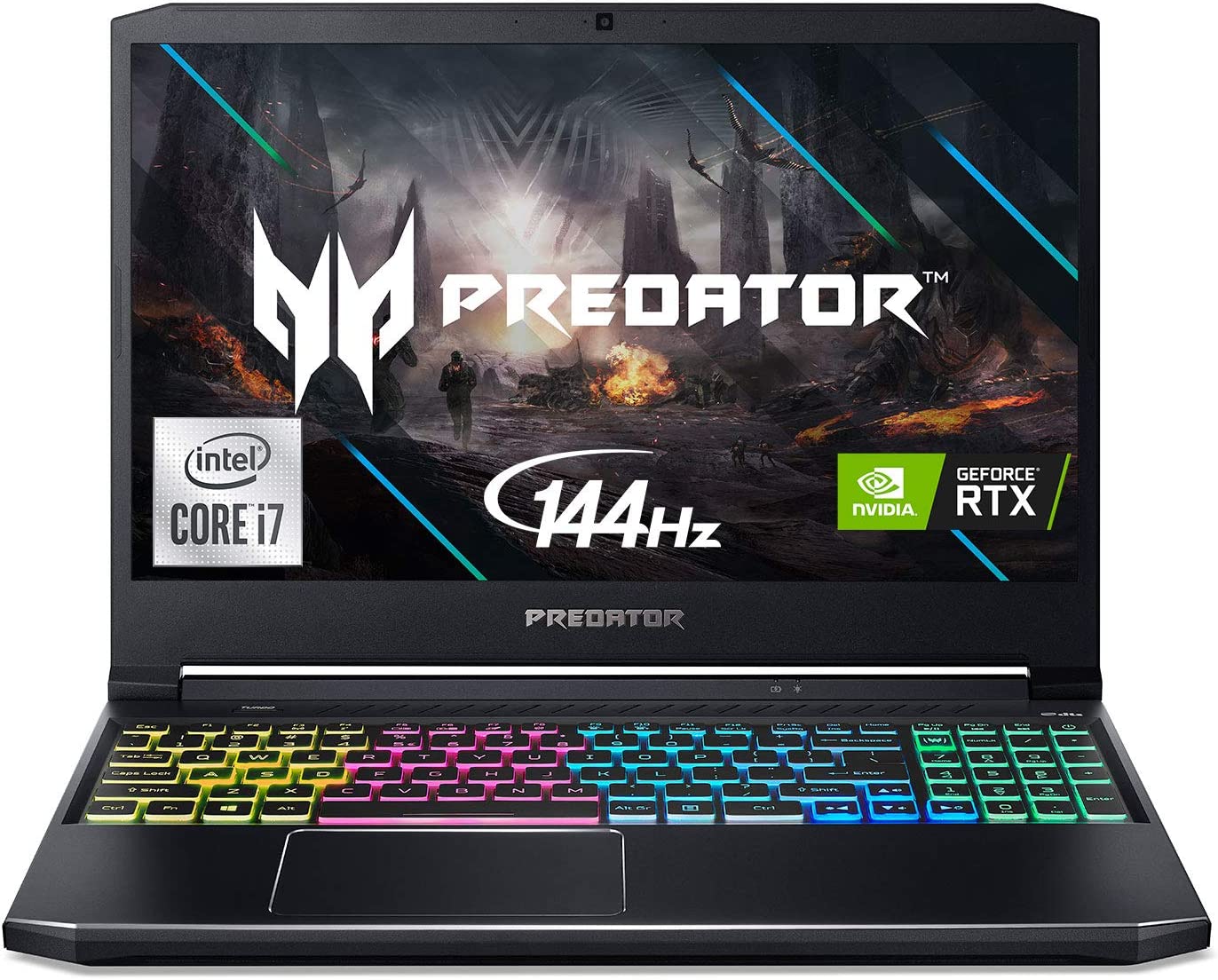
    Acer Predator Helios Gaming Laptop Can We Upgrade Laptop Graphics Card

    There really isn’t a big difference between a laptop GPU and a desktop GPU. GPUs of modern laptops have excellent graphics performance, mostly because they carry the same model of desktop graphics cards. However, laptop GPUs aren’t as powerful. For example, an Acer Predator Helios comes with a 6GB Nvidia GeForce RTX 3060 laptop graphics card. A desktop version of an Nvidia GeForce RTX 3060 has 12GB of VRAM.
    Why don’t gaming laptops and their graphics cards have the same specs as their desktop counterparts?

    It boils down to hardware, and how a gaming laptop is built in general. Certain hardware components such as Motherboard and RAM in laptops are different from desktop PC. If you were to actually use the same desktop motherboard and build it into a laptop, you’d end up with something bigger than your average laptop.

    The limitation of the laptop’s graphics card’s specifications is dictated by what kind of motherboard is used, and how big the laptop is. Note that laptops are meant to be carried around for work purposes. But a gaming laptop will allow you to play games, do some video editing, and more without building a PC.

    Gaming on laptops might not be the same as gaming on a PC, but you’ll still be able to achieve 60FPS and ultra graphics settings regardless.

    Can You Upgrade Your Laptop’s Graphics Card?

    A similar question like this is often asked by one of two people:

    • Those who find buying a new gaming laptop too expensive
    • Those who want to upgrade their old GPU but want their older laptops to play games and more

    The answer to this question is NO.

    Yes, most laptops today have upgradeable RAMs and storage, but the two things that can never be upgraded (at least this time of writing) are the CPU and GPU.

    However, some laptop manufacturers like Dell, have separate graphics cards that aren’t soldered into the motherboard, so you might be able to upgrade the graphics processing unit. But the vast majority of gaming laptops aren’t exactly upgradable.

    Are There Alternatives to Upgrading To A Better Graphics Card?

    If you have an old laptop and want to play games on it, there is another way for you to upgrade your graphics card. Note that this isn’t really optimal, but they will give you enough graphics performance for gaming, graphic design, video editing, and more.

    USB Graphic Cards

    Startech USB Graphics Card Can We Upgrade Laptop Graphics Card

    Laptops can use USB graphics cards, but not exactly for gaming. As the name implies, the USB graphics card is plugged into a USB port. You then get access to extra graphics output (like an HDMI port or VGA as seen in this Startech USB Graphics Card). This will basically allow you to run a second screen simultaneously with your laptop.

    External Laptop Graphics Cards

    Razer Core X Aluminum External GPU Enclosure Can We Upgrade Laptop Graphics Card

    Another way for you to upgrade to a better GPU is to use an external GPU enclosure and connected to the laptop via the Thunderbolt port.

    A good example would be the Razer Core X Aluminum External GPU Enclosure. External GPUs come with separate cooling system and requires additional power cables for the power supply since it doesn’t tap into the laptop’s PSU.

    You can use any desktop graphics card on any compatible external GPU enclosure, but don’t expect the same kind of graphic performance as you would on a powerful desktop.

  • What’s The Best Ryzen 5000 Motherboard?

    What’s The Best Ryzen 5000 Motherboard?

    The new Ryzen processors are based on the Zen 3 architecture and has significant improvements over their predecessors, one of which is the improvements done for multi-core performance and single-core performance.

    With their Ryzen 5000 series, AMD has officially gained the top spot thanks to their improved Zen 3 architecture.

    But what draws people towards the Ryzen 5000 series is their drop-in compatibility with existing B550 and X570 chipsets with only a BIOS update. Now, we’re seeing an influx of Ryzen 5000 compatible motherboards in the market, including older X470 motherboards and B450 motherboards.

    With that said, we’ll go over selecting the best Ryzen 5000 motherboard that will fit you needs and budget at the sme time.

    The Best Motherboards For Ryzen 5000 Series

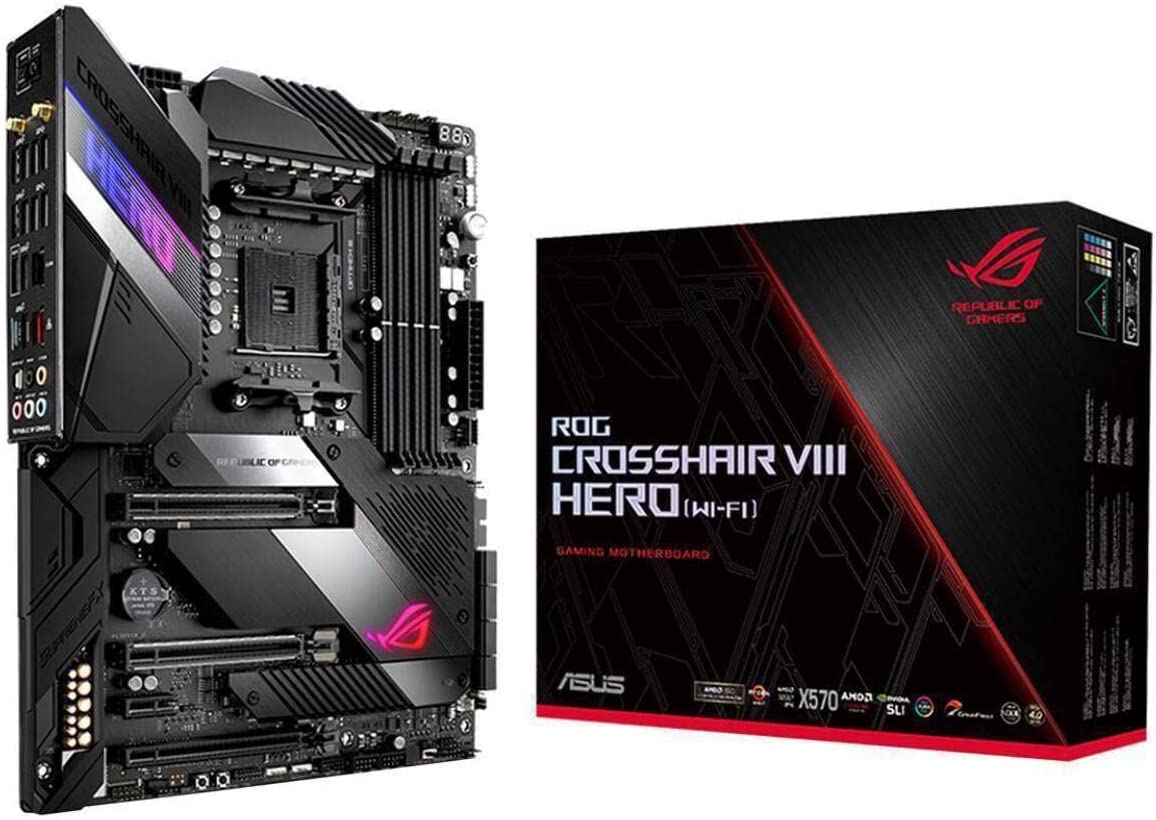
    ASUS Crosshair VIII Hero Wifi

    Best Overall Motherboard For Ryzen 5000

    ASUS Crosshair VIII Hero Wifi Best Ryzen 5000 Motherboard

    What’s Good?

    • Great VRM
    • Connectivity options
    • Amazing RGB aesthetics
    • 8x SATA Ports

    What’s Bad?

    • Expensive
    • No video output

    What Are The Specs?

    • Chipset: X570
    • Memory: 4 DIMM slots up to 128GB and 4800MHz
    • Expansion Slots: 1 PCIe 4.0 x16 slot, 1 PCIe 4.0 x16 (x8) slot, 1x PCIe 4.0 x16 (x4) slot, 1 PCIe 4.0 slot
    • Video Outputs: None
    • USB Ports: 10x rear IO, 7x internal
    • Network: 1x 2.5 GbE LAN, 1x Wi-Fi
    • Storage: 2x M.2, 8x SATA

    First on the list we have the ASUS Crosshair VIII Hero, the flagship motherboard from ASUS. These motherboards were meant for extreme overclockers and avid PC builders. Average users who use the ASUS Crosshair VIII Hero might find it to be a bit of an overkill.

    The ASUS Crosshair VIII Hero features 4 DIMM slots and provides support for up to 128GB of RAM and up to 4800MHz, so memory performance is definitely guaranteed as you can pack this bad boy with all of the greatest RAM sticks the market has to offer. Because of its high VRM, high-speed memory overclocking is easily handled by the ASUS Crosshair VIII Hero.

    ASUS Crosshair VIII Hero’s power delivery system is in a class of its own. The motherboard itself was designed with overclockers in mind, so there’s no doubt that you’re getting a sturdy and robust motherboard. Its 8-phase VRM allows you to handle overclocking from the new 16-core Ryzen 9 5950X CPU, which is why a lot of overclockers pair both this motherboard and the Ryzen 9.

    If you’re using the ASUS Crosshair VIII Hero, you can equip 2 GPUs thanks to the multiple PCIe Gen 4 x16 slots. There’s also support for NVLink and SLI for multiple GPU operations too. You can also equip two NVMe drives, so storage will never be an issue with the ASUS Crosshair VIII Hero.

    The ASUS Crosshair VIII Hero is also aesthetically pleasing to look at without the flashy color schemes. It dons a stealthy black/grey palette with a gigantic heatsink, but there’s support for RGB that provides enough room for customization if that’s your thing.

    All in all, there’s no better choice out there for a Ryzen 5000 series than the ASUS Crosshair VIII Hero. It’s one of the best motherboards out there, and despite its hefty price tag, you won’t have to worry about upgrading this motheboard for the next five years.

    MSI MAG B550M Mortar

    Best Budget Motherboard For Ryzen 5000 Series

    MSI MAG B550M Mortar Best Ryzen 5000 Motherboard

    What’s Good?

    • Affordable and good enough for the Ryzen 5000
    • 2x M.2 slots

    What’s Bad?

    • Only 1 Gen 4 M.2 slot
    • No Wifi
    • Not a lot of USB slots

    What Are The Specs?

    • Chipset: B550
    • Memory: 4 DIMM slots up to 128GB and up to 4400MHz
    • Expansion Slots: 1x PCIe 4.0 x16, 1x PCIe 3.0 x4
    • Video Outputs: HDMI and Displayport
    • USB Ports: 2 USB 3.2 Gen 1 slots, 1 USB 3.2 Gen 2 slots, 1 USB 3.2 Gen 2 Type-C slot, 2x USB 2.0 slots
    • Network: Realtek 2.5Gb ethernet
    • Storage: 2x M.2, 6x SATA 6Gbps 

    Just because we’re talking about the best motherboards for Ryzen 5000 doesn’t mean we’re going to ignore the budget options. On this list, we have the MSI MAG B550M motherboard, the best budget motherboard for Ryzen 5000 series.

    The MSI MAG B550M is a micro ATX motherboard, perfect for compact cases in the market. It has an improved power delivery system compared to its predecessors, the B450 Tomahawk and the B450 Mortar. And speaking of the power delivery system, the MSI MAG B550M has a 8+2+1 phase power design that pairs up real nice with the Ryzen 5 5600X CPU. With a combination like this, you’re already looking at a midrange gaming PC build. You’re getting about 4 DIMM slots with up to 128GB RAM support and up to 4400MHz, 1 PCIe Gen 4 x16 slot and 1 PCIe Gen 3 x4 slot.

    For storage, the MSI MAG B550M has 2 M.2 slots and 6 SATA 6GB/s ports, which is what you wouldn’t normally get from other B550 micro ATX motherboards. But the downside is that you only have 1 wired m.2 slot for PCIe Gen 4. Connectivity is decent enough for a motherboard of this form factor.

    But the best thing about the MSI MAG B550M is its price. A brand new motherboard will cost you about $160, ideal for those on a tight budget with little to no wiggle room for extras.

    Gigabyte X570 Aorus Master

    Best Motherboard For Overclocking Ryzen 5000 Series

    Gigabyte X570 Aorus Master Best Ryzen 5000 Motherboard

    What’s Good?

    • Great power delivery
    • Solid connectivity and networking options

    What’s Bad?

    • No video outputs
    • Only 4 SATA ports are available

    What Are The Specs?

    • Chipset: X570
    • Memory: 4 DIMM slots up to 128GB and up to 4400MHz
    • Expansion Slots: 1x PCIe x16, 1x PCIe x16 (x8), 1x PCIe x16 (x4), 2x PCIe x1
    • Video Outputs: None
    • USB Ports: 4 USB 3.2 Gen2 slots with 1 Type-C, 2 USB 3.2 Gen1 slots, 4 USB 2.0 slots
    • Network: 1x Intel GbE LAN, 1x Realtek 2.5GbE LAN, 802.11ax Wi-Fi
    • Storage: 3x M.2, 6x SATA

    Here we have one of the more premium AMD motherboards, the Gigabyte X570 Aorus Master. The Gigabyte X570 Aorus Master easily competes against the Crosshair VIII Hero motherboards for its overclocking support.

    The Gigabyte X570 Aorus Master is $700 cheaper than the Aorus Extreme, but it has a lot of the features found in the Extreme.

    Gigabyte also makes well-priced GPUs. Read our in-depth guide where we discuss are Gigabyte GPUs good.

    The Gigabyte X570 Aorus Master’s power delivery is efficient thanks to its impressive 14-phase VRM design, making this motherboard the most reliable board for overclocking the Ryzen 5000 series processors. There’s also enough room to support an overclocked Ryzen 9 5950X CPU thanks to its metal heatsink array.

    With the Gigabyte X570 Aorus Master, you get 4 DIMM slots for up to 128GB RAM with frequencies going as high as 4400MHz. You also get 3 PCie Gen 4 slots, so multiple GPUs with SLI support is made possible with the Gigabyte X570 Aorus Master.

    For storage, you get 3 PCIe 4.0 M.2 NVMe slots, which is double the slots of the Crosshair VIII Hero motherboard. If you’re planning on going for multiple SSD storages, the Gigabyte X570 Aorus Master is a more solid pick than the Crosshair VIII. However, if you’re using all M.2 slots, you’ll be left with only 4 SATA ports. This isn’t really a downside unless you need a lot of HDD storage.

    ASRock X570 Phantom Gaming ITX/TB3

    Best Mini-ITX Motherboard For Ryzen 5000

    ASRock X570 Phantom Gaming IT TB3 Best Ryzen 5000 Motherboard

    What’s Good?

    • Decent power delivery
    • Perfect for Mini ITX cases
    • Wifi connectivity
    • Has a Thunderbolt 3 slot

    What’s Bad?

    • Limited USB slots
    • Only 1 M.2 Slot
    • 4 SATA ports are available

    What Are The Specs?

    • Chipset: X570
    • Memory: 2 DIMM slots up to 64GB and up to 4533MHz
    • Expansion Slots: 1x PCIe 4.0 x16
    • Video Outputs: HDMI 2.0, DisplayPort 1.4
    • USB Ports: 2 USB 3.2 Gen2 slots, 2x USB 3.2 Gen1 slots, 1 USB 3.2 Gen2 Thunderbolt 3
    • Network: 1x Gigabit LAN, Intel 802.11ax WiFi
    • Storage: 1x M.2 Socket Gen4, 4x SATA

    ASRock is a reputable brand when it comes to motherboards, and they’ve been successful with their X570 and B450/B550 motherboards in the past. The one on this list is the ASRock X570 Phantom Gaming Motherboard ITX. And yes, this is perfect for those wanting to build a Mini-ITX small form factor PC.

    Despite its size, the ASRock X570 Phantom Gaming Motherboard ITX has one of the most efficient power delivery systems for its form factor, even allowing users to overclock a Ryzen 9 5950X inside a tiny case.

    As expected, the ASRock X570 Phantom Gaming Motherboard ITX only has 2 DIMM slots with support for up to 64GB of RAM at 4533MHz, which isn’t a dealbreaker. You also get 1 PCIe 4.0 M.2 slot and only 4 SATA ports available. Again, given its size, don’t expect to get eight SATA ports.

    If you’re planning on getting the best mini ITX motherboard, then the ASRock X570 Phantom Gaming Motherboard ITX should be your pick.

    MSI MAG X570 Tomahawk WiFi

    Best Value Overall Motherboard for Ryzen 5000 Series

    MSI MAG X570 Tomahawk Best Ryzen 5000 Motherboard

    What’s Good?

    • Solid power delivery system with above average sized VRM
    • Wifi connectivity
    • Affordable and budget motherboard for Ryzen 5000

    What’s Bad?

    • Fewer rear USB 2.0/3.0 slots
    • Questionable RGB lighting placement

    What Are The Specs?

    • Chipset: X570
    • Memory: 4 DIMM slots up to 128GB and up to 4600MHz
    • Expansion Slots: 1x PCIe 4.0 x16 slot, 1x PCIe 4.0 x16 (x8), 2x PCIe 4.0 x1
    • Video Outputs: HDMI
    • USB Ports: 5 USB 3.2 Gen 2 slots, 6 USB 3.2 Gen 1 slots, 6 USB 2.0 ports
    • Network: 1x Realtek 2.5Gbps LAN, 802.11ax Wi-Fi
    • Storage: 2x M.2, 6x SATA

    The earlier X570 lines from MSI were a complete disappointment due to their power delivery system, especially with the MSI X570-A PRo, MSI X570 Gaming Plus, and X570 Gaming Pro Carbon to name a few.

    But things have changed now, and the MSI MAG Tomahawk X570 is the saving grace of their X570 motherboards. Considered as one of the best budget motherboards in the market right now, the MSI MAG Tomahawk X570 features an impressive power delivery design that competes against Aorus Master even. MSI included an 8pin + 4pin ATX 12V CPU power connector on the board that allows the motherboard to draw in more power if the user decides to overclock the system.

    The MSI MAG Tomahawk X570 features 4 DIMM slots for up to 128GB of RAM and as fast as 4600MHz. You’re also getting 2 M.2 slots, situated right under the metal heatsinks. For connectivity, you have a lot of USB ports and SATA ports with 2.5GBe Ethernet and built-in Wifi.
    Is this the best motherboard for Ryzen processors? A lot of users seem to think so, and you simply can’t go wrong with the MSI MAG Tomahawk X570 if you’re after an ATX form factor motherboard.

    The Wrap Up

    What do you think are the best motherboards for Ryzen 5000 series processors? Well, we’re going to break it down into the following categories:

    • Best budget motherboard: A tie between the MSI MAG Tomahawk X570 and MSI B550M MAG Mortar. These are really solid AMD motherboards with decent overclocking support.
    • Best bang for buck: The MSI MAG Tomahawk X570 takes the cake here as it easily competes with the high end motherboards on this list.
    • Best motherboard if money’s not an issue: Hands down, we give this to the ASUS Crosshair VIII Hero. If you want an AMD motherboard with multiple GPU support, this is the one for you.
  • Does Motherboard Affect Performance?

    Does Motherboard Affect Performance?

    Building a computer for the first time can be a daunting task, mostly because you’re always on the lookout for the best hardware components possible. If we want the best gaming performance money can buy, we’re more or less going for a powerful combination of CPU and GPU. Other components like the RAM and SSD affect performance but not as much as the first two components.

    Unbeknownst to many first-time builders, the motherboard can affect gaming performance, but not in the same way as a GPU affects raw gaming performance.

    And that’s exactly what we’ll be discussing in this article. Does motherboard affect performance, and how would PC performance be if the motherboard isn’t the latest model?

    What’s a Motherboard?

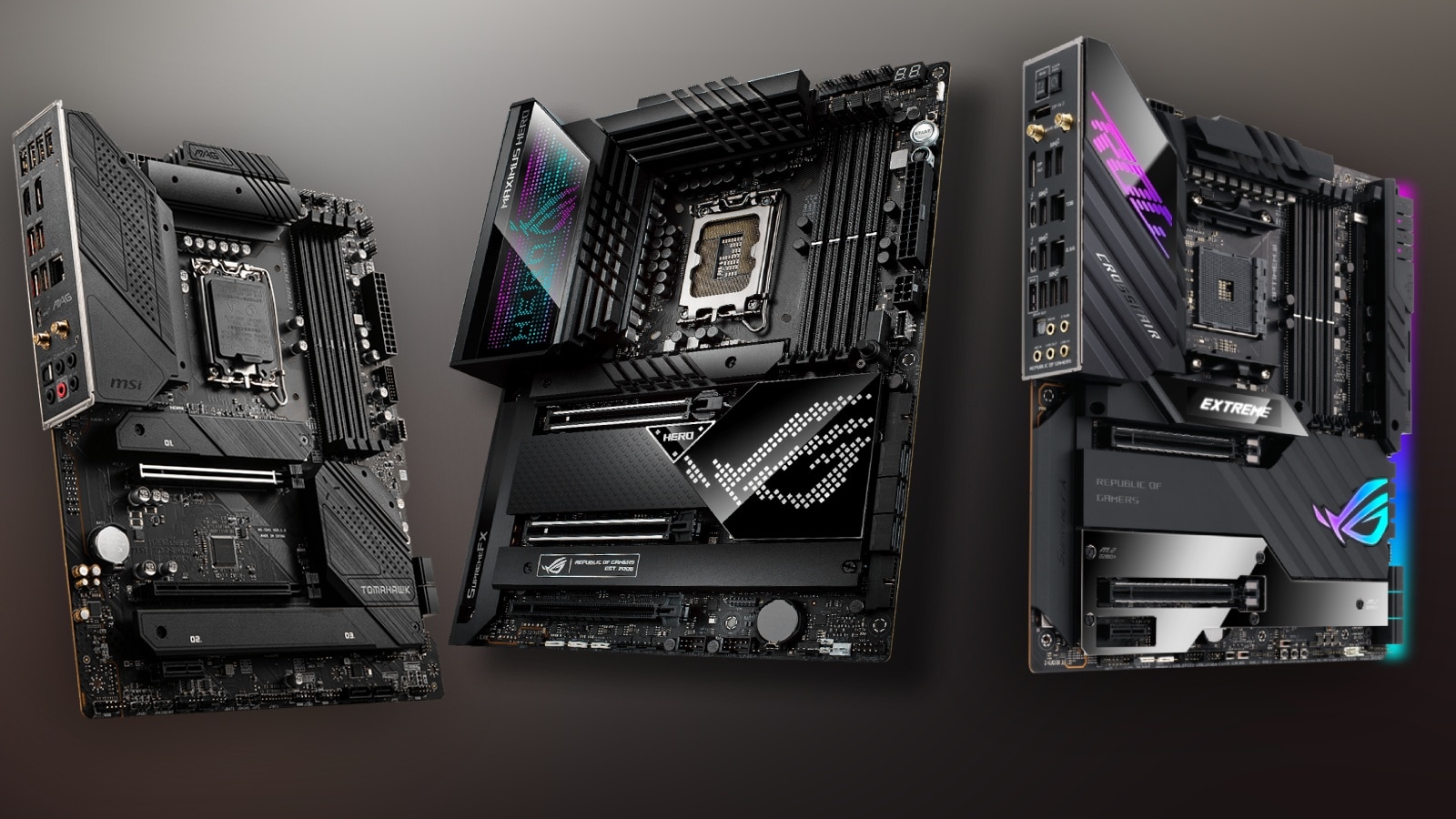
    Gaming Motherboards Does Motherboard Affect Performance

    Before we talk about how motherboard affect gaming performance, we need to understand what a motherboard is first.

    A motherboard, or the mainboard, houses all the components and allows them to communicate with one another to get you a fully functioning computer. The motherboard is also responsible for power distribution across these computer parts.

    If the CPU or processor is the brain of the computer, then the motherboard is the heart, so to speak. A computer can run without a processor for a short while, but a computer will not exist without a motherboard.

    But how does the motherboard affect performance? Well, it doesn’t directly affect computer performance, but it can determine maximum performance.

    You see, your motherboard does not have actual specs that would directly affect performance, unlike how a GPU or CPU might dictate your PC’s performance when it comes to gaming. However, a motherboard will play a huge role in overclocking capabilities of gaming PCs, which would greatly improve performance.

    To sum it up, a motherboard does not directly affect performance, but rather it indirectly affects performance.

    What Is Overclocking?

    Overclocking Does Motherboard Affect Performance

    Overclocking is a term that’s liberally thrown about in the gaming PC world, but what exactly is it and why are people so gung-ho about it?

    Think of it this way, a CPU or GPU will come with a base clock speed. Newer models and high-end models will have another set of numbers called boost clock speed. By default, your CPU or GPU will run at its base clock speed. Overclocking will push both of these components to its maximum speed, or boost speed.

    This allows you to get more power out of your CPU and GPU, significantly improving performance at a cost. Even at the base clock speeds, both CPUs and GPUs generate heat when they’re working. But the heat generated by overclocked GPUs and CPUs is higher. Without proper cooling, a motherboard and the other components will become damaged by the heat.

    A new motherboard supports overclocking, but low end motherboards might not be able to. Higher-end motherboards will almost always have to overclock support too, especially when you have modern CPUs like the Intel Core i9 and the AMD Ryzen 9 3900X.

    Where does the motherboard come into play in determining your capability to push your CPU or GPU to maximum speed?

    Since a motherboard connects all parts, it’s also responsible for distributing power to these parts. A motherboard will need to regulate the voltage well to make sure that the other components don’t get fried when you’re trying to overclock a CPU or GPU.

    A motherboard will not dictate whether or not you can overclock, but rather, it’s more along the lines of how well it can protect the other components. New motherboards, especially the high-end models, will come with stable clocks, allowing you to have better stability when overclocking.

    Sadly, not everyone can overclock their computers because not all processors were made to be overclocked. Some of the new AMD and Intel CPUs may be powerful, but they just can’t be overclocked (and for a good reason, we think).

    Can Motherboard Affect Your FPS?

    Now that we’ve discussed about how motherboards can affect your overclocking capabilities, you’re probably thinking about whether or not budget motherboards can affect your FPS.

    We know that most motherboards recently released into the market can support overclocking to give you that extra performance. Newer motherboards have better performance than older motherboard because the former can equip the latest CPUs and GPUs.

    The simple answer is this. Different motherboards may still have the same slots for CPUs, GPUs, RAMs, and so on. The rule of thumb is that the newer the motherboard, the higher the chances of being able to use the latest hardware.

    However, a motherboard cannot directly affect your FPS. Your motherboard will only let you know what kind of GPU you can run. Your FPS will still be dictated by the more important components like the CPU and GPU. An SSD storage may guarantee your entire system’s best performance more than your motherboard.

    A budget motherboard may not be able to run the latest graphics cards, so performance gains might not be as much as opposed to a motherboard running an RTX GPU. Will your motherboard have the RAM slots for DDR5 RAM sticks? Will your motherboard have PCIe slots to house your graphics card and more? Will your motherboard’s chipset limit your options in terms of upgrades?

    These are just some of the bigger questions that you need to ask when it comes to how motherboards can affect the overall performance of your entire system when gaming.

    Does A Motherboard Affect GPU Performance?

    MSI Triple Fan GPU Does Motherboard Affect Performance

    We know that the motherboard plays a role in housing and protecting your entire system, as well as determining how much power goes into individual components.

    But as we talked in the previous section, a motherboard will never affect the performance of the entire system or the individual components directly. A graphics card is only as capable as the motherboard that’s housing it.

    Your graphics card will never be impacted directly by your motherboard. Your computer’s performance will still rely on how powerful your CPU and GPU is, further complemented by your RAM and SSD storage.

    Your motherboard will only let you know what kind of graphics card you can equip, if you can overclock the graphics card, and if you can upgrade various components.

    Will A Good Motherboard Matter In The End?

    So what makes a motherboard good? And what kind of motherboard is the best for gaming PCs?

    Motherboard affect FPS indirectly simply because it restricts you from what kind of GPU and CPU you can run. General rule of thumb is if you want your computer’s performance to be top notch, then you’ll need to build around your motherboard’s chipset. This will set you up for what kind of motherboard to use. From there, you’ll know what kind of graphics card, RAM, and SSD to run with. Everything else will become secondary.

    A good motherboard will cost you somewhere about $200 to $300, more if you’re planning to run an Intel Core i9 or an AMD Threadripper.

  • What’s The Best Laptop for Photo Editing?

    What’s The Best Laptop for Photo Editing?

    20 or 30-odd years ago, if we told you that laptops were going to be used for something other than doing office work, you’d probably scoff at the thought. After all, a laptop is a compact version of a personal computer and because of its size, you wouldn’t expect it to house powerful hardware. At least, this was what people thought 20 years ago.

    Now, laptops have gone above and beyond doing office work. With all the advancements made in personal computing, we now have GPUs and CPUs designed for laptops. This means that whatever PC specs you could build, you’ll find a laptop that has similar or more powerful specs.

    The downside to high-end laptops is their battery life and usage. By default, laptops will automatically switch to the integrated graphics card (iGPU) when it’s unplugged rather than use the discrete GPU for anything that needs graphics processing power. You’ll still be able to use the laptop for photo editing, but don’t expect the battery to last you an hour or so.

    And speaking of laptops for photo editing, that’s exactly what we’re going to talk about in this article. Even though you’re just editing photos, the processing power required by photo editing software is a bit higher than what you’d need for gaming.

    The photo editing laptops we will be listing in this article all have higher-than-average specs and a hefty price tag. If you’re getting started with photo editing as a career, or if you want to improve your current setup to become more mobile, then these photo editing laptops are up for consideration.

    What Is The Best Laptop For Photo Editing?

    These laptops are not arranged in any particular order, so the decision on what’s the best photo editing laptop will ultimately boil down to what you need and how much you’re willing to shell out.

    MacBook Pro M1 – $2,099 to $2,499

    A High-End MacBook For Photo Editing and More

    MacBook Pro M1 Best Laptop for Photo Editing

    Specs Cheat Sheet

    • CPU: up to 10-core Apple M1 Max
    • GPU: up to 32-core Apple M1 Max GPU
    • RAM: 16GB, with option to upgrade up to 64GB
    • Screen: 16-inch Retina Display with True Tone
    • Storage: Options for 1TB up to 8TB

    Why Consider It?

    • Apple M1 Max chips have incredible performance
    • Up to 64GB RAM on a laptop
    • Amazing screen display

    Why Avoid It?

    • Expensive!

    We’re not playing favorites here, but if you just want to get the best laptop for photo editing, video editing, and other tasks, then the MacBook Pro M1 is a solid pick if you have no qualms with spending about $2,000.

    The MacBook Pro M1 is better than its 2020 predecessors by a mile, breaking through the RAM restrictions and display size. With a 16-inch screen and an option to upgrade to as much as 64GB, photo editors will be more than happy to put this minimalist beast to the test.

    And as for battery life and combined with the M1 chip architecture, you’d be surprised to know that the battery life on the MacBook Pro M1 can go as high as 21 hours even when you’re doing video editing or photo editing. If you want a second monitor, you can easily go for monitors under $100.

    MacBook Pro M2– $1,269 to $1,279

    A Decent Alternative To The MacBook Pro M1

    MacBook Pro M2 Best Laptop for Photo Editing

    Specs Cheat Sheet

    • CPU: 8-Core Apple M2
    • GPU: 10-Core Apple M2 GPU
    • RAM: 8GB default, can be upgraded to as high as 24GB
    • Screen: 13.3-inch Retina Display with True Tone
    • Storage: 256GB base storage space, upgradeable to 2TB SSD

    Why Consider It?

    • Amazing screen quality
    • Excellent performance and portability

    Why Avoid It?

    • 2 USB ports may not be enough for photo editors
    • Small screen size, may not be enough for photo editors or video editors

    If the MacBook Air is way too expensive for you but you still want to go for something made by Apple, then you can’t go wrong choosing the 13-inch MacBook Pro. Even with specs that’re a bit underwhelming compared to the Macbook Air, the MacBook Pro still does a great job for powering through photo editing tasks, video editing tasks, and more.

    And with a price tag that’s almost 50% less than what the MacBook Air would cost you, we believe that the MacBook Pro gives you the best bang for your buck.

    Razer Blade 17 – $3,899 to $5,599

    An All-Around High-End Laptop For Photo Editing and More

    Razer Blade 17 Best Laptop for Photo Editing

    Specs Cheat Sheet

    • CPU: Choice of Intel Core i7 12th Gen or Intel Core i9 12th Gen
    • GPU: Choice of Nvidia GeForce RTX 3060, Nvidia GeForce RTX 3070Ti, or Nvidia GeForce RTX 3080Ti
    • RAM: 32GB
    • Screen: 17.3-inch screen at 2,560×1440 pixel resolution
    • Storage: 1TB SSD

    Why Consider It?

    • Quality display
    • Excellent overall laptop build
    • Powerful specifications packed inside a compact machine

    Why Avoid It?

    • Expensive!

    Probably one of the highest-performing laptops on this list, the Razer Blade 17’s reputation precedes itself for both gamers and creative professionals. With a price tag higher than that of both Apple products listed above combined, you’re getting what you pay for.

    First, you’re getting either an Intel Core i7 or an Intel Core i9. Both are considered powerful processors for gaming, video editing, and more. Then you have the Nvidia GeForce RTX graphics cards for serious graphics processing performance. Tinkering with the options for upgrades, you’ll be spending close to $6,000 for an Intel Core i9 and an RTX 3080Ti combination.

    But even with these specs, is this the best laptop for photo editing? If you don’t mind spending a lot of money on an all-around machine, then this is a solid pick. The hardware will definitely last you for more than five years, and you won’t ever feel the need to upgrade to a newer machine or model of the Razer Blade for the foreseeable future.

    For the budding photo editing professional or creative professional, consider this a hefty but worthwhile investing for growing your career.

    Microsoft Surface Laptop Studio – $1,399

    A Hybrid Laptop/Tablet Combo For Photo Editing

    Microsoft Surface Laptop Studio Best Laptop for Photo Editing

    Specs Cheat Sheet

    • CPU: Intel Core i7 11th Gen
    • GPU: Integrated Intel Irix XE
    • RAM: 16GB base RAM with option to upgrade to 32GB
    • Screen: 14.4-inch 2400×1600 resolution at 120Hz refresh rate
    • Storage: 256GB base SSD storage size with option to upgrade to 2TB SSD

    Why Consider It?

    • Lightweight and portable
    • Excellent Retina display

    Why Avoid It?

    • No HDMI port or memory card slot

    The Microsoft Surface Laptop Studio is possibly one of the most minimalistic laptop/tablet combinations we’ve ever laid our eyes on, and maybe the best laptop for photo editing for the photographer on the go.

    The Microsoft Surface Laptop Studio features a hybrid design so you can convert from laptop to tablet on the fly, but sadly, no 360-degree hinge. Rather, the Microsoft Surface Laptop Studio features a dual-hinge similar to traditional laptops and a secondary hinge located in the middle of the screen so you can prop up the screen.

    Inside the Microsoft Surface Laptop Studio, we have the Intel Core i7 11th gen CPU and room for upgrading up to 32GB RAM and 2TB storage for a minimal cost. At most, you’re spending $1,399 to max out on upgrades.

    Its portability is both its strength and weakness. The absence of a GPU, speakers, and webcam will definitely be a disappointment for those looking for more. But hey, you get what you pay for. This is a photo editing laptop at best with no added features.

    Dell XPS 15 – $2,195 to $2,800

    A Robust All-Around Photo Editing Laptop And More

    Dell XPS 15 Best Laptop for Photo Editing

    Specs Cheat Sheet

    • CPU: Intel Core i9 11th Generation
    • GPU: Nvidia GeForce RTX 3050Ti
    • RAM: 8GB stock RAM, with option to upgrade to 64GB
    • Screen: 15.6-inch IPS LCD screen at 3840×2400 resolution
    • Storage: 512GB SSD, upgradeable to 2TB SSD

    Why Consider It?

    • Excellent performance
    • Decent number of available ports, including SD slot

    Why Avoid It?

    • Mediocre battery life
    • Expensive

    Dell is notoriously good at creating powerful hardware, from their gaming laptops to their prebuilt desktop PC lineups. Coming into this list is the Dell XPS 15, or Dell XPS 9000, and this Windows laptop is absolutely packed to the teeth.

    For the Dell XPS 15, we got the Intel Core i9 processor and an RTX 3050 for excellent graphics performance for gaming and other stuff. The screen’s also what we’d consider to have one of the best configs for photo editors and other creative professionals. The Dell XPS 15 comes with a 4K resolution at a 16:10 ratio, with a 500-nit brightness.

    But this is not a budget laptop either. You’ll need to mix and match certain upgrades to get the performance that you need. But regardless, the Dell XPS 15 is one of the best laptops for photo editing and more.

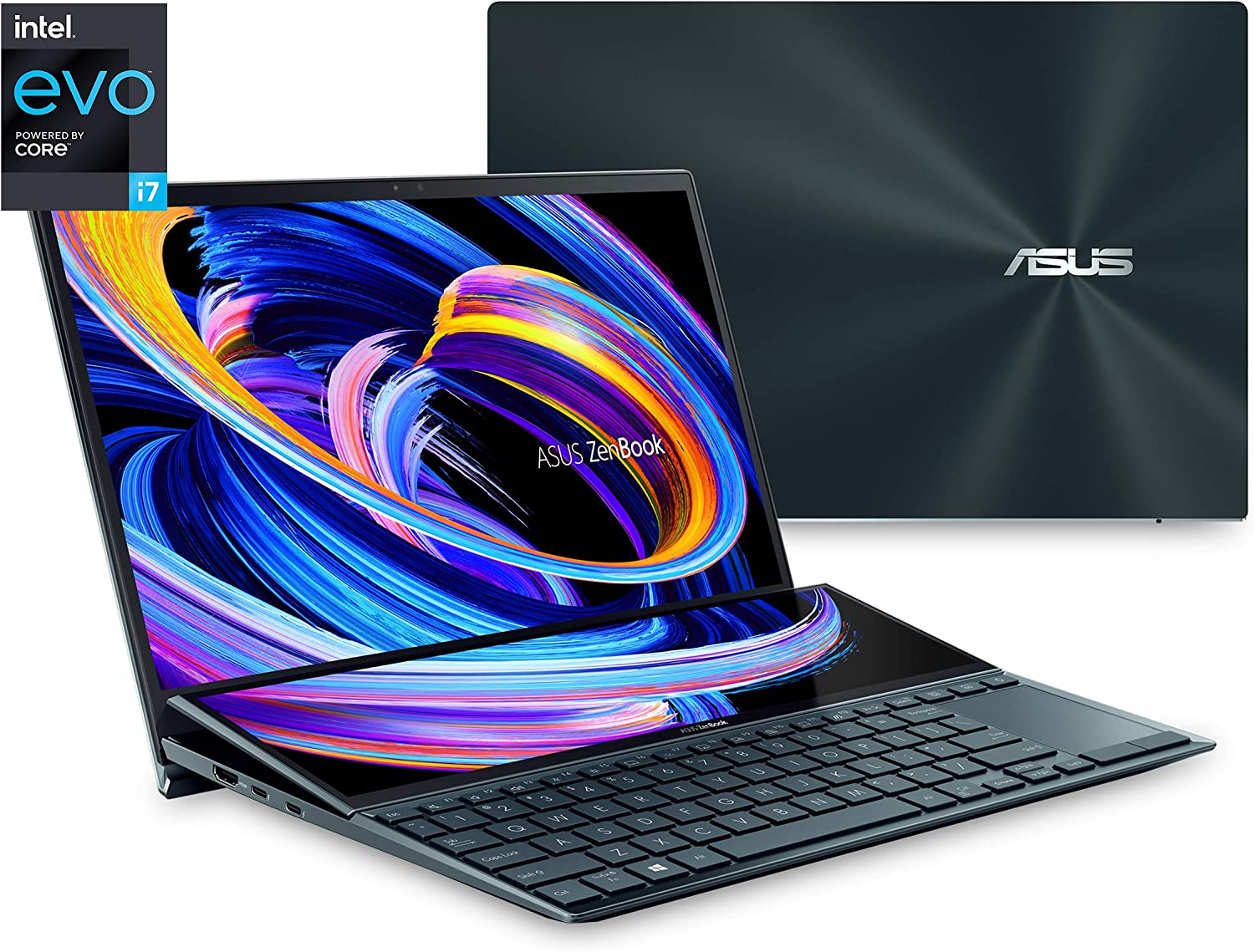
    Asus Zenbook Pro Duo 14 – $1,079 to $1,217

    An Uncompromising Laptop With Specs and Aesthetics To Match

    Asus Zenbook Pro Duo 14 Best Laptop for Photo Editing

    Specs Cheat Sheet

    • CPU: Intel Core i9 12th generation
    • GPU: Intel Iris XE
    • RAM: 8GB stock RAM, with option to upgrade to 32GB
    • Screen: 14.5-inch screen at 2880×1800 screen resolution
    • Storage: 512GB stock SSD storage, with option to upgrade to 1TB SSD

    Why Consider It?

    • Impressive dual screen setup
    • Overall fantastic build

    Why Avoid It?

    • Ergonomically complicated
    • Mediocre battery life

    We’ve got the Asus Zenbook Pro Duo 14 on this list for several reasons, and one of the happens to be its impressive touch-sensitive secondary screen nestled right above the keyboard. The ScreenPad Plus, as Asus named it, can be used as a second monitor so you can display another app. You can even split it into three columns to contain different apps.

    The main monitor is an impressive 14.5-inch OLED display with 100% DCI-P3 color space coverage and a 550-nix max brightness combined with the most beautiful contrast setup you’ll ever gaze your eyes on.

    The Asus Zenbook Pro Duo 14 is quite possibly one of the best laptops for photo editing not just for the screen but also the hardware powering it. The Asus Zenbook Pro Duo 14 comes with an Intel Core i9 Processor and room to upgrade up to 32GB RAM and 2TB SSD.

    But there’s a tradeoff. The available screen real estate has made the ergonomics for keyboard and trackpad in a bit of an awkward spot. But so as long as you get used to the setup, it doesn’t really become that much of a bother. The screen quality of the Asus Zenbook Pro Duo 14 still makes it a decent purchase, especially if you like having more screen real estate than regular Windows laptops.

    HP Spectre x360 – $1,479 to $1,699

    A Spectacular Laptop With Genuine Tablet Functionality

    HP Spectre x360 Best Laptop for Photo Editing

    Specs Cheat Sheet

    • CPU: Up to Intel Core i7 11th generation
    • GPU: Intel Integrated Graphics
    • RAM: 16GB
    • Screen: 13.5-inch OLED screen at 3000×2000 resolution
    • Storage: 512GB SSD

    Why Consider It?

    • Laptop with OLED display
    • Incredible battery life
    • Usable tablet functionality

    Why Avoid It?

    • Not even remotely cheap but not as expensive
    • Limited graphics performance

    If the Microsoft Surface Laptop Studio tickled your fancy, the HP Spectre x360 OLED might be a solid contender for best laptop for photo editing. This might be considered the best laptop for photo editing simply because of its OLED display, and once you go OLED, you’ll never want to settle for anything less.

    For photo editing, the HP Spectre x360 OLED has enough processing power to run even the most demanding photo editing software. The HP Spectre x360 OLED’s build quality is excellent, and it’s actually a usable tablet bunled with input pen (with inking support). And in the tradition of HP laptops, the HP Spectre x360 OLED’s battery life is impressive even with an 11th generation Intel Core i7.

    Razer Blade 15 – $1,938 to $2,213

    An Impressive Gaming Laptop For All-Around Purpose

    Razer Blade 15 Best Laptop for Photo Editing

    Specs Cheat Sheet

    • CPU: Up to 10th-generation Intel Core i7
    • GPU: Nvidia GeForce RTX 2060, upgradeable to RTX 2070
    • RAM: 16GB
    • Screen: 15.6-inch OLED screen with 4K resolution (3840×2160) and touchscreen capabilities
    • Storage: Up to 1TB SSD

    Why Consider It?

    • It’s a gaming laptop
    • Excellent build quality and performance
    • 4K OLED display

    Why Avoid It?

    • A bit bulky to lunk around if you’re on the move a lot.

    Razer Blade 17 made it to this list, but comes with a large price tag. If you want a compact laptop for photo editing, then the Razer Blade 15 is a solid pick. While it’s primarily a gaming laptop, and arguably one of the best built gaming laptops there is, the Razer Blade 15 packs enough power for editing photos, videos, and maybe some 3D work.

    The reason why it’s a contender for the best laptops for photo editing is that it packs a 15.6-inch 4K OLED display. The colors, brightness, and contrast are as vibrant as you can get on a 15-6 inch screen. Oh, it’s got a 300Hz refresh rate and a touch-sensitive screen too. 

    For this Razer laptop, we get the GeForce RTX 2060 graphics card (upgradeable to RTX 2070 or RTX 2080). It’s not one of the RTX 3000-series graphics cards, but it’s still considerably fast and the graphics processing power is impressive.

    The Wrap Up

    So which do you think is the best laptop for photo editing? Well, it boils down to what you need and how much you’re willing to spend. A couple thousand dollars might be over the top if you’re just getting started, but you can’t go wrong with investing in a future-proof gadget either.