Category: PC Hardware

  • GDDR5 vs GDDR6 – Which Is Better?

    GDDR5 vs GDDR6 – Which Is Better?

    Out shopping for one of the latest graphics cards? Well, you’ve probably encountered letter-number combinations such as “GDDR5” and “GDDR6”. And if you’re not a tech-savvy person, you’ve probably only concerned yourself with how much graphics memory capacity a video card has.

    Your personal computer or laptop is made up of different components such as the CPU, RAM, storage devices, and graphics card. Between these different components lies one specification that encompasses all of them – MEMORY.

    But not all of them have the same type of MEMORY. For example, RAM or RANDOM ACCESS MEMORY uses memory to store data that allows the computer to run. Storage devices like your HDD and SSD use memory for long-term data storage.

    RAM uses short-term memory because they come and go as needed by the CPU. HDD and SSD use long-term memory.

    Now, graphics card use what they call VRAM or Video RAM. It works a lot like the RAM on your CPU, but instead, it stores short-term data in order for the graphics card to run. The GPU’s VRAM cannot be accessed by the CPU.

    Having said that, more video cards are now using GDRR6 as they slowly transition from the GDDR5 chips. But what does that mean for the end user? What’s the actual difference between these types of video memory?

    We’ll find out in this article as we discuss the subtle differences between GDDR5 vs GDDr6.

    What Does GDDR Even Mean?

    Nvidia RTX 3050 GDDR5 vs GDDR6

    GDDR is short for Graphics Double Data Rate, and is a form of short-term memory used by GPUs to store data. The VRAM is responsible for compiling images received and displays them on your monitor.

    Graphics card manufacturers will always post the type of GDDR the GPU is using. Right now, the current version is GDDR5 for a lot of the semi-recent video cards but we are now getting graphics cards with GDDR6 memory. Soon, GDDR6 will become the industry standard.

    How and Where is GDDR Used?

    GDDR memory is used for everything that has to do with graphics. You use VRAM for gaming, 3D modeling, video editing, and more.

    Data that’s used for image compilation is cached into the VRAM and comes and go as it’s needed. Data stored in VRAM is short-term, which is also it’s downfall. Unlike SSD and other storage devices, data does not stay long in a VRAM. Once the data is used, it’s removed from the VRAM to make room for the next set of data.

    But its short-term memory capacity is also its biggest weakness. If the video card doesn’t receive power or is turned off, you lose all data for that session.

    GDDR5 vs GDDR6 – Which Should You Go For?

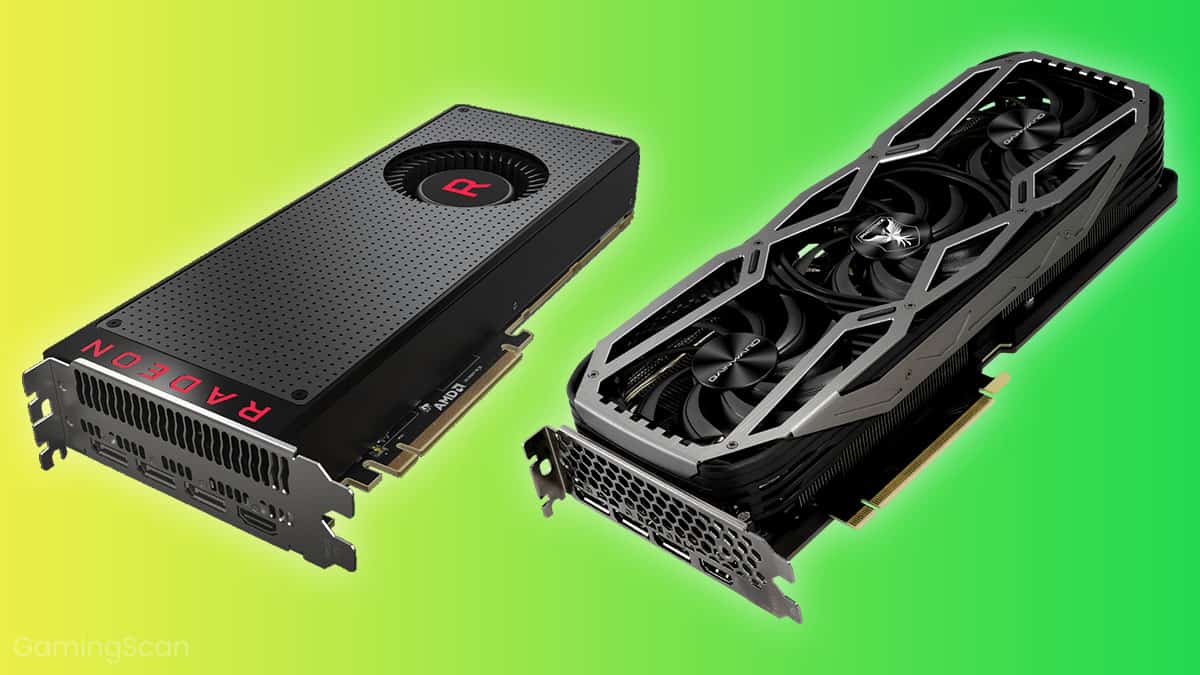
    Two Different GPUs GDDR5 vs GDDR6

    The biggest difference between GDDR5 vs GDDR6 is their transfer speeds. GDDR5 has a transfer rate of 8GB per second and GDDR6 has a transfer speed anywhere between 14gb and 16GB per second. Roughly double the transfer speeds of a GDDR5 graphics card.

    Is this increase in transfer speed noticeable by your average user? The benefits are hard to quantify, mostly because the newer iterations of graphics cards are intended to out-do their old counterparts. Having said that, a new iteration will almost always leave a performance gap between them.

    Another point for consideration is their capacity. GDDR5 graphics cards have different sizes ranging from 512MB to 8GB, whereas your GDDR6 will have higher capacity. Your GDDR6 graphics card will only have two sizes: 8GB and 16GB.

    What About GDDR5X?

    GDDR5X is considered a half-step between the GDDR5 and GDDR6. with a transfer speed between 10GB and 14GB. It has a higher transfer speed than the GDDR5, but is only slightly lower than the GDDR6.

    What Are Some Examples of Graphics Cards with GDDR Memory?

    Graphics Cards with GDDR5 Memory

    NVIDIA

    AMD

    Graphics Cards with GDDR6 Memory

    NVIDIA

    AMD

    Do You Even Need GDDR6?

    By now you’ve already known the difference between GDDr5 vs GDDR6, and you’re probably thinking…

    Do you even need a GDDR6 graphics card? Is there are a way to upgrade the GDDR installed in your graphics card?

    We got good news and bad news.

    First the good news. What you need out of the GDDR6 graphics card will determine whether or not it’s worth getting. Do you need the graphics boost to power through rendering tasks? If so, a GDDR6 graphics card might be a good investment.

    But if you have a GDDR5 GPU and want to upgrade the VRAM only, well that’s where we have the bad news. Unfortunately, VRAMs are soldered directly onto the GPU, so you can’t replace them.

    But overall, a GDDR6 is still considered a direct upgrade over the GDDR5. But even if it’s an upgrade, it doesn’t mean that it’s inherently better. For example, a GDDR5X graphics card liker the GTX 1080Ti has the same performance as an RTX 3060Ti.

    How Faster Is The GDDR6 Over GDDR5?

    The theoretical difference between the two generations of video RAM is one thing, but real-world benchmarking is another. The latter is more realistic since you’re comparing results in real time.

    But is it even possible to do a physical benchmark? Yes!

    One benchmarking done by a forum poster named VideoCardz compared two GDDR generations from one graphics card – the Nvidia GeForce GTX 1650. The GPU has two iterations, namely a GDDR5 variant and GDDR6 variant.

    The GDDR5 variant has a higher base clock speed of 1485MHz compared to the GDDR6’s 1410MHz speed. But the GDDR6 variant has a higher memory speed of 12,000MHz than the GDDR5’s 8000MHz.

    As you can see from the charts below, the GDDR6 variant was slightly better amongst different games. The GDDR6 variant was about 5% to 8% better compared to the GDDR5 variant.

    GTA 5 Benchmarking GDDR5 vs GDDR6
    Gaming Performance GDDR5 vs GDDR6

    Gaming performance averaged at 6% for the benchmarked games such as GTA 5, Overwatch, and Valorant.

    Both GPUs have the same TDP of 75 watts, but the GDDR6 variant used 9% lower power consumption than the GDDR5 variant.

    As you can see, the overall GPU performance gap isn’t that great between the GDDR5 and GDDR6. Sure the latter has a higher performance recorded in the benchmark, but it’s pretty much negligible to say the least.

    And by negligible, we mean that if you’re running a game at 60FPS on ultra settings on the GDDR5 variant, then you should be able to do the same thing on the GDDR6 variant. You won’t notice the difference between the FPS and graphics settings even.

    Is 8 GB GDDR6 Enough?

    If you plan to go into 1080p gaming, then 8GB of GDDR5 or GDDR6 is more than enough. But if you’re doing video editing, 3D modeling and animation, and other professional tasks, then you’ll need something higher than 8GB.

    Is There a GDDR6 Shortage?

    Between 2020 and 2021, there has been a shortage of GDDR6, thereby limiting the production of the RTX 30-series and Radeon RX 6000-series graphics cards.

    A global shortage of semiconductors plagued the industry, further worsened by the COVID-19 Pandemic. Shipping of stocks weren’t done on time because shipping of medical supplies was heavily prioritized.

    The shortage was made worse by cryptocurrency miners who hoarded the GDDR6 graphics cards. Scalpers also hoarded stocks of these graphics cards, thereby driving the price upwards.

    The Wrap Up

    Now you know that GDDR stands for graphics double data rate. It refers to the standard VRAM that a graphics card uses to store short-term data.

    GDDR6 is definitely a solid choice for gaming and other graphically-challenging workloads. However, they’re quite on the expensive side but they’re worth it if you ask me.

    The difference in performance between a GDDR5 vs GDDR6 isn’t that substantial as seen from the benchmarks above, unless you’re comparing low end GPUs to a high-powered one.
  • What’s The Best High End PC Case? (Jul 2026)

    What’s The Best High End PC Case? (Jul 2026)

    When building your gaming rig, the PC case is probably the least of your concerns when it comes to budgeting. You just pick out a decent enough case that’s capable of housing your PC components, a decent number of expansion slots, and some minor extra features.

    But sometimes, it doesn’t hurt to splurge a little when it comes to buying PC cases. You see, some PC cases end up being more expensive than others mostly because of their added functionalities and higher aesthetic value. A high end PC case doesn’t necessarily mean that it should be made of gold or embossed in jewelry.

    On this list, we’ll go over some of the most expensive PC cases you should check out this year. We’ll arrange them from the most expensive down to the most affordable.

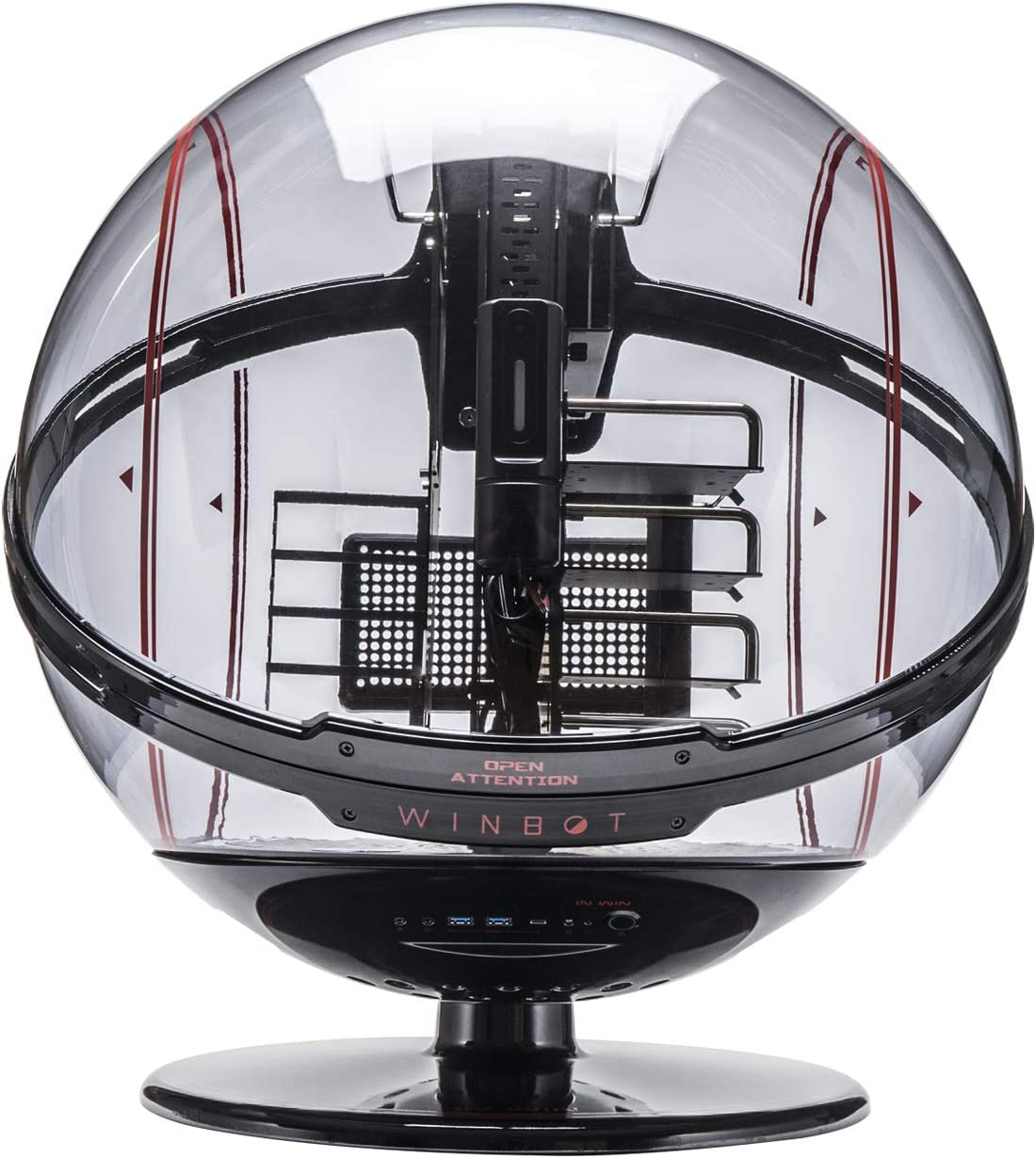
    In Win WINBOT PC Case

    Cost: About $1,000

    InWin WINBOT E-ATX Gaming High End PC Case

    The most expensive PC case on this list is the In Win Winbot PC Case and is always priced somewhere above the $1,000 mark. On their official website, the newer iterations cost well over $5,000 while the Winbot PC case price over at Amazon hovers between $1,000 and $3,500.

    The In Win Winbot PC Case is more than just a hamster wheel of a PC case. It’s fully customizable and packed with features you’ll never see in any of the cases here or anywhere else.

    To start, the In Win Winbot PC Case packs a facial recognition feature and hand gesture capabilities that allow you to move the case as you walk by it. The case rotates for a full 360-degrees with a simple swipe of the hand. The facial recognition feature is also capable of detecting real faces and faces in a photo.

    As of this writing, stocks are limited for the In Win Winbot PC Case so it might take a while before you see this being back in the market.

    Cougar Gemini X Dual PC Case

    Cost: Around $700

    Cougar Dual Tower Case High End PC Case

    The Cougar Gemini X Dual PC Case is a beast of a Mini ITX case for one good reason: dual PC configuration.

    The Cougar Gemini X Dual PC Case has full ATX motherboard support with a secondary mini ITX motherboard support for the second build. It can house up to 5 case fans for both sections for maximum heat management. With the way that the Cougar Gemini X Dual PC Case is built, you can mount it vertically or horizontally.

    The Cougar Gemini X’s casing is 3mm thick, way above the industry standard of 1mm for aluminum casings. The tempered glass is also thicker at 5mm, compared to the 4mm you usually see with other cases.

    The downside to the Cougar Gemini X Dual PC Case is that it’s heavy, but that’s a given. You have a case that supports two PC builds with thick tempered glass panels.

    FSP CMT710 PC Case

    Cost: $450 on average

    FSP CMT710 PC Case High End PC Case

    Going past below $500, we have the FSP CMT710. Just like the Cougar Gemini X, the FSP CMT710 also has dual PC configuratio that houses two separate PCs with an open frame design. The chassis is made of aluminium and has two chambers for dual water cooling systems. There’s also a center compartment for cable management.

    Unlike the Cougar Gemini X, the FSP CMT710 is an open-frame PC case, which makes it all the more aesthetically pleasing to the eye. But then again, dust and dirt will probably gather around your PC components faster on the FSP CMT710.

    Going over its dual PC configuration, the FSP CMT710 provides motherboard support for Extended ATX, Micro ATX, and Mini ITX. The case also has both horizontal and vertical GPU mount support.

    In Win Signature Motorcycle Steel Tube PC Case

    Cost: Around $350-$400

    In Win Signature Motorcycle Steel Tube High End PC Case

    Another entry from In Win is their Signature Motorcycle Steel Tube D-Frame Case which is considered to be a favorite amongst PC builders.

    The Signature Motorcycle Steel Tube D-Frame Case comes in different colors namely Blue, Red, Green, Orange, and White. There are also mini ITX versions of the Signature Motorcycle Steel Tube D-Frame Case. But just like the WinBot PC Case, supply of the Signature Motorcycle Steel Tube D-Frame Case is limited.

    The Signature Motorcycle Steel Tube D-Frame Case comes with an adjustable PSU holder, open air cooling support, and mounted routing holes for the best cable management features that DIY builders fancy.

    Azza CSAZ-804V PC Case

    Cost: Around $300

    Azza CSAZ-804V Pyramid High End PC Case

    We’ve seen a hamster ball PC case and a dual PC case system, but what if we told you there’s a pyramid case? Well, there’s actually a couple of them on this list and they’re made by one company: Azza.

    First up, we have the Azza CSAZ-804V and you’ll find no other case that’s as beautiful as this. The Azza CSAZ-804V has multiple motherboard support for ATX, ITX, Mini ITX, and Micro ATX. It also comes with 120mm RGB case fans at the top of the case.

    Common user feedback about the Azza CSAZ-804V is that it has a mediocre cooling performance due to poor airflow, so you’ll need an AIO cooler for your CPU. But since you’re already spending $300 on the Azza CSAZ-804V, you’re probably eyeing a liquid cooling system already.

    There’s room for creativity here in setting up your LED lights along the pyramid angles. And with the tempered glass side panel windows, it’ll look like the Louvre Museum sitting on your desktop.

    The overall build quality of the Azza CSAZ-804V is top-notch, making it a great choice for building a beautiful and powerful gaming PC.

    Cougar Conquer 2

    Cost: Around $300

    CougaCougar Conquer 2 All New Ultimate Gaming Full Tower Case High End PC Caser Conquer 2 All New Ultimate Gaming Full Tower Case High End PC Case

    Like its price tag, there’s nothing small about the Cougar Conquer 2 PC case. The Cougar Conquer 2 is a full tower PC case with full tower motherboard support, and its aesthetics is just as impressive as its size.

    The Cougar Conquer 2 has removable parts that allow you to easily slide components in and out of the chassis. That way, internal components can be accessed without any difficulty.

    Azza CSAZ-802F PC Case

    Cost: About $270

    AZZA CSAZ-802F Cube CASE High End PC Case

    Here we have another entry from Azza, but this time it’s a cube PC case. The Azza CSAZ-802F is slightly cheaper than its pyramid counterpart by about $30. The Azza CSAZ-802F comes with 5 Hurricane II Digital RGB pre installed fans, graphics card support for up to 280mm, and radiator support for up to 240mm on the front panel.

    With 5 pre installed fans, it goes without saying that the cooling performance of the Azza CSAZ-802F is anything but excellent.

    But what’s impressive about the Azza CSAZ-802F is that despite being a Mini ITX case, it does have support for ATX and mATX motherboards. Talk about complete flexibility.

    Antec Striker PC Case

    Cost: Around $250

    Antec Striker Aluminum and Steel ITX Computer Case High End PC Case

    Up next and slowly crossing the affordability threshold we have the Antec Striker Aluminum and Steel ITX Computer Case, a high end mini ITX case with water cooling support.

    The Antec Striker Aluminum and Steel ITX accommodates smaller form factor motherboards, but that’s not the reason you actually buy this case. The Antec Striker Aluminum and Steel ITX Computer Case is meant to showcase your water cooling system.

    The Antec Striker Aluminum and Steel ITX Computer Case features front GPU mounting and support for up to 2 x 120mm or 1 x 240mm case fans for rear and sides. It also has 240mm radiator support on both sides.

    Needless to say, the Antec Striker Aluminum and Steel ITX Computer Case is one of those PC cases where you buy solely for aesthetic purposes. If it didn’t have water cooling support, it wouldn’t make sense to purchase this case.

    Why Are These PC Cases Expensive?

    In the world of PC building, the most common parts you would often spend more money on are the graphics card, processor, RAM, storage, and cooling system. Whatever’s left of your budget would often go towards the PC case.

    Why would people ever want to spend more money on a PC case than they should? The following factors should give you an idea on why…

    Design and Uniqueness

    As you can see from the list, the majority of the cases have this insane design, regardless if it’s a mid tower case, mini ITX case, or any other type of PC case. The aesthetic appeal of having a case that resembles a robot or a spaceship is just too irresistible.

    Other aesthetic points that draw people into buying these cases are their support for different types of CPU coolers, the types of glass panels the case uses, the size and look of the motherboard tray, and even how the power supply is positioned inside the case.

    Utility and Functionality

    People also end up paying for more features and functionality for these types of PC cases. For example, a case that could house multiple motherboard types is already considered great value. Content creators and streamers usually use the double PC configuration or use a PC with extended ATX support to house powerful and bigger components.

  • A Beginner’s Guide On How To Clean GPU

    A Beginner’s Guide On How To Clean GPU

    You’re in the middle of an intense gaming session when all of a sudden, you hear loud whirring noises coming from within your CPU and your FPS starts to wobble up and down. The sounds grow louder and it was only when you turned the PC off that things went quiet.

    You open up your PC case, only to find that your graphics card has accumulated all the dust inside your room. You probably don’t even know when the last time you cleaned the GPU. Don’t fret though, as we’ll teach you how to clean GPU so you can game without any disturbance.

    Why Is It Important To Keep Your GPU Clean?

    Dirty Card How To Clean GPU

    Keeping your graphics card clean is as important as keeping your room or house clean. PC components accumulate dust buildup from the air that goes in and out of your room. Your intake fans, the one responsible for bringing cool air into the system, will be bringing along these dust particles as they enter the PC. But not all of them will go out through the exhaust fans.

    These smaller dust particles will settle on any surface they could land on, from your graphics cards to your fan’s blades to your power supply. When there’s too much dust buildup, your GPU fans, case fans, and your CPU fans will slow down eventually.

    So, the biggest reason why you really want to keep your GPU clean is to make sure that your desktop computer stays in top shape. Cleaning your PC regularly will help you remove all stubborn dust particles and other debris.

    What Kind of Cleaning Process Is Meant For Graphics Cards?

    When you clean your graphics card, you do it one of three ways:

    • There’s the basic maintenance where you remove all the dust buildup with compressed air, a brush, and a clean and dry microfiber cloth.
    • You can do deep cleaning, which requires you to remove the graphics card and clean the GPU fans, heatsink, and more.
    • And there’s another way to do deeper cleaning, and this is for when your graphics card has been submerged in water (like it’s been flooded), and this will require some level of technical expertise

    The third option is only for worst-case scenarios, but the first two options are intended to clean GPU without difficulty.

    Note that the first option will have a different set of cleaning tools and the second option has other cleaning tools that you’ll need to use.

    How Often Should You Clean your Graphics Card?

    There’s no solid answer when it comes to how often you should be cleaning your graphics card. More often than not, it boils down to when the need actually arises.

    The rule of thumb for some enthusiasts is that you should clean your graphics card every three to six months, depending on how fast it gets dirty.

    How Do You Clean A Graphics Card?

    As mentioned earlier, there are three ways for you to clean your graphics card. The first two options are doable, while the third one is reserved for worst-case scenarios. Unless you’re a computer technician, the third option isn’t something that you want to DIY.

    Regular Cleaning

    Regular Cleaning How To Clean GPU

    Regular cleaning is something that you can do to keep not only your graphics card clean, but also your PC clean as well. Whether you have a simple setup or even the peskiest buildups, regular cleaning is easy to do.

    You need the following items to get started:

    • A can of compressed air
    • Lint-free cloth
    • Brush

    The premise of regular cleaning is simple:

    1. Power down your PC first and unplug all the cables.
    2. Completely remove the side panel so you have access to the graphics card.
    3. Get your can of compressed air and be sure that the tiny straw that comes with the can is attached to the nozzle.
    4. Aim the nozzle to the fans of the graphics card and blow away the dusts with short burts of air.
    5. Wipe the stubborn dust with the soft cloth then continue to blow in short bursts.
    6. Repeat the process until the fans are free of dust.
    7. Clean the rest of the PC surfaces with the compressed air and cloth so you’re not leaving residue from the dust that was blown off from the GPU.

    Do this every three months or so to keep your graphics card periodically clean.

    Deeper Cleaning

    Dirty Card How To Clean GPU

    Deeper cleaning is what most PC builders do if they want to fix connections to their graphic card, replace thermal paste, or if they just want to completely clean the entire thing.

    For this process, you’ll need the following:

    • Q tip or cotton swabs
    • 99% pure isopropyl alcohol
    • soft bristled brush
    • compressed air

    And here’s a rundown of how you can do deeper cleaning:

    1. Remove the GPU from the motherboard. Make sure there’s no cable attached to the GPU.
    2. Start by cleaning the outside surface with a can of compressed air and the soft cloth combo.
    3. Once the outside surface is free from debris and most dust, you can remove screws to take apart your GPU and access the GPU’s heatsink
    4. Use the soft brush to clean in between the heatsink’s fins. If there is more dust, try to get it with compressed air.
    5. Dip the Q tip into the alcohol. Don’t get it too wet. You just want it damp, not dripping wet.
    6. Use the alcohol-laden Q tip if there are greasy dust particles that weren’t removed by both the compressed air and the brush.
    7. If you want to replace the thermal paste, use a cotton swab with alcohol to remove the old thermal paste. Make sure that the surface is dry before you add a fresh layer of thermal paste.
    8. Make sure the graphics card is completely dry before reinstalling it into the PC.

    Deeper cleaning is a daunting task, so it’s not really recommended if it’s your first time to clean a graphics card.

    Tips For First Time Cleaners

    If you’re going to clean your graphics card for the first time, there are several tips that you’ll need to consider.

    1. Avoid using microfiber cloths. Dry microfiber cloths tend to create static, which may damage the GPU’s internal circuitry.
    2. Use only 99% pure isopropyl alcohol. This is a potent liquid for helping you clean your GPU without damaging its parts.
    3. Don’t remove stickers if your graphics card is relatively brand new. You might void warranties.
  • Can My PC Use NVMe SSD Drives?

    Can My PC Use NVMe SSD Drives?

    A few years ago when people told you to upgrade to an SSD, you were probably hesitant because they were pretty expensive. A SATA SSD would cost you a hundred bucks or so, and the storage isn’t that impressive. Even more expensive was the NVMe SSd, which was almost double or triple the price of SATA SSDs.

    Nowadays, NVMe SSDs have become the standard for storage devices for both laptops and PCs. If you’re gaming and want to upgrade to something faster, then an NVMe drive is what you need. But how will you know your motherboard supports NVMe SSDs? Can you easily upgrade without buying a new motherboard?

    We’ll find out the answer to those questions and more in this article.

    What Is An NVMe SSD?

    SSD Installation Can My PC Use NVMe SSD

    NVMe stands for non-volatile memory express and is a storage interface that was launched in 2013. The term “non volatile” refers to the concept of storage not being deleted when the computer reboots, while “express” refers to how the data travels via the PCIe interface on the motherboard. So an NVMe SSD has a more direct link to the motherboard. The data does not pass through a Serial Advanced Technology Attachment (SATA) controller.

    This makes NVMe SSDs way faster than any SATA SSD. The latest iteration, the PCIe 5.0 SSD can get you up to 13,000Mbps Read and 12,000Mbps Write speeds. But they’re only compatible with the current generation Intel CPUs and processors with Raptor Lake architecture.

    Can My PC Use NVMe SSD Drives?

    Corsair SSD Can My PC Use NVMe SSD

    The majority of newer motherboards support NVMe SSDs, but one way of determining if an old motherboard supports NVMe is to check the specs.

    But what exactly are you looking for?

    If you’re going to find out what kind of SSD your motherboard is capable of supporting, then you’ll need to differentiate between two interfaces namely a PCIe interface and SATA interface.

    The PCIe Interface and SATA Interface are both used by SSDs. SATA SSDs are relatively slower than NVMe SSDs, however, the SATA 3 is capable of transfer speeds up to 6GB or 750MB/s.

    The PCIe interface is found in the PCIe lanes of the motherboard and is used by the NVMe SSDs. PCIe Gen 3 NVMe SSDs can go as fast as 3500 MB/s while the latest PCIe Gen 4 NVMe SSDs go as fast as 5500MB/s.

    It’s understandable enough to know that a SATA SSD is different from an NVMe SSD in more ways than one. Another thing to note is that a PCIe SSD and NVMe SSD are one and the same.

    So, if your motherboard supports NVMe SSD, then you’ll read it on the spec sheet as “Supports PCIe SSD”.

    How Does an NVMe SSD Work?

    An NVMe SSD connects through the M.2 or PCIe slot, and manufacturers will let you know if what you’re getting is an NVMe SSD or SATA SSD.

    If you plan to purchase an NVMe SSD, then you need to determine if your motherboard supports NVMe, to begin with. Motherboards that support NVMe will have a PCIe slot or an M.2 connection for newer motherboards.

    Can Motherboards Support NVMe SSDs and SATA SSDs At The Same Time?

    While both SATA SSD and NVMe SSD are different types of SSDs, it’s worth mentioning that all motherboards support SATA SSDs (as long as there are SATA ports), but not all of them might be able to handle NVMe SSDs. Newer motherboards will typically support NVMe as long as there is an M.2 slot or a PCIe slot.

    Note that just because your motherboard has an M.2 Slot doesn’t automatically mean it supports NVMe protocol. NVMe and SATA drives are also not interchangeable, so a single M.2 can’t support both. But your motherboard specs might show that you’ll have different M.2 slots that accept both NVMe and SATA SSD.

    But if you do have enough M.2 slots, it also doesn’t mean that your motherboard supports both NVMe and SSD at the same time.

    What Generation of NVMe Do I Need For My Motherboard?

    Your motherboard chipset and CPU will determine what kind of NVMe SSD is supported by the motherboard. A Gen 4 and Gen 3 NVMe SSD are totally different from one another. That’s because the Gen 3 NVMe SSD will follow the PCIe 3.0 protocol and Gen 4 SSDs will follow the PCIe 4.0 protocol.

    Gen 3 SSDs can go as high as 3500Mbps, while Gen 4 SSD types go for up to 5500Mbps. There aren’t a lot of Gen 4 NVMe SSDs in the market right now due to their cost, and they’re considered high-performance devices. You won’t be seeing them installed in prebuilt gaming PCs anytime soon.

  • What’s The Best Ryzen 5000 Motherboard?

    What’s The Best Ryzen 5000 Motherboard?

    The new Ryzen processors are based on the Zen 3 architecture and has significant improvements over their predecessors, one of which is the improvements done for multi-core performance and single-core performance.

    With their Ryzen 5000 series, AMD has officially gained the top spot thanks to their improved Zen 3 architecture.

    But what draws people towards the Ryzen 5000 series is their drop-in compatibility with existing B550 and X570 chipsets with only a BIOS update. Now, we’re seeing an influx of Ryzen 5000 compatible motherboards in the market, including older X470 motherboards and B450 motherboards.

    With that said, we’ll go over selecting the best Ryzen 5000 motherboard that will fit you needs and budget at the sme time.

    The Best Motherboards For Ryzen 5000 Series

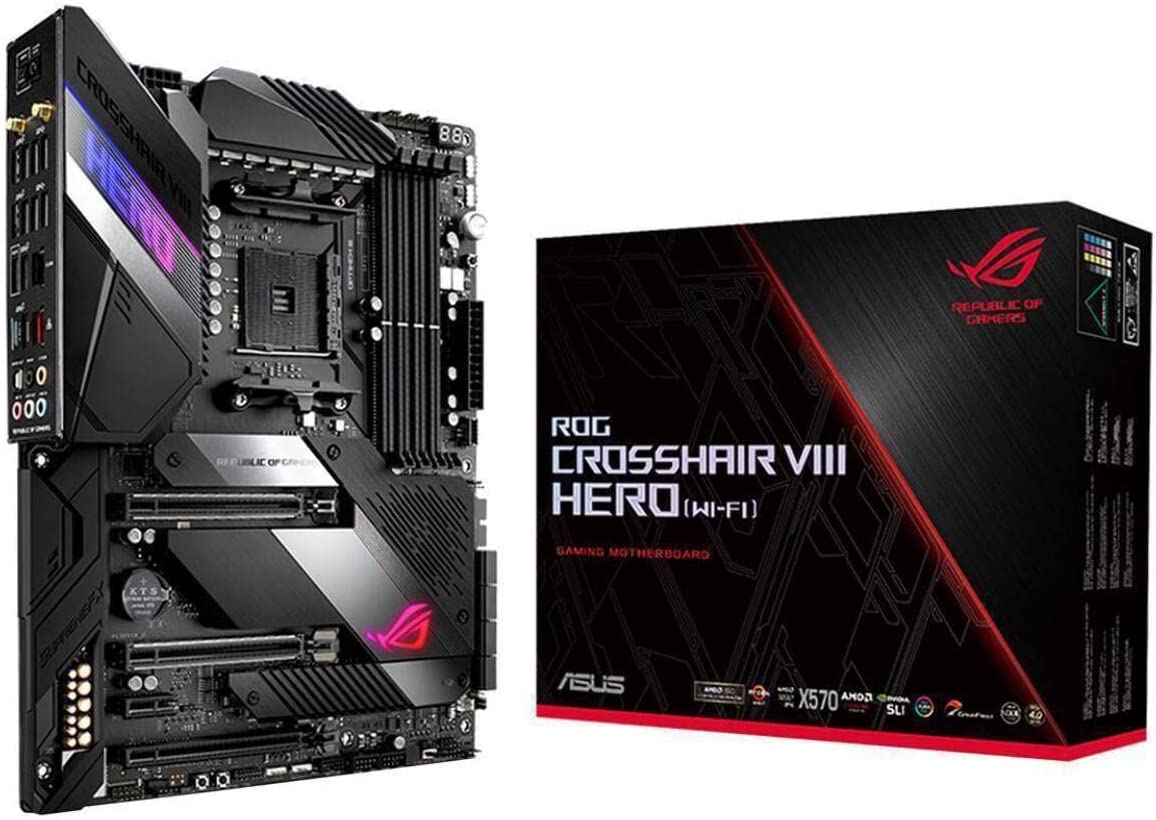
    ASUS Crosshair VIII Hero Wifi

    Best Overall Motherboard For Ryzen 5000

    ASUS Crosshair VIII Hero Wifi Best Ryzen 5000 Motherboard

    What’s Good?

    • Great VRM
    • Connectivity options
    • Amazing RGB aesthetics
    • 8x SATA Ports

    What’s Bad?

    • Expensive
    • No video output

    What Are The Specs?

    • Chipset: X570
    • Memory: 4 DIMM slots up to 128GB and 4800MHz
    • Expansion Slots: 1 PCIe 4.0 x16 slot, 1 PCIe 4.0 x16 (x8) slot, 1x PCIe 4.0 x16 (x4) slot, 1 PCIe 4.0 slot
    • Video Outputs: None
    • USB Ports: 10x rear IO, 7x internal
    • Network: 1x 2.5 GbE LAN, 1x Wi-Fi
    • Storage: 2x M.2, 8x SATA

    First on the list we have the ASUS Crosshair VIII Hero, the flagship motherboard from ASUS. These motherboards were meant for extreme overclockers and avid PC builders. Average users who use the ASUS Crosshair VIII Hero might find it to be a bit of an overkill.

    The ASUS Crosshair VIII Hero features 4 DIMM slots and provides support for up to 128GB of RAM and up to 4800MHz, so memory performance is definitely guaranteed as you can pack this bad boy with all of the greatest RAM sticks the market has to offer. Because of its high VRM, high-speed memory overclocking is easily handled by the ASUS Crosshair VIII Hero.

    ASUS Crosshair VIII Hero’s power delivery system is in a class of its own. The motherboard itself was designed with overclockers in mind, so there’s no doubt that you’re getting a sturdy and robust motherboard. Its 8-phase VRM allows you to handle overclocking from the new 16-core Ryzen 9 5950X CPU, which is why a lot of overclockers pair both this motherboard and the Ryzen 9.

    If you’re using the ASUS Crosshair VIII Hero, you can equip 2 GPUs thanks to the multiple PCIe Gen 4 x16 slots. There’s also support for NVLink and SLI for multiple GPU operations too. You can also equip two NVMe drives, so storage will never be an issue with the ASUS Crosshair VIII Hero.

    The ASUS Crosshair VIII Hero is also aesthetically pleasing to look at without the flashy color schemes. It dons a stealthy black/grey palette with a gigantic heatsink, but there’s support for RGB that provides enough room for customization if that’s your thing.

    All in all, there’s no better choice out there for a Ryzen 5000 series than the ASUS Crosshair VIII Hero. It’s one of the best motherboards out there, and despite its hefty price tag, you won’t have to worry about upgrading this motheboard for the next five years.

    MSI MAG B550M Mortar

    Best Budget Motherboard For Ryzen 5000 Series

    MSI MAG B550M Mortar Best Ryzen 5000 Motherboard

    What’s Good?

    • Affordable and good enough for the Ryzen 5000
    • 2x M.2 slots

    What’s Bad?

    • Only 1 Gen 4 M.2 slot
    • No Wifi
    • Not a lot of USB slots

    What Are The Specs?

    • Chipset: B550
    • Memory: 4 DIMM slots up to 128GB and up to 4400MHz
    • Expansion Slots: 1x PCIe 4.0 x16, 1x PCIe 3.0 x4
    • Video Outputs: HDMI and Displayport
    • USB Ports: 2 USB 3.2 Gen 1 slots, 1 USB 3.2 Gen 2 slots, 1 USB 3.2 Gen 2 Type-C slot, 2x USB 2.0 slots
    • Network: Realtek 2.5Gb ethernet
    • Storage: 2x M.2, 6x SATA 6Gbps 

    Just because we’re talking about the best motherboards for Ryzen 5000 doesn’t mean we’re going to ignore the budget options. On this list, we have the MSI MAG B550M motherboard, the best budget motherboard for Ryzen 5000 series.

    The MSI MAG B550M is a micro ATX motherboard, perfect for compact cases in the market. It has an improved power delivery system compared to its predecessors, the B450 Tomahawk and the B450 Mortar. And speaking of the power delivery system, the MSI MAG B550M has a 8+2+1 phase power design that pairs up real nice with the Ryzen 5 5600X CPU. With a combination like this, you’re already looking at a midrange gaming PC build. You’re getting about 4 DIMM slots with up to 128GB RAM support and up to 4400MHz, 1 PCIe Gen 4 x16 slot and 1 PCIe Gen 3 x4 slot.

    For storage, the MSI MAG B550M has 2 M.2 slots and 6 SATA 6GB/s ports, which is what you wouldn’t normally get from other B550 micro ATX motherboards. But the downside is that you only have 1 wired m.2 slot for PCIe Gen 4. Connectivity is decent enough for a motherboard of this form factor.

    But the best thing about the MSI MAG B550M is its price. A brand new motherboard will cost you about $160, ideal for those on a tight budget with little to no wiggle room for extras.

    Gigabyte X570 Aorus Master

    Best Motherboard For Overclocking Ryzen 5000 Series

    Gigabyte X570 Aorus Master Best Ryzen 5000 Motherboard

    What’s Good?

    • Great power delivery
    • Solid connectivity and networking options

    What’s Bad?

    • No video outputs
    • Only 4 SATA ports are available

    What Are The Specs?

    • Chipset: X570
    • Memory: 4 DIMM slots up to 128GB and up to 4400MHz
    • Expansion Slots: 1x PCIe x16, 1x PCIe x16 (x8), 1x PCIe x16 (x4), 2x PCIe x1
    • Video Outputs: None
    • USB Ports: 4 USB 3.2 Gen2 slots with 1 Type-C, 2 USB 3.2 Gen1 slots, 4 USB 2.0 slots
    • Network: 1x Intel GbE LAN, 1x Realtek 2.5GbE LAN, 802.11ax Wi-Fi
    • Storage: 3x M.2, 6x SATA

    Here we have one of the more premium AMD motherboards, the Gigabyte X570 Aorus Master. The Gigabyte X570 Aorus Master easily competes against the Crosshair VIII Hero motherboards for its overclocking support.

    The Gigabyte X570 Aorus Master is $700 cheaper than the Aorus Extreme, but it has a lot of the features found in the Extreme.

    Gigabyte also makes well-priced GPUs. Read our in-depth guide where we discuss are Gigabyte GPUs good.

    The Gigabyte X570 Aorus Master’s power delivery is efficient thanks to its impressive 14-phase VRM design, making this motherboard the most reliable board for overclocking the Ryzen 5000 series processors. There’s also enough room to support an overclocked Ryzen 9 5950X CPU thanks to its metal heatsink array.

    With the Gigabyte X570 Aorus Master, you get 4 DIMM slots for up to 128GB RAM with frequencies going as high as 4400MHz. You also get 3 PCie Gen 4 slots, so multiple GPUs with SLI support is made possible with the Gigabyte X570 Aorus Master.

    For storage, you get 3 PCIe 4.0 M.2 NVMe slots, which is double the slots of the Crosshair VIII Hero motherboard. If you’re planning on going for multiple SSD storages, the Gigabyte X570 Aorus Master is a more solid pick than the Crosshair VIII. However, if you’re using all M.2 slots, you’ll be left with only 4 SATA ports. This isn’t really a downside unless you need a lot of HDD storage.

    ASRock X570 Phantom Gaming ITX/TB3

    Best Mini-ITX Motherboard For Ryzen 5000

    ASRock X570 Phantom Gaming IT TB3 Best Ryzen 5000 Motherboard

    What’s Good?

    • Decent power delivery
    • Perfect for Mini ITX cases
    • Wifi connectivity
    • Has a Thunderbolt 3 slot

    What’s Bad?

    • Limited USB slots
    • Only 1 M.2 Slot
    • 4 SATA ports are available

    What Are The Specs?

    • Chipset: X570
    • Memory: 2 DIMM slots up to 64GB and up to 4533MHz
    • Expansion Slots: 1x PCIe 4.0 x16
    • Video Outputs: HDMI 2.0, DisplayPort 1.4
    • USB Ports: 2 USB 3.2 Gen2 slots, 2x USB 3.2 Gen1 slots, 1 USB 3.2 Gen2 Thunderbolt 3
    • Network: 1x Gigabit LAN, Intel 802.11ax WiFi
    • Storage: 1x M.2 Socket Gen4, 4x SATA

    ASRock is a reputable brand when it comes to motherboards, and they’ve been successful with their X570 and B450/B550 motherboards in the past. The one on this list is the ASRock X570 Phantom Gaming Motherboard ITX. And yes, this is perfect for those wanting to build a Mini-ITX small form factor PC.

    Despite its size, the ASRock X570 Phantom Gaming Motherboard ITX has one of the most efficient power delivery systems for its form factor, even allowing users to overclock a Ryzen 9 5950X inside a tiny case.

    As expected, the ASRock X570 Phantom Gaming Motherboard ITX only has 2 DIMM slots with support for up to 64GB of RAM at 4533MHz, which isn’t a dealbreaker. You also get 1 PCIe 4.0 M.2 slot and only 4 SATA ports available. Again, given its size, don’t expect to get eight SATA ports.

    If you’re planning on getting the best mini ITX motherboard, then the ASRock X570 Phantom Gaming Motherboard ITX should be your pick.

    MSI MAG X570 Tomahawk WiFi

    Best Value Overall Motherboard for Ryzen 5000 Series

    MSI MAG X570 Tomahawk Best Ryzen 5000 Motherboard

    What’s Good?

    • Solid power delivery system with above average sized VRM
    • Wifi connectivity
    • Affordable and budget motherboard for Ryzen 5000

    What’s Bad?

    • Fewer rear USB 2.0/3.0 slots
    • Questionable RGB lighting placement

    What Are The Specs?

    • Chipset: X570
    • Memory: 4 DIMM slots up to 128GB and up to 4600MHz
    • Expansion Slots: 1x PCIe 4.0 x16 slot, 1x PCIe 4.0 x16 (x8), 2x PCIe 4.0 x1
    • Video Outputs: HDMI
    • USB Ports: 5 USB 3.2 Gen 2 slots, 6 USB 3.2 Gen 1 slots, 6 USB 2.0 ports
    • Network: 1x Realtek 2.5Gbps LAN, 802.11ax Wi-Fi
    • Storage: 2x M.2, 6x SATA

    The earlier X570 lines from MSI were a complete disappointment due to their power delivery system, especially with the MSI X570-A PRo, MSI X570 Gaming Plus, and X570 Gaming Pro Carbon to name a few.

    But things have changed now, and the MSI MAG Tomahawk X570 is the saving grace of their X570 motherboards. Considered as one of the best budget motherboards in the market right now, the MSI MAG Tomahawk X570 features an impressive power delivery design that competes against Aorus Master even. MSI included an 8pin + 4pin ATX 12V CPU power connector on the board that allows the motherboard to draw in more power if the user decides to overclock the system.

    The MSI MAG Tomahawk X570 features 4 DIMM slots for up to 128GB of RAM and as fast as 4600MHz. You’re also getting 2 M.2 slots, situated right under the metal heatsinks. For connectivity, you have a lot of USB ports and SATA ports with 2.5GBe Ethernet and built-in Wifi.

    Is this the best motherboard for Ryzen processors? A lot of users seem to think so, and you simply can’t go wrong with the MSI MAG Tomahawk X570 if you’re after an ATX form factor motherboard.

    The Wrap Up

    What do you think are the best motherboards for Ryzen 5000 series processors? Well, we’re going to break it down into the following categories:

    • Best budget motherboard: A tie between the MSI MAG Tomahawk X570 and MSI B550M MAG Mortar. These are really solid AMD motherboards with decent overclocking support.
    • Best bang for buck: The MSI MAG Tomahawk X570 takes the cake here as it easily competes with the high end motherboards on this list.
    • Best motherboard if money’s not an issue: Hands down, we give this to the ASUS Crosshair VIII Hero. If you want an AMD motherboard with multiple GPU support, this is the one for you.
  • Does Motherboard Affect Performance?

    Does Motherboard Affect Performance?

    Building a computer for the first time can be a daunting task, mostly because you’re always on the lookout for the best hardware components possible. If we want the best gaming performance money can buy, we’re more or less going for a powerful combination of CPU and GPU. Other components like the RAM and SSD affect performance but not as much as the first two components.

    Unbeknownst to many first-time builders, the motherboard can affect gaming performance, but not in the same way as a GPU affects raw gaming performance.

    And that’s exactly what we’ll be discussing in this article. Does motherboard affect performance, and how would PC performance be if the motherboard isn’t the latest model?

    What’s a Motherboard?

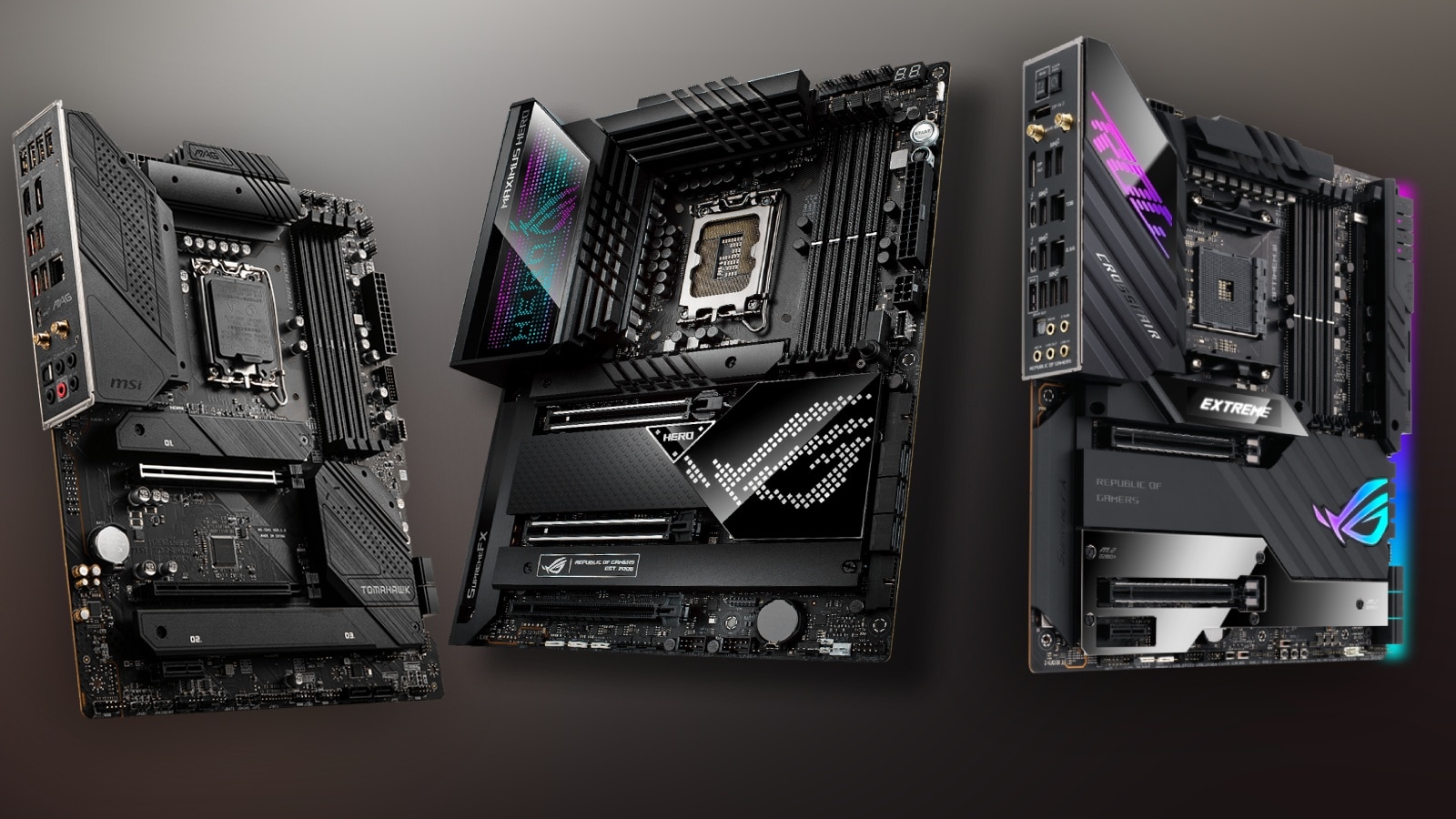
    Gaming Motherboards Does Motherboard Affect Performance

    Before we talk about how motherboard affect gaming performance, we need to understand what a motherboard is first.

    A motherboard, or the mainboard, houses all the components and allows them to communicate with one another to get you a fully functioning computer. The motherboard is also responsible for power distribution across these computer parts.

    If the CPU or processor is the brain of the computer, then the motherboard is the heart, so to speak. A computer can run without a processor for a short while, but a computer will not exist without a motherboard.

    But how does the motherboard affect performance? Well, it doesn’t directly affect computer performance, but it can determine maximum performance.

    You see, your motherboard does not have actual specs that would directly affect performance, unlike how a GPU or CPU might dictate your PC’s performance when it comes to gaming. However, a motherboard will play a huge role in overclocking capabilities of gaming PCs, which would greatly improve performance.

    To sum it up, a motherboard does not directly affect performance, but rather it indirectly affects performance.

    What Is Overclocking?

    Overclocking Does Motherboard Affect Performance

    Overclocking is a term that’s liberally thrown about in the gaming PC world, but what exactly is it and why are people so gung-ho about it?

    Think of it this way, a CPU or GPU will come with a base clock speed. Newer models and high-end models will have another set of numbers called boost clock speed. By default, your CPU or GPU will run at its base clock speed. Overclocking will push both of these components to its maximum speed, or boost speed.

    This allows you to get more power out of your CPU and GPU, significantly improving performance at a cost. Even at the base clock speeds, both CPUs and GPUs generate heat when they’re working. But the heat generated by overclocked GPUs and CPUs is higher. Without proper cooling, a motherboard and the other components will become damaged by the heat.

    A new motherboard supports overclocking, but low end motherboards might not be able to. Higher-end motherboards will almost always have to overclock support too, especially when you have modern CPUs like the Intel Core i9 and the AMD Ryzen 9 3900X.

    Where does the motherboard come into play in determining your capability to push your CPU or GPU to maximum speed?

    Since a motherboard connects all parts, it’s also responsible for distributing power to these parts. A motherboard will need to regulate the voltage well to make sure that the other components don’t get fried when you’re trying to overclock a CPU or GPU.

    A motherboard will not dictate whether or not you can overclock, but rather, it’s more along the lines of how well it can protect the other components. New motherboards, especially the high-end models, will come with stable clocks, allowing you to have better stability when overclocking.

    Sadly, not everyone can overclock their computers because not all processors were made to be overclocked. Some of the new AMD and Intel CPUs may be powerful, but they just can’t be overclocked (and for a good reason, we think).

    Can Motherboard Affect Your FPS?

    Now that we’ve discussed about how motherboards can affect your overclocking capabilities, you’re probably thinking about whether or not budget motherboards can affect your FPS.

    We know that most motherboards recently released into the market can support overclocking to give you that extra performance. Newer motherboards have better performance than older motherboard because the former can equip the latest CPUs and GPUs.

    The simple answer is this. Different motherboards may still have the same slots for CPUs, GPUs, RAMs, and so on. The rule of thumb is that the newer the motherboard, the higher the chances of being able to use the latest hardware.

    However, a motherboard cannot directly affect your FPS. Your motherboard will only let you know what kind of GPU you can run. Your FPS will still be dictated by the more important components like the CPU and GPU. An SSD storage may guarantee your entire system’s best performance more than your motherboard.

    A budget motherboard may not be able to run the latest graphics cards, so performance gains might not be as much as opposed to a motherboard running an RTX GPU. Will your motherboard have the RAM slots for DDR5 RAM sticks? Will your motherboard have PCIe slots to house your graphics card and more? Will your motherboard’s chipset limit your options in terms of upgrades?

    These are just some of the bigger questions that you need to ask when it comes to how motherboards can affect the overall performance of your entire system when gaming.

    Does A Motherboard Affect GPU Performance?

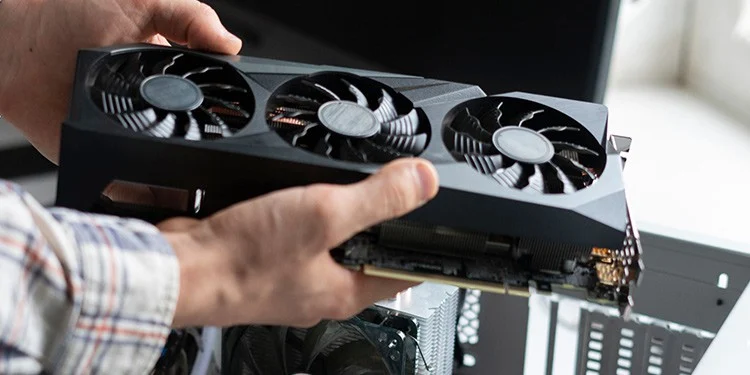
    MSI Triple Fan GPU Does Motherboard Affect Performance

    We know that the motherboard plays a role in housing and protecting your entire system, as well as determining how much power goes into individual components.

    But as we talked in the previous section, a motherboard will never affect the performance of the entire system or the individual components directly. A graphics card is only as capable as the motherboard that’s housing it.

    Your graphics card will never be impacted directly by your motherboard. Your computer’s performance will still rely on how powerful your CPU and GPU is, further complemented by your RAM and SSD storage.

    Your motherboard will only let you know what kind of graphics card you can equip, if you can overclock the graphics card, and if you can upgrade various components.

    Will A Good Motherboard Matter In The End?

    So what makes a motherboard good? And what kind of motherboard is the best for gaming PCs?

    Motherboard affect FPS indirectly simply because it restricts you from what kind of GPU and CPU you can run. General rule of thumb is if you want your computer’s performance to be top notch, then you’ll need to build around your motherboard’s chipset. This will set you up for what kind of motherboard to use. From there, you’ll know what kind of graphics card, RAM, and SSD to run with. Everything else will become secondary.

    A good motherboard will cost you somewhere about $200 to $300, more if you’re planning to run an Intel Core i9 or an AMD Threadripper.

  • All You Need To Know About Liquid Cooling Maintenance

    All You Need To Know About Liquid Cooling Maintenance

    Liquid cooling, or water cooling, is as cool and as functional as it looks. It’s probably the most efficient, albeit expensive, way to keep your system cool while gaming or doing heavy-duty rendering.

    The aesthetics of a liquid cooling system is also too hard not to notice, which is probably why first-time PC builders or buyers are drawn to choosing this option over using traditional cooling systems.

    But what first-time builders and liquid cooling users don’t know is that behind the lights and dazzle is the amount of regular maintenance that needs to be done.

    And in this article, we’ll talk more about how water cooling systems work and how they’re regularly maintained.

    How Does Liquid Cooling or Water Cooling Work?

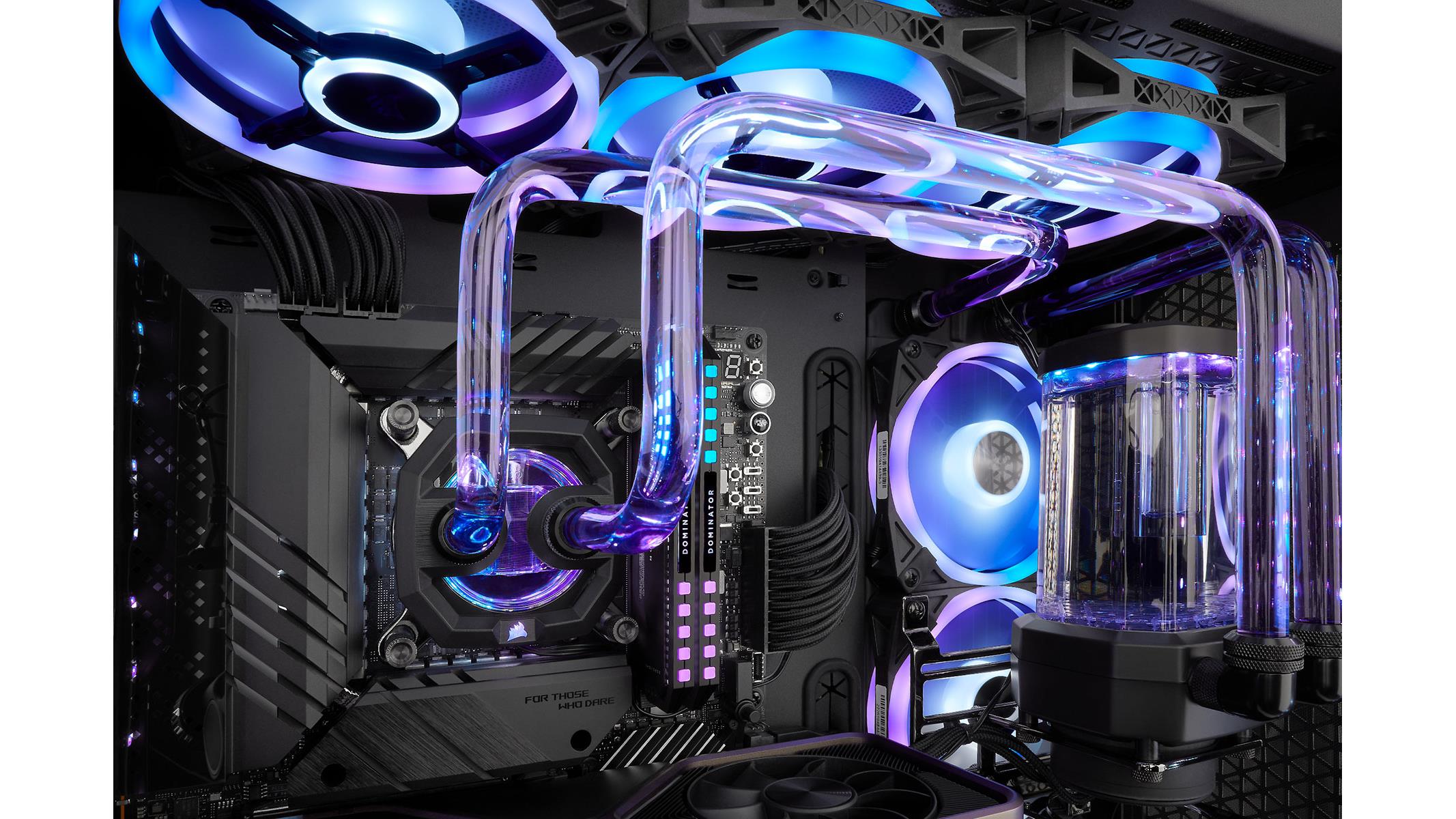
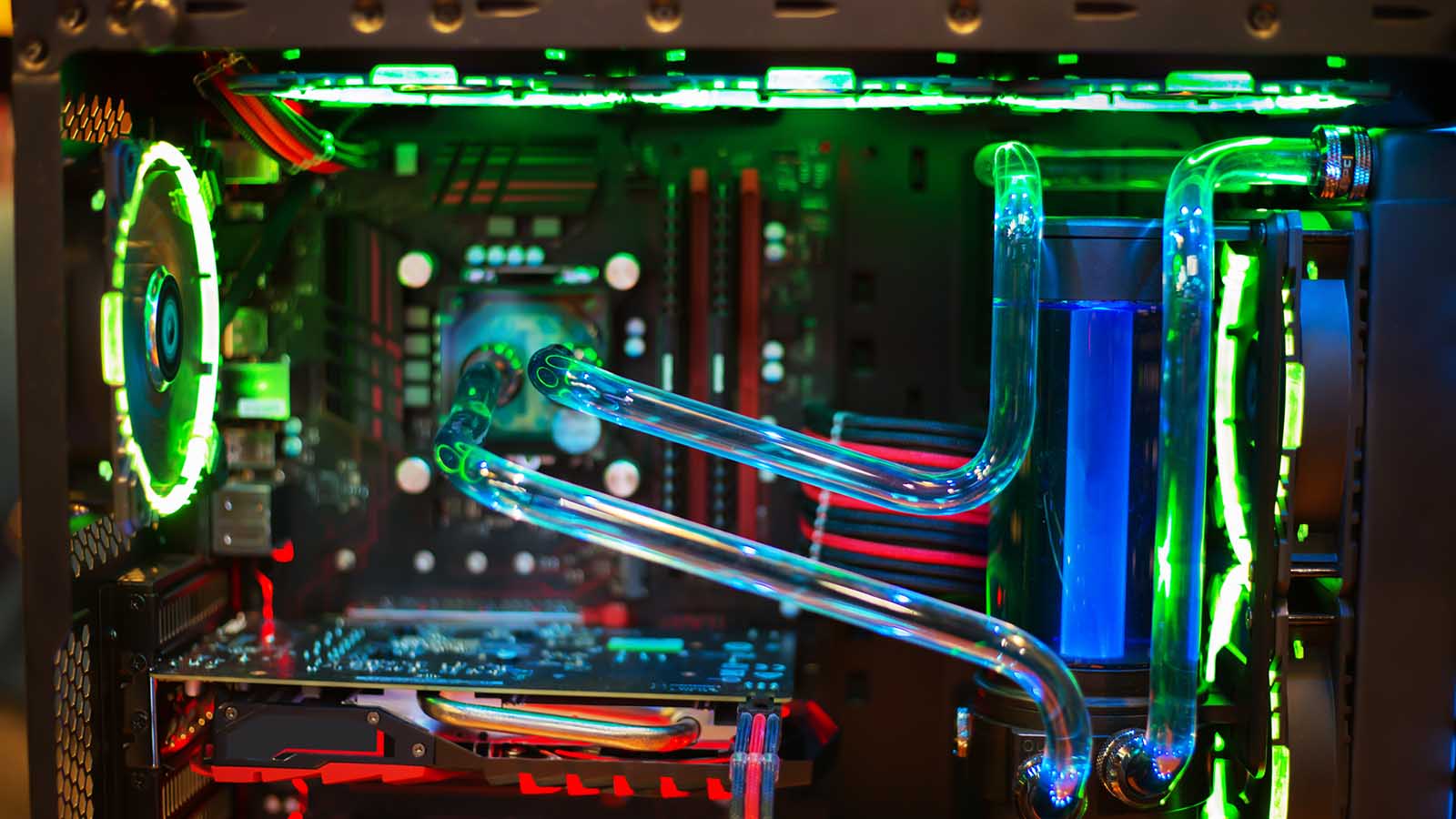
    Liquid Cooled PC Liquid Cooling Maintenance

    Liquid cooling is exactly what it implies. Liquid cooling systems use water, which is often the most preferred type of liquid, to help keep certain hardware like CPUs and GPUs cool. Water is primarily used because of its high heat capacity and its non-toxic properties.

    Water is circulated throughout the systems it is installed in (i.e. CPU and/or GPU). Excess heat is transferred as the water passes through these parts, which is expelled through the radiators.

    What Are The Different Types of Liquid Cooling Solutions?

    All In One (AIO) Liquid Cooling

    All In One (AIO) Liquid Cooling Liquid Cooling Maintenance

    AIO or All In One systems are commercially available and are considered plug-and-play versions of liquid cooling systems. An AIO liquid cooler comes with everything you need without the hassle, from the tubes to the fans to the aesthetics.

    It’s also relatively easier to install AIO coolers than air coolers, according to many builders. The downside to using an AIO system is that you can’t upgrade it. If you’re running a custom-built PC, chances are an AIO might not work for you.

    Custom Water Coolers (Also Known as Custom Loop or Custom Cooling Loop)

    Custom Water Coolers Liquid Cooling Maintenance

    Unlike AIO coolers, custom liquid cooling is built from the ground up. Much like your custom PC, custom cooling systems have handpicked parts according to what you need.

    One added advantage to using custom liquid cooling is that you can easily upgrade individual parts without changing any hardware in your PC. But the downside is that this system is really expensive and requires more maintenance than AIO cooling.

    An Overview of the Different Parts of a Liquid Cooling System

    Both AIO and custom water cooling systems aren’t exactly zero maintenance. If it’s your first time to use either, then you need to know what the different parts are and how they work.

    1. Water Pump: This is responsible for pumping distilled water or coolant inside the system.
    2. Radiator: The radiator expels heat coming from the circulating water into the air, keeping the water cool as it cycles back through the CPU/GPU.
    3. Fan: Fans are responsible for maintaining airflow inside the system by bringing in fresh air.
    4. Pipes/Tubes: Pretty self-explanatory. Pipes or tubes carry the coolant or water throughout the PC and flow constantly during PC usage.
    5. Reservoir: The reservoir stores extra water or coolant in a container. This ensures that there’s always water coming through the pipes, so you don’t have to worry about running out.

    The basic premise of any liquid cooling system is this:

    • Water is pumped through the pipes.
    • Heat is transferred from the CPU or GPU into the running water.
    • The water that’s carrying the heat travels to the radiator.
    • The radiator takes away the heat and blows it out of the system.
    • The water, which is now cool, travels back to the CPU or GPU to transfer heat.
    • The fans help keep the insides of your system cool by bringing in fresh air.

    And this goes on and on.

    Does Liquid Cooling Require Maintenance?

    Like air cooling systems, liquid cooling requires maintenance and attention because of the different moving parts. When one part malfunctions, it’s safe to say that the liquid cooling system is compromised.

    Maintaining custom water cooling systems will have you checking and filling in the water reservoir, or it will stop working. You’ll also need to check for leaks as you do your maintenance because we all know that water, or any other liquid, is dangerous for your PC hardware.

    Water cooling systems also have parts that are not readily available in hardware stores, so that’s something to consider as well.

    But the bulk of maintaining custom water cooling is making sure that the coolant level or water level is sufficient. Avoid using tap water and instead, run distilled water as the latter is free from sediments and minerals that could compromise the integrity of the cooling system.

    Do AIO Coolers Need Maintenance?

    On the other hand, AIO cooling systems are easier to maintain than custom cooling systems. But the biggest downside is that if there’s a part that needs to be replaced, you need to replace the entire system.

    For AIO coolers, you just need to make sure that the fans and radiators are as clean as possible. Over time, dust will accumulate on both of these parts. The weight of the dust accumulation will eventually be heavy enough to slow down the fans and radiator’s speed, so they’re no longer as efficient.

    Will AIO Coolers Leak?

    AIOs, much like any other cooling system, will eventually fail as the years go by. They’re not meant to run longer than they should, and time will come when you’ll eventually have to replace the unit.

    With that being said, AIO coolers won’t have issues with leaks but they will have issues with their pumps, which is the biggest cause of failure.

    If AIO leaked as often, you’d probably hear about it over the Internet and people would probably tell you to just get an air cooler.

    But in case your AIO system does leak, you’ll need to report it to the manufacturer and the warranty will take care of everything.

    What Do You Need For Maintaining Your Liquid Cooling System?

    On the off chance that you are running custom water cooling, then you’ll actually do some heavy lifting when it comes to maintaining the entire system.

    For custom solutions, the idea of something going terribly wrong at any given time persistently haunts them. One day you’re doing some video editing or gaming, and the next thing you know, coolant sprays all over your motherboard and your PC dies. You’re now left with the daunting task of buying a new PC.

    Do A Coolant Flush

    To properly maintain your liquid cooling system, you’ll need to do what’s called a system flush or a coolant flush. Coolant refers to the liquid that’s running through the tubes that’s keeping your PC cool while running heavy loads.

    Every year, you’ll need to drain the entire reservoir and pump and replace it with a fresh batch. The reason being is that heavy usage of the liquid cooling system will lead to the production of air bubbles as a result of evaporation. This results in coolant pollution and negatively affects your system’s performance and overall efficiency.

    Ideally, you want to run distilled water to prevent or minimize corrosion to the different PC parts and parts of the cooling systems. But you’ll also find pre-mixed coolants that are commercially made and intended for liquid cooling your PC. These coolants come in different shades and hues, so customization is really high.

    Once the coolant is replaced, you’ll then need to check the integrity of the other components like tubing, the O ring, and the clamps to make sure that there are no issues once the system starts running.

    The Wrap Up

    Whether you’re using a liquid cooling loop (AIO cooler) or a custom liquid cooled system, you now know what it takes to keep both of these systems properly maintained. Liquid cooling maintenance is a daunting task by itself, but there’s no reason not to do it.

    If you feel like you don’t trust yourself enough to maintain a water cooled system, then you can always hire a professional to do it for you.

  • The Best CPU Cooler Brands (Jul 2026)

    The Best CPU Cooler Brands (Jul 2026)

    “Ah don’t spend too much on it. It’s only a CPU cooler.”

    “You don’t need to spend a lot of money on CPU coolers.”

    Believe it or not, first time PC builders are more likely to choose generic CPU cooler brands for one or more of the following reasons:

    • They don’t know enough about CPU coolers to make an informed decision.
    • They don’t know that there are really good CPU cooler brands in the market.
    • They don’t know that cooling performance is often dictated by how well the CPU cooler is built.

    But don’t you worry. If it’s your first time to build your own PC, or if you’re thinking about replacing your stock CPU cooler, we have created this list of recommendations for the best CPU cooler brands in the market right now.

    Why You Should Never Ignore Your CPU Coolers

    Think of it this way. Would you work in an office or study in a classroom if it’s hotter than normal? Would you be able to concentrate at 100%?

    The same logic can be applied to your CPU. When the CPU gets hot enough, performance gets severely affected. In worst case scenario, the CPU suffers catastrophic failure from heating up past its limit.

    This is where CPU coolers come in. By design, their job is to absorb the heat coming from the CPU and expel it through their exhaust fan (if you’re using air CPU coolers) or with the help of fluids (if you’re using a liquid cooler).

    Doing office work or browsing the Internet might not strain the CPU a lot, so the CPU coolers won’t have too much heat to dissipate. But if you’re gaming, editing a video, or doing any CPU-intensive tasks, then the CPU generates a lot of heat. The CPU coolers kick in and do their job by making sure that the CPU’s temperatures are within a reasonable range.

    If the CPU cooler doesn’t do its job right, you end up with an overheating CPU, which leads to gradual CPU degradation over time. Instead of your CPU lasting you five years or more, this gradual degradation can reduce its lifespan by half.

    With that being said, it’s important for you or anyone to invest in the best CPU coolers that money can buy.

    What Are The Best CPU Coolers In The Market?

    We’re going down through the best CPU coolers that money can buy. Because we’re talking about the best, expect them to be a little bit on the pricey side. But don’t worry, investing in any one of these CPU coolers is going to be worth it.

    Noctua NH D15 chromax.Black

    Best Overall CPU Cooler In The Market. Period.

    Noctua NH-D15 chromax.Black CPU Cooler Brands

    Why Is It The Best?

    • It’s a powerful air cooler and it’s capable of cooling even the most powerful CPUs in the market right now
    • Quiet operation
    • Two fans for the best cooling performance possible
    • Competitive against liquid coolers
    • Costs you about $109 for brand-new units

    What’s The Downside?

    • It’s one of the bulkier air coolers and may block out RAM slots

    First on our list is the Noctua NH D15 is quite possibly the best air cooler that you could get your hands on. The design of the Noctua NH D15 is intended to make sure that it dissipates large amounts of heat in a short period of time.

    The Noctua NH D15, or any of the Noctua coolers, comes with a 6-year warranty, which also makes it one of the most reliable air coolers in the market. The Noctua NH D15 comes with everything you need, from thermal paste to a mounting system that works with even the latest CPUs (like the Intel i9 or the AMD Threadripper). It’s also assumed that the Noctua NH D15 is compatible with the upcoming Intel 12th gen processors and AMD Ryzen 7000 series.

    Noctua NH D15 comes in brown and black colors, but we’re featuring the black colorway simply because it easily blends into the system without drawing in too much attention.

    But the Noctua NH D15 proves to be a challenge for mid-sized to small-sized computers because of its immense size. Coming in at 150mmx135mmx160mm (WxDxH), it might block out a RAM slot for typical PC builds. If your RAM kit is taller than 32mm, then you’ll need to remove the outside fan to make room.

    Be Quiet! BW006 Pure Loop 240mm All In One Liquid Cooler (AIO Cooler)

    Best for Gaming Overall

    Be Quiet! BW006 Pure Loop CPU Cooler Brands

    Why It’s the Best

    • A quiet cooler even when doing some heavy gaming sessions
    • Mid-to-high performance category
    • Minimalist design
    • About $94 retail

    What’s the Downside?

    • Might not be powerful enough for Intel i9 or Ryzen 9 CPUs

    For gamers, this might be the best AIO cooler in the market: the Be Quiet! BW006 Pure Loop 240mm. For its size, it’s capable of cooling both Intel i7 and Ryzen 7 CPUs without producing a lot of noise. Be Quiet! is a computer peripheral company known for its minimalistic components and cases, so it’s no surprise that the BW006 Pure Loop follows the company’s product philosophy.

    Unlike most completely closed loop coolers, the Be Quiet! BW006 Pure Loop 240mm is easy to maintain. You can just unscrew the fill port on the radiator and add your coolant to make sure that the system is always up and full.

    Corsair iCUE H150i Elite LCD Liquid CPU Cooler

    The Best High End AIO Liquid Cooler

    CORSAIR iCUE H150i ELITE CPU Cooler Brands

    Why It’s The Best?

    • The best high end liquid cooling system in the market
    • Categorized as a high performance AIO liquid cooler
    • Comes with high-pressure RGB fans and built-in LCD screen
    • Priced at $240

    What’s The Downside?

    • Really expensive

    Almost more than double the price of the first two CPU cooling systems above, the Corsair iCUE H150i Elite LCD is probably the most expensive liquid cooling you could ever get your hands on. With a $240 price tag, the Corsair iCUE H150i Elite LCD can definitely cool down the Intel i9 processors and AMD Threadrippers easily even when both are overclocked.

    The Corsair iCUE H150i Elite LCD is equipped with a 2.1-inch LCD screen that’s fully customizable and will show you either your current temperatures or different LCD animations. The three high-performance fans have a set of 48 customizable LEDs, all controlled via the iCUE configuration software.

    Price-to-performance ratio of the Corsair iCUE H150i Elite LCD is excellent, given that Corsair is just one of those brands that know their way around high-quality computer peripherals.

    Cooler Master Hyper 212 Evo V2 Black Edition

    Best Budget Air Cooler

    Cooler Master Hyper 212 Evo CPU Cooler Brands

    Why It’s The Best

    • Cooler Master is a recognized brand for computer peripherals
    • A solid mid-sized air cooler
    • Very affordable
    • Solid cooling performance
    • Fits a lot of standard PC builds
    • Priced at $49

    What’s The Downside?

    • Needs a special bracket if you want to use it for Intel’s 12th gen CPUs
    • Not exactly powerful enough for high-end CPUs

    Because we’re talking about the best CPU coolers, it would be unfair to not include the best budget cooler. And just because it’s on the budget side doesn’t mean it’s an underperforming cooler.

    For the list, we have the Cooler Master Hyper 212 Evo and it’s almost always one of the few air coolers that even the most expert rig builders recommend to first-time builders.

    The Cooler Master Hyper 212 Evo is a mid-sized cooler and is decent enough for Intel i7 and Ryzen 7 5000-series processors. For any midrange CPU, the Cooler Master Hyper 212 Evo is a solid pick but don’t expect this air cooler to do well against the high end AMD or Intel CPU (Threadripper or i9, respectively).

    Which Is Better? Liquid CPU Coolers or Air Coolers?

    If you ever wanted to start a debate on the Internet, ask which one is better: air cooling or liquid cooling, and you’ll get an entire forum riled up for hours.

    But in all honesty, both CPU coolers are good in their own right and have their own benefits and drawbacks.

    What’s So Good About Air Coolers?

    Air Cooling Setup CPU Cooler Brands

    Air coolers are commonly used by a lot of people, mostly for those on a budget or those who don’t want the fancy aesthetics that liquid coolers have.

    Usually, air coolers come with two common components: a metal heatsink that draws heat away from the CPU and a fan that blows out the hot air from the heatsink. This hot air is expelled out of the case with the help of the case’s exhaust fans. Quite a simple solution to a complicated problem.

    But the downside to these air coolers is that they’re bulky and take up a lot of space. For high-powered CPUs like the Intel i9 and AMD Threadripper, you’d need large air coolers(something like the Noctua NH D15). Noise is also an issue for an air cooler. As the processor generates more heat, the fans need to work overtime (both the CPU fan and the exhaust fans).

    Unless you don’t mind the noise and the aesthetics, then an air cooler might be a solid pick for you.

    What’s So Good About Liquid Cooling?

    Liquid Cooling Setup CPU Cooler Brands

    Liquid cooling has become a popular alternative to air coolers, simply because they become easily accessible every time a company releases a new AIO cooler and the older models become cheaper.

    Are liquid coolers and AIO coolers one and the same? Yes, they are. In fact, liquid cooling goes by many names such as:

    • AIO cooler (all-in-one)
    • Closed loop liquid coolers

    Liquid cooling systems are equipped with water pumps, radiators, and fans to absorb and expel heat from the CPU. Liquid coolers come in different sizes, so you can choose what size to fit your PC case.

    Performance-wise, AIO coolers are better than air coolers but the marginal difference isn’t that high. But there are instances where high-performance air coolers like the Noctua NH D15 provide better cooling performance than an aftermarket AIO cooler. If you want something for the aesthetics, well look no further than having a liquid cooling setup.

    The downside to a liquid cooling setup is that it’s more difficult to install compared to air coolers. There’s also the added risk of the liquid itself leaking to other components, which damages other components. Leaks rarely happen, but it’s still something to consider if it’s your first time using it.

    But How Much Cooling Do You Really Need?

    We mentioned earlier that you shouldn’t hold out on spending for your cooling system, but it doesn’t mean that you should also go overboard. Think like Goldilocks: you don’t want less, but you also don’t want more. You just want something that’s right.

    How much cooling you need will depend on how much work is being done from your CPU. If you’re just doing some light gaming sessions on top of office productivity tasks, then air cooling is sufficient.

    On the other hand, heavy gaming sessions combined with tasks such as video editing or 3d modeling might have you either going for a high-performance AIO cooler or an air cooler.

    The brand and make of your CPU will also play a huge role in determining what kind of cooling power you need. High-powered CPUs will always require high-end air coolers or high-end liquid coolers.

    So what’s the best CPU cooler for you and what can we recommend? If you want the best air cooler, we recommend the Noctua NH D15. For about $100, you’re getting the best cooling performance and power for the latest Intel and AMD processors.

  • How Many SSDs Can You Have?

    How Many SSDs Can You Have?

    The introduction of the SSDs or Solid State Drives has changed the way people are gaming or working on their PCs. Before, gamers were stuck on the loading screen for a few minutes. With SSDs, load times are faster now, so much so that you can’t even go take a break while waiting for the game.

    SSD storage back then was very expensive, so multiple SSDs required spending a lot of money if you want 512GB of storage. But now, a 1TB SSD will cost you about $200 to $300, depending on the brand.

    In this article, we’ll talk about how many SSDs can you have in a single system and how you can maximize your SATA SSD ports if ever.

    How Many SSDs Can You Have?

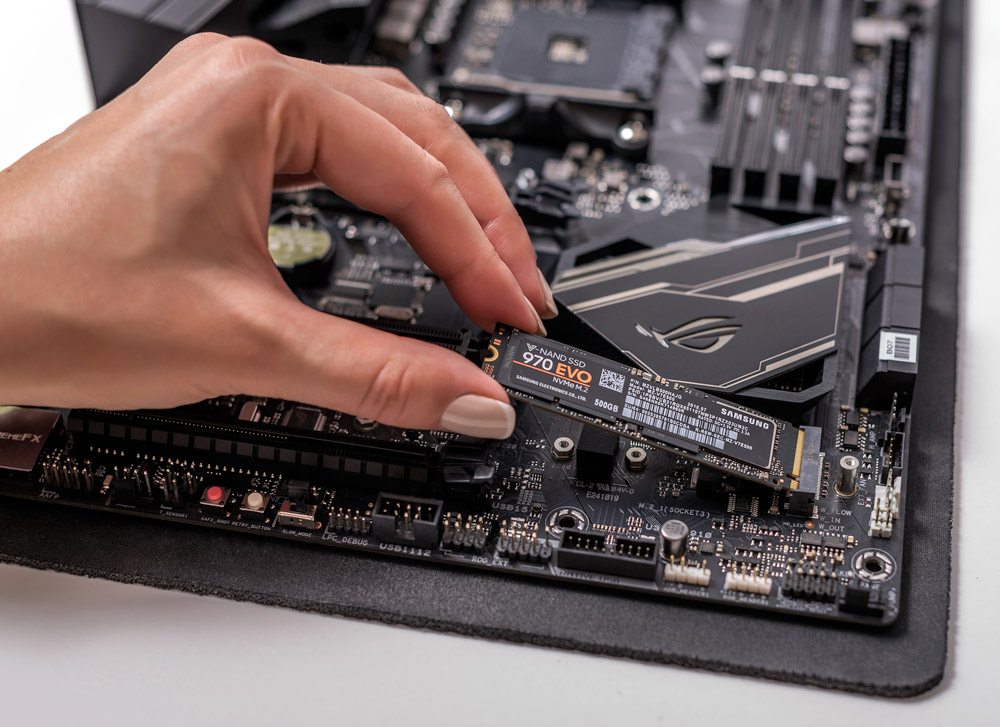
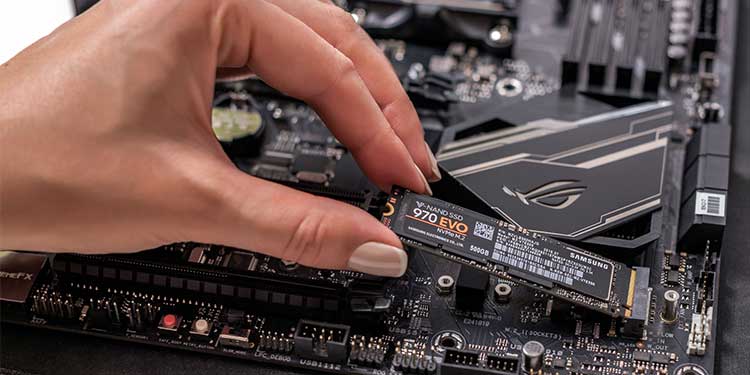
    Installing an M2 SSD How Many SSDs Can You Have

    The answer is simple: it depends on how many SSD slots your motherboard has. There are motherboards out there that have one to two SSD slots, while there are those that will give you more. The SATA standard will probably give you about 6 to 8 drives, but SATA SSDs are limited.

    Depending on the mounting options and the size of the SSD storage, you might be able to get about 2 to 4 SSD drives in compact motherboards and cases. But some people get creative enough that they use tape to mount their SSDs to the case panels. This is perfectly fine because there are no moving parts in an SSD that would be disrupted by rattling or bumping.

    Motherboard supports may vary for SSD storage. Some motherboards may support a dedicated SSD, an M.2 SSD slot combined with HDD slots, or a hybrid of both combinations. If your motherboard doesn’t have a dedicated SSD slot, then you can use a caddy to install the said drive into your laptop’s optical drive spot.

    SATA slots are still common amongst motherboards and is still considered the best slots for hard drive option, regardless if it’s an SSD or traditional HDD. M.2 slots are relatively smaller and easy to use, making them perfect for small-form motherboards and laptops.

    Note that there are SSDs that use NVMe bandwidth and will take up an M.2 form factor, and if your motherboard supports them, you could have more SSDs installed in a system compared to utilizing SATA drives. However, motherboard may restrict bandwidth for NVMe drives, so your NVMe M.2 SSD might not even function to its full potential.

    PCIe slots are far superior than SATA SSDs in terms of size and they’re utilized for high-performance gaming rigs or systems with RAID configurations.

    To sum it up, it boils down to how many SATA ports are available in your motherboard that will determine how many SSDs you can install. For example, my motherboard allows me to install 2 NVMe SSDs and 2 slots for an SSD drive. In theory, I could install 2 1TB NVMe SSDs and Traditional SATA drives (HDD) for storage), or use one of the SATA slots to house a SATA SSD.

    So you see, running multiple SSDs will boil down to how many SSDs your motherboard supports and how big your wallet is.

    How Do You Identify SSD Slots?

    Believe it or not, identifying SSD slots is very easy. If you want to mix SSds, or just want to find out if your motherboard supports all other SSD types, then this is how you tell which slot is which.

    Refer To The Manual

    The best source of information will always be your motherboard’s user manual. Head on over to the Technical Specifications section and you should be able to see the kinds of SATA port your motherboard has, if it support SATA III, and other important details.

    Check Specs Online

    If you’ve chucked your motherboard’s user manual, then don’t fret. You can still check your motherboard’s specs online so as long as you know the motherboard model.

    What’s The Ideal Storage Capacity For An Internal SSD?

    Taking into consideration your operating system, some productivity programs, and possibly some light gaming, 512GB storage capacity might be more than sufficient for the average Joe and Jane.
    For gamers who like to show off their libraries, they’re better off with 1TB or 2TB of SSD storage. They can run multiple SSDs too if they want to get more than 2TB.
    Is Having Multiple SSDs Worth It?

    The answer is YES. Regardless of your SATA setup, having more than one SSD gives you some advantages.

    1. More storage capacity compared to buying just a singular SSD. Sometimes, it’s a lot cheaper to buy 2 512GB SSDs than 1 1TB SSD, but the amount of money you save is negligible at best.
    2. In case one of your SSDs malfunction, you still have a back up SSD that’s working.

    But ideally, you really want to use a traditional HDD if you’re thinking about storing files. SSDs should be used for storing programs and applications. Different PC cases can determine what kind of motherboard you’ll be using, which in turn affects your ability to have multiple SSDs.

    Is a 256GB SSD Enough?

    For gaming? Not in the least, unless you’re planning on installing just one game title on there. 256GB SSDs are commonly used in laptops (the non-gaming types, at least). Some office PCs may have a 256GB SSD installed if it’s prebuilt.

    Is 512GB SSD Enough?

    Gaming laptops are equipped with 512GB SSDs at the very least, but they have room to accommodate another NVMe SSD in case you ever want to upgrade.

    For gaming, 512GB is more than enough, provided that you don’t have a lot of games installed or if you’re just loading in a couple of your most-played games.

    The Wrap Up

    The moment you install a Solid State Drive SSD into your system, you’ll never want to go back to using a traditional HDD for anything other than storage.

  • Building a 3D Modeling Computer

    Building a 3D Modeling Computer

    A 3D modeling computer might be the most decked out computer rig you’ll ever build, and for a good reason.

    Working with 3D modeling and rendering takes up a lot of CPU and GPU power. And to speed things up, you’ll need the top of the line processor with enough CPU cores for CPU rendering, and a graphics card to help supplement CPU and GPU rendering.

    In this article, we’re going to help you build the best PC possible for 3D modeling and rendering, as well as cover some important topics that will help you make the best decision possible.

    But first, we need to understand first two things: 3D modeling and 3D rendering.

    What Is 3D Modeling?

    Sample Scene 3D Modeling Computer

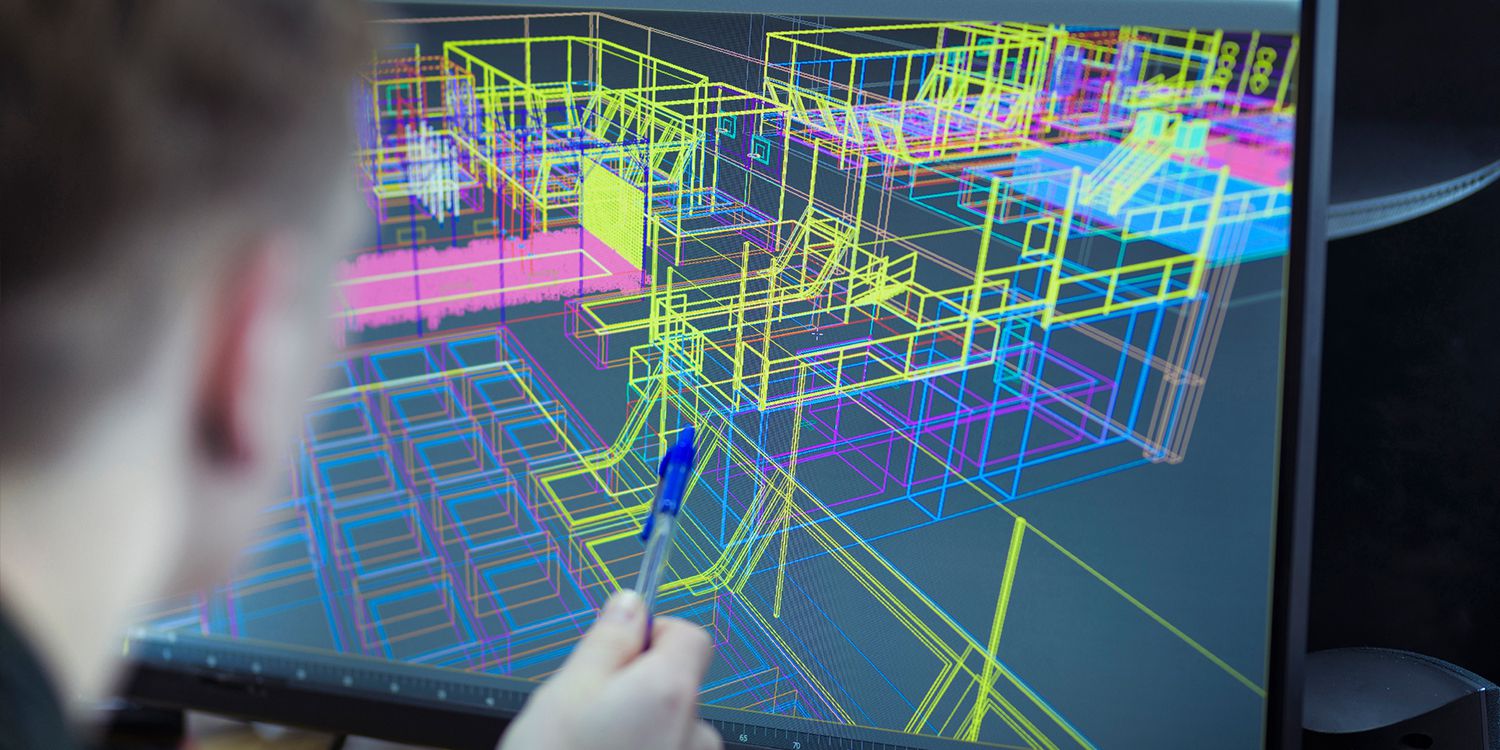
    3D modeling can be defined as is: it’s the creation of 3D models used for different purposes such as animation and design. With the introduction of 3D printers in the market, 3D modeling has become more widespread than ever. People who’re in the business of 3D printing need to work with 3D software to design and prep whatever it is they need to print.

    What Is 3D Rendering?

    3D Rendering 3D Modeling Computer

    Rendering is the visualization of a 3D game or object or scene using a rendering software. When you’re creating a 3D model or animation, you’re working with the raw file which is not accessible to anyone. Rendering will finalize whatever it is that you’re working on and produce output that’s made available to the public through a variety of file formats.

    For both 3D modeling and rendering, the need for a high powered workstation computer is high. Rendering needs a lot of processing power to carry out the necessary mathematical computations required.

    Sample PC Builds for 3D Modeling and Rendering

    Some caveats here: the budgets listed may be higher or lower than intended, depending on where you are located and the availability of certain parts.

    The builds listed here should also be taken with a grain of salt. They’re designed to give you a lot of rendering power for programs such as Blender, Maya, and Modo to name a few.

    Lastly, keep in mind that the best computer might depend on the specs, but ultimately, it will boil down to helping you meet your needs the most. The best computer doesn’t necessarily have to be expensive, but it also doesn’t mean you can skimp out on the graphics cards or processors. Remember, a 3d modeling and rendering PC should be considered an investment.

    With that being said, let’s go over some sample builds.

    $700: A Cost-Effective Build

    The first build that we have makes use of AMD’s budget CPUs and one of the more decent Nvidia GPUs, the GeForce 1650. Combined with 16GB of RAM and a 512GB SSD, you’re looking at a competent rig with enough 3d modeling and rendering power.

    $1200: A Balanced Build

    Spending a few more hundred dollars from the cost-effective build above would probably yield you a build something like this.

    You’re getting a 6-core CPU, one of the more powerful midrange Nvidia GPUs, enough RAM and storage, and futureproof.

    If you noticed, you’re getting 2 sets of storage devices: one SSD and one HDD. The SSD will house your OS, software, and other applications. Your HDD will store all your raw files and rendering output.

    Unlike the first build, you’re getting a CPU cooler to help keep the Ryzen 7 processor cool while rendering. The computer graphics power is also sufficient for most GPU render engines.

    $1700 – High Performance Build

    This would probably be considered the best workstation computer because you’re getting an excellent processor with superior clock speed and one of the best graphics cards on the market right now.

    With this build, you’re getting a high-performing PC capable of running most of the popular graphics software and 3D modeling software computer programs thanks to the Intel i5 CPU and the 3060Ti graphics card, complemented by 32GB of RAM and enough SSD storage to host any computer program.

    $2900+: Professional Setup

    At this point, money is no longer an issue for you. You want the best graphics card, the best processor, and the best of everything to give you the best computer possible.

    You’re getting an i9 processor combined with an RTX 3080Ti graphics card, though you could also upgrade to a 3090Ti too. Speed is everything in this build, from the insane clock speeds to the incredible read/write speeds from your SSD.

    As for futureproofing, this beast will last you for at least five years. There’s nothing in the market that could ever be a mile above either the RTX 3080Ti or the Intel i9-13900K.

    PC Building Guide – How To Choose Your Computer Components?

    The builds above are just templates, so you don’t necessarily have to follow them to the T. Remember, the best PC for you is the one that’s capable of meeting your needs without forcing you to spend too much money.

    For the builds listed above, we’ve stuck to the budget specified but you could always mix and match depending on your needs.

    How Do You Choose A CPU?

    How To Choose a CPU 3D Modeling Computer

    If this article was made a decade ago, we’d have put more thought into choosing a CPU more so than any other component. And the reason being is that the CPU was involved the most in the rendering process.

    Now, GPU rendering overtake CPU rendering, but not by a lot. CPU is still as important as ever in the rendering process, but you get better rendering speeds with a GPU in tow. Now you’ll also use the CPU for other things like gaming and productivity-based computer programs so it doesn’t hurt to invest in something that’s futureproof.

    A good start would be AMD’s budget processors or something as powerful as an Intel Core i5 processor if you want some computing power without blowing your entire budget.

    How Do You Choose Your Graphics Card?

    Graphics Card 3D Modeling Computer

    Unlike graphics design, rendering relies on the strength of your graphics card as it determines how fast it will take to complete the process. GPU rendering, so long as it’s available, is ten times faster than CPU rendering.

    With power and strength in mind, you won’t want to work with an integrated GPU. A good and solid choice would be one of the Nvidia graphics cards, preferably RTX. But Nvidia GeForce GTX isn’t a bad choice either, so as long as you’re going for a GTX 1660.

    But why are we promoting Nvidia GPUs? Why isn’t AMD GPUs being considered?

    Between AMD and NVIDIA’s GPU rendering, Nvidia’s CUDA has better rendering performance than AMD-backed OpenCL. OpenCL is available for other graphics, but CUDA is only for Nvidia.

    If your rendering engine can support CUDA, you might as well grab an Nvidia graphics card. If the app is split between CUDA and OpenCL, Nvidia is still the ideal pick. Hopefully, OpenCL has wider support, allowing for better performance.

    How Do You Choose RAM?

    RAM and the rest of the components aren’t going to be your main concerns, as they’ll only minimally affect any active working process.

    For the lower-end builds on here, you’ll notice that we’re sticking with 16GB DDR4 RAM while the midrange and high-end builds have 32GB DDR5. Dual-channel RAM kits are affordable and compatible with the latest motherboards. But if you want exceptional performance, you’ll need to shell out more money to get quad-channel RAMs. You’re looking at spending a few hundred dollars for these quad-channel RAMs, but they are the best hardware components for the RAM category. A single RAM kit may not be sufficient for 3d complex modeling.

    The rule of thumb is this: you’ll need at least 8GB of RAM if you want to build a computer for 3D modeling and rendering but you’ll want to shoot for 16GB. More RAM doesn’t necessarily hurt and it will help you speed up things.

    How Do You Choose Storage?

    A computer for 3D modeling doesn’t need as much storage as a computer for video editing or gaming. Modeling files, images, assets, and raw data have smaller file sizes than expected. But it doesn’t mean that you should be stingy about choosing which storage component to use.

    But for the purpose of this article, you’ll need to consider using two different devices, each with their own purpose for storage space.

    SSDs or Solid State Drives

    Your own computer should have an SSD because while it may not affect rendering performance, it does affect how programs and OS load. SSD read and write times are 100x faster than traditional HDD.

    At least 500GB of SSD is more than enough for 3d modeling, graphic design, gaming, and more. If you can shell out a few more hundred dollars for storage, get 1TB SSD. As much as possible, you want to store every program on the SSD so they load faster. You can literally do multiple tasks with ease on an SSD.

    HDDs or Hard Disk Drive

    Unless you’re getting a 2TB SSD, it makes sense to have a traditional HDD to store your files. And HDDs are relatively cheaper than SSDs.You can easily secure 4TB and it’d still be cheaper than paying for a 1TB SSD.

    How Do You Choose Power Supply Units?

    Power consumption is something that you’ll need to consider for PC building. A budget PSU may not be ideal since your processor and GPU will have more cores and have high clock speed, so their power consumption is high.

    Your rendering workstation should work with a high-quality PSU so you don’t get gimped on power limits while ensuring that you’re protecting all the other computer parts.

    FAQs about Rendering Process

    We’ve talked about the different builds and the process of selecting computer hardware for the PC build.

    For this section, we’ll go over some of the major questions on the render process itself and why rendering images need a lot of hardware power.

    Why Does Rendering Take Long?

    The rendering speed depends on software and hardware, and the options you have in place. Let’s take a look at a sample scene to illustrate why rendering might take long.

    Imagine a simple scene, like panning from left to right on a flower. Not a lot of details to work with here. You’ll have some gradients and lighting involved, different polygon angles, and other complex modeling involved.

    Your own PC is trying to compute and repeatedly estimate different things at once, ranging from the changing of the color gradients to light bouncing off of reflective surfaces, creating shadows, and so on. Depending on how detailed the flower is, each petal might house hundreds if not thousands of polygons at one time.

    To keep it simple, the PC carries out complex mathematical equations on the fly to simulate what the human eye is seeing. A high clocked CPU and a GPU with enough video memory can make short work of rendering compred to another rendering workstation that’s a bit underpowered than the former.

    Do You Need a Powerful CPU or GPU?

    For the previous section, we were talking about rendering a flower panned from left to right. But what if we’re rendering something complicated, like visual effects or a detailed 3d model of a human being, then you’ll definitely need a powerful CPU.

    Processing data at this level will take up a lot of video memory and will work more cores than rendering a flower scene. This will vary amongst different GPU render engines, or any render engine for that matter. What matters here is that you get the CPU with the highest clock speed and as many cores possible that money can buy, sufficient wattage, a decent amount of RAM slots, and GPU with maximum speed.