Category: PC Hardware

  • Why Does Monitor Keeps Going Black? All The Problems and Fixes Discussed

    Why Does Monitor Keeps Going Black? All The Problems and Fixes Discussed

    Have you ever been in the middle of an important task, only for your monitor to suddenly go black? If so, you’re not alone.

    A monitor that keeps going black can be a frustrating and disruptive problem, mainly if you rely on your computer for work or entertainment.

    While there are various reasons why a monitor may go black, the good news is that many of them can be quickly resolved with some troubleshooting.

    In this blog post, we’ll explore the most common causes of monitor blackouts, walk you through some basic and advanced troubleshooting steps, and offer some solutions that can help you get your monitor back up and running in no time.

    Why Does My Monitor Keeps Going Black?

    No Display Monitor Keeps Going Black

    Your monitor keeps going black for a lot of reasons. Sometimes, it’s caused by power settings or faulty display adapters. Sometimes, it could be as simple as a faulty HDMI cable.

    But for you to understand why your monitor randomly keeps going black, you’ll need to learn about the common causes:

    Power Supply Issues

    When you’re running on energy saving mode or insufficient power, incorrect power settings can cause your monitor to randomly go black. Your computer screen can also flicker when there’s a power surge.

    A quick fix would be to check Windows settings to see if your power saver features are turned on and then go from there. If your monitor randomly goes black during a power surge, you might want to invest in a surge protector.

    Video Cable Problems

    Damaged HDMI Cable Monitor Keeps Going Black

    When your monitor screen goes black after moving your PC a bit, you probably dislodged the HDMI cable. This happens when you’ve just got done cleaning and disassembling your system unit. Loose or damaged cables can also cause monitor blackouts, and both are easy fixes.

    Graphics Card or Driver Issues

    An outdated graphics driver or display driver can also cause monitor blackouts. This happens when your current graphics driver is no longer compatible with your monitor or struggles to keep up with the monitor’s performance.

    On the other hand, graphics cards with faulty hardware can cause the problems listed above.

    How to Do You Troubleshoot Monitor Blackout?

    No Signal Monitor Keeps Going Black

    Now that we know the different causes of why your monitor keeps going black, we’ll walk you through some basic and advanced troubleshooting steps to help you pinpoint and resolve the problem.

    Step 1: Check the Power Supply and Connections

    The first step in troubleshooting monitor blackout is to ensure that your monitor receives enough power and that all the necessary connections are securely in place. Check the power cord and adapter to ensure they are properly connected, and ensure your monitor is plugged into a surge protector instead of directly into a wall outlet. If the power supply is not the issue, move on to the next step.

    Step 2: Inspect the HDMI Cable or VGA Cables

    If the power supply is not the issue, the next step is to inspect the video cable connecting your monitor to your computer.

    Check for any damage or wear and tear signs, and ensure the cable is securely plugged in at both ends. If the cable appears damaged or frayed, it’s time to replace it.

    Step 3: Check Graphics Card and Drivers

    If the power supply and video cable are not the issues, the problem may lie with your graphics card or drivers. Ensure that your graphics drivers are up-to-date and compatible with your monitor.

    Try connecting your monitor to a different computer to determine if the issue is with the monitor or the graphics card. If the graphics card is faulty, you may need to replace it.

    Step 4: Address Overheating Issues

    Check for any dust accumulation inside your monitor or blockages in air vents. If you find any, use compressed air to blow out the dust or move any obstructions away from the vents.

    If your monitor is overheating, it may go black to prevent damage. Let the graphics card or CPU cool down for a few seconds. If this doesn’t fix monitor randomly even after a demanding third party application is closed, then you’ll need to go to the next step.

    Step 5: Check Monitor Settings

    If all the above methods do not resolve the issue, the problem may lie with your monitor settings. Check your monitor’s power-saving settings to ensure that they are not causing your monitor to go black after a certain period of inactivity.

    Also, ensure that your display settings are set correctly for your monitor, including the refresh rate and resolution.

    Step 6: Scan for Malware or Viruses

    If none of the above steps resolve the issue, the problem may be due to malware or viruses on your computer. Run a virus scan to check for any problems and remove any threats detected.

    Step 7: Check Monitor QR Code

    If you’re unsure whether your monitor has a QR code, take a closer look at the back or bottom of the device. Many monitors now include QR codes that provide quick access to support information and resources. Scanning the QR code with a smartphone or tablet will instantly redirect you to the support page specifically designed for your monitor, where you can find troubleshooting guides, driver downloads, and other helpful information.

    Step 8: Consider a New Monitor

    If you’ve tried all the above steps and are still experiencing monitor blackout, consider purchasing a new monitor.

    Over time, monitors can wear out and start experiencing issues. If your monitor is old and has been experiencing problems, investing in a new monitor may be a more cost-effective solution in the long run.

    The Wrap Up

    In conclusion, dealing with monitor blackouts can be a frustrating experience, but by following the troubleshooting steps outlined in this blog post, you can quickly diagnose and fix the issue.

    From checking the power supply and connections to inspecting video cables, updating drivers, addressing overheating issues, checking monitor settings, scanning for malware or viruses, and considering a new monitor, several solutions are available to help you resolve the problem.

    Remember to be patient and methodical in your approach to troubleshooting the issue, and don’t hesitate to seek professional help if necessary. With a bit of persistence, you can get your monitor back up and running in no time.
  • Our Top 5 Best Work Station Motherboards (Jul 2026)

    Our Top 5 Best Work Station Motherboards (Jul 2026)

    There’s a fine line between making the right choices and the wrong ones when building a PC. The first choice being: do you go for Intel motherboards or AMD motherboards? It mostly depends on what kind of CPU you want to run with. Then you’ll have other choices to consider before you purchase a motherboard:

    • Connectivity issues
    • Design and build
    • Number of available slots

    And the list goes on…

    From more than half a dozen brands in the market right now, we’re going to help pick out the best motherboards for your workstation needs.

    What Are The Best Work Station Motherboards?

    Gamers and creative professionals need robust motherboards with great reliability. Gaming, rendering, animation tasks, and other heavy workloads need a powerful CPU-GPU combo. But that’s only made possible if the motherboard can hold these two together.

    With that being said, what are the best workstation motherboards and what can we recommend?

    Gigabyte X570 Aorus Ultra

    A Solid All-Around AMD X570 Motherboard

    Gigabyte X570 Aorus Ultra Work Station Motherboard

    Up first, we have the Gigabyte X570 Aorus Ultra, it’s a high-end motherboard for gaming and creative work. The Gigabyte X570 Aorus Ultra is based on the AMD X570 chipset and is compatible with AMD Ryzen processors.

    The Gigabyte X570 Aorus Ultra has a sleek black PCB with silver accents and a heatsink covering the IO shield. It has a standard ATX form factor, which means it will fit into most cases that support ATX motherboards. The Gigabyte X570 Aorus Ultra is known for its excellent build quality with solid capacitors and robust heat sinks on the VRM.

    The Gigabyte X570 Aorus Ultra supports AMD processors, including AMD Ryzen 5000, 4000 G-Series, and Ryzen 3000 processors. It has an AM4 socket, which means it can accommodate any processor with an AM4 socket.

    The motherboard has four DDR4 DIMM slots supporting up to 128GB of memory as well as supporting memory speeds up to 4400 MHz in overclocking mode, which is expected for a high-end motherboard.

    The Gigabyte X570 Aorus Ultra has three PCIe 4.0 x16 slots, two PCIe 4.0 x1 slots, and two M.2 slots. The PCIe 4.0 x16 slots can accommodate two graphics cards in CrossFireX or SLI mode for maximum gaming performance.

    The Gigabyte X570 Aorus Ultra has six SATA III ports, accommodating up to six SATA III storage drives. It also has two M.2 slots that support NVMe SSDs for faster data transfer speeds.

    The Gigabyte X570 Aorus Ultra has Gigabit Ethernet and 7.1-channel HD audio. It also has built-in Wi-Fi 6 and Bluetooth 5.0 for wireless connectivity. It has six USB 3.2 Gen 1 ports, four USB 3.2 Gen 2 ports, and two USB 2.0 ports.

    MSI MAG Z490 Tomahawk

    Best Intel Z490 Motherboard

    MSI MAG Z490 Tomahawk Work Station Motherboard

    The MSI MAG Z490 Tomahawk is a high-end ATX motherboard for gaming and high-performance computing. It is based on the Intel Z490 chipset and is compatible with the latest 10th-generation Intel processors. Here is a detailed review of the MSI MAG Z490 Tomahawk motherboard.

    The MSI MAG Z490 Tomahawk supports Intel processors, including 10th-generation Comet Lake processors. It has an LGA 1200 socket, which means it can accommodate any processor with an LGA 1200 socket.

    The MSI MAG Z490 Tomahawk has four DDR4 DIMM slots that support up to 128GB of memory and up to 4800 MHz in overclocking mode. You’re also getting two PCIe 3.0 x16 slots, two PCIe 3.0 x1 slots, and a single M.2 slot. The PCIe 3.0 x16 slots can handle two graphics cards in CrossFireX or SLI mode for maximum gaming performance.

    The MSI MAG Z490 Tomahawk has six SATA III ports, accommodating up to six storage drives. It also has two M.2 slots that support NVMe SSDs for faster data transfer speeds.

    The motherboard has Gigabit Ethernet and 7.1-channel HD audio. It has six USB 3.2 Gen 1 ports, two USB 3.2 Gen 2 ports, and two USB 2.0 ports. It also has built-in Wi-Fi 6 and Bluetooth 5.1 for wireless connectivity.

    MSI MAG B660 Tomahawk Wi-Fi

    Best Pick For Intel B660 Motherboards

    MSI MAG B660 Tomahawk Wi-Fi Work Station Motherboard

    The MSI MAG B660 Tomahawk Wi-Fi is a high-end ATX motherboard for gamers and creative professionals. It uses the B660 chipset and is compatible with the latest Intel Core processors. Here is a detailed review of the MSI MAG B660 Tomahawk Wi-Fi motherboard:

    The MSI MAG B660 Tomahawk Wi-Fi dons a black PCB with silver and gray accents. Because it has a standard ATX form factor, it fits most cases supporting ATX motherboards.

    The MSI MAG B660 Tomahawk Wi-Fi supports Intel Core processors, including 12th-generation Alder Lake processors. It has an LGA 1700 socket, which means it can accommodate any processor with an LGA 1700 socket.

    The motherboard has four DDR5 DIMM slots that support up to 128GB of memory with memory speeds up to 4800 MHz in overclocking mode. The MSI MAG B660 Tomahawk Wi-Fi has two PCIe 5.0 x16 slots, one PCIe 4.0 x4 slot, and two PCIe 3.0 x1 slots.

    For storage, you’re getting six SATA III ports, accommodating up to six SATA III storage drives. It also has three M.2 slots that support NVMe SSDs for faster data transfer speeds.

    The motherboard has Gigabit Ethernet and 7.1-channel HD audio. It has six USB 3.2 Gen 1 ports, two USB 3.2 Gen 2 ports, and two USB 2.0 ports. It also has built-in Wi-Fi 6E and Bluetooth 5.2 for wireless connectivity.

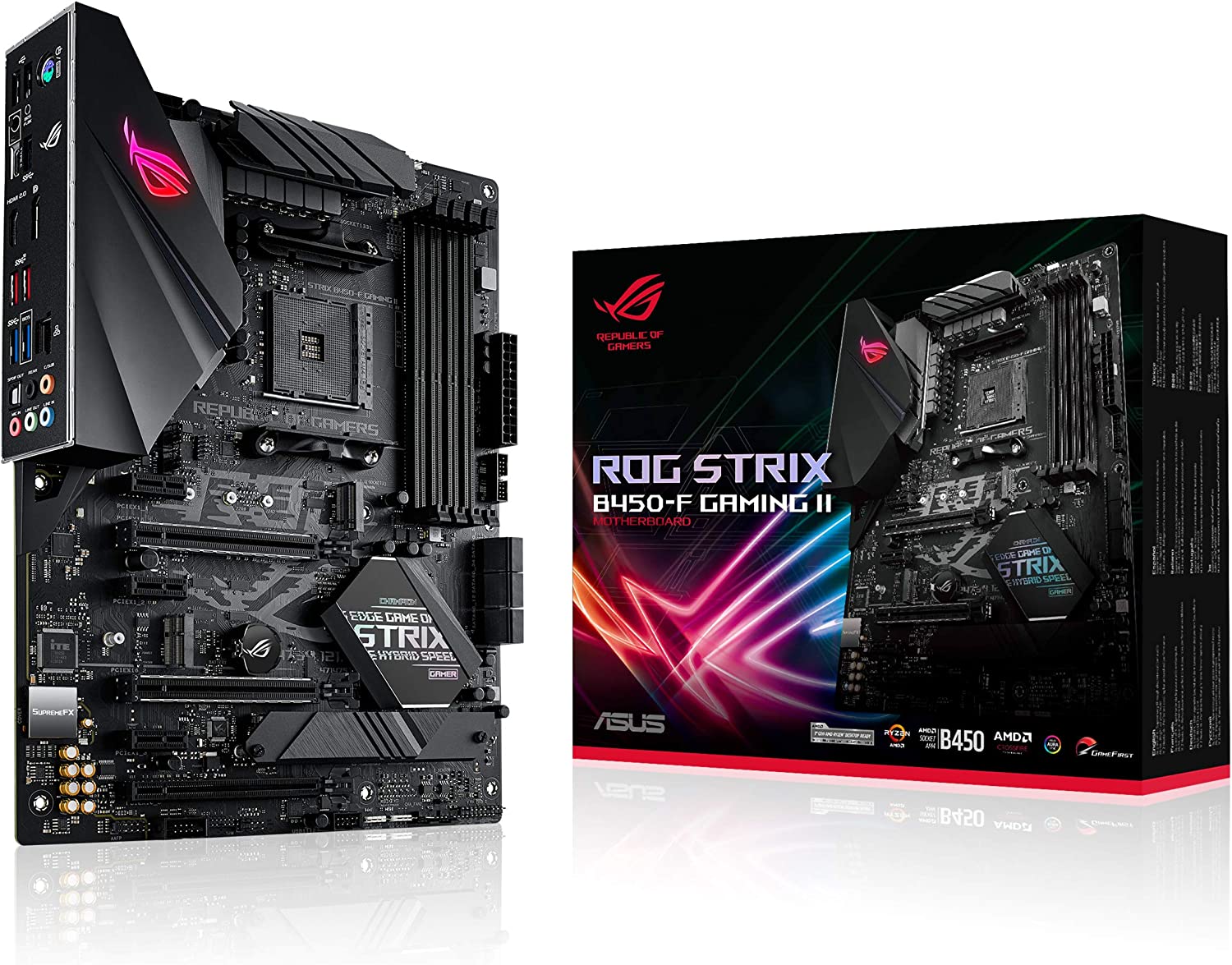
    ASUS ROG Strix B450-F

    High Performance Motherboard

    ASUS ROG Strix B450-F Work Station Motherboard

    The ASUS ROG Strix B450-F Gaming is a high-end ATX motherboard for gaming enthusiasts. It is based on the AMD B450 chipset and is compatible with the latest AMD Ryzen processors.

    The B450-F supports AMD Ryzen series processors, including the 1st, 2nd, and 3rd generations of Ryzen CPUs. This makes it a versatile option for a workstation motherboard, as Ryzen processors are known for their strong performance in multitasking and workstation applications.

    The B450-F supports up to 64GB of DDR4 memory, with speeds of up to 3200MHz, so powering through various applications shouldn’t be a problem.

    The B450-F offers different expansion options, including two PCIe x16 slots for graphics cards, one PCIe x1 slot, and six SATA 3.0 ports for storage devices. This allows you to configure your workstation with multiple graphics cards or storage devices, depending on your specific needs.

    The B450-F features Gigabit Ethernet support, which provides fast and reliable networking for workstation applications requiring data transfer. It also includes Wi-Fi connectivity, which is especially useful for remote workers or those needing to connect to a wireless network.

    The B450-F also features high-quality audio, thanks to the inclusion of the Realtek S1220A audio codec. This provides 7.1-channel surround sound, making it a good choice for multimedia workstations that require high-quality audio output. The B450-F features ASUS’s 5-Way Optimization technology, allowing easy and safe overclocking of the CPU and memory. This can boost performance for workstation applications requiring high processing power.

    Gigabyte B450M DS3H

    Best Budget Alternative

    Gigabyte B450M DS3H Work Station Motherboard

    The Gigabyte B450M DS3H is a Micro ATX motherboard and supports AMD Ryzen series processors, including the 1st, 2nd, and 3rd generations of Ryzen CPUs. This makes it a versatile option for a workstation motherboard, as Ryzen processors are known for their strong performance in multitasking and workstation applications.

    The B450M DS3H supports up to 64GB of DDR4 memory, with speeds of up to 3200MHz. Accommodating high-speed and high-capacity RAM modules makes it a good choice for even the most demanding workstation applications or games, which often require large amounts of memory for smooth operation.

    The B450M DS3H offers many expansion options, including two PCIe x16 slots for graphics cards, one PCIe x1 slot, and four SATA 3.0 ports for storage devices. If you want to set up multiple graphics cards or storage devices, this motherboard can do it.

    The B450M DS3H also features high-quality audio, thanks to the inclusion of the Realtek ALC887 audio codec. This provides 7.1-channel surround sound, making it a good choice for multimedia workstations that require high-quality audio output.

    Overall, the Gigabyte B450M DS3H is a solid choice for a workstation motherboard, offering compatibility with powerful CPUs, high memory capacity and speeds, expansion options, networking support, and high-quality audio.

    How Did We Pick These Boards?

    If you’re looking to build a workstation computer, a motherboard is one of the most critical components you’ll need. A workstation motherboard is designed for high-performance tasks such as video editing, 3D modeling, and other demanding applications. In this guide, we’ll cover the key features you should look for when shopping for a workstation motherboard.

    Compatibility with Processor

    The first thing to consider when choosing a motherboard for your workstation is its compatibility with your processor. You’ll need to ensure that the motherboard is compatible with the processor you plan to use, whether an Intel or AMD chip. This information is usually included in the motherboard’s specifications, so check before purchasing.

    Expansion Slots

    The number and type of expansion slots on a workstation motherboard can significantly affect its capabilities. You’ll want to ensure that the motherboard has enough slots for your needs, whether for additional storage drives, graphics cards, or other peripherals. The most common expansion slots are PCI-Express (PCIe) and M.2 for NVMe SSDs.

    RAM Slots

    Workstations need plenty of RAM to handle the demands of large files and complex programs. When choosing a motherboard, ensure it has enough RAM slots to accommodate the memory you need. Most motherboards will have at least four slots, but some higher-end models may have more.

    Form Factor

    The form factor of a motherboard determines its size and shape, which can affect its compatibility with your case and other components. The most common form factors are ATX, Micro-ATX, and Mini-ITX. ATX motherboards are the largest and offer the most expansion slots, while Mini-ITX motherboards are the smallest and are ideal for compact builds.

  • How Do You Fix GPU Coil Whine?

    How Do You Fix GPU Coil Whine?

    When building or upgrading a gaming PC, many enthusiasts are concerned about getting the best possible components to ensure the best possible performance. However, even with the best hardware, some issues can still affect your system’s stability and performance. One of the most common issues that gamers experience is GPU coil whine.

    In this blog post, we’ll discuss what GPU coil whine is, why it’s a common issue, and how to address and fix it to ensure optimal system performance.

    What is GPU Coil Whine?

    GPU coil whine is a high-pitched, buzzing noise when the graphics card is under heavy load. The sound comes from the inductor coils on the graphics card that vibrate at a high frequency, which causes the noise. Coil whine is not exclusive to GPUs; it can also occur in other components with inductors, such as motherboards, power supplies, and CPUs.

    Why Is Coil Whine A Common Issue?

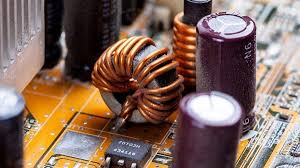
    How A Coil Looks Like GPU Coil Whine

    GPU coil whine is a common issue because it’s inherent to the design of graphics cards. GPUs require a lot of power to operate. This high power consumption causes the voltage regulation circuitry on the graphics card to work harder, resulting in the coils vibrating at a higher frequency and producing a high-pitched noise. Additionally, using cheaper components and manufacturing techniques in some GPUs can exacerbate the issue.

    What Are Symptoms of Coil Whine

    GPU coil whine is a common issue that can occur in many different types of graphics cards. It’s caused by the vibration of the card’s inductors at a high frequency, which can produce a high-pitched, buzzing noise. While coil whine isn’t harmful to your computer, it can be an annoyance and a distraction. In this blog post, we’ll discuss the symptoms of GPU coil whine and how to identify them.

    High-Pitched Noise

    The most apparent symptom of GPU coil whine is a high-pitched, buzzing noise that can come from your computer’s graphics card. The noise is often heard when the GPU is under heavy loads, such as when playing a graphically intensive game or running a GPU stress test. The noise may also be more noticeable in a quiet room or with headphones on.

    Noise Varies in Intensity

    Another symptom of GPU coil whine is that the noise can vary in intensity. The coil noise may be more noticeable during certain operations or when the GPU is under a particular load. Sometimes, the noise may be intermittent, making it harder to diagnose.

    Noise May Change the Pitch

    In some cases, the pitch of the noise may change, becoming higher or lower depending on the load on the GPU. This can make the noise even more distracting, especially if it’s a very high pitched sound or-pitched whine that becomes more intense during certain operations.

    Noise May Come from Other Components

    If you’re experiencing a high-pitched noise, it’s crucial to determine where the noise is coming from to diagnose the issue properly. While GPU coil whine is most commonly associated with graphics cards, the noise can come from other components in your computer. For example, your motherboard, CPU or power supply may produce a similar high-pitched whine under heavy load.

    No Other Symptoms

    Aside from the noise, no other symptoms are typically associated with GPU coil whine. Your computer should continue to function normally, and there should be no impact on performance or stability. However, if it sounds or you’re experiencing other symptoms, such as crashes or freezes, an underlying issue may be causing the noise.

    How Do You Diagnose and Fix Coil Whine?

    Diagnosing coil whine can be challenging, especially if the noise comes from a problematic access component. Here are some steps you can take to analyze coil whine:

    Step 1: Identify the PC Component

    The first step in diagnosing coil whine is to identify which component is causing the noise. To do this, you can try the following:

    • Open your computer case and listen to the noise while the computer is running.
    • Use a cardboard tube, like a paper towel roll, to isolate the noise and identify which component it’s coming from.
    • Use software tools like MSI Afterburner or EVGA Precision to monitor your GPU’s performance and see if the noise is related to heavy load.

    Step 2: Confirm the Source

    Once you’ve identified which component is causing the noise, the next step is to confirm the source. For example, if you think your GPU is causing the coil whine you hear, you can verify this by running a stress test on the GPU and listening for the noise.

    Step 3: Determine the Severity

    The severity of coil whine can vary depending on the component and the load level. Some features may produce a slight, barely noticeable coil whining noise, while others may have a loud and distracting noise. It’s essential to determine the severity of the coil whine to determine if it needs to be addressed.

    Step 4: Address the Issue

    If the coil whine is severe and affects your computer’s performance or is distracting, you should address the issue. The solution can vary depending on the component causing the noise. Here are some possible solutions:

    • Adjust the power settings of your GPU using software tools like MSI Afterburner or EVGA Precision.
    • Replace your power supply with a high-quality unit that provides clean and stable power to your computer.
    • Replace the component causing the noise with a higher-quality or more reliable model.

    How Do You Prevent Coil Whining?

    Prevention of coil whining can be difficult, as it’s often inherent to the component’s design. However, there are some steps you can take to reduce the likelihood of coil whine occurring:

    Choose High-Quality PC Components

    One of the best ways to prevent coil whine is to choose high-quality components from reputable GPU manufacturers, or any other PC manufacturer for that matter.

    Parts manufactured to high standards and using high-quality materials are less likely to produce annoying coil whine too. When selecting a component, look for reviews from other users to see if they’ve experienced any issues with coil whine.

    Use a High-Quality Power Supply

    Another factor that can contribute to coil whine is the quality of the power supply. When choosing a power supply, look for one with a high 80+ efficiency rating and a low ripple voltage rating.

    A high efficiency and low ripple voltage power supply is less likely to produce coil whine.

    Adjust Power Settings

    Some components, like GPUs, may produce a coil whine sound under heavy load. To prevent this, you can adjust the power settings of the component using software tools like MSI Afterburner or EVGA Precision. These software allow you to easily change fan speeds on the fly, thereby reducing noise while improving cooling performance.

    By lowering the power limit of the component, you can reduce the likelihood of coil whine occurring.

    Install Noise-Reducing Materials

    Installing noise-reducing materials in your computer case, such as acoustic foam, can help reduce the annoying noise your components produce.

    These materials absorb sound waves, reducing the background noise that escapes the case. Additionally, you can install rubber grommets on your hard drive mounts to reduce vibration.

    Monitor Temperatures

    Components that run hot are more likely to produce coil whine. To prevent this, monitor the temperatures of your parts using software tools like HWMonitor or Core Temp.

    If you notice that a component is running hot, you can adjust the fan settings to increase airflow and reduce temperatures.

    The Wrap Up

    Coil whine can be an annoying and distracting issue for computer enthusiasts. While it’s often inherent to the design of the component, there are some steps you can take to both reduce coil whine and the likelihood of it occurring. By choosing high-quality PC components, using a high-quality power supply, adjusting power settings, installing noise-reducing materials, and monitoring temperatures, you can prevent coil whine from ruining your computing experience.

  • What Is The PCIe x16 Slot?

    The PCIe x16 is a motherboard slot with 16 data links. This slot is known to have the highest throughput rate and can be used with different expansion hardware with higher bandwidth requirements such as graphics cards.

    For this article, we’ll go over what the PCIe x16 is, what it can do, and the different PCIe generations.

    The Concept of PCIe x16

    PCIe stands for Peripheral Component Interconnect Express, and is also referred to as PCI Express. PC builders will usually determine what kind of PCIe slot a motherboard has when they’re purchasing graphics cards.

    Most of the modern motherboards released in the market today are customizable. But two interfaces that are considered to be crucial by a lot of the builders in the industry are the SATA and PCIe interface. SATA interfaces are designed for hardware with lower bandwidth requirements such as storage drives. PCIe interface handle the high speed devices.

    Motherboards will come equipped with different sizes of PCIe slots. If this is too much for you, don’t worry. There are only two things that you need to keep an eye out when you’re buying graphics cards: the PCIe slot it uses and the available PCIe slots you have on your motherboard.

    What Does A PCIe x16 Slot Look Like?

    How It Looks Like PCIe x16

    Image: A typical x16 slot.

    A PCie x16 slot can be easily identified by its size on the motherboard chipset. All you have to do is look for the largest slot on there, as seen on the image aboev.

    A PCIe x16 slot measures at about 89mm in length and contains 82 pins, with each pin serving a unique purpose. On the opposite side of the spectrum, we have the PCIe x1 slot and is the smallest sized PCIe slot in the motherboard. It only measures 25mm in length and has 18 pins.

    The PCIe x16 is the largest slot found on a motherboard.

    A proper x16 slot with 16 lanes measures 89 mm in length and has 82 pins, each serving a purpose, such as providing power and transferring data.

    In contrast, the most undersized slot, PCIe x1, has 18 pins and measures 25mm in length.

    What Is The PCIe x16 Slot Used For?

    As mentioned earlier, your graphics cards are installed into the PCIe x16 slots, primarily because graphics cards transmit the most amount of data. It goes without saying that the GPU goes into the slot that can accommodate higher bandwidth.

    What Does The 16 Stand For After The X?

    The X denotes the number of PCIe lanes a PCIe slot has. For example, a PCIe x1 contains 1 PCIe lane and a PCIe x4 contains four lanes and so on.

    However, a PCIe x16 doesn’t necessarily mean it contains 16 lanes, and we’ll get to that in the next section.

    You also have to remember that there’s a difference between x16 and True x16 slot. A slot with a physical size of an x16 slot may only contain 4 or 8 lanes. As the name implies, a True x16 slot contains 16 lanes and is found in modern motherboards. A PCIe x16 slot that doesn’t contain 16 lanes are used for smaller pieces of hardware like an NVMe SSD expansion card or storage drive. Your graphics cards are installed on the True x16 slot.

    What Are The Different Types of PCIe Slots?

    Different PCIe Slots PCIe x16

    In order for us to understand the functions of a PCIe x16 slot, we’ll need to understand the different types of PCIe slots and what they’re commonly used for.

    PCIe x1 Slot

    We mentioned prior that the PCie x1 slot is the smallest PCIe slot on a motherboard chipset, while the x16 slot is the largest. The PCIe x1 slot is used for modems, sound cards, and other port expansion cards.

    PCIe X4 Slot

    Up next we have the PCie x4 slot. This slot contains 4 PCIe lanes and is used for some higher bandwidth hardware like 10G Network Cards and NVMe SSD expansion cards.

    PCIe X8 Slot

    The PCIe x8 slot contains 8 PCIe lanes and is used for secondary graphics cards. Builders often look for motherboards that have a PCIe x8 slot so they can use two graphics cards. The x8 slot is also used for RAID controllers or RAID cards.

    What Are The Current PCIe Generations?

    A PCI express standard will come in five generations: PCIe 1.0, PCIe 2.0, PCIe 3.0, PCIe 4.0, and PCIe 5.0. Newer generation has double the bandwidth compared to the previous ones.

    What’s New With PCIe 4.0?

    The PCIe 4.0 standard was introduced in 2017 and has 64GBPs throughput. This particular PCI express standard generation is used primarily by enterprise-grade servers. But in 2019, they were able to accommodate SSDs. That same year, the AMD Ryzen 3000-series processors were the first desktop CPUs to support PCIe 4.0 x16, provided their users ran with an X570 motherboard chipset.

    What’s New With PCIe 5.0?

    Two years after the PCie 4.0 was introduced, the PCIe 5.0 debuted into the market. The new PCI express standard generation came with 128GBps fo throughput and backward compatibility with previous generations.

    PCIe 5.0 also contains features such as improved electrical workings that allow for backward-compatible CEM connectors. This time, Intel was the first to accommodate the PCIe 5.0 out of the box with its Alder Lake architecture.

    Are There Future PCIe Generations?

    PCIe 6.0

    PCI-SIG released the standards for the PCIe 6.0 in 2021, but we won’t be expecting to see any products working with PCIe 6.0 until late 2022 or early 2023.

    PCIe 6.0 will have about 256GBPs of throughput, double that of the PCIe 5.0. It’s also mentioned that the data transfer rate will reach 64 GT/s per pin, double that of the PCIe 5.0’s 32 GT/s per pin. And yes, PCIe 6.0 will be backwards compatible

  • How Hot Is Too Hot For GPU?

    How Hot Is Too Hot For GPU?

    Graphics cards, also known as GPUs (Graphics Processing Units), are an essential component of modern computers. They are graphics processing unit responsible for rendering and displaying images, videos, and other graphical content on your computer screen.

    In this blog post, we’ll discuss why graphics cards are important and how they impact your computer’s performance.

    Why Are Graphics Cards Considered Important Components?

    RTX 4080 How Hot Is Too Hot For GPU

    Improved Gaming Performance

    Graphics cards are important because they can greatly improve gaming performance. A powerful graphics processing unit can render game environments and characters with more detail and higher frame rates, resulting in a smoother and more immersive gaming experience. Many modern games require a dedicated graphics card to run at their highest settings, and without one, you may experience lag, stuttering, and other performance issues.

    Better Video and Photo Editing

    Graphics cards can also improve the performance of video and photo editing software. These applications often require complex calculations and processing of large amounts of data, which can be accelerated by the specialized processing units in a graphics card. With a powerful graphics card, you can render and edit high-resolution video and images more quickly and efficiently, saving you time and improving your productivity.

    More Accurate Scientific Simulations

    In addition to gaming and multimedia applications, graphics cards can also be used for scientific simulations and calculations. Many scientific applications, such as weather forecasting, climate modeling, and molecular dynamics simulations, require large amounts of computational power, which can be provided by GPUs. Graphics cards can perform these calculations much more quickly and accurately than traditional CPUs, allowing researchers to run more complex simulations and make more accurate predictions.

    Virtual and Augmented Reality

    Finally, graphics cards are also essential for virtual and augmented reality applications. These technologies require high-resolution displays and fast refresh rates, which can only be achieved with powerful graphics cards. With a VR-ready graphics card, you can experience immersive virtual environments and interact with digital objects in a more natural and intuitive way.

    How Hot Is Too Hot For GPU Temperature?

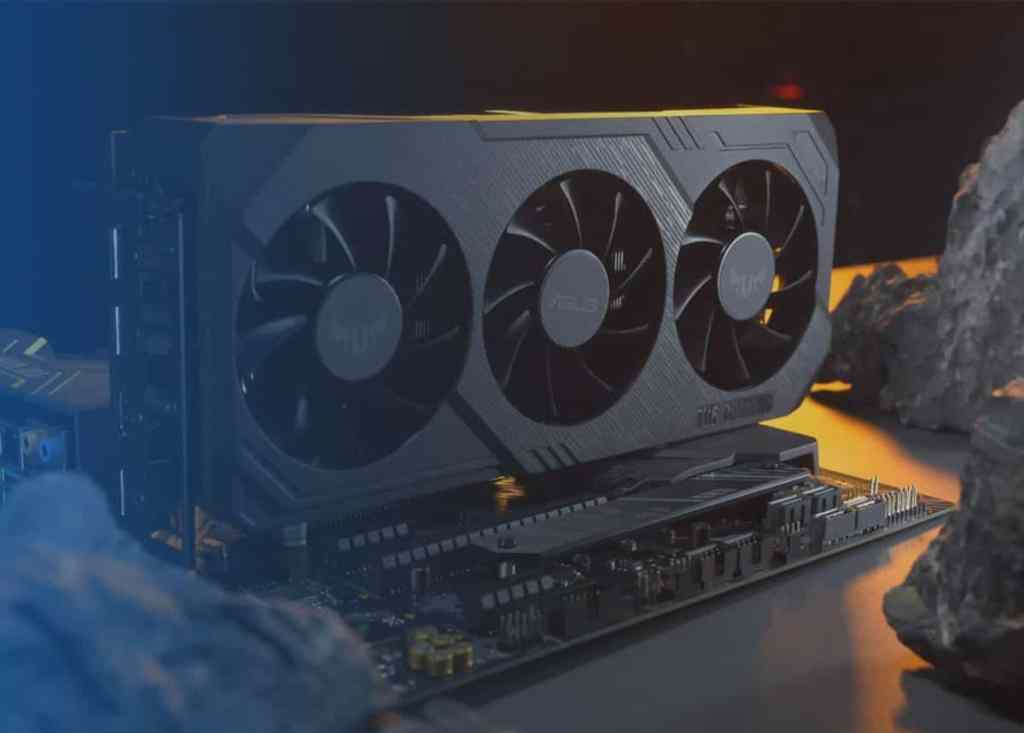
    GPU On Motherboard How Hot Is Too Hot For GPU

    As a rule of thumb, a GPU temperature under heavy load should typically stay below 85-90 degrees Celsius (185-194 degrees Fahrenheit). However, the specific temperature limit for a graphics processing unit can vary depending on the manufacturer and model.

    In general, most modern GPUs are designed to operate safely at temperatures up to 90 degrees Celsius, but running a GPU at that temperature for prolonged periods can increase the risk of damage to the components and decrease the lifespan of the GPU. Therefore, it is recommended to keep the temperature of your GPU below 85 degrees Celsius for optimal performance and longevity.

    To help keep your GPU temperature in check, you can make sure that your computer case has adequate ventilation and cooling, and consider installing additional cooling solutions such as GPU fans or liquid cooling systems. Additionally, you can adjust the fan speed and clock speeds of your GPU using software tools provided by the manufacturer to keep the temperature within safe limits.

    Why Is Overheating Dangerous For your Graphics Card?

    Blue Screen of Death How Hot Is Too Hot For GPU

    Overheating can cause several dangers to a graphics card, including:

    Reduced Performance

    When a graphics card gets too hot, it can start to throttle its performance to prevent damage to the components. This can lead to decreased frame rates, stuttering, and other performance issues. This reduced performance is only temporary. Once average GPU temperatures are reached, then performance should return to normal.

    Component Failure

    A higher than normal GPU temp can result in overheating. When this happens, your GPU’s temperature is abnormally high and your cooling systems can’t cool it down fast enough. Overheating can cause damage to the components on the graphics card, including the GPU, memory chips, and VRMs. This can result in system crashes, artifacts, and other problems. In extreme cases, overheating can cause permanent damage to the graphics card, rendering it unusable. You can make use of system monitoring software to keep track of your GPU temperature during usage and when idling.

    Reduced Lifespan

    Overheating can also reduce the lifespan of a graphics card. Heat can cause the components to degrade over time, leading to premature failure and reduced performance.

    Fire Hazard

    In rare cases, extreme overheating can pose a fire hazard, particularly if there are flammable materials in the vicinity. We’ve seen images on the Internet showing either GPUs or CPUs being on fire. While graphics cards reach high temperatures, it’s not enough to set nearby components on fire. If anything, the generated heat will probably just affect the other components negatively, but nothing too damaging as catching fire.

    What Are Tips To Maintain Average GPU Temperature?

    Graphics cards are an essential component for modern gaming, video editing, and other graphics-intensive tasks. However, these powerful devices can generate a lot of heat, which can lead to performance issues, component failure, and reduced lifespan. In this blog post, we’ll discuss some tips on how to keep your graphics card cool.

    Proper Ventilation and Airflow

    The first and most important step in keeping your graphics card cool is to ensure that your computer case has adequate ventilation and airflow. Make sure that there is enough space around your graphics card for air to circulate, and that the case has enough fans to move hot air out of the case. If your computer case is particularly small or cramped, you may need to consider upgrading to a larger case with better ventilation.

    Your room’s ventilation and airflow also matter. We’re not exactly recommending open air cooling here, but at least the ambient room temperature should be cool enough to keep your system cool. A lower ambient temperature should help keep your system cool.

    Regular Cleaning

    Dust and debris can accumulate inside your computer case over time, clogging up fans and air filters and reducing the effectiveness of your cooling system. A dirty GPU fan could be a cause of an abnormally high GPU temperature.

    Regularly cleaning your computer case with compressed air or a vacuum cleaner can help keep your graphics card and other components cool.

    Adjusting Fan Speeds

    Most graphics cards come with their own built-in fans, which can be controlled using software tools provided by the manufacturer. Increasing the speed of your graphics card fan can help dissipate heat more effectively, but be aware that higher fan speeds can also lead to increased noise levels.

    Fan speeds matter here because the heat transfer from the aluminum heatsink is affected. When heat is absorbed by the heatsink, the GPU fans need to be able to draw out the heat as fast as it can. This is a quick and neverending cycle that keeps your graphics cards cool. But the fan speeds of GPU varies depending on the manufacturer.

    Overclocking carefully

    Overclocking your graphics card can help improve performance, but it can also generate more heat. If you’re going to overclock your graphics card, make sure to do it carefully and incrementally, and monitor the temperature and performance of your GPU closely.

    Upgrading cooling solutions

    If your graphics card is consistently running hot, you may need to consider upgrading your cooling solutions. Aftermarket cooling solutions such as liquid coolers or high-performance fans can help keep your graphics card cool, but they can also be more expensive and difficult to install than stock cooling solutions.

    What Software Should I Use To Maintain Optimal GPU Temperature?

    There are several software tools that you can use to monitor and control the temperature of your graphics card:

    MSI Afterburner

    This is a popular tool that allows you to adjust the clock speeds, fan speeds, and voltage of your graphics card, as well as monitor the temperature, usage, and performance of your GPU.

    EVGA Precision X1

    This is a similar tool to MSI Afterburner, offering features such as GPU overclocking, fan control, and temperature monitoring. Some Nvidia users prefer using this system monitoring software over the MSI Afterburner.

    GPU-Z

    This is a lightweight tool that provides detailed information about your graphics card, including the temperature, clock speeds, memory usage, and other PC components.

    HWMonitor

    This is a system monitoring tool that allows you to check the temperature of your CPU, GPU, and other components, as well as the usage and performance of your system.

    SpeedFan

    This is another system monitoring tool that allows you to control the speed of your fans, which can help keep your graphics card cool.

    The Wrap Up

    It’s quite normal for GPUs to reach a high temperature when they’re in use. Tasks such as video rendering, 3D work, and even gaming can cause GPUs to reach high temperatures, but within a tolerable range.

    But what’s not okay here is when the GPU temperature goes abnormally high for no reason, or when the GPU temperature is not cooling down fast enough.

    Most GPU manufacturers have established tolerable heat thresholds for all of their graphics cards. Both Nvidia and AMD GPUs can go as high as 90 to 100 degrees Celsius, which is normal all things considered. Anything higher than that could cause problems in the long run.

  • Can I Use MSI Afterburner on Non MSI Cards?

    Can I Use MSI Afterburner on Non MSI Cards?

    MSI is a well-known brand in the world of high-performance computing. Founded in 1986, MSI has been providing quality products and services to the PC gaming and professional computing communities for over three decades. With a strong focus on innovation and technology, MSI has become a leading brand in the computer hardware industry.

    MSI’s product range includes motherboards, graphics cards, gaming laptops, desktops, peripherals, and accessories. MSI has a reputation for producing high-quality, reliable products that are built to last. They are also known for their customer service, which is often praised for being helpful and responsive.

    One of the things that set MSI apart from other brands of GPUs is its commitment to innovation. MSI is constantly developing new technologies and features to enhance the user experience. For example, their Dragon Center software allows users to monitor and control their system’s performance and cooling, while also providing customization options for lighting and other settings.

    MSI is also known for its gaming products. Their gaming laptops and desktops are designed with the needs of gamers in mind, with features like high refresh rate displays, powerful processors, and dedicated graphics cards. MSI’s gaming peripherals, such as their gaming mice and keyboards, are also popular among gamers for their high-quality construction and customizable features.

    In addition to its gaming products, MSI also offers a range of professional computing solutions. Their workstation motherboards and graphics cards are designed for use in industries such as architecture, engineering, and scientific research, where high-performance computing is critical.

    How Do You Use MSI Afterburner?

    MSI Afterburner is a powerful overclocking utility designed to help you get the most out of your graphics card. It allows you to adjust the clock speeds, fan speed, voltage, and other settings of your MSI GPU to optimize its performance.

    MSI Afterburner is kind of like a graphics card software that has multiple features. The premise of the software covers complete control over every aspect of your graphics card, ensuring that it delivers the best performance possible when gaming or when idle.

    Overclocking

    The primary purpose of MSI Afterburner is to overclock your graphics card. Overclocking is the process of increasing the clock speeds to get better GPU performance on-screen display. With MSI Afterburner, you can adjust the clock speeds of your graphics card to increase its performance in games or other GPU-intensive applications.

    Fan Control

    MSI Afterburner also allows you to control the fan speed of your graphics card. With overclocking, GPU temperatures will increase. By adjusting the fan speed, you can keep your graphics card cool and prevent it from overheating during long gaming sessions. MSI Afterburner also includes a fan curve editor, which allows you to customize the fan speed based on the temperature of your graphics card.

    Voltage Control

    MSI Afterburner supports full voltage control for your graphics cards. Voltage is another important setting that can be adjusted using MSI Afterburner. The increasing core voltage will increase the stability and performance of your graphics card even when overclocking. However, increasing the voltage also increases GPU temperatures, which can lead to higher temperatures and potentially shorten the lifespan of your card.

    Monitoring

    MSI Afterburner also includes a real-time monitoring feature that allows you to keep an eye on your GPU performance and GPU temperature. The GPU monitoring feature also extends to other facets such as clock speed, fan speed, and other important metrics.

    Profiles

    MSI Afterburner also includes profile support, which allows you to save and load different overclocking settings for different scenarios. For example, you can create a profile for gaming that maximizes performance, and another profile for everyday use that reduces power consumption and heat output.

    What’s also great here is that you can just turn the software on and leave MSI Afterburner running in the background without taking up CPU usage.

    Can I Use MSI Afterburner on Non MSI Cards?

    Yes, you can use MSI Afterburner on non MSI made graphics cards. MSI Afterburner is a third-party graphics card and overclocking tool and utility that works with most Nvidia graphics cards and AMD graphics cards.

    However, you won’t be able to access some of the MSI exclusive features like voltage control for other GPU brands. You could use different overclocking tools for non MSI cards because you’ll risk damaging your non MSI GPUs when you overclock with their Dragon software.

    What Are The The Best MSI Graphics Cards To Date?

    MSI graphics cards are known for their quality construction, innovative features, and impressive performance. In this article, we’ll take a look at some of the top MSI graphics cards for high-performance gaming.

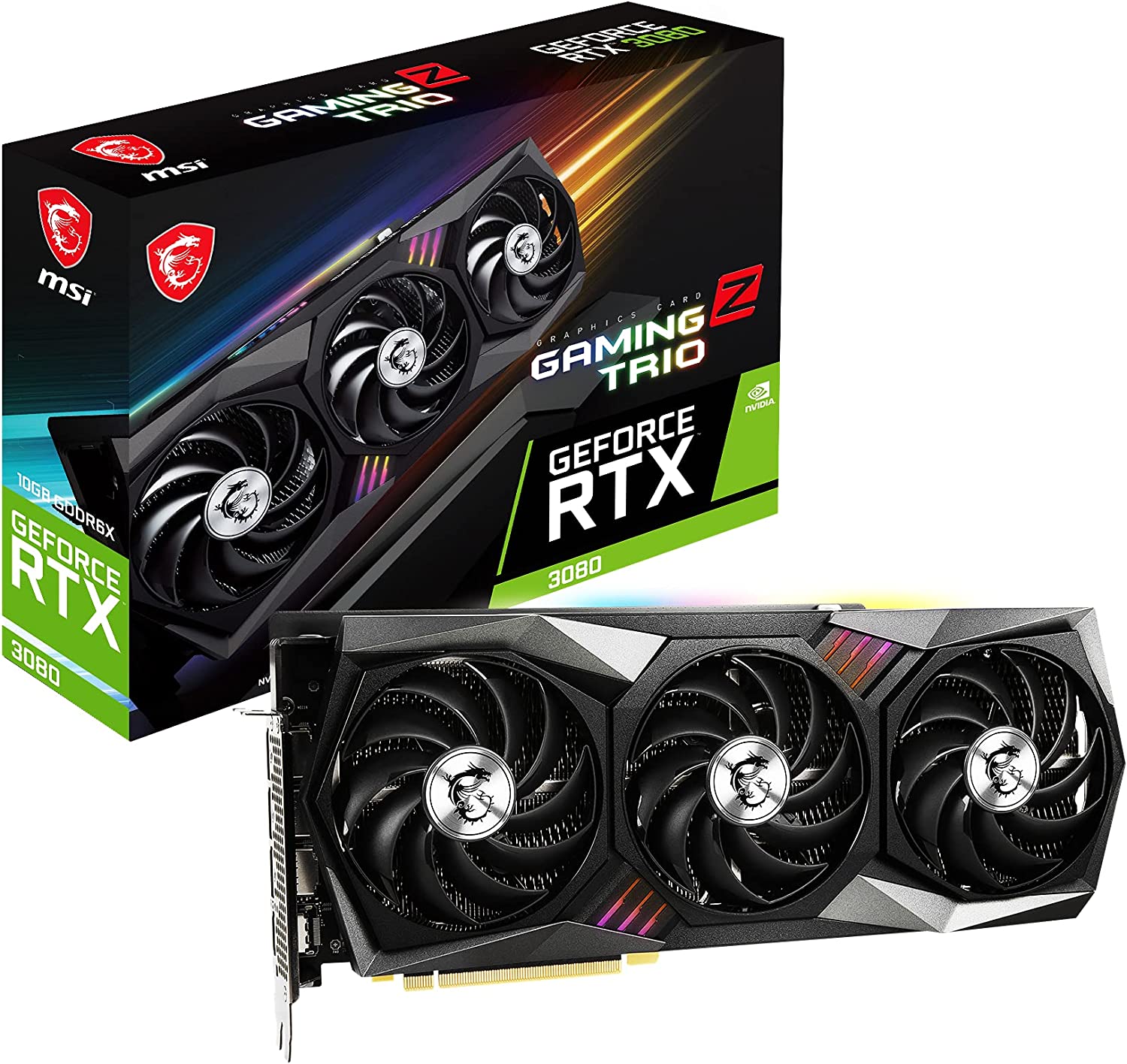
    MSI GeForce RTX 3080 Gaming X Trio

    MSI GeForce RTX 3080 Gaming X Trio Can I Use MSI Afterburner on Non MSI Cards

    The MSI GeForce RTX 3080 Gaming X Trio is what we consider to be a high-end graphics card for maximum gaming performance. The MSI GeForce RTX 3080 Gaming X Trio is packed with the latest Nvidia Ampere architecture, 10,496 CUDA cores and about 10GB of GDDR6X memory. 4K gaming is easy peasy with the MSI GeForce RTX 3080 Gaming X Trio.

    MSI Radeon RX 6700 XT Gaming X

    MSI Radeon RX 6700 XT Gaming X Can I Use MSI Afterburner on Non MSI Cards

    Over at the AMD side, we have the MSI Radeon RX 6700 XT Gaming X, possibly one of the best Radeon cards in the market right now. It’s packed with the latest RDNA 2 architecture, 2560 stream processors, and 12GB GDDR6 memory.

    MSI GeForce RTX 3060 Ti Gaming X Trio

    MSI GeForce RTX 3060 Ti Gaming X Trio Can I Use MSI Afterburner on Non MSI Cards

    The MSI GeForce RTX 3060 Ti Gaming X Trio is the RTX 3080’s younger brother, and is just as powerful minus the price tag. The MSI GeForce RTX 3060 Ti Gaming X Trio features the latest Ampere architecture and 8GB of GDDR6 memory. 1440p gaming is effortless with the MSI GeForce RTX 3060 Ti Gaming X Trio in tow.

    MSI Radeon RX 5700 XT Gaming X

    MSI RAdeon RX 5700 XT Can I Use MSI Afterburner on Non MSI Cards

    Another great MSI product is the MSI Radeon RX 5700 XT Gaming X, also packed with the latest RDNA architecture and features 8GB GDDR6 memory and 2560 stream processors. It’s not that expensive compared to the RX 6700 XT variant, making it a great and powerful alternative.

    MSI GeForce GTX 1660 Ti Gaming X

    MSI GeForce GTX 1660 Ti Gaming X Can I Use MSI Afterburner on Non MSI Cards

    The MSI GeForce GTX 1660 Ti Gaming X is the most affordable amongst all the other graphics card on this short list, but it doesn’t mean that it’s an underperforming card. For the price you pay, you get 1536 CUDA Cores and 6GB GDDR6 memory. The MSI GeForce GTX 1660 Ti Gaming X doesn’t disappoint as it can deliver 1080p and 1440p gaming resolution without difficulty.

    What Are Some Of The Top Non MSI Graphics Cards

    While MSI is a well-known brand in the computer hardware industry, there are also other non-MSI graphics card brands that offer high-quality products for high-performance gaming. In this article, we’ll take a look at some of the top non-MSI graphics cards for high-performance gaming.

    Nvidia GeForce RTX 3080

    Geforce RTX 3080 Can I Use MSI Afterburner on Non MSI Cards

    When we’re talking about non MSI products, the Nvidia GeForce RTX 3080 is a powerful contender (at least outside of the RTX 4000-series). The Nvidia GeForce RTX 3080 has the same Ampere architecture, 10,496 CUDA cores, and 10GB GDDR6 memory clock speed.

    Will the MSI Afterburner work with the Nvidia GeForce RTX 3080? It definitely will, but again, don’t risk overclocking. There are better overclocking tools out there for the Nvidia GeForce RTX 3080.

    AMD Radeon RX 6900 XT

    AMD Radeon RX 6900 XT Can I Use MSI Afterburner on Non MSI Cards

    The AMD Radeon RX 6900 XT is just as powerful as the RTx 3080, and more affordable too. The AMD Radeon RX 6900 XT features the latest RDNA 2 architecture, 16GB GDDR6 memory, and 5,120 stream processors. 4K resolution gaming won’t be a problem for the AMD Radeon RX 6900 XT.

    Nvidia GeForce RTX 3070

    Nvidia GeForce RTX 3070 Can I Use MSI Afterburner on Non MSI Cards

    The Nvidia GeForce RTX 3070 is a mid-range graphics card with the best performance-t0-price ratio. Its specs are slightly less powerful than the RTX 3080 but way above the RTX 3060. The Nvidia GeForce RTX 3070 features 8GB GDDR6 memory, 5,888 CUDA cores, and the latest developments in ray tracing and AI processing.

    AMD Radeon RX 6800 XT

    AMD Radeon RX 6800 XT Can I Use MSI Afterburner on Non MSI Cards

    Another high-end product from the Radeon line of graphics card is the AMD Radeon RX 6800 XT, and it’s also more affordable than the RTX 3000-series graphics cards. The AMD Radeon RX 6800 XT packs 4,608 stream processors and 16GB GDDR6 memory, but will the MSI Afterburner work with it? Yes!

    Nvidia GeForce GTX 1660 Super

    Nvidia GeForce GTX 1660 Super Can I Use MSI Afterburner on Non MSI Cards

    Nvidia GeForce GTX 1660 Super is a mid-range GPU with incredible performance and great pricing. At 6GB GDDR6 memory and 1,408 CUDA cores, it’s more than capable of running a lot of modern AAA games at high to ultra settings and at 1080p or 1440p resolutions.

    The Wrap Up

    MSI Afterburner gives you complete control over all MSI made graphics cards and non MSI GPUs. MSI products are known for their durability, reliability, and price-to-performance ratio, but these are taken one step further with the MSI Afterburner.

    But does MSI Afterburner work with a non MSI card? It depends. MSI Afterburner works with MSI products and certain non MSI GPUs. If you have a non MSI product, MSI Afterburner can still monitor clock speed, GPU temperatures, and GPU usage but that’s about it.

  • Top 7 Low-Profile CPU Coolers for High-Performance and Space-Saving Builds

    Top 7 Low-Profile CPU Coolers for High-Performance and Space-Saving Builds

    Low profile CPU coolers are an essential component for building a gaming PC with a compact form factor. As the name suggests, these coolers are designed to be small in size and offer effective cooling performance for CPUs with limited clearance in smaller computer cases. They are especially popular for use in mini-ITX and micro-ATX builds, where space is at a premium, and traditional tower coolers may not fit or interfere with other components. Despite their smaller size, low profile coolers can still provide adequate cooling for powerful CPUs, making them an excellent choice for gamers who want a powerful gaming rig without sacrificing space or aesthetics. In this guide, we will explore the benefits of low profile CPU coolers, discuss their various types and features, and provide recommendations for the best low profile coolers on the market.

    What’s The Best Low Profile CPU Cooler?

    Here is our curated list of the some of the best low profile coolers in the market right now. This is not arranged in any particular order, and a couple of these coolers are on the list due to personal experience.

    ARCTIC Low Profile CPU Cooler

    ARCTIC Alpine 12 LP - CPU Cooler Best Low Profile CPU Cooler

    Specifications

    • Fan size: 92 mm
    • Fan speed: 2000 RPM
    • Fan noise level: 35.8 dBA
    • Socket Compatibility: Intel LGA1151/1150/1155/1156/1200
    • Dimensions (L X W X H): 95 x 95 x 53.5 mm/3.74 x 3.74 x 2.10 inch
    • Warranty: 1 year

    Why it’s good

    • Affordable and high-performing CPU cooler
    • A solid go-to pick for when your old CPU cooler needs to be replaced ASAP

    Why it’s terrible

    • AMD socket compatibility

    Arctic is a brand that needs no introduction as they’re known for their entry-level and high-end CPU coolers that provide great performance without breaking the bank.

    On this list is the Arctic Alpine 12 LP, one of the smaller CPU coolers perfect for small form factor PC builds. A couple of years ago, I had the opportunity to use the Arctic Alpine 12 LP on my wife’s PC build. It’s one of the cheaper coolers in the market that gives better cooling performance than some of the high end CPU coolers,.

    This small CPU cooler doesn’t make a lot of noise even when under heavy load. My wife did a lot of rendering back then and the noise levels on the Arctic Alpine 12 LP was manageable. At most, it sounded like a small electric fan wheezing in a bedroom.

    We’re inclined to name this the best low profile CPU cooler just because of our firsthand experience with the Arctic Alpine 12 LP.

    ID-COOLING IS-30 Low Profile CPU Cooler

    ID-COOLING IS-30 30mm Height Mini-ITX Low Profile Cooler Best Low Profile CPU Cooler

    Specifications

    • Fan size: 92 mm
    • Fan speed: 3600 RPM
    • Fan noise level: 35.8 dBA
    • Socket Compatibility: Intel LGA1151/1150/1155/1156/1200 and AMD AM4/FM2+/FM2/FM1/AM3+/AM3/AM2+/AM2
    • Dimensions (L X W X H): 93 x 100 x 30 mm/3.66 x 3.93 x 1.18 inch
    • Warranty: 2 year

    Why it’s good

    • Perfect for small mini ITX cases
    • Great cooling performance
    • Budget-friendly

    Why it’s terrible

    • Noise levels are unbearable at times

    Like the Arctic brand, ID-Cooling is another one of those recognizable brands in the CPU cooling market. The ID-Cooling IS-30 is one of their most popular models right now when it comes to low profile CPU coolers.

    The ID-Cooling IS-30 is smaller than most of the low profile CPU coolers on here, so it’s a perfect choice if you want to go for smaller mini ITX form factor cases. Heat dissipation and cooling power is still above average given its size and price tag too.

    The only downside is that the ID-Cooling IS-30 makes a lot of noise under heavy loads compared to the other coolers. Some users are fine with this downside mostly because the affordability and power easily makes it worth getting.

    StarTech ‎FAN3701U

    StarTech.com 1U 60x10mm Best Low Profile CPU Cooler

    Specifications

    • Fan size: 60 mm
    • Fan speed: 4800 RPM
    • Fan noise level: 28 dBA
    • Power consumption: 2.64 watts
    • Socket Compatibility: Socket A and Socket 370
    • Dimensions (L X W X H): 100 x 30 x 146 mm/3.94 x 1.18 x 5.75 inch
    • Warranty: 1 year

    Why it’s good

    • Decent small form factor CPU cooler
    • Great fan speed rating
    • Overall great value

    Why it’s terrible

    • Does not work with AMD sockets

    The StarTech ‎FAN3701U is one of the budget-friendly CPU coolers on this list, and just like the Arctic and ID-Cooling, you get your money’s worth when it comes to its cooling power and heat dissipation.

    At 60mm, it’s one of the smallest low profile CPU coolers, which makes it a decent investment for small form factor builds. Fan speeds go as high as 4800RPM, which is considered above average despite being a compact cooler.

    The downside here is its incompatibility with AMD sockets, so if you have an AMD motherboard, you’re better off with something else.

    Cooler Master MasterAir G200P

    Cooler Master MasterAir G200P RGB Low-Profile Best Low Profile CPU Cooler

    Specifications

    • Fan size: 92 mm
    • Fan speed: 2600 RPM
    • Fan noise level: 28 dBA
    • Socket Compatibility: Intel LGA1151/1150/1155/1156/1200/1366/2011/2066 and AMD AM4/FM2+/FM2/FM1/AM3+/AM3/AM2+/AM2
    • Dimensions (L X W X H): 94 x 91 x 40 mm/3.7 x 3.6 x 1.6 inch
    • Warranty: 2 year

    Why it’s good

    • Can’t say no to RGB lighting
    • Great compatibility with most modern motherboards
    • Also one of the smaller CPU coolers in the market

    Why it’s terrible

    • It makes a lot of noise despite its size

    Cooler Master is one of the most popular brands of PC paraphernalia and peripherals, and their lines of CPU coolers are no exception. Introducing the Cooler Master Masterair G200P, possibly their best low profile CPU cooler to date.

    The size of the Cooler Master Masterair G200P isn’t your average low profile cooler too. It’s about 30mm bigger than most of the air coolers on this list, but it’s still small enough to fit into mini ITX gaming PC motherboards without difficulty.

    The Cooler Master Masterair G200P goes up to 2600RPM, so it’s kind of loud when it goes into overdrive. But it makes up for it with its awesome performance and an even better 2-year manufacturer warranty.

    If you’re planning to upgrade your stock coolers, the Cooler Master Masterair G200P is a great pick.

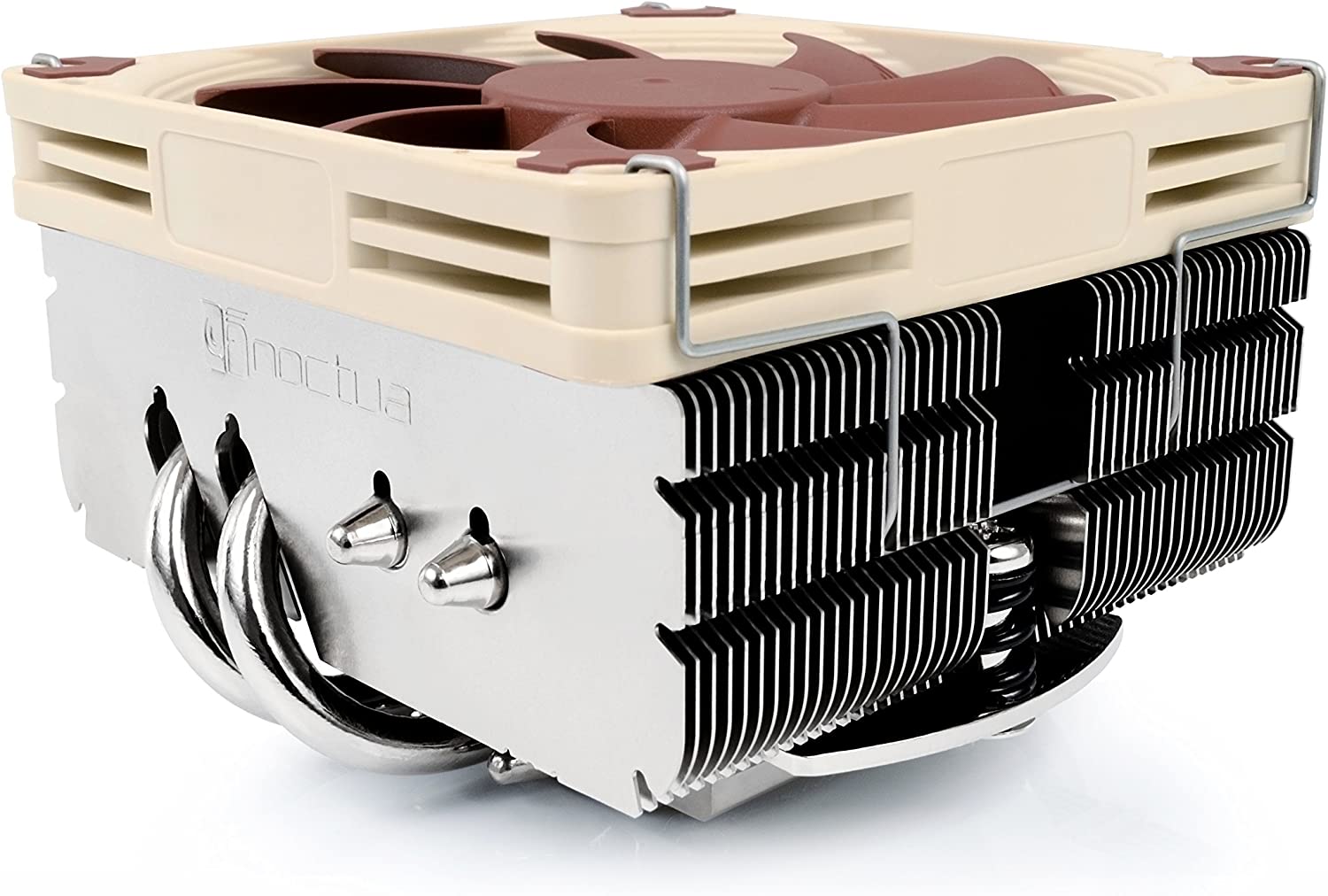
    Noctua NH-L9x65

    Noctua NH-L9x65, Premium Low-Profile Best Low Profile CPU Cooler

    Specifications

    • Fan size: 92 mm
    • Fan speed: 2500 RPM
    • Fan noise level: 24.6 dBA
    • Socket Compatibility: Intel LGA1151/1150/1155/1156/1200/2011/2066 and AMD AM4/FM2+/FM2/FM1/AM3+/AM3/AM2+/AM2
    • Dimensions (L X W X H): 95 x 50 x 95 mm/3.74 x 2 x 3.74 inch
    • Warranty: 6 year

    Why it’s good

    • Excellent cooling power
    • Reliable and durable
    • Compatible with both AMD and Intel Sockets

    Why it’s terrible

    • Cooler height might be an issue since it’s taller than other low profile CPU coolers

    Noctua coolers are reputably to be the best in the market right now due to their sheer cooling power and affordability. And when we say affordability, you get your money’s worth for any of their coolers (maybe even more).

    On this list we have the Noctua NH-L9x65 and it’s a strong contender for the best low profile CPU cooler. Despite its height, the Noctua NH-L9x65 fits right into any mini ITX case, but you’d still need to make sure that there’s enough clearance between the cooler and RAM slots.

    The Noctua NH-L9x65 operates at about 2500RPM under heavy workloads without making a lot of noise. Another point to Noctua!

    In terms of reliability, Noctua coolers come with a 6-year warranty too. Noctua will be more than happy to replace malfunctioning coolers within that period without hesitation. Third-party reviews from users with regard to their warranty are also positive.

    Be Quiet! Shadow Rock LP (BK002)

    be quiet Shadow Rock LP BK002 Best Low Profile CPU Cooler

    Specifications

    • Fan size: 120 mm
    • Fan speed: 1500 RPM
    • Fan noise level: 25.5 dBA
    • Power Consumption: 1.1 watts
    • Socket Compatibility: Intel LGA775/1151/1150/1155/1156/1366/2011 and AMD AM4/FM2+/FM2/FM1/AM3+/AM3/AM2+/AM2
    • Dimensions (L X W X H): 160 x 140 x 170 mm/6.3 x 5.51 x 6.69 inch
    • Warranty: 3 year

    Why it’s good

    • Excellent cooling performance
    • Silent under heavy loads
    • Reliable

    Why it’s terrible

    • Cooler height might be an issue

    Much like Noctua coolers, Be Quiet coolers are considered to be the best by a lot of builders for their adequate performance and price tag. And the Be Quiet! Shadow Rock LP (BK002) is proof of that.

    The Be Quiet! Shadow Rock LP (BK002)’s downside is that it might be a bit bigger for a mini ITX board, so you’ll need to double check with your RAM slots’ clearance. But other than that, the Be Quiet! Shadow Rock LP (BK002) just has a lot to offer.

    The Be Quiet! Shadow Rock LP (BK002) comes with a 120mm fan, which is perfect for high end CPUs. Fan noise levels aren’t an issue because the Be Quiet! Shadow Rock LP (BK002) operates at 1500RPM at maximum capacity.

    Scythe Shuriken 2

    Scythe Shuriken 2 CPU Air Cooler Best Low Profile CPU Cooler

    Specifications

    • Fan size: 92 X 92 X 15 mm PWM/4 PIN
    • Fan speed: 1900 RPM
    • Socket compatibility: Intel LGA 775/1151/1150/1155/1156/1200/1366 and AMD AM4/FM2(+)/FM1/AM3(+)/AM2(+)
    • Dimension (W X D X H): 94 X 93 X 58 mm

    Why it’s good

    • Adequate cooling performance
    • No height issues with RAM or PCI-E cards on mini ITX boards
    • Affordable and reliable

    Why it’s terrible

    • No manufacturer warranty
    • It’s like having a mini airplane in your room with how noisy it is.

    The Scythe Shuriken 2 is one of the most affordable and compact coolers you’ll ever see. On a personal note, I have the Scythe Shuriken 2 installed in my son’s gaming PC. The installation process was easier than anticipated and there were no issues with interference with memory modules and graphics cards on the mini ITX board.

    The Scythe Shuriken 2 comes with a 92mm fan, which explains why there was no issue with RAM clearance or GPU clearance. The PC had an RTX 2080 equipped, and even then, we had no issues with the sizing or fitting.

    Our only concern here is that it doesn’t come with manufacturer warranty. We did have a store warranty that’d replace it within a year after purchase, but only if it was no longer working.

    The noise levels were also bearable, even though some people don’t like the sheer buzzing noise when it was under heavy workload.

    Short Buying Guide For Low Profile CPU Coolers

    When it comes to buying a low profile CPU cooler for your gaming PC, there are several factors to consider. Here are some of the key things to keep in mind:

    1. Compatibility: Before buying a low profile CPU cooler, check its compatibility with your CPU socket type. Most coolers will support multiple sockets, but it’s essential to ensure that the cooler you choose will fit your specific CPU.
    2. Height: The height of the cooler is a critical consideration when it comes to low profile coolers. Make sure to measure the distance between the top of your CPU and the side panel of your computer case to ensure that the cooler you choose will fit.
    3. Cooling performance: While low profile coolers are designed to be compact, they should still offer effective cooling performance to keep your CPU temperature in check. Look for coolers with larger heatsinks, high-quality fans, and heat pipes to ensure that your CPU is adequately cooled.
    4. Noise level: The noise level of the cooler is another important consideration, especially if you are building a quiet PC. Look for coolers with low dB ratings, and check reviews to see how loud they are in practice.
    5. Build quality: A good low profile CPU cooler should be built with high-quality materials and components to ensure longevity and durability. Look for coolers with sturdy mounting mechanisms and well-designed heatsinks.
    6. Price: Low profile CPU coolers can vary in price, with some more affordable options offering excellent value for money. Consider your budget and choose a cooler that offers the best balance of features and price for your needs.

    Some of the best low profile CPU coolers on the market include the Noctua NH-L12S, the Cryorig C7, and the Scythe Big Shuriken 3. However, there are many other options available, and it’s important to do your research and choose the one that best fits your needs and budget.

    The Wrap Up

    In conclusion, low profile CPU coolers offer an efficient and compact solution for building powerful gaming PCs in smaller cases. They come in various designs and sizes, with different features and cooling capabilities, allowing gamers to choose the one that fits their specific needs and requirements. When building a gaming PC with limited space, a low profile cooler is an essential component to consider, as it not only helps keep the CPU temperature in check but also ensures that other components are not obstructed or damaged by bulky coolers. With the growing popularity of small form factor builds, low profile CPU coolers are becoming more prevalent and sophisticated, providing gamers with a wider range of options to choose from. Overall, a good low profile CPU cooler is an investment that can improve the performance, longevity, and aesthetics of any gaming PC.

  • Crucial SSD Vs Samsung – Which Is Better?

    Crucial SSD Vs Samsung – Which Is Better?

    Solid-state drives, or SSDs, are storage devices that utilize NAND-based flash memory to store data. Unlike your traditional hard disk drive or HDD, which uses disks with read/write heads to access data, SSDs have no moving parts and only rely on electronic circuits for data storage and retrieval. Simply put, SSDs have a higher performance than your traditional hard drive.

    In this article, we’ll review two of the most popular SATA SSD brands in the market now: Crucial SSD vs Samsung. We’ll go over which brand provides faster sequential write speeds, very high sequential write speeds and read speeds, better overall performance, and all the important aspects that affect how the average user shops for an SSD.

    A Brief Review of Crucial Brand of SSDs

    Crucial Brand of SSD Crucial SSD vs Samsung

    What’s Good About Crucial SSDs?

    Crucial is one of the biggest and most popular brands in the SSD market. Many users can attest to how well and reliable the brand is.

    But of the most important aspects we need to cover here is compatibility, and Crucial SSDs are known for just that. They’re compatible with a wide range of systems, so whether or not you have a new laptop or an old motherboard, you’ll find a Crucial brand of SSD to match it.

    Crucial is a reliable brand known for its affordability and excellent performance. Their read and write speeds quickly transfer large files to and from the SSD. Performance wise, Crucial is consistent across the board. Sequential Read speed and write speed are

    Another aspect that stands out with Crucial SSDs is their affordability. Compared to some of the other high-end SSD brands on the market, Crucial SSDs offer excellent value for money. They are often priced lower than their competitors without sacrificing performance, making them an attractive option for those who want to upgrade their system without breaking the bank.

    I highly recommend Crucial SSDs for their reliability, compatibility, and affordability. A Crucial drive is worth considering if you’re in the market for an SSD. The Crucial MX500 is their most popular SATA SSD offered.

    What’s Bad About Crucial SSDs?

    While Crucial SSDs are generally reliable and perform well, there have been some reports of issues with their customer support. Some users have needed help reaching Crucial’s support team and have experienced slow response times when resolving issues.

    Another drawback of Crucial SSDs is their relatively low write endurance. Crucial SSDs may last less long under heavy use compared to some high-end SSD brands. This may be fine for casual users, but those who frequently use their systems for intensive tasks may want to consider a more durable SSD option.

    Despite these drawbacks, Crucial SSDs are still a solid choice for those looking for a reliable and affordable SSD. Just be aware of the potential customer support issues, and do your research to find the best SSD option for your needs.

    A Brief Review of Samsung Brand of SSDs

    Samsung Brand Crucial SSD vs Samsung

    What’s Good About Samsung SSD?

    Samsung is a brand that needs no introduction. They’re known for making some of the world’s best appliances and mobile phones, and now they’re leaving their mark in the SSD market.

    I have a Samsung SSD installed on my PC and laptop, and they’re just amazing. I do video editing on my computer and transfer large files to and from the SSD to my HDD. Their products are generally known for their reliability, endurance, and overall quality.

    Samsung SSDs are known for their impressive read and write speeds and are consistently ranked top performers in several benchmark tests. Samsung’s SSDs also come with their proprietary software, the Samsung Magician, which allows users to optimize the performance of their SSD, monitor its health, and perform firmware updates.

    Another impressive feature of Samsung SSDs is their endurance. Samsung uses high-quality components in their SSDs, which means they can withstand a lot of read and write cycles before they degrade. This is particularly important for users who do a lot of heavy workloads or gaming, as it ensures that their SSD will last for a long time.
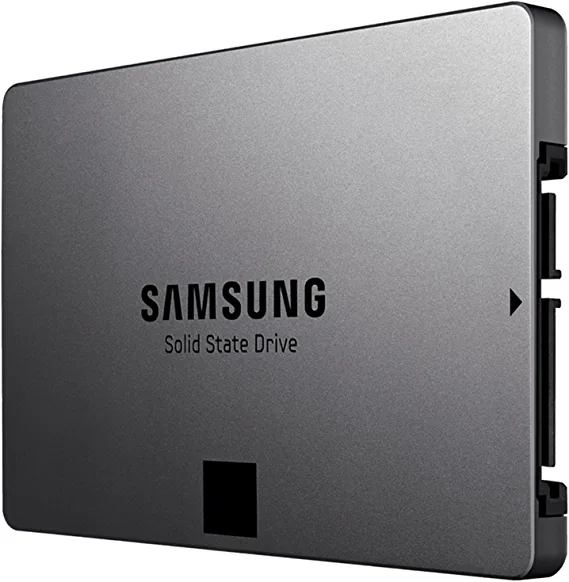
    Overall, Samsung SSDs are an excellent choice for users who want a reliable, fast, and durable storage solution. They may not be the cheapest SSDs in the market, but they are worth the investment.

    We strongly recommend getting Samsung EVO SSDs or the Samsung 860 EVO SSD if you want to invest. Both Samsung SSD models we recommended here fits all form factor of motherboards too.

    What’s Bad About Samsung SSD?

    While Samsung SSDs are known for their reliability and performance, they are not without their flaws. One of the most significant issues with Samsung SSDs is their price. They are generally more expensive than other brands of SSDs with similar specifications, which may not be appealing to budget-conscious users.

    Another area for improvement is Samsung’s customer support. While their SSDs are generally reliable, some users have reported issues with their drives, such as slow speeds or failure to detect. Unfortunately, Samsung’s customer support has been criticized for being unresponsive or difficult to work with in these cases, which can be frustrating for users who need immediate assistance.

    Additionally, Samsung SSDs can be complicated for novice users. Samsung’s proprietary software, the Samsung Magician, is powerful and allows users to optimize the performance of their SSD. Still, it may need to be more user-friendly for those who are tech-savvy.

    Lastly, while Samsung SSDs have impressive endurance, some users have reported that their endurance ratings are lower than advertised. This means that their SSDs may degrade faster than expected, which can be a concern for users who need a reliable and durable storage solution.

    Overall, Samsung SSDs are a good choice for users who prioritize performance and endurance over price. However, users should be aware of their customer support issues and be prepared to invest time into learning how to use the Samsung Magician software.

    When choosing an SSD, Crucial and Samsung are two of the most popular brands on the market. While both offer high-quality products, some key differences can help you decide which is best for your needs.

    Side by Side Comparison of Crucial and Samsung SSDs

    Speed and Performance

    Crucial and Samsung SSDs offer fast, random write speeds and reliable performance. However, Samsung tends to provide slightly quicker read and write rates than Crucial, making it a better choice for those prioritizing speed and performance.

    Capacity

    Crucial SSDs offer slightly better performance and a larger storage capacity than Samsung at lower price points, making it a better choice for those who need a lot of storage without breaking the bank.

    Reliability

    Both brands have a solid reputation for reliability, but Samsung SSDs tend to be more durable and long-lasting. They are also backed by a more extended warranty period than Crucial SSDs.

    Their reliability is similar unless you really end up with a defective model. And even then, defects shouldn’t be held against the manufacturer.

    Price

    While both brands offer competitive prices, Crucial SSDs are cheaper than Samsung, making them a better choice for those on a budget.

    What Are You Looking For When Buying a New SSD?

    1. Storage capacity: The first and most important thing to consider is your needed storage capacity. Determine your storage needs and choose an SSD with a capacity that will meet those needs. SSDs are available in various capacities, from 128GB to multiple terabytes.
    2. Read/Write speeds: SSDs are much faster than traditional hard drives, but not all SSDs are created equal. Look for an SSD with high read and write speeds. This will ensure your computer boots up quickly and programs load fast.
    3. Interface: The interface of the SSD is also essential to consider. SATA III is the most common interface for SSDs, but newer models use NVMe, which is much faster. However, not all computers support NVMe, so check your computer’s specifications before purchasing an NVMe SSD.
    4. Endurance and lifespan: SSDs have a limited lifespan and can only handle a certain number of write cycles. Look for an SSD with a high endurance rating, ensuring it lasts longer.
    5. Brand reputation and customer reviews: Look for reputable brands with positive customer reviews. This will help ensure that you get a reliable SSD that will meet your needs and last a long time.
    6. Price: Finally, consider the cost. SSDs can be expensive, but they are a worthwhile investment if you need fast and reliable storage. Compare prices and features to find the best SSD for your budget.

    Choosing between Crucial and Samsung SSDs depends on your specific needs and priorities. If you’re looking for the fastest speeds and are okay with paying more, Samsung is the way to go. Crucial is the better option if you need a lot of storage without breaking the bank. However, both brands offer high-quality products that will satisfy any user.

  • How Do You Build A Desktop For Animation?

    How Do You Build A Desktop For Animation?

    As a graphics designer, animator, architect, or 3D artist, you need a powerful computer to carry out certain tasks. But how powerful your PC needs to be depends on the kind of workload you’re carrying out. For 3D animation or 2D animation, you need something beefier. And animation computers are usually not cheap.

    If we want to build a desktop for animation, we’d need something potent, powerful, and within the price range that we want. But can we really meet all those criteria?

    We’ll find out in this article as we show you how to build a desktop computer meant for 3D animation and modeling.

    Starting from Scratch: Building a Computer for Animation

    Sample 3D Animation Desktop for Animation

    Believe it or not, it’s possible to build a desktop for animation that’s affordable but powerful at the same time. When we say powerful, we are referring to a PC that can carry out animation tasks without difficulty.

    Here’s a short cheat sheet of the kind of hardware components you need for building a decent desktop for animation. This also applies to window shopping for a laptop for animation too.

    CPU and RAM Combination

    CPU and RAM need to be fast enough to power through all the animation software, 3D modeling software, and other software support for animation projects.

    You’ll need at least 32GB DDR4 RAM sticks with a frequency of 3600MHz up to 4000MHz. For processors, you’ll need at least an Intel Core i7 9th generation or 10th generation, or an AMD Ryzen processor equivalent to the Intel Core i7,

    GPU or Graphics Card

    Building a computer for animation requires a dedicated graphics card. While you could power through 3D animation projects with an integrated graphics card, it will be relatively slower than having a dedicated graphics card.

    Popular software such as Adobe After Effects have yet to fully take advantage of GPU rendering, but it doesn’t mean you should be ignoring your GPU. Nvidia graphics cards have better Adobe After Effects support than AMD graphics card, so we recommend getting an Nvidia Geforce RTX 3060 at the very least.

    Storage Space

    Animators, modelers, and graphic designers need a lot of storage space. Period.

    Not only are you dealing with renders, but you also have to store project files, assets, and other resources. These take up a sizeable amount of your hard drive, especially when you’re doing major projects.

    You’ll need at least two storage drives. One of them should be an SSD or solid state drive to host your software and operating system, and the other should be a traditional HDD to house all the files and renders.

    Your combination would probably be at 1TB NVMe SSD and 2TB/4TB HDD. Of course, if you can afford more capacity for SSD, then go for more.

    Motherboard

    While the motherboard doesn’t really affect the overall build, you’re here to consider how the motherboard supports all the other hardware components listed above.

    An Intense Debate: Mac or PC?

    Mac vs PC Desktop for Animation

    Between getting a desktop computer for animation and a Macbook, which one’s actually better for 3D animation, modeling, and graphics design?

    The practical answer here is this: it depends.

    It depends on:

    How big is your budget?

    Apple products are always going to be expensive but you’re getting premium pieces of hardware. The specs of the current generation Macbook Air and Macbook Pro can easily compete against gaming PCs that run old graphics cards or CPUs.

    Gaming laptops are similarly priced as Macbooks, depending on their GPU and CPU. Laptops running RTX 3000-series or their AMD equivalent combined with an Intel Core i7 or i9 processor or their AMD equivalent will cost the same, if not more, as a Macbook.

    A gaming PC will slightly be more affordable than the two, but you don’t really have mobility. Unless you plan on working when you’re traveling, then your best option is to get a desktop PC for 3D animation and more.

    How big are your projects?

    The best computer that you need for animation and modeling depends on how big your projects are. Even if you’re just starting out, you should be future-proofing your build by thinking about the size of your animation work.

    Your own computer should be prepared to handle the biggest animation workloads possible even if you’re just not there yet.

    How mobile do you have to be?

    Mobility is something to consider when you’re doing animation work outside of your home. A portable laptop is the answer for mobility issues, or an Apple Macbook. You’ll need a laptop with dedicated GPU, a decent battery life, and a processor capable of CPU rendering.
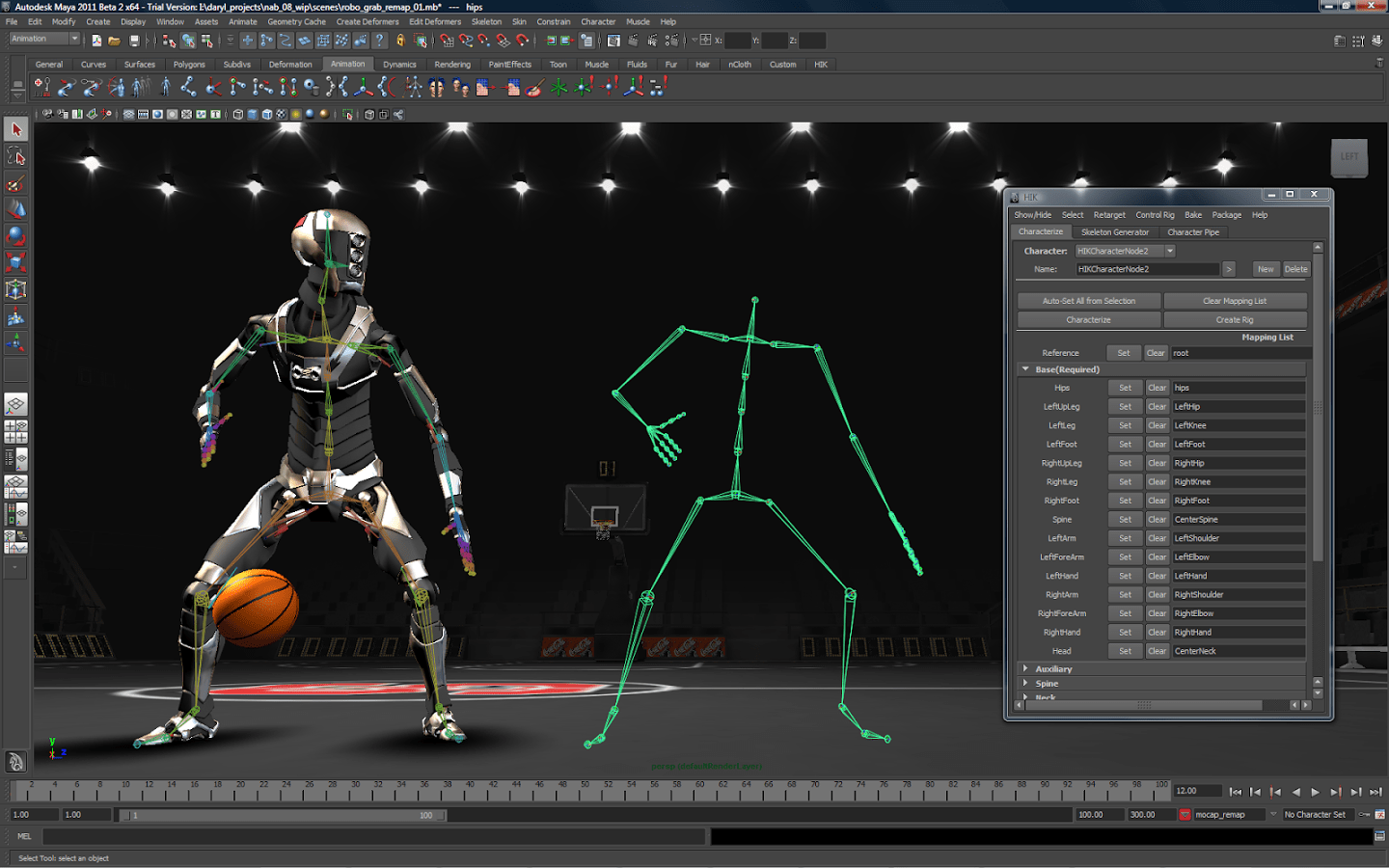
    You will never get the right answer from places like Reddit because you’ll only hear biased inputs from their proponents.

    Fact of the matter is, a desktop computer will always be more powerful than a Macbook. There’s just no denying that. Apple may be proud of their CPUs and iGPUs, and they’re just as capable of running the heaviest animation software possible, but the power is just limited.

    Think of it this way. It’s like arguing who defeats who: Batman or Superman?

    Superman Batman GIF Desktop for Animation

    However, if your desktop computer for animation has lower specs than a Macbook, then the latter is going to be better.

    Most people would often go for a gaming PC or a laptop as their go-to system for their animation workstation computer. But a gaming PC just offers the most flexibility and versatility. An animation PC can be built and upgraded on a whim without difficulty. Laptops can’t be upgraded, save for their RAMs and storage but even then it’s not that much.

    Sample Builds From The Internet

    The following builds were curated from the Internet and come in various price ranges. This is how you’d probably assemble your desktop computer for 3D animation and more.

    These builds are more than capable of doing other tasks such as video editing, graphics design, and other animation tasks.

    Having said that, let’s go over what makes a decent computer for animation and how much you’re more likely to spend with each build.

    Uncapped Budget a.k.a Money Is Not An Issue

    Estimated cost: About $4,500 to $5,000

    Ideal for: Established professionals in the industry who need a powerful animation workstation computer at home

    All righty, first up we have this insanely powerful computer if budget is not an issue. We’re talking about having enough disposable income that you have no second thoughts when buying any of the hardware components above.

    You’re getting an AMD Ryzen 9 7950X with 16-cores and 32-threads. Unlike the other CPUs down the line, the AMD Ryzen 9 7950X runs at full speed and on max power. You’re also getting the beastly RTX 4090 and 64GB of RAM.

    1TB SSD and up to 20TB of HDD storage to house all the files for your animation projects. The CPU and GPU cost more than half of the entire rig. Of course, every other component can still be tweaked, like the casing, cooling system, and power supply. But even then,

    Cost-Effective Build

    Estimated cost: $700+ at the very least

    Ideal for: animators who’re just starting or those who just want a decent computer for animation without breaking the bank

    Above, we have an all-out computer build if you’re not concerned about the budget. This next build is for people on the other side of the coin. The budget starts off at the $700 mark, so there’s enough room for a couple of upgrades down the line.

    The build that we have takes advantage of the AMD processors, a steady amount of RAM, and a mid-tier graphics card, and a decent storage capacity. This is already a powerful gaming PC as it stands, and it’s more than capable of running most animation software and video editing software.

    A Balanced Mid-Range Build

    Estimated cost: $1,200+

    Ideal for: People who want the best computer with competitive hardware components without the risk of overspending.

    Right here is what we’d consider the Goldilocks build. Not too expensive but not too cheap, but just right.

    We have a decent combination of AMD CPU, a high-end GPU, and enough storage capacity for bigger animation projects. The SSD can be upgraded to 1TB when you have more budget, and you can expand the HDD storage.

    This desktop PC will roughly cost you about $1,200 at least, making it a solid animation PC and gaming PC at the same time.

    How to Choose the Best Laptop for Animation

    Choosing the best laptop as an alternative for animation PC or animation desktop PC is ideal if you’re constantly traveling or if your office doesn’t have a spare computer for animation.

    Majority of the gaming laptops you see in the market are more than capable of running any animation software, but they’ll probably be more expensive than building a gaming PC.

    Your only point of concern here would be battery life. Now it’s not recommended to render animation projects when you’re running on battery life since the laptop switches to the integrated GPU for rendering. You’ll blow through the entire battery in 30 minutes or less, and it’s not ideal.

    The best laptops for gaming and doing animation work are those with at least an Intel Core i7 processor and at least an Nvidia GeForce RTX 3060 to carry out complex animations. You could also go down in budget if you go for the RTX 2000-series laptops.

  • Is Zotac a Good Brand?

    Is Zotac a Good Brand?

    Zotac is one of the graphics card brands authorized to build, manufacture, and sell graphics cards with Nvidia graphics chips and architecture. Zotac competes with other brands such as ASUS, Gigabyte, and MSI when it comes to Nvidia graphics cards. Each one of these graphics card brands have their own pros and cons, but everyone of them is a trustworthy brand.

    But is Zotac a good brand overall? How does it actually compete with the likes of MSI, Gigabyte, and EVGA GPUs?

    That’s what we’ll be talking about in this article…

    On a personal note, prior to my graphics card upgrade, I was running an Nvidia ZOTAC GeForce GTX 1660.

    What Exactly Is Zotac?

    ZOTAC GeForce GTX 1660 Super 6GB GDDR6 Is Zotac a Good Brand

    Zotac is a PC hardware manufacturer located in Hong Kong. The company was founded in 2006 and expanded to Japan, Germany, and South Korea when the business operations grew.

    Zotac produces graphics cards for Nvidia, but they also produce motherboards and prebuilt PCs together with their parent company, PC Partner. PC Partner manufactures all of Zotac’s products in Chinese factories.

    Why Is Zotac A Good Brand?

    Zotac graphics cards are known for their quality and affordability, and it comes as no surprise that Zotac cards are highly recommended by a lot of PC builders and enthusiasts. Because it produces budget friendly graphics cards, their quality is decent enough for what you’re paying for.

    Here are some of the reasons why people would recommend Zotac cards.

    Reputation and Affordability

    A Zotac graphics card is relatively more affordable than the other brands of Nvidia cards without losing a lot of quality. Of course, bigger brands such as MSI and Gigabyte will always rank higher in terms of quality.

    Reviews of Nvidia cards from Zotac are also positive as seen on Amazon and other computer hardware stores such as NewEgg.

    Zotac Cards Are Slightly Smaller

    The Zotac brand is known for producing smaller graphics cards, making them a prime choice for mini ITX builds or mini PCs in general. Despite its size, the Zotac brand still provides superior performance without breaking the bank.

    High Speed Boost Clocks

    Zotac video cards are equipped with the Firestorm program, resulting in higher boost clock speeds than other video cards.

    Just don’t expect too much. EVGA offers higher base and boost clock speeds than the Zotac cards within the same price range. If you’re particular about which brand provides better performance, then EVGA GPUs might be a more solid choice.

    No Heating Issues

    On my Zotac GTX 1660, I only ran the basic cooling solutions such as large case fans and I was able to overclock for a good hour without running into heating issues.

    Those on a tight budget, a.k.a. those with no money for water cooling systems or custom loop cooling solutions, can use and overclock any Zotac GPU when the feature is available.

    Makes Better GPUs

    Because of building a better GPU system, the windows will run at 2X faster and can play games at 90 to 100 fps on the COD modern warfare latest update.

    Is Zotac Cheaper Than Any Other Brand?

    Affordability is what makes Zotac famous, but does it mean that it comes at a cost of losing performance, warranties, and longevity?

    Zotac is a lot more affordable than let’s say MSI, ASUS, or Gigabyte graphics cards. And the main reason why is because of their brand name value. They’re the go-to GPUs for people who want to go for mini ITX builds.

    Think of it this way. Apple and Samsung are two of the biggest smartphone manufacturers in the world. That means any other smartphone manufacturer producing the same specs as Apple or Samsung will have a hard time competing against these giants. So they make their smartphones cheaper than Apple or Samsung. Some of the brands provide better value overall than either Samsung or Apple.

    The same thing can be applied to Zotac. MSI and EVGA GPUs are slightly more expensive than a Zotac GPU. Better performance might be guaranteed by either of the brands, but it doesn’t mean that Zotac is lacking in that aspect.

    Zotac cards are still known for their high performance, good warranty, and affordability. Graphics cards under the Zotac brand work fine.

    What Are Common Complains About Zotac GPUs?

    Not every review you see about Zotac GPUs are positive. Some people have concerns about a specific GPU, and it doesn’t necessarily mean that the entire brand is bad.

    As an owner of a Zotac Geforce GTX 1660, here are some common complaints that I share with the majority of the Zotac owners.

    Loud Fans

    Most of the bad reviews circulating a Zotac specific GPU focus on their loud fans. I’ve also had this issue, with my Zotac GPU but it wasn’t that bad. Granted, my GPU was already 3 or 4 years old and maintenance was done on it twice a year.

    The fans make a loud “wheezing” noise when it boots up or when I’m playing a graphically intensive video game. Most of the time, the noise level is manageable and doesn’t really wake people up.

    Higher Temperatures

    Not my experience but from people with mini PCs running a Zotac GPU. Zotac GPUs have slightly higher temperatures than normal when installed into a mini case because of the fans.

    Your cooling system plays a huge role on how well your Zotac graphics card, or any other graphics card, can manage its temperatures. Even when I’m overclocking, I’ve never had to go past 90-degrees Celsius, even without the airconditioning unit on.

    Is Zotac a Good Brand?

    RTX 2080 Is Zotac a Good Brand

    Zotac products are great in their own right. They have lower price tags compared to other manufacturers but they’re capable of competing in terms of performance and value. With my GeForce GTX 1660, I was able to do some heavy gaming, video editing, and even streaming without worrying about temperatures. I also availed of extended warranties from the computer hardware manufacturer, which gave me more value in the long run.

    A GeForce GTX 1660 today would probably be a bit overpriced due to the graphics cards shortage, but nothing that would be too exaggerated. Zotac GeForce RTX cards have more reasonable prices compared to the othe brands, but it depends on where you’re getting them from. High end models from Zotac are also in demand because of their excellent performance and lower price point.

    Their heating issues can be easily solved if you have a bigger PC case with access to the better cooling system and fans. The loud fans aren’t a deal breaker too, mostly because the fans are noisier when they’re overworked. Aagin, easily solved with access to a decent cooling solution.

    Zotac is a good GPU brand, all in all and you can’t go wrong with picking up one.