Category: PC Hardware

  • What’s The Best Video Editing CPU In The Market Right Now?

    What’s The Best Video Editing CPU In The Market Right Now?

    Video editing has become one of the most popular activities that a lot of people have indulged in over the last few years. It’s not even surprising given that certain video editing software like Filmora have drag-and-drop features that make it easy for anyone to upload, edit, and render.

    But video editing isn’t exactly that can be done on any PC either. You need some decent processing power, a solid graphics card, enough RAM, and a lot of storage. A budget video editing PC might work for aspiring video editors, but a budget PC can only go so far.

    On the other hand, doing a video editing PC build might be on the expensive side since you’re handpicking specific parts and components. But if you have to spend money on building a video editing PC, there are only two components that you need to splurge your money on: a processor with high clock speed and a graphics card.

    In this article, we’ll list down the best CPU for video editing to help get you started. These processors are great for editing videos in their own right, but which one actually meets your needs and fits your budget?

    Which One’s Better for Video Editors: Intel or AMD?

    Video editing software requires a lot of processing power if we’re talking about generating 4K videos of professional quality, or even just HD video. Even if you’re just splicing together gameplay footage in Adobe Premiere Pro, a great CPU with a decent core count could mean the difference between 720P and 4K HD video processing.

    In the market today, we have two giants namely Intel and AMD. Both companies are known for producing exceptional CPUs for all purposes, from gaming to video editing to 3D rendering and modeling.

    Honestly speaking, you really can’t go wrong with choosing either brand of CPUs for video editing. It’ll eventually boil down to personal preference and working experience with either brand.

    Intel is known for its high-performance single-core processors, high clock speeds, and high IPCs. AMD is known for its multi-core processors and better price-to-performance ratio.

    What’s The Best Video Editing CPU In The Market?

    These are some of the best CPU in the market right now for video editing and more. They are not arranged in any particular order. We’re covering processors that are budget-friendly, processors that are on the expensive side of spectrum, and everything else in between.

    AMD Ryzen 9 7950X

    AMD Ryzen 9 7950X Video Editing CPU

    Why Buy It?

    • Compatible with PCIe 5.0
    • Currently the leading processor in the market for video editing and more
    • Excellent single-core and multi-threaded performance

    Why Shouldn’t You Buy It?

    • Expensive
    • Needs to be paired with AM5 Motherboard and DDR5 RAM

    Considered as the best CPU by video editors, the AMD Ryzen 7950X is equipped with 16 cores and 32 threads and their flagship Zen 4 Processor.

    What do these specs entail? You’re getting excellent single-core and multi threaded performance for video rendering, 3D rendering, and more. Rendering 4K HD videos are easy with the AMD Ryzen 7950X.

    The downside here is this is going to be one of the most expensive video editing builds as you need DDR5 RAM and an AM5 motherboard in order to use the AMD Ryzen 7950X. There’s no backward compatibility here either. If you’re buying the AMD Ryzen 7950X, you’re probably going to need a new motherboard and RAM too.

    But if money is not an issue, this is the best CPU that you could incorporate in any video editing PC.

    Intel Core i9-12900KS

    Intel Core i9-12900KS Video Editing CPU

    Why Buy It?

    • Most powerful current generation Intel processor
    • Made for extreme overclocking

    Why Shouldn’t You Buy It?

    • Expensive
    • About to be replaced by Raptor Lake

    The Intel Core i9-12900KS is a 12th generation i9 CPU that offers PCIe 5.0 support. The Alder Lake processor was also the first Hybrid Architecture model on the market and featured 16-cores and 24 threads.

    With a base clock speed of 2.50GHz, it seemed a bit underwhelming compared to the AMD CPUs, but this beast was made for maximum overclocking up to 5.50GHz. But these specs don’t come cheap since you may want to upgrade other parts of your PC if you want to get the 5.50GHz high clock speed.

    Do we think it’s the best CPU for video editing? It’s definitely up there. Is it a must-have for video editors? If they can’t get their hands on the top of the line AMD processors, they can’t go wrong with the Intel Core i9-12900KS.

    AMD YD299XAZAFWOF Ryzen Threadripper 2990WX

    AMD YD299XAZAFWOF Ryzen Threadripper 2990WX Video Editing CPU

    Why Buy It?

    • High core count and thread count
    • 80MB cache
    • Decent clock speed

    Why Shouldn’t You Buy It?

    • High TDP rating of 250 watts
    • REALLY expensive

    If money is not an issue for you and if you’re an AMD fan, the AMD Threadripper 2990WX CPU is the best option for you. PERIOD. HANDS DOWN.

    The AMD Threadripper 2990WX CPU offers more cores than any other CPU on this list as it comes with 32 cores and 64 threads. You also get about 80MB Cache Capacity, so you can easily multitask and render HD videos.

    The AMD Threadripper 2990WX CPU has a 3.0GHz base clock speed and overclockable to 4.2GHz, which is respectable enough for the price you’re paying.

    Intel Core i7-12700K

    Intel Core i7-12700K Video Editing CPU

    Why Buy It?

    • Overclockable to 5.0GHz
    • Supports both DDR4 and DDR5
    • Competitively priced

    Why Shouldn’t You Buy It?

    • Soon to be outdated (if not already)

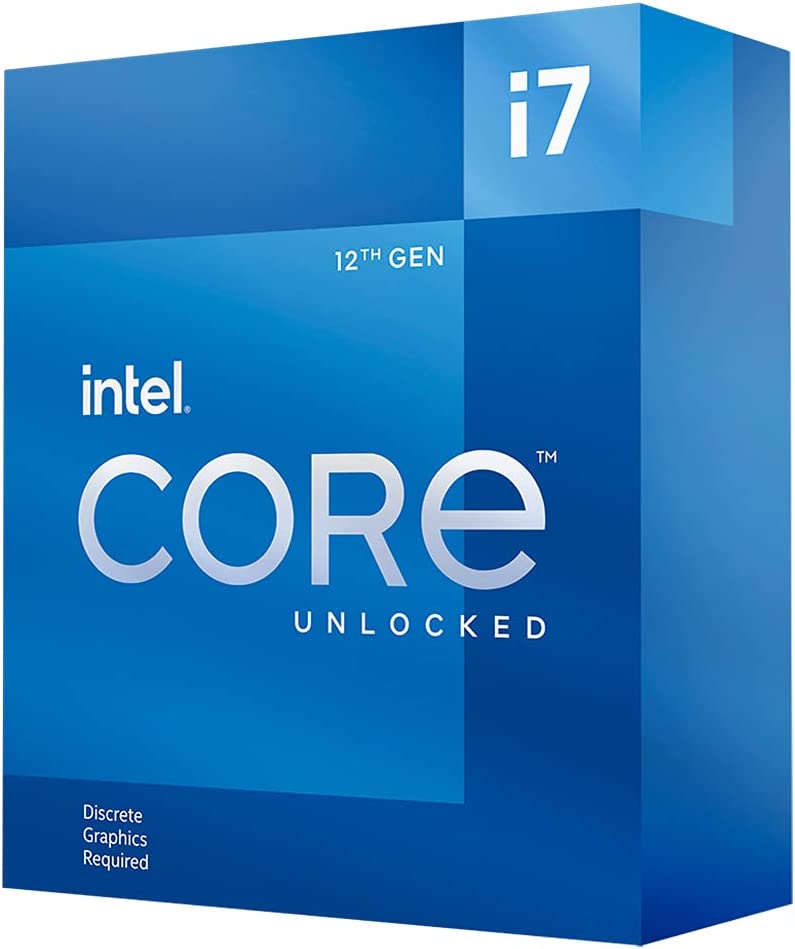
    When we’re talking about CPUs that’s right fairly priced and powerful enough, we’ve got the Intel Core i7-12700K. The Intel Core i7-12700K is a high-end Alder Lake processor equipped with 12-cores and 20 threads for maximum performance.

    The Intel Core i7-12700K is powerful enough for video editing, 3D modeling and rendering, and high-end gaming. Compared to the 12th generation i9, the Intel Core i7-12700K doesn’t break your bank as it’s equally compatible with DDR4 and DDR5 RAM modules.

    Rendering videos at high volume is easy with the Intel Core i7-12700K because it’s overclockable to 5.0GHz. Even though the market price for the Intel Core i7-12700K is about $450, some stores are selling it for about $370 onwards. It’s cost-effective and competitive enough against the high-end processors on this list.

    AMD Ryzen 9 5900X Unlocked

    AMD Ryzen 9 5900X Unlocke Video Editing CPU

    Why Buy It?-

    • Made for all-around usage, from video editing to gaming
    • Higher clock speed than most processors on this list

    Why Shouldn’t You Buy It?

    • No iGPU (Integrated Graphics)

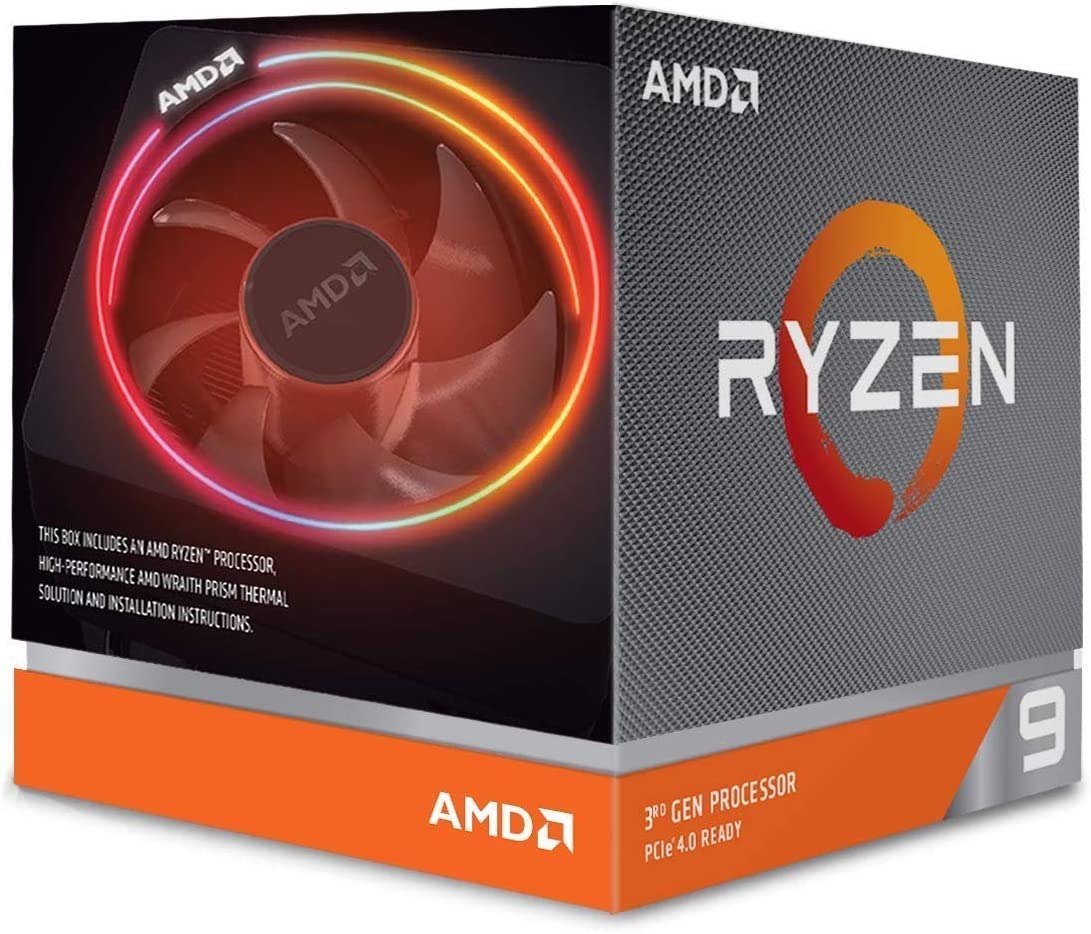
    The AMD Ryzen 9 5900X is part of AMD’s consumer-grade CPU lineup. It’s currently one of the best CPUs for video editing out there because it’s an all-rounded CPU. It has 12 cores and 24 threads with 70MB of cache, so multitasking while rendering is not a problem for the AMD Ryzen 9 5900X.

    The AMD Ryzen 9 5900X also has a high clock speed of 3.7GHz compared to the other 12-core count CPUs on this list. The processor can be overclocked to 4.8GHz, even with just a 105-watt TDP.

    Intel Core i9-10920X

    Intel Core i9-10920X Video Editing CPU

    Why Buy It?

    • 3-year warranty
    • HEDT CPU with multiple motherboard features
    • High core count and thread count

    Why Shouldn’t You Buy It?

    • High TDP requirement

    If you just want to build a CPU meant for video editing only, meaning you’re planning to build a second PC for gaming and other tasks, then the Intel Core i9-10920X is the only choice on here.

    The Intel Core i9-10920X is a powerful processor because of its thread count and core count, almost as powerful as the AMD Threadripper. The Intel Core i9-10920X has 12 cores with 24 threads and 19MB of Cache, so it might not be handy for multitasking.,

    The Intel Core i9-10920X has a clock speed of 3.5GHz and overclockable to 4.8GHz, which is decent enough for a HEDT CPU. It uses an X299 chipset together with an LGA 2066 socket, which is expected. But because it runs on old architecture, the Intel Core i9-10920X requires at least 165 watts of TDP.

    AMD Ryzen 7 3700X

    AMD Ryzen 7 3700X Video Editing CPU

    Why Buy It?

    • 36MB Cache, great for multitasking
    • Low TDP Rating of 65 watwts
    • Great clock speeds
    • Price-to-performance ratio is excellent

    Why Shouldn’t You Buy It?

    • No iGPU

    The AMD Ryzen 7 3700X is another processor that gives you the best bang for your buck. It’s one of the best mid-range options in the market right now if we’re talking about performance. Even with a low price tag, you’re getting 8 cores with 16 threads along with a base clock speed of 3.6GHz and overclockable to 4.4GHz.

    The best thing about this CPU is its TDP requirement, which is a measly 65 watts. And because it’s an AMD CPU, it uses AMD AM4 socket, so it’s compatible with the majority of motherboards in the market.

    The Wrap Up

    These processors might be the best CPU for video editing for what they have to offer, and what your requirements are. Most of the CPUs on here are multi-purpose, so if you’re going to play some video games, they’re more than capable of doing just that.

    The bottom line here is to pick your processor based on your budget and need. You really shouldn’t invest in an expensive CPU if you’re just starting out, but if you have the money for it, then by all means go for it.
  • The Best Rendering CPU In The Market Right Now

    The Best Rendering CPU In The Market Right Now

    3D modeling or rendering is a very demanding process. Without a good CPU, you’re not going to be able to maximize your 3D modeling program. This is why you need the best rendering CPU that the market can give you.

    In this article, we’ll give you the best CPUs for rendering computer graphics and more.

    What Is Rendering?

    Rendering is a process that generates a final image, either a 2D or 3D model, using a program. Think of the rendering process as adding final touches to an artwork.

    On a program, you’re basically just putting things together, from the rough sketch to the textures to the lighting and effects and more. This is called the raw model or raw file. To make it viewable by others, you’d have to render it to get the final output.

    For computers, rendering is carried out by either the GPU (graphics cards) or CPU (central processing unit). Some setups will have both CPU and GPU working together for the rendering process.

    What Is CPU Rendering?

    CPU rendering is made possible with a modern processor’s multiple CPU cores running at high frequency, allowing them to carry out tasks at a faster rate than normal. When you have more cores, the better the rendering performance.

    Modern CPUs carry up to 64 cores that provide the best rendering performance. When combined with the RAM, users can render images or scenes carrying large amounts of data easily. Architects make use of CPU rendering engines to generate their designs as it allows them to showcase complex details and geometries.

    What Is GPU Rendering?

    Much like a CPU, a GPU or graphics card carries thousands of small cores running at low clock speed. The number of cores within a graphics card makes up for the low clock speed, allowing for a great rendering performance.

    Unlike CPUs, GPUs are designed to run tasks simultaneously. This kind of gives them an edge over CPU rendering as the process involves numerous elements. To put it simply, GPU rendering is faster compared to CPU rendering, so you’re able to process or generate graphics in real-time. Video games are a good example of products from GPU rendering.

    What Are The Notable Differences Between CPU and GPU Rendering?

    Between CPU and GPU rendering, which exactly has an edge over the other? Let’s go over some of the nuances between outputs from both forms of rendering:

    Design and Quality

    Powerful CPUs like the Threadripper carry almost 64 cores, which is what you need for quality rendering. The higher your core count the better. An average CPU would carry about 4 to 8 cores, but even then, they have higher clock speeds compared to that of a graphics card.

    For GPUs, the number of their cores make up for the lack of clock speed that CPUs have. For example, an RTX 3090 carries 10,496 cores, but the card has a lower frequency compared to a CPU. The number of cores can compensate for the low frequency.

    Because CPUs have a higher frequency, they’re able to provide better quality from rendering images or modeling. GPUs can barely match the output quality of a CPU rendering.

    Complicated Tasks

    CPUs are built to process different tasks, even with different levels of complexity. They’re able to manage workloads of different consistency, whether it’s just a quick task or even if it’s too much for them.

    GPUs are only limited to their hardware capability, and they’re designed with only a single purpose. The majority of their tasks are similar, to the point that they just run them repeatedly.

    Speed

    As mentioned earlier, GPUs are capable of running tasks in parallel, as opposed to CPUs running tasks sequentially. GPUs are capable of rendering at a faster turnaround thanks to their speed, and is mostly used for projects that need real-time rendering (such as video games).

    Costs

    Performance-class CPUs like the Threadripper 3990x carry a $5,000 price tag whereas GPUs are on the lower price spectrum. A brand new RTX 3090 can cost you anywhere between $1000 and $1,500.

    You’re also able to upscale easily with GPUs because you’re not too worried about compatibility with existing hardware. On the other hand, upgrading your CPU might require you to invest in newer hardware like a motherboard and RAM.

    Which Is Better?

    It boils down to what you really need. If you’re after quality rendering and if you have a large budget, CPU rendering is your best option. This option is ideal for people working with architectural projects, engineering projects, and various design projects.

    On the other hand, if you’re just getting started with rendering but want more consistency in terms of work output and complexity, then GPU rendering is the way to go. The lower costs for hardware components makes this option a bit more enticing than CPU rendering.

    What Are The Best CPUs for Modeling and Rendering?

    Each of the items here is considered the best CPU for modeling and rendering, but there will always be that one powerful CPU that’s up for everyone’s consideration.

    This list is not arranged in any particular order. Whether you need something for graphic design, video editing, 3D modeling and rendering, and even gaming, any of the best CPU on this list will suffice.

    Intel Core-i9 9900K

    Intel Core-i9 9900K Best Rendering CPU

    Specs

    • CPU Speed – 5 GHz
    • CPU Socket – LGA 1151
    • Item Dimensions – ‎2.91 x 4.41 x 4.61 inches
    • Item Weight – 0.018 ounces

    Why Buy It?

    • Fastest processor in the market (one of)
    • Cooling capability is off the charts

    Why Avoid It?

    • Expensive

    If you’ve already assembled a PC capable of modeling and rendering but want to upgrade your CPU, then consider this beast: the Intel Core-i9 9900K. After all, you shouldn’t be holding out on getting the best computer components money can buy, right?

    The Intel Core-i9 9900K is one of the fastest desktop CPUs in the market right now, but it’s also one of the most expensive. You’re looking at a price tag of about $700 or more, so if you have the budget, go for this beast.

    The Intel Core-i9 9900K makes use of Solder TIM, which helps improve therma transfer beatween the CPU body and the heat spreader. In simpler terms, the Intel Core-i9 9900K does a great job at keeping cool even when under immense workloads. This makes it one of the best CPUs for heavy duty modeling and rendering.

    Now, the base frequency of the Intel Core-i9 9900K is 3.6GHz, which is less than the AMD Ryzen 9 3900X, but the overclock speed easily hits 5GHz thanks to the extra cores.

    AMD Ryzen 7 2700X

    AMD Ryzen 7 2700X Best Rendering CPU

    Specs

    • CPU Speed – 4.3 GHz
    • CPU Socket – Socket AM4
    • Item Dimensions – 1.6 x 1.6 x 0.3 inches
    • Item Weight – 1.60 ounces

    Why Buy It?

    • Best value processor
    • Big generational leap amongst the AMD processors

    Why Shouldn’t You Buy It?

    • A lot of newer AMD processors are out there

    AMD Ryzen’s line of processors are considered to be the best in the industry. Their individual processors are capable and powerful for what you need, and they’re affordable compared to other brands.

    While it’s not the latest from AMD Ryzen, the AMD Ryzen 7 2700X is considered a great processor for 3D modeling and rendering, on top of other things. The AMD Ryzen 7 2700X was launched in 2019, so it’s a bit outdated. But don’t let that fool you.

    The AMD Ryzen 7 2700X comes with 8-cores and 16-threads, similar to the previous AMD prcoessors, but it’s way faster. You’re getting a base frequency of 3.7GHz and can be overclocked up to 4.3GHz.

    Affordable but powerful, the AMD Ryzen 7 2700X is a great CPU to kickstart your journey to building a workstation computer for 3D animation, rendering, and more.

    AMD Ryzen 9 3950X

    AMD Ryzen 9 3950X Best Rendering CPU

    Specs

    • CPU Speed – 4.7 GHz
    • CPU Socket – Socket AM4
    • Item Dimensions – 1.57 x 1.57 x 0.24 inches
    • Item Weight – 6.1 ounces

    Why Buy It?

    • Can be overclocked
    • Excellent CPU for 3D Modeling and more

    Why Shouldn’t You Buy It?

    • Needs a decent cooling system.
    • Expensive

    Another CPU from the AMD Ryzen 9 line of processors is the 3950X. This is a CPU that’s in a league of its own and has one of the best performances out there from any AMD CPU. The price tag is a bit on the higher end, but not nearly as expensive as some CPUs on this list.

    The AMD Ryzen 9 3950X comes with a base frequency of 3.5 GHz (unlocked for overclocking at 4.7GHz), 16-cores, and 32-thread count, which is already a faster CPU compared to the ones on this list. The AMD Ryzen 9 3950X easily competes with the likes of the i7-6800K, with the former carrying a lower price tag than the latter.

    The AMD Ryzen 9 3950X is one of the best choices for computer builds used for 3d modeling and rendering.

    But with better performance comes a terrible downside. The AMD Ryzen 9 3950X struggles with heat dissipation, so you’ll need a powerful cooling system to prevent overheating. This is mostly because it’s already unlocked for overclocking.

    AMD Ryzen 9 3900X

    AMD Ryzen 9 3900X Best Rendering CPU

    Specs

    • CPU Speed – 4.6 GHz
    • CPU Socket – Socket AM4
    • Item Dimensions – 1.57 x 1.57 x 0.24 inches
    • Item Weight – 1.6 ounces

    Why Buy It?

    • Higher core count
    • New from AMD Ryzen 9 series
    • Fast and efficient

    Why Shouldn’t You Buy It?

    • Too powerful CPU for use outside of doing rendering work

    The AMD Ryzen 9 3900X is a powerful CPU. If you’re not doing any 3d modeling and rendering projects, this might be considered an overkill to use. And that’s a good thing.

    It’s one of the best processors that AMD has in the market right now for gaming, video editing, and more. It’s got a base clock speed of 4.6GHz, which is way more than some of the CPUs on this list.

    The AMD Ryzen 9 3900X uses an improved L2 TAGE branch predictor, which is a large micro-op cache and is bigger than what the other AMD Ryzen CPUs have. It also uses multiplication latency to help improve its bandwidth.

    The AMD Ryzen 9 3900X is the professional animator, modeler, or graphic artist’s choice of CPU. It’s just too powerful that it’s shameful to use the AMD Ryzen 9 3900X for minimal tasks such as browsing the net.

    Intel Core i7-6800K

    Intel Core i7-6800K Best Rendering CPU

    Specs

    • CPU Speed – 3.4 GHz
    • CPU Socket – LGA 2011-3
    • Item Dimensions – 4.48 x 4.01 x 3.19 inches
    • Item Weight – 6.4 ounces

    Why Buy It?

    • A powerful but affordable option from Intel
    • Great performance
    • Best bang for the buck

    Why Shouldn’t You Buy It?

    • Not really a decent upgrade option

    Intel isn’t exactly known for its affordability, but they do try its hardest to get its CPUs out to its users. One of the better and more affordable options from their lineup is the Intel Core i7-6800K.

    The price tag is on the low spectrum, as you’ll probably get it for less than $300 or so. The Intel Core i7-6800K is a formidable and powerful processor without forcing you to break your budget.

    The Intel Core i7-6800K succeeds the i7-5280K, both of which come with 6 cores and Hyper-Threading. The Intel Core i7-6800K comes with 28 PCIe Gen3 Lanes, resulting in greater performance compared to its predecessor.

    But the downside is that it’s not as powerful as its other competitors in the market. The Intel Core i7-6800K is a solid choice for those who’re just about to start building their workstations.

    The Wrap Up

    There are other options out there for CPUs best for 3D modeling and rendering, but these are just some of the best choices you could make. With multiple cores, guaranteed multi threaded performance, and some with Turbo Boost feature, any one of these CPUs can get you started with rendering.

    But of course, it goes without saying that your other PC components should be as powerful as your CPU to prevent bottlenecking and limiting performances.

  • Why Are PC Parts So Expensive?

    Why Are PC Parts So Expensive?

    No matter where you are in the world, there remains one constant: computer parts are expensive. And by expensive, we don’t mean luxury pricing either. Computer hardware prices have gone up over the last few years, and the price increase is somewhat noticeable.

    There are several reasons as to why computer parts are so expensive, and we’ll be talking about them in this article.

    Why Are PC Parts So Expensive?

    PC Parts Why Are PC Parts So Expensive

    Computer parts aren’t unreasonably expensive. If anything, majority of next-generation PC components are only about a few bucks more expensive than their previous generations. And every time next-generation components break into the market, their previous generations become subsequently cheaper.

    But one question remains: why are PC parts so expensive? We’ll take a look at some key factors and why they affect pricing for computer parts.

    Covid-19 Pandemic

    Covid 19 Pandemic Why Are PC Parts so Expensive

    The world stopped when the Covid-19 Pandemic blew up in March 2020. What was thought to be a 2-week lockdown for the majority of countries turned into a year and a half of uncertainty, fear, and death.

    And with schools, offices, and businesses being closed, people turned to technology to connect to one another. Mobile devices, laptops, and personal computers were in high demand. Our increased reliance on these devices have forced manufacturers to create more. Unfortunately, it was difficult to keep up with the demand.

    Lockdowns have forced factories to work with minimal manpower, with some facilities being shutdown completely due to lack of manpower. Production of PC components was severely limited.

    Shortage of supply does not mix well with higher demand, so it made sense for manufacturers to increase the pricing of their computer parts.

    Production facilities were either shut down completely or ran with highly reduced staff, severely limiting production. Limited production plus higher demand equals more expensive parts. Purchasing computer parts turned into a challenge for a lot of people.

     The demand for laptops, mobile devices, and personal computers skyrocketed the longer the lockdown lasted. Students went to their classes online. Parents worked from home. People bought their stuff online.

    What used to be a household that could survive with one computer turned into a household where everyone needed a computer. Multiply that with the millions of families affected worldwide, and you’ll see why manufacturers couldn’t keep up.

    Cryptocurrency Mining

    Miner Why Are PC Parts so Expensive

    Computer parts became so expensive when people started to mine for cryptocurrency. The demand for mining was exacerbated with the Covid-19 global pandemic. Processors and graphics cards were in high demand. And with supply chain being affected by the pandemic, to say that these PC components jumped to high prices is an understatement.

    Bitcoin, probably the most popular form of cryptocurrency, was valued at $6000 at the start of the Covid-19 pandemic and rose to $60,000 by the end of November 2021. But to mine Bitcoin, you needed massive computing power. A high-quality graphics card like the RTX 3000 series, or even something from the RTX 2000 line, could handle the processing strain that came from mining.

    Chip Shortage

    The global pandemic started a chain of events when it to the manufacturing of PC hardware. One of these significant events was the chip shortage. Semiconductors, or microchips, are found in all electrical devices, so you can see just how badly the chip shortage affects a lot of all the technology we are reliant on.

    Factories that produced semiconductors closed down when the pandemic began, and this slowed down the production of chips. These chips would go into a PC component, like a GPU, RAM, or processor.

    And with the chip shortage, computer parts prices went up as a way for manufacturers to not lose a lot of money. After all, they still needed to keep their margins. When chips are expensive, the price increases for computer parts that needed these chips.

    Scalping and Hoarding 

    With PC parts in limited supply, miners and scalpers took this opportunity to hoard a lot of computer components, specifically graphics cards. This resulted in an overly-inflated market of high-end graphics cards, with MSRPs being ignored. Third-party retailers were almost always camped out by these people so regular Joe’s and Jane’s wouldn’t even stand a chance of getting parts for a reasonable price.

    Graphics cards of certain models were insanely higher than MSRP, so combine this with supply chain issues, and you’d never see them hit close to MSRP back then.

    Sadly, some people were willing to pay more money for this PC hardware because they were desperate to have them. A graphics card that was incredibly high demand would be sold at 400 times its MSRP without question.

    Labor Shortage or Staff Shortage

    The global lockdown didn’t just lock people into their houses. The lockdowns literally starved businesses of one important resource: manpower.

    At the height of the pandemic, the entire system for manufacturing and producing computer parts and hardware was severely affected by a labor shortage. This resulted in severe price increases across the board. To prevent the factory from shutting down, workers were laid off to minimize labor costs. Loss of life also contributed to the labor shortage as people died from the Covid-19 pandemic during the first few months. People were afraid to show up to work for fear of being exposed to the virus and bringing it home, so it wasn’t surprising to know that some of them resigned from their work.

    But as the world reopens its doors, employers are now incentivizing their employees to show up for work with wage increases and other benefits. Some companies are also trying to fill in the vacant slots left by employees who passed away from Covid-19.

    Regardless of the reason and combined with the chip shortage, factories and manufacturers are dealing with price increases to help augment the salary increases promised to their employers.

    Increased Freight

    Chip shortage affects the entire supply chain for the most part, but another major contributing factor to the price increases for PC hardware is increased freight.

    Computer parts that are sold in one country aren’t exactly manufactured in that country. For instance, parts sold in the USA may or may not have been manufactured in the USA. If parts are made in another country, they’ll be freighted to the USA. And shipping costs have gone up over the last few months due to the increased fuel prices.

    The increase in freight costs does not only cover the PC parts that were manufactured but also freighting and shipping of raw materials to factories and manufacturing plants. It was understandable as to why computer parts had high parts.

    With Computer Parts So Expensive, Will Prices Ever Go Down?

    Unfortunately, prices won’t be returning to normal until 2023. This is based on the prediction that semiconductor shortage will be alleviated as things slowly go back to normal.

    The cryptocurrency market is also going through the BEAR phase, meaning prices of certain cryptos such as Bitcoin and those that were heavily mined have gone down. As this trend continues, GPUs will return to close to a reasonable price.

    Raw materials for PC hardware and many components will probably increase in production as well since the pandemic hit. Manufacturers and factories have already recruited many workers to continue making computer components.

    A lot of computer parts such as processors and graphics cards are still in short supply, at least for some previous generation models. Nvidia and AMD, two of the biggest GPU manufacturers, have already made their new graphics cards to be unusable for mining crypto.

    The Wrap Up

    There you have it, just some of the major reasons as to why computer parts are so expensive right now. With low supply, chip shortages, labor shortages, and price hikes, certain computer parts increased their prices to unprecedented levels just to help keep the companies afloat.

    Granted, buying computer parts might be a lot easier now than it was a couple of years ago, but we’re still reeling in from the increased demand and higher prices that were caused by the pandemic.

  • Everything You Need To Know About Types of Case Fans and More

    Everything You Need To Know About Types of Case Fans and More

    An often underlooked PC component is the case fan. Some people think that computer fans, or case fans, are nothing more than accessories that help add to your PC’s aesthetics, but in reality, their function is as important as the GPU or CPU.

    In this article, we’ll discuss about the different types of case fans, how to read their specs, and why computer fans can help your PC in more ways than one.

    Why Do You Need More Computer Fans?

    An Example of a Case Fan Types of Case Fans

    When your computer is under heavy load, it generates a lot of heat. Certain components such as the GPU (graphics cards) and CPU (central processing unit or processor) will generate more heat than other components, which is why they come with GPU fans and CPU fans respectively.

    Within your PC case, proper ventilation is just one piece of the puzzle when it comes to cooling. You need fans to take in cooler air while expelling warm air at the same time. You won’t always have room temperatures within your PC, but what’s important is that the balance between hot air being expelled and cool air being pulled in is maintained.

    Having only one case fan installed might not be enough to maintain this balance, especially when the GPU and CPU are working intensively. As a result, these parts may throttle their performance up until both are cooled down to a reasonable level.

    This is why you need to have enough intake fans and exhaust fans to keep your PC as cool as possible even under tremendous loads.

    How Do Case Fans Work?

    GPU fans and CPU fans only have one purpose, and that’s to expel hot air. Heatsinks found within both the GPU and CPU will transfer heat away from the chips, and their respective fans will suck out the warm air from the heatsink.

    Both GPU fans and CPU fans are incapable of keeping the entire system unit cool, which is why you rely heavily on case fans.

    As the name implies, case fans are attached to the PC case and they are responsible for managing airflow inside your PC. Depending on your PC case, you’ll most likely have at least one intake fan and at least one exhaust fan that comes with the casing. Some cases will have more than one intake fan or one exhaust fan, so you don’t have to worry about adding more fans.

    Laptops come with at least one fan, which is just the intake fan. Hot air generated by the CPU or GPU within a laptop goes out through heating vents. You can supplement this singular case fan installed with a laptop cooler.

    All case fans installed within a system unit can also be controlled by a third-party fan controller. This allows you to get the most out of your fans with a single push of a button.

    How Do You Read Case Fan Specifications?

    Most computer fans, if not all, will share the same specifications as case fans. If you’re thinking about replacing your case’s default fans, you might want to pick up a couple of terminologies below:

    Airflow and Static Pressure Optimization

    Your fan’s performance is determined by two metrics, namely static pressure and airflow. The latter measures the amount of air moved by a fan at any given time and is expressed in CFM or cubic feet per minute.

    Higher airflow means it can move great volumes of air, which positively affects cooling performance as a whole. High airflow fans are meant for exhausting or expelling hot air out of the PC case.

    But higher airflow doesn’t necessarily mean it’s better for intake as well. Your PC’s radiator will sacrifice airflow speed to make room for higher static pressure to push air through the fan. This is made possible with the fans’ special blade designs and geometries. Static pressure is measured in Pascals (pa) or millimeters of water (mm H2O). Much like airflow, the higher the static pressure, the better it is at pushing air into the system. This is why static pressure fans are used for intake fans.

    To sum it up, you want higher airflow rate for exhaust fans and higher static pressure for intake fans.

    Fan Sizes

    Fan size is expressed or measured in millimeters, which is the measure of the diameter of the fan blades or the length of the frame. The fan size will affect the amount of air pushed through the fan.

    Generally, the amount of air being pushed by a fan is affected by two factors, namely how fast they spin and the blade’s surface area. Larger fans by default can generate more airflow due to greater surface area, but the additional weight that comes with the size might slow down its aerodynamics. This results in greater power consumption. To control power consumption, larger fans will spin slower than smaller fans but the amount of airflow they generate will more or less be the same.

    A lot of PC case fans are built to draw in maximum power, regardless of their size, so the total wattage will always be constant.

    Long story short, a 200mm fan that has a max RPM of 800 will have the same airflow as a 120mm fan operating at 2000 RPM. Larger fans are also quieter than their smaller counterparts.

    Fan Thickness

    Like fan sizing, fan thickness is measured in millimeters and is the second number represented along with the fan size. Fan thickness ranges from 10mm to 40mm.

    But for some odd reason, thicker fans will have more airflow compared to a thinner fan of the same size. This is because thicker fans have blades with a steeper angle of attack than a thinner fan would have, allowing them to scoop up more air per spin.

    A thicker fan also has greater depth that adds to the surface area, and the thick frame helps improve the fan’s inherent suction, resulting in higher static pressure than a thinner fan.

    Voltage-Based Fan Speed Control and PWM

    One reason why fans should be attached to motherboards is the microprocessor-based speed control. Compared to DC fans that come with only two wires (one for ground and one for power), PC case fans come with an extra or third wire for the tachometer signal, which relays the fan’s speed using the onboard Hall-effect sensor.

    Three-pin case fans will allow the PC to detect the fan speed and control it, resulting in quiet but cooler performance. Fan speed is regulated by modulating voltage. You’d have higher voltage for higher speeds, and in contrast, lower voltage for lower fan speeds. The latter is not ideal as performance is negatively affected.

    What Are The Different Case Fan Sizes?

    A case fan will have two dimensions, the diameter and the width (thickness). A good example would be 120mm x 25mm thick. This means that the diameter of the case fan is 120mm and the width is 25mm.

    Now, let’s talk about the different PC case fans’ sizing:

    80mm or 3.1 Inches

    80mm fans have been used for more than a decade and are used in CPU heatsinks and some graphics cards. Fans of this size usually have speeds of about 5000 to 7000 RPMs (revolutions per minute).

    Because of their size, they need to work harder to draw in the same amount of air as their bigger counterparts. Because of the amount of work they do, these fans are the noisiest out of all the other fan sizes.

    80mm fans are used for smaller PC cases like Mini ATX, Mini ITX, and even SSF and HTPC cases.

    92mm or 3.6 Inches

    Bigger than the 80mm fans, the 92mm fans are considered to be an improvement over their predecessors but with lesser RPMs. However, some users found out that despite their low RPMs, some brands of 92mm are noisier than 80mm fans.

    92mm fans are commonly found in heatsinks for graphics cards, however, the same thing can’t be said for their use on cases. PC cases rarely use 92mm fans compared to 80mm fans, for which the latter is widely used.

    120mm or 4.7 Inches

    The 120mm fan is considered the standard fan size, replacing both the 80mm and 92mm fan models. Unlike its predecessors, 120mm fans are more useful and more flexible since they can be used on Mini ITX cases up to Full Towers.

    Most of the high-end cooling fans are about 120mm or bigger, so you should always go for this size if your PC case allows it.

    120mm fans are also known for their high airflow and quiet performance, but that depends on the brand or model. Some fan models of this size have low RPMs that result in low noise overall, but there are high RPM models for those who want maximum cooling power.

    140mm or 5.5 Inches

    Next to the 120mm is the 140mm computer case fan, which is the second most popular choice of sizing for a lot of PC builders but minus the 120mm”s flexiblity. 140mm fans are usually installed in mid-tower PC cases or bigger. Compared to the 120mm fans, 140mm fans have less static pressure but the airflow is relatively higher.

    Both the 120mm fans and 140mm fans are similar in terms of airflow, but the latter is the main choice for mid-tower ATX cases, full towers and EATX or Extended ATX towers with liquid cooling radiators.

    The downside to using 140mm fans is that they’re more expensive than 120mm fans, but there’s no discrepancy in performance between the two sizes.

    180mm or 7 Inches

    180mm fans are the rarest of them all because not a lot of brands manufacture them. One reason why most brands avoid this size is their compatibility. 180mm fans can only be used on full tower cases or bigger.

    But with their size come higher airflow and lower RPM. Static pressure is lower, so you’ll find that most of the 180mm fans are used for exhaust fans.

    200mm or 7.9 Inches

    How Big a 200mm Fan Is Types of Case Fans

    Last but not the least, we have the largest size of them all: the 200mm case fans, which are used for specialized computer cases.

    200mm fans have higher airflows at low RPMs, usually averaging 800RPMs. They’re quieter than all of the other fans on here while also having the highest airflow. However, its static pressure is so low that people only use 200mm fans for keeping up positive or negative air flows. If a PC case can’t handle 2 120mm fans, one 200mm fan will be more than enough to keep hot air out.

    Do You Really Need a Fan Control Software?

    There’s no definite answer to this question. Unless you’re planning on overclocking your GPU and CPU, you might want to make use of a fan control program or software to keep your system cool.

    You might also be lucky to come across case fans with built-in fan controllers that allow you to control fan spins or fan speed with a single remote. If your case has an RGB fan, then you might have this fan controller remote with you.

    For gaming laptops, fan control is possible through programs such as ArmouryCrate or MSI Afterburner. You can set multiple profiles that include fan speed to help maximize performance for any game.

    The Wrap Up

    A Sample Setup Types of Case fans

    What kind of case fan do you actually need? Well, you’re more likely to use 120mm fans as they’re more commercially available and compatible with a lot of PC cases. You also have the freedom of accommodating more fans of smaller sizes, or fewer fans of bigger sizes. It’s really up to you.

  • Are Founders Edition Cards Better?

    Are Founders Edition Cards Better?

    Shopping for graphics cards is never an easy thing to do. There’s just so many options out there, but so little availability, and the pricing can make or break your decision.

    Over the last few years, the availability and pricing of certain graphics cards have been an issue due to cryptomining. Miners hoarded certain brands and models of graphics cards to the point that MSRP has more than tripled. In conjunction with the Covid-19 Pandemic, people weren’t able to get their hands on the graphics cards that they want. But thankfully, prices and stocks of these previously hoarded graphics cards are going back to normal.

    Another thing to note is that the hoarded graphics cards were all regular graphics cards and not Founders Edition graphics cards. The latter is what Nvidia has recently done over the last few years.

    But why have miners avoided these Founders Edition graphics cards if they’re special? Or why wasn’t anyone paying attention to these particular lines of Nvidia graphics cards? Are Founders Edition cards better? Those are the questions that we’ll be answering in this article, and we’ll explain more about what makes these graphics cards as unique and as powerful as they are.

    What is a Founders Edition Graphics Card?

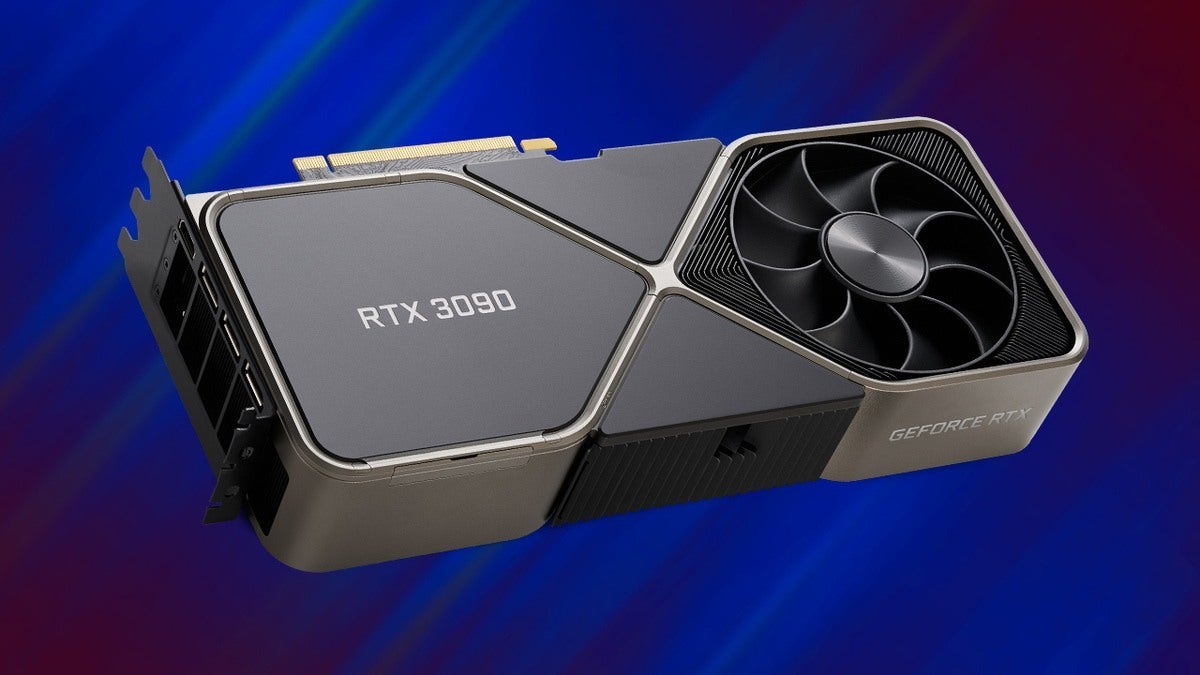
    RTX 3090 Are Founders Edition Cards Better

    Founders Edition graphics cards are graphics cards that are made by Nvidia directly and sold on their website and other retailers. Simply put, Nvidia puts the best chips and parts to make these Founders Edition, so expect it to be powerful minus the burden of being expensive.

    What is an AIB Partner?

    AIB stands for Add-In-Board Partner. These are the third-party companies that take chips made by Nvidia, AMD, and Intel to turn into full graphics cards. The AIB partners will be the one to add the cooling systems, housing, and other parts of the graphics cards on top of the chips provided by the manufacturers.

    It’s a common misconception to think that AMD and Nvidia, and soon to be Intel, make their own graphics cards. Rather, they only make the chips based on their specs, cooling, architecture, and so on.

    Just Bin It?

    Nvidia and AMD both utter the term BIN for every graphics card they produce. And no, this isn’t what you think it is.

    AMD and Nvidia aren’t throwing away their graphics cards when you hear the word BIN. Rather, this is their way of sorting out cards based on performance.

    For chips that do well enough and pass their standards, they get into a Founders Edition graphics card. Otherwise, the chip goes to the AIB partners.

    Are Founders Edition Graphics Cards Different from Reference Cards?

    Both Founders Edition and Reference Cards are similar in history, but they’re actually different products. They both go through the Binning process to determine which chip goes into a Founders Edition or Reference Card, or to an AIB partner.

    Reference Cards are standard-issue GPUs from AMD. They are standard in terms of specs and cooling, and the design is pretty simplistic. These cards are sort of a “reference” point for other graphics cards using similar chips.

    Reference Cards are a PC builder’s best friend because these are cheaper to acquire than an AIB graphics card. Reference cards also deliver more computing power, but minus the cost associated with such power.

    Nvidia used to do this up until 2016 when they decided they would just break into the market and compete with the AIB partners instead of offering cheaper graphics cards to the market. So Founders Edition graphics cards are competing with their AIB partners, but the specs are just as similar to AMD’s Reference Cards.

    A Founders Edition card and Reference Car will both share the same clock speeds and graphics memory, but the former is designed to compete with other high-end graphics cards so expect the pricing to be higher than the latter.

    How Do You Purchase a Founders Edition Card?

    The first place to see availability for a Founders Edition card is the official Nvidia website. Their online shop is updated with stocks and pricing, especially with Founders Edition graphics cards.

    Best Buy and other third-party retailers will also be carrying Founders Edition cards, but expect them to be more expensive than the cards found at Nvidia due to markup as well as fluctuation of stock availability.

    Are Founders Edition Graphics Cards Rare?

    If you think some regular graphics cards are rare, then Founders Editions are definitely rarer. You see, Nvidia doesn’t spend all year making these cards. They do a limited run for certain models because they don’t have a manufacturing capacity similar to that of AIB partners.

    Founders Edition GPUs are also in demand because of their specs and price tag, as well as a unique design. Founders Editions of GeForce RTX graphics cards are also going to be difficult to locate too.

    Founders Edition GPU vs Regular GPU (AIG) – Which Is Better?

    Is there a difference between a Founders Edition GPU and a regular Nvidia graphics card?

    For this section, we’ll be looking at performance, pricing, and of course, which one’s better for your systme.

    Founders Edition Cards vs Regular GPU

    Let’s do a head-to-head comparison of Founders Edition graphics cards and regular graphics cards. Which costs less, which has better performance, and most importantly, which is better for your PC?

    When AMD or Nvidia create a new graphics chip or processor, they’ll define the minimum hardware specs or reference design, that other manufacturers will need to follow to create the GPUs that house the new chips.

    Nvidia and AMD will also give out the specifications to their AIB partners who’ll build these cards, along with the freedom to improve upon the reference design. AIB partners will then create customized cards as long as they meet minimum requirements. Overclocked versions of GPUs are good examples of customized graphics cards from AIB partners.

    Clock Speed

    Nvidia is known for cherry-picking only the finest chips for their Founders Edition cards, so you’re definitely getting some advantage in terms of performance over the AIB cards. It’s not surprising to see Founders Edition cards with higher clock speeds than the reference cards.

    But some custom AIB cards have higher clock speeds than Founders Editions, so that’s also a point to consider. You see, while Nvidia may hoard their best GPU chips, AIB partners will sort out their GPU allotment based on performance factors such as overclocking ability. You’ll often get a very capable GPU paired with over-the-top power delivery systems and high-quality components that allows you to squeeze more out of your chip

    Which is better?

    As much as we don’t want to admit it, AIB cards will have the upper hand here because they are more capable of pushing their parts further than Nvidia. That’s why most AIBs have higher boost clock speeds than Founders Edition.

    Overclocking

    As mentioned earlier, AIB cards are better suited for overclocking as they’ll have added features like extra copper in their circuitry to handle the increase of power input. Remember, Nvidia won’t have the same manufacturing capability as its AIB partners, so they’re pretty much stuck with whatever it is they are capable of producing.

    Which is better?

    Hands down, AIB cards are better in terms of overclocking not only because of performance but because these cards are far more capable of handling overclocking.

    Pricing

    Founders Editions have premium price tags over their AIB counterparts’ MSRP. With the issue of certain AIB partner cards being priced higher than Nvidia Founders Editions, comparing MSRP might be irrelevant for the time-being.

    If you want cheaper but powerful cards, you might want to go for AMD’s reference design cards, like the RX Vega or Vega Pro series. You should be able to find AMD Vega cards from Asus, Sapphire, and Gigabyte. Mid-tier reference cards are the RX 580 and RX 590, which are available from different AIBs.

    Which is better?

    AIB will take this section, but only because Founders Editions are generally expensive by default.

    Availability

    Nvidia Founders Editions are easier to acquire through the official Nvidia website and third-party retailers.

    When Nvidia launches a new chip or GPU architecture, they’ll be the first one to manufacture the graphics cards before they hit the market. AIB partners need to wait for the specifications to be sent in by Nvidia before they can manufacturer.

    However, AIB partners can produce cards and bring it to market very quickly, and some of them will already have improved features that you won’t find on the Founders Editions. But even then, Founders Editions have already been in the market for quite a while.

    Which is better?

    Founders Edition graphics cards take the cake here because there are people out there who don’t like to wait for the add in board partners.

    The Wrap Up

    It’s difficult to tell whether or not Founders Editions are better than their AIB counterparts, given that the latter has already been improved on. The graphics card market isn’t exactly flooded with Founders Editions because they’re produced on a limited run.

    Is it worth it to get Founders Edition cards? Yes, it is.

    Will they be better than AIB partners? More or less.

    Nvidia’s graphics cards are always going to be the best in the graphics card market. Whether you get a Founders Edition or AIB card, it’s a good decision to pick Nvidia.

  • LGA vs PGA – Is One Better Than The Other?

    LGA vs PGA – Is One Better Than The Other?

    Two of the biggest brands of CPUs, or processors, today are Intel and AMD. To use these CPUs, you need a CPU socket that allows you to install it on the motherboard.

    Now there are two kinds of sockets, namely LGA or Land Grid Array and PGA or Pin Grid Array.

    Before you decide on what CPU socket to buy, you need to purchase your CPU first. AMD Processors need PGA sockets and Intel CPUs need LGA sockets. Today, we’ll be discussing the difference between LGA vs PGA.

    What’s a CPU Socket?

    The CPU socket connects the motherboard and the processor and allows the processor to communicate with other parts on the motherboard.

    As discussed earlier, we have two sockets for two processors namely the LGA and PGA.

    What is Land Grid Array or LGA?

    LGA Land Grid Array LGA vs PGA

    LGA or Land Grid Array is the CPU socket meant for Intel processors. Intel motherboards and Intel CPUs will have LGA sockets like LGA 1156 and LGA 1200. The motherboard’s socket is equipped with contact pins, which is the opposite of PGA sockets.

    Why use LGA Sockets?

    • You don’t end up damaging the CPU because the LGA pins are on the motherboard. In case you drop the CPU, you won’t damage anything.
    • LGA sockets are smaller in size compared to PGA sockets.

    Why shouldn’t you use LGA Sockets?

    • On the off chance, you break your socket, you’ll need to replace the entire CPU socket.
    • Pins on the socket can be easily bent. If you apply pressure without checking the correct alignment of LGA pins and CPU, you’ll end up damaging the former.

    How Do You Install a CPU on a Motherboard with Intel LGA Sockets?

    Intel uses LGA sockets for all of its processors. You’ll need to use the triangle-shaped pins to connect the motherboard to the processor.

    1. Open the bracket by using a metal lever
    2. Align the CPU horizontally, give or take a 2mm allowance for error. Your max drop height should be no more than 4mm.
    3. Close the bracket with the lever and make sure to lock it in place.

    If you want to remove the processor, just release the latch and pick up the CPU from the center using your thumb and first finger.

    What is a Pin Grid Array or PGA Socket?

    PGA Pin Grid Array LGA vs PGA

    If the Intel CPUs have LGA sockets, AMD CPUs come with PGA sockets. And like Intel, AMD uses PGA sockets for all of their pcoessors. The PGA socket is the opposite of the LGA socket.

    Contact pins, or CPU pins, are found on the CPU and not on the motherboard.

    Why should you use PGA sockets?

    • Hardly any damage in case of misalignment
    • Easy to repair bent pins

    Why shouldn’t you use PGA sockets?

    • CPU might be difficult to remove once installed because the CPU pins might break.

    How Do You Install a CPU on a PGA (Pin Grid Array) Socket Motherboard?

    1. Use a lever to align the processor horizontally. Make room for a 2 mm allowance.
    2. Use the same lever to lock the processor in place.

    If you want to take out the CPU, just release the lever and hold the processor up.

    LGA vs PGA – A Brief Comparison

    What’s the actual difference between LGA vs PGA aside from their pins? Let’s take a look at these two different CPU sockets:

    Durability

    The LGA socket is a lot more durable than the PGA socket. The chances of you damaging a CPU meant for PGA sockets are higher than damaging a CPU for LGA sockets. LGA sockets have pins on the motherboard, not on the CPU.

    Space Consumption

    LGA pins are smaller than PGA Pins, which is why LGA sockets are more space efficient.

    Compatibility

    PGA sockets are meant for AMD processors and LGA sockets are meant for Intel CPUs. You really use one for the other socket.

    Installation

    It’s a lot easier to install AMD CPUs because of their PGA sockets compared to LGA sockets.

    Are There Other CPU Sockets?

    LGA and PGA are the most common CPU sockets, but there are other CPU sockets in the market.

    • BGA or Ball Grid Array Socket has copper pads soldering and is a lot more durable than the LGA and PGA sockets combined.
    • ZIP or ZIF or Zero Insertion Force socket is similar to the PGA socket. By using a ZIF socket, you don’t have to press hard when installing a CPU and thereby reducing chances of damaging it.

    Will Using Different CPU Sockets Matter?

    Different CPUs will require different CPU sockets, and sadly, not all of them have Universal CPU compatibility. So what kind of motherboard you’ll purchase will rely on the kind of processor you’re buying.

    Does CPU Socket Type Matter?

    Different types of computer processors require different types of CPU sockets. Not all of them come with Universal CPU compatibility. A socket type matters extremely as it connects the CPU to the motherboard.

    LGA sockets are named based on the number of pins that they have. An LGA1155 means that they have up to 1155 socket pins, so you’ll need a processor that can handle 1155 socket pins. Meanwhile, AMD labels their sockets like AM3 and FM1, along with upgrades such as AM3+. But these upgrades don’t affect compatibility at all.

    You also have to remember that a single CPU socket can be compatible with different CPU generations, so an LGA socket will be compatible with old and new Intel CPUs.

    LGA vs PGA – Which One’s Better?

    Both CPU sockets come with their own benefits and drawbacks. If you’re getting into PC building the first time, the LGA socket types would be safer for you to get your hands dirty with. A bent pin on an LGA socket won’t damage the motherboard permanently.

    But on the other hand if you’ve already purchased your parts and you ended up with a PGA socket or AMD processor, well, you’ll just have to be careful.

  • RTX vs GTX – What’s The Actual Difference Between The Two?

    RTX vs GTX – What’s The Actual Difference Between The Two?

    You don’t need to be a gaming enthusiast or expert builder to recognize two sets of three-lettered abbreviations, namely GTX and RTX. Your first thought was probably associated with Nvidia as well.

    RTX Sampling RTX vs GTX

    If you’re building your own PC for the first time, you’ll have several options for graphics cards thrown at you. But majority of them will either be RTX graphics cards or GTX graphics cards. And if you don’t know which one to choose, don’t fret.

    This article aims to help you recognize the difference between GTX and RTX graphics cards, and which one’s more suited for your needs. In this battle between RTX vs GTX graphics cards, which one will reign supreme?

    What Does GTX Stand For?

    GeForce GTX RTX vs GTX

    GTX stands for Giga Texel Shader eXtreme, and is graphics card variant under the brand GeForce. The GTX graphics cards were introduced for the first time in 2008 with Series 200. Their first line of graphics cards included GTX 260 and GTX 280.

    With the advent of these graphics cards, the naming convention was greatly affected from then on. Nvidia’s naming convention had GTX or GT as prefix followed by the model number. So, what you would get is Nvidia GeForce GTX 200 series.

    Nvidia later changed their microarchitectures with each variant, up until the latest lines of GTX cards called Series 16. These were the GTX 1650, GTX 1660, GTX 1660Ti, and then you have Super counterparts. The Series 16 was introduced in 2019.

    What Does RTX Stand For?

    GeForce RTX RTX vs GTX

    RTX means Ray Tracing Texel eXtreme, and is the latest variant under the GeForce brand. The RTX line of graphics cards were designed for ray-tracing support, or giving you hyperrealistic graphics.

    RTX graphics cards were introduced in 2018 and makes use of Turing architecture. The variants under the Nvidia RTX umbrella include RTX 2060, RTX 2070, RTX 2080, RTX 2080Ti, and the Super counterparts. Then you have the RTX 3000 series such as the RTX 3050, RTX 3060, RTX 3070, RTX 3080, and RTX 3090.

    Earlier this month, the Nvidia RTX 4000 series was announced to the public.

    Nvidia RTX vs Nvidia GTX at a Glance

    Difference Between GTX and RTX RTX vs GTX

    The age of the graphics cards notwithstanding, what’s the actual difference between the Nvidia RTX and GTX graphics cards? Both are using Turing architecture to achieve greater performance.

    Here’s a short summary of their differences:

    Launched

    • Nvidia GeForce GTX was introduced in 2008.
    • Nvidia GeForce RTX was launched in 2018 for desktops and laptops

    Generation

    • The Nvidia GTX cards had a lot of series, starting from Series 200 all the way to Series 16. Upgrading from a Series 16 would lead you to the RTX 2000 series.
    • The Nvidia RTX cards were considered next-generation cards and featured ray-tracing support with DLSS 2.0.

    Features

    • Nvidia GTX cards are notoriously known for their durability and long-term use. One could own a GTX 1660 without having to upgrade for the next five years at least.
    • Nvidia Geforce RTX cards are known for their performance and hyperrealistic graphic rendering.

    Best For

    • Nvidia GeForce GTX graphics cards are best for games such as PUBG, Fortnite, League of Legends, and other eSports games.
    • Nvidia GeForce RTX graphics cards are best for AAA games to guarantee both performance and quality, thanks to real-time Ray Tracing support. Imagine seeing realistic light reflecting off of a water surface.

    Why didn’t we cover pricing and Availability for RTX and GTX Cards?

    It goes without saying that there’s a shortage of stocks for both GTX series GPUs and RTX GPUs globally, mostly due to the Covid-19 pandemic and the sudden hoarding of graphics cards for mining purposes.

    Note that not all GTX series graphics cards are hyperinflated. Certain cards like the GTX 1660 are hard to find and inflated because they’re used for mining. We wish the same thing could be said for the RTX graphics cards.

    But assuming that the availability of the RTX and GTX cards is high and the pricing is normal, which would be the better investment for gamers like you?

    The best investment would be an RTX 2000 series card, like the RTX 2060. It’s affordable, sitting at a price tag of $300, up to $400. It’s a good entry level for RTX cards without the need for investing a lot of money into it.

    If you can spend more money on graphics cards, then you could settle for an RTX 3060, RTX 3080, or the cream of the crop, RTX 3090. But these require a lot of power.

    Wrap Up

    So which is better RTX vs GTX? It boils down to what you really need out of their graphics card. Casual gamers might easily settle for something like a GTX 1660, while hardcore gamers could go for something like the RTX 3060 graphics card.

    A lot of factors come into play, like availability, your budget, and your gaming needs. Real time ray tracing might not be something that people who play a lot of old games might fancy, but those who play Minecraft, Battlefield, and other RTX-supported games might enjoy tweaked-out graphics.

    The GeForce GTX series isn’t entirely a bad investment either, especially if you get your hands on the 1660 or 1660 Super. But between GTX vs RTX, the latter is the best choice for future-proofing. However, we don’t want to discredit the GTX’s capability for futureproofing too. A GTX graphics card like the GTX 1660 can still last you for a couple of years, even with playing PC games heavily.

  • 4 Sticks of RAM vs 2 Sticks – Which Is Better and Why?

    4 Sticks of RAM vs 2 Sticks – Which Is Better and Why?

    Which is actually better? 4 sticks of RAM vs 2 sticks?

    The debate between the number of RAM sticks you use can get convoluted to technical nuances. And no matter others have been saying, there’s a slight gap in terms of performance between these two setups.

    But how big is this gap?

    Well, 4 RAM sticks can give you a 5% to 7% increase in performance boost over just using 2 sticks. But don’t go and buy 4 pieces of RAM just yet.

    This article will go over certain nuances between using 4 sticks of RAM and 2 sticks.

    Why Do The Number of RAM Sticks Matter?

    RAM on Gaming PC 4 Sticks of RAM vs 2

    Do you know what the DDR in DDR4 RAM or DDR5 stands for?

    No, it’s not Dance Dance Revolution. DDR stands for Double Data Rate, and this is in reference to the RAM’s ability to double its speed if there’s another RAM stick with similar specs to synchronize with.

    If you have 8GB 3200MHz RAM, then that means you’re only running at 1600MHz if it’s the only RAM stick on the motherboard. This could be worse if XMP is disabled.

    If you want your RAM to run at its actual speed, you need a dual-channel configuration with either 2 or 4 sticks. It’s also worth mentioning that RAM kits that have 2 sticks or more won’t be running at their actual frequencies. If your RAM kit was advertised to have 3200MHz, it doesn’t mean that it’s running at 3200MHz. Simply put, your 2 sticks of RAM are running at 1600MHz a piece, giving you that final speed of 3200 MT/s, or Megatransfers per second.

    Using 2 or 4 sticks of RAM will allow you to run your RAM at the dual channel or quad-channel configuration. But 4 RAM sticks don’t mean or guarantee Quad Channel configuration since it’s a feature that’s mostly only available to HEDT or high-end desktops and server motherboards. You can, however, use 4 RAM sticks on dual channel configuration. But regardless of how many sticks you use, your stock speed will hinder you from achieving your optimal speed. And to tinker with your stock speed, you need to open your BIOS.

    If you want to match the speed on the box, enable XMP or your AMD BIOS equivalent setting.

    Can Quad Channel Configuration Double The Speed?

    Dual channel configuration would allow 2 RAM sticks to double their speed by working together. Does this mean that quad channel configuration could increase their speed by 4x?

    The answer is… NO.

    However, you will definitely notice improvements on your memory bandwidth if your motherboard can support quad channel.

    What Kind of Improvements Can You Expect from 4 Sticks of RAM?

    Assuming your motherboard can support quad-channel configuration, you’ll definitely notice some improvements in your memory bandwidth. But take note that memory speed isn’t boosted from moving up from dual channel to quad channel.

    In-game framerates for certain games will probably get at least a 10% boost, up to 25% at most. But don’t expect quad channel RAM setup to greatly impact your graphics performance.

    The increase in frame rates comes from your CPU’s enhanced performance, but then again, not a lot of motherboards don’t support quad-channel RAM setup, so you don’t really get to see the difference.

    Why Should You Just Stick with Using 2 Sticks of RAM?

    If quad channel memory configuration can’t be possible without a motherboard that can support quad channel, then why settle for just 2 sticks of RAM?

    • First, it’s more affordable to secure RAM kits with just 2 pieces of memory modules.
    • It’s a lot easier to reach higher memory speeds with lower CAS latencies.
    • Dual channel configuration and support is guaranteed.
    • More memory modules can be added later on.

    The biggest perk of going for a 4-stick RAM setup is its increased capacity, and with a quad channel motherboard, you can enjoy a massive boost to your memory bandwidth.

    But this boost in memory bandwidth isn’t going to do a lot for most of the applications we commonly used, even for games. Unless your system is CPU-bound, there’s never going to be a noticeable difference in performance with quad channel support.

    For memory-bound scenarios, your memory capacity plays the biggest role, follwoed by memory speed. But even then, these gains or boosts will vary depending on the application.

    If you’re the owner of a Ryzen 5000 processor, you’re going to be all right with just 2 sticks of RAM. But you will see the most meaningful improvements when you increase to 4 sticks. But then again, Ryzen processors are affected by RAM latency and speed, so it can be difficult to increase both with 4 sticks.

    Any Arguments for Using 8 Sticks of RAM?

    All right, we’ve heard enough about 2 sticks of RAM and 4 sticks of RAM. But what about 8 sticks of RAM? Can you push higher memory speeds with 8 sticks?

    Well, the only time you ever see people use 8 sticks of RAM is when they’re building servers or HEDTs, and even then, they’re limited to just quad channel the same way that 4 sticks of RAM are restricted with dual channel support on modern boards.

    8 sticks of RAM is uncommon and it’s just expensive to do with little benefit added to performance.

    What about 8 Sticks of RAM?

    8 sticks of RAM is basically only a thing on HEDT and server boards, and even then they are still limited to Quad Channel in the same way that 4 sticks of RAM are limited to Dual Channel on consumer boards.

    Octa-Channel isn’t really a thing, and implementing it into a motherboard would be prohibitively expensive for little performance difference than that of a dual channel motherboard setup.

    What If My PC has a Single Channel Configuration?

    There aren’t any manufacturers out there who’ll only make a single RAM slot, but on the rare chance that your prebuilt PC does have one slot of RAM, then you don’t need to worry.

    You only need to make sure that the RAM you’re adding is compatible with the RAM slot on your motherboard. You also need to make sure that the generation of desktop RAM you’re upgrading for a prebuilt PC will match the old one.

    Which Processor Is More Sensitive to RAM? AMD or Intel?

    AMD processors, or at least the modern ones like Threadripper and Ryzen, are built around what’s called the Infinity Fabric.

    Think of it as a tiny chip built into the CPU. The Infinity Fabric works best when it’s running at half the final speed of whatever RAM you have. But it’s a double-edged sword.

    The Infinity Fabric allows for greater performance out of Ryzen and Threadripper processors, especially if the RAM’s overclockable and has low latency.

    But on the other hand, the Infinity Fabric can’t really match the RAM speed, or if your RAM is running at stock speed, then your experience will be worse in terms of performance.

    Can You Use 4 Sticks of RAM on Mini ITX or Micro ATX Motherboards?

    The answer is a solid NO for Mini ITX motherboards because they just have enough room for two RAM slots. But mini ITX motherboards can still have dual channel support and your RAM should still reach their speeds through the dual channel mode.

    For Micro ATX motherboards, that depends on the board itself. There are some Micro ATX boards that only have two memory slots available. But there are some with four memory slots.

    There are also people who’ll use Micro ATX motherboards with 4 sticks of RAM and run at quad channel configuration if they’re setting up an HEDT or server with an AMD Threadripper or Intel Xeon CPU (or any equivalent).

    The Bottom Line

    Are four sticks of RAM better than two sticks? Well, that still depends on what you’re using the RAM for. Ideally, RAM with more capacity would give you better performance for certain tasks. But the real difference in performance lies in a lot of intensive tasks such as video editing, rendering, and high-end gaming.

    You don’t really notice if performance is better or worse for 2 vs 4 sticks if you’re just doing office tasks.

    If you’re going to be gaming or doing video editing, then you’ll need no more than 2 RAM modules at about 8GB each or 16GB each.

  • The Best Threadripper Coolers In The Market Right Now

    When it comes to PC building, one of the least discerned components is the CPU cooler. We can’t blame you either.

    No one really talks about what CPU coolers are great right now, especially if you’re new into gaming PC building. But for experienced veterans, choosing the best CPU coolers is just as important as choosing the best graphics card to use.

    When it comes to gaming, one of the most popular choice of processor is the Threadripper CPU. It’s a beefy CPU with plenty of cores, so it goes without saying that heat will be an issue.

    Threadripper CPUs are known for their superior performance, so it comes as no surprise as to why a lot of gaming PCs are powered by this beast. If you’re an AMD fan, then you’ll always go for AMD Ryzen Threadripper CPUs over Intel. It can be inversely assumed that Intel fans will also for the latest Intel processors over AMD Ryzen CPUs.

    Threadripper CPUs are powerful, so you’ll need a powerful CPU cooler to make sure that the heat is managed at all times to guarantee the CPU’s optimal performance.

    In this article, we’ll be going over the best CPU coolers for AMD Ryzen Threadripper CPUs.

    NZXT Kraken X73 360mm

    Best Liquid Cooler For AMD Ryzen Threadripper CPU

    NZXT Kraken X73 360mm Best Threadripper Cooler

    Tech Specifications

    • Pump speed of 800-2,800 + 300 RPM
    • Fans: AER P120
    • Noise: 21-36 dBA
    • Bearing: Fluid dynamic bearing
    • Airflow: 73.11 CFM
    • Sockets: for both AMD and Intel
    • Air pressure: 0.18-2.93mm-H20

    For both novices and veterans of the PC building world, no other name is as familiar as the NZXT. Apart from their PC cases’ amazing aesthetics, the brand is also well known for their coolers.

    For Threadripper CPUs, there’s only one option from NZXT and that’s the NZXT Kraken X73. The NZXT Kraken X73 is an AIO liquid cooler with RGB lighting. It’s efficient, versatile, and has all the benchmarks for being the best overall cooler for AMD Threadrippers.

    You get visual effects, accessible settings, and easy installation from the NZXT Kraken X73. Through the CAM’s software, you can adjust the settings to give you optimal performance. You also get a HUE 2 connector for added RGB customization.

    You also get a 6-year warranty with the NZXT Kraken X73, so you don’t even need to worry for the next six years. The NZXT Kraken X73 uses an inert liquid blended cooling solution mixed with distilled water. It’s also so quiet even when it’s going ham on the cooling performance.

    If you don’t care about the price tag, the NZXT Kraken X73 should be the only AIO cooler you need.

    Why buy it?

    • NZXT Kraken X73 has a digital pump
    • Comes with 6-year warranty
    • Customizable

    Why avoid it?

    • Expensive!!!

    Arctic Freezer 34 eSports

    Best Budget Air CPU Cooler for AMD Ryzen Threadripper

    Arctic Freezer 34 eSports Best Threadripper Cooler

    Tech Specifications

    • Bearing: Fluid dynamic bearing
    • Sockets: for both AMD and Intel
    • TDP: 210 W
    • Speed: 0.5 sone
    • Thermal paste: MX-4

    Don’t take this the wrong way. You spent all your money on an AMD Ryzen Threadripper CPU and your budget is not enough to secure the two coolers listed above. Don’t worry because we have a budget-friendly option for you: the Arctic Freezer 34 eSports.

    If you’re unfamiliar with the brand and if you have doubts about their quality, we’ll introduce you to them. The Arctic Solutions is a brand known for their high-quality thermal pastes, but now they’ve jumped into the cooling system market.

    The Arctic Freezer 34 eSports is their entry into this list for the best CPU coolers for AMD Ryzen Threadrippers because of their excellent price to performance ratio. It’s affordable but the quality of performance it gives matches that of the NZXT and Corsair coolers.

    The Arctic Freezer 34 eSports uses P-Fans, guaranteeing performance. The Arctic Freezer 34 eSports also comes with the BioniX P-fan, which is a higher RPM range with low power consumption, asynchronous fan control system, and high static pressure. The cooler also uses thermal coating to manage micro-turbulences. To put it simply, it’s great at propelling wind at higher rates. You also get the Arctic MX-4 Thermal Paste for the AMD Threadripper too.

    The Arctic Freezer 34 eSports’s size is decent and doesn’t take up a lot of space, as you can see from the photo.

    If you need air coolers for your Threadripper, then the Arctic Freezer 34 eSports should be on top of your shopping list.

    Why buy it?

    • Above average thermal regulation and temperature reduction
    • Affordable

    Why avoid it?

    • No RGB

    CORSAIR HYDRO Series H100i

    The Best Speedy Cooler

    CORSAIR HYDRO Series H100i Best Threadripper Cooler

    Tech Specifications

    • Type: Liquid cooling system
    • Speed: up to 2400 RPM
    • Noise: 44 dBA
    • Sockets: AMD

    Next to NZXT, another familiar name in the rig building community is Corsair. Now you might know them from their computer peripherals such as mice, keyboards, and headsets. But did you know the Corsair Coolers are the best in the market right now, not only for Threadripper CPUs but for all CPUs?

    For their entry into this list, we have the Corsair Hydro Series H100i and it’s the fastest liquid cooling system in the market.

    The Corsair Hydro Series H100i comes with a dedicated RGB system that you can customize through the manufacturer software. The entire kit comes with screws, safety materials, guides, and other important items.

    You also get enough cable and tube length that you can attach to any computer. The Corsair Hydro Series H100i comes with an applied over thermal paste that can last you for years so you don’t have to change it right now.

    The only drawback to this speedy cooler is its noise level, but don’t worry. It just means that it’s doing a great job at keeping Threadripper CPUs cool and manageable.

    Why buy it?

    • Affordable
    • Great liquid cooler for overclocking
    • Easy to install

    Why avoid it?

    • Can be noisy

    Fractal Design Celsius S36-360mm

    A Great Alternative Budget Cooler For The Threadripper CPUs

    Fractal Design Celsius S36-360mm Best Threadripper Cooler

    Tech Specifications

    • Type: Liquid cooling system
    • Speed: 2000 RPM
    • Noise: 36 dBA
    • Sockets: AMD

    Budget and liquid cooling does not go hand-in-hand, but hear us out.

    If you’re looking for the best CPU cooler for your AMD Ryzen Threadripper, or any AMD processor, then you might want to consider the Fractal Design Celsius S36. Now it’s not as popular as NZXT or Cooler Master, but make no mistake, the Fractal Design Celsius S36 is one of the powerful liquid coolers in the market.

    Let’s address the elephant in the room, or shall we say, the elephant-sized fan. The Fractal Design Celsius S36 bears a 360mm fan that’s meant for large ATX cases. So if you have an ITX or micro-ATX case form factor, you’re not going to want the Fractal Design Celsius S36.

    On top of the 360mm fan, you have 120mm PWM fans, rubber tubing coated with nylon sleeve, and a whopping 5-year warranty. Can you spell PEACE OF MIND with the Fractal Design Celsius S36? Yes, you can.

    The Fractal Design Celsius S36 has superb cooling performance, with CPU temperatures hovering around 34-degrees Celsius on idle for a 3.4GHz processor, and 74-degrees Celsius on a loaded CPU.

    Is it the best CPU cooler in the market right now? It’s right up there with the NZXT and Cooler Master brands.

    Why buy it?

    • Affordable and budget-friendly
    • Cooler performed well for both idle and loaded CPUs

    Why avoid it?

    • Large and in charge. Definitely need an ATX form factor case or bigger.
    • Noisy at times

    Cooler Master MasterLiquid ML240L

    The Most Aesthetic Liquid Cooler In The Market

    Cooler Master MasterLiquid ML240L Best Threadripper Cooler

    Tech Specifications

    • Fan Airflow: 66.7 CFM
    • Speed: 650-2000 RPM
    • Fan Air pressure: 2.32 mmH20
    • Noise: < 15 dBA
    • Radiator size: 240mm
    • 2-years warranty
    • Sockets: AMD and Intel

    Everything about the Cooler Master MasterLiquid ML240L screams AESTHETICS. And the reason why Cooler Master does this is because they want their users to not only have great performing coolers but also the best looking ones.

    The Cooler Master MasterLiquid ML240L is really silent, almost comparable to the NZXT Kraken liquid coolers. As for being the ideal cooler for the AMD Ryzen Threadripper, the Cooler Master MasterLiquid ML240L is an all-in-one liquid cooling system.

    The Cooler Master MasterLiquid ML240L features a new dissipation system that expels heat faster than most liquid coolers. Even if you’re not using a Threadripper CPU, overclocking shouldn’t be a major issue for the Cooler Master MasterLiquid ML240L.

    The Cooler Master MasterLiquid ML240L has a dual-chamber pump that allows more coolant to run through the system as fast as possible without breaking fluid dynamics. The radiator has both hot and cold channels bound on a single metal pane.

    Benchmarking on the Cooler Master MasterLiquid ML240L shows greater heat dissipation without degradation in performance. How’s that for awesome?

    Why buy it?

    • Aesthetics is the name of the game
    • RGB controller and other customization
    • Budget-friendly and affordable

    Why avoid it?

    • Only a 2-year warranty compared to the previous ones listed
    • Large and takes up a lot of space

    Noctua NH-D15

    A Solid Performance Pick For AMD Ryzen Threadripper

    Noctua NH-D15 Best Threadripper Cooler

    Tech Specifications

    • Type: Fan and heatsink
    • Speed: up to 1500 RPM
    • Noise: 19.20-24.60 dBA
    • Sockets: AMD and Intel

    On the topic of performance picks for the AMD Ryzen Threadripper, we have the Noctua NH-D15 and it’s incredible, to say the least.

    The Noctua NH-D15 comes with two 140mm front and rear fans, but they might take up a lot of room within the case. With that said, you’d need at least an ATX case. Unlike most of the coolers listed above, the Noctua NH-D15 bears a drab aesthetic, resembling that of a coffee latte color palette. However, just because it looks awful doesn’t mean the performance is just as terrible. CPU temperatures have always been on the lower ranges when it came to the Noctua NH-D15.

    Au contraire, Noctua NH-D15’s performance is top-notch, with its users’ benchmarks showing that the Noctua NH-D15 is beating other CPU coolers in the market. That’s impressive given that this is only an HSF cooler. And because it’s an HSF cooler, the price tag is relatively low.

    If you want one of the best air CPU coolers with better cooling performance than the high-end brands, the Noctua NH-D15 is a solid choice.

    Why buy it?

    • A quiet HSF cooler
    • 6-year warranty
    • Budget-friendly

    Why avoid it?

    • Large HSF cooler. You need at least an ATX case form factor

    What Happens When Threadripper CPUs Don’t Get Enough Cool Air?

    You’re probably wondering: why does the Threadripper CPU need any one of these Threadripper coolers? Is it that important for this line of processors to be cooled off as soon as possible?

    Well, the answer is this.

    Threadripper CPUs, just like most CPUs, need to be cooled off at the right time and regardless if they’re idling or if they’re loaded.

    Now if you’re putting your Threadripper CPUs to the ringer without proper cooling, two things will happen:

    1. Your CPU will die. If you’re consistently running your CPU to its capacity without ventilation or cooling, then you are reducing its lifespan with every use until it dies. And there’s no way to fix a dead CPU.
    2. CPU Degradation. On the off chance that your CPU cooler is working properly, but still unable to dissipate heat properly, then your CPU will start to throttle. Your intensive processes are all stopped, or slowed down, to give the CPU some room to cool down.

    The cooling capability of your coolers play such a huge role into increasing the lifespan of your CPU and ensuring optimal performance.

    Which is Better? HSF Coolers or Liquid Coolers?

    This is a loaded question, and you’ll probably get different answers from enthusiasts who’ll swear by either type of cooler.

    And you’ll never get a straight and unbiased answer, so allow us to do that.

    Are HSF Coolers Better?

    HSF Coolers, or Heat Sink and Fan, are reliant on copper heat pipes to dissipate heat. The HSF’s primary role is to absorb all the heat from the processor through the pipes and expel it out of the processor through the fan. Now, HSF coolers are outdated, and not a lot of people use them anymore.

    At the very least, HSF coolers are preferred by builders who want to use the best coolers possible without spending a lot of money. High end air coolers are also relatively cheaper than liquid coolers as well.

    Are AIO Liquid Coolers Better?

    As their name implies, liquid coolers rely on inert fluid circulating through the heatsink. This liquid is a careful mix of distilled water and thermally conductive fluid.

    The process is simple:

    1. Cooler pumps cool liquid through the processor.
    2. Fans pull hot air from the processor.

    And this process will just repeat itself.

    AIO stands for All-In-One, your typical AIO liquid coolers will have the following components:

    • Fans
    • Tubes
    • Radiators
    • Fluids

    On the upside, most AIO liquid coolers are expensive compared to HSF counterparts. You don’t really need them until you’re using something like a Threadripper or an Intel i9 processor. If your PC is only meant for office work and some light gaming, then an HSF cooler is better for you.

    However, if you’re overclocking CPUs and GPUs, and doing intensive tasks such as video editing, 3D rendering, and so on, then you might want to consider investing in liquid coolers.

    The Wrap Up

    So there you have it, the best air coolers and AIO coolers for AMD Threadripper CPUs. If money is not an issue for you, your best and most solid pick would be the NZXT Kraken. It’s the best bang for your buck and it’s one of the best AIO coolers in the market right now.

    On the other hand, if you just need an HSF cooler, then you can’t go wrong with the Noctua NH-D15.

  • What’s The Best Processor for Graphic Design?

    What’s The Best Processor for Graphic Design?

    Processors can be installed on any computer, but not all are made equal. If your computer is just intended for browsing, encoding, or a combination of office tasks, you don’t need a lot of processing power.

    For certain tasks such as graphics design, video editing, 3D rendering, and animation, you’ll need a powerful processor to run the different applications. But unlike graphics cards, the processor market is overcrowded so you’re not going to have any difficulty locating any of the processors we list down below.

    For this guide, we’re going to help you pick the best processor for graphic design and why we think it’s the best one. Now, don’t be surprised to see only two brands, namely Intel processors and AMD processors, because these are the only brands of processors in the market.

    What Makes a Good Processor for Graphic Design?

    Graphics design is a semi-intensive task. A graphic design computer doesn’t need to be as tuned out as another computer needed for video editing or animation. But for all intent and purposes of this article, we’ll assume that the person reading this wants to get a graphic design PC that can do more than just do graphic design. We’ll assume that this graphic designer wants to build a powerful computer for graphics design, gaming, and more.

    So what makes a good processor for graphics design? We’ll look at three factors:

    Processor speed

    Processor speed, or clock speed, is a measure of how fast a processor can carry out processing tasks.. The higher the processor speed, the better. This is what brand manufacturers such as AMD Ryzen and Intel CPU consistently advertise.

    But there’s a catch.

    New generation processors that have lower clock speed may end up outperforming older generations with faster clock speeds. There’s a distinction here though that needs to be brought to attention, but that’s an entirely new article on how that’s actually possible.

    When you’re shopping for different processors, you should only compare clock speeds across different CPUs using the same architecture. For example, it’s not a great idea to compare an Intel Pentium processor to an Intel Core processor. That comparison isn’t just going to be logical.

    Number of cores

    The second spec to look at is the number of cores. Modern processors now come as a block of processing units, instead of being a single processing block. Each of the block is called a CORE, and this allows a CPU to carry out more computational tasks faster and simultaneously.

    The more cores a processor has, the more computation tasks it can carry out at one time. For a graphic design PC, you want at least a hexacore processor. If you have the money to spend, you could go for sixteen cores

    Thread count

    Similar to cores, threads will dictate how many computation tasks a processor can carry out. But unlike cores, threads are virtual.

    A processor with multithreading will perform a lot better than the other processor without this feature. But PC builders often discourage buying multithreading processors if the PC setup alraedy has sufficient clock speed and core count. You’re better off with spending money on more RAM or storage.

    But enough about this technical talk and let’s get down to brass taxes.

    What do you think are the best processors for graphic design and more?

    Note that this list is not arranged in any particular order.

    Intel Core i7 12700

    Intel Core i7-12700KF Processor for Graphic Design

    If you just want the best processor for graphic design and more, the Intel Core i7 12700 is a solid choice. The Intel Core i7 12700 is Intel’s 12th generation of Core i7 line of processors, and it just delivers a lot.

    12th generation means that this is the latest version of their long line of Intel Core processors. Of course, you now have your Intel Core i9 processors too. However, the Intel Core i7 12700 is at the top of this list for its performance and price.

    The Intel Core i7 12700 is priced below $300 and clocks in up to 4.90Ghz with a CPU cache size of 25MB. This simply means that the Intel Core i7 12700 is able to carry out graphic design tasks from any design application without any difficulty and as long as it’s paired with the right GPU and RAM.

    At 12 cores, multitasking with the Intel Core i7 12700 is a breeze and the clock speed just guarantees smooth performance all throughout.

    AMD Ryzen 7 5800 X

    AMD Ryzen 7 5800 X Processor for Graphic Design

    Up next we have AMD Ryzen 7 5800 as a strong alternative to the Intel Core i7 12700 processor. The AMD Ryzen 7 5800 easily keeps pace with the Intel Core i7 12700, but it’s a bit behind in core count.

    Instead of getting 12 cores, you’re only getting 8 cores with the AMD Ryzen 7 5800. The max clock speed of the AMD Ryzen 7 5800 is 4.60Hz, which is only 0.3 slower than the Intel Core i7. But with those minor differences come major savings. At this time of writing, the AMD Ryzen 7 5800 is priced $100 cheaper than the Intel Core i7.

    Will the money you save be worth it? Yes. The AMD Ryzen 7 5800 is still a very powerful processor and it can still handle graphic design apps just as competently as the Intel Core i7. Resource-intensive apps such as Adobe After Effects run smoothly on the AMD Ryzen 7 5800, provided that the RAM and GPU are just as powerful (or close to it).

    Now between the Intel Core i7 and the AMD Ryzen 7 5800, it’s just a matter of personal preference since the difference of performance between both processors is minimal. The Intel Core i7 performs better than the AMD Ryzen 7 5800, but only by a slim margin.

    But if you are going heavy on 3D animation, then the AMD Ryzen 7 5800 might struggle to power through 3D design software.

    AMD Ryzen 9 5950X

    AMD Ryzen 9 5950X Processor for Graphic Design

    Now if you want something that’s high end and you’re willing to ignore the price tag, the AMD Ryzen 9 5950X will give you the highest performance level possible without breaking your bank.

    At 16 cores and 32 threads, the AMD Ryzen 9 5950X brings HEDT-class performance to modern-day motherboards. The AMD Ryzen 9 5950X boasts of higher boost frequencies than its predecessors, making it the perfect processor for graphic design and some heavy gaming. If you have a dual monitor setup, you can easily run a graphic design app in one screen and a video game loaded into another screen without any lag.

    The AMD Ryzen 9 5950X is also energy efficient and provides excellent value all throughout. However, the heating is its biggest issue. You’ll need a strong cooling system if you want this processor to perform at its highest level, and by highest level, we mean doing something intensive like 3D rendering or video editing.

    AMD Ryzen 5 5600

    AMD Ryzen 5 5600 Processor for Graphic Design

    Cheap and capable aren’t exactly words that we’d like to pair up together, but that’s just how we’d describe the AMD Ryzen 5 5600. If you’re strapped for cash and want to replace your processor on short notice, the AMD Ryzen 5 5600 is a solid choice. If you’re building your graphic design rig for the first time, the AMD Ryzen 5 5600 is an excellent choice.

    You can get the AMD Ryzen 5 5600 for about $150 or so, but don’t let the price tag fool you. The AMD Ryzen 5 5600 gives the best bang for your buck. At this price point, you’re getting 6 cores and 12 threads with a max clock speed of 4.4 GHz. It’s literally 0.2 slower than the Ryzen 7 5800 processor.

    If you’re just doing graphic design with no video editing or 3D animation work, this processor is more than enough. If you pair this with decent RAM (16GB at least) and a great GPU, you’ll have a potent workstation for graphic designing.

    AMD Ryzen 9 5900X

    AMD Ryzen 9 5900X Processor for Graphic Design

    If you just want the best CPU possible for graphic design, video editing, gaming, 3D work, and productivity tasks, then the AMD Ryzen 9 5900X is a solid pick. Probably the fastest chip in the market right now, the AMD Ryzen 9 5900X is the perfect partner for high-resolution gaming and video editing. Or if you just want more threads available at your disposal, this is a solid pick too.

    The AMD Ryzen 9 5900X is a 12-core and 24-thread processor with a 3.7GHz base clock speed and 4.8GHz max clock speed, so to say that it’s a beast is an understatement.

    The AMD Ryzen 9 5900X has overclocking capabilities and has PCIe 4.0 support, but at this point, they’re just bonuses at this point. The good news here is that the AMD Ryzen 9 5900X fits most 500-series and 400-series motherboards, so if you already have that, you don’t need to upgrade your mobo.

    But typical of high-end AMD Ryzen 5000 processors, you need a powerful cooling system to prevent overheating.

    Intel Core i5-12400

    Intel Core i5-12400 Processor for Graphic Design

    Last but definitely not least, we have the Intel Core i5-12400 processor, with 6 cores and 12 threads. If the Ryzen 5 line of processors is considered budget-friendly, the Intel Core i5-12400 processor is decent for gaming, graphic design, and more at mid-range pricing.

    The Intel Core i5-12400 delivers a strong performance, despite being single threaded. The Intel Core i5-12400 outperforms the Ryzen 5000 processors by a margin. For graphic design computers that don’t need to break the bank, consider the Intel Core i5-12400 as your processor.

    Wrap Up!

    Now those are the best processors for graphic design. You might be wondering why we didn’t include something like the Intel Core i9 10900k, or any of the 12th generation Intel Core i9 processors.

    The reason is that these processors are intended to handle intensive computing tasks and processing from graphic design workflows. You could argue that most graphic designers have a powerful rig with high end processors and GPUs, but that’s probably because they have other needs for their PC outside of just doing graphic design work.

    If you’re just starting out as a graphic designer and want to build your own PC, this is a good start as you don’t need to invest a lot of money into expensive processors right at the start. All you need to do is get something that’s capable and invest in other components like RAM, SSD storage, and GPU.