Category: PC Hardware

  • What Is The Best Graphics Card Brand?

    What Is The Best Graphics Card Brand?

    On the Internet, one of the biggest debates you’ll encounter is about the best graphics card brand. The arguments between the fans of these brands are as rabid as they are productive.

    The market is cornered by two manufacturers: AMD graphics cards and Nvidia graphics cards. Under these two manufacturers, you’ll have different brands of graphics cards. And by brands, we mean the companies that are making the aftermarket versions of the graphics cards.

    You see, AMD and Nvidia provide the chips and architecture to these brands, and they’ll make their own versions of the graphics cards under their brand. When AMD and Nvidia make their own graphics cards, they’re branded as Founder’s Editions. These are more powerful graphics cards than the aftermarket brands, but they come at a hefty price. They’re also limited in terms of supply, which accounts for why they’re so expensive.

    The aftermarket brands listed below are what we’d consider consumer graphics cards. These graphics cards were designed to not be as powerful as the Founder’s Edition versions, but the performance is just as comparable.

    How Do Graphics Card Manufacturers Differ?

    RTX 2080 Ti

    As mentioned earlier, NVidia and AMD don’t manufacture their graphics cards on their own. They sell the chips and architecture to the following companies listed in the next section, allowing them to customize the build of the graphics cards as they see fit.

    The end result being you get different variations of one graphics card. For example, Nvidia sells the architecture and chips for an RTX 2080. You’ll then have something like Zotac RTX 2080 or MSI RTX 2080.

    Do these cards differ in terms of performance?

    Yes and no. GPU performance is negligible between the two different GPU manufacturers. Some brands will clock faster than others, but you can hardly tell the difference. Again, using the RTX 2080 as an example. The MSI RTX 2080 might have a higher base clock speed or boost clock speed than its Zotac counterparts, but you can hardly tell the difference. The features of the RTX 2080 under different manufacturers will still be the same, and that’s all that matters. Ray tracing support will still be present in an MSI and Zotac counterpart. Same thing can be said for AMD’s FidelityFx super resolution found in different AMD cards.

    As for the pricing, that’s a different story.

    You get good graphics cards deals depending on the brand of GPU. Higher clock speed and better aesthetics often dictate how higher a certain brand of graphics card will be compared to other brands. Nvidia cards have always had better aesthetics than AMD graphics cards, but most people don’t really care much about aesthetics. They’re more concerned with the graphics processor, the clock speed, and other technical specifications.

    As for warranty, a lot of modern graphics cards come with decent manufacturers’ warranties. Nvidia GPUs and AMD cards are replaceable if there’s a defect, or if the card’s irreparable. Based on personal experience, I’ve had my Nvidia GeForce RTX 2080 replaced by the computer shop without any difficulty. It took about a couple of weeks to coordinate with the manufacturer, but I have had no complaints about the warranty.

    Having said all of that. Let’s go over the different brands of graphics cards and how they differ from one another.

    What Are The Different Graphics Card Brands In The Market?

    Assembling your gaming PC can be a bit of a challenge, especially when you see the different brands of graphics cards. The gaming performance won’t be any different between these GPU makers, but rather, how much power you get is another story in itself.

    Micro-Star International or MSI

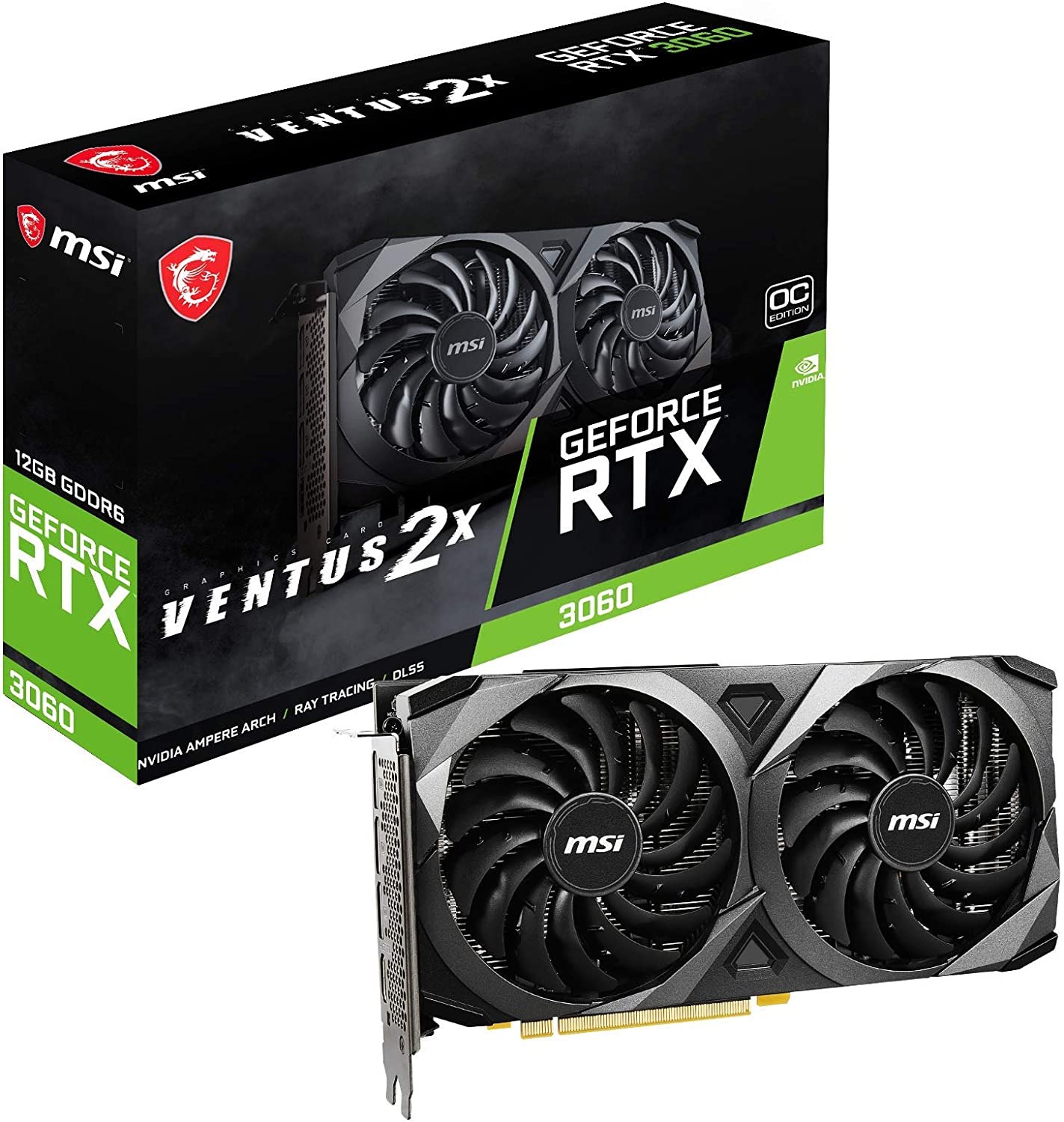
    MSI Gaming GeForce RTX 3060 Best Graphics Card Brands

    MSI, or Micro-Star International, is a popular manufacturer for PC hardware and laptops. This Taiwanese company is also known for their high-end graphics cards and budget offerings too.

    On the high-end side, you’re getting Gaming X and Gaming Z while you’re getting Ventus 3x and 2X on the budget side of things.

    MSI both designs and sells for Nvidia GeForce RTX and AMD Radeon graphics cards.

    Examples of MSI Nvidia Graphics Cards

    Examples of MSI AMD Graphics Cards

    ASUS

    ASUS Dual NVIDIA GeForce RTX 3050 OC Best Graphics Card Brands

    Like MSI and Gigabyte, ASUS is one of the best and most popular manufacturers for PC hardware and peripherals, laptops, and smartphones. But they’re widely known for their hardware than anything else. For their gaming laptops, you’ll recognize them for their ROG Strix series on the premium side and TUF series on the budget side.

    ASUS graphics cards are known for their excellent gaming performance and overall GPU performance, even though they have a slightly higher price tag than others.

    Currently, ASUS sells both Nvida Geforce and AMD Radeon graphics cards

    Examples of ASUS Nvidia Graphics Cards

    Examples of ASUS AMD Radeon Graphics Cards

    Inno3D (for Nvidia Geforce video cards only)

    Inno3D iChill Geforce RTX 4070 Ti Best Graphics Card Brands

    One of the oldest graphics card brands on this list is the Inno3D. Their box designs is just as insane as their GPU performance, minus the large price tag.

    Their flagship series is called the iChillX3 and iChillx4, and unlike most GPUs in the market right now, Inno3D GPUs carry extra fans. The iChillX4 line of GPUs carry a fourth fan intended for MOSFET cooling. The company is also known for thier Twin X2 and X3 OC lineups, both powerful graphics cards in their own right but do not carry high-end components.

    If you want raw performance that’s out of this world but on a tight budget, then Inno3D might be the best graphics card brand for you.

    As it stands, Inno3D only makes graphics cards for Nvidia Geforce.

    Examples of Inno3D Nvidia Graphics Cards

    Gigabyte

    GIGABYTE GeForce RTX 3070 Gaming OC Best Graphics Card Brands

    Gigabyte is a brand that needs no introduction because it’s one of the best third-party AIB graphics card manufacturers in the industry right now. They’re also widely known for their PC hardware and peripherals.

    Gigabyte is well known for its aesthetics and high-performance graphics cards, as well as some affordable options in the market. On the premium side, you get the AORUS Master and Vision. On the budget side you get the Gaming OC lineup.

    What’s interesting here is that all of the Gigabyte graphics cards are known for providing and guaranteeing excellent performance.

    Currently, Gigabyte produces both Nvidia GeForce and AMD Radeon graphics cards.

    Examples of Gigabyte Nvidia Graphics Cards

    Examples of Gigabyte AMD Radeon Graphics Cards

    Sapphire (for AMD Radeon video cards only)

    Sapphire 11322-02-20G Pulse AMD Radeon RX 7900 Best Graphics Card Brands

    Some of AMD’s best graphics cards in the market right now falls under the Sapphire brand, a manufacturer dedicated only to the production of AMD Radeon graphics cards.

    Sapphire GPUs are easily recognizable by their branding and box designs. Sapphire is known for producing high-end graphics cards without breaking the bank. Their best-performing graphics card series is the Nitro+, considered by many as the “premium of all premium graphics cards”. Meanwhile, Sapphire Pulse is the affordable option from their series and is one of the most popular consumer graphics cards right now.

    Currently, i have the Sapphire Pulse AMD Radeon RX 7900 XTX, and its the best AMD graphics card that I’ve owned over the last few years. Graphics cards tend to be expensive as you go up in performance, but this isn’t the case with the 7900 XTX. It competes okay against the Nvidia GeForce RTX 3080 in terms of gaming performance, but the AMD Radeon RX 7900 XTX I have right now is cheaper.

    Examples of Sapphire AMD Radeon Graphics Cards

    7) XFX (for AMD Radeon video cards only)

    XFX Speedster MERC319 AMD Radeon RX 6900 XT Best Graphics Card Brands

    Just like Sapphire, XFX is limited to producing AMD graphics cards and they’re known for their high-performance graphics cards that’re extremely affordable. Their most popular series is the Speedster SWFT 319, a line filled with premium and affordable options. Their most powerful graphics card is the Speedster MERC 319, known for its incredible thermal efficiency and overall build quality.

    XFX graphics cards deliver pure performance and is often the graphics card of choice by creative professionals.

    Examples of XFX AMD Radeon Graphics Cards

    Colorful (for Nvidia Geforce video cards only)

    Colorful NVIDIA GeForce GTX 1650 Best Graphics Card Brands

    Colorful is another popular graphics card manufacturer, known for their iGame Vulcan series of GPUs. They also have one of the best cooling hardware installed on their graphics cards. What makes the iGame Vulcan appealing to PC gamers is its tiltable display that can be used as a system monitor.

    The iGame Ultra and iGame Vulcan series are their premium GPUs, but they also have affordable GPUS under the Advanced OC and BattleAX umbrellas. But what really sets Colorful apart from the other graphics cards brands on here is their gaming performance. You’re already getting the best graphics card deals with just the BattleAX series that competes against the other high-end graphics cards

    Overall, Colorful is a great graphics card manufacturer, but they do not sell AMD Radeon GPUs.

    Examples of Colorful Nvidia Graphics Cards

    • Colorful NVIDIA GeForce GTX 1650
    • Colorful GeForce 1660 6GB GDDR6

    Wrap Up!

    Ultimately, the best graphics card brand for you will depend on your individual needs and preferences. It’s important to consider factors such as performance, features, price, and support when choosing a graphics card brand. While NVIDIA and AMD are two of the most popular and highly regarded brands on the market, other brands such as ASUS, Gigabyte, and MSI also offer excellent graphics cards that may be better suited to your specific needs. Whatever brand you choose, investing in a quality graphics card can greatly enhance your computer’s performance and overall experience, whether you’re a gamer, content creator, or professional designer.
  • Upgrading Processor in Laptop – Can I Do It?

    Upgrading Processor in Laptop – Can I Do It?

    Laptops come in handy, especially when their owners are always on the move. Professionals, students, artists, or simply just about anyone who uses a laptop will also know what it’s like to struggle the lack of processing power here and there.

    Now, don’t get us wrong. Laptop processors are just as powerful as desktop processors nowadays, especially with most modern laptops being called as gaming laptops.

    What if you have an older laptop? One that needs a processor upgrade, for sure. You’re probably thinking upgrading processor in laptop is the best thing to do since you can’t purchase a new one just yet.

    But can you really upgrade your laptop processor? We’ll answer that question and more in this article.

    Is It Possible To Upgrade A Laptop Processor?

    A straightforward answer would be: NO. But sometimes, it depends.

    Confusing? We’ll get to that in a bit.

    Desktop processors can be upgraded by removing the old CPU and replacing it with a new one. This is under the assumption that the new one is compatible in terms of pins and sockets.

    So why couldn’t laptops do the same thing?

    This is because older laptops usually have soldered CPUs onto their motherboard.

    Slightly older laptops may not have CPUs soldered into their motherboard, but the CPU is installed into the socket. Similar to what you’d see on desktop computers. But note that the socket and CPU type are designed for laptops, so you can’t plug in a desktop processor on a laptop.

    The majority of the older and modern laptops usually solder their CPUs onto the motherboard. so there’s just no way to upgrade them.

    But there are exceptions, especially to some of the slightly older laptops. Their CPUs are not soldered onto the motherboard. Rather, they are installed in a socket, similar to what we see on a desktop motherboard. Of course, the socket and the CPU are designed for laptops.

    You’ll need to research for compatible CPUs for your laptop, or you can get in touch with laptop manufacturers and ask for a list.

    But generally speaking, a CPU upgrade on a laptop is highly unlikely. A laptop’s CPU is often soldered, making it difficult to uninstall and remove. The best-case scenario for laptop users here is if they want to upgrade their laptop’s processor, they’ll need to buy a new laptop. It’s a lot like replacing your laptop’s GPU, which also requires you to buy a new laptop.

    Can You Upgrade Your Laptop Processor From an Intel Core i5 to an Intel Core i7?

    Again, it’s technically possible to upgrade your laptop CPU, but this depends on whether or not the CPU is soldered into the motherboard.

    If you have an Intel Core i5 CPU that’s soldered into the laptop’s motherboard, then there’s no way to upgrade to an Intel Core i7. If you want your laptop’s processor to be an i7, then you’re better off just buying a new laptop.

    Upgrading the laptop processor means that you have to understand how the CPU surface mounting is on a laptop compared to a desktop. Desktop processors can be detached while a laptop’s processor is soldered. Note that this isn’t always the case as some laptops will have detachable processors.

    Making Sense of CPU Surface Mounting Methods

    Can I Upgrade My Laptop Processor from i5 to i7

    There are three different types of surface mounting:

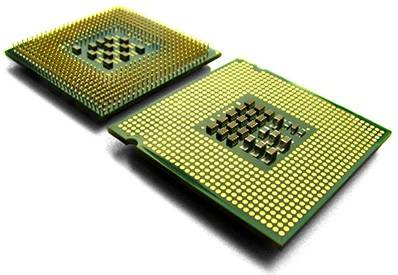
    • Land Grid Array or LGA – This is a detachable CPU with flat contacts. Intel desktop CPUs usually have this type of surface mounting.
    • Pin Grid Array or PGA – A mounting type with visible pins on the CPU. AMD CPUs have this type of mounting surface. Like the land grid array, this is also detachable.
    • Ball Grid Array or BGA – Mounting type commonly used by a laptop processor. CPU contacts are soldered and is not detachable. Most laptops, if not all of them, have a BGA.

    If your laptop has a BGA mounting type, you can’t replace your laptop processor. But if it has a PGA or LGA mounting type, you could upgrade your laptop processor so as long as they share the same socket type.

    The Wrap Up!

    Upgrading your laptop with a new processor is sadly not doable, but it doesn’t mean it’s not possible. Newer laptops may not be able to get you this upgrade, but the laptop’s performance is already at part with new desktops. On the other hand, if you have an older laptop and your current processor is slowing down your computer’s performance, you could check if you have a LGA surface mounting or PGA surface mounting. If it has either, you have a chance of upgrading.

    But then again, you’re probably still better off with purchasing a new laptop with a more powerful processor.

  • What’s The Best Monitor for Animation and Other Creative Workloads?

    What’s The Best Monitor for Animation and Other Creative Workloads?

    Graphic designers, animators, and pretty much every creative professional out there are particular with how things look on their monitor. Unlike the average Joe and Jane, these creative professionals know that a monitor’s color accuracy, contrast and sharpness, and brightness play a huge role in how they carry out their work.

    It’s now more important for these people to see how their projects look in real-time just by what they see on their monitors before they finalize everything. If you’re an aspiring animator or graphics designer, this article will help you find the best monitors for creative professionals.

    Our List of the Best Monitor for Animation!

    LG Ultrafine 5K Display

    Editor’s Pick: Best 5K Monitor

    LG 27MD5KB-B Ultrafine 27 Best Monitor for Animation

    Specs

    • Resolution:5120 x 2880 Pixels
    • Display: IPS monitor
    • Color support: 99% DCI-P3
    • Refresh Rate: 60Hz
    • Display Size: 27″

    Why we think it’s good

    • Integrated mic, camera, and speakers
    • Great color accuracy
    • Brightness up to 500 nits

    Why we think it’s bad

    • When in Clamshell Mode, True Tone and Light Sensor do not work
    • Connectivity is tricky because the ports are situated in the middle.

    If you’re working on a Macbook Pro, you would know that the best monitor to pair with is the Apple Pro Display XDR but the price tag on that monitor is just way too high.

    But there’s an alternative, and it’s our pick for the best monitor for animation and graphic design: LG’s Ultrafine 5K.

    The LG’s Ultrafine 5K measures at 27 inches with a whopping 5K resolution. It has 99% DCI-P3 color support and a contrast ratio of 1200:1. There are also three USB-C ports and a single USB-C port that will allow you to connect and charge your Macbook.

    If the screen is too small, then we recommend the LG Ultrafine 34″.

    LG 27UL850

    Best Budget Monitor

    LG 27UL850-W 27 Inch Best Monitor for Animation

    Specs

    • Resolution:3840 X 2160
    • Display: UHD IPS monitor
    • Color support: 99% sRGB Color Gamut
    • Refresh Rate: 60Hz
    • Display Size: 27″

    Why we think it’s good

    • Versatile enough for a great graphic design experience
    • Different ports available for connectivity
    • Smooth running

    Why we think it’s bad

    • 60Hz refresh rate
    • No DCI-P3 Color Support
    • Poor built-in speaker quality

    A budget monitor isn’t that bad. Sure you miss out on some features, but their absence doesn’t really affect your output greatly.

    Enter the LG 27UL850, one fo the budget monitor options on this list for aspiring graphic designers and animators alike. We know that 4K and 5K monitors for graphic design don’t come cheap, but the LG 27UL850 is here to save you and your wallet.

    The LG 27UL850 comes in at 27 inches and with a 4K display that makes everything look and feel beaautiful. The color accuracy is also impressive enough for the price range. If you want the best budget monitor for graphic design or animating, the LG 27UL850 is a solid pick.

    ASUS ProArt PA329C 32” 4K

    Best Professional Monitor

    ASUS ProArt PA329C 32 Best Monitor for Animation

    Specs

    • Resolution: ​​3840 x 2160
    • Display: 4K HDR LED Display
    • Color Support: 100% Adobe RGB IPS
    • Refresh Rate: 76Hz
    • Screen Size: 32-inches

    Why we think it’s good

    • RGB to sRGB Color Switching
    • Pre-calibrated Display
    • Thin bezels

    Why we think it’s bad

    • Hard to reach USB slots
    • Monitor stand takes up way too much space

    There’s no other graphic design monitor out there that comes close to the Asus ProArt PA329C, and it’s just packed with a lot of features needed for animation, graphics design, and more.

    The Asus ProArt PA329C measures at 32 inches and comes with full 4K HDR. It’s not as advanced as the LG Ultrafine monitors, but this is a great second pick if the Ultrafine monitors from LG are out of reach.

    The specs on the Asus ProArt PA329C are good enough for the price you’re paying. The 3840×2160 resolution offers an immersive design and gaming experience with the best gaming PC possible. There are also three HDMI ports, USB 3.0, and USB-C ports available. Note that these features can also be found on 120Hz gaming laptops.

    Bonus features of the Asus ProArt PA329C is that it’s wall-mountable and consumes less power than any of the other monitors on this list. It also has a low-blue-light mode to help you work at night or early in the morning.

    EIZO ColorEdge CG 2420-BK 24.1”

    Best 24″ Monitor with Excellent Color Display Quality

    Eizo CG2420-BK ColorEdge Best Monitor for Animation

    Specs

    • Resolution: 1920×1200 Pixels
    • Display: LED IPS Monitor
    • Color support: 99% Adobe RGB Coverage
    • Refresh Rate: 60Hz
    • Screen Size: 24.1″

    Why we think it’s good

    • Comes with light-shielding hood
    • Has its own color calibration tool
    • USB upstream for full monitor control
    • Can be mounted on walls

    Why we think it’s bad

    • Probably the most expensive monitor for graphic designers on this list

    The EIZO ColorEdge CG2420 is one of the most impressive and most powerful computer monitors on this list for a good few reasons. When it comes to important features needed by graphics designers and animators, the EIZO ColorEdge CG2420 has it all.

    Okay, it’s not a 4K monitor for graphic design, but it makes up for it by its Wide-Gamut IPS LED display. EIZO ColorEdge CG2420 boasts of an impressive 9(% Adobe RGB Color Range, making it perfect for anyone doing animation or large print graphic design.

    Ports of the EIZO ColorEdge CG2420 include a DisplayPort, HDMI, and DVI. The color ratio stands at 1500:1 and has a 10ms grey-to-grey response time. It may not be the best for gaming, but it’s good enough for photo and video editing, animation, and even 3D modeling.

    The EIZO ColorEdge CG2420 stands as one of the best monitors for graphic design, 3D work, and animation.

    GIGABYTE M27Q 27”

    A Decent Budget Monitor for Graphic Design and More

    GIGABYTE M27Q 27 Best Monitor for Animation

    Specs

    • Resolution: 2560 x 1440
    • Display: SS IPS Panel Monitor
    • Color support: 92% DCI-P3 (140% sRGB) color gamut
    • Refresh Rate: 170 Hz
    • Screen Size: 27”

    Pros

    • Incredible sRGB coverage
    • High refresh rate
    • Affordable monitor

    Cons

    • Not 4K res0lution

    Finding a good monitor for digital art and animation doesn’t need to be tedious. The best graphic design monitors out there don’t even need to have an expensive price tag. If you want a good starting monitor that will last you for years, the GIGABYTE M27Q is a solid pick.

    You’re looking at a 27-inch screen size with 92% DCI-P3 color gamut, or translates to about 140% sRGB. With a 0.5ms response time, you’ll have the greatest viewing experience possible without breaking the bank.

    It may not be able to compete with the ultra wide monitors on this list, but the price-to-performance ratio is too high to ignore. For connectivity, you get two HDMI ports, two USB 3.0 ports, and a DisplayPort. You also have blue light filtering on, so you can use the GIGABYTE M27Q for prolonged periods.

    ViewSonic ColorPro VP3881A 38” WQHD

    Best Ultrawide Curved Monitor For Animation

    ViewSonic VP3881A 38-Inch QHD Best Monitor for Animation

    Specs

    • Resolution: 3840 x 1600
    • Display: 4K WQHD+ IPS Display
    • Color support: 100% sRGB color gamut
    • Refresh Rate: 60Hz
    • Screen Size: 38 inches

    Pros

    • Impressive screen size for its price!
    • 100% sRGB!
    • Connectivity options are decent
    • Calibrated and easy to use

    Cons

    • Expensive
    • No HDR 10 support, but supports something closely similar

    Is a curved monitor good for animation or graphics design? Well, not all of them, but the ViewSonic ColorPro VP3881A will probably be one of your picks for curved monitors.

    We’d like to point out two things about the ViewSonic ColorPro VP3881A. First, this curved monitor was made by professionals for professionals, so you get extra features. Second, the price-to-performance ratio is high, so while it’s expensive, you get what you pay for.

    Needless to say, this isn’t something that we’d like to recommend if you’re just starting out as an animator. But if you’ve already been in the industry for quite some time now and want to upgrade your old monitor for graphic design, animation, and more, then the ViewSonic ColorPro VP3881A is definitely the upgrade you need.

    What you get with the ViewSonic ColorPro VP3881A is a curved monitor measuring a whopping 38-inches. It boasts of WQHD+ Display and sitting comfortably at an aspect ratio of 21:9. What this translates to is you’re getting wide, quad HD plus display at 4K max resolution over a curved radius of 2300. The viewing angles of the ViewSonic ColorPro VP3881A make for an excellent viewing experience for design, animation, and some gaming.

    Dell Ultrasharp U2719DX 27” WQHD IPS

    Impressive Sharpness And Color Accuracy

    Dell Ultrasharp U2719DX Best Monitor for Animation

    Specs

    • Resolution: 2560 x 1440
    • Display: 4K/UHD IPS Display
    • Color support: 99% sRGB color gamut
    • Refresh Rate: 60Hz
    • Screen Size: 27 inches

    Why we think it’s good

    • Well-calibrated
    • Great connectivity options
    • Comes with a 3-year warranty
    • One of the best monitors for designers

    Why we think it’s bad

    • Limited Apple Color Gamut Support
    • nVidia G-Sync / AMD FreeSync lack support

    The Dell Ultrasharp U2719DX is a high-end monitor designed for professional users who demand exceptional image quality and advanced features. With a 27-inch screen size and a 2560 x 1440 resolution, this monitor delivers stunning visuals that are crisp, clear, and vibrant. Whether you’re working on complex spreadsheets, editing high-resolution photos or videos, or playing your favorite games, the U2719DX provides a brilliant display that’s sure to impress.

    One of the key features of the Dell Ultrasharp U2719DX is its IPS panel technology, which provides accurate color reproduction and wide viewing angles. This means that you can view the screen from almost any angle without experiencing any color shift or distortion. In addition, the monitor supports a wide color gamut that covers 99% of the sRGB color space, making it ideal for tasks that require precise color accuracy.

    The U2719DX also comes with a range of connectivity options, including DisplayPort, HDMI, and USB-C ports, making it easy to connect to a wide range of devices. The USB-C port also supports power delivery, which means that you can charge your laptop or other devices directly from the monitor, reducing cable clutter and improving your workspace.

    Want more screen real estate? Well, Dell Ultrasharp U2719DX’s slim bezel gives you just that. The fully adjustable stand also provides you will full height, tilt, swivel, and travel control. The Dell Ultrasharp U2719DX comes with a wide range of advanced display settings that allow you to customize the monitor to your liking.

    Overall, the Dell Ultrasharp U2719DX is an excellent monitor that delivers exceptional image quality, advanced features, and a range of connectivity options that make it ideal for professional users. Whether you’re working on complex projects, editing high-resolution photos or videos, or just enjoying your favorite games or movies, the U2719DX is sure to provide an immersive and enjoyable experience.

    BenQ PD3200U 32” 4K IPS Monitor

    Best 4K IPS Monitor for Animation

    BenQ PD3200U 32 Inch Best Monitor for Animation

    Specs

    • Resolution: 3840 x 1260
    • Display: UHD Display
    • Color support: 100% sRGB color gamut
    • Refresh Rate: 60Hz
    • Display Size: 32-inches

    Why we think it’s good

    • Incredible color calibration
    • Hotkey Puck Tool for OSD settings
    • Monitor calibration tool called “Palette Mater Element Color Calibration Software” included

    Why we think it’s bad

    • Expensive
    • Calibration needs to be done depending on workload

    You can’t put a price on quality, but if you have to, then the BenQ PD3200QU is befitting of that action. The design of the BenQ PD3200QU is meant for post-production work on animation and graphic design, so you’re more or less getting what you’ll see in real life after rendering.

    The BenQ PD3200QU monitor features 100% sRGB color gamut and a 32-inch screen at a 3840×2610 max resolution. If you’re looking for high-end computer monitors, the BenQ PD3200QU should be on top of your shopping list.

    Other features of the BenQ PD3200QU include connectivity options such as DVI, HDMI, and DisplayPort, a 1000:1 native contrast ratio, 60Hz refresh rate, and LED backlight.

    It’s not exactly on of those monitors for graphic design if you just work from home, but it’s still a solid and worthwhile investment.

    Samsung UH750 31.5”

    Impressive 4K Monitor For Animation

    Samsung UH750 31.5 Best Monitor for Animation

    Specs

    • Resolution: 3840×2160
    • Display: 4K UHD QLED Display
    • Color support: 125% sRGB Color Gamut
    • Refresh Rate: 60Hz
    • Display Size: 31.5-inch

    Why we think it’s good

    • Great pricing!
    • Well-designed features
    • Versatile color accuracy

    Why we think it’s bad

    • Not as stable as it looks, especially when the table is bumped

    While many monitors on this list have above-average pricing, we’re not hesitant to showcase the best monitors for graphic design and animation for those on a budget.

    And if budget is an issue but you still want a new monitor for work, then the Samsung UH750 is up for consideration. Outside of being the perfect monitor for creative work, the Samsung UH750 is one of the most popular gaming monitors heavily preferred by PS5 and Xbox One owners. And the main reason why this is one of the best gaming monitors is its wide screen size.

    At first glance, you wouldn’t think that the Samsung UH750 would be affordable enough given its specs. The Samsung UH750 features a 3000:1 static contrast ratio with a 178-degree horizontal and vertical viewing angle and up to 4K resolution at 3840×2160. The Samsung UH750 also has a 125% sRGB color gamut and a 4ms grey-go-grey response time.

    You also get the standard features similar to many monitors on this list. The Samsung UH750 comes with MagicBright mode, wall mounting features, eye-saver mode, and eco-saving mode.

    In terms of connectivity, you get two HDMI ports, 4 USB 3.0 ports, standard DisplayPorts, and a headphone jack.

    If you’re a graphic designer or animator on a tight budget, then the Samsung UH750 is a great investment for upgrading your computer monitor. It’s good enough for photo editing and video editing, animation, and some gaming.

    LG 34WN80C-B Ultra Wide Monitor 34”

    One Of The Best Ultra Wide Monitors for Macbook and Graphic Designers

    LG 34WN80C-B UltraWide Monitor Best Monitor for Animation

    Specs

    • Resolution: 3440 x 1440
    • Display: WQHD LED Display
    • Color support: sRGB 99% Color Gamut
    • Refresh Rate: 60Hz
    • Display Size: Ultra Wide 34”

    Why we think it’s good

    • Decent brightness
    • HDR 0 compatible
    • Adjustable stand

    Why we think it’s bad

    • No speakers

    Here we have another entry from LG, and it’s the LG Ultrafine’s big brother. Enter the LG Ultra Wide 34WN80C, one of the best curved monitors and one of the best ultra wide monitors in the market right now!

    What’s interesting here is that it’s probably one of the best monitors paired with Macbooks. The LG Ultra Wide 34WN80C is designed to replicate the Macbook’s resolution while also being able to charge it at the same time through the USB-C connection. Charging your laptop and displaying high resolution images on the LG Ultra Wide 34WN80C is no mean feat.

    The LG Ultra Wide 34WN80C monitor features a max resolution of up to 3440 x 1440 on a WQHD LED display. Working on digital art on the LG Ultra Wide 34WN80C will be the best experience for any aspiring or veteran designer. It also comes with software for splitting the screen into two or four different windows.

    This is probably the best graphic design monitor for those who are already established in the industry. It comes with an expensive price tag, but again, it’s definitely a solid investment.

    Final Thoughts

    In conclusion, when it comes to finding the best monitor, there are several factors to consider such as the size, resolution, refresh rate, panel technology, color accuracy, and connectivity options. It ultimately depends on your specific needs and budget. However, some of the top monitors currently available in the market include the Dell UltraSharp U2721DE, LG 27GN950-B, ASUS ProArt PA278CV, and the BenQ PD2700U. These monitors offer excellent picture quality, great color accuracy, and a range of features to enhance your viewing experience. Remember to also consider factors such as warranty, customer service, and reviews before making your final decision.

  • When is the Best Time to Buy Computer Parts?

    When is the Best Time to Buy Computer Parts?

    Years before the Pandemic, people weren’t particular about the best time to buy computer parts. Sure, it was always going to be obvious that you make time to buy PC and components when you only need to or when there’s a huge discount being offered on them.

    But the prices of PC parts are fickle. It can go up and down, depending on the current market, demand, and supply. Case in point, we’re referring to the shortage of graphics cards during the Covid-19 Pandemic and its consequent massive inflation.

    If you have your own PC and you’re trying to save money for getting new computer components, then that’s fine. But most of the time, you end up replacing important PC hardware outside of these promotional deals and discounted periods because your old PC parts are no longer functional.

    Sometimes you’re also on the hunt for parts to get a project going, like a mini-ITX PC build.

    When Is The Best Time To Buy Computer Parts?

    Black Friday Featured Image Best Time To Buy Computer Parts

    Objectively speaking, there’s no best time to buy computer parts. Price history would often dictate that the costs of certain PC parts dwindle through the following sale seasons below, but these are dependent on your geographical location and access to vendors that offer these sales.

    Recurring Yearly or Holiday Sales

    In the Western part of the world, there are two holiday sales that people look forward to when buying computer parts: BLACK FRIDAY and CYBER MONDAY.

    No one will ever argue with anyone here that the best time to buy computer parts is during these holiday sales. You get the best deals during Black Friday and Cyber Monday, so it’s a lot easier on your wallet to buy computer parts for your gaming PC.

    It’s not just PC hardware that goes on sale during this period, but also video games and software. You get the best prices, either a one-time fee or a monthly subscription, for these items.

    Now, we have a big caveat.

    Black Friday deals are a good deal but only as good as whether or not the stores have what you want or need. I’ve been sitting on my GeForce 1050Ti for the longest time and it wasn’t until the recent Black Friday sales of 2022 that I got my hands on an Nvidia GeForce RTX 3070. It was probably one of the best deals I’ve landed since the RTX 3070 was discounted by about 40% when I got it. This was an alternative to buying a brand new RTX 3060 gaming laptop.

    But the two or three years or before that, I couldn’t even land the best deal for any graphics card because the retailers didn’t have it in stock or it just wasn’t discounted enough to be worth buying.

    Another season for getting the best deals is during the start of the school season. Back-to-school sales are all the rave and will get you massive discounts on parts for PC building, prebuilt gaming PCs, or laptops. The deals offered during this period aren’t as impressive as the Black Friday and Cyber Monday holiday season, but you should still be able to buy PC parts at a discount.

    Generational Transitioning of Products

    RTX 2080Ti Best Time To Buy Computer Parts

    Outside of these holiday seasons and sales, most PC gaming enthusiasts buy PC components when a generational transition happens. This is when current-generation computer parts are replaced by newer ones. A good example is the recent transition to the Nvidia RTX 4000 series.

    When new PC parts come out, it doesn’t necessarily mean that it’s significantly better than its predecessor. If you have an Nvidia RTX 3060 graphics card, you don’t exactly need to buy the RTX 4000 series graphics cards just because it’s the newest generation. The difference in performance between the RTX 3060 and its 4000 series counterpart is minimal at best.

    On the other hand, if you’ve had a GTX 1050Ti, then you’d probably have better idea to save some money in upgrading to the RTX 3000 series or 2000 series just because of their price drops.

    Is Black Friday The Best Time To Buy Computer Parts?

    If you ask anyone on the Internet this question, you’ll get different answers. None of them are wrong, but none of them are right either.

    One could easily argue that Black Friday is the best time to buy PC parts just for the huge discounts being offered. Another will counter that argument by saying to wait just a couple years more to save more money.

    If you’re a PC gamer like me and you have an eye on the prices of certain parts, the chances of us getting discounts on the parts that we want are slim at best. Again, this boils down to the retailer and availability of these parts.

    What Parts Do You Need To Keep An Eye Out For During Black Friday Deals?

    If you insist on shopping during Black Friday and Cyber Monday, here’s a list of my current observations for certain PC parts that go on sale during these periods.

    Take this section with a grain of salt because I shop on multiple websites outside of Amazon.

    CPU

    Verdict: Buy!

    Current generation AMD processors and Intel processors won’t get heavily discounted, but you’ll find that their last generation processors will. Keep an eye out for steep drops of certain chips like the AMD Ryzen 5000 or 9th generation Intel Core i7 or i9.

    CPU Coolers

    Verdict: Buy when needed!

    A CPU cooler is a bit of a toss-up. If you must absolutely buy a CPU cooler to upgrade your gaming PC, then the best time to buy is during this period. Pay close attention to drops for AIO coolers and air coolers.

    You won’t score the lowest prices on CPU coolers, but you’ll still get a better deal during this holiday season.

    Motherboards

    Verdict: Buy!

    If you’re buying a new CPU, then chances are you need a new motherboard. New generation CPUs aren’t exactly compatible with older motherboards, so that’s something to consider.

    If you have a particular brand in mind, it might be difficult to find deals during this season. Some of the newer models of motherboards don’t offer a steep discount price yet, so if that’s what you need, you’re better off waiting till the next year or when the price drop significantly.

    GPU

    Verdict: Buy when needed!

    ASUS TUF Gaming NVIDIA GeForce RTX 3060 Best Time to Buy Computer Parts

    The GPU market is way different from what it was a couple of years back. Demand issues are still there, but not as severe.

    Now, GPU prices have gone down significantly. And by significantly, they’re returned to their MSRP. For certain GPUs like the RTX 3060, they’re probably still higher than MSRP but only by a hundred dollars or less.

    But even with the normalization of GPU prices, there will always be external factors that may cause different brands of GPUs to go up and down in pricing in the future.

    SSD and HDD

    Verdict: Buy!

    SSD pricing is good right now, but Black Friday deals offer decent discounts on them. Go for the 2TB capacity for SSDs and 4TB capacity for HDDs.

    RAM

    Verdict: Better off waiting!

    TEAMGROUP T-Force Vulcan Best Time to Buy Computer Parts

    RAM prices are stable and often go down more frequently in a year than GPU or CPUs, mostly because newer RAM generations are now proliferating the market. DDR5 RAMs won’t go down just yet, but DDR4 memory sticks will.

    Cases

    Verdict: Buy when you need to!

    KEDIERS PC Case Best Time to Buy Computer Parts

    Black Friday is hit or miss for PC cases because most retailers don’t really offer them on discount during the holiday season. Budget cases are more likely to go on sale than the premium models.

    If you’re buying a new PC case to build a new PC, then just buy one outside of the holiday season. But if you’re eyeing specific models, it might be a little digging difficult to find good deals during Black Friday. There’s no best time to buy PC Cases unless some of the new stuff comes out.

    Monitors

    Verdict: Buy!

    Z-Edge U24C 24-inch Curved Gaming Monitor Best Time to Buy Computer Parts

    Personally speaking, you can’t go wrong with buying a new monitor or two during the Black Friday season or Cyber Monday. You get a good price on some of the recent releases, so unless you have specific requirements for monitors, it’s the best time to buy a monitor.

    You don’t really need to wait for Black Friday or Amazon’s Prime Day to get the best deals on monitors.

    Pre Built PCs

    Verdict: Wait and see!

    If you want your hands on a powerful system without having to build it yourself, then an optimal time to buy pre built PCs would be during the holiday season and back-t0-school sales.

    Prebuilt PCs are pre-assembled PCs that come with specific components already installed. Prices of prebuilt PCs depend on what’s inside the unit, so if you’re getting a combination of Intel Core i9 and an RTX 3090, then you’re going to shell out a lot of money.

    Prebuilt PCs aren’t exactly selling like pancakes either during Amazon’s Prime Day or Black Friday because people would rather go for laptops. For the same period, we recommend just waiting and see what’s being offered at a steep discount. Remember, prebuilt PCs aren’t good deals all of the time.

    Final Thoughts!

    If you want to save money to buy components during the holiday season, take note of these tips:

    1. Write down parts that you need to upgrade and do some research beforehand.
    2. Don’t limit yourself to just one vendor. It’s easier to purchase parts outside of Amazon because they don’t have huge availability issues during this period.
    3. Shop strategically. Don’t wait for the holiday season to arrive just so you can purchase PC components. All throughout the year, some retailers will drop their prices on certain stocks. Your best bet is to sign up for newsletters from these retailers so you’ll receive notifications about these incoming sales.
  • What Is A Backplate GPU?

    What Is A Backplate GPU?

    Over the last few years, PC aesthetics have leveled up tremendously with the introduction of RGB lighting. RAMs and case fans were the first to don them. Now you have motherboards, PSUs, air cooling systems, and your graphics cards with RGB lighting. This was a good time to be an RGB enthusiast.

    RGB lighting isn’t the only thing that was aesthetically pleasing to look at in a custom-built PC. Nowadays, custom GPU backplates are all the rave, especially when it comes to the higher end cards.

    But is there more to a GPU backplate than just being beautiful to look at? Is a graphics card with a GPU backplate worth more than those without?

    We’ll find out more in this article.

    What Is a Backplate GPU?

    Featured Image What is a Backplate GPU

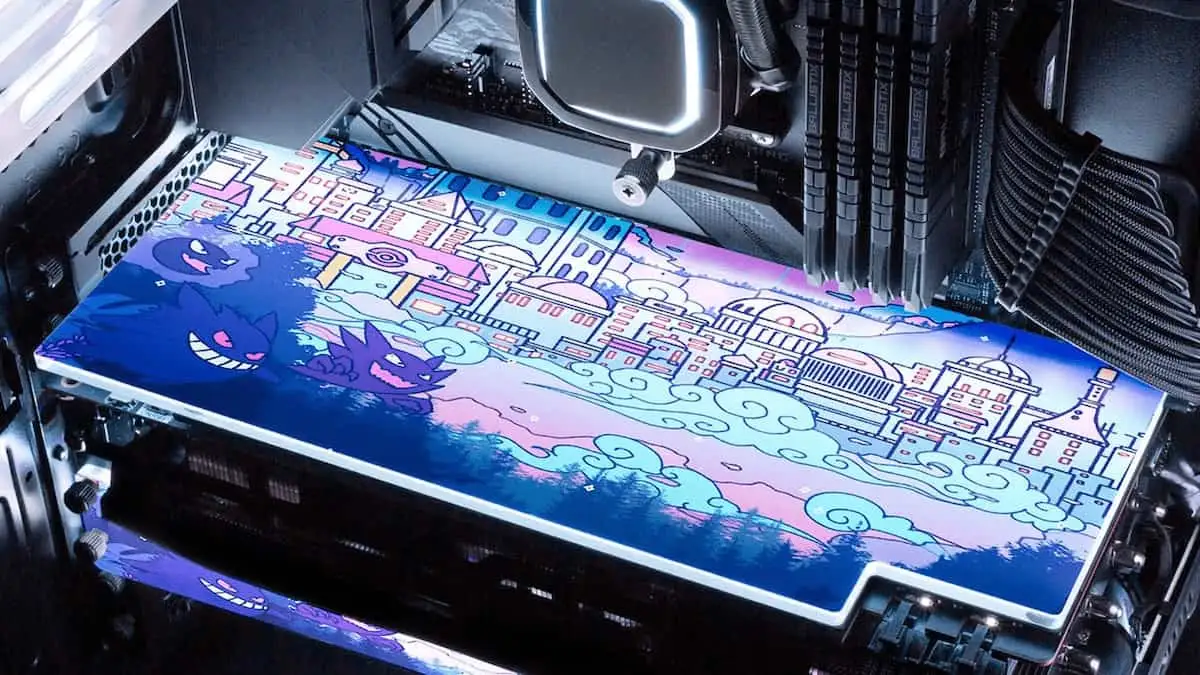
    A backplate is an accessory that covers the back of your graphics card. Your typical backplate is made up of either aluminum, stained steel, or acrylic.

    While the primary purpose of GPU backplates is to make your graphics card look awesome, there’s also some functionality to it depending on the material. Most backplates are capable of preventing dust from getting into the GPU fans and other components. If the material is made of aluminum, then heat dissipation is an added benefit of using a GPU backplate.

    But this heat dissipation benefit from GPU backplates is inconsequential at best, even though some of them might have larger contact areas or thermal pads acting as heat spreaders.

    So the main appeal of a GPU backplate is its aesthetics. It also prevents your graphics card from sagging in the PCIe slot, especially if it’s a large GPU.

    What Are The Benefits of Having GPU Backplates?

    If you’re out shopping for a new graphics card to upgrade your PC, you’re probably going to wind up with a higher end GPU. Most of the high end graphics cards, and even the new budget ones, come equipped with their GPU backplate.

    But what can GPU backplates provide you with apart from making your PC look good?

    GPU Backplates Help Dissipate Heat

    Heat dissipation features of GPU backplates are dependent on the material, albeit not as effective as your case fans or the GPU heatsink for that matter. A metal backplate is more likely to help with heat dissipation than a plastic GPU backplate.

    Some GPU backplates come with thermal pads and large contact areas for heat reduction, but it’s not known as to whether it can significantly dissipate heat.

    Improves GPU Durability

    GPU sag is a common problem for PC builders and enthusiasts, especially for owners of larger-than-normal GPUs. GPU sag happens when a GPU is too heavy for the motherboard. Now, this isn’t an instant occurrence but rather it just happens gradually.

    A GPU backplate actually prevents GPU sagging because it’s able to support a lot of its weight and components. But again, how much weight it can support depends on the construction of the GPU backplate. It goes without saying that metal backplates are stronger than plastic ones.

    Helps Keep The Dust Away

    GPU backplates prevent dust and other debris from getting into the graphics card, which may end up damaging your parts over time.

    Dust particles and debris accumulate on the surface of the GPU backplate instead of inside your GPU components.

    Makes your PC Look Pretty

    Custom Backplate What is a Backplate GPU

    Custom GPU backplates look just awesome. It adds a personalized touch to your PC build, which is one of the biggest things to have for gaming PC builders. It’s like adding custom vinyl to your car doors.

    Larger graphics cards with larger GPU backplates have more room for customization than smaller graphics cards.

    And yes, there are people out there that you can hire to customize your GPU backplates.

    Is a GPU Backplate Worth It?

    In terms of functionality, graphics cards can perform equally well with and without a backplate.

    On the issue of GPU backplates and their cooling capabilities, it doesn’t provide any significant changes to the temperatures of the GPU. You’ll probably be better off with bigger case fans if you want to manage your GPU temperature better.

    Can you remove the backplate of a graphics card? This is a logical question as some of the bigger GPUs like the Nvidia GeForce RTX 3090. And the answer is: it’s not recommended. The GPU backplate is there for a reason. It acts as a counterbalance and stabilizer of sorts when you install the RTX 3090 in your motherboard, preventing GPU sagging.

    Can you install a GPU backplate on a GPU that didn’t come with one?

    The answer is YES, and there are no restrictions to installing a GPU backplate as well. But you might have a hard time finding a backplate that’s compatible with your graphics card.

  • What’s The Best Graphics Card for After Effects?

    What’s The Best Graphics Card for After Effects?

    One of the most popular video editing software in the industry right now is Adobe After Effects. Filmmakers and animators all over the world use this software for post-production.

    If you’re planning on going into the video editing industry, then you’ve probably heard of this software and are fully aware of just how much computing power this software needs. And building this powerful video editing workstation is no mean feat.

    Nvidia GeForce RTX 4080 If Money Is Not An Issue, Get This Graphics Card!

    Nvidia GeForce RTX 3060 Ti Best Overall Graphics Card for Video Editing and More

    Nvidia GeForce GTX 1660 Super Best Budget Option for Graphics Card

    But you’re in luck. This article will go over what Adobe After Effects needs in terms of computer graphics, storage, processing power, and more.

    Nvidia GeForce RTX 4080

    If Money Is Not An Issue, Get This Graphics Card!

    Nvidia GeForce RTX 4080 Graphics Card for After Effects

    SPECIFICATIONS

    • GPU VRAM: 16GB
    • Memory bandwidth: 736GB/s
    • Boost clock: 2,505MHz
    • Shader processors: 9,728
    • Power consumption: 320w

    Why buy it?

    • Fast and potent for After Effects
    • 8K Resolution editing? You bet!
    • Future proof. Will last you for at least five years.

    Why Avoid It?

    • CPU performance needs to match its power
    • Power hungry!

    All right! The main graphics card of the hour. If you want GPU accelerated effects and want to take full advantage of what Adobe After Effects has to offer, then the Nvidia GeForce RTX 4080 is the ONLY pick! The only logical reason not to go after this beast is you’re going for the high-value RTX 4090.

    The Nvidia GeForce RTX 4080 is currently one of the fastest graphics card in the market right now and is perfect for any video editing, animation, and 3D modeling workloads. The price of the Nvidia GeForce RTX 4080 is about $1,299 for retail, but you’ll probably end up paying more for the higher end versions.

    Apart from the price tag, the Nvidia GeForce RTX 4080 consumes a lot of power, sitting at 320W! Meanwhile, the RTX 4090 is about $1,699 with a 450W power draw.

    Nvidia GeForce RTX 3060 Ti

    Best Overall Graphics Card for Video Editing and More

    Nvidia GeForce RTX 3060 Ti Graphics Card for After Effects

    SPECIFICATIONS

    • GPU VRAM: 8GB
    • Memory bandwidth: 448GB/s
    • Boost clock: 1670MHz
    • Shader processors: 4864
    • Power consumption: 200w

    Why buy it?

    • Superb performance
    • Decent power consumption

    Why Avoid It?

    • Price has not gone significantly

    The Nvidia RTX 3060 Ti is one of the best choices for a graphics card to power Adobe After Effects or any other video editing or 3D animation software. It’s a mid-range graphics card with a premium price tag, which is it’s only downside. Unlike its other RTX siblings, the RTX 3060Ti is still hovering close to its overly-inflated pricing, albeit just a little lower.

    Nvidia GeForce GTX 1660 Super

    Best Budget Option for Graphics Card

    SPECIFICATIONS

    • GPU VRAM: 6GB
    • Memory bandwidth: 336GB/s
    • Boost clock: 1785MHz
    • Shader processors: 1408
    • Power consumption: 125w

    Why buy it?

    • Perfect budget option for Adobe After Effects
    • Suits smaller PC cases

    Why Avoid It?

    • Struggles with 4K or 8K resolution footage

    You don’t premium graphics cards to run Adobe After Effects, and if you’re a budding video editor or animator on a tight budget, then the GeForce GTX 1660 Super is a solid pick.

    The GeForce GTX 1660 Super is competent enough to carry out basic After Effects workloads, but might struggle with the more complex ones. The GeForce GTX 1660 Super has about 6GB of VRAM, which is about 2GB short of coming close to the RTX 3060Ti, so it will struggle with 4K and 8K resolution videos.

    What is Adobe After Effects?

    Adobe After Effects is a 2.5D animation software used in the post-production phase of video editing. The software allows the user to add stunning visual effects, manipulate visuals, and even combine hundreds of layers of videos and images into one scene.

    If you don’t believe me, well, movies such as Star Trek: Into the Darkness and Ender’s Game have gone through Adobe After Effects.

    Enders Game

    So it goes without saying that to guarantee the highest Adobe After Effects performance possible, you’ll need a powerful GPU. As it stands, Adobe After Effects workstations will benefit much from the latest Nvidia GeForce RTX 30-series and RTX 40-series GPUs for maximum performance. However, it’s worth mentioning that the difference in power and performance between these graphics cards is relativel small.

    Adobe After Effects also introduced something called Multi Frame Rendering or MFR, which allows After Effects to maximize multi-core processors properly.

    How Much VRAM Do You ACTUALLY Need For Affect Effects?

    If your primary concern is how much memory you need for your projects, well we can assure you that higher-end GPUs don’t exactly guarantee higher raw performance in terms of running Adobe After Effects.

    However, you should have enough VRAM for your projects. GPU rendering multiple frames will allow you to process more than one frame at a time, but it will consume a lot of VRAM. If your VRAM is not enough, it will be limited in terms of how many frames of multi-frame rendering is possible.

    To put it simply, Adobe After Effects workstations should have enough VRAM for multi-frame rendering.

    What Are The Best Graphics Cards For After Effects?

    We’ve said that you’ll need enough VRAM to power through rendering multiple frames, so it goes without saying that you’ll probably want to go for Nvidia RTX 4080 16GB or Nvidia RTX 4090 24GB.

    This benchmark from PugetBench will show you the performance difference between the premium GPUs and affordable ones.

    GPU Benchmark Graphics Card for After Effects

    From this benchmark, you can see the huge margin between the RTX 409024GB and the RTX 2080 Ti 11GB. This doesn’t mean that the RTX 2080Ti is a sub-standard GPU for Adobe After Effects either. The RTX 2080Ti is still well above After Effects’ minimum specifications.

    The good news is that After Effects doesn’t necessarily require the use of multiple GPUs mostly because it doesn’t benefit from it. But other software like Octane and other 3D-rendering images do get better performance from running multiple GPUs.

    If you’re only using After Effects for video editing, then you can make do with something like a GeForce GTX 1660 Super or AMD Radeon RX 5700XT as long as you don’t require the use of ray-tracing or DLSS.

    What’s A Recommended Graphics Card for After Effects?

    The benchmarking image above should give you a good idea on the best GPUs for After Effects. Anyone of the video cards on that benchmark is more than enough to power through After Effects and other video editing software.

    But we’re going to point out three notable recommendations based on your needs just to help you make your decision.

    Frequently Asked Questions About Adobe After Effects

    Do You Need a Professional Graphics Card To Run Adobe After Effects?

    Most users would recommend using Nvidia professional graphics cards, which was the Quadro series. However, this series is no longer being continued and is now under the RTX 3000-series GPUs.

    Another reason why people invest in these professional GPUs is that they have professional certifications, which most commercial GPUs don’t have.

    Which is Better for Adobe After Effects? AMD or Nvidia?

    In line with the first paragraph, a lot of professionals would often recommend Nvidia more than AMD Radeon. However, it boils down to personal preference.

    What’s the Best Processor for Adobe After Effects?

    When building your After Effects workstations, you also need to pay attention to your CPU or processor. GPU acceleration is all the rave these days, but your choice of CPU will still play a huge role in terms of performance.

    After Effects uses the CPU more than the GPU, so it’s kind of difficult to gauge its performance just by looking at clock speed and the number of cores that it has. The most important thing here is that your CPU can keep up with your GPU and vice versa. Otherwise, you’d just have a reoccurring bottleneck that throttles the slowest of the two components.

    Most users would recommend either the Intel Core i7-13700K or the Intel Core i9 13900K, or the Ryzen 9 7950X. The performance gap between the three processors is negligible. For the most part, single-threading workloads are faster with these CPUs compared to AMD Threadripper PRO or the Intel Xeon W processors. However, users can attest to the sheer power of the Threadripper when it comes to multi-rendering.

    How Much RAM Do I Need For Adobe After Effects?

    The rule of thumb for a high performance workstation meant for video editing and 3D animation is that if you want higher resolution for projects, better color bit depth, and a higher number of frames you want to play at a continuous rate, then you’ll need more RAM.

    RAM usage scales with framerate, so if you want to see your projects run at 60FPS, you’ll need twice the number of RAM. This means that for 60FPS, you need at least 128GB of RAM. Sure, the minimum specifications for Adobe After Effects doesn’t even need you to run 128GB of RAM, but you’ll still need enough RAM to run things smoothly.

    What Kind of Storage Should I Use for Adobe After Effects?

    Another overlooked concern in building out a workstation for video editing is the available hard disk space.

    Right now, there are three types of storage drives that you’ll need to use for the workstation: an NVMe SSD, an SSD, and your traditional HDD.

    SATA SSDs are faster than your traditional HDD but they’re more expensive. They’re usually the go-to drives for most users to host their operating system, applications, and media projects.

    Meanwhile, the NVMe drives are faster than the SATA SSDs, but they’re also more expensive. However you barely notice the performance increase between a SATA and NVMe SSD.

    What’s The Recommended Storage Configuration?

    If you want an After Effects workstation where you won’t have to worry about available hard disk space, then you’ll need to follow a three-drive configuration using all of the storage devices.

    1. NVMe SSD – You’ll want at least 1TB of NVMe SSD to store your applications, operating system, video games, and other programs.
    2. SATA SSD – Host at least 2TB of SATA SSD for your project files, media cache, and so on.
    3. Traditional Hard Drive (HDD) – This is where you’ll host your backups for project files, assets, and more. You won’t be accessing software or anything on here. Think of it as an offsite location to store the important files you are actively working on.

    If you’re on the move a lot, you’ll want to have a couple of removable flash storage devices.

    Final Thoughts

    When everything’s said and done, your ideal After Effects workstation should look something like this:

    • Intel Core i9 13900K
    • Nvidia GeForce RTX 4080
    • 128GB DDR4 or DDR5 RAM (the latter when available)
    • 2TB NVMe SSD
    • 2TB SATA SSD
    • 4TB HDD

    Your motherboard should also be able to host these components, but note that this will be a hefty investment.

    If you opt for a laptop instead of personal computers, there are now gaming laptops on there that run the RTX 4000-series GPUs but they’re just as hefty.

  • What’s The Best Computer for Blender? (Jul 2026)

    What’s The Best Computer for Blender? (Jul 2026)

    3D animation, modeling, and rendering are daunting in their own right. A PC, workstation, or even a laptop needs to have enough processing power to carry out 3D-related workloads.

    But that’s easier said than done since your machine needs to run powerful components. We’re talking about mid range processors, graphics cards, RAM, and even storage devices. Let’s not forget about the peripherals too.

    If you want a laptop for Blender or for any 3D software, then you’ll need something that’s just as powerful.

    In this article, we’ll be talking about the best computer for Blender, or laptop for that matter. We’re also going to give you a small cheat sheet at the final section of the article if you want to build your own computer.

    [affiliatable id=’179545′]

    What is Blender?

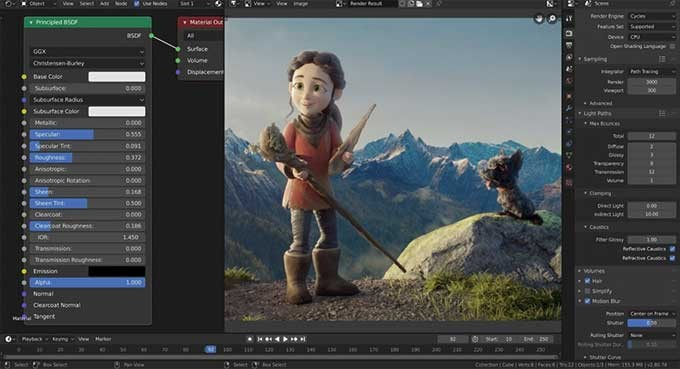
    Blender Screenshot Best Computer for Blender

    Blender is a free and open-source 3D Creation Suite, as defined by their company. The software is capable of running the entire 3D pipeline, from modeling to rigging to motion tracking to game creation and so on.

    Blender is one of the best 3D software suite for creative professionals and studios, so you can imagine just how powerful this engine is. But Blender users will need a high end machine to run this software smoothly.

    What’s The Best PC or Laptop For Blender?

    The list is not arranged in any particular order and is a curation of different recommendations from users and studios.

    HP Omen Obelisk

    A Premium Prebuilt Gaming PC for the Serious Blender User

    OMEN HP Obelisk Gaming Desktop Best Computer for Blender

    Specs

    • Intel Core i7-9700K
    • NVIDIA(R) GeForce(R) RTX 2070 SUPER(TM)
    • 16 GB
    • 1 TB
    • Windows 10 Pro

    Now if you want to go down the expensive route, you might want to consider the HP Omen Obelisk, a beast of a gaming PC that could last you for a good five or ten years without upgrading a single thing.

    Don’t get us wrong. You’re paying close to $2,000 for this machine, but you’re getting the best of the best. For starters, you have a 9th generation Intel Core i7 processor combined with the Nvidia GeForce RTX 2070 Super. Complimenting this build is 16GB of RAM and 1TB of SSD storage space, with room for upgrade. Their gaming laptops under the same name also have the same specs.

    You can use this PC for gaming, video editing, and yes, for Blender or any other 3D software. Unfortunately, there are no other configurations but you can upgrade individual computer hardware like the CPU, GPU, and RAM if you want more power.

    Acer Nitro 50 N50-600

    Compact and Powerful Blender PC

    Acer Nitro 50 N50-600 Best Computer for Blender

    Specs

    • Intel Core i7-9700 Processor
    • NVIDIA GeForce RTX 2060
    • ‎16 GB DDR4
    • ‎1 TB Mechanical Hard Drive
    • ‎Windows 10 Home

    Much like HP Omen, Acer Nitro is another recognizable brand when it comes to gaming PCs and laptops. The Acer Nitro 50 N50-600 is on this list for a couple of reasons.

    First, we have the processor and graphics card combo. The Acer Nitro 50 N50-600 packs an Intel Core i7 9th generation processor and an Nvidia GeForce RTX 2060 graphics card. Both extremely powerful then, and still as powerful as the latest generations now.

    Second, you’re getting computer hardware to complement the CPU/GPU tandem. You’re getting 16GB of RAM, 512GB SSD, and 1TB Mechanical Hard Drive (HDD).

    And lastly, these are all upgradeable. Mind you, the CPU and GPU won’t need any replacement for the foreseeable future. You can upgrade to more storage space and more RAM.

    For the price you’re paying, this PC does it all.

    SkyTech Blaze

    A Perfect Option for Creatives On A Budget

    SkyTech Blaze Best Computer for Blender

    Specs

    • Ryzen 5 1600 6-Core 3.2 GHz (3.6 GHz Turbo)
    • NVIDIA GeForce GTX 1050 Ti 4GB GDDR5
    • 8GB DDR4 2400 Gaming Memory
    • 500 GB- 1TB 7200 RPM HDD
    • Windows 10 Home

    GPU rendering is a major point of consideration when it comes to choosing PCs or laptops with the right computer hardware. But some of the major Nvidia GPUs are quite expensive, so what choice do you have?

    Well, the Skytech Blaze is first on the list and is perfectly capable of running simple tasks on Blender. There are several upgraded configurations to choose from, but the basic configuration should be a good start.

    And for less than $1,000, you already got yourself a good CPU and one of the midrange Nvidia graphics cards that enable GPU rendering. With the Ryzen 5 1600 processor, you can easily run Blender.

    Acer Predator Orion 3000

    Acer Predator Orion 3000 Best Computer for Blender

    Specs

    • 11th Generation Intel Core i7-11700F
    • NVIDIA GeForce RTX 3070
    • 16 GB DDR4 RAM
    • 512GB SSD + 1TB HDD
    • Windows 10 Home

    If you want something powerful that looks the part, then the Acer Predator Orion is a no-brainer of a choice.

    The Acer Predator Orion comes with 5 different configurations. The basic config runs an 11th-generation Intel Core i7 processor and RTX 2060 graphics card and will cost you about $1,700. The ultimate configuration runs an 12th-generation Intel Core i7 and an Nvidia GeForce RTX 3080, one of the most powerful Nvidia GPUs in the market right now. The RTX 3080 configuration will cost you about $2,500.

    This PC is one of the best for running Blender and the more intensive 3D software apps. If you’re running more resource intensive tasks, then upgrading the RAM should be a priority. Or you could always go for the Intel Core i9 if you’re underwhelmed by the i7.

    iBUYPOWER Pro Gaming PC Trace 4

    A Budget Friendly Alternative to the SkyTech Blaze

    iBUYPOWER Pro Gaming PC Best Computer for Blender

    Specs

    • AMD Ryzen 5 3600 3.6GHz (4.2GHz Max Turbo)
    • NVIDIA GT 730 2GB
    • 8 GB DDR4 RAM
    • 240GB SSD
    • Windows 10 Home

    Another budget-friendly alternative is the iBUYPOWER Pro Gaming PC Trace 4, hovering just a smidge below the $1,000 price point. And just like the SkyTech Blaze 4, you’re getting what you pay for.

    The iBUYPOWER Pro Gaming PC Trace 4 is nothing to scoff at. You get an AMD Ryzen 5 3600 processor, an Nvidia GT 730 2GB graphics card, and about 8GB of DDR4 RAM. Now, all of these parts are upgradeable but it would beat having to choose a budget option.

    As it stands, the graphics card might struggle to run complex tasks in Blender or any other 3D software. The RAM is also less than what we’d like it to be. How much RAM you need for 3D rendering and modeling is definitely a huge factor, and 8GB is not enough.

    The graphics processing unit isn’t impressive either with 2GB, but if you just want to get a prebuilt PC and upgrade slowly by slowly, this might be a decent pick. But you’re probably just better off with the SkyTech Blaze while you’re at it. But before you do decide to buy this prebuilt PC, be sure to check out our other options.

    What Are The Best Parts For Building Your Own PC For Blender?

    If you don’t like the prebuilt PCs listed above, you can always go for a custom build. And in this section, we’ll go over what you need for that perfect PC build.

    CPU Recommendations

    The CPU or central processing unit is one of the two biggest focal points for you when it comes to building your PC. The bulk, if not half, of the rendering time, is dictated by just how powerful the CPU is.

    You don’t need the most advanced processor there is, but you will need adequate processing power. A 10th-generation Intel Core i5 is sufficient, but we recommend getting the Intel Core i7 of the same generation. If you’re an AMD fanboy, you can go for the Ryzen 5 at the bare minimum.

    If you want to spend more money, get the best one there is right now, which is the Intel Core i9 processor or righteously known as the Golden Waffle. The AMD Ryzen 9 5900X is the counterpart.

    GPU Recommendations

    To guarantee the best performance possible for a Blender PC, you’ll need a graphics card that’s just as powerful as the CPU.

    Unlike CPUs, there are several options to choose from, and each one of them as good as the next one. But the biggest factor that will determine what kind of graphics card you’ll be using relies on your budget.

    Nvidia GPUs and AMD GPUs have returned to normal pricing and availability after a tumultuous two years. If you’re thinking about going for a professional-grade graphics card, you’ll want to go for the Nvidia GeForce RTX 3000-series or the 4000-series if available.

    You’ll want a good GPU such as an Nvidia RTX 3060 if you want to enable GPU acceleration on your system. Having this GPU and combined with the Intel Core i9 will give you a futureproof and powerful PC.

    RAM Recommendations

    We’re not going to be particular about the brands here, but more focused on the memory capacity. At the bare minimum, you want at least 16GB DDR4 RAM for your workstation. 32GB is ideal, but 64GB might be overkill.

    If you do want recommendations for brands, you’ll want to go for something made by Corsair or Kingston.

    The Wrap Up

    If you’re thinking about getting a good laptop for Blender, you’ll need something just as powerful as the rest of the gaming desktops on here. Larger laptops are also going to be your main target, mostly because you’ll want bigger batteries, strong CPU, a powerful GPU, and at least a 15-inch or 17-inch HD display. Budget gaming PCs are possible options so as long as they meet minimum requirements for Blender.

  • What Is The Best Graphics Card For Rendering? (Jul 2026)

    What Is The Best Graphics Card For Rendering? (Jul 2026)

    Anyone working in the creative industry, from graphics design to 3d modeling and animation to visual effects, will know just how much processing power is required to carry out the related tasks in their fields. And yes, graphics design is more intensive than you’d like to think.

    NVIDIA RTX A6000 – The Best GPU for Creative Professionals. PERIOD.

    NVIDIA GeForce RTX 3070 Ti – Best Budget Option For Novice and Seasoned Professionals

    EVGA GeForce RTX 3090 FTW3 Ultra – Best Value Graphics Card For Creative Professionals

    NVIDIA GeForce RTX 3060 Ti – Best Starting GPU for Rendering and Modeling Hobbyists

    NVIDIA GeForce RTX 3050 – Second Best Value Pick For Professionals On A Budget

    AMD Radeon Pro W6600 – Second Best Budget Graphics Card For Creative Professionals

    It goes without saying that your workstation for these tasks should be as powerful as it can be. We’re talking about running the latest CPUs, RAMs, enough storage, and lastly, a very powerful graphics card.

    But graphics cards aren’t exactly cheap especially if you want the ones that are meant for gaming, video editing, and more. Don’t worry because if you’re in the market for an upgrade, we’re here to point you to the right direction…

    Some Points To Consider When Buying Graphics Cards for Running Rendering Software and More

    Buying a graphics card for gaming is one thing, but buying a graphics card for GPU rendering is another.

    Before we move on to the list, here are some points to consider when it comes to buying certain graphics cards.

    Brands

    It goes without saying that there are only two major GPU manufacturers in the world right now namely Nvidia and AMD. And it’s difficult to decide which one to go for.

    AMD is known for their cost-efficient graphics cards with excellent price-to-performance ratio. Nvidia is known for GPU performance and power efficiency. AMD’s professional GPUs are under the Radeon PRO umbrella while Nvidia had Quatro. However, Quatro was dropped in 2021 and has now become RTX A series.

    VRAM

    VRAM or Video RAM is different from the system RAM that runs your workstation. But the function is all too similar. VRAM is responsible for storing data necessary for displaying graphics. Just like your system RAM, the higher your VRAM storage capacity, the better the GPU performance.

    Cost

    Cost definitely plays a role when it comes to getting your best graphics cards. Remember, your CPU and GPU comprise for more than half of your entire system’s budget because these are the parts that run the bulk of any rendering, design, or animation software.

    Goes without saying too that you’ll probably spend upwards of about $500 to get any of the best graphics cards that you see on the list below, but trust us when we say that the sheer raw performance of these graphics cards is worth it.

    The Best Graphics Cards For Rendering, Modeling, and Animation

    What’s the best graphics card for rendering images or animation? Your future graphics card might be on this list

    NVIDIA RTX A6000

    The Best GPU for Creative Professionals. PERIOD.

    Tech specs

    1. CUDA Cores: 10752
    2. Base Clock: 1410 MHz
    3. Boost Clock: 1800 MHz
    4. Memory: 48 GB GDDR6 (ECC)
    5. Memory Clock Speed: 16 Gbps
    6. Memory Bus: 384-bit
    7. Max. Monitors Supported: 4
    8. Power Consumption: 300 W
    NVIDIA RTX A6000 Best Graphics Card for Rendering

    Why consider it?

    • The best GPU in the market right now
    • Almost double the GPU rendering performance compared to the Quadro RTX 8000
    • Almost universal compatibility thanks to CUDA support for professional rendering applications
    • 48GB VRAM. Enough said.
    • Great rendering speed

    Why avoid it?

    • Almost breaches $5000 MSRP
    • Has the same speed of GPU rendering compared to the RTX 3090

    We’d like to think that our lists of hardware and software on our blog are not arranged in any particular order, but we’d be surmised to let the top spot be taken by any other graphics card.

    Presenting the 2021 Nvidia RTX A6000, currently the reigning top-tier professional GPU for 3d rendering and modeling professionals. This graphics card is tuned and built exactly for those working with 3d modeling, animation, 3d rendering,, and other graphically-intensive projects.

    The Nvidia RTX A6000 comes with different certified drivers meant for professional applications and is shipped with 10,752 CUDA cores and 84 RT cores, making this a monster graphics card. Let’s not forget that we’re getting 48GB of GDDR6 VRAM too. After all, the RTX A6000 comes from a long line of Nvidia Quadro GPUs, so it makes sense that this is the best graphics card in the market right now.

    The only downside here is that it’s very expensive. For this kind of power, you’re paying close to $5,000 but with the same raw performance as the commercially available RTX 3090, which is one-third the price of the A6000!

    NVIDIA GeForce RTX 3070 Ti

    Best Budget Option For Novice and Seasoned Professionals

    Tech Specs

    1. CUDA Cores: 6144
    2. Base Clock: 1575 MHz
    3. Boost Clock: 1770 MHz
    4. Memory: 8 GB GDDR6X
    5. Memory Clock Speed: 19 Gbps
    6. Memory Bus: 256-bit
    7. Max. Monitors Supported: 4
    8. Power Consumption: 290 W
    GIGABYTE GeForce RTX 3070 Ti Best Graphics Card for Rendering

    Why consider it?

    • Affordable
    • Compatible with different professional rendering software thanks to CUDA support
    • Availability is high due to variety of aftermarket cards
    • Power-efficient graphics card
    • Easily handles 4K resolution for gaming, video editing, and more

    Why avoid it?

    • Doesn’t have professional features and certifications
    • Large-sized card

    Performance doesn’t have to be expensive, but it also doesn’t have to be cheap either. The Nvidia RTX 3070Ti is right smack in the middle in terms of pricing maximum performance.

    Now, if you’re looking for a budget friendly Nvidia graphics card, then the Nvidia RTX 3070Ti is a solid pick. This graphics card comes in with a relatively low price- tag of $800 MSRP, but heavily discounted in some major retailers like Amazon. If you want a budget-friendly gaming PC, then you might want to go for other GPUs.

    The Nvidia RTX 3070Ti comes with 8GB GDDR6 VRAM, 6,144 CUDA cores and 46 RT cores, so managing rendering workloads is a walk in the park for this beast. It also has other nifty AI features such as real-time ray tracing and DLSS support. Unfortunately not a lot of features for professional dedicated rendering software.

    Running three monitors won’t be a hassle too as the Nvidia RTX 3070Ti comes with three DisplayPort outputs and one HDMI output. With a 290W TDP, power efficiency is insanely good even for the Nvidia RTX 3070Ti.

    As graphics card prices continues to drop, the Nvidia RTX 3070Ti will eventually become more accessible to anyone looking to purchase a new computer graphics card. If you want the best GPU for rendering but don’t want to shell out thousands of dollars, then the Nvidia RTX 3070Ti is a decent option.

    EVGA GeForce RTX 3090 FTW3 Ultra

    Best Value Graphics Card For Creative Professionals

    Tech Specs

    1. CUDA Cores: 10496
    2. Base Clock: 1395 MHz
    3. Boost Clock: 1800 MHz
    4. Memory: 24 GB GDDR6X
    5. Memory Clock Speed: 19.5 Gbps
    6. Memory Bus: 384-bit
    7. Max. Monitors Supported: 4
    8. Power Consumption: 350 W
    EVGA GeForce RTX 3090 FTW3 Ultra Gaming Best Graphics Card for Rendering

    Why consider it?

    • 10496 CUDA cores
    • Easily competes with the A6000 above in terms of GPU rendering speeds
    • High VRAM capacity
    • Efficient cooling capacity even under heavy workloads

    Why avoid it?

    • Power consumption is insane
    • Lacks professional certifications
    • Large graphics card

    Considered to be a multi-purpose powerhouse graphics card, the NVIDIA GeForce RTX 3090 makes it way to this list simply because it puts up a decent fight against the Nvidia A6000 and other Quadro GPUs.

    The NVIDIA GeForce RTX 3090 was intentionally built for gamers obsessed with running games at 4K resolution and 60FPS at ultra settings or higher even. But it doesn’t shy away from GPU rendering work and other tasks.

    The NVIDIA GeForce RTX 3090 is the best value GPU in the market, sitting at a price tag that’s 1/3 less than the Nvidia A6000 but just as powerful. The NVIDIA GeForce RTX 3090 is equipped with a 24GB VRAM and 10,496 CUDA cores, making it the second fastest graphics card on this list.

    The only drawback here is that this is a massive graphics card. It’s a triple-slotted GPU so you’ll need a decent-sized case to house this bad boy.

    NVIDIA GeForce RTX 3060 Ti

    Best Starting GPU for Rendering and Modeling Hobbyists

    Tech Specs

    1. CUDA Cores: 4864
    2. Base Clock: 1410 MHz
    3. Boost Clock: 1665 MHz
    4. Memory: 8 GB GDDR6
    5. Memory Clock Speed: 14 Gbps
    6. Memory Bus: 256-bit
    7. Max. Monitors Supported: 4
    8. Power Consumption: 200 W
    NVIDIA GeForce RTX 3060 Ti Founders Edition Best Graphics Card for Rendering

    Why buy it?

    • Availability is not an issue with different aftermarket variants
    • Affordable
    • Low power consumption
    • Quick GPU rendering speed
    • Price-to-performance ratio is excellent

    Why avoid it?

    • Subpar GPU rendering compared to other cards on the list
    • This is a dual slot Nvidia GPU
    • Lacks professional features and certifications

    If you’re just getting started as a professional in the 3d modeling and rendering space, then this graphics card is the perfect choice for you. Consider this as an entry-level sort of GPU, if you will.

    The Nvidia GeForce RTX 3060 Ti is a decent alternative to all the other graphics cards on this list. This graphics card is packed with an 8GB GDDR6 VRAM and 4,864 CUDA cores for speedy GPU rendering. It’s about $200 less than the RTX 3070Ti, but still puts up a decent fight against it and other Nvidia models and AMD cards. It also has the same features such as ray tracing and DLSS support that both the RTX 3070 and RTX 3090 have.

    Availability isn’t an issue because there are several aftermarket variants, from Zotac to MSI. If you want to build a 3D rendering workstation without breaking the bank, the Nvidia GeForce RTX 3060 Ti is your best budget graphics card now (at least compared to the other cards on this list). Of course, if you can spend $200 more, then go for the RTX 3070.

    NVIDIA GeForce RTX 3050

    Second Best Value Pick For Professionals On A Budget

    Tech Specs

    1. CUDA Cores: 2560
    2. Base Clock: 1552 MHz
    3. Boost Clock: 1777 MHz
    4. Memory: 8 GB GDDR6
    5. Memory Clock Speed: 14 Gbps
    6. Memory Bus: 128-bit
    7. Max. Monitors Supported: 4
    8. Power Consumption: 130 W
    GIGABYTE GeForce RTX 3050 Eagle OC 8G Graphics Card Best Graphics Card for Rendering

    Why buy it?

    • The most affordable graphics card on this list
    • Good GPU performance for its pricec
    • CUDA compatibility that allows beginners to be familiar with running software for the rendering process
    • Not a power hungry graphics card
    • Ray tracing and DLSS support

    Why avoid it?

    • Lowest VRAM capacity, so expect slower rendering speeds
    • Not suitable for complicated rendering tasks
    • No professional certifications or features

    3D rendering can be done on a workstation built on a tight budget, and we have the Nvidia GeForce RTX 3050 as the perfect graphics card for that.

    Now, the Nvidia GeForce RTX 3050 is the entry level graphics card amongst the other RTX GPUs so it’s nowhere near as powerful as the RTX 3060, 3070, 3080, and 3090. But the Nvidia GeForce RTX 3050 retains all of the same features that its more powerful siblings have.

    The Nvidia GeForce RTX 3050 sits well below the $400 mark, making it one of the most affordable consumer graphics cards in the market.

    But what are you paying for here?

    You’re getting 8GB GDDR6 VRFAM, 2560 CUDA Cores, and backed by the Nvidia Ampere Architecture. It’s more than enough to play games, run basic rendering processes and more, but complicated tasks might slow down. You’ll eventually have to upgrade to a newer and more powerful card if you’re aiming for more complicated projects.

    AMD Radeon Pro W6600

    Second Best Budget Graphics Card For Creative Professionals

    Tech Specs

    1. Base Clock: 2331 MHz
    2. Boost Clock: 2580 MHz
    3. Memory: 8GB GDDR6
    4. Memory Clock Speed: 14 Gbps
    5. Memory Bus: 128-bit
    6. Max. Monitors Supported: 4
    7. Power Consumption: 100 W
    AMD Radeon PRO W5500 8GB Best Graphics Card for Rendering

    Why buy it?

    • Affordably priced
    • AMD Ray Accelerator Technology speeds up rendering process
    • Ray tracing features available
    • Certified AMD Rendering Drivers and with professional industry-standard compatibility for professionals

    REASONS TO AVOID

    • Low VRAM capacity for a professional-grade graphics processing unit
    • Lower performance compared to Nvidia GPUs

    AMD cards are more affordable than their Nvidia counterparts, even with the AMD Radeon line of graphics cards. If you want a professional-grade GPU from the AMD Radeon side, we have the AMD Radeon Pro W6600, with all the certifications and features absent from the RTX GPUs.

    It sits right beside the RTX 3050 in terms of VRAM capacity, but it’s still a certified professional workstation card for a reason. The rendering speed of the AMD Radeon Pro W6600 is evenly matched with best graphics cards on the list, even against the previous generation Nvidia cards and Quadro cards.

    The Wrap Up

    There we have it, some fo the best graphics cards in the market with excellent gaming performance and excellent rendering performance. It goes without saying that even though these are the best graphics cards, you’ll need components just as powerful to ensure the workstation’s amazing performance.

    If it were up to us, you can’t go wrong with gaming cards, the mainstream RTX GPUs or mainstream AMD Radeon RX graphics cards. They’re consumer graphics cards that easily compete against professional-grade GPUs with excellent performance. GeForce cards and AMD graphics cards are capable of rendering very complex scenes.

  • Nvidia RTX vs AMD Radeon – Who Is The Winner?

    Nvidia RTX vs AMD Radeon – Who Is The Winner?

    Nike vs Adidas.

    Apple vs Samsung.

    Toyota vs Nissan.

    Apple vs. Windows.

    There will always be two big brands in any given industry going head to head against one another. Any of these two brands will have steadfast fans and consumers defending the brand too, so new users will often find themselves being torn between one or the other.

    And in the GPU market, two brands have built a strong following of users: Nvidia and AMD Radeon, or Radeon for short.

    Both AMD GPUs and Nvidia GPUs are strong in their own right. You could even say that a lot of the cards they’re releasing have their own counterparts from the competing brand.

    For people buying their first graphics cards for the first time, choosing between either AMD cards or Nvidia cards is a daunting task in itself. Which one’s better? Which one’s the most reliable? Which one’s going to get me through the next few years?

    All of these questions and more are valid, but you’ll never get any straight answers from the Internet without any form of bias.

    But this is where we come in. Our article will cover the comparison between Nvidia vs Radeon GPUs over different factors.

    Nvidia Graphics Cards vs AMD Graphics Cards – Which is Ultimately Better?

    RTX 3070 vs RX 6700XT Nvidia vs Radeon

    Drivers and Software

    Graphics card drivers and software matter a lot, and between Nvidia GPUs and AMD GPUs, it’s difficult to choose a clear winner. For example, a lot of people using the AMD RX 5000 Navi series encountered black screen issues but newer drivers have resolved this issue. But most AMD users didn’t even have these issues with their AMD RX 5000. Nvidia graphics cards aren’t exactly error-free with their drivers too.

    Every year, AMD brags about their driver overhaul. In 2020, they consolidated everything under the Radeon Adrenalin drivers. This confused a lot of people who were looking for older drivers. AMD cards also release at least one new driver every month, more if there are new game launches. Nvidia GPUs follow the same pattern for their drivers.

    But the biggest difference is that Nvidia has two driver interfaces namely the Nvidia Control Panel and the Nvidia GeForce experience. The Nvidia Control Panel handles resolutions and graphics settings while GeForce Experience handles all game optimization, driver management, and other features such as ShadowPlay.

    Our pick: We’d say that this is a tie between Nvidia and AMD drivers. We like AMD’s consolidated driver management and Nvidia’s driver software. It’s easy to navigate the Nvidia GeForce Experience because driver updates and game optimization only needs one button.

    Pricing and Availability

    The last two years were a struggle for AMD and Nvidia graphics cards, mostly because some of the newer models were hyper-inflated due to the Covid-19 Pandemic and further aggravated by semiconductor shortages.

    Hoarders and scalpers ultimately drove the MSRPs of some of the more popular cards such as the Nvidia GeForce RTX 3000-series up by as much as 200%. But things are slowly returning to normal now, so we can definitely breakdown pricing and availability properly.

    Most of the AMD graphics cards and Nvidia graphics cards are now selling at, or close to, their MSRPs.

    As its stands, the best value graphics cards are coming from the AMD side. The AMD RX 6600, 6600XT, 6650XT, RX 6700XT and RX 6750XT have the best FPS to dollar ratio. Nvidia GPUs such as the RTX 3060, RTX 3050, and RTX 3060Ti aren’t bad, but you’re paying more money to come close to AMD’s performance-to-pricing ratio.

    Our pick: AMD takes this category as they’re more affordable than their Nvidia counterparts. Availability isn’t an issue for AMD either, mostly because hoarders and scalpers have gone after a lot of Nvidia cards for mining and other purposes.

    Gaming Performance

    Elden Ring Nvidia vs Radeon

    Nvidia graphics cards are solid in terms of performance across the board, but AMD has been giving them a run for their money over the last few years. Now, if you want the best gaming experience possible at 4K and 60FPS, you’re going to want the RTX 3080Ti. It’s the best graphics card in the market right now for those settings.

    For 1080p gaming, you can rest easy with either an AMD Radeon RX 5600XT or Nvidia GeForce RTX 3060. If you want the best 1080p gaming experience, an RX 6700XT or RTX 3060Ti will suffice.

    Our pick: Again, it’s a tie between AMD cards and Nvidia cards for performance. If you’re eager to get the best bang for your buck, AMD RX 6000-series is a no-brainer. But if money is not an issue, go for the RTX 3080Ti or the RTX 3090Ti for your gaming PC.

    Features and Exclusivity

    The AMD Radeon RX 6900XT was rumored to be the RTX 3090 killer, but it just wasn’t able to live up to the hype. Still, the AMD Radeon RX 6900XT is a potent AMD GPU that should be a good substitute if you can’t get your hands on an RTX 3090.

    AMD has always been known for its consumer-friendly approach when it comes to their technologies. In fact, some of their features can be used on Nvidia graphics cards. But we can’t say the same thing for Nvidia GPUs. Nvidia likes to keep things to itself.

    Nvidia has a ton of features that go beyond gaming, and their Nvidia Studio Driver program is a good example. The Nvidia Studio Driver is intended for professionals in the creative industry who want to maximize their Nvidia GPU for photo editing, video editing, and more. You also get Nvidia Broadcast, which is an AI program that easily replaces your video background if you’re in a call. There’s also an AI-powered eye tracking software that makes it look like you’re looking straight at the camera, even though you’re not.

    AMD doesn’t provide anything outside of gaming as their graphics cards are all intended to get you the best gaming experience possible.

    Our pick: Between AMD vs Nvidia, we’re going to have to go with the latter. Nvidia wins just because it has more features for both gaming and productivity-related tasks.
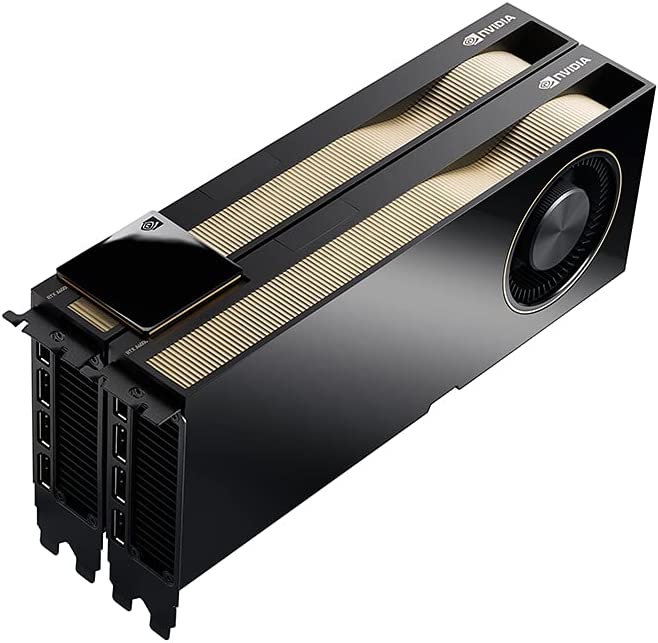
    Power Consumption and Efficiency

    Nvidia used to be the king of power consumption, but now, AMD is slowly tipping the scales. AMD’s Navi and Big Navi changed AMD’s overall power efficiency and consumption by using chips built with TSM’s 7nm FinFET process. Newer AMD cards have a new architecture that allows for 50% better performance per watt, made possible by Navi.

    But Nvidia doesn’t back down with their Ampere architecture as it’s more capable of higher clocks for PC gaming and more. Nvidia’s older graphics cards hold a huge margin over their AMD counterparts, but the newer generations aren’t far apart from each other.

    In terms of extreme performance, AMD Radeon RX 6700XT uses more power than the RTX 3060Ti, but a bit less than the RTX 3070. Between the RX 6600XT, RTX 3060, and RTX 3050, the power consumption is evenly close.

    Our pick: AMD and Nvidia are solidly tied for this category because there really isn’t a huge discrepancy in power consumption between the two brands. For building your gaming PC on a tighter budget, just go for the power supply unit that’s capable of powering through an RTX 3080Ti or Radeon 6700XT even though you don’t need either.

    Bottom Line

    Battle of GPUs NVidia vs Radeon

    So, Nvidia graphics card and AMD graphics card, which is better?

    Both GPU manufacturers and their graphics cards aren’t far apart from one another in terms of raw performance and gaming performance. If you’re reading this as an AMD fan, then AMD wins but not by a huge margin. Same for being an Nvidia fan as Nvidia wins hands down.

    Radeon cards and Nvidia’s RTX cards are easily found on the market, but it boils down to how available they are in your area and what your needs are. Do you need a card that can handle ray tracing? Then Nvidia remains to be a solid pick, but AMD support for ray tracing is just as excellent.

    Do you just want a graphics card for gaming but not want to spend a lot of money? Then AMD should be able to plow through a graphically demanding game with ease.

  • What’s The Best Low Profile RAM In The Market? (Jul 2026)

    What’s The Best Low Profile RAM In The Market? (Jul 2026)

    Buying RAM modules is one thing, but buying the right size is another. You see, not all RAM modules have the same size, and we’re not talking about RAM speed or storage either. The physical size of RAM modules is something that needs to be considered when building PC, but more often than not, some people make the mistake of buying bigger RAM kits.

    If you’re planning on building a mini ITX PC or installing a large CPU cooler, you’ll need to use low profile RAM kits.

    A low profile RAM kit works and functions like your typical RAM modules. However, they’re a lot more compact. The reason why they’re referred to as low profile RAM kits is because they have a maximum height of 34mm.

    Their height does not affect their RAM speed and overall performance. And in this article, we’ll be going over the best low profile RAM modules that will meet your needs and more.

    What Are The Best Low Profile RAM Modules?

    The following low profile RAM kits are highly recommended by PC builders and are praised heavily for their size, ability to meet a mini ITX‘s RAM clearance, and more.

    This list is not arranged in any particular order. These are also listed as their individual low profile RAM kits as you would normally get from a store.

    Corsair Vengeance LPX

    Corsair Vengeance LPX 16GB Best Low Profile RAM
    • Height: 34mm
    • Type: DDR4
    • Capacity: 16GB (8GB x 2)
    • Speed: 3600MHz
    • CL: 18

    Corsair is one of the most recognized brands in the world of computer paraphernalia. They’re known for making the best keyboards, mice, AIO coolers, and of course, RAM modules.

    On this list, we have the Corsair Vengeance LPX. You get two 8GB RAM sticks for the module and is intended for overclocking. This low profile RAM comes in red, white, blue, and black, though you usually see black in a lot of stores. Aside from color configurations, you also get different capacity kits, spanning all the way to 256GB and speeds up to 4000MHz.

    TEAMGROUP T Force Vulcan Z

    TEAMGROUP T-Force Vulcan Z DDR4 16GB Kit Best Low Profile RAM
    • Height: 32mm
    • Type: DDR4
    • Capacity:  16GB (8GB x 2)
    • Speed: 3200MHz
    • CL: 16

    TEAMGROUP T-FORCE is one of the newer brands breaking into the computer paraphernalia scene, but they are not to be trifled with.

    For this list, they have the TEAMGROUP T Force Vulcan Z as their entry for low profile RAM kits. You get either a red or grey color scheme in stores, but there is an ASUS TUFF variant that you can acquire if you purchase a TUFF motherboard and GPU.

    Unfortunately, the TEAMGROUP T Force Vulcan Z is not a low profile RGB RAM to give it a lower height clearance of about 32mm. Just like the Corsair Vengeance LPX, the TEAMGROUP T Force Vulcan Z is perfect for small PCs and can be overclocked too.

    The lowest speed you get is 16GB of memory, but you can get configurations of up to 64GB and up to 3600MHz speed.

    Kingston HyperX Fury

    HyperX Fury 32GB 3200MHz DDR4 Best Low Profile RAM
    • Height: 34.1mm
    • Type: DDR4
    • Capacity: 32GB (16GB x 2)
    • Speed: 3200MHz
    • CL: 16

    Kingston is an amazing brand when it comes to computer paraphernalia, and their lines of keyboards, mice, microphones, and RAM kits prove it.

    The Kingston HyperX Fury is also one of the most recommended RAM modules in the PC building world too, so it’s no surprise that they made it to the list.

    The Kingston HyperX Fury comes with 2 pieces of 16GB RAM sticks, giving you a whopping 32GB. If that does not convince you to get the Kingston HyperX Fury, we don’t know what will.

    Undoubtedly, the Kingston HyperX Fury is a solid pick if you want to build a mini ITX PC for heavy duty gaming, video editing, and more.

    And also, if the 32GB RAM modules are too slow for you, you can go for the 64GB variant.

    Patriot Signature

    Patriot Signature Line DDR4 16GB Best Low Profile RAM
    • Height: 31.25mm
    • Type: DDR4
    • Capacity:  16GB (8GB x 2)
    • Speed: 2666MHz
    • CL: 18

    The Patriot Signature RAM modules are pretty much standard memory DIMMs with no heatsinks, so you can’t overclock them. The kit will come in 16GB (2 x 8GB) at 2666MHz, which is decent enough. But if you want more, you’ll find 64GB capacity RAM modules with speeds up to 3200MHz.

    It’s one of the best low profile RAM modules for small form factor builds.

    Crucial Ballistix

    Crucial Ballistix Best Low Profile RAM
    • Height: 39mm
    • Type: DDR4
    • Capacity: 16GB (8GB x 2)
    • Speed: 3600MHz
    • CL: 16

    Along with Corsair and Kingston, Crucial is another popular brand when it comes to memory kits. For their entry into the list of best low profile RAM kits, we have the Crucial Ballistix clocking in at 16GB with 3600MHz rated RAM speed. Other configurations will go up to 64GB and up to 5100MHz, which is probably one of the fastest low profile RAM modules in the market right now. This is also one of the more practical RAM kits if you decide to go for budget or affordable PC cases.

    Crucial Ballistix dons a stealth black color palette, but you’ll also see other color variants such as red and white.

    G.Skill Aegis

    G Skill Aegis Best Low Profile RAM
    • Height: 31.2 mm
    • Type: DDR4
    • Capacity:  16GB (8GB x 2)
    • Speed: 3200MHz
    • CL: 16

    Last but definitely not the least we have the G.Skill Aegis, a budget-friendly low profile RAM kit but still puts up a fight against other high performance RAM modules in the market right now.

    What you’re getting is a 16GB RAM kit at 3200MHz rated speed. This RAM module doesn’t have a heat spreader, so overclocking this RAM module is out of the question. But due to its size, it should occupy RAM slots without being detrimental to bigger liquid coolers or small form factor PC builds.

    What Do People Commonly Ask About Low Profile RAM Modules?

    Why Do Some Builders Prefer Low Profile Memory Modules?

    Most of the time, builders go for low profile memory modules because they want to use a big air cooler or liquid cooler but there’s not enough room on their PC cases. Lowered module heights are also intended for small form PC builds, which usually use ITX cases or smaller.

    Are Low Profile RAM Kits Even Good?

    There’s no difference between a low profile RAM and a standard RAM kit. Both have the same memory capacity, speed, and other specs. It’s only the memory height that’s the big and only difference between the two.

    Can You Use Low Profile RAM Modules On a Laptop?

    Laptop RAM modules are still relatively smaller than any of the low profile RAM modules on here. Laptop memory modules are different from desktop memory modules, but some laptops can use desktop RAMs.

    How Much RAM Do you Really Need?

    This is actually a two-part question because you also need to ask yourself if you need a faster RAM.

    For video editing, gaming, and other heavy workloads, you’re probably going to need 16GB at the very least. You can go for more RAM capacity if you feel that gaming or work performance is sluggish.