Author: Jim Stephenson

  • Can I Use MSI Afterburner on Non MSI Cards?

    Can I Use MSI Afterburner on Non MSI Cards?

    MSI is a well-known brand in the world of high-performance computing. Founded in 1986, MSI has been providing quality products and services to the PC gaming and professional computing communities for over three decades. With a strong focus on innovation and technology, MSI has become a leading brand in the computer hardware industry.

    MSI’s product range includes motherboards, graphics cards, gaming laptops, desktops, peripherals, and accessories. MSI has a reputation for producing high-quality, reliable products that are built to last. They are also known for their customer service, which is often praised for being helpful and responsive.

    One of the things that set MSI apart from other brands of GPUs is its commitment to innovation. MSI is constantly developing new technologies and features to enhance the user experience. For example, their Dragon Center software allows users to monitor and control their system’s performance and cooling, while also providing customization options for lighting and other settings.

    MSI is also known for its gaming products. Their gaming laptops and desktops are designed with the needs of gamers in mind, with features like high refresh rate displays, powerful processors, and dedicated graphics cards. MSI’s gaming peripherals, such as their gaming mice and keyboards, are also popular among gamers for their high-quality construction and customizable features.

    In addition to its gaming products, MSI also offers a range of professional computing solutions. Their workstation motherboards and graphics cards are designed for use in industries such as architecture, engineering, and scientific research, where high-performance computing is critical.

    How Do You Use MSI Afterburner?

    MSI Afterburner is a powerful overclocking utility designed to help you get the most out of your graphics card. It allows you to adjust the clock speeds, fan speed, voltage, and other settings of your MSI GPU to optimize its performance.

    MSI Afterburner is kind of like a graphics card software that has multiple features. The premise of the software covers complete control over every aspect of your graphics card, ensuring that it delivers the best performance possible when gaming or when idle.

    Overclocking

    The primary purpose of MSI Afterburner is to overclock your graphics card. Overclocking is the process of increasing the clock speeds to get better GPU performance on-screen display. With MSI Afterburner, you can adjust the clock speeds of your graphics card to increase its performance in games or other GPU-intensive applications.

    Fan Control

    MSI Afterburner also allows you to control the fan speed of your graphics card. With overclocking, GPU temperatures will increase. By adjusting the fan speed, you can keep your graphics card cool and prevent it from overheating during long gaming sessions. MSI Afterburner also includes a fan curve editor, which allows you to customize the fan speed based on the temperature of your graphics card.

    Voltage Control

    MSI Afterburner supports full voltage control for your graphics cards. Voltage is another important setting that can be adjusted using MSI Afterburner. The increasing core voltage will increase the stability and performance of your graphics card even when overclocking. However, increasing the voltage also increases GPU temperatures, which can lead to higher temperatures and potentially shorten the lifespan of your card.

    Monitoring

    MSI Afterburner also includes a real-time monitoring feature that allows you to keep an eye on your GPU performance and GPU temperature. The GPU monitoring feature also extends to other facets such as clock speed, fan speed, and other important metrics.

    Profiles

    MSI Afterburner also includes profile support, which allows you to save and load different overclocking settings for different scenarios. For example, you can create a profile for gaming that maximizes performance, and another profile for everyday use that reduces power consumption and heat output.

    What’s also great here is that you can just turn the software on and leave MSI Afterburner running in the background without taking up CPU usage.

    Can I Use MSI Afterburner on Non MSI Cards?

    Yes, you can use MSI Afterburner on non MSI made graphics cards. MSI Afterburner is a third-party graphics card and overclocking tool and utility that works with most Nvidia graphics cards and AMD graphics cards.

    However, you won’t be able to access some of the MSI exclusive features like voltage control for other GPU brands. You could use different overclocking tools for non MSI cards because you’ll risk damaging your non MSI GPUs when you overclock with their Dragon software.

    What Are The The Best MSI Graphics Cards To Date?

    MSI graphics cards are known for their quality construction, innovative features, and impressive performance. In this article, we’ll take a look at some of the top MSI graphics cards for high-performance gaming.

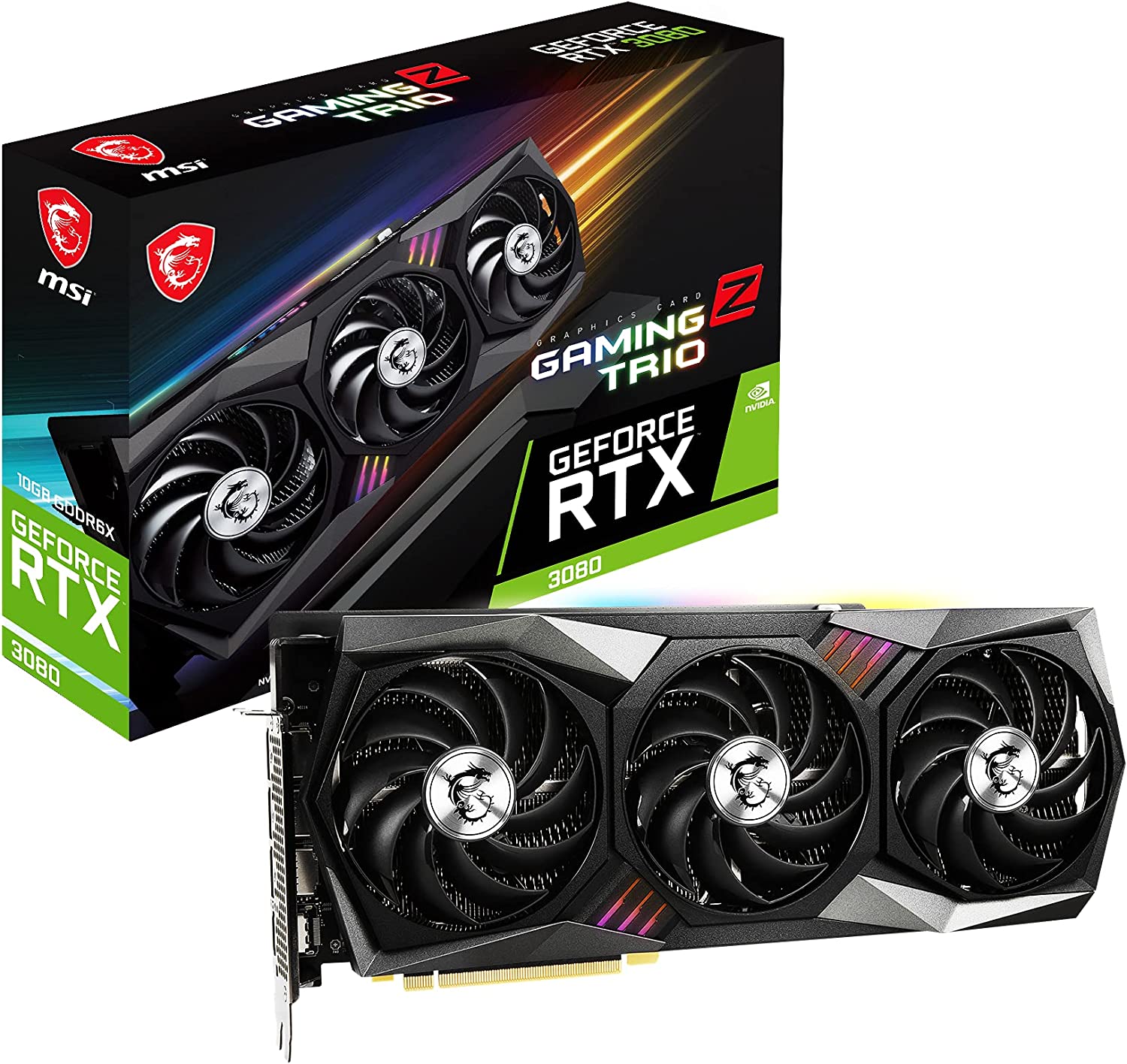
    MSI GeForce RTX 3080 Gaming X Trio

    MSI GeForce RTX 3080 Gaming X Trio Can I Use MSI Afterburner on Non MSI Cards

    The MSI GeForce RTX 3080 Gaming X Trio is what we consider to be a high-end graphics card for maximum gaming performance. The MSI GeForce RTX 3080 Gaming X Trio is packed with the latest Nvidia Ampere architecture, 10,496 CUDA cores and about 10GB of GDDR6X memory. 4K gaming is easy peasy with the MSI GeForce RTX 3080 Gaming X Trio.

    MSI Radeon RX 6700 XT Gaming X

    MSI Radeon RX 6700 XT Gaming X Can I Use MSI Afterburner on Non MSI Cards

    Over at the AMD side, we have the MSI Radeon RX 6700 XT Gaming X, possibly one of the best Radeon cards in the market right now. It’s packed with the latest RDNA 2 architecture, 2560 stream processors, and 12GB GDDR6 memory.

    MSI GeForce RTX 3060 Ti Gaming X Trio

    MSI GeForce RTX 3060 Ti Gaming X Trio Can I Use MSI Afterburner on Non MSI Cards

    The MSI GeForce RTX 3060 Ti Gaming X Trio is the RTX 3080’s younger brother, and is just as powerful minus the price tag. The MSI GeForce RTX 3060 Ti Gaming X Trio features the latest Ampere architecture and 8GB of GDDR6 memory. 1440p gaming is effortless with the MSI GeForce RTX 3060 Ti Gaming X Trio in tow.

    MSI Radeon RX 5700 XT Gaming X

    MSI RAdeon RX 5700 XT Can I Use MSI Afterburner on Non MSI Cards

    Another great MSI product is the MSI Radeon RX 5700 XT Gaming X, also packed with the latest RDNA architecture and features 8GB GDDR6 memory and 2560 stream processors. It’s not that expensive compared to the RX 6700 XT variant, making it a great and powerful alternative.

    MSI GeForce GTX 1660 Ti Gaming X

    MSI GeForce GTX 1660 Ti Gaming X Can I Use MSI Afterburner on Non MSI Cards

    The MSI GeForce GTX 1660 Ti Gaming X is the most affordable amongst all the other graphics card on this short list, but it doesn’t mean that it’s an underperforming card. For the price you pay, you get 1536 CUDA Cores and 6GB GDDR6 memory. The MSI GeForce GTX 1660 Ti Gaming X doesn’t disappoint as it can deliver 1080p and 1440p gaming resolution without difficulty.

    What Are Some Of The Top Non MSI Graphics Cards

    While MSI is a well-known brand in the computer hardware industry, there are also other non-MSI graphics card brands that offer high-quality products for high-performance gaming. In this article, we’ll take a look at some of the top non-MSI graphics cards for high-performance gaming.

    Nvidia GeForce RTX 3080

    Geforce RTX 3080 Can I Use MSI Afterburner on Non MSI Cards

    When we’re talking about non MSI products, the Nvidia GeForce RTX 3080 is a powerful contender (at least outside of the RTX 4000-series). The Nvidia GeForce RTX 3080 has the same Ampere architecture, 10,496 CUDA cores, and 10GB GDDR6 memory clock speed.

    Will the MSI Afterburner work with the Nvidia GeForce RTX 3080? It definitely will, but again, don’t risk overclocking. There are better overclocking tools out there for the Nvidia GeForce RTX 3080.

    AMD Radeon RX 6900 XT

    AMD Radeon RX 6900 XT Can I Use MSI Afterburner on Non MSI Cards

    The AMD Radeon RX 6900 XT is just as powerful as the RTx 3080, and more affordable too. The AMD Radeon RX 6900 XT features the latest RDNA 2 architecture, 16GB GDDR6 memory, and 5,120 stream processors. 4K resolution gaming won’t be a problem for the AMD Radeon RX 6900 XT.

    Nvidia GeForce RTX 3070

    Nvidia GeForce RTX 3070 Can I Use MSI Afterburner on Non MSI Cards

    The Nvidia GeForce RTX 3070 is a mid-range graphics card with the best performance-t0-price ratio. Its specs are slightly less powerful than the RTX 3080 but way above the RTX 3060. The Nvidia GeForce RTX 3070 features 8GB GDDR6 memory, 5,888 CUDA cores, and the latest developments in ray tracing and AI processing.

    AMD Radeon RX 6800 XT

    AMD Radeon RX 6800 XT Can I Use MSI Afterburner on Non MSI Cards

    Another high-end product from the Radeon line of graphics card is the AMD Radeon RX 6800 XT, and it’s also more affordable than the RTX 3000-series graphics cards. The AMD Radeon RX 6800 XT packs 4,608 stream processors and 16GB GDDR6 memory, but will the MSI Afterburner work with it? Yes!

    Nvidia GeForce GTX 1660 Super

    Nvidia GeForce GTX 1660 Super Can I Use MSI Afterburner on Non MSI Cards

    Nvidia GeForce GTX 1660 Super is a mid-range GPU with incredible performance and great pricing. At 6GB GDDR6 memory and 1,408 CUDA cores, it’s more than capable of running a lot of modern AAA games at high to ultra settings and at 1080p or 1440p resolutions.

    The Wrap Up

    MSI Afterburner gives you complete control over all MSI made graphics cards and non MSI GPUs. MSI products are known for their durability, reliability, and price-to-performance ratio, but these are taken one step further with the MSI Afterburner.

    But does MSI Afterburner work with a non MSI card? It depends. MSI Afterburner works with MSI products and certain non MSI GPUs. If you have a non MSI product, MSI Afterburner can still monitor clock speed, GPU temperatures, and GPU usage but that’s about it.
  • Top 7 Low-Profile CPU Coolers for High-Performance and Space-Saving Builds

    Top 7 Low-Profile CPU Coolers for High-Performance and Space-Saving Builds

    Low profile CPU coolers are an essential component for building a gaming PC with a compact form factor. As the name suggests, these coolers are designed to be small in size and offer effective cooling performance for CPUs with limited clearance in smaller computer cases. They are especially popular for use in mini-ITX and micro-ATX builds, where space is at a premium, and traditional tower coolers may not fit or interfere with other components. Despite their smaller size, low profile coolers can still provide adequate cooling for powerful CPUs, making them an excellent choice for gamers who want a powerful gaming rig without sacrificing space or aesthetics. In this guide, we will explore the benefits of low profile CPU coolers, discuss their various types and features, and provide recommendations for the best low profile coolers on the market.

    What’s The Best Low Profile CPU Cooler?

    Here is our curated list of the some of the best low profile coolers in the market right now. This is not arranged in any particular order, and a couple of these coolers are on the list due to personal experience.

    ARCTIC Low Profile CPU Cooler

    ARCTIC Alpine 12 LP - CPU Cooler Best Low Profile CPU Cooler

    Specifications

    • Fan size: 92 mm
    • Fan speed: 2000 RPM
    • Fan noise level: 35.8 dBA
    • Socket Compatibility: Intel LGA1151/1150/1155/1156/1200
    • Dimensions (L X W X H): 95 x 95 x 53.5 mm/3.74 x 3.74 x 2.10 inch
    • Warranty: 1 year

    Why it’s good

    • Affordable and high-performing CPU cooler
    • A solid go-to pick for when your old CPU cooler needs to be replaced ASAP

    Why it’s terrible

    • AMD socket compatibility

    Arctic is a brand that needs no introduction as they’re known for their entry-level and high-end CPU coolers that provide great performance without breaking the bank.

    On this list is the Arctic Alpine 12 LP, one of the smaller CPU coolers perfect for small form factor PC builds. A couple of years ago, I had the opportunity to use the Arctic Alpine 12 LP on my wife’s PC build. It’s one of the cheaper coolers in the market that gives better cooling performance than some of the high end CPU coolers,.

    This small CPU cooler doesn’t make a lot of noise even when under heavy load. My wife did a lot of rendering back then and the noise levels on the Arctic Alpine 12 LP was manageable. At most, it sounded like a small electric fan wheezing in a bedroom.

    We’re inclined to name this the best low profile CPU cooler just because of our firsthand experience with the Arctic Alpine 12 LP.

    ID-COOLING IS-30 Low Profile CPU Cooler

    ID-COOLING IS-30 30mm Height Mini-ITX Low Profile Cooler Best Low Profile CPU Cooler

    Specifications

    • Fan size: 92 mm
    • Fan speed: 3600 RPM
    • Fan noise level: 35.8 dBA
    • Socket Compatibility: Intel LGA1151/1150/1155/1156/1200 and AMD AM4/FM2+/FM2/FM1/AM3+/AM3/AM2+/AM2
    • Dimensions (L X W X H): 93 x 100 x 30 mm/3.66 x 3.93 x 1.18 inch
    • Warranty: 2 year

    Why it’s good

    • Perfect for small mini ITX cases
    • Great cooling performance
    • Budget-friendly

    Why it’s terrible

    • Noise levels are unbearable at times

    Like the Arctic brand, ID-Cooling is another one of those recognizable brands in the CPU cooling market. The ID-Cooling IS-30 is one of their most popular models right now when it comes to low profile CPU coolers.

    The ID-Cooling IS-30 is smaller than most of the low profile CPU coolers on here, so it’s a perfect choice if you want to go for smaller mini ITX form factor cases. Heat dissipation and cooling power is still above average given its size and price tag too.

    The only downside is that the ID-Cooling IS-30 makes a lot of noise under heavy loads compared to the other coolers. Some users are fine with this downside mostly because the affordability and power easily makes it worth getting.

    StarTech ‎FAN3701U

    StarTech.com 1U 60x10mm Best Low Profile CPU Cooler

    Specifications

    • Fan size: 60 mm
    • Fan speed: 4800 RPM
    • Fan noise level: 28 dBA
    • Power consumption: 2.64 watts
    • Socket Compatibility: Socket A and Socket 370
    • Dimensions (L X W X H): 100 x 30 x 146 mm/3.94 x 1.18 x 5.75 inch
    • Warranty: 1 year

    Why it’s good

    • Decent small form factor CPU cooler
    • Great fan speed rating
    • Overall great value

    Why it’s terrible

    • Does not work with AMD sockets

    The StarTech ‎FAN3701U is one of the budget-friendly CPU coolers on this list, and just like the Arctic and ID-Cooling, you get your money’s worth when it comes to its cooling power and heat dissipation.

    At 60mm, it’s one of the smallest low profile CPU coolers, which makes it a decent investment for small form factor builds. Fan speeds go as high as 4800RPM, which is considered above average despite being a compact cooler.

    The downside here is its incompatibility with AMD sockets, so if you have an AMD motherboard, you’re better off with something else.

    Cooler Master MasterAir G200P

    Cooler Master MasterAir G200P RGB Low-Profile Best Low Profile CPU Cooler

    Specifications

    • Fan size: 92 mm
    • Fan speed: 2600 RPM
    • Fan noise level: 28 dBA
    • Socket Compatibility: Intel LGA1151/1150/1155/1156/1200/1366/2011/2066 and AMD AM4/FM2+/FM2/FM1/AM3+/AM3/AM2+/AM2
    • Dimensions (L X W X H): 94 x 91 x 40 mm/3.7 x 3.6 x 1.6 inch
    • Warranty: 2 year

    Why it’s good

    • Can’t say no to RGB lighting
    • Great compatibility with most modern motherboards
    • Also one of the smaller CPU coolers in the market

    Why it’s terrible

    • It makes a lot of noise despite its size

    Cooler Master is one of the most popular brands of PC paraphernalia and peripherals, and their lines of CPU coolers are no exception. Introducing the Cooler Master Masterair G200P, possibly their best low profile CPU cooler to date.

    The size of the Cooler Master Masterair G200P isn’t your average low profile cooler too. It’s about 30mm bigger than most of the air coolers on this list, but it’s still small enough to fit into mini ITX gaming PC motherboards without difficulty.

    The Cooler Master Masterair G200P goes up to 2600RPM, so it’s kind of loud when it goes into overdrive. But it makes up for it with its awesome performance and an even better 2-year manufacturer warranty.

    If you’re planning to upgrade your stock coolers, the Cooler Master Masterair G200P is a great pick.

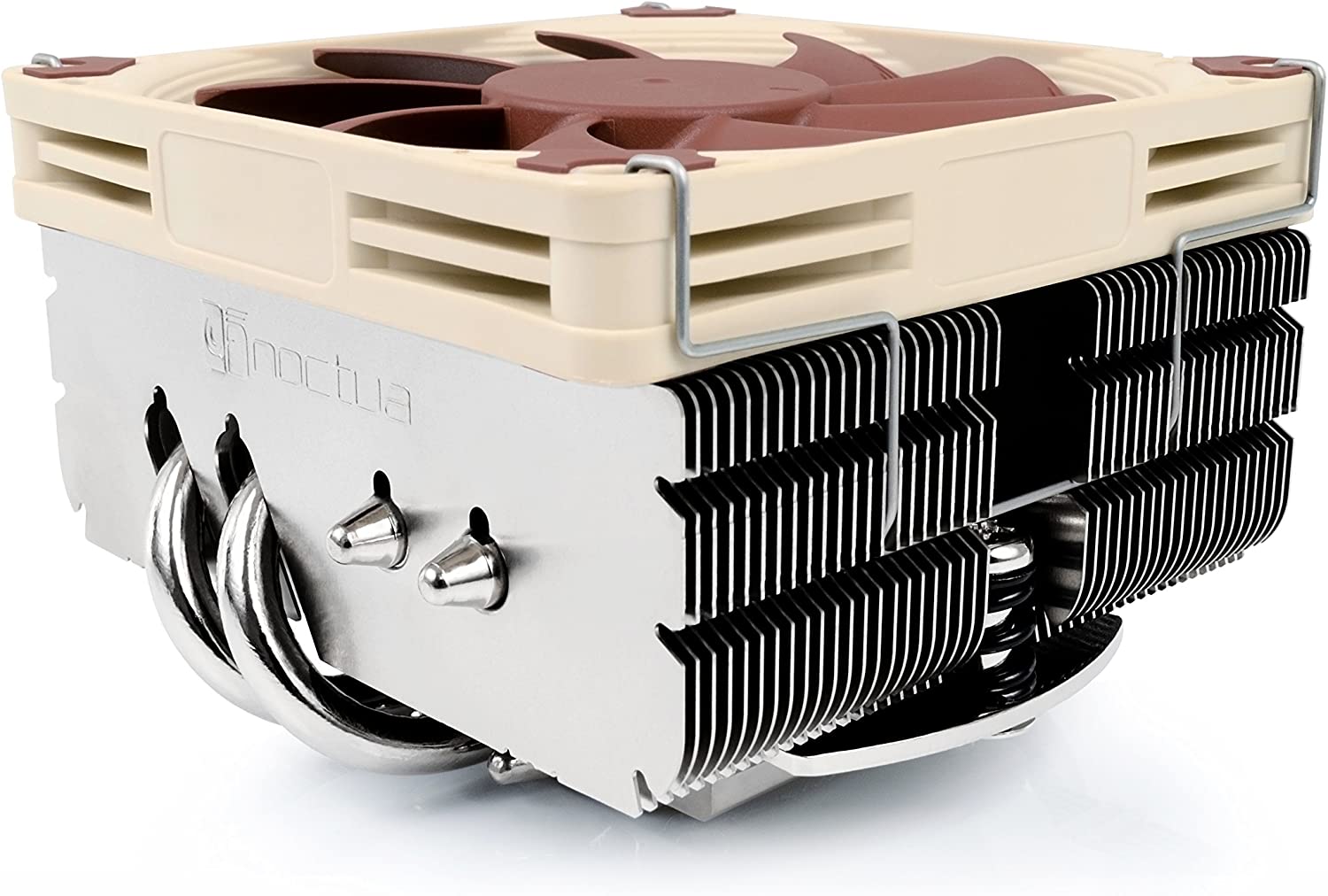
    Noctua NH-L9x65

    Noctua NH-L9x65, Premium Low-Profile Best Low Profile CPU Cooler

    Specifications

    • Fan size: 92 mm
    • Fan speed: 2500 RPM
    • Fan noise level: 24.6 dBA
    • Socket Compatibility: Intel LGA1151/1150/1155/1156/1200/2011/2066 and AMD AM4/FM2+/FM2/FM1/AM3+/AM3/AM2+/AM2
    • Dimensions (L X W X H): 95 x 50 x 95 mm/3.74 x 2 x 3.74 inch
    • Warranty: 6 year

    Why it’s good

    • Excellent cooling power
    • Reliable and durable
    • Compatible with both AMD and Intel Sockets

    Why it’s terrible

    • Cooler height might be an issue since it’s taller than other low profile CPU coolers

    Noctua coolers are reputably to be the best in the market right now due to their sheer cooling power and affordability. And when we say affordability, you get your money’s worth for any of their coolers (maybe even more).

    On this list we have the Noctua NH-L9x65 and it’s a strong contender for the best low profile CPU cooler. Despite its height, the Noctua NH-L9x65 fits right into any mini ITX case, but you’d still need to make sure that there’s enough clearance between the cooler and RAM slots.

    The Noctua NH-L9x65 operates at about 2500RPM under heavy workloads without making a lot of noise. Another point to Noctua!

    In terms of reliability, Noctua coolers come with a 6-year warranty too. Noctua will be more than happy to replace malfunctioning coolers within that period without hesitation. Third-party reviews from users with regard to their warranty are also positive.

    Be Quiet! Shadow Rock LP (BK002)

    be quiet Shadow Rock LP BK002 Best Low Profile CPU Cooler

    Specifications

    • Fan size: 120 mm
    • Fan speed: 1500 RPM
    • Fan noise level: 25.5 dBA
    • Power Consumption: 1.1 watts
    • Socket Compatibility: Intel LGA775/1151/1150/1155/1156/1366/2011 and AMD AM4/FM2+/FM2/FM1/AM3+/AM3/AM2+/AM2
    • Dimensions (L X W X H): 160 x 140 x 170 mm/6.3 x 5.51 x 6.69 inch
    • Warranty: 3 year

    Why it’s good

    • Excellent cooling performance
    • Silent under heavy loads
    • Reliable

    Why it’s terrible

    • Cooler height might be an issue

    Much like Noctua coolers, Be Quiet coolers are considered to be the best by a lot of builders for their adequate performance and price tag. And the Be Quiet! Shadow Rock LP (BK002) is proof of that.

    The Be Quiet! Shadow Rock LP (BK002)’s downside is that it might be a bit bigger for a mini ITX board, so you’ll need to double check with your RAM slots’ clearance. But other than that, the Be Quiet! Shadow Rock LP (BK002) just has a lot to offer.

    The Be Quiet! Shadow Rock LP (BK002) comes with a 120mm fan, which is perfect for high end CPUs. Fan noise levels aren’t an issue because the Be Quiet! Shadow Rock LP (BK002) operates at 1500RPM at maximum capacity.

    Scythe Shuriken 2

    Scythe Shuriken 2 CPU Air Cooler Best Low Profile CPU Cooler

    Specifications

    • Fan size: 92 X 92 X 15 mm PWM/4 PIN
    • Fan speed: 1900 RPM
    • Socket compatibility: Intel LGA 775/1151/1150/1155/1156/1200/1366 and AMD AM4/FM2(+)/FM1/AM3(+)/AM2(+)
    • Dimension (W X D X H): 94 X 93 X 58 mm

    Why it’s good

    • Adequate cooling performance
    • No height issues with RAM or PCI-E cards on mini ITX boards
    • Affordable and reliable

    Why it’s terrible

    • No manufacturer warranty
    • It’s like having a mini airplane in your room with how noisy it is.

    The Scythe Shuriken 2 is one of the most affordable and compact coolers you’ll ever see. On a personal note, I have the Scythe Shuriken 2 installed in my son’s gaming PC. The installation process was easier than anticipated and there were no issues with interference with memory modules and graphics cards on the mini ITX board.

    The Scythe Shuriken 2 comes with a 92mm fan, which explains why there was no issue with RAM clearance or GPU clearance. The PC had an RTX 2080 equipped, and even then, we had no issues with the sizing or fitting.

    Our only concern here is that it doesn’t come with manufacturer warranty. We did have a store warranty that’d replace it within a year after purchase, but only if it was no longer working.

    The noise levels were also bearable, even though some people don’t like the sheer buzzing noise when it was under heavy workload.

    Short Buying Guide For Low Profile CPU Coolers

    When it comes to buying a low profile CPU cooler for your gaming PC, there are several factors to consider. Here are some of the key things to keep in mind:

    1. Compatibility: Before buying a low profile CPU cooler, check its compatibility with your CPU socket type. Most coolers will support multiple sockets, but it’s essential to ensure that the cooler you choose will fit your specific CPU.
    2. Height: The height of the cooler is a critical consideration when it comes to low profile coolers. Make sure to measure the distance between the top of your CPU and the side panel of your computer case to ensure that the cooler you choose will fit.
    3. Cooling performance: While low profile coolers are designed to be compact, they should still offer effective cooling performance to keep your CPU temperature in check. Look for coolers with larger heatsinks, high-quality fans, and heat pipes to ensure that your CPU is adequately cooled.
    4. Noise level: The noise level of the cooler is another important consideration, especially if you are building a quiet PC. Look for coolers with low dB ratings, and check reviews to see how loud they are in practice.
    5. Build quality: A good low profile CPU cooler should be built with high-quality materials and components to ensure longevity and durability. Look for coolers with sturdy mounting mechanisms and well-designed heatsinks.
    6. Price: Low profile CPU coolers can vary in price, with some more affordable options offering excellent value for money. Consider your budget and choose a cooler that offers the best balance of features and price for your needs.

    Some of the best low profile CPU coolers on the market include the Noctua NH-L12S, the Cryorig C7, and the Scythe Big Shuriken 3. However, there are many other options available, and it’s important to do your research and choose the one that best fits your needs and budget.

    The Wrap Up

    In conclusion, low profile CPU coolers offer an efficient and compact solution for building powerful gaming PCs in smaller cases. They come in various designs and sizes, with different features and cooling capabilities, allowing gamers to choose the one that fits their specific needs and requirements. When building a gaming PC with limited space, a low profile cooler is an essential component to consider, as it not only helps keep the CPU temperature in check but also ensures that other components are not obstructed or damaged by bulky coolers. With the growing popularity of small form factor builds, low profile CPU coolers are becoming more prevalent and sophisticated, providing gamers with a wider range of options to choose from. Overall, a good low profile CPU cooler is an investment that can improve the performance, longevity, and aesthetics of any gaming PC.

  • Top Picks: Best Laptop for Graphic Design in (Jul 2026)

    Top Picks: Best Laptop for Graphic Design in (Jul 2026)

    Laptops have become an essential tool for graphic designers who need to work on-the-go or in different locations. With the increasing demand for high-quality visuals, designers need a laptop that can keep up with their demanding workloads. A laptop for graphic design needs to have a powerful processor, a dedicated graphics card, ample storage, and a high-resolution display to accurately showcase the design work. In this article, we’ll explore the features and considerations to keep in mind when choosing a laptop for graphic design.

    Our Handpicked List of The Best Laptops for Graphic Design

    Graphics designers who make money using their laptop won’t regret purchasing any one of our handpicked laptops for graphic design. Whether you want a Windows laptop or an Apple Macbook, you’ll find one that’ll meet your needs.

    MacBook Pro 16-inch (2021)

    An Overall Great Choice for Macbook Fans

    Apple 2021 MacBook Pro Best Laptop for Graphic Design

    SPECIFICATIONS

    • CPU: Apple M1 Pro 10-core – M1 Max 10-core
    • Graphics: Integrated 16-core – 32-core GPU
    • RAM: Up to 64GB
    • Screen: 16.2-inch Liquid Retina XDR display
    • Storage: Up to 8TB

    Good:

    • Long battery life
    • Plenty of ports available

    Bad:

    • Larger than your typical Macbook
    • Still expensive after two years

    One of the most solid investments you can ever make is to get yourself an Apple Macbook Pro 2021. Recent versions are even better.

    Unlike your Macbook Air, the Apple Macbook Pro does not shy away from hiding its power. And like all of the Apple products, you can get full customization of the specs. You can go for 8TB SSD and up to 64GB of RAM. Combined with its powerful M1 chip and a 16.2-inch Liquid Retina XDR display, the Apple Macbook Pro is a must-have for graphic designers.

    And like most Apple products, the Apple Macbook Pro is on the expensive side. It’s still a whopping $2,100+ or so, and for a good reason.

    MacBook Pro 14-inch (2021)

    A Smaller Macbook Pro Alternative

    Apple 2021 MacBook Pro 14 Best Laptop for Graphic Design

    SPECIFICATIONS

    • CPU: Apple M1 Pro 8-core – M1 Max 10-core
    • Graphics: Integrated 14-core – 32-core GPU
    • RAM: Up to 64GB
    • Screen: 14-inch Liquid Retina XDR display
    • Storage: Up to 8TB

    Good:

    • Small and powerful

    Bad:

    • Screen may be too small for graphic designers
    • Just priced $200 cheaper than the larger Macbook Pro, which is still expensive

    The 14-inch Macbook Pro is something new that Apple offered recently. The 14-inch Macbook Pro is an improvement over the older 13-inch variants, and is just as powerful as the 16-inch version above.

    The 14-inch Macbook Pro also has the same specs as the 16-inch version, so there’s not much difference here aside from the screen size. If you’re particular about bringing around a heavy or large laptop, then the 14-inch Macbook Pro is something to consider.

    But don’t hold out just yet as we have other smaller laptops on this list.

    Dell XPS 17 (2021)

    Possibly The Best Big-Screen Laptop for Graphic Designers

    2021 Newest Dell XPS 17 Laptop 9710 Best Laptop for Graphic Design

    SPECIFICATIONS

    • CPU: Up to 11th Generation Intel Core i9-11980HK
    • Graphics: Up to NVIDIA GeForce RTX 3060 6GB GDDR6
    • RAM: Up to 64GB DDR4-3200MHz
    • Screen: 17.0″ FHD+ (1920 x 1200) InfinityEdge Non-Touch Anti-Glare 500-Nit – 17.0″ UHD+ (3840 x 2400) InfinityEdge Touch Anti-Reflective 500-Nit
    • Storage: Up to 4TB M.2 PCIe NVMe

    Good:

    • Large screen size
    • Not as thick as other 17-inch laptops
    • Cheaper than Macbook Pro

    Bad:

    • Mediocre battery life

    As a graphic designer, you want a lot of screen real estate even for a laptop. And we have just that: the Dell XPS 17. The Dell XPS 17 comes with a 17-inch UHD screen with HDR resolution, so graphic designing or video editing on this beast.

    The Dell XPS 17 comes with an Intel Core i9 processor (upgradeable to 11th generation) and various choices for:

    • up to 64GB of RAM
    • up to Nvidia GeForce RTX 3060
    • up to 4TB M.2 PCIe NVMe SSD

    The Dell XPS 17 could be confused for a gaming laptop, given that it’s powered by an Intel Core i9 processor and an Nvidia GeForce RTX 3060, which is insane. It’s $100 cheaper than the Macbook Pro 14-inch and about $300 cheaper than the Macbook Pro 16-inch variant. If you want a lightweight laptop but don’t want to spend money on an Apple Macbook, then the Dell XPS 17 is your go-to graphic design laptop.

    And with power like this, you’d assume that the Dell XPS 17 would end up big and bulky like a typical gaming laptop but that’s not the case here. It’s slimmer and lighter than the XPS 13 and XPS 15 laptops. Ultimately, the best choice for graphic design for its sheer power, size, and utility.

    The downside here is its battery life. We’re just not impressed with a 2-hour run time on battery, which could be lower if you’re doing graphic design work. However, no one ever does graphic design work on an unplugged laptop because the dedicated GPU won’t work. You’re getting graphics processing power from the integrated graphics, which is slower than your dedicated GPU.

    Acer Concept D7

    A Decent Alternative For Creatives On The Move

    Acer ConceptD 7 CN715-71-70LR Creator Laptop Best Laptop for Graphic Design

    SPECIFICATIONS

    • CPU: 9th-generation Intel Core i7
    • Graphics: NVIDIA GeForce RTX 2060 – 2080
    • RAM: 16GB – 32GB
    • Screen: 15.6″ 4K UHD (3840 x 2160) 16:9 IPS
    • Storage: 1TB

    Good:

    • Cheaper than the Macbook Pro but just as powerful
    • Decent number of ports

    Bad:

    • Bulkier than the Macbook Pro or Dell XPS 17

    The Acer Concept D7 is another alternative to either the Dell XPS 17 or the Macbook Pro. This 15-inch laptop packs a 4K UHD resolution at 16:9 IPS, so everything just looks so good on the screen.

    Underneath this simplistic laptop, you get a 9th generation Intel Core i7 processor, up to 32GB of RAM, and choice between Nvidia GeForce RTX 2060 or 2080. Needless to say, the graphics performance alone on the Acer Concept D7 is impressive. It’s not the best laptop for graphic design for everyone, but someone somewhere will probably need this more than any of the laptops mentioned above.

    The specs of the Acer Concept D7 competes with gaming laptops of the same make and price tag, minus the RGB lighting and other fancy aesthetics. While we say that this is bulkier than the Macbook Pro, it’s still considered by many creative professionals as a lightweight laptop.

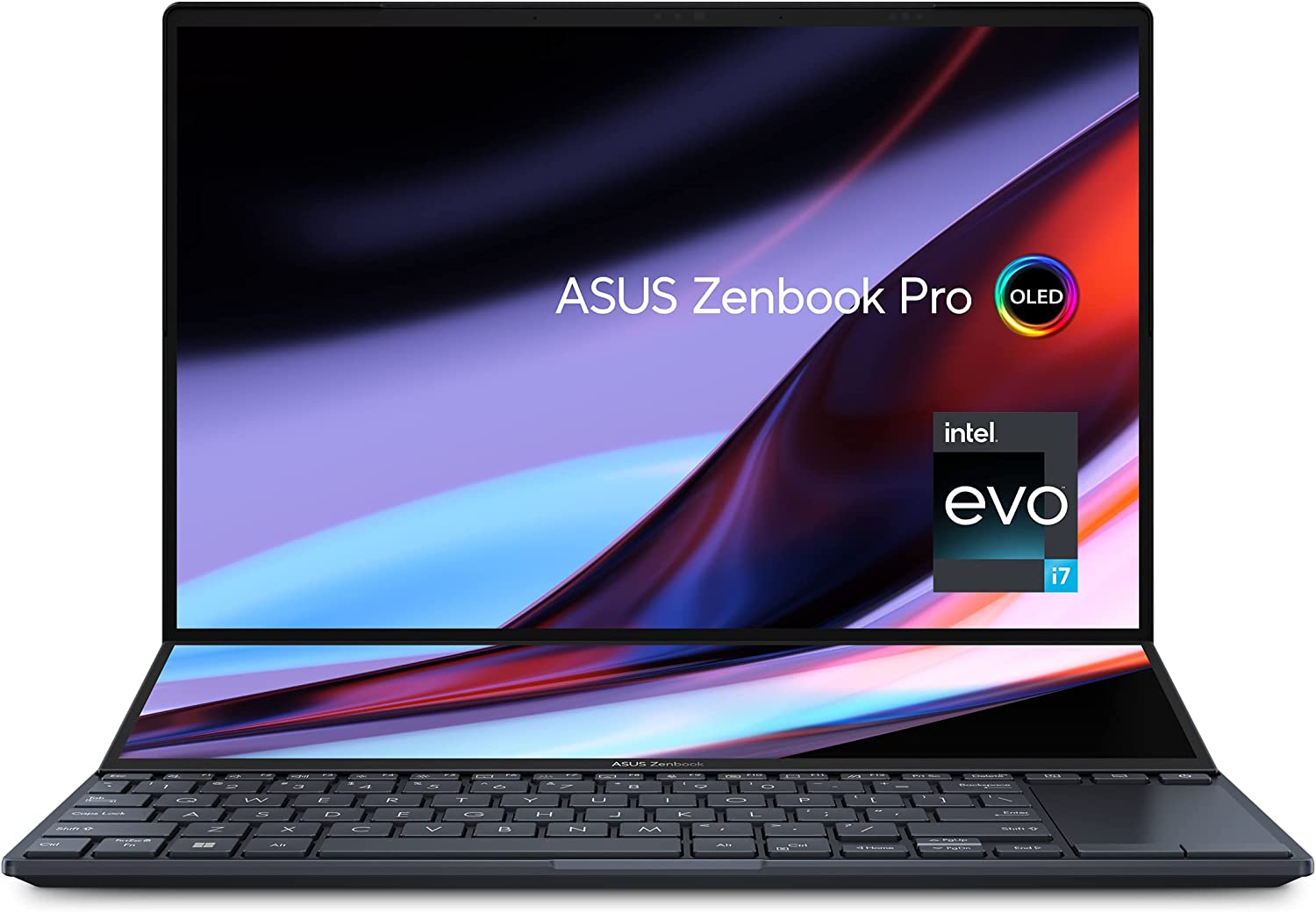
    Asus Zenbook Pro 14 Duo OLED (2022)

    Compact Dual-Screen Laptop for Graphic Design

    Zenbook Pro 14 Duo OLED Best Laptop for Graphic Design

    SPECIFICATIONS

    • CPU: Intel Core i9-12900H (14-core)
    • Graphics: Intel Iris Xe or Nvidia RTX 3050 Ti 4GB
    • RAM: 32GB DDR5
    • Screen: 14.5-inch 2880 x 1800 120Hz OLED, 12.7-inch 2880 x 864 IPS
    • Storage: 1TB SSD

    Good:

    • Dual screen laptop. Enough said.
    • Decent specs

    Bad:

    • Screen size is mediocre
    • Battery life is also mediocre

    Where do we even begin with the Asus Zenbook Pro 14 Duo OLED?

    Oh right. The dual screen feature. The main screen is 14.5-inches at 2880×1800 resolution with 120Hz refresh rate while you’re getting a secondary screen at 2880×864 IPS. Goes without saying that this might be one of the best laptops for graphic design solely because of the dual screen feature.

    The second screen is a Touch Bar on steroids, so you can freely move apps and tools to and from the bottom screen. The screen is also compatible with a stylus, so you can turn it into a makeshift tablet too.

    The power underneath the chassis is also just as impressive as the screens themselves. You’re getting a 12th generation Intel Core processor, 32GB of RAM, 1TB of SSD storage, and choice between an Intel Iris XE graphics card or an Nvidia RTX 3050 Ti graphics card. The Asus Zenbook Pro 14 Duo OLED is more than capable of running any graphic design software. With its gorgeous display, colors are vibrant and with better contrast. Just perfect for graphic designers and other creative professionals.

    The price tag of the Asus Zenbook Pro 14 Duo OLED is close to the Apple Macbook Pro, but it definitely has better features. It’s a powerful laptop despite its size and can guarantee at least an impressive performance for gaming and creative work.

    Choosing The Best Laptop For Graphic Design

    So how do you pick the which of the best laptops for graphic design is right for your work? Clearly you’ll be guided by what you can afford, which is why we have the best options for all budgets here. But there are a few other things to consider too. 

    That said, here are some factors to consider when selecting a laptop for graphic design:

    1. Processor: A powerful processor is essential for graphic design work. Intel Core i7 or i9, or AMD Ryzen 7 or 9 are good options to consider.
    2. Graphics card: Look for a laptop with a dedicated graphics card, such as an NVIDIA GeForce or AMD Radeon. These cards can handle the demands of graphic design software and help improve performance.
    3. Display: A high-quality display is crucial for graphic design work. Look for a laptop with an IPS or OLED display, as these offer better color accuracy and viewing angles.
    4. RAM: The more RAM you have, the better your laptop will perform when working on complex graphic design projects. Look for a laptop with at least 16GB of RAM.
    5. Storage: You’ll need plenty of storage space to store your design files and software. Consider a laptop with a fast SSD, which can improve the speed of opening and saving files.
    6. Portability: If you plan on using your laptop for work on the go, consider a lightweight and compact design. However, keep in mind that more powerful laptops may be heavier and bulkier.
    7. Battery life: Look for a laptop with long battery life, especially if you’ll be using it for extended periods without access to a power outlet.
    8. Brand and customer support: Choose a laptop from a reputable brand with good customer support. This will help ensure that you can get help if you encounter any issues with your laptop.

    What Specs Should Go Into Graphic Design Laptops?

    When buying a laptop for graphic design, you’ll need to take into account the specifications of the models you’re researching, but what are the kind of specs you need?

    For a good graphic design laptop, you’ll want a modern processor from either Intel or AMD. When it comes to MacBooks, Apple has its own chip – the M1 – which performs brilliantly as well. We recommend an 11th gen Intel or AMD Ryzen 4000 mobile processor if you want to future-proof the laptop.

    When it comes to RAM, the more you have, the better, especially if you want to multitask. We suggest a minimum of 8GB RAM, but ideally 16GB if your budget can stretch to it.

    A dedicated graphics card is also worth thinking about, especially for graphically intensive workloads. However, these can up the price of a laptop considerably, and modern integrated GPUs are good enough for day-to-day graphic design use.

    What’s Our Pick For The Best Laptop for Graphic Design?

    From this list of the best laptops for graphic designers, we’re inclined to go with the Dell XPS 17 and Acer Concept D7.

    For the price you’re paying, the performance of either laptop is up there and competes with modern gaming laptops even. You can do graphic design work and video editing on these laptops, possibly even 3D animation and modeling. If you can live with its mediocre battery life, the Dell XPS or Acer Concept D7 is a solid pick.

    If you want a laptop with amazing battery life, then the Macbook Pro is your go-to laptops for graphic design.

    The Wrap Up!

    In conclusion, finding the right laptop for graphic design can make a significant impact on your workflow and productivity. With the right combination of performance, display, and portability, a laptop can help you bring your design ideas to life no matter where you are. Remember to consider your specific needs and preferences when selecting a laptop, such as the size, weight, battery life, and connectivity options. With so many options on the market, it can be overwhelming to choose the best laptop for graphic design, but by keeping these factors in mind, you’ll be well on your way to finding the perfect laptop to meet your design needs. So whether you’re a professional graphic designer or a creative hobbyist, invest in a quality laptop that will enable you to showcase your design skills to the fullest.

  • Crucial SSD Vs Samsung – Which Is Better?

    Crucial SSD Vs Samsung – Which Is Better?

    Solid-state drives, or SSDs, are storage devices that utilize NAND-based flash memory to store data. Unlike your traditional hard disk drive or HDD, which uses disks with read/write heads to access data, SSDs have no moving parts and only rely on electronic circuits for data storage and retrieval. Simply put, SSDs have a higher performance than your traditional hard drive.

    In this article, we’ll review two of the most popular SATA SSD brands in the market now: Crucial SSD vs Samsung. We’ll go over which brand provides faster sequential write speeds, very high sequential write speeds and read speeds, better overall performance, and all the important aspects that affect how the average user shops for an SSD.

    A Brief Review of Crucial Brand of SSDs

    Crucial Brand of SSD Crucial SSD vs Samsung

    What’s Good About Crucial SSDs?

    Crucial is one of the biggest and most popular brands in the SSD market. Many users can attest to how well and reliable the brand is.

    But of the most important aspects we need to cover here is compatibility, and Crucial SSDs are known for just that. They’re compatible with a wide range of systems, so whether or not you have a new laptop or an old motherboard, you’ll find a Crucial brand of SSD to match it.
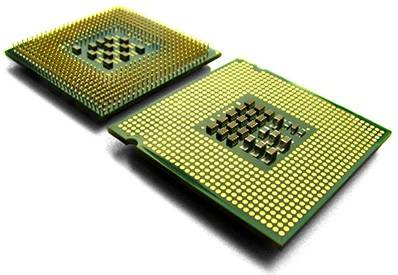
    Crucial is a reliable brand known for its affordability and excellent performance. Their read and write speeds quickly transfer large files to and from the SSD. Performance wise, Crucial is consistent across the board. Sequential Read speed and write speed are

    Another aspect that stands out with Crucial SSDs is their affordability. Compared to some of the other high-end SSD brands on the market, Crucial SSDs offer excellent value for money. They are often priced lower than their competitors without sacrificing performance, making them an attractive option for those who want to upgrade their system without breaking the bank.

    I highly recommend Crucial SSDs for their reliability, compatibility, and affordability. A Crucial drive is worth considering if you’re in the market for an SSD. The Crucial MX500 is their most popular SATA SSD offered.

    What’s Bad About Crucial SSDs?

    While Crucial SSDs are generally reliable and perform well, there have been some reports of issues with their customer support. Some users have needed help reaching Crucial’s support team and have experienced slow response times when resolving issues.
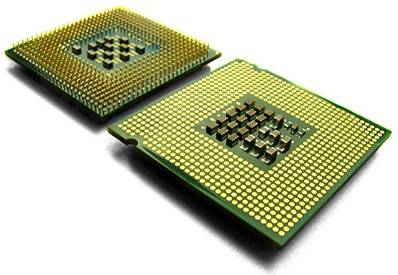
    Another drawback of Crucial SSDs is their relatively low write endurance. Crucial SSDs may last less long under heavy use compared to some high-end SSD brands. This may be fine for casual users, but those who frequently use their systems for intensive tasks may want to consider a more durable SSD option.

    Despite these drawbacks, Crucial SSDs are still a solid choice for those looking for a reliable and affordable SSD. Just be aware of the potential customer support issues, and do your research to find the best SSD option for your needs.

    A Brief Review of Samsung Brand of SSDs

    Samsung Brand Crucial SSD vs Samsung

    What’s Good About Samsung SSD?

    Samsung is a brand that needs no introduction. They’re known for making some of the world’s best appliances and mobile phones, and now they’re leaving their mark in the SSD market.

    I have a Samsung SSD installed on my PC and laptop, and they’re just amazing. I do video editing on my computer and transfer large files to and from the SSD to my HDD. Their products are generally known for their reliability, endurance, and overall quality.

    Samsung SSDs are known for their impressive read and write speeds and are consistently ranked top performers in several benchmark tests. Samsung’s SSDs also come with their proprietary software, the Samsung Magician, which allows users to optimize the performance of their SSD, monitor its health, and perform firmware updates.

    Another impressive feature of Samsung SSDs is their endurance. Samsung uses high-quality components in their SSDs, which means they can withstand a lot of read and write cycles before they degrade. This is particularly important for users who do a lot of heavy workloads or gaming, as it ensures that their SSD will last for a long time.

    Overall, Samsung SSDs are an excellent choice for users who want a reliable, fast, and durable storage solution. They may not be the cheapest SSDs in the market, but they are worth the investment.

    We strongly recommend getting Samsung EVO SSDs or the Samsung 860 EVO SSD if you want to invest. Both Samsung SSD models we recommended here fits all form factor of motherboards too.

    What’s Bad About Samsung SSD?

    While Samsung SSDs are known for their reliability and performance, they are not without their flaws. One of the most significant issues with Samsung SSDs is their price. They are generally more expensive than other brands of SSDs with similar specifications, which may not be appealing to budget-conscious users.

    Another area for improvement is Samsung’s customer support. While their SSDs are generally reliable, some users have reported issues with their drives, such as slow speeds or failure to detect. Unfortunately, Samsung’s customer support has been criticized for being unresponsive or difficult to work with in these cases, which can be frustrating for users who need immediate assistance.

    Additionally, Samsung SSDs can be complicated for novice users. Samsung’s proprietary software, the Samsung Magician, is powerful and allows users to optimize the performance of their SSD. Still, it may need to be more user-friendly for those who are tech-savvy.

    Lastly, while Samsung SSDs have impressive endurance, some users have reported that their endurance ratings are lower than advertised. This means that their SSDs may degrade faster than expected, which can be a concern for users who need a reliable and durable storage solution.

    Overall, Samsung SSDs are a good choice for users who prioritize performance and endurance over price. However, users should be aware of their customer support issues and be prepared to invest time into learning how to use the Samsung Magician software.

    When choosing an SSD, Crucial and Samsung are two of the most popular brands on the market. While both offer high-quality products, some key differences can help you decide which is best for your needs.

    Side by Side Comparison of Crucial and Samsung SSDs

    Speed and Performance

    Crucial and Samsung SSDs offer fast, random write speeds and reliable performance. However, Samsung tends to provide slightly quicker read and write rates than Crucial, making it a better choice for those prioritizing speed and performance.

    Capacity

    Crucial SSDs offer slightly better performance and a larger storage capacity than Samsung at lower price points, making it a better choice for those who need a lot of storage without breaking the bank.

    Reliability

    Both brands have a solid reputation for reliability, but Samsung SSDs tend to be more durable and long-lasting. They are also backed by a more extended warranty period than Crucial SSDs.

    Their reliability is similar unless you really end up with a defective model. And even then, defects shouldn’t be held against the manufacturer.

    Price

    While both brands offer competitive prices, Crucial SSDs are cheaper than Samsung, making them a better choice for those on a budget.

    What Are You Looking For When Buying a New SSD?

    1. Storage capacity: The first and most important thing to consider is your needed storage capacity. Determine your storage needs and choose an SSD with a capacity that will meet those needs. SSDs are available in various capacities, from 128GB to multiple terabytes.
    2. Read/Write speeds: SSDs are much faster than traditional hard drives, but not all SSDs are created equal. Look for an SSD with high read and write speeds. This will ensure your computer boots up quickly and programs load fast.
    3. Interface: The interface of the SSD is also essential to consider. SATA III is the most common interface for SSDs, but newer models use NVMe, which is much faster. However, not all computers support NVMe, so check your computer’s specifications before purchasing an NVMe SSD.
    4. Endurance and lifespan: SSDs have a limited lifespan and can only handle a certain number of write cycles. Look for an SSD with a high endurance rating, ensuring it lasts longer.
    5. Brand reputation and customer reviews: Look for reputable brands with positive customer reviews. This will help ensure that you get a reliable SSD that will meet your needs and last a long time.
    6. Price: Finally, consider the cost. SSDs can be expensive, but they are a worthwhile investment if you need fast and reliable storage. Compare prices and features to find the best SSD for your budget.

    Choosing between Crucial and Samsung SSDs depends on your specific needs and priorities. If you’re looking for the fastest speeds and are okay with paying more, Samsung is the way to go. Crucial is the better option if you need a lot of storage without breaking the bank. However, both brands offer high-quality products that will satisfy any user.

  • Is EVGA a Good Brand?

    Is EVGA a Good Brand?

    Believe it or not, Nvidia does not produce its own graphics cards. Instead, AMD and Nvidia sell their chips and architectures to manufacturers who’ll produce these graphics cards. Here’s a caveat: the chips sold to these manufacturers will never have the maximum clock speed. Nvidia and AMD will keep these chips for themselves.

    When AMD or Nvidia manufactures the same chips, they won’t always have the same clock speed (boost or base). The discrepancy in the frequency is minimal at best, so you won’t even notice that you got a slower chip than other GPU brands.

    Now, Nvidia will sometimes manufacture their own graphics cards using the max speed chips that they kept. These graphics cards are branded as Founders’ Editions. An Nvidia Founders Edition GeForce RTX 3060 will have a higher clock speed compared to other brands of RTX 3060 such as EVGA or ASUS or MSI, but the architecture and features remain the same. They are also more expensive and rare, which is why users often just go for the other brands.

    The different GPU brands often differ in terms of how they are built, the kind of hardware they were using, and the kind of users they’ll be catering to. And in this article, we’ll be talking about one particular brand: the EVGA GPU.

    What Is EVGA?

    EVGA started in California on April 1999 and debuted as one of Nvidia’s close partners for graphics cards. Since then, EVGA has been a popular brand for all types of users. The brand is also known for its power supplies, PC coolers, and other peripherals.

    What Makes a Good GPU Brand?

    There are different brands that manufacture Nvidia graphics cards, but how does one know exactly which one is better and which one’s worth investing in?

    Each of the different brands of graphics cards is unique in its own right. Sure, they have the same chip and architecture, but what separates them is the build quality. Some brands are better than others. MSI and ASUS Strix cards are known for their superb performance and good customer service. EVGA and Zotac are known for their affordability and quality products.

    If you want to know if a brand is any good, you’ll have to look at certain factors such as:

    • Superior support (technical or customer service)
    • How a GPU company handles warranty
    • Lower or higher power consumption
    • Compatibility with computer hardware the GPU will be working with

    What brand produces the best graphics cards? The simple answer is: it depends on whether or not you have money to burn. If you have a fat wallet, then go for the big brands like ASUS or MSI. If you want to save money on PC builds, then go for EVGA and Zotac.

    What Is EVGA Known For?

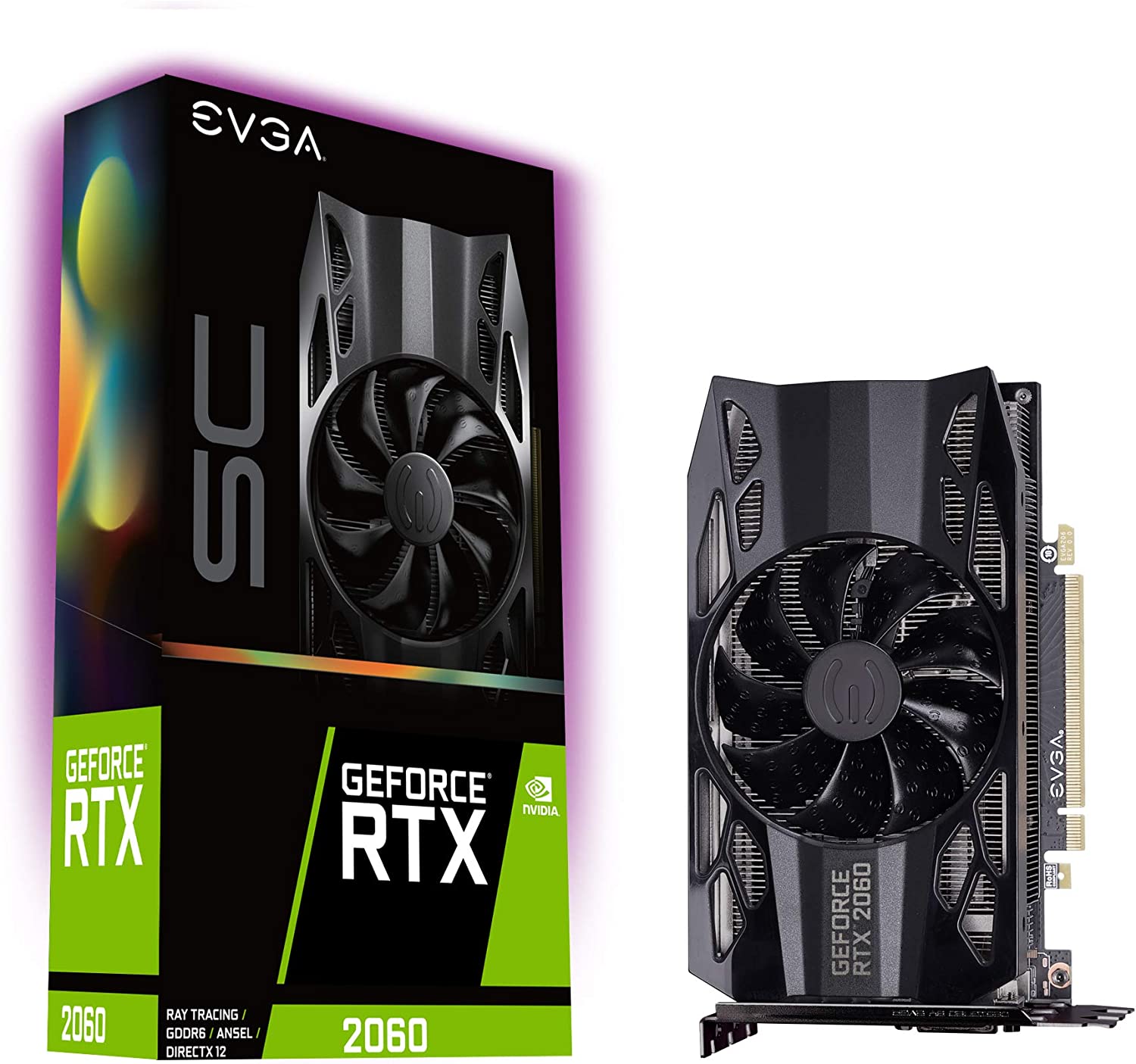
    EVGA GeForce RTX 2060 SC GAMING Is EVGA a Good Brand

    As we mentioned earlier, EVGA is one of the manufacturers of Nvidia graphics cards. EVGA cards will bear the following branding: Nvidia EVGA GeForce GTX/RTX Series Number.

    For example, Nvidia EVGA GeForce RTX 2060 SC would what you’d see on the box or a website listing.

    EVGA is mostly known for its graphics cards, excellent customer service, extended warranties, and trade-in policies. Apart from graphics cards, they also produce power supply units which are also popular amongst different PC builders.

    Is EVGA A Good Brand?

    This is a legitimate question given that you have other Nvidia graphics cards such as MSI and ASUS that are slightly more expensive but also a bit more powerful than an EVGA card.

    But there are three factors that make EVGA a good brand and good choice for a lot of builders and users:

    • Product Quality
    • Customer Service
    • Warranty Policy

    Product Quality

    Product quality is what makes EVGA a good graphics card. Online, you’ll find a handful of negative reviews but the general consensus of EVGA graphics cards is that they’re durable and made of good quality hardware.

    The EVGA Corporation has been partners with Nvidia for more than two decades, so they already know what Nvidia wants and what users want out of Nvidia products.

    EVGA products are quality products in their own right, but what really sets them apart from the rest of the GPU brands is their affordability. Both EVGA and Zotac boast of lower prices for their quality products. Even their EVGA power supplies are of great quality but still easy on the wallet.

    This level of affordability is the reason why gaming laptops often carry Nvidia EVGA graphics cards.

    EVGA SC17 1070 Is EVGA a Good Brand

    EVGA has also entered the gaming laptop scene with their concept laptops. The most popular one is the EVGA SC17 1070, a whopping 17-inch laptop with 4K resolution, 32GB of RAM, and EVGA GPU (Nvidia GeForce GTX 1070). Their gaming laptop’s specs are competitive enough to go against the bigger brands such as ASUS ROG and MSI.

    Good Customer Service

    EVGA Corporation is known for their excellent customer service. Users have nothing but praise for their customer service because EVGA treats them like royalty.

    This is what makes them a good brand.

    EVGA Warranty Policy

    Their warranty policy covers all EVGA products, from graphics cards to power supply units. There’s a minimum three-year coverage for their global warranty on all products. You don’t need to register your product to avail of the global warranty.

    The warranty is also transferable from one owner to another, but there’s a catch. Warranty starts when you buy the video card from the official dealer. The warranty period is reduced when the warranty is transferred. If you bought a secondhand EVGA graphics card, there’s also a chance that the warranty may not be honored.

    But in 2018, EVGA made some changes to their warranty policy. You’ll need to present proof of purchase to be eligible for the warranty. Secondhand owners must present proof that they bought it from the original owner too.

    What Is EVGA’s Step-Up Program?

    EVGA made it easy for their users to upgrade their graphics cards while also helping them save money. Their Step-Up Program just does that.

    You can upgrade to a new and powerful graphics card so as long as you registered your graphics card within the first 14-days after purchase. For example, if you bought a brand new EVGA GeForce 1070 and had it go through product registration, then you can technically be eligible for the Step-Up Program. Another way to qualify for the EVGA Step-Up Program is to sign up for the Extended Warranty within the first 90 days.

    Sadly, the EVGA Step-Up Program is only available to US, EU, and Canadian residents only.

    The Bottom Line

    Is EVGA a good brand? The simple answer is YES.

    The EVGA line of graphics cards are known for their high performance, energy saving features, and excellent value.

    EVGA GPUs are generally considered to be budget-friendly but you get good value from their graphics cards. I’ve known a couple of people who’ve been running EVGA GeForce GTX 1070s for years now and it’s still running smoothly.

  • How Do You Build A Desktop For Animation?

    How Do You Build A Desktop For Animation?

    As a graphics designer, animator, architect, or 3D artist, you need a powerful computer to carry out certain tasks. But how powerful your PC needs to be depends on the kind of workload you’re carrying out. For 3D animation or 2D animation, you need something beefier. And animation computers are usually not cheap.

    If we want to build a desktop for animation, we’d need something potent, powerful, and within the price range that we want. But can we really meet all those criteria?

    We’ll find out in this article as we show you how to build a desktop computer meant for 3D animation and modeling.

    Starting from Scratch: Building a Computer for Animation

    Sample 3D Animation Desktop for Animation

    Believe it or not, it’s possible to build a desktop for animation that’s affordable but powerful at the same time. When we say powerful, we are referring to a PC that can carry out animation tasks without difficulty.

    Here’s a short cheat sheet of the kind of hardware components you need for building a decent desktop for animation. This also applies to window shopping for a laptop for animation too.

    CPU and RAM Combination

    CPU and RAM need to be fast enough to power through all the animation software, 3D modeling software, and other software support for animation projects.

    You’ll need at least 32GB DDR4 RAM sticks with a frequency of 3600MHz up to 4000MHz. For processors, you’ll need at least an Intel Core i7 9th generation or 10th generation, or an AMD Ryzen processor equivalent to the Intel Core i7,

    GPU or Graphics Card

    Building a computer for animation requires a dedicated graphics card. While you could power through 3D animation projects with an integrated graphics card, it will be relatively slower than having a dedicated graphics card.

    Popular software such as Adobe After Effects have yet to fully take advantage of GPU rendering, but it doesn’t mean you should be ignoring your GPU. Nvidia graphics cards have better Adobe After Effects support than AMD graphics card, so we recommend getting an Nvidia Geforce RTX 3060 at the very least.

    Storage Space

    Animators, modelers, and graphic designers need a lot of storage space. Period.

    Not only are you dealing with renders, but you also have to store project files, assets, and other resources. These take up a sizeable amount of your hard drive, especially when you’re doing major projects.

    You’ll need at least two storage drives. One of them should be an SSD or solid state drive to host your software and operating system, and the other should be a traditional HDD to house all the files and renders.

    Your combination would probably be at 1TB NVMe SSD and 2TB/4TB HDD. Of course, if you can afford more capacity for SSD, then go for more.

    Motherboard

    While the motherboard doesn’t really affect the overall build, you’re here to consider how the motherboard supports all the other hardware components listed above.

    An Intense Debate: Mac or PC?

    Mac vs PC Desktop for Animation

    Between getting a desktop computer for animation and a Macbook, which one’s actually better for 3D animation, modeling, and graphics design?

    The practical answer here is this: it depends.

    It depends on:

    How big is your budget?

    Apple products are always going to be expensive but you’re getting premium pieces of hardware. The specs of the current generation Macbook Air and Macbook Pro can easily compete against gaming PCs that run old graphics cards or CPUs.

    Gaming laptops are similarly priced as Macbooks, depending on their GPU and CPU. Laptops running RTX 3000-series or their AMD equivalent combined with an Intel Core i7 or i9 processor or their AMD equivalent will cost the same, if not more, as a Macbook.

    A gaming PC will slightly be more affordable than the two, but you don’t really have mobility. Unless you plan on working when you’re traveling, then your best option is to get a desktop PC for 3D animation and more.

    How big are your projects?

    The best computer that you need for animation and modeling depends on how big your projects are. Even if you’re just starting out, you should be future-proofing your build by thinking about the size of your animation work.

    Your own computer should be prepared to handle the biggest animation workloads possible even if you’re just not there yet.

    How mobile do you have to be?

    Mobility is something to consider when you’re doing animation work outside of your home. A portable laptop is the answer for mobility issues, or an Apple Macbook. You’ll need a laptop with dedicated GPU, a decent battery life, and a processor capable of CPU rendering.

    You will never get the right answer from places like Reddit because you’ll only hear biased inputs from their proponents.

    Fact of the matter is, a desktop computer will always be more powerful than a Macbook. There’s just no denying that. Apple may be proud of their CPUs and iGPUs, and they’re just as capable of running the heaviest animation software possible, but the power is just limited.

    Think of it this way. It’s like arguing who defeats who: Batman or Superman?

    Superman Batman GIF Desktop for Animation

    However, if your desktop computer for animation has lower specs than a Macbook, then the latter is going to be better.

    Most people would often go for a gaming PC or a laptop as their go-to system for their animation workstation computer. But a gaming PC just offers the most flexibility and versatility. An animation PC can be built and upgraded on a whim without difficulty. Laptops can’t be upgraded, save for their RAMs and storage but even then it’s not that much.

    Sample Builds From The Internet

    The following builds were curated from the Internet and come in various price ranges. This is how you’d probably assemble your desktop computer for 3D animation and more.

    These builds are more than capable of doing other tasks such as video editing, graphics design, and other animation tasks.

    Having said that, let’s go over what makes a decent computer for animation and how much you’re more likely to spend with each build.

    Uncapped Budget a.k.a Money Is Not An Issue

    Estimated cost: About $4,500 to $5,000

    Ideal for: Established professionals in the industry who need a powerful animation workstation computer at home

    All righty, first up we have this insanely powerful computer if budget is not an issue. We’re talking about having enough disposable income that you have no second thoughts when buying any of the hardware components above.

    You’re getting an AMD Ryzen 9 7950X with 16-cores and 32-threads. Unlike the other CPUs down the line, the AMD Ryzen 9 7950X runs at full speed and on max power. You’re also getting the beastly RTX 4090 and 64GB of RAM.

    1TB SSD and up to 20TB of HDD storage to house all the files for your animation projects. The CPU and GPU cost more than half of the entire rig. Of course, every other component can still be tweaked, like the casing, cooling system, and power supply. But even then,

    Cost-Effective Build

    Estimated cost: $700+ at the very least

    Ideal for: animators who’re just starting or those who just want a decent computer for animation without breaking the bank

    Above, we have an all-out computer build if you’re not concerned about the budget. This next build is for people on the other side of the coin. The budget starts off at the $700 mark, so there’s enough room for a couple of upgrades down the line.

    The build that we have takes advantage of the AMD processors, a steady amount of RAM, and a mid-tier graphics card, and a decent storage capacity. This is already a powerful gaming PC as it stands, and it’s more than capable of running most animation software and video editing software.

    A Balanced Mid-Range Build

    Estimated cost: $1,200+

    Ideal for: People who want the best computer with competitive hardware components without the risk of overspending.

    Right here is what we’d consider the Goldilocks build. Not too expensive but not too cheap, but just right.

    We have a decent combination of AMD CPU, a high-end GPU, and enough storage capacity for bigger animation projects. The SSD can be upgraded to 1TB when you have more budget, and you can expand the HDD storage.

    This desktop PC will roughly cost you about $1,200 at least, making it a solid animation PC and gaming PC at the same time.

    How to Choose the Best Laptop for Animation

    Choosing the best laptop as an alternative for animation PC or animation desktop PC is ideal if you’re constantly traveling or if your office doesn’t have a spare computer for animation.

    Majority of the gaming laptops you see in the market are more than capable of running any animation software, but they’ll probably be more expensive than building a gaming PC.

    Your only point of concern here would be battery life. Now it’s not recommended to render animation projects when you’re running on battery life since the laptop switches to the integrated GPU for rendering. You’ll blow through the entire battery in 30 minutes or less, and it’s not ideal.

    The best laptops for gaming and doing animation work are those with at least an Intel Core i7 processor and at least an Nvidia GeForce RTX 3060 to carry out complex animations. You could also go down in budget if you go for the RTX 2000-series laptops.

  • Is Zotac a Good Brand?

    Is Zotac a Good Brand?

    Zotac is one of the graphics card brands authorized to build, manufacture, and sell graphics cards with Nvidia graphics chips and architecture. Zotac competes with other brands such as ASUS, Gigabyte, and MSI when it comes to Nvidia graphics cards. Each one of these graphics card brands have their own pros and cons, but everyone of them is a trustworthy brand.

    But is Zotac a good brand overall? How does it actually compete with the likes of MSI, Gigabyte, and EVGA GPUs?

    That’s what we’ll be talking about in this article…

    On a personal note, prior to my graphics card upgrade, I was running an Nvidia ZOTAC GeForce GTX 1660.

    What Exactly Is Zotac?

    ZOTAC GeForce GTX 1660 Super 6GB GDDR6 Is Zotac a Good Brand

    Zotac is a PC hardware manufacturer located in Hong Kong. The company was founded in 2006 and expanded to Japan, Germany, and South Korea when the business operations grew.

    Zotac produces graphics cards for Nvidia, but they also produce motherboards and prebuilt PCs together with their parent company, PC Partner. PC Partner manufactures all of Zotac’s products in Chinese factories.

    Why Is Zotac A Good Brand?

    Zotac graphics cards are known for their quality and affordability, and it comes as no surprise that Zotac cards are highly recommended by a lot of PC builders and enthusiasts. Because it produces budget friendly graphics cards, their quality is decent enough for what you’re paying for.

    Here are some of the reasons why people would recommend Zotac cards.

    Reputation and Affordability

    A Zotac graphics card is relatively more affordable than the other brands of Nvidia cards without losing a lot of quality. Of course, bigger brands such as MSI and Gigabyte will always rank higher in terms of quality.

    Reviews of Nvidia cards from Zotac are also positive as seen on Amazon and other computer hardware stores such as NewEgg.

    Zotac Cards Are Slightly Smaller

    The Zotac brand is known for producing smaller graphics cards, making them a prime choice for mini ITX builds or mini PCs in general. Despite its size, the Zotac brand still provides superior performance without breaking the bank.

    High Speed Boost Clocks

    Zotac video cards are equipped with the Firestorm program, resulting in higher boost clock speeds than other video cards.

    Just don’t expect too much. EVGA offers higher base and boost clock speeds than the Zotac cards within the same price range. If you’re particular about which brand provides better performance, then EVGA GPUs might be a more solid choice.

    No Heating Issues

    On my Zotac GTX 1660, I only ran the basic cooling solutions such as large case fans and I was able to overclock for a good hour without running into heating issues.

    Those on a tight budget, a.k.a. those with no money for water cooling systems or custom loop cooling solutions, can use and overclock any Zotac GPU when the feature is available.

    Makes Better GPUs

    Because of building a better GPU system, the windows will run at 2X faster and can play games at 90 to 100 fps on the COD modern warfare latest update.

    Is Zotac Cheaper Than Any Other Brand?

    Affordability is what makes Zotac famous, but does it mean that it comes at a cost of losing performance, warranties, and longevity?

    Zotac is a lot more affordable than let’s say MSI, ASUS, or Gigabyte graphics cards. And the main reason why is because of their brand name value. They’re the go-to GPUs for people who want to go for mini ITX builds.

    Think of it this way. Apple and Samsung are two of the biggest smartphone manufacturers in the world. That means any other smartphone manufacturer producing the same specs as Apple or Samsung will have a hard time competing against these giants. So they make their smartphones cheaper than Apple or Samsung. Some of the brands provide better value overall than either Samsung or Apple.

    The same thing can be applied to Zotac. MSI and EVGA GPUs are slightly more expensive than a Zotac GPU. Better performance might be guaranteed by either of the brands, but it doesn’t mean that Zotac is lacking in that aspect.

    Zotac cards are still known for their high performance, good warranty, and affordability. Graphics cards under the Zotac brand work fine.

    What Are Common Complains About Zotac GPUs?

    Not every review you see about Zotac GPUs are positive. Some people have concerns about a specific GPU, and it doesn’t necessarily mean that the entire brand is bad.

    As an owner of a Zotac Geforce GTX 1660, here are some common complaints that I share with the majority of the Zotac owners.

    Loud Fans

    Most of the bad reviews circulating a Zotac specific GPU focus on their loud fans. I’ve also had this issue, with my Zotac GPU but it wasn’t that bad. Granted, my GPU was already 3 or 4 years old and maintenance was done on it twice a year.

    The fans make a loud “wheezing” noise when it boots up or when I’m playing a graphically intensive video game. Most of the time, the noise level is manageable and doesn’t really wake people up.

    Higher Temperatures

    Not my experience but from people with mini PCs running a Zotac GPU. Zotac GPUs have slightly higher temperatures than normal when installed into a mini case because of the fans.

    Your cooling system plays a huge role on how well your Zotac graphics card, or any other graphics card, can manage its temperatures. Even when I’m overclocking, I’ve never had to go past 90-degrees Celsius, even without the airconditioning unit on.

    Is Zotac a Good Brand?

    RTX 2080 Is Zotac a Good Brand

    Zotac products are great in their own right. They have lower price tags compared to other manufacturers but they’re capable of competing in terms of performance and value. With my GeForce GTX 1660, I was able to do some heavy gaming, video editing, and even streaming without worrying about temperatures. I also availed of extended warranties from the computer hardware manufacturer, which gave me more value in the long run.

    A GeForce GTX 1660 today would probably be a bit overpriced due to the graphics cards shortage, but nothing that would be too exaggerated. Zotac GeForce RTX cards have more reasonable prices compared to the othe brands, but it depends on where you’re getting them from. High end models from Zotac are also in demand because of their excellent performance and lower price point.

    Their heating issues can be easily solved if you have a bigger PC case with access to the better cooling system and fans. The loud fans aren’t a deal breaker too, mostly because the fans are noisier when they’re overworked. Aagin, easily solved with access to a decent cooling solution.

    Zotac is a good GPU brand, all in all and you can’t go wrong with picking up one.

  • What Is The Best Graphics Card Brand?

    What Is The Best Graphics Card Brand?

    On the Internet, one of the biggest debates you’ll encounter is about the best graphics card brand. The arguments between the fans of these brands are as rabid as they are productive.

    The market is cornered by two manufacturers: AMD graphics cards and Nvidia graphics cards. Under these two manufacturers, you’ll have different brands of graphics cards. And by brands, we mean the companies that are making the aftermarket versions of the graphics cards.

    You see, AMD and Nvidia provide the chips and architecture to these brands, and they’ll make their own versions of the graphics cards under their brand. When AMD and Nvidia make their own graphics cards, they’re branded as Founder’s Editions. These are more powerful graphics cards than the aftermarket brands, but they come at a hefty price. They’re also limited in terms of supply, which accounts for why they’re so expensive.

    The aftermarket brands listed below are what we’d consider consumer graphics cards. These graphics cards were designed to not be as powerful as the Founder’s Edition versions, but the performance is just as comparable.

    How Do Graphics Card Manufacturers Differ?

    RTX 2080 Ti

    As mentioned earlier, NVidia and AMD don’t manufacture their graphics cards on their own. They sell the chips and architecture to the following companies listed in the next section, allowing them to customize the build of the graphics cards as they see fit.

    The end result being you get different variations of one graphics card. For example, Nvidia sells the architecture and chips for an RTX 2080. You’ll then have something like Zotac RTX 2080 or MSI RTX 2080.

    Do these cards differ in terms of performance?

    Yes and no. GPU performance is negligible between the two different GPU manufacturers. Some brands will clock faster than others, but you can hardly tell the difference. Again, using the RTX 2080 as an example. The MSI RTX 2080 might have a higher base clock speed or boost clock speed than its Zotac counterparts, but you can hardly tell the difference. The features of the RTX 2080 under different manufacturers will still be the same, and that’s all that matters. Ray tracing support will still be present in an MSI and Zotac counterpart. Same thing can be said for AMD’s FidelityFx super resolution found in different AMD cards.

    As for the pricing, that’s a different story.

    You get good graphics cards deals depending on the brand of GPU. Higher clock speed and better aesthetics often dictate how higher a certain brand of graphics card will be compared to other brands. Nvidia cards have always had better aesthetics than AMD graphics cards, but most people don’t really care much about aesthetics. They’re more concerned with the graphics processor, the clock speed, and other technical specifications.

    As for warranty, a lot of modern graphics cards come with decent manufacturers’ warranties. Nvidia GPUs and AMD cards are replaceable if there’s a defect, or if the card’s irreparable. Based on personal experience, I’ve had my Nvidia GeForce RTX 2080 replaced by the computer shop without any difficulty. It took about a couple of weeks to coordinate with the manufacturer, but I have had no complaints about the warranty.

    Having said all of that. Let’s go over the different brands of graphics cards and how they differ from one another.

    What Are The Different Graphics Card Brands In The Market?

    Assembling your gaming PC can be a bit of a challenge, especially when you see the different brands of graphics cards. The gaming performance won’t be any different between these GPU makers, but rather, how much power you get is another story in itself.

    Micro-Star International or MSI

    MSI Gaming GeForce RTX 3060 Best Graphics Card Brands

    MSI, or Micro-Star International, is a popular manufacturer for PC hardware and laptops. This Taiwanese company is also known for their high-end graphics cards and budget offerings too.

    On the high-end side, you’re getting Gaming X and Gaming Z while you’re getting Ventus 3x and 2X on the budget side of things.

    MSI both designs and sells for Nvidia GeForce RTX and AMD Radeon graphics cards.

    Examples of MSI Nvidia Graphics Cards

    Examples of MSI AMD Graphics Cards

    ASUS

    ASUS Dual NVIDIA GeForce RTX 3050 OC Best Graphics Card Brands

    Like MSI and Gigabyte, ASUS is one of the best and most popular manufacturers for PC hardware and peripherals, laptops, and smartphones. But they’re widely known for their hardware than anything else. For their gaming laptops, you’ll recognize them for their ROG Strix series on the premium side and TUF series on the budget side.

    ASUS graphics cards are known for their excellent gaming performance and overall GPU performance, even though they have a slightly higher price tag than others.

    Currently, ASUS sells both Nvida Geforce and AMD Radeon graphics cards

    Examples of ASUS Nvidia Graphics Cards

    Examples of ASUS AMD Radeon Graphics Cards

    Inno3D (for Nvidia Geforce video cards only)

    Inno3D iChill Geforce RTX 4070 Ti Best Graphics Card Brands

    One of the oldest graphics card brands on this list is the Inno3D. Their box designs is just as insane as their GPU performance, minus the large price tag.

    Their flagship series is called the iChillX3 and iChillx4, and unlike most GPUs in the market right now, Inno3D GPUs carry extra fans. The iChillX4 line of GPUs carry a fourth fan intended for MOSFET cooling. The company is also known for thier Twin X2 and X3 OC lineups, both powerful graphics cards in their own right but do not carry high-end components.

    If you want raw performance that’s out of this world but on a tight budget, then Inno3D might be the best graphics card brand for you.

    As it stands, Inno3D only makes graphics cards for Nvidia Geforce.

    Examples of Inno3D Nvidia Graphics Cards

    Gigabyte

    GIGABYTE GeForce RTX 3070 Gaming OC Best Graphics Card Brands

    Gigabyte is a brand that needs no introduction because it’s one of the best third-party AIB graphics card manufacturers in the industry right now. They’re also widely known for their PC hardware and peripherals.

    Gigabyte is well known for its aesthetics and high-performance graphics cards, as well as some affordable options in the market. On the premium side, you get the AORUS Master and Vision. On the budget side you get the Gaming OC lineup.

    What’s interesting here is that all of the Gigabyte graphics cards are known for providing and guaranteeing excellent performance.

    Currently, Gigabyte produces both Nvidia GeForce and AMD Radeon graphics cards.

    Examples of Gigabyte Nvidia Graphics Cards

    Examples of Gigabyte AMD Radeon Graphics Cards

    Sapphire (for AMD Radeon video cards only)

    Sapphire 11322-02-20G Pulse AMD Radeon RX 7900 Best Graphics Card Brands

    Some of AMD’s best graphics cards in the market right now falls under the Sapphire brand, a manufacturer dedicated only to the production of AMD Radeon graphics cards.

    Sapphire GPUs are easily recognizable by their branding and box designs. Sapphire is known for producing high-end graphics cards without breaking the bank. Their best-performing graphics card series is the Nitro+, considered by many as the “premium of all premium graphics cards”. Meanwhile, Sapphire Pulse is the affordable option from their series and is one of the most popular consumer graphics cards right now.

    Currently, i have the Sapphire Pulse AMD Radeon RX 7900 XTX, and its the best AMD graphics card that I’ve owned over the last few years. Graphics cards tend to be expensive as you go up in performance, but this isn’t the case with the 7900 XTX. It competes okay against the Nvidia GeForce RTX 3080 in terms of gaming performance, but the AMD Radeon RX 7900 XTX I have right now is cheaper.

    Examples of Sapphire AMD Radeon Graphics Cards

    7) XFX (for AMD Radeon video cards only)

    XFX Speedster MERC319 AMD Radeon RX 6900 XT Best Graphics Card Brands

    Just like Sapphire, XFX is limited to producing AMD graphics cards and they’re known for their high-performance graphics cards that’re extremely affordable. Their most popular series is the Speedster SWFT 319, a line filled with premium and affordable options. Their most powerful graphics card is the Speedster MERC 319, known for its incredible thermal efficiency and overall build quality.

    XFX graphics cards deliver pure performance and is often the graphics card of choice by creative professionals.

    Examples of XFX AMD Radeon Graphics Cards

    Colorful (for Nvidia Geforce video cards only)

    Colorful NVIDIA GeForce GTX 1650 Best Graphics Card Brands

    Colorful is another popular graphics card manufacturer, known for their iGame Vulcan series of GPUs. They also have one of the best cooling hardware installed on their graphics cards. What makes the iGame Vulcan appealing to PC gamers is its tiltable display that can be used as a system monitor.

    The iGame Ultra and iGame Vulcan series are their premium GPUs, but they also have affordable GPUS under the Advanced OC and BattleAX umbrellas. But what really sets Colorful apart from the other graphics cards brands on here is their gaming performance. You’re already getting the best graphics card deals with just the BattleAX series that competes against the other high-end graphics cards

    Overall, Colorful is a great graphics card manufacturer, but they do not sell AMD Radeon GPUs.

    Examples of Colorful Nvidia Graphics Cards

    • Colorful NVIDIA GeForce GTX 1650
    • Colorful GeForce 1660 6GB GDDR6

    Wrap Up!

    Ultimately, the best graphics card brand for you will depend on your individual needs and preferences. It’s important to consider factors such as performance, features, price, and support when choosing a graphics card brand. While NVIDIA and AMD are two of the most popular and highly regarded brands on the market, other brands such as ASUS, Gigabyte, and MSI also offer excellent graphics cards that may be better suited to your specific needs. Whatever brand you choose, investing in a quality graphics card can greatly enhance your computer’s performance and overall experience, whether you’re a gamer, content creator, or professional designer.

  • Upgrading Processor in Laptop – Can I Do It?

    Upgrading Processor in Laptop – Can I Do It?

    Laptops come in handy, especially when their owners are always on the move. Professionals, students, artists, or simply just about anyone who uses a laptop will also know what it’s like to struggle the lack of processing power here and there.

    Now, don’t get us wrong. Laptop processors are just as powerful as desktop processors nowadays, especially with most modern laptops being called as gaming laptops.

    What if you have an older laptop? One that needs a processor upgrade, for sure. You’re probably thinking upgrading processor in laptop is the best thing to do since you can’t purchase a new one just yet.

    But can you really upgrade your laptop processor? We’ll answer that question and more in this article.

    Is It Possible To Upgrade A Laptop Processor?

    A straightforward answer would be: NO. But sometimes, it depends.

    Confusing? We’ll get to that in a bit.

    Desktop processors can be upgraded by removing the old CPU and replacing it with a new one. This is under the assumption that the new one is compatible in terms of pins and sockets.

    So why couldn’t laptops do the same thing?

    This is because older laptops usually have soldered CPUs onto their motherboard.

    Slightly older laptops may not have CPUs soldered into their motherboard, but the CPU is installed into the socket. Similar to what you’d see on desktop computers. But note that the socket and CPU type are designed for laptops, so you can’t plug in a desktop processor on a laptop.

    The majority of the older and modern laptops usually solder their CPUs onto the motherboard. so there’s just no way to upgrade them.

    But there are exceptions, especially to some of the slightly older laptops. Their CPUs are not soldered onto the motherboard. Rather, they are installed in a socket, similar to what we see on a desktop motherboard. Of course, the socket and the CPU are designed for laptops.

    You’ll need to research for compatible CPUs for your laptop, or you can get in touch with laptop manufacturers and ask for a list.

    But generally speaking, a CPU upgrade on a laptop is highly unlikely. A laptop’s CPU is often soldered, making it difficult to uninstall and remove. The best-case scenario for laptop users here is if they want to upgrade their laptop’s processor, they’ll need to buy a new laptop. It’s a lot like replacing your laptop’s GPU, which also requires you to buy a new laptop.

    Can You Upgrade Your Laptop Processor From an Intel Core i5 to an Intel Core i7?

    Again, it’s technically possible to upgrade your laptop CPU, but this depends on whether or not the CPU is soldered into the motherboard.

    If you have an Intel Core i5 CPU that’s soldered into the laptop’s motherboard, then there’s no way to upgrade to an Intel Core i7. If you want your laptop’s processor to be an i7, then you’re better off just buying a new laptop.

    Upgrading the laptop processor means that you have to understand how the CPU surface mounting is on a laptop compared to a desktop. Desktop processors can be detached while a laptop’s processor is soldered. Note that this isn’t always the case as some laptops will have detachable processors.

    Making Sense of CPU Surface Mounting Methods

    Can I Upgrade My Laptop Processor from i5 to i7

    There are three different types of surface mounting:

    • Land Grid Array or LGA – This is a detachable CPU with flat contacts. Intel desktop CPUs usually have this type of surface mounting.
    • Pin Grid Array or PGA – A mounting type with visible pins on the CPU. AMD CPUs have this type of mounting surface. Like the land grid array, this is also detachable.
    • Ball Grid Array or BGA – Mounting type commonly used by a laptop processor. CPU contacts are soldered and is not detachable. Most laptops, if not all of them, have a BGA.

    If your laptop has a BGA mounting type, you can’t replace your laptop processor. But if it has a PGA or LGA mounting type, you could upgrade your laptop processor so as long as they share the same socket type.

    The Wrap Up!

    Upgrading your laptop with a new processor is sadly not doable, but it doesn’t mean it’s not possible. Newer laptops may not be able to get you this upgrade, but the laptop’s performance is already at part with new desktops. On the other hand, if you have an older laptop and your current processor is slowing down your computer’s performance, you could check if you have a LGA surface mounting or PGA surface mounting. If it has either, you have a chance of upgrading.

    But then again, you’re probably still better off with purchasing a new laptop with a more powerful processor.

  • What’s The Best Monitor for Animation and Other Creative Workloads?

    What’s The Best Monitor for Animation and Other Creative Workloads?

    Graphic designers, animators, and pretty much every creative professional out there are particular with how things look on their monitor. Unlike the average Joe and Jane, these creative professionals know that a monitor’s color accuracy, contrast and sharpness, and brightness play a huge role in how they carry out their work.

    It’s now more important for these people to see how their projects look in real-time just by what they see on their monitors before they finalize everything. If you’re an aspiring animator or graphics designer, this article will help you find the best monitors for creative professionals.

    Our List of the Best Monitor for Animation!

    LG Ultrafine 5K Display

    Editor’s Pick: Best 5K Monitor

    LG 27MD5KB-B Ultrafine 27 Best Monitor for Animation

    Specs

    • Resolution:5120 x 2880 Pixels
    • Display: IPS monitor
    • Color support: 99% DCI-P3
    • Refresh Rate: 60Hz
    • Display Size: 27″

    Why we think it’s good

    • Integrated mic, camera, and speakers
    • Great color accuracy
    • Brightness up to 500 nits

    Why we think it’s bad

    • When in Clamshell Mode, True Tone and Light Sensor do not work
    • Connectivity is tricky because the ports are situated in the middle.

    If you’re working on a Macbook Pro, you would know that the best monitor to pair with is the Apple Pro Display XDR but the price tag on that monitor is just way too high.

    But there’s an alternative, and it’s our pick for the best monitor for animation and graphic design: LG’s Ultrafine 5K.

    The LG’s Ultrafine 5K measures at 27 inches with a whopping 5K resolution. It has 99% DCI-P3 color support and a contrast ratio of 1200:1. There are also three USB-C ports and a single USB-C port that will allow you to connect and charge your Macbook.

    If the screen is too small, then we recommend the LG Ultrafine 34″.

    LG 27UL850

    Best Budget Monitor

    LG 27UL850-W 27 Inch Best Monitor for Animation

    Specs

    • Resolution:3840 X 2160
    • Display: UHD IPS monitor
    • Color support: 99% sRGB Color Gamut
    • Refresh Rate: 60Hz
    • Display Size: 27″

    Why we think it’s good

    • Versatile enough for a great graphic design experience
    • Different ports available for connectivity
    • Smooth running

    Why we think it’s bad

    • 60Hz refresh rate
    • No DCI-P3 Color Support
    • Poor built-in speaker quality

    A budget monitor isn’t that bad. Sure you miss out on some features, but their absence doesn’t really affect your output greatly.

    Enter the LG 27UL850, one fo the budget monitor options on this list for aspiring graphic designers and animators alike. We know that 4K and 5K monitors for graphic design don’t come cheap, but the LG 27UL850 is here to save you and your wallet.

    The LG 27UL850 comes in at 27 inches and with a 4K display that makes everything look and feel beaautiful. The color accuracy is also impressive enough for the price range. If you want the best budget monitor for graphic design or animating, the LG 27UL850 is a solid pick.

    ASUS ProArt PA329C 32” 4K

    Best Professional Monitor

    ASUS ProArt PA329C 32 Best Monitor for Animation

    Specs

    • Resolution: ​​3840 x 2160
    • Display: 4K HDR LED Display
    • Color Support: 100% Adobe RGB IPS
    • Refresh Rate: 76Hz
    • Screen Size: 32-inches

    Why we think it’s good

    • RGB to sRGB Color Switching
    • Pre-calibrated Display
    • Thin bezels

    Why we think it’s bad

    • Hard to reach USB slots
    • Monitor stand takes up way too much space

    There’s no other graphic design monitor out there that comes close to the Asus ProArt PA329C, and it’s just packed with a lot of features needed for animation, graphics design, and more.

    The Asus ProArt PA329C measures at 32 inches and comes with full 4K HDR. It’s not as advanced as the LG Ultrafine monitors, but this is a great second pick if the Ultrafine monitors from LG are out of reach.

    The specs on the Asus ProArt PA329C are good enough for the price you’re paying. The 3840×2160 resolution offers an immersive design and gaming experience with the best gaming PC possible. There are also three HDMI ports, USB 3.0, and USB-C ports available. Note that these features can also be found on 120Hz gaming laptops.

    Bonus features of the Asus ProArt PA329C is that it’s wall-mountable and consumes less power than any of the other monitors on this list. It also has a low-blue-light mode to help you work at night or early in the morning.

    EIZO ColorEdge CG 2420-BK 24.1”

    Best 24″ Monitor with Excellent Color Display Quality

    Eizo CG2420-BK ColorEdge Best Monitor for Animation

    Specs

    • Resolution: 1920×1200 Pixels
    • Display: LED IPS Monitor
    • Color support: 99% Adobe RGB Coverage
    • Refresh Rate: 60Hz
    • Screen Size: 24.1″

    Why we think it’s good

    • Comes with light-shielding hood
    • Has its own color calibration tool
    • USB upstream for full monitor control
    • Can be mounted on walls

    Why we think it’s bad

    • Probably the most expensive monitor for graphic designers on this list

    The EIZO ColorEdge CG2420 is one of the most impressive and most powerful computer monitors on this list for a good few reasons. When it comes to important features needed by graphics designers and animators, the EIZO ColorEdge CG2420 has it all.

    Okay, it’s not a 4K monitor for graphic design, but it makes up for it by its Wide-Gamut IPS LED display. EIZO ColorEdge CG2420 boasts of an impressive 9(% Adobe RGB Color Range, making it perfect for anyone doing animation or large print graphic design.

    Ports of the EIZO ColorEdge CG2420 include a DisplayPort, HDMI, and DVI. The color ratio stands at 1500:1 and has a 10ms grey-to-grey response time. It may not be the best for gaming, but it’s good enough for photo and video editing, animation, and even 3D modeling.

    The EIZO ColorEdge CG2420 stands as one of the best monitors for graphic design, 3D work, and animation.

    GIGABYTE M27Q 27”

    A Decent Budget Monitor for Graphic Design and More

    GIGABYTE M27Q 27 Best Monitor for Animation

    Specs

    • Resolution: 2560 x 1440
    • Display: SS IPS Panel Monitor
    • Color support: 92% DCI-P3 (140% sRGB) color gamut
    • Refresh Rate: 170 Hz
    • Screen Size: 27”

    Pros

    • Incredible sRGB coverage
    • High refresh rate
    • Affordable monitor

    Cons

    • Not 4K res0lution

    Finding a good monitor for digital art and animation doesn’t need to be tedious. The best graphic design monitors out there don’t even need to have an expensive price tag. If you want a good starting monitor that will last you for years, the GIGABYTE M27Q is a solid pick.

    You’re looking at a 27-inch screen size with 92% DCI-P3 color gamut, or translates to about 140% sRGB. With a 0.5ms response time, you’ll have the greatest viewing experience possible without breaking the bank.

    It may not be able to compete with the ultra wide monitors on this list, but the price-to-performance ratio is too high to ignore. For connectivity, you get two HDMI ports, two USB 3.0 ports, and a DisplayPort. You also have blue light filtering on, so you can use the GIGABYTE M27Q for prolonged periods.

    ViewSonic ColorPro VP3881A 38” WQHD

    Best Ultrawide Curved Monitor For Animation

    ViewSonic VP3881A 38-Inch QHD Best Monitor for Animation

    Specs

    • Resolution: 3840 x 1600
    • Display: 4K WQHD+ IPS Display
    • Color support: 100% sRGB color gamut
    • Refresh Rate: 60Hz
    • Screen Size: 38 inches

    Pros

    • Impressive screen size for its price!
    • 100% sRGB!
    • Connectivity options are decent
    • Calibrated and easy to use

    Cons

    • Expensive
    • No HDR 10 support, but supports something closely similar

    Is a curved monitor good for animation or graphics design? Well, not all of them, but the ViewSonic ColorPro VP3881A will probably be one of your picks for curved monitors.

    We’d like to point out two things about the ViewSonic ColorPro VP3881A. First, this curved monitor was made by professionals for professionals, so you get extra features. Second, the price-to-performance ratio is high, so while it’s expensive, you get what you pay for.

    Needless to say, this isn’t something that we’d like to recommend if you’re just starting out as an animator. But if you’ve already been in the industry for quite some time now and want to upgrade your old monitor for graphic design, animation, and more, then the ViewSonic ColorPro VP3881A is definitely the upgrade you need.

    What you get with the ViewSonic ColorPro VP3881A is a curved monitor measuring a whopping 38-inches. It boasts of WQHD+ Display and sitting comfortably at an aspect ratio of 21:9. What this translates to is you’re getting wide, quad HD plus display at 4K max resolution over a curved radius of 2300. The viewing angles of the ViewSonic ColorPro VP3881A make for an excellent viewing experience for design, animation, and some gaming.

    Dell Ultrasharp U2719DX 27” WQHD IPS

    Impressive Sharpness And Color Accuracy

    Dell Ultrasharp U2719DX Best Monitor for Animation

    Specs

    • Resolution: 2560 x 1440
    • Display: 4K/UHD IPS Display
    • Color support: 99% sRGB color gamut
    • Refresh Rate: 60Hz
    • Screen Size: 27 inches

    Why we think it’s good

    • Well-calibrated
    • Great connectivity options
    • Comes with a 3-year warranty
    • One of the best monitors for designers

    Why we think it’s bad

    • Limited Apple Color Gamut Support
    • nVidia G-Sync / AMD FreeSync lack support

    The Dell Ultrasharp U2719DX is a high-end monitor designed for professional users who demand exceptional image quality and advanced features. With a 27-inch screen size and a 2560 x 1440 resolution, this monitor delivers stunning visuals that are crisp, clear, and vibrant. Whether you’re working on complex spreadsheets, editing high-resolution photos or videos, or playing your favorite games, the U2719DX provides a brilliant display that’s sure to impress.

    One of the key features of the Dell Ultrasharp U2719DX is its IPS panel technology, which provides accurate color reproduction and wide viewing angles. This means that you can view the screen from almost any angle without experiencing any color shift or distortion. In addition, the monitor supports a wide color gamut that covers 99% of the sRGB color space, making it ideal for tasks that require precise color accuracy.

    The U2719DX also comes with a range of connectivity options, including DisplayPort, HDMI, and USB-C ports, making it easy to connect to a wide range of devices. The USB-C port also supports power delivery, which means that you can charge your laptop or other devices directly from the monitor, reducing cable clutter and improving your workspace.

    Want more screen real estate? Well, Dell Ultrasharp U2719DX’s slim bezel gives you just that. The fully adjustable stand also provides you will full height, tilt, swivel, and travel control. The Dell Ultrasharp U2719DX comes with a wide range of advanced display settings that allow you to customize the monitor to your liking.

    Overall, the Dell Ultrasharp U2719DX is an excellent monitor that delivers exceptional image quality, advanced features, and a range of connectivity options that make it ideal for professional users. Whether you’re working on complex projects, editing high-resolution photos or videos, or just enjoying your favorite games or movies, the U2719DX is sure to provide an immersive and enjoyable experience.

    BenQ PD3200U 32” 4K IPS Monitor

    Best 4K IPS Monitor for Animation

    BenQ PD3200U 32 Inch Best Monitor for Animation

    Specs

    • Resolution: 3840 x 1260
    • Display: UHD Display
    • Color support: 100% sRGB color gamut
    • Refresh Rate: 60Hz
    • Display Size: 32-inches

    Why we think it’s good

    • Incredible color calibration
    • Hotkey Puck Tool for OSD settings
    • Monitor calibration tool called “Palette Mater Element Color Calibration Software” included

    Why we think it’s bad

    • Expensive
    • Calibration needs to be done depending on workload

    You can’t put a price on quality, but if you have to, then the BenQ PD3200QU is befitting of that action. The design of the BenQ PD3200QU is meant for post-production work on animation and graphic design, so you’re more or less getting what you’ll see in real life after rendering.

    The BenQ PD3200QU monitor features 100% sRGB color gamut and a 32-inch screen at a 3840×2610 max resolution. If you’re looking for high-end computer monitors, the BenQ PD3200QU should be on top of your shopping list.

    Other features of the BenQ PD3200QU include connectivity options such as DVI, HDMI, and DisplayPort, a 1000:1 native contrast ratio, 60Hz refresh rate, and LED backlight.

    It’s not exactly on of those monitors for graphic design if you just work from home, but it’s still a solid and worthwhile investment.

    Samsung UH750 31.5”

    Impressive 4K Monitor For Animation

    Samsung UH750 31.5 Best Monitor for Animation

    Specs

    • Resolution: 3840×2160
    • Display: 4K UHD QLED Display
    • Color support: 125% sRGB Color Gamut
    • Refresh Rate: 60Hz
    • Display Size: 31.5-inch

    Why we think it’s good

    • Great pricing!
    • Well-designed features
    • Versatile color accuracy

    Why we think it’s bad

    • Not as stable as it looks, especially when the table is bumped

    While many monitors on this list have above-average pricing, we’re not hesitant to showcase the best monitors for graphic design and animation for those on a budget.

    And if budget is an issue but you still want a new monitor for work, then the Samsung UH750 is up for consideration. Outside of being the perfect monitor for creative work, the Samsung UH750 is one of the most popular gaming monitors heavily preferred by PS5 and Xbox One owners. And the main reason why this is one of the best gaming monitors is its wide screen size.

    At first glance, you wouldn’t think that the Samsung UH750 would be affordable enough given its specs. The Samsung UH750 features a 3000:1 static contrast ratio with a 178-degree horizontal and vertical viewing angle and up to 4K resolution at 3840×2160. The Samsung UH750 also has a 125% sRGB color gamut and a 4ms grey-go-grey response time.

    You also get the standard features similar to many monitors on this list. The Samsung UH750 comes with MagicBright mode, wall mounting features, eye-saver mode, and eco-saving mode.

    In terms of connectivity, you get two HDMI ports, 4 USB 3.0 ports, standard DisplayPorts, and a headphone jack.

    If you’re a graphic designer or animator on a tight budget, then the Samsung UH750 is a great investment for upgrading your computer monitor. It’s good enough for photo editing and video editing, animation, and some gaming.

    LG 34WN80C-B Ultra Wide Monitor 34”

    One Of The Best Ultra Wide Monitors for Macbook and Graphic Designers

    LG 34WN80C-B UltraWide Monitor Best Monitor for Animation

    Specs

    • Resolution: 3440 x 1440
    • Display: WQHD LED Display
    • Color support: sRGB 99% Color Gamut
    • Refresh Rate: 60Hz
    • Display Size: Ultra Wide 34”

    Why we think it’s good

    • Decent brightness
    • HDR 0 compatible
    • Adjustable stand

    Why we think it’s bad

    • No speakers

    Here we have another entry from LG, and it’s the LG Ultrafine’s big brother. Enter the LG Ultra Wide 34WN80C, one of the best curved monitors and one of the best ultra wide monitors in the market right now!

    What’s interesting here is that it’s probably one of the best monitors paired with Macbooks. The LG Ultra Wide 34WN80C is designed to replicate the Macbook’s resolution while also being able to charge it at the same time through the USB-C connection. Charging your laptop and displaying high resolution images on the LG Ultra Wide 34WN80C is no mean feat.

    The LG Ultra Wide 34WN80C monitor features a max resolution of up to 3440 x 1440 on a WQHD LED display. Working on digital art on the LG Ultra Wide 34WN80C will be the best experience for any aspiring or veteran designer. It also comes with software for splitting the screen into two or four different windows.

    This is probably the best graphic design monitor for those who are already established in the industry. It comes with an expensive price tag, but again, it’s definitely a solid investment.

    Final Thoughts

    In conclusion, when it comes to finding the best monitor, there are several factors to consider such as the size, resolution, refresh rate, panel technology, color accuracy, and connectivity options. It ultimately depends on your specific needs and budget. However, some of the top monitors currently available in the market include the Dell UltraSharp U2721DE, LG 27GN950-B, ASUS ProArt PA278CV, and the BenQ PD2700U. These monitors offer excellent picture quality, great color accuracy, and a range of features to enhance your viewing experience. Remember to also consider factors such as warranty, customer service, and reviews before making your final decision.