Author: Jim Stephenson

  • The Best Nvidia Graphics Cards In The Market Right Now (Jul 2026)

    You’re in the market for a new graphics card, but you don’t know what you want to get. You want something robust, future-proof, and excellent performance all around.

    Graphics cards are often measured by how much FPS they can give you for a particular game. But that’s just the tip of the iceberg. There are some who prefer to use graphics cards for their rendering capabilities rather than gaming.

    The previous years have shown prices for graphics cards increasing more than 100% of their MSRP. But with the crackdown on mining and countries heavily regulating cryptocurrency, graphics cards are slowly returning back to their MSRP.

    If you are:

    • A gamer looking to upgrade their rig
    • A content creator looking for more power
    • A builder looking to take their rig to the next level

    Then this is the list for you. We’ll go over the best Nvidia Graphics card list that shows you the best graphics cards for your needs.

    Nvidia GeForce RTX 3090 Ti

    The Fastest Graphics Card for Gaming and Content Creators

    Tech Specs

    GPU: Ampere GA102

    GPU Cores: 10752

    Boost Clock: 1,860 MHz

    Video RAM: 24GB GDDR6X 21 Gbps

    TBP: 450 watts

    Why Should You Buy It?

    • Fastest GPU in the market right now
    • 4K Gaming is easy peasy
    • 8K gaming possible
    • At 24GB, it can handle heavy video editing or 3D rendering workloads

    Why Shouldn’t You Buy It?

    • Twice the cost of the RTX 3080 with only a 30% increase in performance
    • Power requirements are insane
    ASUS TUF Gaming NVIDIA GeForce RTX 3090 Ti OC Edition Nvidia Graphics Card List

    The Nvidia GeForce RTX 3090 Ti is the fastest graphics card on this list, even though it’s priced three times higher than the RTX 3080. But the graphics card performance of the Nvidia GeForce RTX 3090 Ti is only about 30% better than the RTX 3080 and about 10% faster than the RTX 3090. In terms of pricing, the RTX 3090 Ti can go as low as $1,100.

    The Nvidia GeForce RTX 3090 Ti is Nvidia’s top-of-the-line graphics card right now even with the next generation 40-series on the horizon. For 4K gaming and demanding content creation, the RTX 3090 Ti is a solid investment. The 24GB VRAM is great for video editing, 3D rendering, and also gaming at twice the performance and benchmark of the Titan RTX.

    Modern games running on the Nvidia GeForce RTX 3090 Ti is a slice of heaven. The graphics card performance is incredible with ultra settings at 4K resolution, even for the most demanding games.

    Now you could wait for the 40-series Nvidia graphics cards as they’d probably be in the same price range as the Nvidia GeForce RTX 3090 Ti. If you could get your hands on the RTX 3090 Ti for a reasonable price, then just go for it.

    GeForce RTX 3080

    Overall Best Graphics Card For 4K Gaming And More

    Tech Specs:

    GPU: Ampere GA102

    GPU Cores: 8704

    Boost Clock: 1,710 MHz

    Video RAM: 10GB GDDR6X 19 Gbps

    TBP: 320 watts

    Why Should You Buy it?

    • Great performance
    • Best bang for buck
    • 4K Ultra at 60FPS

    Why Shouldn’t You Buy It?

    • Needs more than 320W of power
    • Makes 1080p displays look terrible
    • Prices are still inflated above MSRP
    GeForce RTX 3080 Nvidia Graphics Card List

    On top of every blog’s to-buy list is the Nvidia GeForce RTX 3080, and it goes without saying that we’re including both the RTX 3080TI and the RTX 3080 12GB variants. Depending on where you are located, prices are still a bit inflated for the Nvidia GeForce RTX 3080. At this time of writing, the 10GB variant and the 12GB variant are on the high $700 mark and the RTX 3080 Ti is about $800 to $900 on average.

    If you’re a serious gamer who loves to see all games in their glorious ULTRA settings, then the Nvidia GeForce RTX 3080 should satiate that thirst. It’s more than sufficient for gaming at 1080p (at ultra settings) unless these games are running on ray tracing. This is made possible with Nvidia’s DLSS support.

    However, people are hesitant to get the Nvidia GeForce RTX 3080 because of the advent of the next generation of RTX 40-series graphics cards. This makes it hard to spend anything right now on upgrades as the cards are expected to hit price ranges between $600 and $1000 (speculative). But if you can’t wait for the 40-series and want to get your 4K gaming on, then the Nvidia GeForce RTX 3080 is one of the best Nvidia graphics cards to have right now.

    GeForce RTX 3060 Ti

    Decent Enough For 1440p Gaming

    Tech Specs

    GPU: Ampere GA104

    GPU Cores: 4864

    Boost Clock: 1,665 MHz

    Video RAM: 8GB GDDR6 14 Gbps

    TBP: 200 watts

    Why Should You Buy It?

    • A lot better than the 2080 Super in terms of gaming benchmarks and costs you $300 less
    • Great value graphics card
    • Ray tracing at 1440p with DLSS

    Why Shouldn’t You Buy It?

    • One of the Nvidia graphics cards that’s still inflated or priced above MSRP
    • 8GB VRAM might not be enough if we’re talking about future-proofing
    NVIDIA GeForce RTX 3060 Ti Nvidia Graphics Card List

    The Nvidia GeForce RTX 3060Ti is built the same way as the other 30-series graphics cards and is considered as still a solid pick for most avid gamers. The Nvidia GeForce RTX 3060Ti beats the RTX 2080 by a mile when we’re comparing GPU benchmarks and is only about 9% slower than the RTX 3070.

    The Nvidia GeForce RTX 3060Ti is a solid pick for those using older GeForce GTX cards or RX Vega cards and who want to upgrade their current graphics card. Gaming benchmarks on the RTX 3060 Ti are still pretty impressive, with modern games still sitting at above 60FPS at ultra settings.

    However, the 8GB VRAM might not hold out for too long as some of the more demanding games out there are pushing for a higher VRAM requirement for ultra settings. With the impending release of the 40-series of Nvidia graphics cards, some might even be hesitant to purchase the Nvidia GeForce RTX 3060Ti.

    GeForce RTX 3060

    An Alternative To The RTX 3080 Without Overspending

    Tech Specs

    GPU: Ampere GA106

    GPU Cores: 3840

    Boost Clock: 1,777 MHz

    Video RAM: 12GB GDDR6 15 Gbps

    TBP: 170 watts

    Why Should You Buy It?

    • Great for both 1080p and 4K gaming
    • High VRAM
    • Great bang for buck at the moment

    Why Shouldn’t You Buy It?

    • Performance is tied with the RTX 2070 12GB variant
    • 192-bit bus, which is low for a high-end GPU
    NVIDIA GeForce RTX 3060 V2 OC Edition 12GB GDDR6 Gaming Graphics Card Nvidia Graphics Card List

    The Nvidia GeForce RTX 3060 is on this list for a good reason. The graphics card comes with a 12GB VRAM and 192-bit memory interface, a lot higher than its sibling, the Nvidia GeForce RTX 3050. However, it’s underwhelming when compared to the RTX 3060 Ti.

    The gaming performance of the Nvidia GeForce RTX 3060 is closely similar to the RTX 2070, which was released no more than a couple of years ago. But the value provided by the Nvidia GeForce RTX 3060 is unmatched because of ray tracing and DLSS performance.

    We don’t have any issue with the VRAM capacity. Comparing gaming benchmarks on the RTX 3060 and the RTX 3060Ti, the latter has a minimal lead by about a few FPS on some games. The gaming performance of the Nvidia GeForce RTX 3060 is roughly equal to the AMD RX 5700XT and can easily go head to head against the RX 6800.

    If you have to choose between the Nvidia GeForce RTX 3060 and the RTX 3060 Ti, the latter might be a better choice if you can spend a few more bucks. But this is not to say that the Nvidia GeForce RTX 3060 is a terrible pick either. GPU benchmarks on modern games with the Nvidia GeForce RTX 3060 is still impressive.

    GeForce RTX 3050

    Cheapest RTX Graphics Card for1080p Gaming With DLSS and DXR

    Tech Specs:

    GPU: Ampere GA106

    GPU Cores: 2560

    Boost Clock: 1,777 MHz

    Video RAM: 8GB GDDR6 14 Gbps

    TBP: 130 watts

    Why Should You Buy It?

    • Cheapest RTX graphics card
    • 8GB VRAM is still powerful for 1080p gaming

    Why Shouldn’t You Buy It?

    • The RTX 2060 outperforms the RTX 3050, but not by a lot
    • The RTX 3050 is underperforming compared to the AMD Radeon RX 6600
    • Pricing for the RTX 3050 is still above MSRP
    GIGABYTE GeForce RTX 3050 Gaming OC 8G Graphics Card Nvidia Graphics Card List

    The Nvidia GeForce RTX 3050 was designed to be the “budget” version of the RTX 30-series line of graphics cards. We say budget because it’s affordable enough for people who want to get the RTX 30-series but not able to buy a RTX 3060 or higher.

    But when we asked a few people here in our office between the Nvidia GeForce RTX 3050, a GTX 1660 Super, and RX 5500 XT, a fair majority of them said they’d actually just go for the RTX 3050 when available.

    Comparing gaming benchmarks, the RTX 3050 is about 15% faster compared to the GTX 1660 Super, even without bringing up the DLSS support and ray tracing functionality.

    But we’re not overly concerned with the Nvidia GeForce RTX 3050’s VRAM or its functionality. We are more discouraged over the fact that the RTX 3050 is still inflated, currently making it a bad investment as of this writing. For the price range you’re paying, VRAM, and ray tracing functionality, AMD has better options. If you can find an RTX 3060 or higher, go for those cards when possible.

    GeForce RTX 2060

    Bargain Nvidia Graphics Card With Great Performance

    Tech Specs

    SPECIFICATIONS

    GPU: Turing TU106

    GPU Cores: 1920

    Boost Clock: 1,680 MHz

    Video RAM: 6GB GDDR6 14 Gbps

    TBP: 160 watts

    Why Should You Buy It?

    • Great price
    • 6GB is relatively still better than 4GB VRAM
    • 1080p gaming isn’t a problem

    Why Shouldn’t You Buy It?

    • Why go for 6GB when you can go for 8GB?
    • One of the graphics cards to have limited stocks worldwide
    MSI GeForce RTX 2060 VENTUS Graphics Card Nvidia Graphics Card List

    We’ve moved on from the 30-series Nvidia graphics cards and have made our way to the previous generation, starting with the Nvidia GeForce RTX 2060. Undoubtedly, the Nvidia GeForce RTX 2060 is one of the best graphics cards released to the market, despite compromises to their components.

    Comparing the Nvidia GeForce RTX 2060 to the Nvidia GeForce GTX 1660, the former’s gaming performance is 25% faster than the GTX 1660 Super and only about 8% faster than the RTX 3050. The extra 2GB of VRAM from the Nvidia GeForce RTX 2060 really helped out a lot against the RTX 3050’s gaming benchmarks.

    Amongst all the other RTX graphics cards released by Nvidia, the Nvidia GeForce RTX 2060’s 6GB VRAM is a cause for concern for a lot of gamers but mostly from a future-proofing perspective. Gaming benchmarks and gaming performance on the Nvidia GeForce RTX 2060 is excellent, with modern games clocking in 60FPS at high settings or so without difficulty.

    The biggest issue that we have with the Nvidia GeForce RTX 2060 is its availability. This graphics card was out of stock for almost two years. Now, you’ll find some from EVGA, who decided to stop making graphics cards early this year. We assume that once the current supply of Nvidia GeForce RTX 2060 is gone, they’ll probably disappear from store shelves for a long time.

    How To Choose The Best Graphics Cards

    With the list of Nvidia graphics cards we provided above, how do you choose the best one for you?

    We’re now waiting for the latest RTX 40-series graphics cards to be released to the market within the next few months. Now that mining has slowed down and people are no longer hoarding graphics cards, it’s safe to say that the RTX 40-series will be in the hands of people who actually want to use it for gaming.

    It’s also disappointing to say that some of the graphics cards on this list are still slightly inflated over their MSRP. Whether their pricing will go down once the next gen graphics cards are out, we’ll never know.

    If you’re still using a GeForce GTX 10-series graphics card right now and you want to upgrade, any of the graphics cards listed above is a solid pick. If you’re strapped for cash, the RTX 3050 is worth looking into, or the RTX 2060 if you’re lucky to get your hands on them.

    A lot of the demanding games right now might have you pushing for at least an RTX 3060 if you want ultra settings at 4K resolution.

    Another point of consideration for upgrading is to look at your CPU and PSU. An outdated processor might struggle when paired with an RTX 30-series graphics card in terms of gaming. You’ll notice some dips in the FPS mostly because the CPU can’t keep up with the rendering demands. At this point, you’ll probably have to upgrade your processor as well if you’re thinking about getting higher than an RTX 3050.

    Graphics cards like the RTX 3080 and RTX 3090 will also force you to upgrade your PSU because of their power demand, so you have to think twice about going for any of these cards.

    The Wrap Up

    Buying a graphics card at this time proves to be a challenge. The graphics cards on this list are either inflated or have limited availability. However, we’re quite optimistic that these graphics cards and their pricing will go back to normal within the next few months. The arrival of the RTX 40-series of graphics cards will greatly affect the market for graphics cards.

    Our best advice is this: if you can wait for the RTX 40-series graphics cards, then just wait for them before you decide to upgrade. But if you have to upgrade to a new graphics card because your old one conked out, it doesn’t hurt to pick out a good graphics card from this list.
  • What’s The Best Smallest ATX Case In The Market?

    What’s The Best Smallest ATX Case In The Market?

    If we told you 10 or 15 years ago that building a compact computer that doesn’t take up a lot of desktop space was possible, you probably wouldn’t have believed us. You probably would have looked at us funny and told us we were off our medications.

    But believe it or not, this is now possible thanks to the advent of compact cases that’s capable of housing gaming hardware. For a lot of PC builders, a tower case exudes power. These are the type of people who want to let other people know that there’s serious gaming and computing power hidden behind this tall metal case with liquid cooling running inside.

    But on the other hand, you also have other builders out there who prefer to keep it on the downlow. We’re talking about using the smallest ATX case possible with an ATX motherboard and equipped with the latest gaming hardware.

    It makes sense to actually go for mini or small ATX cases because PC parts are becoming smaller. Yes, small ATX cases might be restrictive in terms of hardware, but they are able to house hardware that could give you 4K or VR gaming.

    If you are planning to build a compact computer using ATX cases but you don’t want to sacrifice your full-sized motherboard form factor, then this list should help you. We’ll go over the best and smallest ATX cases in the market right now.

    Corsair Carbide Air 540

    Best Overall Compact Case

    Corsair Carbide Air 540 Smallest ATX Case

    Corsair is one of the best manufacturers for cases out there, and their Carbide Air 540 is one of the best ATX cases in the market right now.

    Right off the bat, you’re getting a cubed design case with dual-chamber. The case houses the drives and PSU at the back chamber while the CPU, GPU, and motherboard are housed on the main chamber.

    This design allows you to have streamlined airflow that’s hitting the main chamber components and the back chamber components. As a result of this design, PC owners can also overclock their CPU and GPU without worry.

    Key Features

    • Supports E-ATX, mATX, ATX, and Mini ITX motherboards
    • Can accommodate 6 x 120mm or 5 x 140mm fans
    • With 4 x 2.5″, 2 x 3.5″m, and 2 x 5.25″ drive bays
    • Pre installed with 140-mm Corsair Air Series intake and exhaust fans
    • Maximum GPU length of 320mm and CPU cooler height of 170mm.
    • Standard ATX PSU length of 250mm
    • Includes frost dust filter
    • 8 PCIe Expansion Slots

    Cooler Master Q500L

    Best ATX Cases With The Highest Airflow

    Cooler Master Q500L Smallest ATX Case

    A successor to the previous year’s Q300L, the Cooler Master Q500L is one of the best micro ATX cases out there. Albeit slightly bigger than the Q300L, the Q500L is a massive upgrade given that it can accommodate the ATX motherboard form factor. How awesome is that?

    On top of that, you have front and top panels designed for maximum airflow, along with a side panel window and fan mounts.

    Needless to say, we’re recommending the Cooler Master Q500L is on top of our shopping lists.

    Key features

    • Supports Micro ATX, Mini ITX, and ATX motherboards
    • Maximum GPU length of 334 mm and CPU cooler height up to 180mm
    • Max PSU length of up to 180mm
    • Accommodates up to 4 200mm fans at the top, 120mm rear fan, and up to 2 x 120mm fans in the front panel
    • 7 PCIe slots
    • Pre installed with two XtraFlo fans in the front panel
    • Supports up to 240mm radiator

    Lian Li O11-Dynamic-Mini

    The Latest ATX Case from Lian Li

    Lian Li O11-Dynamic-Mini Smallest ATX Case

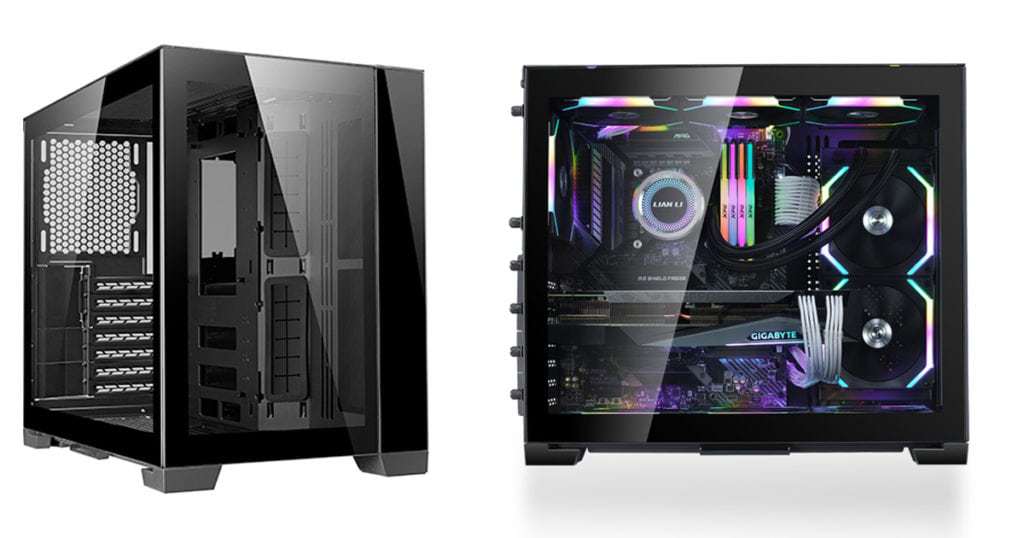
    One of the most recognized names in the PC builder universe is Lian Li, and on this list, we have the Lian Li O11 Dynamic Mini. This is quite possibly one of the most beautiful mini ATX cases we’ve ever gazed our eyes on.

    The Lian Li O11 Dynamic Mini, or Lian Li in general, does not shy away from making sure that the case looks absolutely stunning. They don’t cut corners when it comes to design, size, and functionality. As a result, you’re getting a case with high airflow and thermal regulation capacities and room for cable management.

    Unfortunately, there’s a downside. The Lian Li O11 Dynamic Mini does not support ATX PSU, which makes sense given the SFF of the chassis. However, it does support SFX and SFX-L PSUs.

    Key Features

    • Supports ATX, mATX, Mini ITX, and E-ATX (280mm or smaller)
    • Max GPU length of 395mm
    • Max CPU cooler height of 172mm
    • SFX or SFX-L PSU
    • Equipped with 4 dust filters: 1 at the top, bottom, and 2 on each side
    • Up to 7 PCIe horizontal expansions
    • Can accommodate 3 x 120mm fans or 2 x 140mm case fans at the top panel, 2 x 120mm or 2 x 140mm case fans at the side panels, 1 x 120mm fan in the rear panel, and either 3 x 120mm or 2 x 140mm case fans at the bottom panel

    Cooler Master HAF XB EVO

    A Must-Have For Lan Parties

    Cooler Master HAF XB EVO Smallest ATX Case

    This is another one of those ATX cases with great thermal regulation and optimal airflow design. And as its name implies, the Cooler Master HAF XB EVO is a master at cooling (pardon the pun).

    The Cooler Master HAF XB EVO comes with plenty of support for fans, a slot for a 240mm radiator in front and 120mm radiator in the rear, and preinstalled 120mm XtraFlo fans. The side panels are easily removed if you want more ventilation.

    The Cooler Master HAF XB EVO has four dust panels that can help prevent dust accumulation, so maintenance is relatively easy on this baby.

    But what we really like about the Cooler Master HAF XB EVO that a lot of the cases on here don’t have is its removable motherboard tray. The hard drive trays are easily removed too, giving the Cooler Master HAF XB EVO a lot of room and flexibility.

    All in all, the Cooler Master HAF XB EVO is a compact ATX case that’s flexible and sturdy at the same time.

    Key Features

    • Supports mATX, Mini-ITX, and ATX motherboards
    • Preinstalled with 2 x 120mm XtraFlo fans in the front panel
    • Equipped with 4 x 2.5″ or 3.5″, and 2 x 5.25″ bays
    • Maximum GPU length of 334mm
    • Maximum CPU cooler height of 180mm
    • Standard ATX PSU length (180mm)
    • 7 PCI expansion slots
    • Can accommodate 1 x 200mm case fan on the top panel, 2 x 120mm or 2 x 140mm case fans on the front panel, and 1 x 120mm or 2 x 80mm case fans on the rear panel

    NZXT H510

    A Compact ATX Case For Easy Builds

    NZXT H510 Smallest ATX Case

    The NZXT H510 is the successor to the previous model’s NZXT H500 case, and like its predecessor, the NZXT H510’s build is incredible with lots of room for cable management.

    The matte white color palette is a minimalist’s dream. Other color variations include matte black and matte black with red stripe. If you want some RGB lighting, you can get the NZXT H510-i model.

    Key Features

    • Supports Mini ITX, Micro ATX, and ATX motherboards
    • Max GPU length up to 381 mm
    • Max CPU cooler height up to 165mm
    • Preinstalled with 2 x 120mm fans for exhaust and intake
    • Slots for 2 x 120/140mm fans on the front panel, 1 x 120mm/140mm fan on the top panel, and 1 x 120mm fan on the rear panel
    • Tempered glass side panel
    • Standard ATX PSU support
    • RGB Lighting available with the -i model

    RaijinTek Thetis Window

    A Compact ATX Case That Looks Like A Tower

    RaijinTek Thetis Window Smallest ATX Case

    This is possibly the biggest of the smallest ATX case we have on this list. The RaijinTek Thetis Window is a brand that’s unfamiliar to some of you, but in the PC building enthusiast universe, it’s one of the best brands of the ATX cases. The RaijinTek Thetis Window stands out from this list for its compact frame and size, but at a price.

    The RaijinTek Thetis Window can only support inverted motherboard layout, which means your motherboard is upside down and the GPU is placed at the top panel. Nothing inherently wrong with the way the motherboard is placed, but to the newbie builder who lands the RaijinTek Thetis Window, it might come off as a shock to them.

    Unlike most of the cases here, the RaijinTek Thetis Window comes preinstalled with just one case fan, so you’re going to have to buy another one to improve the case’s airflow. That’s not going to be an issue given that the RaijinTek Thetis Window has about 4 slots for case fans.

    The RaijinTek Thetis Window comes in the black and silver color palette, as well as a non-windowed version (called the Thetis Classic).

    Key Features

    • upports Micro ATX, Mini ITX, and ATX motherboard
    • Max GPU length of 320mm
    • Max CPU cooler height of 170mm
    • Supports 240mm radiator (top panel)
    • 7 PCI expansion slot
    • 2 x 3.5″ drive bay and 2 x 2.5″ drive bay
    • Four fan mounts: 2 x 120mm on the top panel, 1 x 120mm on the rear panel, and 1 x 120mm on the bottom panel

    ThermalTake Core G3

    Slim And Compact ATX Case

    ThermalTake Core G3 Smallest ATX Case

    The Thermaltake Core G3 is a compact and slim ATX case, measuring about 5.5-inch in width. A mainstream case as slim as the Thermaltake Core G3 is difficult to find.

    But with the slim aesthetics, sacrifices were made. The Thermaltake Core G3 can only accommodate a compact SFX PSU rather than a standard ATX PSU. This isn’t a big problem, considering that SFX PSUs are relatively easy to find and within a reasonable price range.

    Another compromise is the GPU mount on the Thermaltake Core G3. GPUs are mounted vertically right against the side panel, which could cause higher GPU temperatures. There’s not enough room for cable management in the Thermaltake Core G3, which could further hinder cooling and airflow.

    Some PC builders using the Thermaltake Core G3 have reported reaching up to 86 degrees Celsius on the GPU, which is not 100% ideal.

    If these aren’t a problem for you, the Thermaltake Core G3 is still an impressive compact PC case. Considered as a mini ITX case, you can mount the system vertically or horizontally.

    Key Features

    • Support for Micro ATX, Mini ITX, and ATX motherboards
    • SFX PSU support
    • Maximum GPU length of 170mm
    • Maximum CPU Cooler height of up to 109mm
    • Two PCI expansion slots
    • Front radiator support up to 240mm
    • 2 x 3.5″ or 2.5″ drive bays

    Corsair iCUE 220T RGB Airflow

    Premium Mini ATX Case

    Corsair iCUE 220T RGB Airflow Smallest ATX Case

    Visually pleasing to look at, the Corsair iCUE 220T proves that size does not matter when it comes to aesthetics. The Corsair iCUE 220T has angular perforations on the front panel, but these aren’t for show. These are designed to help with airflow, along with the preinstalled Corsair SP120 intake fans.

    You also have access to the Corsair Lighting Node Core for the RGB lighting control on the fans. To our dismay, this is a Node Core, so you can’t add any RGB Led strips. If you want to add RGB strips, you’ll need to buy a Node Pro and install it on the case. This isn’t a dealbreaker and does not affect the performance of your hardware once installed on the Corsair iCUE 220T.

    Builders recommend swapping out the preinstalled fans on the Corsair iCUE 220T with better RGB fans on the market if you really want to maximize the case’s airflow potential.

    Key Features

    • Supports ATX, Micro ATX, and Mini ITX motherboards
    • ATX PSU support
    • Maximum GPU length of 299mm
    • Maximum CPU cooler height of 160mm
    • 7 PCI expansion slots
    • Room for up to six additional case fans
      • 1 x 120mm fan on the rear panel
      • 2 x 120mm or 2 x 140mm fans on the top panel
      • 3 x 120mm or 2 x 140mm fans on the front panel
    • Radiator support for up to:
      • 240mm on the top panel
      • 120mm on the rear panel
      • 280mm or 360mm on the front panel
    • 2 x 3.5″ and 2 x 2.5″ drive bays

    Helpful Buying Case For Buying The Smallest ATX Case

    Buying compact cases may not be as easy as buying a standard sized case or tower. There are a few things to keep in mind when you want to purchase the smallest ATX case on this list:

    1. Quality Matters – Don’t get carried away with the aesthetics. You want to go for aluminum or all-steel chassis if you want durability.
    2. Expansion Slots – You also need to consider how much room you want for expansion in the future. You want compact ATX cases that have more drive bays or PCIe slots.
    3. Air Flow and Ventilation – If you want to make the smallest ATX case work with overclocking hardware, then you want to secure one with the most ventilation and airflow. A lot of compact ATX cases don’t have good spots for fans or radiator installations, so you need to make sure that your case can handle the extra heat without relying too much on fans.
    4. Your Components – Remember to measure the GPU, CPU, and PSU length of the case that you want to buy and make sure that your current hardware (or hardware on your to-buy list) will fit the compact PC case.
  • Can You Mix RAM Brands?

    Can You Mix RAM Brands?

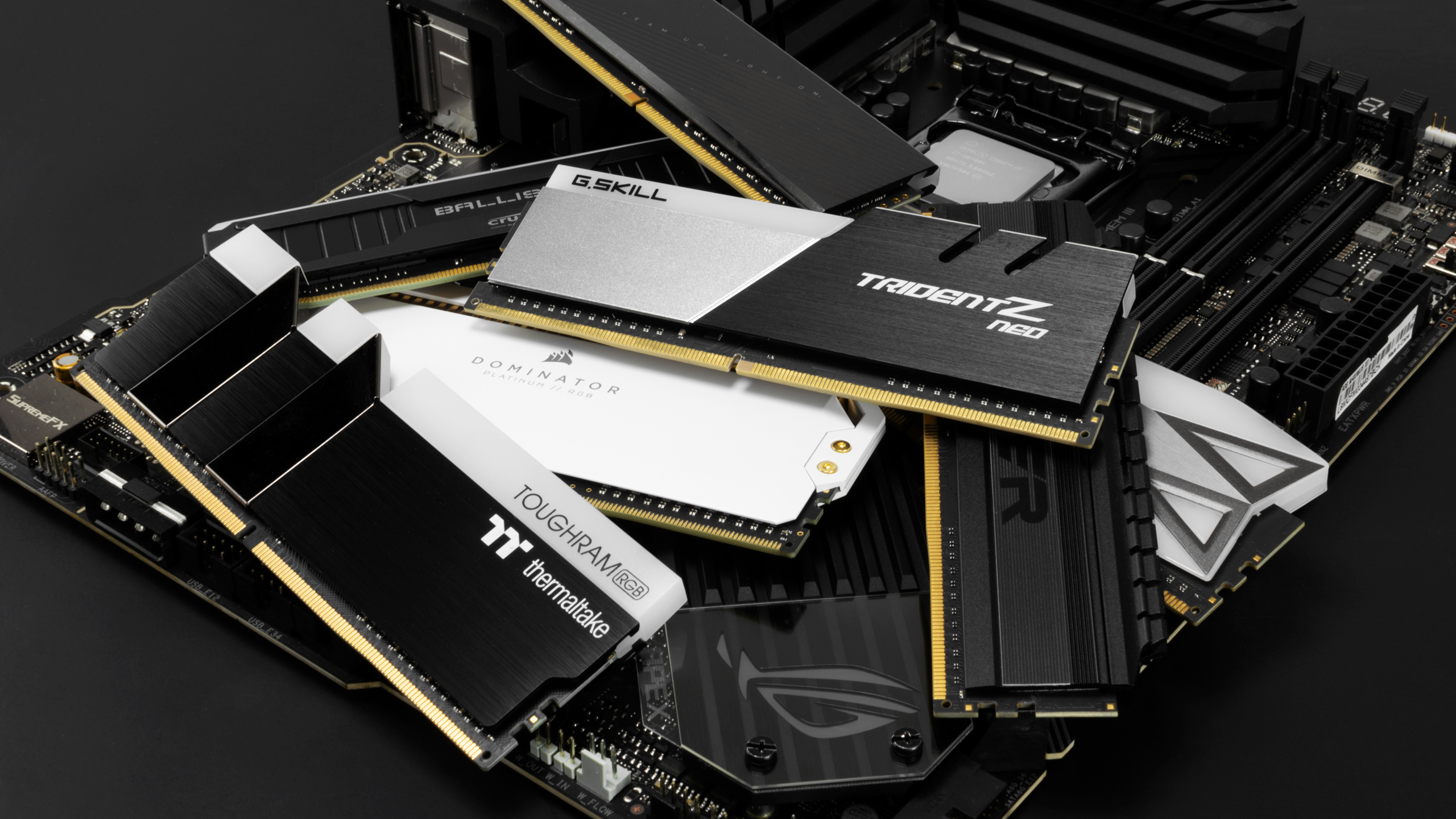
    One of the most important parts of a computer is the RAM, or random access memory. RAM modules are also considered to be one of the easiest parts to upgrade in a system unit. But more often than not, people make one simple mistake: mixing different RAM brands.

    RAM modules are responsible for doing computations for a specific amount of time so that the processor does not redo them each time. In theory, mixing RAM modules of different brands can be done, but not without some problems.

    In this article, we’ll be discussing what happens when you mix RAM modules of different brands and how big of a problem it can be to mix them.

    A Quick Basic Guide To Reading RAM Specifications

     Before we answer the question “can you mix RAM brands?”, first we must understand what it is we’re actually mixing. If you already know how to read RAM Modules’ specifications, you can skip this section.

    Form Factor

    There are two form factors to consider for RAM modules. You have your Dual In-Line Memory Module or DIMM, and Smal Outline DIMM or SO-DIMM.

    1. DIMM is a common form factor that’s used by desktop computers.
    2. SODIMM RAM modules are used by compact PCs and laptops. They’re roughly half the size of DIMMs.

    Memory Type

    RAM modules have gained a lot of features and functionalities over the years. Memory type or generation will determine how new the RAM currently is. You can tell how old a RAM module is by their generation, which is listed below:

    • 2000 release: DDR1 SDRAM
    • 2003 release: DDR2 SDRAM
    • 2007 release: DDR3 SDRAM
    • 2014 release: DDR4 SDRAM
    • 2020 release: DDR5 SDRAM

    Unfortunately, RAM modules don’t have forward or backward compatibilities if we’re talking about generations because each generation uses a different number of pins.

    Memory Speed

    RAM speed is determined by its frequency. The higher the frequency, the more cycles a RAM module can perform per second.

    Frequency is measured in MHz or megahertz, or million cycles per second. A 3600MHz RAM translates to 3.6 billion cycles per second. This means that a RAM can transfer this much data in a second.

    Memory Sizes

    RAM sizes will let you know how much information it can store per stick. You can get anywhere between 2GB to 32GB. For office tasks, a bare minimum would have to be 4GB of memory but ideally, you want 8GB. If you’re gaming or doing some heavy-duty rendering/editing, then you want 16GB or higher.

    Memory Latency

    Memory latency measures the time it takes for a module to call to or respond to a command in a system. In RAM modules, you’ll find the latency labelled as CL. A CL16 RAM stick will take about 16 cycles before it can respond.

    Unlike frequency, you want the CL to be lower.

    Memory Voltage

    Voltage refers to the power that the RAM stick consumes. You’ll find different ranges for voltages, starting from 1 V all the way to 1.4V. You can manually adjust the voltages of your RAM according to the performance and stability you want.

    Memory Brand

    Lastly, memory brands are not equal. There are different assemblers or manufacturers for RAM modules, so it can be difficult to identify which one’s the best. You’ll find two RAM modules sharing the same size, frequency, speed, voltage, and latency, but the controller chips and memory may be different.

    Why Is It A Problem To Mix RAM Brands?

    As mentioned in the previous paragraph, there are different manufacturers and brands of RAM modules. While they share the same specifications, the memory and circuits will be different. When you mix RAM modules of different brands, you might end up with your system crashing or your system not booting.

    When there are different RAM modules used in a single motherboard, you’ll use more Dual-In-Line memory modules or DIMM slots, which creates a lot of possibilities for conflicts.

    What Would Cause These Problems To Begin With?

    If you’re planning on installing RAM modules that are different from your current one, you’ll need to know that this combination might have a negative effect on your computer.

    Some of the causes of the problems associated with mixing different RAM brands are as follows:

    Voltage

    Mixing different RAM modules will result in mixing different voltages. The RAM with lesser voltage may not operate to its full capacity because it’s receiving less power.

    Single vs Dual Channel Memory

    There are two types of memory – single channel mode and dual channel mode. These work differently and will not always be noticeable to users. If you use a single channel RAM and a dual channel RAM, then you’ll end up with the latter running on a single channel.

    Now, browsing or doing office tasks might not be a problem, but when you’re gaming, video editing, or doing 3D rendering, that’s where you’ll notice the difference in performance.

    Storage Capacity

    Using different sizes might also affect your system’s memory configuration. If you pair a large RAM module with a small one, you’ll have an asynchronous operation. This is what you would often refer to as FLEX MODE.

    Smaller RAM modules will only pair with half of the larger RAM modules to get dual channel mode. The remaining storage capacity will only work in single channel mode.

    You may know this as Flex Mode. What happens here is that the smaller RAM will pair with half of the bigger RAM module, so the remaining module will only work in single channel mode. How heavy the workload is will determine how noticeable the mismatch is.

    Speed

    Mixing RAM modules with different speeds can greatly affect the RAM modules’ performance. While it’s possible to set your fastest RAM to run at the speed of the slowest RAM, you’ll still have issues.

    Frequency and latency will both affect your memory speed. RAM sticks with different frequencies will need to have the same latency in order for them to work together.

    The Big Question: Is It Okay To Mix Different RAM Modules or RAM Types?

    The straight answer is NO.

    You shouldn’t mix different RAM types or modules. Motherboards are designed to only accommodate one generation of RAMs, so if you have a motherboard that can accommodate DDR5 RAMs, then those are the only RAM modules you should be getting.

    And also, you can’t combine one DDR2 and one DDR3 RAM into a motherboard just because you think you’ll get a total of DDR5. That’s not how it works.

    If you want to know what kind of RAM type your motherboard is capable of accommodating, go to Task Manager and go to the Performance tab. Choose the Memory option and you’ll see what DDR type your motherboard has.

    You can also use software that retrieves your PC information for you, like CPU-Z.

    Is It Okay To Mix Different RAM Sizes?

    It’s possible to use different RAM sizes but there are disadvantages. For example, let’s say you have an 8GB and 4GB of RAM sticks for your desktop PC.

    If the RAM brands, frequency, latency, and other specs are similar, you shouldn’t be having major issues,

    But…

    Pairing a large capacity RAM stick with a smaller RAM stick will affect your system’s performance. The RAM stick with the lower capcity will only pair with half of the larger capacity’s storage.

    With the scenario above, instead of having 12GB of RAM, you’ll only have a total of 8GB RAM in dual channel mode for the best performance possible. The remaining 4GB RAM will run on single channel mode.

    Depending on the workload, you will notice a dip in performance. If you’re just doing office tasks and non-demanding work, then you won’t notice your system slowing down. On the other hand, you’ll feel a dip of about 20% in performance when gaming or doing some video editing. This is why manufacturers only mix RAM sticks of the same sizes (i.e. 2 pieces of 8GB to make up a 16GB RAM kit).

    Is It Okay To Mix RAM Voltages?

    If you have different RAM sticks with different voltages, there’s nothing really stopping you from mixing them. Just know that you’re not exactly guaranteed optimal performance from either RAM.

    Different brands of RAM with different voltages will force your motherboard to run with the RAM with the lowest voltage and the RAM with the highest voltage won’t get enough power by default.

    This won’t stop the RAM with the highest voltage from operating mind you, but again, you won’t be getting optimal performance.

    Is It Okay To Mix RAM Speeds?

    Combining RAM sticks with different frequencies will cause your motherboard to underclock the fastest RAM.

    Using the scenario above, you have 8GB and 4GB RAM of the same brand with the same latency. Combining these two RAM sticks will result in the 8GB running according to the speed of the slowest RAM. So your 8GB RAM will only be 4GB.

    You could overclock your 4GB RAM to match the 8GB stick, but that would result in overheating and frequent crashing.

    As mentioned earlier, this is why RAM kits are always paired with the same speed and specs. If you are purchasing a 32GB RAM kit, you’re getting 2 pieces of 16GB RAM sticks.

    Is It Better To Buy A Single RAM Kit?

    The answer here is YES.

    RAM kits are two RAM sticks of the same brand and specifications. These are specifically combined and tested by the manufacturers to work together flawlessly, but not with other kits.

    If you want to get 64GB of RAM, you’ll want to mix RAM kits comprised of 16GB modules from the same brand. If you’re getting a BRAND X RAM kit with two pieces of 16GB modules, your second ram kit of 16GB modules should also be BRAND X.

  • Everything You Wanted To Know About SSDs

    Everything You Wanted To Know About SSDs

    One of the best things that ever happened to laptops and personal computers was the invention of SSD, or solid state drives. Picture your traditional HDD having superpowers and you’d have painted a pretty picture of what SSD technology is capable of.

    But not all SSDs or solid state drives, or even SSD connection types, are the same. While SSDs are the evolution of your traditional SATA hard drives, compatibility is a big concern especially when you’re working with older motherboards.

    Don’t worry because this article will tell you everything there is to know about SSDs, the different SSD types, and more.

    First, What Exactly Is A Solid State Drive?

    SSD or Solid State Drive is a new type of hard drive that utilizes a new way of storing and delivering information. Traditional HDDs rely on electrical signals being carried through a passageway made of vacuum tubes. But with SSDs, electrical signals are carried between transistors using solid materials.

    Unlike a traditional HDD, SSDs is a static devices with no moving parts. It comes with its own integrated circuits that allow you to store information inside the drive. Because there are no moving parts, storing and transferring information is done at a faster rate. The SSD has non-volatile memory chips which have a unique controller, thereby removing all mechanical and moving parts. You end up with a device that’s more energy efficient because you don’t need motors and a power supply to make it work. In simpler terms, everything stored in an SSD like your OS and programs would load faster.

    SSDs come in different sizes and shapes, as well as components, but their functions are one and the same.

    What Makes an SSD Different From Traditional SATA Hard Drives?

    Read or Write Data

    An HDD uses a mechanical arm to write or read data and magnetic systems similar to how CDs and DVDs store or write data.

    An SSD has a semiconductor IC or Integrated Circuit that’s responsible for storing information. It also has flash memory, similar to the technology found in USB sticks and memory cards. The IC is also responsible for other tasks such as cleaning, caching, and restoring data.

    Build

    SSDs don’t have mechanical or moving parts, so it’s already vibration-proof or shock-proof, while an HDD uses a magnetic discs that’s set to run for a specific amount of time. A traditional hard disk drive is more likely to slow down in performance over time because of wear and tear.

    Heat Resistance

    HDDs have a tendency to overheat more than SSDs. In fact, SSDs are known to be more heat-resistant because of the absence of mechanical parts even at high workloads.

    Processing Speed

    SSDs carry data through electricity, and with no moving parts to rely on, they’re reliably faster than an HDD. Solid state drives’ processing speed can go as high as 3500 Mbps, while HDDs can only go as high as 160Mbps.

    Weight

    Because of the SSD’s build, they’re lighter and more compact than the HDD.

    What Are The 5 Types of SSDs?

    We know what an SSD is and how it works at a glance, but did you know there are different types?

    In this section, we’ll go over the different SSDs, their interfaces, connectors, and other functionalities (if ever).

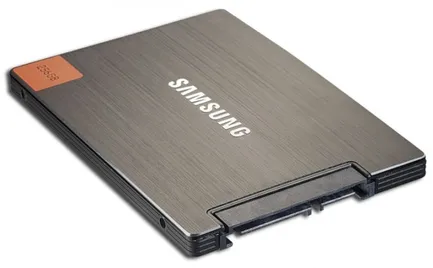
    SATA SSD

    SATA or Serial Advanced Technology Attachment SSD is the most popular type of SSD and is the first SSD model released in the market.

    A typical SATA SSD is about the same size as a SATA HDD and also has the same connector type

    SATA SSD SSD Types

    The SATA SSD uses Serial ATA to transfer data and is compatible with any desktop or laptop, even if the unit is about 10 years old or more. All you need is a 2.5-inch drive bay and a SATA cable.

    SATA SSDs are also used by older computers that don’t have the new SSD connector and can only accommodate SATA cables. This makes it a great choice for upgrading an old laptop or PC’s HDD and giving it a brand new lease on life.

    There are three versions of the SATA SSD, namely SATA I, SATA II, and SATA III. Here are the transfer rates for each version:

    • SATA 1.0: 5 Gb/s, 150 MB/s
    • SATA 2.0: 3 Gb/s, 300 MB/s
    • SATA 3.0: 6 Gb/s, 600 MB/s

    M.2 SATA SSD

    The M.2 SSD is a newer type of SATA SSD and is smaller and lighter than the SATA SSD. The M.2 SSD has a rectangular shape and looks like a smaller version of RAM.

    M2 SATA SSD Types

    An M.2’s dimensions are 22mm x 80mm (width by height) and come with NAND chips on both sides. They’re more convenient and can be installed into a motherboard that has an M.2 slot. If your laptop or PC has an M.2 slot, then you can definitely run with an M.2 SSD.

    M.2 SSDs also come in different sizes, but here are the common dimensions:

    • M.2 22110 : 110 x 22 mm
    • M.2 2280 : 80 x 22 mm
    • M.2 2260 : 60 x 22 mm
    • M.2 2242 : 42 x 22 mm

    The M.2 2280 is the most common type of M.2 SSD.

    Note that the M.2 slot on a desktop’s or laptop’s motherboards can accommodate either a PCI-E bus or a SATA Bus, and can only have either an M.2 SATA slot or an M.2 PCI-E slot. That’s why you need to match your motherboard’s M.2 slots with the M.2 SSD you’re planning on buying.

    mSATA SSD

    mSATA SSD SSD Types

    The mSATA SSD is a smaller version of the SATA SSD and is commonly installed in compact computers, mobile devices, or tablets that have an mSATA slot, or laptops.

    The newest mSATA SSDs have a storage capacity of up to 1TB with a 6Gbps read/write speed. This SSD also boasts lower power consumption, making it more economical than the traditional SATA SSD.

    Experts would still recommend going for a SATA SSD as long as your motherboard can equip it. Your device needs to have an mSATA connector if you want to install an mSATA SSD.

    M.2 PCI-E SSD

    M.2 PCI-E SSD SSD Types

    The M.2 PCI-E SSD is the first SSD to ever use a PCIe connector type and allowed servers to increase their storage capacities and speeds. An M.2 PCI-E SSD can fit right into your motherboard’s PCIe ports, similar to how you’d install a PCIe network card or sound card. Right now, an NVMe SSD using a PCIe connection interface possesses the fastest computational speed at read/write bandwidth of 2000 Mbps up to 32Gbps.

    You’ll need PCIe M.2 slots on your motherboard if you want to use an M.2 PCI-E SSD, and you also need to match the M.2 slot keys of both the motherboard and the SSD as well as its size.

    M.2 NVMe SSD

    M.2 NVMe SSD SSD Types

    NVMe stands for Non-Volatile Memory Express and is five times faster than SATA SSDs. These are relatively new and have only been out for a couple of years. The M.2 NVMe SSDs use a PCIe interface and connector type.

    With that said, the M.2 NVMe SSD is more expensive and consumes a lot more power than SATA SSDs. A typical M.2 NVMe SSD would usually have an interface rate of 32 GB/s with 3.9 GB/s throughput, which roughly translates to having more speed for high-resolution gaming or video editing.

    But as fast and as expensive as the NVMe’s are, this type of SSD has some disadvantages:

    • Some BIOS still don’t support booting OS from the NVMe SSD. That means you would need a new motherboard that has BIOS that supports this if you want to load up your OS on the NVMe PCIe SSD.
    • Some laptops can accommodate an NVMe SSD as long as they have a spare PCIe slot. If your laptop does not have a PCIe slot (or a spare one at that), then you might need to purchase a new laptop with an NVMe SSD already built in. However, these laptops are pricier.

    Is There A Difference Between Cheap and Expensive SSD?

    Choosing between SSD types is one thing, but another thing to consider when shopping for SSD is their price. Are you willing to go out and buy an expensive brand, or are you willing to work with a cheaper brand?

    Is there an actual difference between SSD types if they’re expensive or cheap?

    Let’s take a look at some important factors:

    1. Age is something you want to consider, so if you want to have a longer-lasting SSD, then you’ll want to go for a more expensive brand as they last for about 20 years or more, while a cheap brand could conk out after 5 years or so.
    2. Expensive SSDs have faster load times, so this makes it one of their better selling points. Even if you bought a mid-range brand, it will still perform better than the cheap brands.

    What Are Some Factors In Choosing SSDs and SSD Types?

    There are only about three things you need to consider when it comes to choosing what type of Solid State Drives you’re using:

    • Your budget
    • What your using it for
    • Motherboard compatibility

    Motherboard compatibility ultimately makes or breaks your decision into choosing what SSD type you’re ending up with.

    Older motherboards will most likely accommodate SATA solid state drives, even with or without the 2.5 inch bay. Modern motherboards allow for more flexibility as they have slots that support M.2 SSDs and 2.5 inch SATA SSDs. You can even install one M.2 SSD on your motherboard to host your OS and applications while you use the 2.5 inch SATA SSDs to host your files.

    There are some old motherboards that can accommodate M.2 drives and if your motherboard has PCIe 3.0 slots, then you can use PCIe add-in adapter cards to let you use an M.2 SSD.

    If you are lucky enough to have a motherboard that can support an NVMe SSD, you’re more or less going for it all the way. The budget shouldn’t be a concern at this point because you just want to have the highest storage capacity possible for an NVMe SSD.

    Which One Should You Use?

    Gamers are more likely to use the NVMe SSD, or any PCIe SSD because of the faster load time. Games start up and load faster than they should, even on a SATA SSD. Content creators that edit videos or audios will also be using these SSD types to process and render through large amounts of data with ease.

    On the other hand, if you want something faster than your old HDD for everyday use, then SATA SSDs are more than enough.

    For everyday performance that does not require high-intensity data speed transfer, you can get a SATA SSD. If you want more storage space without having to spend a lot more money, you can use your SATA SSD to host your OS and applications while storing all your data in your traditional HDD.

    The Wrap Up

    It goes without saying that the price of SSDs will continue to go down as more types of SSDs become available to the market. At this time of writing, you can probably score a 2TB NVMe SSD (Samsung) for less than $200, which is a far cry from what these NVMe PCIe SSDs were priced at when they first graced the market.

    If you want more storage space and faster load times, then consider upgrading to any of the types of SSDs mentioned above.

  • A Complete List of ALL CPU Parts To Build A Gaming PC

    A Complete List of ALL CPU Parts To Build A Gaming PC

    So you’re ready to build your gaming PC from scratch. You have your money lined up to purchase all CPU parts necessary, but you have doubts if your shopping list is complete. We can’t blame you.

    Custom PC All CPU Parts

    Building a PC from scratch is intimidating the first time you do it because you don’t have the confidence just yet. You’ve seen those videos on TikTok where someone built a PC and all of a sudden, the GPU catches fire.

    Now we’re not saying that this is what will happen to your computer components after assembly. Your nerves are probably getting the best of you because this is your own gaming PC and you don’t want all the other components to just go up in flames.

    Don’t fret because this article will go over what you need to do and what parts you need to build your first gaming PC.

    We’ve decided to break it down into four steps:

    1. Identify What You Want To Build
    2. Get All Your Tools Ready
    3. List Down All Computer Components
    4. Read These Guidelines First Before You Start

    Identify What You Want To Build

    No two gaming PCs are made equal, and we say this with confidence because the build of your own computer will depend on what kind of machine you want and how big your budget is.

    If you’re a content creator who edits and uploads gaming content on YouTube or if you stream on Twitch, then you need something more robust and powerful than your average gaming PC. You’ll need top of the line processors, a high-end graphics card, and a storage device with higher capacity.

    Once you’ve identified what you need out of your gaming PC, your next consideration will be your budget. Depending on what your budget will allow you to purchase, you’ll want to adjust the specs as you start to finalize the build.

    Then there’s the issue of available stocks for your PC parts, which greatly affects your ability to build a PC and your budget. Graphic cards aren’t exactly accessible to a lot of people at this time of writing. The Covid-19 Pandemic plus the hoarding of GPUs by cryptocurrency miners caused a shortage of GPUs worldwide. But with cryptocurrency mining slowing down, it might take a while before you’ll see graphics cards returning to their MSRP.

    Get All Your Tools Ready!

    All right. Now that you have an idea on what you want to build, you’ll want to secure the tools as the next step.

    First, you need a large workspace that allows you to work without any hindrance. You need to make sure that this workspace isn’t on any carpeted surface because static discharge can damage components. You can also secure your workspace with an anti-static mat.

    Then you’ll need two screwdrivers, specifically a Phillips #2 screwdriver for all the parts and a Phillips #0 for installing an M.2 device. You can make use of magnetic screwdrivers so you don’t accidentally drop screws in different crevices.

    The magnet from a magnetic screwdriver is weak so you shouldn’t worry about damaging your components with it.

    You’ll also need scissors and cable ties for the cable management aspect of building a PC.

    List Down All The Computer Components

    PC Components All CPU Parts

    Okay, now let’s get down to business. It’s time to gather all the parts that you need to build your gaming PC from scratch.

    Here’s a list of what you need:

    • Computer Case or PC Casing
    • CPU
    • Motherboard
    • Random Access Memory (RAM)
    • Graphics Processing Unit (GPU)
    • Storage device
    • Power Supply Unit (PSU)
    • Cooling System (CPU cooling and GPU cooling)
    • Input Devices
    • Operating System (OS)

    Let’s look at the individual components and what they do:

    Computer Case

    The computer case or PC case acts as your component’s housing. Computer cases help secure motherboards, power cables, fans and cooling systems, and some parts.

    There are different PC case sizes, each of them with their own features and advantages. The kind of casing you’ll need will depend on your motherboard, desktop space, and aesthetic preference. Usually, people will just determine what kind of case they want to use based on their motherboard and available desktop space. Most motherboards would fit inside mid tower cases, but you might opt for a bigger computer case if you are planning to accommodate more case fans, liquid cooling, or possibly a bigger graphics card (we’re looking at you, Nvidia GeForce RTX 3080!).

    CPU

    The CPU, or central processing unit, or commonly known as a processor, comprises the first half of your PC’s central nervous system. Considered as the brain of modern computers, a CPU is the part responsible for handling and calculating information and instructions that it receives from the other components’ software.

    Desktop computers will never be able to run without a processor, so that’s how important they are.

    Motherboard

    The motherboard, or mainboard to some, is considered as the second part of your your PC’s nervous system. You’ll find your primary circuit board, slots to attach your components to, and a central hub that manages these different parts.

    Your optical drives or storage drives, CPU, graphics cards, RAM, and fans are installed into the motherboard. The motherboard will combine your components’ unique functionalities to give you a cohesive functioning PC.

    What kind of motherboard you’ll choose will limit the PC parts you’ll be using, from RAM modules you’ll need to use to the available CPU socket, and other nuances. Motherboards also somewhat dictate the kind of PC case you’ll need to use, so there’s that to consider as well.

    RAM

    RAM, or Random Access Memory, is responsible for determining how fast your PC is able to execute certain processes. A higher RAM capacity means that your PC will be able to handle more processes at a faster rate.

    RAM can affect how many browser tabs and how many programs you can open, to put it simply. If you want to switch between a browser and a video game without lagging, you’ll need a RAM capacity of at least 8GB.

    Graphics Processing Unit (GPU)

    The Graphics Processing Unit, or graphics card, is responsible for displaying images on your monitor. The chip on the GPU performs computations that will allow the PC to render and display images, which is why people usually refer to it as a video card.

    There are two types of GPUs: Discrete Graphics Processing Unit and Integrated Graphics Processing Unit.

    1. A Discrete GPU is a separate GPU that’s installed into a PC that will allow you to handle heavy tasks involved with gaming, video editing, and rendering.
    2. An Integrated GPU is prebuilt into the PC and takes a portion of its computing power from the processor. However, iGPUs are limited in terms of performance so you won’t be able to do gaming, rendering, or video editing.

    Storage Device

    When it comes to gaming, you’ll need to know about three types of storage devices: HDD, SSD, and NVMe SSD. All three have the same function of storing data, but the difference lies in their speed. HDD stands for Hard Disk Drives and SSD stands for Solid State Drives.

    HDD storage devices are the slowest with a rate of 100MB/s for reading and saving data. Solid State Drives or SSDs have about 500MB/S and NVMe SSDs have up to 7000 MB/s.

    An HDD and SSD utilizes SATA cables through a motherboard and gets power from the PSU. An NVMe SSD is an individual component in itself and attached directly into the motherboard. The NVMe SSD doesn’t draw any power from the PSU.

    NVMe SSD can be installed on a standard PCIe slot (Peripheral Component Interconnect Express), so as long as your motherboard has available PCIe slots, you can install NVme SSDs.

    If you want faster load times for your games and transferring data, an SSD or NVMe SSD is the ideal storage device for you.

    Power Supply Unit (PSU)

    Contrast to their name, a PSU does not supply power to the entire system, but rather, they convert power. A Power Supply Unit or PSU is responsible for converting high voltage current or AC into direct current or DC. The PSU is also responsible for regulating DC output according to the power tolerances of modern computer parts.

    Cooling System

    When your CPU draws in power, it generates heat. You’ll need a CPU cooling system or CPU cooler to help manage the heat. This is necessary if you want your CPU to operate smoothly.

    When a CPU gets too hot, it will automatically reduce the number of cores operating to dissipate heat. When this happens, performance becomes severely affected.

    But it’s not only the CPU that needs cooling. Other parts such as the GPU will need help to dissipate heat from the motherboard. This is made possible by installing computer fans that blow in cool air and expels hot air to the back of the case.

    Apart from fans, there are also other cooling options available such as liquid cooling (but this is a bit more expensive and not exactly meant for first time builders).

    Input Devices

    Part and parcel of building a PC is to get input devices, ranging from mice, keyboards, to monitors. These devices are plug and play, so you don’t have to worry about compatibility.

    Personal preference is the biggest factor when it comes to choosing what kind of mice or keyboard or monitor you want to use.

    Other PC parts that fall under this category are tablets, cameras, and microphones. You might need additional software to make sure that these devices function properly.

    Operating System (OS)

    Windows 10 is one of the best operating systems that you can use on your PC. You can purchase a physical copy of the OS or you can download it from the Internet.  

    There’s also the option of Windows 11, which comes from upgrading your Windows 10 operating system.

    Read This Section Before You Build a PC or Shop For Computer Components

    This section is important because we’ll tell you what else you need to do before you build a gaming PC or shop for parts.

    This guideline is meant to point you to the right direction especially if it’s your first time building.

    Watch Tutorials

    A video tutorial on building a PC is a lot better than reading a comprehensive guide. You actually get to see what’s being done when assembling a PC.

    A tutorial video will give you a better understanding of the basics of PC building and its nuances. For example, you’ll probably see a video that talks about what kind of GPU is best for a particular processor.

    Some tutorial videos will also go into more details in terms of PC components and their functionality. For example, a video might talk about maximizing clock speed or how to optimize storage devices so they store data efficiently.

    Invest In a Processor and Graphics Card

    The CPU and GPU are two of the most important parts of a gaming PC. You might try to cut corners if you’re on a tight budget, but trust us when we say it’s better to invest in both CPU and GPU.

    Just because you’re saving money doesn’t mean that you’re getting a good gaming PC.

    High-end CPUs and GPUs need sufficient power, so a cheap PSU might become troublesome in the long run. You also shouldn’t get a PSU that’s too powerful for both CPU and GPU because you’ll simply waste unused power.

    Using a high-end GPU with a mid-range CPU might cause bottlenecking, meaning your GPU might not reach its full potential because the CPU can only render so much.

    Avoid Static Discharge

    Static discharge can damage computer components, and a lot of the video tutorials will constantly remind you about this.

    An anti-static bracelet or wrist wrap is recommended to use for first time builders, but experienced builders won’t need one. Though they’ll probably still use it for best practices.

    One of the best tricks to avoiding static discharge to not touch any metallic surface while touching a computer part. You also shouldn’t be working on carpeted surfaces.

    Ask the Experts

    Before you shop for PC components, it’s best to ask around and get recommendations from experts. We’re not talking about experts such as Linus Tech Tips, mind you. But rather, we want you to ask around experts in your area about PC components.

    There’s probably a small community of PC builders in your area that will help you with your PC build. They might even recommend PC parts that match your budget and needs.

    The Wrap Up!

    And there you have it. Everything you need to know and do before you build a PC. If you are still feeling doubtful about your abilities to build a PC even after reading this article, then you might be better off with a prebuilt gaming PC.

    Sure, you end up spending a bit more than having a custom PC build, but you do get that peace of mind.

    However, if you are up to the challenge and feel that it’s time for you to take up your mantle as one of the more serious gamers, then build a gaming PC. Having your own computer is one thing, but building it is a completely different experience.

  • How Long Does Thermal Paste Last And Other Questions Answered

    How Long Does Thermal Paste Last And Other Questions Answered

    If you own a gaming PC, one of the most important things that you need to know is computer maintenance and cleaning. We’d like to think that our gaming PC’s are invincible because they’re made from high-end parts, but sometimes, things can go so wrong at one point and you’ll need to do maintenance sooner than later.

    In this article, we’ll be discussing one of the most important components of computer maintenance: thermal paste. We’ll know what this item is about, how long does thermal paste last, and when you should be replacing it.

    What Is Thermal Paste?

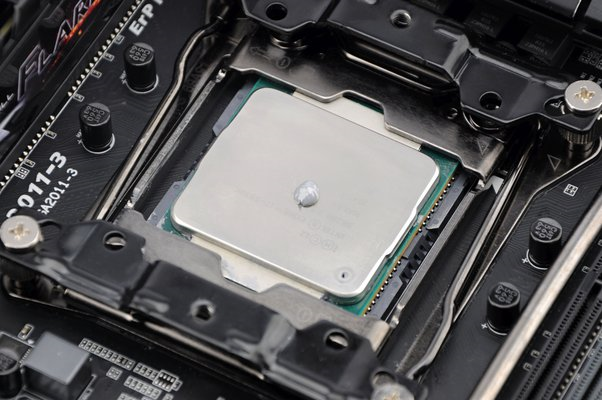
    Thermal paste, or thermal compound or thermal grease to some, is a substance that’s applied between the heat sink and processor. These are available in small tubes at electronic stores, along with a small shovel-like tool to help you apply the paste.

    A tube of new thermal paste is what you initially need when you’re building a PC the first time. Most of the time, the CPU heat sink already has a pre-applied thermal paste so you can just install immediately. But the hardcore PC builders will manually reapply thermal paste because they already have a brand preference.

    Thermal pastes do one thing and that’s to help keep the CPU cool by transferring heat into the heat sink. The heat sink is then responsible for expelling heat away from the CPU, allowing your CPU to stay cool at all times (when possible).

    How Does Thermal Paste Work?

    CPUs generate a lot of heat when they’re working on heavy tasks, such as rendering or gaming. Your case fans or PC fans may keep other parts of your system cool, but not for the CPU. You see, air is a bad heat conductor. You want to minimize the distribution of air between CPU and heat sink.

    The heat sink is pressed tightly into the CPU, which prevents air from getting into the CPU but this isn’t a complete seal. To really prevent air from getting into the processor, you need to seal the tiny gaps between the CPU and heat sink.

    The thermal paste will allow you to completely seal the surface of the CPU and the heat sink’s contact point. The paste will cover the hardware’s surface grooves and small gaps, allowing for a complete seal and improving heat transfer rate.

    Thermal pastes don’t last forever, unfortunately, so you’ll need to replace them over time. A dried out thermal paste has reduced effectiveness, so your CPU may become hotter than normal. When this happens, you’ll need to replace thermal paste before you damage the CPU.

    How Is Thermal Paste Applied?

    The debate on how to use thermal paste is intense, specifically on how to apply thermal paste. You’ll find a lot of videos, articles, and theories on the right way to apply thermal paste. It’s just difficult to pinpoint which one’s the right one.

    But the simplest way to apply thermal paste is as follows:

    Pea Sized Amount How Long Does Thermal Paste Last
    1. Apply a pea-sized drop in the middle of the CPU.
    2. Attach the heat sink into the processor.
    3. Apply pressure on all four corners of the heat sink, ensuring that the thermal paste is distributed across the surface evenly. If your thermal paste has an applicator, you can use this to distribute the paste evenly before you clamp down the heat sink.
    Spreading Thermal Paste How Long Does Thermal Paste Last

    Now there are different ways to apply thermal pastes on CPUs, so regardless of what method you pick, you have to make sure that there are no gaps or bubbles on the CPU and heat sink’s surface. Otherwise, heat transfer and distribution will be affected.

    Where Should People Store Thermal Pastes?

    Thermal pastes are best stored in cool areas. People would suggest storing it in a freezer but this is a bad idea. There is a risk that the thermal paste might damage your CPU after you freeze it.

    If you have leftover thermal paste, you can store it inside any airtight container, like a Ziploc bag. You’ll want to avoid placing this container under direct sunlight or heat.

    For people in tropical countries, you’ll have a higher than normal room temperature. The best way to store thermal paste is to store it in a drawer in an air-conditioned room to prevent it from drying too fast.

    But from experience, thermal paste is super affordable so you can just throw the old thermal paste as soon as you’re done with it. If you want to replace thermal paste, it’s often best to purchase a new one than to reuse old thermal paste.

    How Long Does Thermal Paste Last?

    Most experts don’t recommend reusing leftover thermal paste. Old thermal pastes can dry out a bit even if stored properly. If a thermal paste is a bit dried out, it may end up damaging your CPU or heat sink.

    There’s also the mixture of certain thermal pastes that need to be considered when storing or reusing them. Some brands might last longer because their paste’s formula are unique. Thermal pastes also have different measurements, one of which is the Watts per meter-Kelvin or w/mK. This is how the rate of heat transfer in a homogenous material is transferred. The higher the w/mK, the better thermal conductivity.

    Thermal conductivity determines how fast heat transfer is, either from receiving it from a hot material or dissipating heat towards a colder material.

    So, how long does thermal paste last? It varies depending on the brand, but the general average is a couple of years.

    When Is Thermal Paste Replaced?

    There are certain situations that will determine when you should replace thermal paste.

    Replacing Thermal Paste How Long Does Thermal Paste Last

    First, when you remove the heat sink from the CPU. If you see some of the thermal paste is on the heat sink and some on the CPU, this is a sign that you should replace the thermal paste. Replacing the heat sink back into the CPU will leave you with air bubbles and gaps, significantly affecting temperature regulation.

    In this situation, you should clean both the surfaces of the CPU and heat sink with alcohol before applying a new one. You also need to get rid of old thermal pastes as you don’t want to mix a new tube with an old one.

    Another situation that calls for replacing thermal paste is routine maintenance, which is once every two or three years. Not all thermal pastes have the same level of efficacy though. Thermal paste degrades over time, which affects the performance of your system unit.

    If you recently bought a PC, the best time to replace the thermal paste is two years after. It’s best to assume that the longevity of the stock thermal paste used is about two years. Then once you go for a newer thermal paste, go for the brand that offers a longer life span, usually about three years onwards.

    Is It Possible To Use Too Much Thermal Paste?

    The answer is Yes. Ideally, you only want to use a pea-sized amount on the CPU before distributing it evenly.

    Too Much Thermal Paste How Long Does Thermal Paste Last

    You’ll know you used too much thermal paste when the paste oozes over the CPU and heat sink’s corners. You know how peanut butter or jelly would flow into the corners when you squeeze both sides of the bread together? It’s a similar situation for thermal pastes.

    When you use too much thermal compound, you might end up damaging your components. At the very least, the thermal compound won’t do a good job when it comes to insulating heat.

    Wrap Up

    Thermal paste helps with managing and dissipating heat away from the CPU, on top of using a CPU cooler. This liquid metal compound prevents your CPU from becoming extremely hot. When a CPU becomes too hot, system performance is affected. So the number of cores it runs on is reduced up until the temperature is regulated.

    Thermal paste does affect temperature regulation as it transfers heat away from the CPU and into the heat sink, which expels the heat away from the system.

    How long does thermal paste last? Thermal paste lasts for about a couple of years on a newly installed CPU. The longevity of thermal pastes vary depending on the brand, ingredients, and measurements. When you’re replacing a new thermal paste, go for different manufacturers that have longer life spans, usually three years and above.

    Leftover and used thermal paste tubes should just be disposed of because there’s no point in reusing old stock. Thermal pastes are affordable and easy to find, so you don’t have to worry about saving up an old tube.

  • Everything You Need To Know About Managing GPU Temp

    Everything You Need To Know About Managing GPU Temp

    You’re in the middle of an intense gaming session when your graphics are suddenly stuttering. You suddenly hear your graphics card’s fans go into overdrive as they struggle to keep your frame rates up. You run your hand at the back and sides of your computer and find out that it’s blowing a lot of hot air out.

    You decide to turn off your video game and a few minutes later, everything’s going back to normal. The fans are slowing down to a gentle buzz and there’s no more stuttering. You run your hand at the back of the PC one more time and the air being expelled is no longer as hot as it was before.

    What exactly did just happen, you find yourself wondering. Well, what happened there was your GPU temperature hit an all-time high. Gaming for hours in a non-airconditioned room apparently took its toll on your system, so your CPU and GPU temperatures were abnormally hotter than usual.

    Turning off your game and letting the system cool off was the right thing to do, but is there something that you could do to prevent that from happening again? In this article, we’ll discuss about managing your GPU temperatures, from finding out normal ranges to preventing overheating GPUs and more.

    The Big Question: How Hot Is Too Hot?

    How high should GPU temperatures go before it’s considered as “TOO HOT”? We ask this question first because ideally, you want your GPU temperatures to hover around a certain range.

    When you’re doing non-gaming tasks, your GPU’s temperature is within normal range because it’s not putting in a lot of work. On the other hand, when you’re gaming or doing some GPU-intensive work, then your GPU temp might go higher than normal.

    So how hot is too hot? It depends on the graphics card. Ideally, you don’t want to surpass the 90-degrees Celsius (194-degrees Fahrenheit), but there are GPUs that can withstand that temperature. For example, the AMD RX Vega series of graphics cards can handle temperatures above 80-degrees Celsius (176-degrees Fahrenheit) for typical gaming.

    But the modern GPUs, like the RTX 30-series and RX 6000 series normally don’t hit above 80-degrees Celsius while gaming. Note that an RTX 3060/3070/3080 with GDDR6X memory can withstand GPU temperatures as high as 110-degrees Celsius (230-degrees Fahrenheit) and still operate within spec. But anything higher than 110-degrees Celsius will throttle your graphics card’s performance. Sometimes, you’ll get throttling past the 106-degrees Celsius mark.

    If you’re wondering as to whether your temperatures are within normal range, there’s something that you can do to monitor your GPU temperature.

    First, download a software like GPU Temp. This is a software that helps you monitor your GPU temperature. After installing, you’ll find the app in your system stray and is updated in real time.

    Sample Temperature GPU Temp

    Then open a spreadsheet and log your gaming session for an hour at an interval of 15 minutes each. Record temperature, clock speeds, and other data in this spreadsheet. You can then look up the official specs of your graphics card and compare the data with the manufacturer’s official clock speeds.

    If the graphic card is running at lower clock speeds than the specified clock speed, or below the listed value, then your GPU temperature went too high and started throttling. Now, at the start of a gaming session, a spike in GPU clocks isn’t abnormal, but if it drops a lot overtime, your GPU is probably overheating.  

    And believe us when we say that an overheating GPU is never a good thing.

    What Causes GPU Temperatures To Go Abnormally High?

    Graphics cards have varied GPU temperature limit, meaning some cards are meant to withstand higher GPU temperatures and others aren’t.

    But an overheating GPU is a common problem no matter what brand of graphics card you have. But what exactly causes GPU temps to spike or go abnormally high? What causes graphics card temperature to go from normal to hot like the sun?

    Here are some factors that contribute to a higher than normal GPU temperature and what you should be looking out for:

    Dust

    One of the biggest causes of overheating GPU is dust. Heavy accumulation of dust can burden your fans and will force them to run slower than usual. As a result, the graphic card’s cooling capacity is affected.

    Dust particles around your case can also accumulate naturally up to a point where the amount of dust is already affecting airflow within the case. Internal cooling is affected, so not only is your GPU temperature affected but your CPU temperatures as well.

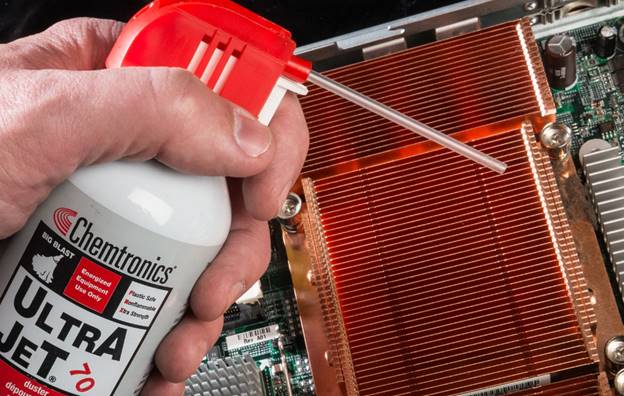
    Aerosol Dusters GPU Temp

    Thankfully, this problem is easily solved with a can of compressed air or aerosol dusters. You can use a fine brush or hoover to get a lot of the dust out of the case’s fans and GPU fans. After getting rid of the main dust, it’s time to go after the finer dust particles (the ones that are lingering on the surfaces) by blowing them away with compressed air.

    Once everything’s cleaned up, monitor your GPU temperature with the method above and if there are still unusual spikes, then dust wasn’t probably the reason why the GPU overheats.

    Lack of Fans and Poor Airflow

    Sometimes, it’s not exactly the GPU’s fault that it’s overheating. Sometimes, the lack of fans and airflow can severely affect GPU temperatures.

    If you cleaned out the dust from the fans and vents and you find out that the fans are still turning very slow, then you might need to turn up the fan speed up a notch. Certain programs like MSI Afterburner can help you manage fan speed, which allows you to cool your system off properly.

    If your case can accommodate more cooling fans, then you can also decide to purchase new ones. Some PC builders are going for the bigger fans, both for drawing in cool air and for expelling hot air out. The fan speeds of the larger fans are significantly higher than the smaller fans.

    Poor Cable Management

    If airflow is a concern, then you might want to check for cables that are unnecessarily blocking certain vents. Improper cable management, or lack of it, is another overlooked cause for GPU overheating. When cable management is not done properly, it can lead to blocking parts of the CPU that contribute to your case’s open-air cooling capacity.

    Again, this can be easily remedied by simply rearranging the cables and organizing them in a way that they don’t block certain outlets. If you’re not confident about your cable management, you can ask help from technicians or you can look up a YouTube video.

    Higher Ambient Temperature

    Believe it or not, ambient temperature can also cause GPU temperatures to go higher than usual. People living in tropical countries often find themselves dealing with high GPU temperature more than people living in cooler climates.

    Unlike the three other factors above, this is far beyond your scope of control as you simply can’t control the weather. Thankfully, you can invest in air-conditioning units or electric fans with higher fan speeds to keep the room as cool as possible. You can also open up windows to get all the hot air out.

    If you have the budget, you could also invest in water-cooled AIO (all-in-one), or liquid cooling.

    Replace Thermal Paste

    A dried out thermal paste can also affect GPU temperatures, especially if you haven’t replaced yours yet after a couple of years.

    Overclocking

    Overclocking is mostly done by the more technically-inclined PC builders. Modern graphics cards have an overclocking feature and is relatively easy to do, not like before where you have to go through the BIOS to do it.

    But what exactly is overclocking? Let’s paint you a picture first. Imagine having a nice car with a V8 Engine. It’s got 500 HP, but even after you floor the pedal, you’re wondering why you’re not getting the power that you deserve.

    Come to find out that the original owner of the car decided to place a wooden block under the accelerator. The car is fast and powerful, so why didn’t the original owner want you to experience both?

    Once you remove the block, you’re now able to experience the car’s full potential.

    Going back to your GPU, removing the wooden block from the accelerator is the equivalent of overclocking. You see, CPU and GPU chips are shipped out at a “stock” state, meaning their clock speed, memory speed, and core speed have functional ranges. If your GPU was the car in the story above, a stock state means that the car you bought has a wooden block behind its accelerator.

    Now there’s nothing wrong being done here by graphics card manufacturers. They just want to make sure that you actually know what you’re doing if you do decide to remove this wooden block.

    When a GPU is overclocked, you’re increasing its clock speed, core speed, and memory speed. You’re giving it more power but you’re also making it work harder. When you overclock the GPU, you should also overclock the CPU.

    But why would you want to overclock both computer hardware? Well, you probably want more power for rendering or gaming. You get higher FPS and better graphics, but at a cost.

    Hardware temps for both CPU and GPU will go far above what they’re supposed to be operating at, so overclocking should be done with care. You also run the risk of crashing your GPU. When that happens, just reboot the system. Modern overclocking software will never allow both GPU and CPU to operate at damaging levels.

    What’s The Optimal or Normal GPU Temperature?

    When it comes to gaming, your graphic card is doing more than usual. So what’s a safe GPU temperature when you’re gaming?

    It depends on the manufacturer, but ideally you shouldn’t be hitting higher than 85-degrees Celsius (185-degrees Fahrenheit), even if some GPUs are meant to withstand higher temsp.

    Modern AMD GPUs and Nvidia GPUs can handle GPU temperatures above 90-degrees but it shouldn’t mean you should constantly hit that. If your fans are working as they should and with proper airflow and ventilation, your current GPU temperature should be within an acceptable range.

    Tips To Help You Lower Your GPU Temperature

    GPU temp can go up and down, depending on your usage. If you’re gaming and you constantly find yourself dealing with higher GPU temperature, then these tips should help you go back to an optimal GPU temperature.

    Clean your Graphics Card, Case, and Fans

    As we mentioned earlier, dust can cause GPU temps to increase unnecessarily. That’s because fans are burdened by the amount of dust around them, not to mention that thick slabs of dust can block vents and thereby reducing airflow.

    Every couple of months, take your PC out on a dry area and clean the fans, graphics card, and the vents with a brush and canned air. Not only are you keeping your GPU temperature within an optimal limit, but you’re also doing your CPU a favor. CPU temperature on a dust-free PC should be as low as the GPU (when gaming and not gaming).

    Increase Airflow to your PC

    Keeping dust out of your PC is a surefire way of increasing airflow, but another way to increase airflow is to make sure that the vents are free from debris and other hindrances.

    Cables can often block exhaust ports when cable management is done wrong, so be sure to check if your cables are kept together properly.

    Make Sure That All Fans Are Running Properly

    When all fans are running as they should, you should be able to reach optimal GPU temperature for gaming and non-gaming tasks.

    But remember that just because your fans are on doesn’t mean they’re running properly. Your fan speed might be running slower than usual, so it’s not able to keep the internal components as cool as it should.

    Download a hardware monitoring software for fan speed if you feel like your fans are not working properly. If you’re manually turning up the fan speeds and don’t feel like they’ve changed that much, maybe your fans are the problem and will need to be replaced.

    Keep Ambient Temperature As Low As Possible

    We can’t control the weather, so ambient temperature limit is going to be a constant battle. If you live in a tropical country, your PC might be hotter than usual especially during the summer.

    Investing in an electric fan, air-conditioning unit, or a water-cooled AIO should be within your best interest as these can help you lower GPU temperature while compensating for the hot climate.

    Wrapping It Up!

    There you have it. You now know how to make sure that your current GPU temperature is within its optimal level. Higher temps would throttle performance on a GPU, so you’re not getting the most out of the unit while it’s cooling down.

    You also want to avoid going above your GPU’s temperature limit or maximum temperature tolerance because you’ll end up damaging it and thereby shortening its lifespan.

    We’ve already provided you with different cooling solutions in this article, but if you feel that your GPU’s temperature are still higher than they should even after doing all of the troubleshooting, there might be something wrong with the GPU.

  • 2026 Apex Legends Statistics That Show How Big The Game Really Is

    2026 Apex Legends Statistics That Show How Big The Game Really Is

    What do you get when you combine a battle royale game with characters from a game like League of Legends and Overwatch? You get something like Apex Legends.

    Apex Legends is only about a couple years old but it’s already a multiplayer game that you’ve probably heard of even if you don’t play the game. And in this article, we’ll be looking at some Apex Legends stats that prove why this multiplayer game is as big as it is now.

    Key Apex Legends Statistics

    • Apex Legends has achieved a lifetime revenue of more than $1 billion as of February 2021 [1].
    • For the entirety of 2019 (February to December), the game earned $450 million in revenue for its first year [1].
    • The game generated more than $600 million in revenue for Q1 to Q3 of 2021, pushing them past the $1 billion revenue mark [1].
    • Apex Legends’ player base is predominantly male, with majority of them aged below 35 years old [3].
    • As of April 2021, Apex Legends had 100 million unique registered users [4].
    • A week after its release, the game already had 25 million unique registered users [4]. This number increased to 50 million by the end of March 2019 [4].
    • United States accounts for 38.92% of player daily participation, or total number of players logged in daily [5].
    • Peak concurrent players recorded over the last 30 days is 461,031. In August 2022, there were 510,286 concurrent players recorded [6].
    • 17% of esports fans in the United States follow Apex Legends events and broadcasts [7].
    • Apex Legends is one of the most played games on Steam with 130,000 players logged in every hour recorded in 2021 [8].
    • Twitch is the 8th most popular game on Twitch in terms of peak concurrent viewers. As of May 2022, the game has been viewed by more than 127,000 concurrent weekly viewers [9].

    What’s Apex Legends?

    Capsule Apex Legends Statistics

    Apex Legends is a free-to-play first person shooting game that falls under the battle royale genre. Think of it as having the same mechanics as Fortnite and PUBG but with characters having different abilities similar to the toons from games like League of Legends and Overwatch. The game was developed by Respawn and published by Electronic Arts. Two years prior to the release of Apex Legends, EA already acquired Respawn Entertainment [1].

    Before Apex Legends, Respawn Entertainment was well known in the gaming industry for their game, Titanfall. Apex Legends is set in the same world as its predecessor but from a different timeline. It’s more or less set 30 years after the events of Titanfall, and the lore and character designs are similar in both games.

    The game sets Apex Legends players against one another in squads of three. Your team has to survive the map, which shrinks down in size as the game progresses. The map itself is interactive, allowing players to break through doors, use the terrain to their advantage (or to the disadvantage of the other players), and so on.

    Gameplay Apex Legends Statistics

    The characters in Apex Legends are called Legends. Each of them have their own skills, strengths, weaknesses, and uses to the squad. The combination of different Legends in a squad allows for varied gameplay with a keen focus on teamwork and collaboration.

    Apex Legends has two game modes: Battle Royale, which its 60 players into a full map that keeps shrinking, and Arenas, which is a 3v3 game mode that determines winners based on rounds won. To the disappointment of the Titanfall fans, players are not able to access any giant mechs in the game.

    Apex Legends has cross-platform functionality, meaning you can play against PC and console players.

    Now let’s move on to the interesting (or boring) part of the article.

    Apex Legends Revenue Statistics

    • Apex Legends lifetime revenue has already breached the $1 billion mark as of February 2021 [1].
    • On the month of its release, which was Feb 2019, the game generated $92 million in revenue [1]. This number staggered up and down months later and ultimately peaked to $45 million in October 2019 [1].
    • For 2019, the game generated a total of $450 million, which is very impressive [1].
    • For with year of 2021, the game generated $600 million in revenue in three quarters and pushed them to the $1 billion mark during Q2 2021 [1].
    • As of August 2022, Apex Legends Mobile is one of the top-grossing mobile games in the Google Play Store. Year to date, Apex Legends Mobile already generated $24 million in revenue. The highest grossing game in the Google Play Store is currently Star Wars: Galaxy of Heroes with $86.95 million, followed by FIFA Soccer with $53.86 million in revenue [2].

    Apex Legends Demographics

    • Apex Legends players are predominantly male, with majority of them aged 35 years and younger [3].
      • For this particular demographic, only 14% of their player base are under the age of 18, and 6% of the player base are aged between 18 and 34 years old [3].
      • 9% of their players play the game because they’re bored, while 23% of their players enjoy the teamwork aspect. 35% of people who play Apex Legends want to improve themselves [3].

    How Many Players are on Apex Legends?

    • As of April 2021, Apex Legends already had 100 million registered users [4].
    • A week after their release, they had 25 million unique registered users. In March 2019, that number doubled to 50 million registered users [4].
    • After the start of Season 3, Apex Legends increased in player count and hit the 70 million mark [4].
    • As of June 2021, Apex Legends averaged more than 22 million active users a month [3]..
      • Out of that total average, 12.8 million players came from consoles and 9.78% came from PC [3].
      • However, this number is a far cry from the 50 million active users it averaged on its first month after release [3].
    • After Season 9’s release on May 2021, Apex Legends averaged about 13 million active users [3].
    • The United States has the highest player daily participation, accounting for 38.92% of total number of players logged in. Great Britain follows in second place with 7.18% and Russia with 5.81% [5].
    • Over the last 30 days, the number of peak concurrent players is 461,031. In August 2022, peak concurrent players was 510,286 [6].
      • Daily player average over the last 30 days was 230,077, and for the month of August 2022, daily player average was 230,432 [6].

    Apex Legends’ player count isn’t something out of the ordinary. The ebb and flow of how many people are playing Apex Legends is pretty normal. It goes without saying that Apex Legends goes up against other games such as PUBG and Fortnite, with both games being more popular (or just as).

    Respawn Entertainment’s challenge is to consistently come up with newer content, be it maps, characters, missions, and even weapons.

    Is Apex Legends Still Popular?

    It’s safe to say that Apex Legends is still popular, and we’re not just saying that because of the daily active users or the revenue they’re generating from microtransactions.

    Let’s take a look at other Apex Legends stats that let us know just how popular the game is.

    • In the USA, 17% of esports aficionados follow the Apex Legends professional esports scene. It’s currently the third most popular esports franchise in the United States as of 2022. The most popular esports franchise is League of Legends, with 36% of esports fan following their events and broadcasts [7].
    • Apex Legends is one of the most played games in terms of hourly average number of players on Steam. In 2021, more than 130,000 players were logged in every hour on Apex Legends [8].
    • On Twitch, Apex Legends is one of the most popular games in terms of concurrent weeky viewers. As of May 2022, Apex Legends has more than 127,000 concurrent weekly viewers [9].
    • Apex Legends Mobile is one of the most downloaded mobile games for iPhone in the United States. As of June 2022, the game generated more than 988,000 downloads from iPhone users [10].
    • Apex Legends Mobile is one of the most popular iPhone games in terms of daily active users. As of June 2022, Apex Legends Mobile averages more than 140,000 daily active players [11].
    • Apex Legends is the 8th most popular game on Twitch in terms of average viewers. Over the last 7 days, average viewer count for Apex Legends was more than 61,000 with more than 4,100 channels streaming the game [12].
    • As of August 2022, Apex Legends Mobile is one of the most downloaded mobile games on Google Play Store. Year to date, the game generated more than 28 million downloads for that time period [13].

    The Wrap Up

    So there you have it, a look at some interesting Apex Legends stats that show just how big and how popular this game is. If you were expecting something along the lines of seasonal win stats, highest head shot accuracy, regional leaderboards, top favorite streamers, or the top Legends picked by players, then sorry to have disappointed you. There are websites that show you even detailed Apex Legends stats that look at just that.

    If you were to ask any battle royale player on which game is their favorite, chances are they might mention Apex Legends as one of their favorite games. The team play is solid and varied. Players experience a unique gaming gaming session every match, which explains why the peak number of active daily and monthly users hover at about five and six digits respectively.

    However, not a lot of gamers might enjoy the combat system. Having Legends with unique abilities makes the learning curve a bit steep, especially for those who’re not familiar with MOBA-like elements of each Legend. This is probably the reason why people are often turning away from Apex Legends and going back to the more simplistic approach of PUBG and Fortnite.

    Apex Legends is available on PC, Playstation and Xbox consoles, and on mobile phones. With cross-platform functionality, the competition is fierce and leaderboards are filled with different players from different platforms.

    Reference

    [1] https://www.ea.com/news/ea-completes-acquisition-of-respawn

    [2] https://www.esportstalk.com/news/apex-legends-revenue-reaches-1-6-billion-seasons-9-and-10-most-popular-to-date/

    [3] https://newzoo.com/insights/articles/38-of-apex-legends-players-also-played-csgo-or-valorant-why-apexs-new-arenas-

    [4] https://za.ign.com/apex-legends/130045/news/apex-legends-hits-50-million-players

    [5] https://playercounter.com/apex-legends/

    [6] https://steamcharts.com/app/1172470

    [7] https://www.statista.com/statistics/532345/most-popular-esports-games-amogn-competitors-usa/

    [8] https://www.statista.com/statistics/656319/steam-most-played-games-average-player-per-hour/

    [9] https://www.statista.com/statistics/1110295/twitch-streamers-average-weekly-viewers/

    [10] https://www.statista.com/statistics/691463/leading-mobile-games-iphone-us-downloads/

    [11] https://www.statista.com/statistics/299832/leading-mobile-games-usa-dau/

    [12] https://twitchtracker.com/games/511224

  • 2026 Nintendo Switch Statistics That Show Why It’s The Console To Beat!

    2026 Nintendo Switch Statistics That Show Why It’s The Console To Beat!

    What’s blue, black, red, portable, and is giving the Sony Playstation 5 and the Xbox Series One a run for their money? It’s the Nintendo Switch.

    The Nintendo Switch is Nintendo’s 9th generation (and is also their current generation) hybrid console. We say hybrid because it has a console mode and a handheld mode.

    The console mode makes use of the Switch’s dock that allows you to connect the Switch to the TV via an HDMI cable, giving you better FPS and graphics. The Nintendo Switch Lite cannot be used on the Switch dock.

    The handheld mode allows you to play games via its small screen and two detachable controllers. The console’s wireless controllers, or JoyCons, are standard. It comes with directional buttons, four letter buttons, and four trigger buttons.

    As of this writing, there are three variants: The Nintendo Switch (original), the Nintendo Switch Lite, and Nintendo Switch OLED. The OLED variant works just like original Switch with a few upgrades.

    For this article, we’ll be looking at some interesting Nintendo Switch stats to gain a better understanding on why this console has taken the video game industry by storm.

    Key Nintendo Switch Statistics

    • Between 2017 and 2021, lifetime sales for the Nintendo Switch is more than 85.27 million units. 28.3 million of those units were sold in 2020 alone, and 25 million units for 2021 [2].
    • Between the Sony Playstation 5, Nintendo Switch, and Xbox Series X, the Nintendo Switch is the highest grossing current generation console in terms of units sold for 2020 and 2021 [3].
    • Nintendo’s net revenue for all of their products was $15.9 billion in 2021 [4].
    • Mario Kart 8 Deluxe is the best selling game for Nintendo Switch in terms of lifetime sales. The game has sold more than 46 million units, with Animal Crossing: New Horizon coming in close second with 39.38 million units sold [8].
    • Retail software revenue for the Nintendo Switch, Wii U, and Wii reached $4.89 billion in 2020, while consumer spending brought in $5.86 billion in revenue, covering Nintendo subscriptions, digital downloads, and microtransactions [9].
    • Retail software revenue in 2021 decreased to $4.2 billion in 2021, but online revenue increased to $6.9 billion [9].
    • By the end of 2022, Nintendo’s console gaming revenue and online revenue is estimated to hit $11.3 billion [10].
    • The USA is the highest spending region for Nintendo, bringing in $6.6 billion in revenue for the company in 2021. Europe comes in second place with $3.03 billion [12].
    • Animal Crossing: New Horizons already sold more than 38 million units as of March 2022 [13].
    • Pokemon Sword/Shield for Nintendo Switch is the second highest-grossing Pokemon game in the franchise, selling 24 million units in lifetime sales as of December 2021 [14].

    Nintendo Switch Sales Figures

    Nintendo Switch OLED Nintendo Switch Statistics

    At the end of the Fiscal Year of 2021, the Nintendo Switch generated 1.67 trillion Japanese Yen (around $11.6 billion as of this writing’s conversion). The Nintendo Switch was Nintendo’s biggest revenue generator, accounting for 95% of the entire revenue generated. [1]

    Let’s take a closer look at the Nintendo Switch stats for sales in the following section:

    How Many Nintendo Switches Have Been Sold?

    • Between 2017 and 2021, the Nintendo Switch has sold more than 85.27 million units. In 2020, it reached record sales amounting to 28.3 million units sold. In 2021, there were only 25.02 million units sold for that period, which was a drastic decrease from the previous year. [2].
    • In 2020 and 2021, the Nintendo Switch had the highest number for units sold at 28.3 million and 25.02 million respectively. Sony Playstation 5 and Xbox Series X followed with 4.39 million and 3.03 million units sold for 2020, and 12.59 million units and 8.75 million units sold for 2021 respectively [3].
    • Nintendo’s net sales, covering the Nintendo Switch, Switch games, and other products under the corporation, amounted to $15.9 billion for 2021 [4].
    • For the Fiscal year ending in March 2022, Nintendo Switch generated more than 235 million units sold for gaming software. Its lifetime unit sales for gaming software hovers at about 900 million, covering 2017 up to 2022 [5].
    • As of March 2022, more than 107 million units of games hardware shipped out worldwide. Sony’s Playstation 4 and Playstation 2 are the only consoles that have outsold the Nintendo Switch with 116.6 million and 155 million units respectively [6].
    • 25% of the Switch sales made this year were Nintendo Switch OLEDs, while the Standard unit accounted for 58% of the sales for the fiscal year [7].
    • Mario Kart is the best selling Nintendo Switch game in terms of lifetime sales. Mario Kart 8 Deluxe had more than 46 million units sold as of June 2022, followed by Animal Crossing: New Horizon with 39.38 million units in lifetime sales. This is impressive given that Animal Crossing was only released in March 2020 [8].

    What are the numbers telling us?

    First, the spike in Nintendo Switch stats for sales and revenue for the year 2020 onwards is probably caused by the onset of the Covid-19 Pandemic. Big retailers like Amazon and Walmart suffered a shortage not just for the Nintendo Switch but for the other consoles as well.

    With the Covid-19 Pandemic and the global lockdowns enforced, people were stuck at home with no way to entertain themselves outside of binge watching shows. Back then, people weren’t aware of just how much time would be spent locked inside their own houses. The immediate assumption was that these lockdowns would only be long enough to contain the illness, but obviously the lockdowns went on longer.

    How many games have people probably completed thanks to being locked down? Well, personal video game stats on the Nintendo Switch can only tell you so much, such as time played for a particular game. On my end, my wife probably spent close to 900+ hours on Animal Crossing: New Horizons during the Covid-19 Pandemic.

    Nintendo Switch Revenue Statistics

    Super Mario Nintendo Switch Statistics
    • In 2020, retail software revenue, spanning Wii, Wii U, and the Nintendo Switch, was $4.89 billion. Consumer spending was heavy on digital downloads, Nintendo subscriptions, and other microtransactions, bringing online revenue to $5.86 billion [9].
    • For 2021, retail software revenue decreased to $4.2 billion, but online revenue showed an increase with a revenue of $6.9 billion [9]
    • It’s projected that Nintendo’s console gaming revenue (spanning Wii, Wii U, and Nintendo Switch) and online revenue will total to about $11.3 billion, a $300 million increase from the previous year’s revenue.[10].
    • Nintendo gaming hardware will bring in a revenue of $4.7 billion by the end of 2022 (projected). This is a slight decrease from the $5.6 billion revenue generated in 2021 [11].
    • The USA generated the highest revenue in the region for Nintendo with $6.6 billion in 2021. Europe follows with $3.03 billion in revenue. [12].
    • Animal Crossing: New Horizons was released on March 2020. Since its release, the game has sold more than 38 million units as of March 2022. The first game of the franchise was released in 2001 and only sold over 2.3 million copies globally [13].
    • Nintendo Switch’s Pokemon Sword/Shield are the second highest-grossing Pokemon game in the franchise as of December 2021, selling close to 24 million units for that period. Pokemon Brilliant Diamond/Shining Pearl follow with 13.97 million units sold worldwide [14].
    • Nintendo’s most profitable franchise is the Super Mario franchise, earning more than $600 million for all products under it. The Pokemon franchise follow in second place with $340 million in revenue generated [15].

    Nintendo Switch User Statistics

    Nintendo released demographics data for their Nintendo Switch users in a business presentation held last year. Here’s what we know [16], [17]:

    Demographics Nintendo Switch Statistics
    • The biggest age group that comprises majority of Nintendo Switch’s player base is the 20-25 age group, as seen in the graph above.
    • A good number of people well over their 40’s owning a Nintendo Switch is also obvious, far outnumbering the number of players aged below 20.
    • Young children only make up a small portion of their demographics, with children aged 10 to 12 years old comprising the majority amongst minors.
    • Nintedo Switch Online Service recently hit 32 million subscribers in September 2021.
    • 60% of Nintendo Switch owners bought Super Mario Odyssey. The game sold more than 9 million units two months after the game’s release [18].
    • As of June 2022, Nintendo Switch user count has already surpassed the 100 million mark, with the company announcing the milestone for their 2023 fiscal year [19].
    • Between July 2021 and June 2022, there were more than 104 million users reported who played their favorite game on the Nintendo Switch [19].

    Wrap Up

    There you have it. A short glimpse of Nintendo Switch stats that let us know just how big the Nintendo Switch console is compared to other consoles, and we can understand why it appeals to a lot of people.

    First, there’s the convenience of a handheld console with current generation gaming and hardware power. Excluding console exclusives for Nintendo and other brands, people find it easier to bring around the handheld console to kill time or when traveling. The Nintendo Switch Standard version boasts of an average of 2 to 3 hours battery life for games such as Legend of Zelda: Breath of the Wild and The Witcher 3. With that being said, battery life is longer when the games aren’t graphically demanding.

    Second, there’s the exclusive titles that only Nintendo has, namely Super Mario, Legend of Zelda, Pokemon, and the ever popular Super Smash Bros franchise. When the Legend of Zelda: Breath of the Wild was announced in conjunction with the preview of the Nintendo Switch, gamers were excited. This was the latest entry into the Legend of Zelda franchise, which was an impressive open world adventure. And let’s not forget about the hype that was Pokemon Go too.

    Third, Nintendo Switch is reasonably priced in terms of the games available and the consoles themselves. A brand new Nintendo Switch OLED unit could cost you around $350 to $450 per, while the Nintendo Switch Lite is around the $150 to $200 mark. Games made available on Nintendo Switch aren’t that limited in terms of titles. Big publishers such as Ubisoft, 2K Entertainment, Blizzard Activision, and several indie publishers have ported over their games to the platform. Games are priced between $45 to $60 for the AAA games, and anywhere between $20 to $35 for recently released titles.

    But with convenience comes compromise. Storage space for Nintendo Switch consoles is severely limited, which is why you need to take advantage of the expanded storage space with SD cards. In terms of graphics, you’re more or less settling with 30FPS on average for handheld and up to 60 FPS when docked. The Nintendo Switch Lite can’t be docked so you’ll be dealing with 30FPS period. It’s not exactly a deal breaker given that the Nintendo Switch is going up against Xbox Series X and Playstation 5 for the current generation console lineup, and these two consoles are beasts in terms of hardware.

    The bottom line is this: Nintendo Switch is here to stay and it’s going to continue its dominance within the next few years. With millions of units sold the previous years, and with millions more projected for the next few years, Nintendo Switch might take the top spot for hardware sales too.

    Reference

    [1] https://www.statista.com/statistics/216629/nintendo-sales-by-product/

    [2] https://www.statista.com/statistics/1085606/annual-unit-sales-nintendo-switch-worldwide/

    [3] https://www.statista.com/statistics/276768/global-unit-sales-of-video-game-consoles/

    [4] https://www.statista.com/statistics/216622/net-sales-of-nintendo-since-2008/

    [5] https://www.statista.com/statistics/687059/nintendo-switch-unit-sales-worldwide/

    [6] https://www.statista.com/statistics/868256/nintendo-switch-software-sales/

    [7] https://www.videogameschronicle.com/news/switch-hits-107-6m-as-nintendo-claims-its-highest-annual-software-sales-ever/

    [8] https://www.statista.com/statistics/868248/top-selling-nintendo-switch-titles-worldwide/

    [9] https://www.statista.com/statistics/206881/nintendo-software-revenue-by-type/

    [10] https://www.statista.com/statistics/200072/nintendo-console-gaming-software-revenue-global/

    [11] https://www.statista.com/statistics/1260233/nintendo-gaming-hardware-revenue-global/

    [12] https://www.statista.com/statistics/216627/revenue-of-nintendo-by-region/

    [13] https://www.statista.com/statistics/1112638/animal-crossing-unit-sales/

    [14] https://www.statista.com/statistics/1072224/pokemon-unit-sales-worldwide/

    [15] https://nintendosoup.com/these-are-the-bestselling-nintendo-franchises-as-of-august-2019/

    [16] https://www.shacknews.com/article/127542/nintendo-discloses-switch-age-demographic-data-for-first-time

    [17] https://www.nintendo.co.jp/ir/pdf/2021/211105e.pdf

    [18] https://www.businessinsider.com/nintendo-switch-earnings-statistics-2018-2#4-over-60-of-switch-owners-bought-super-mario-odyssey-4

    [19] https://www.siliconera.com/nintendo-switch-annual-playing-users-count-surpassed-100-million/

  • 2026 Incredible Playstation Statistics

    2026 Incredible Playstation Statistics

    Playstation consoles are recognizable, no matter what generation. From the PS1’s grey palette to the signature all black shade that donned by the PS2, Ps3, and PS4, these video game consoles are part of the reason why gaming has become part of our lives at some point.

    Playstation 5 User Playstation Statistics

    And the Sony Playstation consoles are big contributors to the video games industry, but how many units have Sony sold over the last two decades? Which of the Playstation generations is the most popular?

    We’ll answer those questions and more as we look into some interesting Playstation stats on revenue, units sold, and demographics.

    Key Playstation Statistics

    • The Playstation 1 was released almost 28 years ago. Sony was supposed to be partnered with Nintendo, but the latter backed out of the deal. [2].
    • The Playstation 1 sold more than 100 million units and was the first console in the industry to ever hit this milestone [3].
    • It’s estimated that the Sony Playstation 5 sold more than 2.1 million units during its first 30 days [6].
    • The revenue for console market in 2021 was $84 billion for the United States alone [8].
    • Playstation 3, Playstation 4, and Playstation 5 bagged $5 billion in revenue worldwide for the year 2020 [12].
    • The video game and network services are the biggest revenue generator for Sony, earning $24.4 billion in revenue for 2021. The Pictures and Music services follow in second and third place with $11.03 and $9.5 billion in revenue for the same year [11].
    • Sony’s Playstation 2 is currently the top-selling video game console in the video game industry in terms of lifetime sales. The console has sold more than 158 million units since its release [14].
    • Approximately 41% of Sony Playstation owners are female [21], [22].

    Playstation Facts and Overview

    Playstation as created by Sony Interactive Entertainment, which is a division of Sony Corporation. The first Playstation was released in December of 1994 in Japan, followed by a global release the following year [1].

    Since then, Sony has developed four more generations of consoles namely the Playstation 2, Playstation 3, Playstation 4, and the current generation Playstation 5. Then there are two handheld consoles under the Playstation umbrella namely the Playstation Portable (PSP) and the Playstation vita (PS Vita).

    Each generation boasts of more than a few million units sold, insuring their spot in the video game industry as the go-to consoles for their generation.

    Let’s continue on with some amazing Playstation statistics and facts.

    • The Playstation 1 is 28 years old to this writing, but it originally started out as Sony’s Nintendo Project. However, Nintendo cancelled their deal because Sony wanted the rights to all titles released on their platform [2].
    • The first Playstation console (Playstation 1) has more than 100 million units sold, becoming the first console ever to reach the milestone [3].
    • The first Playstation console’s competitor, the Nintendo 64, only had 30 million units sold before they got discontinued by Nintendo [3].
    • The Playstation 5 was released on November 12th 2020 in Canada, US, Japan, Korea, and Mexico. The current generation Playstation console had more than 1.6 million units sold in a single day. The following week, more than 600,000 units were sold in Europe and several thousands more sold in other continents [4].
    • It’s estimated that the Playstation 5’s global sale for its first month hovered at about 2.1 million units sold [4].
    • The best-selling game right now on Playstation 4 is Grand Theft Auto V with more than 20 million copies sold [5].
    • Playstation currently dominates close to 90% market share in India as of 2022 [6].
    • More than 80% of countries prefer the Playstation 5 over its competitor, Xbox Series X [7].
      • In Japan, it’s no surprise that 98.94% of their gamers are more willing to search for a PS5 than an Xbox Series X [7].

    Playstation Revenue Statistics

    • In 2021, the revenue for video game consoles in the United States was $8.4 billion [8].
    • In Europe, revenue for video game consoles or home consoles was $14.3 billion in 2021. It’s projected to reach $18 billion by 2026 [9].
    • In the United Kingdom, revenue generated by video game consoles was almost $3 billion (approximately $2.91 billion). The industry is projected to hit $3.1 billion in revenue by 2025 [10].
    • The game and network services are the highest revenue generator for Sony. The segment earned $24.4 billion in revenue for 2021. The game and network services are followed by Music and Pictures services. These segments generated $9.95 billion and $11.03 billion in revenue respectively for the same year [11].
    • The Playstation Consoles series 3,4, and 5 (or the Playstation 3, Playstation 4, and Playstation 5) generated $5 billion in revenue globally for 2020 [12].

    Playstation Sales Numbers and Statistics

    • 4.3 million units of Playstation 5 were sold in the United States alone for 2021 [13].
    • The Playstation 2 remains as one of the best-selling video game consoles in the industry. As of 2022, the console has generated more than 158 million units sold worldwide.[14].
    • As of July 2022, the Playstation 3 has sold more than 87.41 million units worldwide, with 30 million units accounted for in Europe alone [15].
    • As of July 2022, Playstation 4 sold more than 116.4 million units around the world, with 46 million sold in Europe alone [16] .
    • For the current generation consoles, Playstation 5 is one of the top-grossing consoles for the year 2021 with 12.6 million units sold. The Nintendo Switch bags the top spot with more than 25 million units sold for that time period. [17].
    • The Playstati9n 2 remains at the top selling game consoles of all time in terms of lifetime sales with 157.78 million units sold worldwide. Nintendo DS comes in second place with 154 million units sold [18].
    • The Playstation Vita, the next generation handheld console under the Playstation umbrella, only sold about 14 million units as of July 2022 [19].
    • The Playstation Portable or PSP sold more than 80 million units as of July 2022.[20].

    The Console Wars was the term that gamers referred to Sega and Nintendo’s rivalry back in the 1990s. Now, the console wars are between Playstation and Xbox platforms as these giants have products up to four generations of consoles under them.

    Playstation Demographics

    The number of female gamers owning consoles have increased, starting from the days of the original Playstation. Sony noted that 41% of Playstation 5 and Playstation 4 owners are women, compared to the 18% of women who owned a PS1 console before [21], [22].

    How Many Playstation Users Are There?

    • The Playstation Network, or PSN, has consistently increased in users over the last few years. In 2020, they hit an all-time high of 144 million users. But that number has drastically gone down to 104 million users as of 2021 [23].
    • In contrast, the number of Xbox Live users also showed a dramatic increase in users until 2019 when they hit the 65 million mark. When the Pandemic hit in 2020, that number grew to 100 million by the end of the year [23]
    • Playstation Plus has about 47.7 million subscribers as of March 2021 [24].
    • In 2018, PS Plus members received $1,500 worth of free video games. However, these figures declined in 2019 with less than $900 worth of video games given that year and $789 for 2020 [24].

    Wrap Up!

    The Playstation statistics have shown us just how big these game consoles are. Playstation gamers continue to support the console giant and the video games released on there.

    Console gaming will probably still be dominated by the big 3, namely Sony Playstation, Microsoft Xbox, and Nintendo Switch. It goes without saying that PC gaming might be bigger than all three combined given that some exclusive games from these other consoles are porting over to the PC side.

    What’s next for the gaming giant? Well, one thing’s for sure. A more powerful version of Sony’s Playstation 5 would be on the horizons for its next generation lineup. Though as a fan of the gaming console, I’ll remain hopeful for a third generation Playstation handheld console.

    Reference

    [1] https://www.britannica.com/topic/PlayStation

    [2] https://www.giantbomb.com/playstation/3045-22/

    [3] https://www.guinnessworldrecords.com/news/2018/12/top-10-best-selling-videogame-consoles-551938

    [4] https://www.gamesradar.com/ps5-sold-between-21-and-25-million-units-worldwide-on-day-one-report-claims/

    [5] https://www.thegamer.com/playstation-4-best-selling-all-time/

    [6] https://gs.statcounter.com/os-market-share/console/india

    [7] https://www.finder.com.au/in-demand-consoles

    [8] https://www.statista.com/forecasts/1196083/revenue-video-game-consoles-united-states

    [9] https://www.statista.com/forecasts/1196066/revenue-video-game-consoles-europe

    [10] https://www.statista.com/forecasts/1196072/revenue-video-game-consoles-united-kingdom

    [11] https://www.statista.com/statistics/297533/sony-sales-worldwide-by-business-segment/

    [12] https://www.statista.com/statistics/1260245/sony-gaming-hardware-revenue-global/

    [13] https://www.statista.com/statistics/1029302/sales-playstation-gaming-devices-in-the-united-states/

    [14] https://www.statista.com/statistics/1101876/unit-sales-playstation-2-region/

    [15] https://www.statista.com/statistics/1101879/unit-sales-playstation-3-region/

    [16] https://www.statista.com/statistics/1101880/unit-sales-playstation-4-region/

    [17] https://www.statista.com/statistics/276768/global-unit-sales-of-video-game-consoles/

    [18] https://www.statista.com/statistics/268966/total-number-of-game-consoles-sold-worldwide-by-console-type/

    [19] https://www.statista.com/statistics/1029044/worldwide-sony-playstation-vita-unit-sales/

    [20] https://www.statista.com/statistics/1101911/unit-sales-psp-region/

    [21] https://www.pushsquare.com/news/2021/05/almost_half_of_playstation_gamers_are_women

    [22] https://www.sony.com/en/SonyInfo/IR/library/presen/irday/pdf/2021/GNS_E.pdf

    [23] https://www.statista.com/statistics/531063/xbox-live-mau-number/

    [24] https://www.statista.com/statistics/532431/playstation-plus-subscribers-global/