Author: Jim Stephenson

  • Does Overclocking Reduce CPU Lifespan?

    Does Overclocking Reduce CPU Lifespan?

    In the realm of bodybuilding, when athletes want to perform better, they take supplements before a workout that allows them to do so. These supplements allow them to get one more rep in, or get in an extra set.

    Using this same logic, when we want more out of our CPU, we use something called overclocking. It’s a process where we increase the processor’s clock rate or speed beyond its normal value. Overclocking gives you more performance, but at a cost.

    One of the big questions that first-time overclockers ask is this: does overclocking reduce CPU lifespan?

    The short answer here is both YES and NO, and we’ll explain why in this article.

    What Exactly is Overclocking?

    Processor Does Overclocking Reduce CPU Lifespan

    Processors come with their default setting for voltage and clock speed. These settings are intended to guarantee smooth performance of your system as a whole.

    But some processors can be overclocked, which allows you get more power and speed within range. If your processor has a max clock speed of 3.2GHz, an overclocked CPU could push it to 3.4Ghz or 3.6GHz.

    However, not all processors are built the same way. Let’s assume that your CPU has a clock speed of 3.8GHz as advertised. Overclocking would give you about 4.0GHz. With the help of what’s called a silicon lottery (we’ll explain later), you could get a CPU that could be overclocked up to 4.5GHz (higher than the advertized overclocking limit).

    This boils down to luck because CPU manufacturers don’t know the maximum speed of individual CPUs that roll out the factory line. They just advertise the speed that you’re guaranteed and then have you rely on the silicon lottery.

    What Parts of The Computer Can Be Overclocked?

    Technically speaking, you could overclock every component in your gaming rig, but these parts outside of the CPU can be more beneficial than others:

    The Graphics Card or GPU

    Overclocking your GPU Does Overclocking Reduce CPU Lifespan

    Apart from the CPU, the graphics card or GPU is the second most overclocked PC hardware. GPU overclocking will require the installation of a program, like MSI Afterburner. This will allow you to overclock the GPU without going through the BIOS.

    Contrary to popular belief, GPU overclocking doesn’t really have noticeable benefits in terms of getting higher FPS. Relatively speaking, you’re still getting more or less the same performance from your overclocked GPU.

    If you’re playing an AAA title at 50FPS at ultra settings, overclocking could get you another 5 to 10 FPS. It’s not that noticeable, but what you will really see is that parts of the game where your frames tend to drop will smoothen out.

    But like the CPU, overclocking a GPU will still rely on the silicon lottery.

    RAM or Memory

    Overclocking your RAM, much like the GPU, doesn’t give you a noticeable increase in terms of performance. But unlike the GPU and CPU, overclocking your RAM is far more difficult. Putting in too much voltage or making it run too fast will cause your PC to crash.

    Does Overclocking Reduce Lifespan?

    More importantly, does overclocking have an impact on your CPU lifespan?

    The answer to both these questions is a YES.

    BUT… Yes, there’s a BUT.

    Overclocking a CPU means you’re running more voltage through the hardware. And when the voltage is higher, you get higher temperatures as well. Higher temperatures will eventually shorten your CPU lifespan.

    However, light overclock doesn’t really increase the CPU temperature by that much, so it won’t really have an impact on lifespan. Extreme overclocking, on the other hand, will greatly shorten the lfiespan.

    CPUs tend to last more than 5 years, but overclocking might give your CPU a lifespan of less than that. You’d be looking at 3 to 4 years, but by then, you’d have saved enough money to purchase a new CPU.

    Does Overclocking Benefit the CPU?

    Overclocking the CPU gives you a performance boost outside of its default range. In some cases, you’d probably get more FPS out of your video games or shorten rendering time.

    Resource intensive applications might run faster and smoother on an overclocked CPU too, but then again, overclocking isn’t exactly what you need to do every single day. The majority of the more resource intensive applications and AAA games aren’t exactly too reliant on CPU power.

    What Exactly is a Silicon Lottery?

    Let’s assume that you have two CPUs of the same brand and model. Both can be overclocked too.

    Silicon lottery refers to the difference in performances between two chips of the same model. What you basically have here is that the CPU will share the same stock settings, but the overclocked speed will always be different. When you overclock your CPU from 3.6GHz to 3.8GHz, and another CPU at 3.6GHz can overclock to 4.0GHz, that’s silicon lottery in play.

    One chip will always be better at overclocking than the other chip. All other specs, like power consumption, memory clock speed, and the default limit will be the same.

    How Risky Is It To Overclock Processors and GPUs?

    Overclocking will gradually reduce CPU or GPU lifespan, but it’s not going to be an instantaneous thing. For example, if your CPU has a lifespan of 5 years and you overclock today for the first time, the CPU lifespan does not immediately shorten.

    Overclocking reduce CPU lifespan the more you do it. In rare cases, you might risk having your entire system explode when you do it wrong.

    Other risks associated with overclocking include:

    • Voiding or terminating factory warranty
    • Permanent damage to the motherboard’s CPU socket
    • Overheating issues
    • Electrical damage

    What Are The Impacts of Overclocking on CPU Lifespan?

    Overheating CPU Does Overclocking Reduce CPU Lifespan

    There’s no direct impact on your CPU lifespan, but rather, overclocking contributes a lot of factors that cause parts of the CPU to gradually deteriorate.

    How rapid the deterioration is will depend on the conditions of your CPU and system unit as a whole. If you have a laptop CPU and you are planning to overclock it, you’re going to reduce the lifespan significantly if you don’t have an answer to the heating issues.

    The overclock setup and overclocking speed will vary on the CPU model too. Having the same CPU model doesn’t mean you get the same overclocking speed. Let’s assume two different PC’s with the same CPU model.

    One CPU has a liquid cooling setup with proper airflow, and the other system is only reliant on intake and exhaust fans with minimal airflow. Which of the CPUs will be greatly affected by overclocking?

    The CPU with minimal airflow and ventilation will take more brunt of the heat damage from overclocking compared to the first PC with other cooling components. This is because the temperature range of the liquid-cooled PC is managed by how the whole system was built. The system is capable of handling extra heat from overclocking.

    The second PC with minimal airflow and poor ventilation might handle more heat than necessary because it’s not cooled down fast enough.

    When you overclock properly, you’re not increasing the temperature range by any more than 20 degrees Celsius, so the CPU lifespan doesn’t decrease that much. Even a less than sturdy CPU could handle overclocking without any major issues as long as the temperature limit is within range.

    Many processors are built to handle the higher voltage, higher temperature ranges, and other compromises that come with overclocking. Depending on the desktop build, stress test for overclocked CPUs will show different results.

    A liquid cooled system will probably do a better job at keeping the CPU cool while overclocked as opposed to other coolers.

    How How Can A Processor Get Before It Gets Damaged And How Hot can a Processor Get Before It Damages Other Components?

    CPU temperature should be somewhere around 60 to 70 degrees Celsius, or 140 to 160 degrees Fahrenheit. Overclocking could get you up to 80 degrees Celsius or 175 degrees Fahrenheit, but it’s still relatively manageable.

    CPU degradation starts when the temperatures hit about 90 degrees or so as this is already considered very hot. Intel and AMD’s respective processors can withstand working at about 80 degrees Celsius safely but it doesn’t mean you need to be reaching that limit all the time, especially if you overclock your CPU.

    The trick here is to know your CPU limits and manage the temperature to within its maximum tolerable limit when you’re overclocking. Your cooling system plays a major role in doing just that, at least for the temperature side of things.

    How Do You Know Your CPU Is Overheating?

    Smoking CPU Does Overclocking Reduce CPU Lifespan

    Outside of this graphic, the first sign of an overheating CPU is when the FPS starts to drop significantly or when things start to slow down.

    The reason for this instantaneous slowing down is that the CPU is trying to cool itself down. When throttling happens, that means your cooling system couldn’t remove excess heat immediately and the CPU can’t handle the extra heat. It will slow down to give itself room to breathe for a few minutes.

    This throttling is also a form of thermal protection that many processors are equipped with. Some will automatically stop certain functions, so your PC will slow down immensely to prevent itself from overheating.

    To make sense of how throttling works, let’s use an example of a sinking ship. When a ship takes in water, the affected compartments will automatically close down to prevent water from getting into other parts of the ship. Nearby compartments will automatically do the same thing.

    For processors, the equivalent of closing compartments to prevent water from coming in is shutting down some of the CPU cores. When these cores shut down, you lose out a fraction of the CPU’s performance.

    Throttling due to overheating is only temporary though and only takes a good couple of minutes, depending on the tolerance limit of your CPU and how effective your cooling system is.

    The Big Question: Should You Overclock Your CPU?

    There’s no correct answer for this because it’s circumstantial. You don’t need to overclock your CPU if you’re already getting enough FPS for games and resource-intensive tasks, or if the whole system is running smoothly.

    Overclocking is a good alternative to upgrading your CPU. If budget is an issue and your CPU is the next thing to be upgraded, then overclocking it might not be such a bad deal.

    The Wrap Up

    Does overclocking reduce CPU lifespan? The answer is a big YES, but again, the impact of overclocking is gradual. Just because you overclocked once doesn’t mean you cut its life span by half already. It doesn’t work like that.

    The only factor that you have to consider when we’re talking about overclocking and CPU life span is heat. As long as your system is capable of getting heat out as quickly as possible, overclocking shouldn’t have a significant impact on the CPU life span even if you do it frequently.
  • How Long Do Graphics Cards Last?

    How Long Do Graphics Cards Last?

    Your gaming computer is made up of different parts, and every one of them is just as important as the other. A single malfunctioning component, or a component that’s not performing to its optimal state, can greatly affect the overall performance of your PC.

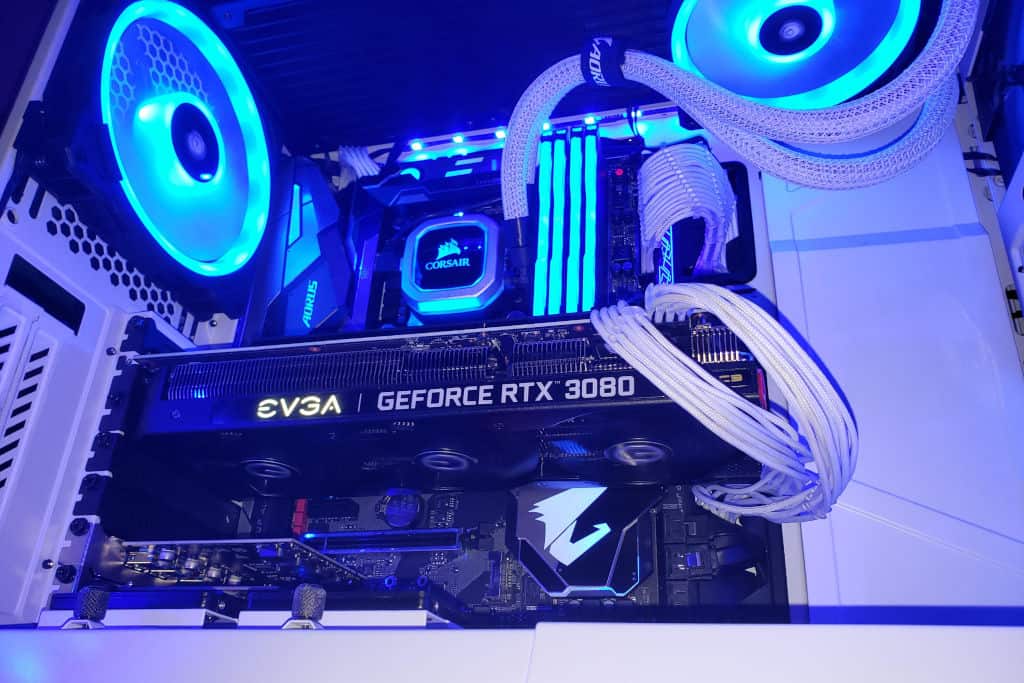
    RTX 3080 How Long Do Graphics Cards Last

    An ever-important component that most people end up replacing every few years or so is the graphics card. Now, in most cases, graphics cards are replaced because a newer GPU is released. However, there are instances where graphics cards are replaced because the GPU is dying.

    But how do you exactly know when a GPU is dying? How long do graphics cards last?

    We’ll be answering that question in this article and more.

    How Long Do Graphics Cards Last?

    Outside of mining and overclocking, the average GPU lifespan is somewhere around 4 to 5 years.

    But if heavy usage is considered, then we’re talking about 3 to 4 years on average. Heavy usage would be something like playing modern games at max settings (at least from what your GPU is capable of) on a daily basis, or just playing games for hours regardless of graphics settings.

    Can Graphics Cards Suffer from Wear and Tear?

    You best better believe it. Graphics cards, and pretty much every single piece of computer component, are susceptible to wear and tear. You really can’t expect all PC hardware to last forever.

    Wear and tear can occur naturally, of course, but there’s also a chance of mishandling. For instance, you’re taking your CPU out for a good run of compressed air cleaning, and you happened to press too hard on the sprayer that the GPU fans were affected.

    Now, that might be exaggerated, but you understand my point. Sometimes, it takes one simple mistake to do something terrible to your gaming rig.

    Can You Repair a Dead GPU?

    A dead GPU, or a GPU dying, can still be repaired, but this depends on how damaged the unit is. There are numerous guides on the Internet on how to do this, and some of them are just strange.

    You could visit your local computer technician and see how bad the damage is and if there’s a chance of repairing your GPU.

    If you’re tight on cash to replace your GPU, then you might want to check out our best budget graphics cards for 2022.

    When Do Graphics Cards Go Obsolete?

    In the event that your graphics card’s wear and tear is manageable, you now have to worry about the card going obsolete. But when do graphics cards go obsolete?

    A high-end graphics card could typically be relevant for about 5 years max. A good example would be the GTX 980Ti, which released in 2015. It was the king of the GPUs back then and five years later, it’s still a powerhouse graphics card that could handle the latest AAA games.

    But it’s a different story for entry-level cards as the specs aren’t as close to competing to a high-end counterpart. You can check out the best high-end GPUs for this year.

    Can Overclocking Reduce GPU Lifespan?

    The answer is YES. Overclocking is simply pushing your GPU past its allowed limit, or beyond its normal speed. How much power it can generate depends on the kind of GPU you have.

    In exchange for so much graphics power, the graphics card generates more heat than it should. This heat does not dissipate as easily even if your GPU fans and case fans are putting in the work to keep the GPU cool. With this kind of heat, you’re damaging the components of the graphics card.

    That’s why it’s not really recommended to overclock your graphics card, even if it can be overclocked.

    Should You Buy a GPU Used For Mining?

    If you want to save money from buying a new GPU, then your first choice would be to buy a 2nd-hand unit or a refurbished unit. But in this day and age where cryptocurrency mining is huge, could something go wrong when you buy a graphics card that’s been used for mining?

    I’ll answer this question with an analogy. Buying a graphics card that’s been used for mining is similar to buying used running shoes from Usain Bolt. You don’t know how damaged the unit is, but you do know that it’s been used excessively.

    Cryptomining GPU How Long Do Graphics Cards Last

    A graphics card that’s been used for mining may not have physical damage present, but you’ll feel the performance deteriorate over time.

    The truth about buying graphics cards used for mining is that it’s not worth it, even if you are getting the latest model for a fraction of its original retail price. The card’s lifespan is questionable at this point because you don’t know how long it’s got before optimal performance goes out the window. Heck, you’re not even guaranteed that it will perform well enough.

    Most graphics cards used for mining will be used for days on end without being turned off. You don’t even know the condition of the mining rig as a whole. Does it have a decent cooling system to keep the GPUs properly cooled? Does the GPU run without making weird noises?

    There are just so many questions that are not worth getting the answers to.

    Why Do Graphics Cards Fail?

    A typical graphic card will run you a good couple of years before you feel the need to upgrade them. But it doesn’t mean that they won’t fail you in between.

    Below are just some of the reasons why a graphic card will fail, or deteriorate over time:

    Lack of Cool Air, or Bad Airflow

    A GPU running at full load, meaning it’s being used for intensive gaming or video editing, is going to generate a lot of heat. Your GPU fan might not be enough to keep your GPU cool.

    That’s why you need a case that has proper ventilation to keep not only your GPU properly cooled but also other components such as the CPU.

    Overclocking

    Overclocking is commonly done by people who are fond of pushing their PC to the limit. These are the people who want to squeeze out every possible FPS increase out of their GPU at the risk of heavy wear and tear, overheating issues, and so on.

    Overclocking will cause high temperatures, but nothing that your GPU can’t handle. But don’t think that you’re not shortening the life span either. High temperatures can damage the GPU parts internally with each use, so you’ll need to carry out proper maintenance to make sure that your card is running in good condition at least.

    Cryptomining

    Much like overclocking, using your graphics card for cryptomining can shorten its limited lifespan further. If the average GPU lifespan is about 5 years, a GPU card used for mining will probably have a life span of 2 to 3 years.

    A crypto miner will be ready to dump out graphics cards that have fulfilled their purpose, so while they’re cheap, don’t get tempted to buy them. They’re just not worth the hassle.

    Malfunctioning Components

    A poor power supply unit can damage your graphics card. When power goes out and you don’t have a surge protector, a poor power supply unit might not be able to handle the heavy load of electric current when power goes back.

    As a result, other components might not work optimally, like GPU fans or the graphics card itself.

    Old Thermal Paste

    Thermal paste is used as a cooling adhesive applied on GPU or CPU heatsinks. They are used for transferring heat from the chipset and into the heatsink so that it will be expelled by the fan. With cool air coming in from your case, your GPU and CPU are kept at their recommended temperatures at all times.

    The average lifespan of a thermal paste is about 3 to 5 years, depending on the brand. But heavy usage would cause your paste to dry up faster, and this will lead to air bubbles developing between the chip and the heatsink.

    But some people just end up replacing their graphics card before they actually replace the thermal paste. If you notice that your GPU is slowing down when it’s doing intensive tasks, chances are you have a dried-up thermal paste so it can’t remove heat as effectively as it should.

    GPU Fan Is Not Working Properly

    Proper airflow is crucial to keep your graphic cards running in optimal condition. When your fan isn’t working properly, or if it’s just stopped, then your GPU will have overheating issues. If the GPU gets too hot, it will slow down to cool itself off before you can get more performance back.

    Malware or Virus

    Albeit rare, malware or virus infecting your PC can affect your graphics card just as it would affect any other component. Your GPU driver might stop functioning, so your GPU won’t run properly.

    Worst case, you get a virus that rewrites your BIOS and alters your components’ firmware.

    When Should You Replace Your Graphics Card?

    If budget and availability of next-generation cards are not an issue, replacing your graphics card should be done every five years or so, assuming your graphics card is deteriorating within range. We say deteriorating within range as long as your old GPU is properly cooled and you’re not using your card for mining.

    However, nothing’s really stopping you from upgrading your graphics card every year though.

    Will The Latest Games Affect Your Decision For Upgrading or Replacing Your Graphics Card?

    If you’re doing nothing but play games, or if you’re a full-time streamer, then it’s in your best interest to upgrade your graphics card when the latest AAA titles are out.

    AAA titles are known to be graphically demanding, so it makes sense to upgrade your graphics card if your current one can no longer keep up with the the latest games’ minimum requirements.

  • LGA vs PGA – Is One Better Than The Other?

    LGA vs PGA – Is One Better Than The Other?

    Two of the biggest brands of CPUs, or processors, today are Intel and AMD. To use these CPUs, you need a CPU socket that allows you to install it on the motherboard.

    Now there are two kinds of sockets, namely LGA or Land Grid Array and PGA or Pin Grid Array.

    Before you decide on what CPU socket to buy, you need to purchase your CPU first. AMD Processors need PGA sockets and Intel CPUs need LGA sockets. Today, we’ll be discussing the difference between LGA vs PGA.

    What’s a CPU Socket?

    The CPU socket connects the motherboard and the processor and allows the processor to communicate with other parts on the motherboard.

    As discussed earlier, we have two sockets for two processors namely the LGA and PGA.

    What is Land Grid Array or LGA?

    LGA Land Grid Array LGA vs PGA

    LGA or Land Grid Array is the CPU socket meant for Intel processors. Intel motherboards and Intel CPUs will have LGA sockets like LGA 1156 and LGA 1200. The motherboard’s socket is equipped with contact pins, which is the opposite of PGA sockets.

    Why use LGA Sockets?

    • You don’t end up damaging the CPU because the LGA pins are on the motherboard. In case you drop the CPU, you won’t damage anything.
    • LGA sockets are smaller in size compared to PGA sockets.

    Why shouldn’t you use LGA Sockets?

    • On the off chance, you break your socket, you’ll need to replace the entire CPU socket.
    • Pins on the socket can be easily bent. If you apply pressure without checking the correct alignment of LGA pins and CPU, you’ll end up damaging the former.

    How Do You Install a CPU on a Motherboard with Intel LGA Sockets?

    Intel uses LGA sockets for all of its processors. You’ll need to use the triangle-shaped pins to connect the motherboard to the processor.

    1. Open the bracket by using a metal lever
    2. Align the CPU horizontally, give or take a 2mm allowance for error. Your max drop height should be no more than 4mm.
    3. Close the bracket with the lever and make sure to lock it in place.

    If you want to remove the processor, just release the latch and pick up the CPU from the center using your thumb and first finger.

    What is a Pin Grid Array or PGA Socket?

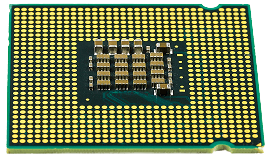
    PGA Pin Grid Array LGA vs PGA

    If the Intel CPUs have LGA sockets, AMD CPUs come with PGA sockets. And like Intel, AMD uses PGA sockets for all of their pcoessors. The PGA socket is the opposite of the LGA socket.

    Contact pins, or CPU pins, are found on the CPU and not on the motherboard.

    Why should you use PGA sockets?

    • Hardly any damage in case of misalignment
    • Easy to repair bent pins

    Why shouldn’t you use PGA sockets?

    • CPU might be difficult to remove once installed because the CPU pins might break.

    How Do You Install a CPU on a PGA (Pin Grid Array) Socket Motherboard?

    1. Use a lever to align the processor horizontally. Make room for a 2 mm allowance.
    2. Use the same lever to lock the processor in place.

    If you want to take out the CPU, just release the lever and hold the processor up.

    LGA vs PGA – A Brief Comparison

    What’s the actual difference between LGA vs PGA aside from their pins? Let’s take a look at these two different CPU sockets:

    Durability

    The LGA socket is a lot more durable than the PGA socket. The chances of you damaging a CPU meant for PGA sockets are higher than damaging a CPU for LGA sockets. LGA sockets have pins on the motherboard, not on the CPU.

    Space Consumption

    LGA pins are smaller than PGA Pins, which is why LGA sockets are more space efficient.

    Compatibility

    PGA sockets are meant for AMD processors and LGA sockets are meant for Intel CPUs. You really use one for the other socket.

    Installation

    It’s a lot easier to install AMD CPUs because of their PGA sockets compared to LGA sockets.

    Are There Other CPU Sockets?

    LGA and PGA are the most common CPU sockets, but there are other CPU sockets in the market.

    • BGA or Ball Grid Array Socket has copper pads soldering and is a lot more durable than the LGA and PGA sockets combined.
    • ZIP or ZIF or Zero Insertion Force socket is similar to the PGA socket. By using a ZIF socket, you don’t have to press hard when installing a CPU and thereby reducing chances of damaging it.

    Will Using Different CPU Sockets Matter?

    Different CPUs will require different CPU sockets, and sadly, not all of them have Universal CPU compatibility. So what kind of motherboard you’ll purchase will rely on the kind of processor you’re buying.

    Does CPU Socket Type Matter?

    Different types of computer processors require different types of CPU sockets. Not all of them come with Universal CPU compatibility. A socket type matters extremely as it connects the CPU to the motherboard.

    LGA sockets are named based on the number of pins that they have. An LGA1155 means that they have up to 1155 socket pins, so you’ll need a processor that can handle 1155 socket pins. Meanwhile, AMD labels their sockets like AM3 and FM1, along with upgrades such as AM3+. But these upgrades don’t affect compatibility at all.

    You also have to remember that a single CPU socket can be compatible with different CPU generations, so an LGA socket will be compatible with old and new Intel CPUs.

    LGA vs PGA – Which One’s Better?

    Both CPU sockets come with their own benefits and drawbacks. If you’re getting into PC building the first time, the LGA socket types would be safer for you to get your hands dirty with. A bent pin on an LGA socket won’t damage the motherboard permanently.

    But on the other hand if you’ve already purchased your parts and you ended up with a PGA socket or AMD processor, well, you’ll just have to be careful.

  • RTX vs GTX – What’s The Actual Difference Between The Two?

    RTX vs GTX – What’s The Actual Difference Between The Two?

    You don’t need to be a gaming enthusiast or expert builder to recognize two sets of three-lettered abbreviations, namely GTX and RTX. Your first thought was probably associated with Nvidia as well.

    RTX Sampling RTX vs GTX

    If you’re building your own PC for the first time, you’ll have several options for graphics cards thrown at you. But majority of them will either be RTX graphics cards or GTX graphics cards. And if you don’t know which one to choose, don’t fret.

    This article aims to help you recognize the difference between GTX and RTX graphics cards, and which one’s more suited for your needs. In this battle between RTX vs GTX graphics cards, which one will reign supreme?

    What Does GTX Stand For?

    GeForce GTX RTX vs GTX

    GTX stands for Giga Texel Shader eXtreme, and is graphics card variant under the brand GeForce. The GTX graphics cards were introduced for the first time in 2008 with Series 200. Their first line of graphics cards included GTX 260 and GTX 280.

    With the advent of these graphics cards, the naming convention was greatly affected from then on. Nvidia’s naming convention had GTX or GT as prefix followed by the model number. So, what you would get is Nvidia GeForce GTX 200 series.

    Nvidia later changed their microarchitectures with each variant, up until the latest lines of GTX cards called Series 16. These were the GTX 1650, GTX 1660, GTX 1660Ti, and then you have Super counterparts. The Series 16 was introduced in 2019.

    What Does RTX Stand For?

    GeForce RTX RTX vs GTX

    RTX means Ray Tracing Texel eXtreme, and is the latest variant under the GeForce brand. The RTX line of graphics cards were designed for ray-tracing support, or giving you hyperrealistic graphics.

    RTX graphics cards were introduced in 2018 and makes use of Turing architecture. The variants under the Nvidia RTX umbrella include RTX 2060, RTX 2070, RTX 2080, RTX 2080Ti, and the Super counterparts. Then you have the RTX 3000 series such as the RTX 3050, RTX 3060, RTX 3070, RTX 3080, and RTX 3090.

    Earlier this month, the Nvidia RTX 4000 series was announced to the public.

    Nvidia RTX vs Nvidia GTX at a Glance

    Difference Between GTX and RTX RTX vs GTX

    The age of the graphics cards notwithstanding, what’s the actual difference between the Nvidia RTX and GTX graphics cards? Both are using Turing architecture to achieve greater performance.

    Here’s a short summary of their differences:

    Launched

    • Nvidia GeForce GTX was introduced in 2008.
    • Nvidia GeForce RTX was launched in 2018 for desktops and laptops

    Generation

    • The Nvidia GTX cards had a lot of series, starting from Series 200 all the way to Series 16. Upgrading from a Series 16 would lead you to the RTX 2000 series.
    • The Nvidia RTX cards were considered next-generation cards and featured ray-tracing support with DLSS 2.0.

    Features

    • Nvidia GTX cards are notoriously known for their durability and long-term use. One could own a GTX 1660 without having to upgrade for the next five years at least.
    • Nvidia Geforce RTX cards are known for their performance and hyperrealistic graphic rendering.

    Best For

    • Nvidia GeForce GTX graphics cards are best for games such as PUBG, Fortnite, League of Legends, and other eSports games.
    • Nvidia GeForce RTX graphics cards are best for AAA games to guarantee both performance and quality, thanks to real-time Ray Tracing support. Imagine seeing realistic light reflecting off of a water surface.

    Why didn’t we cover pricing and Availability for RTX and GTX Cards?

    It goes without saying that there’s a shortage of stocks for both GTX series GPUs and RTX GPUs globally, mostly due to the Covid-19 pandemic and the sudden hoarding of graphics cards for mining purposes.

    Note that not all GTX series graphics cards are hyperinflated. Certain cards like the GTX 1660 are hard to find and inflated because they’re used for mining. We wish the same thing could be said for the RTX graphics cards.

    But assuming that the availability of the RTX and GTX cards is high and the pricing is normal, which would be the better investment for gamers like you?

    The best investment would be an RTX 2000 series card, like the RTX 2060. It’s affordable, sitting at a price tag of $300, up to $400. It’s a good entry level for RTX cards without the need for investing a lot of money into it.

    If you can spend more money on graphics cards, then you could settle for an RTX 3060, RTX 3080, or the cream of the crop, RTX 3090. But these require a lot of power.

    Wrap Up

    So which is better RTX vs GTX? It boils down to what you really need out of their graphics card. Casual gamers might easily settle for something like a GTX 1660, while hardcore gamers could go for something like the RTX 3060 graphics card.

    A lot of factors come into play, like availability, your budget, and your gaming needs. Real time ray tracing might not be something that people who play a lot of old games might fancy, but those who play Minecraft, Battlefield, and other RTX-supported games might enjoy tweaked-out graphics.

    The GeForce GTX series isn’t entirely a bad investment either, especially if you get your hands on the 1660 or 1660 Super. But between GTX vs RTX, the latter is the best choice for future-proofing. However, we don’t want to discredit the GTX’s capability for futureproofing too. A GTX graphics card like the GTX 1660 can still last you for a couple of years, even with playing PC games heavily.

  • 4 Sticks of RAM vs 2 Sticks – Which Is Better and Why?

    4 Sticks of RAM vs 2 Sticks – Which Is Better and Why?

    Which is actually better? 4 sticks of RAM vs 2 sticks?

    The debate between the number of RAM sticks you use can get convoluted to technical nuances. And no matter others have been saying, there’s a slight gap in terms of performance between these two setups.

    But how big is this gap?

    Well, 4 RAM sticks can give you a 5% to 7% increase in performance boost over just using 2 sticks. But don’t go and buy 4 pieces of RAM just yet.

    This article will go over certain nuances between using 4 sticks of RAM and 2 sticks.

    Why Do The Number of RAM Sticks Matter?

    RAM on Gaming PC 4 Sticks of RAM vs 2

    Do you know what the DDR in DDR4 RAM or DDR5 stands for?

    No, it’s not Dance Dance Revolution. DDR stands for Double Data Rate, and this is in reference to the RAM’s ability to double its speed if there’s another RAM stick with similar specs to synchronize with.

    If you have 8GB 3200MHz RAM, then that means you’re only running at 1600MHz if it’s the only RAM stick on the motherboard. This could be worse if XMP is disabled.

    If you want your RAM to run at its actual speed, you need a dual-channel configuration with either 2 or 4 sticks. It’s also worth mentioning that RAM kits that have 2 sticks or more won’t be running at their actual frequencies. If your RAM kit was advertised to have 3200MHz, it doesn’t mean that it’s running at 3200MHz. Simply put, your 2 sticks of RAM are running at 1600MHz a piece, giving you that final speed of 3200 MT/s, or Megatransfers per second.

    Using 2 or 4 sticks of RAM will allow you to run your RAM at the dual channel or quad-channel configuration. But 4 RAM sticks don’t mean or guarantee Quad Channel configuration since it’s a feature that’s mostly only available to HEDT or high-end desktops and server motherboards. You can, however, use 4 RAM sticks on dual channel configuration. But regardless of how many sticks you use, your stock speed will hinder you from achieving your optimal speed. And to tinker with your stock speed, you need to open your BIOS.

    If you want to match the speed on the box, enable XMP or your AMD BIOS equivalent setting.

    Can Quad Channel Configuration Double The Speed?

    Dual channel configuration would allow 2 RAM sticks to double their speed by working together. Does this mean that quad channel configuration could increase their speed by 4x?

    The answer is… NO.

    However, you will definitely notice improvements on your memory bandwidth if your motherboard can support quad channel.

    What Kind of Improvements Can You Expect from 4 Sticks of RAM?

    Assuming your motherboard can support quad-channel configuration, you’ll definitely notice some improvements in your memory bandwidth. But take note that memory speed isn’t boosted from moving up from dual channel to quad channel.

    In-game framerates for certain games will probably get at least a 10% boost, up to 25% at most. But don’t expect quad channel RAM setup to greatly impact your graphics performance.

    The increase in frame rates comes from your CPU’s enhanced performance, but then again, not a lot of motherboards don’t support quad-channel RAM setup, so you don’t really get to see the difference.

    Why Should You Just Stick with Using 2 Sticks of RAM?

    If quad channel memory configuration can’t be possible without a motherboard that can support quad channel, then why settle for just 2 sticks of RAM?

    • First, it’s more affordable to secure RAM kits with just 2 pieces of memory modules.
    • It’s a lot easier to reach higher memory speeds with lower CAS latencies.
    • Dual channel configuration and support is guaranteed.
    • More memory modules can be added later on.

    The biggest perk of going for a 4-stick RAM setup is its increased capacity, and with a quad channel motherboard, you can enjoy a massive boost to your memory bandwidth.

    But this boost in memory bandwidth isn’t going to do a lot for most of the applications we commonly used, even for games. Unless your system is CPU-bound, there’s never going to be a noticeable difference in performance with quad channel support.

    For memory-bound scenarios, your memory capacity plays the biggest role, follwoed by memory speed. But even then, these gains or boosts will vary depending on the application.

    If you’re the owner of a Ryzen 5000 processor, you’re going to be all right with just 2 sticks of RAM. But you will see the most meaningful improvements when you increase to 4 sticks. But then again, Ryzen processors are affected by RAM latency and speed, so it can be difficult to increase both with 4 sticks.

    Any Arguments for Using 8 Sticks of RAM?

    All right, we’ve heard enough about 2 sticks of RAM and 4 sticks of RAM. But what about 8 sticks of RAM? Can you push higher memory speeds with 8 sticks?

    Well, the only time you ever see people use 8 sticks of RAM is when they’re building servers or HEDTs, and even then, they’re limited to just quad channel the same way that 4 sticks of RAM are restricted with dual channel support on modern boards.

    8 sticks of RAM is uncommon and it’s just expensive to do with little benefit added to performance.

    What about 8 Sticks of RAM?

    8 sticks of RAM is basically only a thing on HEDT and server boards, and even then they are still limited to Quad Channel in the same way that 4 sticks of RAM are limited to Dual Channel on consumer boards.

    Octa-Channel isn’t really a thing, and implementing it into a motherboard would be prohibitively expensive for little performance difference than that of a dual channel motherboard setup.

    What If My PC has a Single Channel Configuration?

    There aren’t any manufacturers out there who’ll only make a single RAM slot, but on the rare chance that your prebuilt PC does have one slot of RAM, then you don’t need to worry.

    You only need to make sure that the RAM you’re adding is compatible with the RAM slot on your motherboard. You also need to make sure that the generation of desktop RAM you’re upgrading for a prebuilt PC will match the old one.

    Which Processor Is More Sensitive to RAM? AMD or Intel?

    AMD processors, or at least the modern ones like Threadripper and Ryzen, are built around what’s called the Infinity Fabric.

    Think of it as a tiny chip built into the CPU. The Infinity Fabric works best when it’s running at half the final speed of whatever RAM you have. But it’s a double-edged sword.

    The Infinity Fabric allows for greater performance out of Ryzen and Threadripper processors, especially if the RAM’s overclockable and has low latency.

    But on the other hand, the Infinity Fabric can’t really match the RAM speed, or if your RAM is running at stock speed, then your experience will be worse in terms of performance.

    Can You Use 4 Sticks of RAM on Mini ITX or Micro ATX Motherboards?

    The answer is a solid NO for Mini ITX motherboards because they just have enough room for two RAM slots. But mini ITX motherboards can still have dual channel support and your RAM should still reach their speeds through the dual channel mode.

    For Micro ATX motherboards, that depends on the board itself. There are some Micro ATX boards that only have two memory slots available. But there are some with four memory slots.

    There are also people who’ll use Micro ATX motherboards with 4 sticks of RAM and run at quad channel configuration if they’re setting up an HEDT or server with an AMD Threadripper or Intel Xeon CPU (or any equivalent).

    The Bottom Line

    Are four sticks of RAM better than two sticks? Well, that still depends on what you’re using the RAM for. Ideally, RAM with more capacity would give you better performance for certain tasks. But the real difference in performance lies in a lot of intensive tasks such as video editing, rendering, and high-end gaming.

    You don’t really notice if performance is better or worse for 2 vs 4 sticks if you’re just doing office tasks.

    If you’re going to be gaming or doing video editing, then you’ll need no more than 2 RAM modules at about 8GB each or 16GB each.

  • The Best Threadripper Coolers In The Market Right Now

    When it comes to PC building, one of the least discerned components is the CPU cooler. We can’t blame you either.

    No one really talks about what CPU coolers are great right now, especially if you’re new into gaming PC building. But for experienced veterans, choosing the best CPU coolers is just as important as choosing the best graphics card to use.

    When it comes to gaming, one of the most popular choice of processor is the Threadripper CPU. It’s a beefy CPU with plenty of cores, so it goes without saying that heat will be an issue.

    Threadripper CPUs are known for their superior performance, so it comes as no surprise as to why a lot of gaming PCs are powered by this beast. If you’re an AMD fan, then you’ll always go for AMD Ryzen Threadripper CPUs over Intel. It can be inversely assumed that Intel fans will also for the latest Intel processors over AMD Ryzen CPUs.

    Threadripper CPUs are powerful, so you’ll need a powerful CPU cooler to make sure that the heat is managed at all times to guarantee the CPU’s optimal performance.

    In this article, we’ll be going over the best CPU coolers for AMD Ryzen Threadripper CPUs.

    NZXT Kraken X73 360mm

    Best Liquid Cooler For AMD Ryzen Threadripper CPU

    NZXT Kraken X73 360mm Best Threadripper Cooler

    Tech Specifications

    • Pump speed of 800-2,800 + 300 RPM
    • Fans: AER P120
    • Noise: 21-36 dBA
    • Bearing: Fluid dynamic bearing
    • Airflow: 73.11 CFM
    • Sockets: for both AMD and Intel
    • Air pressure: 0.18-2.93mm-H20

    For both novices and veterans of the PC building world, no other name is as familiar as the NZXT. Apart from their PC cases’ amazing aesthetics, the brand is also well known for their coolers.

    For Threadripper CPUs, there’s only one option from NZXT and that’s the NZXT Kraken X73. The NZXT Kraken X73 is an AIO liquid cooler with RGB lighting. It’s efficient, versatile, and has all the benchmarks for being the best overall cooler for AMD Threadrippers.

    You get visual effects, accessible settings, and easy installation from the NZXT Kraken X73. Through the CAM’s software, you can adjust the settings to give you optimal performance. You also get a HUE 2 connector for added RGB customization.

    You also get a 6-year warranty with the NZXT Kraken X73, so you don’t even need to worry for the next six years. The NZXT Kraken X73 uses an inert liquid blended cooling solution mixed with distilled water. It’s also so quiet even when it’s going ham on the cooling performance.

    If you don’t care about the price tag, the NZXT Kraken X73 should be the only AIO cooler you need.

    Why buy it?

    • NZXT Kraken X73 has a digital pump
    • Comes with 6-year warranty
    • Customizable

    Why avoid it?

    • Expensive!!!

    Arctic Freezer 34 eSports

    Best Budget Air CPU Cooler for AMD Ryzen Threadripper

    Arctic Freezer 34 eSports Best Threadripper Cooler

    Tech Specifications

    • Bearing: Fluid dynamic bearing
    • Sockets: for both AMD and Intel
    • TDP: 210 W
    • Speed: 0.5 sone
    • Thermal paste: MX-4

    Don’t take this the wrong way. You spent all your money on an AMD Ryzen Threadripper CPU and your budget is not enough to secure the two coolers listed above. Don’t worry because we have a budget-friendly option for you: the Arctic Freezer 34 eSports.

    If you’re unfamiliar with the brand and if you have doubts about their quality, we’ll introduce you to them. The Arctic Solutions is a brand known for their high-quality thermal pastes, but now they’ve jumped into the cooling system market.

    The Arctic Freezer 34 eSports is their entry into this list for the best CPU coolers for AMD Ryzen Threadrippers because of their excellent price to performance ratio. It’s affordable but the quality of performance it gives matches that of the NZXT and Corsair coolers.

    The Arctic Freezer 34 eSports uses P-Fans, guaranteeing performance. The Arctic Freezer 34 eSports also comes with the BioniX P-fan, which is a higher RPM range with low power consumption, asynchronous fan control system, and high static pressure. The cooler also uses thermal coating to manage micro-turbulences. To put it simply, it’s great at propelling wind at higher rates. You also get the Arctic MX-4 Thermal Paste for the AMD Threadripper too.

    The Arctic Freezer 34 eSports’s size is decent and doesn’t take up a lot of space, as you can see from the photo.

    If you need air coolers for your Threadripper, then the Arctic Freezer 34 eSports should be on top of your shopping list.

    Why buy it?

    • Above average thermal regulation and temperature reduction
    • Affordable

    Why avoid it?

    • No RGB

    CORSAIR HYDRO Series H100i

    The Best Speedy Cooler

    CORSAIR HYDRO Series H100i Best Threadripper Cooler

    Tech Specifications

    • Type: Liquid cooling system
    • Speed: up to 2400 RPM
    • Noise: 44 dBA
    • Sockets: AMD

    Next to NZXT, another familiar name in the rig building community is Corsair. Now you might know them from their computer peripherals such as mice, keyboards, and headsets. But did you know the Corsair Coolers are the best in the market right now, not only for Threadripper CPUs but for all CPUs?

    For their entry into this list, we have the Corsair Hydro Series H100i and it’s the fastest liquid cooling system in the market.

    The Corsair Hydro Series H100i comes with a dedicated RGB system that you can customize through the manufacturer software. The entire kit comes with screws, safety materials, guides, and other important items.

    You also get enough cable and tube length that you can attach to any computer. The Corsair Hydro Series H100i comes with an applied over thermal paste that can last you for years so you don’t have to change it right now.

    The only drawback to this speedy cooler is its noise level, but don’t worry. It just means that it’s doing a great job at keeping Threadripper CPUs cool and manageable.

    Why buy it?

    • Affordable
    • Great liquid cooler for overclocking
    • Easy to install

    Why avoid it?

    • Can be noisy

    Fractal Design Celsius S36-360mm

    A Great Alternative Budget Cooler For The Threadripper CPUs

    Fractal Design Celsius S36-360mm Best Threadripper Cooler

    Tech Specifications

    • Type: Liquid cooling system
    • Speed: 2000 RPM
    • Noise: 36 dBA
    • Sockets: AMD

    Budget and liquid cooling does not go hand-in-hand, but hear us out.

    If you’re looking for the best CPU cooler for your AMD Ryzen Threadripper, or any AMD processor, then you might want to consider the Fractal Design Celsius S36. Now it’s not as popular as NZXT or Cooler Master, but make no mistake, the Fractal Design Celsius S36 is one of the powerful liquid coolers in the market.

    Let’s address the elephant in the room, or shall we say, the elephant-sized fan. The Fractal Design Celsius S36 bears a 360mm fan that’s meant for large ATX cases. So if you have an ITX or micro-ATX case form factor, you’re not going to want the Fractal Design Celsius S36.

    On top of the 360mm fan, you have 120mm PWM fans, rubber tubing coated with nylon sleeve, and a whopping 5-year warranty. Can you spell PEACE OF MIND with the Fractal Design Celsius S36? Yes, you can.

    The Fractal Design Celsius S36 has superb cooling performance, with CPU temperatures hovering around 34-degrees Celsius on idle for a 3.4GHz processor, and 74-degrees Celsius on a loaded CPU.

    Is it the best CPU cooler in the market right now? It’s right up there with the NZXT and Cooler Master brands.

    Why buy it?

    • Affordable and budget-friendly
    • Cooler performed well for both idle and loaded CPUs

    Why avoid it?

    • Large and in charge. Definitely need an ATX form factor case or bigger.
    • Noisy at times

    Cooler Master MasterLiquid ML240L

    The Most Aesthetic Liquid Cooler In The Market

    Cooler Master MasterLiquid ML240L Best Threadripper Cooler

    Tech Specifications

    • Fan Airflow: 66.7 CFM
    • Speed: 650-2000 RPM
    • Fan Air pressure: 2.32 mmH20
    • Noise: < 15 dBA
    • Radiator size: 240mm
    • 2-years warranty
    • Sockets: AMD and Intel

    Everything about the Cooler Master MasterLiquid ML240L screams AESTHETICS. And the reason why Cooler Master does this is because they want their users to not only have great performing coolers but also the best looking ones.

    The Cooler Master MasterLiquid ML240L is really silent, almost comparable to the NZXT Kraken liquid coolers. As for being the ideal cooler for the AMD Ryzen Threadripper, the Cooler Master MasterLiquid ML240L is an all-in-one liquid cooling system.

    The Cooler Master MasterLiquid ML240L features a new dissipation system that expels heat faster than most liquid coolers. Even if you’re not using a Threadripper CPU, overclocking shouldn’t be a major issue for the Cooler Master MasterLiquid ML240L.

    The Cooler Master MasterLiquid ML240L has a dual-chamber pump that allows more coolant to run through the system as fast as possible without breaking fluid dynamics. The radiator has both hot and cold channels bound on a single metal pane.

    Benchmarking on the Cooler Master MasterLiquid ML240L shows greater heat dissipation without degradation in performance. How’s that for awesome?

    Why buy it?

    • Aesthetics is the name of the game
    • RGB controller and other customization
    • Budget-friendly and affordable

    Why avoid it?

    • Only a 2-year warranty compared to the previous ones listed
    • Large and takes up a lot of space

    Noctua NH-D15

    A Solid Performance Pick For AMD Ryzen Threadripper

    Noctua NH-D15 Best Threadripper Cooler

    Tech Specifications

    • Type: Fan and heatsink
    • Speed: up to 1500 RPM
    • Noise: 19.20-24.60 dBA
    • Sockets: AMD and Intel

    On the topic of performance picks for the AMD Ryzen Threadripper, we have the Noctua NH-D15 and it’s incredible, to say the least.

    The Noctua NH-D15 comes with two 140mm front and rear fans, but they might take up a lot of room within the case. With that said, you’d need at least an ATX case. Unlike most of the coolers listed above, the Noctua NH-D15 bears a drab aesthetic, resembling that of a coffee latte color palette. However, just because it looks awful doesn’t mean the performance is just as terrible. CPU temperatures have always been on the lower ranges when it came to the Noctua NH-D15.

    Au contraire, Noctua NH-D15’s performance is top-notch, with its users’ benchmarks showing that the Noctua NH-D15 is beating other CPU coolers in the market. That’s impressive given that this is only an HSF cooler. And because it’s an HSF cooler, the price tag is relatively low.

    If you want one of the best air CPU coolers with better cooling performance than the high-end brands, the Noctua NH-D15 is a solid choice.

    Why buy it?

    • A quiet HSF cooler
    • 6-year warranty
    • Budget-friendly

    Why avoid it?

    • Large HSF cooler. You need at least an ATX case form factor

    What Happens When Threadripper CPUs Don’t Get Enough Cool Air?

    You’re probably wondering: why does the Threadripper CPU need any one of these Threadripper coolers? Is it that important for this line of processors to be cooled off as soon as possible?

    Well, the answer is this.

    Threadripper CPUs, just like most CPUs, need to be cooled off at the right time and regardless if they’re idling or if they’re loaded.

    Now if you’re putting your Threadripper CPUs to the ringer without proper cooling, two things will happen:

    1. Your CPU will die. If you’re consistently running your CPU to its capacity without ventilation or cooling, then you are reducing its lifespan with every use until it dies. And there’s no way to fix a dead CPU.
    2. CPU Degradation. On the off chance that your CPU cooler is working properly, but still unable to dissipate heat properly, then your CPU will start to throttle. Your intensive processes are all stopped, or slowed down, to give the CPU some room to cool down.

    The cooling capability of your coolers play such a huge role into increasing the lifespan of your CPU and ensuring optimal performance.

    Which is Better? HSF Coolers or Liquid Coolers?

    This is a loaded question, and you’ll probably get different answers from enthusiasts who’ll swear by either type of cooler.

    And you’ll never get a straight and unbiased answer, so allow us to do that.

    Are HSF Coolers Better?

    HSF Coolers, or Heat Sink and Fan, are reliant on copper heat pipes to dissipate heat. The HSF’s primary role is to absorb all the heat from the processor through the pipes and expel it out of the processor through the fan. Now, HSF coolers are outdated, and not a lot of people use them anymore.

    At the very least, HSF coolers are preferred by builders who want to use the best coolers possible without spending a lot of money. High end air coolers are also relatively cheaper than liquid coolers as well.

    Are AIO Liquid Coolers Better?

    As their name implies, liquid coolers rely on inert fluid circulating through the heatsink. This liquid is a careful mix of distilled water and thermally conductive fluid.

    The process is simple:

    1. Cooler pumps cool liquid through the processor.
    2. Fans pull hot air from the processor.

    And this process will just repeat itself.

    AIO stands for All-In-One, your typical AIO liquid coolers will have the following components:

    • Fans
    • Tubes
    • Radiators
    • Fluids

    On the upside, most AIO liquid coolers are expensive compared to HSF counterparts. You don’t really need them until you’re using something like a Threadripper or an Intel i9 processor. If your PC is only meant for office work and some light gaming, then an HSF cooler is better for you.

    However, if you’re overclocking CPUs and GPUs, and doing intensive tasks such as video editing, 3D rendering, and so on, then you might want to consider investing in liquid coolers.

    The Wrap Up

    So there you have it, the best air coolers and AIO coolers for AMD Threadripper CPUs. If money is not an issue for you, your best and most solid pick would be the NZXT Kraken. It’s the best bang for your buck and it’s one of the best AIO coolers in the market right now.

    On the other hand, if you just need an HSF cooler, then you can’t go wrong with the Noctua NH-D15.

  • Can You Put A PC on Carpet?

    Can You Put A PC on Carpet?

    You have limited table space and you barely have enough room for your massive rig. You’re contemplating about buying a larger computer table, but you figured you could always put the rig on the carpeted floor.

    What could go wrong, right?

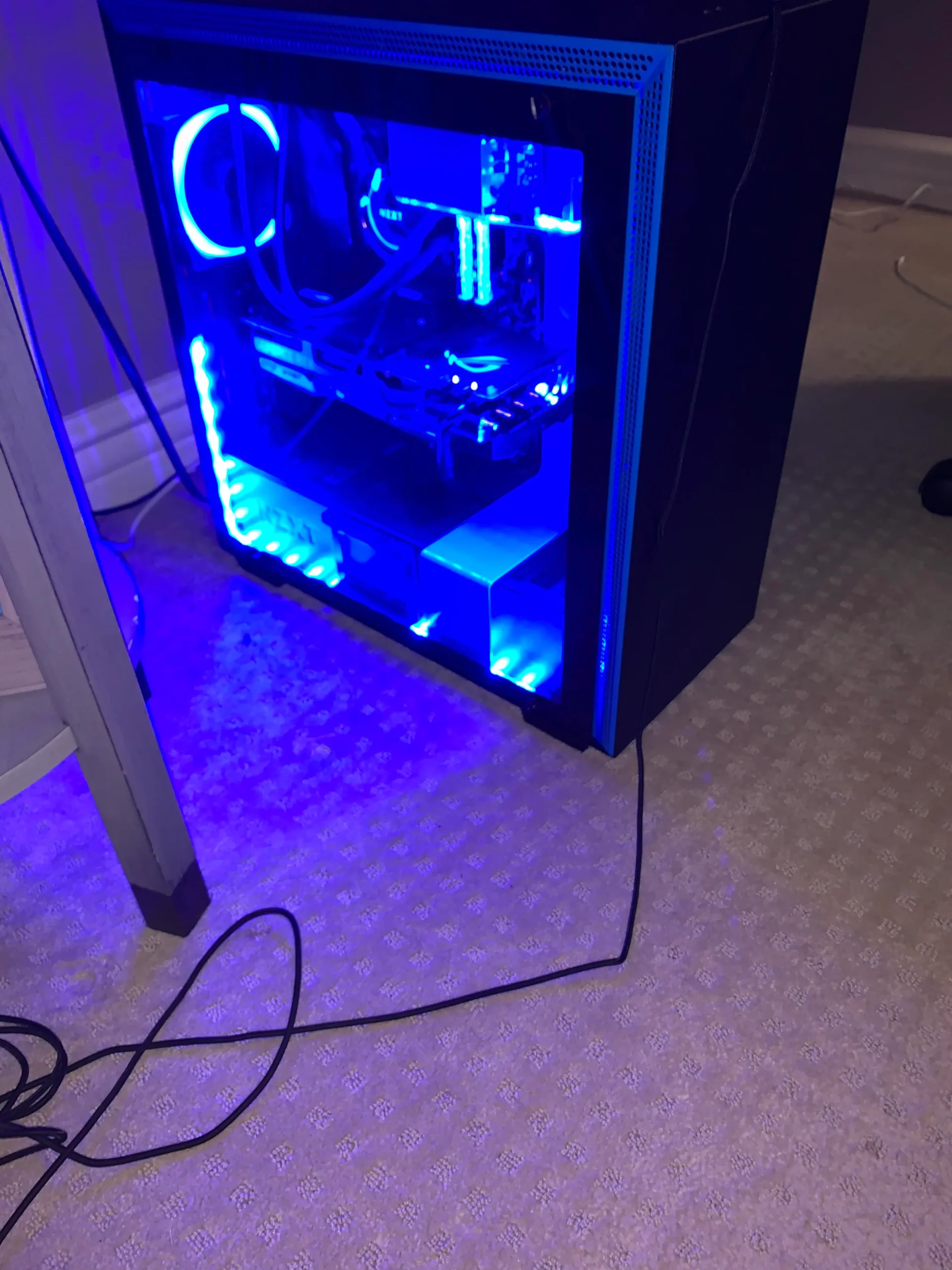
    PC on Carpet Can You Put a PC On Carpet

    Well, a lot of things could go wrong, and you don’t need to be a computer enthusiast or expert to figure out why it’s a bad idea to put a PC on carpet.

    Basically, your computer’s cooling system is reliant on air being sucked into the casing and expelled just as soon as it goes through. This helps keep the ambient temperature of the PC relatively average, meaning it’s not too hot and it’s not too cold either.

    The danger of placing your PC on the floor is minimal, but you might end up damaging your internal components. You see, the floor, carpeted or not, is home to millions of dust particles. The intake fans that pull in cool air from the room might also pull in dust particles into the PC. These particles stick into whatever surface they could stick themselves into, so they’re not expelled.

    As dust particle density accumulates, the intake and exhaust fans will start to slow down due to the weight of the dust accumulation. You could argue that your PC could use a dust filter to prevent dust accumulation, but the filter can only do so much.

    The Big Question: Can You Put a PC On Carpet?

    Computer architecture is varied but the placements of certain components are more or less similar. For example, there are always fans placed near processors and graphics cards. When you place your PC on carpet, you put the entire at system at risk for overheating and dust accumulation.

    Cooling fans and other components function optimally when there’s less dust. Dust accumulation is inevitable as intake fans will pull in dust from surrounding surfaces but not expel them because they stick to the internal components’ surface.

    When there’s too much dust, the intake fan’s filters and exhaust fan’s filters become clogged, which forces them to work harder in order to draw in more air. This results in fans demanding more power.

    Now, modern motherboards and computers are protected against electrical damage, but placing them on carpets can cause static electricity. And you don’t need to be a computer expert to know that static electricity can damage your components.

    When possible, place your PC on your desktop, or at least six inches away from your floor. Make sure that there’s enough room between the floor and your PC if you don’t have enough desktop space.

    Can You Place Your PC On The Floor?

    Your PC will generate a lot of heat, even if it’s just doing office tasks. You’ll generate more heat if you do intensive tasks such as gaming and video editing, so your intake fans will work twice as hard.

    Your PC at this point will probably sound like a car going through the highway at about 60kph. But don’t worry. Everything’s normal.

    When you place your PC on the floor, you’ll still need to make sure that the PC is dust free. A non-carpeted floor will still have a steady accumulation of dust, even if you vacuum constantly.

    Your computer’s cooling system relies heavily on pulling in air and exhausting it at the same time. Placing it on the floor will force your cooling fans to suck in cool air and dust at the same time.

    If you have no choice and you’re forced to place your PC on the floor, then you just need to make sure that the PC is on an elevated surface. Placing a thick book in between the PC and the floor prevent dust accumulation.

    What If You Place a Laptop on the Carpet?

    Similar to PCs, laptops shouldn’t be placed on carpets for the same reason. Now, laptops don’t really have a lot of ventilation compared to a desktop PC, or a gaming PC even. As a result, air doesn’t really have a lot of place to go when placed on a carpeted surface.

    Placing your laptop on carpet will end up collecting more debris and dusts. Laptops are notoriously difficult to clean, and the absence of dust filters will make them accumulate more dust than your typical gaming PC.

    It’d take a lot more than just a can of compressed air to get rid of all the dust because you need to open up the chassis first.

    Depending on the laptop model, some exhaust fans might be smaller than a typical CPU fan, so they’ll end up working hard to take out hot air from the unit.

    What Are The Reasons for Not Putting Your PC or Laptop On Carpet?

    Whether you have a PC or laptop, there are several reasons why you shouldn’t place them on the carpet.

    Electrical Damage

    Electrical damage is the biggest reason why you should never place PCs or laptops on the carpet.

    Again, PCs and laptops today are pretty much protected from electrical damage, but not entirely from static electricity. Your PC going through a power surge might still end up perfectly fine, but static electricity can fry the small internal components, or the integrated circuits of the entire motherboard.

    Static electricity can cause an overflow of electrons, which forces other components to malfunction, which is what makes it more dangerous than a power surge.

    Physical Damage

    There’s also the risk of physical damage when you place your PC on the carpet. Human mistakes such as dropping something on it, or even tripping and bumping over the PC cases, are common causes for damaged PCs.

    A small bump might dislodge other components such as graphics card, RAM, or HDD.

    Corrosion Damage

    Vacuuming too close to the PC or laptop might cause the dust particles to fly around and attach to the surfaces of the internal components.

    Dust particles can end up corroding your PC’s parts over time, so you’ll need to clean the PC with a can of compressed air every now and then.

    For laptops, dusts can end up clogging the CPU heatsink and intake filters, resulting in overheating and other problems.

    How Do You Remove Static Electricity From Carpets?

    Okay, you have no choice and you really need to put the PC or laptop on the carpet. Is there a way for you to remove static electricity?

    There are certain steps for you to do just that.

    Use a Humidifier

    A humidifier can greatly affect static discharge during the summer and winter. In summer, high humidity can cause rapid electron flow, or simply more electrons will flow. In the winter, static electricity is caused by low humidity.

    A humidifier can help balance the humidity of the room as the air will be dry during both seasons. When the dry air is removed, humidity removes the static electricity.

    Use Anti-Static Chemicals

    Using anti-static chemicals on your carpet is a great way to minimize static electricity. These chemicals are meant to minimize the flow of electrons.

    But with different carpet materials, you’ll need to use specific anti-static chemicals. Don’t worry as they’re easily accessible and can be purchased easily in stores.

    How High Should Your PC Be Off From The Floor?

    There’s no exact distance as to how high your PC should be off the ground. Ideally, you want it to be at least 6 inches off the ground, or at least enough space between the floor and the PC case.

    Placing your PC off the carpet or ground can help you avoid dust bunnies as best as you can. PC cases today already have built in dust filters and bigger intake filters. Cleaning shouldn’t be an issue anymore for modern computers.

    What’s The Best Surface To Place Your PC On?

    The best answer is a clean and flat surface, such as a table or anything that doesn’t have the tendency for static electrostatic discharge.

    Wooden or plastic desks can be bought easily in stores for cheap. Or if you have a gaming PC, you can purchase one of the newer gaming desks with a large surface area so you’re sure to have enough room for your rig.

  • What’s The Best Processor for Graphic Design?

    What’s The Best Processor for Graphic Design?

    Processors can be installed on any computer, but not all are made equal. If your computer is just intended for browsing, encoding, or a combination of office tasks, you don’t need a lot of processing power.

    For certain tasks such as graphics design, video editing, 3D rendering, and animation, you’ll need a powerful processor to run the different applications. But unlike graphics cards, the processor market is overcrowded so you’re not going to have any difficulty locating any of the processors we list down below.

    For this guide, we’re going to help you pick the best processor for graphic design and why we think it’s the best one. Now, don’t be surprised to see only two brands, namely Intel processors and AMD processors, because these are the only brands of processors in the market.

    What Makes a Good Processor for Graphic Design?

    Graphics design is a semi-intensive task. A graphic design computer doesn’t need to be as tuned out as another computer needed for video editing or animation. But for all intent and purposes of this article, we’ll assume that the person reading this wants to get a graphic design PC that can do more than just do graphic design. We’ll assume that this graphic designer wants to build a powerful computer for graphics design, gaming, and more.

    So what makes a good processor for graphics design? We’ll look at three factors:

    Processor speed

    Processor speed, or clock speed, is a measure of how fast a processor can carry out processing tasks.. The higher the processor speed, the better. This is what brand manufacturers such as AMD Ryzen and Intel CPU consistently advertise.

    But there’s a catch.

    New generation processors that have lower clock speed may end up outperforming older generations with faster clock speeds. There’s a distinction here though that needs to be brought to attention, but that’s an entirely new article on how that’s actually possible.

    When you’re shopping for different processors, you should only compare clock speeds across different CPUs using the same architecture. For example, it’s not a great idea to compare an Intel Pentium processor to an Intel Core processor. That comparison isn’t just going to be logical.

    Number of cores

    The second spec to look at is the number of cores. Modern processors now come as a block of processing units, instead of being a single processing block. Each of the block is called a CORE, and this allows a CPU to carry out more computational tasks faster and simultaneously.

    The more cores a processor has, the more computation tasks it can carry out at one time. For a graphic design PC, you want at least a hexacore processor. If you have the money to spend, you could go for sixteen cores

    Thread count

    Similar to cores, threads will dictate how many computation tasks a processor can carry out. But unlike cores, threads are virtual.

    A processor with multithreading will perform a lot better than the other processor without this feature. But PC builders often discourage buying multithreading processors if the PC setup alraedy has sufficient clock speed and core count. You’re better off with spending money on more RAM or storage.

    But enough about this technical talk and let’s get down to brass taxes.

    What do you think are the best processors for graphic design and more?

    Note that this list is not arranged in any particular order.

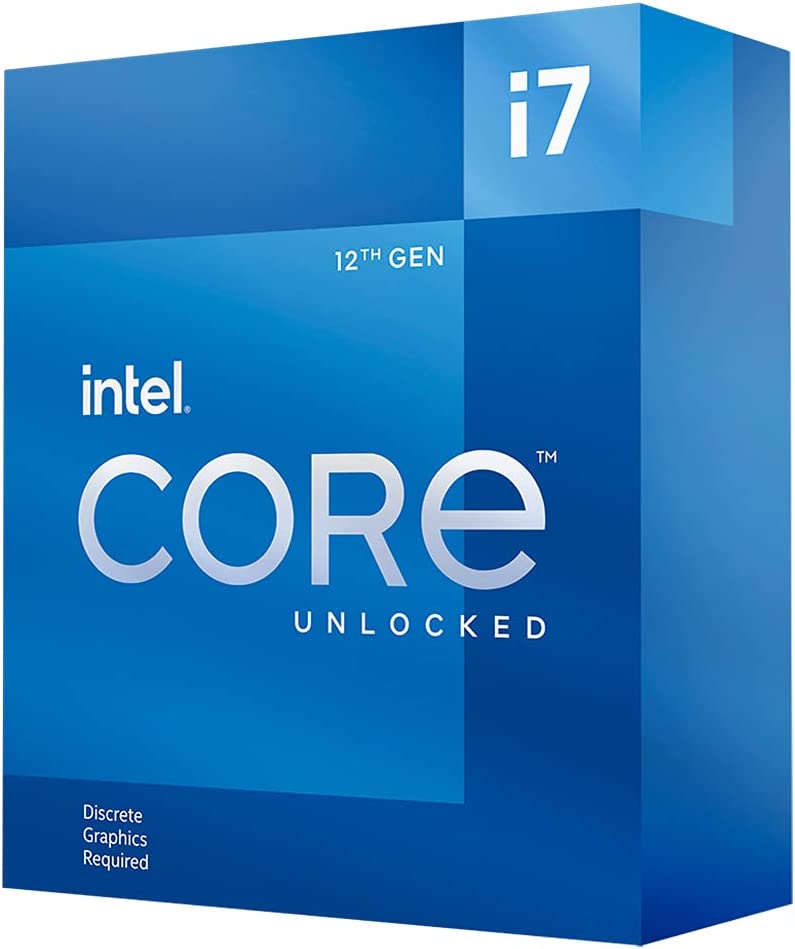
    Intel Core i7 12700

    Intel Core i7-12700KF Processor for Graphic Design

    If you just want the best processor for graphic design and more, the Intel Core i7 12700 is a solid choice. The Intel Core i7 12700 is Intel’s 12th generation of Core i7 line of processors, and it just delivers a lot.

    12th generation means that this is the latest version of their long line of Intel Core processors. Of course, you now have your Intel Core i9 processors too. However, the Intel Core i7 12700 is at the top of this list for its performance and price.

    The Intel Core i7 12700 is priced below $300 and clocks in up to 4.90Ghz with a CPU cache size of 25MB. This simply means that the Intel Core i7 12700 is able to carry out graphic design tasks from any design application without any difficulty and as long as it’s paired with the right GPU and RAM.

    At 12 cores, multitasking with the Intel Core i7 12700 is a breeze and the clock speed just guarantees smooth performance all throughout.

    AMD Ryzen 7 5800 X

    AMD Ryzen 7 5800 X Processor for Graphic Design

    Up next we have AMD Ryzen 7 5800 as a strong alternative to the Intel Core i7 12700 processor. The AMD Ryzen 7 5800 easily keeps pace with the Intel Core i7 12700, but it’s a bit behind in core count.

    Instead of getting 12 cores, you’re only getting 8 cores with the AMD Ryzen 7 5800. The max clock speed of the AMD Ryzen 7 5800 is 4.60Hz, which is only 0.3 slower than the Intel Core i7. But with those minor differences come major savings. At this time of writing, the AMD Ryzen 7 5800 is priced $100 cheaper than the Intel Core i7.

    Will the money you save be worth it? Yes. The AMD Ryzen 7 5800 is still a very powerful processor and it can still handle graphic design apps just as competently as the Intel Core i7. Resource-intensive apps such as Adobe After Effects run smoothly on the AMD Ryzen 7 5800, provided that the RAM and GPU are just as powerful (or close to it).

    Now between the Intel Core i7 and the AMD Ryzen 7 5800, it’s just a matter of personal preference since the difference of performance between both processors is minimal. The Intel Core i7 performs better than the AMD Ryzen 7 5800, but only by a slim margin.

    But if you are going heavy on 3D animation, then the AMD Ryzen 7 5800 might struggle to power through 3D design software.

    AMD Ryzen 9 5950X

    AMD Ryzen 9 5950X Processor for Graphic Design

    Now if you want something that’s high end and you’re willing to ignore the price tag, the AMD Ryzen 9 5950X will give you the highest performance level possible without breaking your bank.

    At 16 cores and 32 threads, the AMD Ryzen 9 5950X brings HEDT-class performance to modern-day motherboards. The AMD Ryzen 9 5950X boasts of higher boost frequencies than its predecessors, making it the perfect processor for graphic design and some heavy gaming. If you have a dual monitor setup, you can easily run a graphic design app in one screen and a video game loaded into another screen without any lag.

    The AMD Ryzen 9 5950X is also energy efficient and provides excellent value all throughout. However, the heating is its biggest issue. You’ll need a strong cooling system if you want this processor to perform at its highest level, and by highest level, we mean doing something intensive like 3D rendering or video editing.

    AMD Ryzen 5 5600

    AMD Ryzen 5 5600 Processor for Graphic Design

    Cheap and capable aren’t exactly words that we’d like to pair up together, but that’s just how we’d describe the AMD Ryzen 5 5600. If you’re strapped for cash and want to replace your processor on short notice, the AMD Ryzen 5 5600 is a solid choice. If you’re building your graphic design rig for the first time, the AMD Ryzen 5 5600 is an excellent choice.

    You can get the AMD Ryzen 5 5600 for about $150 or so, but don’t let the price tag fool you. The AMD Ryzen 5 5600 gives the best bang for your buck. At this price point, you’re getting 6 cores and 12 threads with a max clock speed of 4.4 GHz. It’s literally 0.2 slower than the Ryzen 7 5800 processor.

    If you’re just doing graphic design with no video editing or 3D animation work, this processor is more than enough. If you pair this with decent RAM (16GB at least) and a great GPU, you’ll have a potent workstation for graphic designing.

    AMD Ryzen 9 5900X

    AMD Ryzen 9 5900X Processor for Graphic Design

    If you just want the best CPU possible for graphic design, video editing, gaming, 3D work, and productivity tasks, then the AMD Ryzen 9 5900X is a solid pick. Probably the fastest chip in the market right now, the AMD Ryzen 9 5900X is the perfect partner for high-resolution gaming and video editing. Or if you just want more threads available at your disposal, this is a solid pick too.

    The AMD Ryzen 9 5900X is a 12-core and 24-thread processor with a 3.7GHz base clock speed and 4.8GHz max clock speed, so to say that it’s a beast is an understatement.

    The AMD Ryzen 9 5900X has overclocking capabilities and has PCIe 4.0 support, but at this point, they’re just bonuses at this point. The good news here is that the AMD Ryzen 9 5900X fits most 500-series and 400-series motherboards, so if you already have that, you don’t need to upgrade your mobo.

    But typical of high-end AMD Ryzen 5000 processors, you need a powerful cooling system to prevent overheating.

    Intel Core i5-12400

    Intel Core i5-12400 Processor for Graphic Design

    Last but definitely not least, we have the Intel Core i5-12400 processor, with 6 cores and 12 threads. If the Ryzen 5 line of processors is considered budget-friendly, the Intel Core i5-12400 processor is decent for gaming, graphic design, and more at mid-range pricing.

    The Intel Core i5-12400 delivers a strong performance, despite being single threaded. The Intel Core i5-12400 outperforms the Ryzen 5000 processors by a margin. For graphic design computers that don’t need to break the bank, consider the Intel Core i5-12400 as your processor.

    Wrap Up!

    Now those are the best processors for graphic design. You might be wondering why we didn’t include something like the Intel Core i9 10900k, or any of the 12th generation Intel Core i9 processors.

    The reason is that these processors are intended to handle intensive computing tasks and processing from graphic design workflows. You could argue that most graphic designers have a powerful rig with high end processors and GPUs, but that’s probably because they have other needs for their PC outside of just doing graphic design work.

    If you’re just starting out as a graphic designer and want to build your own PC, this is a good start as you don’t need to invest a lot of money into expensive processors right at the start. All you need to do is get something that’s capable and invest in other components like RAM, SSD storage, and GPU.

  • This Year’s List of the Best Computers for Video Editing and More

    This Year’s List of the Best Computers for Video Editing and More

    Video editing is a lot heavier on the system unit than you think. In some cases, video editing and 3D rendering are more intensive than AAA gaming.

    If you’re editing videos in 4K, 8K, or a higher resolution, you’ll need a powerful computer for that. Video editing or 3D rendering on a computer that’s not specifically built to withstand that amount of processing power is the equivalent of putting a high-powered bullet into an old gun.

    It’s an exaggeration and we’re not saying that your PC might explode if it’s not specced for video editing, but it will crash.

    So what makes the best computer for video editing? It’s a combination of a lot of components, namely:

    • Powerful processor
    • A robust graphics card
    • Lots of memory
    • Large storage capacity
    • SSD
    • high resolution or high fidelity monitor

    Is there a catch to assembling the best computer for video editing? There is. Assembling a video editing computer is going to be expensive.

    Fortunately for you, we got this list of the best video editing computers that won’t need assembly.  Some of them will come with their own monitors or displays, while others are just system units or workstations.

    Come check out our curated list of some of the best video editing computers in the market right now.

    2021 Apple iMac (24-inch)

    The Best Machine for Video Editing

    2021 Apple iMac Best Computer for Video Editing

    What are the specs?

    • CPU: Apple M1 chip with 8‑core CPU
    • Graphics: Integrated 7-core – 8-core GPU
    • RAM: 8GB – 16GB unified memory
    • Storage: up to 2TB
    • Screen: 24-inch 4.5K Retina display

    Why buy it?

    • Screen quality is excellent
    • Compact and powerful

    Why avoid it?

    • No discrete GPU
    • Not enough ports

    On the top of our list, we have the latest generation of the Apple iMac computers. By far, this is the best computer for video editing as they’re just the perfect balance between price, performance, and power.

    The computer’s processor is capable of handling multiple streams of 4K video in an editing software. The 4.5K resolution on the 24-inch monitor makes everything looks vibrant and crisp. But if you are working on anything higher than 4K resolution, this might not be the best workstation for you.

    You also get access to their video editing program called Final Cut Pro, which is one of the best video editing software right now.

    The only couple of downside we see with this unit is the absence of a discrete GPU, so if you’re planning on using something like a heavy-duty program like DaVinci Resolve, then this workstation might lag. You’re better off with a MacBook Pro in this instance.

    HP Envy 32

    Another All in One Computer for Gaming and Video Editing

    HP Envy 32 Best Computer for Video Editing

    What are the specs?

    • CPU: Intel Core i9-9900K (3.60 GHz, 8 cores)
    • Graphics: NVIDIA GeForce RTX 2080 (8 GB VRAM
    • RAM: 32GB
    • Storage: 1TB SSD (PCIe)

    Why buy it?

    • Large 4K screen
    • With Thunderbolt support

    Why avoid it?

    • Expensive!
    • Ports behind the unit may be hard to access
    • Not exactly easy to move around

    What do you get when you combine the externals of an iMac Pro with the power of Windows components? You get the HP Envy 32, and by gosh, it’s one of the best video editing computers in the market for a couple of reasons.

    The HP Envy 32 comes with an Intel i9 processor, 32GB of RAM, and up to Nvidia GeForce RTX 2080 graphics card. This makes it a very powerful video editing PC that could run any video editing software with ease.

    The HP Envy 32 comes with Gigabit Ethernet and built-in WiFi 6. On the side ports, you’ll get an SD Card reader and a USB-A. Behind the unit, you get an RJ45 port, Thunderbolt 3, HDMI-IN if you want to use the HP Envy 32 as a monitor for another PC, and an HDMI-Out if you want to use another monitor. And because it’s a premium build, you’re not getting a cheap PC case. Everything about the HP Envy 32 spells “PREMIUM”.

    But with its 4K resolution, we see no real benefit to using a larger screen or TV for external display unless it’s way better than the HP Envy 32’s. All in all, if you have the money to throw around and you want the best video editing computer, the HP Envy 32 is up for consideration.

    Mac Studio

    A High-Performance Video Editing Machine from Apple

    Mac Studio Best Computer for Video Editing

    What Are the sepcs?

    • CPU: M1 Max 10-cores / M1 Ultra 20-cores
    • Graphics: 24-core GPU / 48-core GPU
    • RAM: 32-128GB
    • Storage: 512GB-8TB SSD
    • Screen: None

    Why buy it?

    • 8K video editing? Say no more.
    • Almost quiet

    Why avoid it?

    • Expensive!

    The Mac Studio is a video editing workstation from Apple, though you might say it has other capabilities outside of just video editing. The Mac Studio is the ultimate tool for professionals in the creative industry, from graphics designers to video editors.

    The Mac Studio comes with Apple’s own M1 Max processor, or some variants may have the M1 Ultra. The M1 Ultra is double the cores, bandwidth, and memory compared to the M1 Max. Both chips are powerful, regardless.

    With this kind of processing power, it didn’t surprise us when we found out that the Mac Studio did creative tasks without difficulty or lag. Editing 8K footage is definitely a breeze for the Mac Studio. Rendering 3D via Houdini was also easily handled by the Mac Studio.

    If you are doing all of the tasks in the previous paragraph, this is the best desktop computer for you and will be worth every penny. If not, there are other alternatives out there.

    Microsoft Surface Studio 2

    An All-In-One Workstation From Microsoft

    Microsoft Surface Studio 2 Best Computer for Video Editing

    SPECIFICATIONS

    • CPU: Intel Core i7-7820HQ
    • Graphics: Nvidia GeForce GTX 1060 6GB -GTX 1070 8GBRAM: 16-32GB
    • Storage: 1-2TB SSD
    • Screen: 28-inch 4500×3000 resolution IPS display

    Why buy it?

    • Decent graphics card
    • High resolution touch screen

    Why avoid it?

    • Outdated CPU compared to other competitors

    The Microsoft Surface Studio 2 is a decent alternative to the Apple iMac if you fancy Windows over MacOS. On some levels, the Microsoft Surface Studio 2 is way better and scores higher points for us than the Apple iMac.

    First, the Microsoft Surface Studio 2 allows you to switch between two different color profiles, from sRGB to DCI-P3. This isn’t something that you’d commonly find in competitor workstations.

    You also have this beautiful 28-inch display with a resolution of 4,500 x 3,000 pixels and touch screen capability. But like the Apple iMac, the Microsoft Surface Studio 2 has a downside. For one thing, the GPU isn’t that impressive, but the Microsoft Surface Studio 2 is far more capable of handling very demanding video editing tasks than the Apple iMac.

    Lenovo ThinkStation P340 Tiny

    Small and Powerful Video Editing Computer

    Lenovo ThinkStation P340 Tiny Best Computer for Video Editing

    What are the specs?

    • CPU: Intel Core i9 10900T (1.90 GHz, (4.50 GHz boost) 10 Cores)
    • Graphics: NVIDIA Quadro P1000 4GB VRAM
    • RAM: 32 GB DDR4-2933 (64GB Max)
    • Storage: 1 TB M.2 PCIe SSD
    • Screen: None

    Why buy it?

    • Compact and takes up minimal desk space
    • Lots of ports and expandability option

    Why avoid it?

    • No Thunderbolt support

    The Lenovo ThinkStation P340 is a small workstation, but don’t underestimate its size. Underneath this compact workstation is a deca-core Intel Core i9 processor with 32GB of RAM, 1TB SSD for storage, and Nvidia Quadro P1000 graphics card (4GB VRAM).

    Impressive, right?

    It’s roughly 7 inches wide and 1.4 inches thin, so it doesn’t take up a lot of desk space. On the technical side of things, the Intel Core i9 processor is powerful enough to carry out video editing applications despite the lack of the discrete GPU graphics. When it comes down to heavy editing tasks or rendering tasks that require some graphics power, the Lenovo ThinkStation P340 might relatively fall short.

    HP Omen 30L

    A Gaming PC and Video Editing Computer Rolled Into One Unit

    HP Omen Best Computer for Video Editing

    What are the specs?

    • CPU: AMD Ryzen 5 5600G
    • Graphics: Nvidia GeForce RTX 3060 (upgradeable to RTX 3080 or RTX 3090)
    • RAM: 16GB
    • Storage: 1TB SSD
    • Screen: None

    Why buy it?

    • A really solid build for both gaming and video editing
    • It’s a desktop computer, so you can swap components

    Why avoid it?

    • Single cooling fan on a RTX 3060 (1 fan for intake, 1 fan for exhaust)

    Gaming computers are just as good for running video editing applications, as long as they have the specifications for it. And a good example of these gaming computers is the HP Omen 30L.

    The newer variant of the Omen 30L has an AMD Ryzen 5 5600 processor and an Nvidia GeForce RTX 3060. Previously, you had an Intel i7 processor with an RTX 2080 Super, which is also a decent setup for gaming and editing.

    This processing and graphics power is combined with 16GB of RAM and 1TB SSD for storage. You can run the most demanding games on ultra settings or do some serious editing/rendering tasks.

    On the aesthetic side, you have this sleek black casing with a heavy glass side panel that allows you to peek inside. Granted, this kind of aesthetic design may not be for everyone.

    On paper, this is a great system to work with or game with. But there’s a downside. The HP Omen 30L only has one cooling fan for intake and one for exhaust, so it will get too noisy when it gets too hot. Other than that, the computing power and the graphics power of the HP Omen 30L still supersedes the cooling fan issue. Creative professionals who’re also into gaming might find this one of the best choices for

    Lenovo ThinkStation P620

    Robust, Compact, Affordable, with Room For Expansion

    Lenovo ThinkStation P620 Best Computer for Video Editing

    What are the specs?

    • CPU: AMD Ryzen Threadripper PRO 3955WX (3.9 GHz, 16 cores)
    • Graphics: NVIDIA Quadro RTX4000 8GB
    • RAM: 32GB 3200MHz RDIMM ECC (2 x 16 GB)
    • Storage: 1TB M.2 SSD

    Why buy it?

    • On-site support available for three years
    • Expandability is superb
    • TPM 2.0 module for Windows 11

    Why avoid it?

    • Custom built and takes up to two months before you get it
    • No HDMI or legacy DVI ports

    Just like the P640, the Lenovo ThinkStation P620 is another compact workstation that packs a punch. You get expandability options through the roof as well with support for up to half a terabyte of RAM, five SATA HDDs, and room for up to four graphics cards. The processor is an AMD Ryzen PRO 3955WX with 16 cores and clocked at 4.30Ghz.

    On the official Lenovo store, you’ll find four configurations for the Lenovo ThinkStation. If you want video editing, you want the Ryzen Pro CPU with an 8GB Quadro RTX 4000 graphics card. You also get 1TB SSD with an option to upgrade to 2TB for a small price. Video editing performance on the Lenovo ThinkStation P620 is excellent, but it may struggle with 3D rendering.

    However, we find that the lack of HDMI and legacy ports is a bit of a nuisance since you’d need to purchase adapters from their website.

    Lenovo Legion Tower 5i

    A Powerhouse Gaming and Video Editing Computer

    Lenovo Legion Tower 5i Best Computer for Video Editing

    What are the specs?

    • CPU: Intel Core i7 -12700
    • Graphics: Up to NVIDIA GeForce RTX 3070 Super
    • RAM: Up to 16 GB DDR4 2933MHz
    • Storage: Up to 2 TB HDD + 1 TB SSD
    • Screen: None

    Why buy it?

    • A beefy and high end video editing and gaming computer
    • One of the best computers we’ve seen that’s prebuilt

    Why avoid it?

    • No USB Type C connection at the front

    The Lenovo Legion 5i is one of the best computers we’ve seen yet on this list, and no, we’re not talking about the laptop too. The Lenovo Legion 5i is an all in one computer for video editing, 3D rendering, office tasks, and of course, gaming.

    The latest iteration of the Lenovo Legion 5i comes with a 12th-generation Intel processor combined with an RTX 3070 graphics card. Previously, we had a 10th generation Intel Core i7 CPU and an RTX 2070 Super, which aren’t that bad for modern gaming.

    The Lenovo Legion 5i comes with 16GB of RAM and up to 1TB SSD for storage. If you need more RAM or storage, well the Lenovo Legion 5i has room for upgrades.

    Dell Precision 3650

    A Powerful Computer for Video Editing

    What are the specifications?

    SPECIFICATIONS

    • CPU: Intel Core i9 11900K, 3.5GHz (5.3 GHz turbo), 8 cores
    • Graphics: NVIDIA Quadro RTX 4000 (8 GB)
    • RAM: 64 GB 3,200MHz DDR4 UDIMM (2×32)
    • Storage: 2TB SSD (M.2) + 8TB HDD (3.5” SATA)

    Why buy it?

    • Guaranteed next business day onsite service
    • Three-year warranty
    • Robust build
    • Quality components for editing video

    Why avoid it?

    • Expensive
    • You can’t have both 10G Ethernet and Thunderbolt 4.

    The Dell Precision 3650 is categorized by the company as an entry level desktop workstation, but it’s far from being entry level. Creative professionals, from designers to video editors, will find the Dell Precision 3650 more than capable of handling most video editing software, graphics design software, and other creative software.

    Under the hood, we have an 11th generation Intel processor or Xeon W-1300 processor and can be expanded to up to 128GB RAM, additional PCIe Gen 4 SSDs, and options for either Nvidia or AMD graphics cards.

    If you want the best computer for video editing, you’ll want to combine an Intel processor with an Nvidia Quadro RTX 4000 GPU, and a 2TB SSD with 8TB of SATA HDD for video file storage. You can also add either a Thunderbolt 4 or an Ethernet port, but you can’t have both.

    Now, video editing tasks on this computer is just flawless. Outside of not being able to combine both Thunderbolt 4 ports and Ethernet ports on a workstation, everything else is a good reason as to why this is considered the best video editing computer for serious creative professionals.

    Asus PB60G Mini Business PC

    Great Value Computer for Video Editing and More

    Asus PB60G Mini Business PC Best Computer for Video Editing

    What are the specs?

    • CPU: Intel Core i9-9900T (2.1 GHz / 4.4 GHz boost, 8 cores)
    • Graphics: NVIDIA Quadro P620 (2GB VRAM)
    • RAM: 16 GB (64GB build available)
    • Storage: 1 TB HDD (1TB SSD + 2TB HDD build available)

    Why buy it?

    • Great value
    • Superb connectivity options
    • Can support up to three 4K monitors
    • Plenty of ports

    Why avoid it?

    • No Thunderbolt support

    Last but definitely not the least, we have the Asus PB60 Mini PC. It’s a powerful PC with laptop components, so don’t even think about underestimating this beast. Think of it as a prebuilt Mini ITX PC, if you will.

    For variants, you’ll either get an Intel i5 or an Intel Core i7 (up to Intel Core i9). This CPU is combined with 16GB of RAM (can upgrade up to 64GB if you want more speed to edit video footage), and 1TB HDD (though you can upgrade for a small price to get a 1TB SSD + 1TB HDD combo).

    The best variant you could possibly get would be an Intel Core i9 processor with 16GB of RAM, 1TB SSD, and Nvidia Quadro P620. This setup is fairly capable of running Adobe Premiere or any editing software without difficulty.

    The design of the Asus PB60 Mini PC leaves a lot to be desired because it’s looks like stacked pizza boxes. The bottom box contains the graphics card, and the rest are on the upper box. There’s sufficient air vents located throughout the unit, so even if you’re running heavy video editing tasks, it should stay sufficiently cool and quiet.

    How Do You Determine What Makes a Good Computer for Video Editing?

    When it comes to setting up a video editing PC, there’s no denying that hardware will always play the biggest role in determining what goes into a PC.

    For starters, a typical video editing workflow requires some processing power and graphics power. As the load for editing goes higher, so will the computing power required. A good video editing computer should be equipped with the latest generations of processors and graphics cards. A good example would be the 12th Generation Intel Core i7 or i9 processors, and Nvidia GeForce RTX 30-series graphics cards (RTX 3050, RTX 3060, and so on).

    The best computer for video editing is also subjective at some point when it comes to RAM and storage. These are flexible enough to where you can just have enough above minimum. It’s recommended that you do get at least 16GB to 32GB RAM and about 1TB of SSD storage. If you are going to be saving editable files, you need a secondary storage space. The secondary storage space can be an HDD instead of an SSD, but hey, you do you.

    Any of the machines listed above could be considered the best computer for video editing by different creative professionals. It just boils down to their video editing needs and their needs outside of video editing.

  • A Quick Guide To How A SATA Cable Works And More

    A Quick Guide To How A SATA Cable Works And More

    As a future PC builder or enthusiast, it’s important to familiarize yourself with different components outside of the usual pieces. An overlooked component is the SATA cable, but don’t worry.

    Today, we’re going to look at what SATA cables are, how they work, and what they can do for your system.

    What Are SATA Cables?

    SATA is short for Serial ATA or Serial Advanced Technology Attachment. SATA is an IDE standard that was released back in 2001. This cable allowed you to connect storage devices and optical drives to the motherboards.

    Serial ATA replaces Parallel ATA or PATA as the IDE standard for connecting storage and optical devices to a system unit as they can transmit data to and from the rest of the system unit faster than the PATA devices.

    PATA cables are only 18 inches at max length while SATA cables can go as long as 1 meter or 3.3 feet, which allows you more freedom for mounting devices. The only thing that a PATA device has over SATA is that the former can attach two devices at once while SATA only allows for one.

    There are also OS that doesn’t accept SATA cables such as Windows 95 and 98 but don’t worry as these OS’s are rarely used nowadays.

    SATA hard disk drives also need a special driver that needs to be installed before a computer can read or write data to it.

    You might think that the PATA cables will have the upper hand because of the SATA cable’s limitations, but the data transfer rate and flexibility of the latter will always give it

    What Are The Different Generations of SATA Cables?

    There are currently three versions, or generations, available for SATA cables. Each generation has its corresponding specification and speed:

    SATA I

    The first generation interface is the SATA 1. It operated at 1.5Gb/s with a max bandwidth of 150MB/s.

    SATA II

    SATA II is the second-generation interface that operated at 3Gb/s with a max bandwidth of 300Mb/s.

    SATA III

    SATA III is the third-generation interface. It has a max transfer rate of 6Gb/s with a max bandwidth throughput of 600Mb/s.

    The SATA III is compatible with other generations via backward compatibility.

    What Are The Different SATA Connectors?

    SATA connectors are available in male and female formats with three varieties, namely:

    • Power only (SATA power cables)
    • Data only (SATA data cables)
    • Data plus power

    SATA connectors look a lot like wafers, with pins arranged in single row. They’re wider so they’re able to couple with smaller devices like SSDs.

    SATA Data Cables

    SATA data connectors only have 7 horizontal pins, with 3 pins for grounding and 4 pins arranged in pairs for data.

    You’ll also find a smaller version known as a mini-SATA or mSATA connector, which is mostly used for tablets and laptops.

    SATA Power Cables

    SATA power connectors have more pins than SATA data cables. A SATA power connector has 15 pins and supplies +3.3V DC, +5V DC and +12V DC. These cables are partnered with a 4-pin Molex LP4 connector that attaches to the computer’s power supply unit (PSU).

    Then you’ll have SATA cables that can both provide power and data at the same time.

    How Are SATA Cables Mainly Used?

    SATA HDD Cables

    Your typical computer build will use SATA cables to connect the HDD to the motherboard. A hard disk drive usually features inlet ports, and one of them will be compatible with SATA cables.

    The SATA cable also provides power to the HDD so you don’t have to attach another cable. This is an example of a DATA PLUS POWER connection. SATA cables for HDDs can also be used to connect external HDDs to the PC via e-SATA.

    SATA Cables for Laptops

    Laptops are built differently from a standard PC. Unlike PCs, laptops connect their storage devices directly to the motherboard, which removes the necessity for SATA cables. However, the breakout boards and motherboards are connected to these storage devices with a thin and flat SATA cable.

    What Are The Other Types of SATA Cables?

    SATA to USB

    USB-C-SATA-3 SATA Cable

    You can connect external SSD drives to a computer via a SATA to USB cable. A SATA to USB cable is used to plug in storage devices that don’t have external closures.

    This allows you to attach an SSD to the system unit without installing it to the motherboard. This is a good way to back up files from an SSD into a PC or laptop.

    e-SATA

    An e-SATA or external SATA is another form of SATA Cable that allows you to connect external hard drives into a computer via the e-SATA connector port.

    Micro SATA

    Micro SATA, or mSATA, is one of the smaller SATA cables used for connecting SSDs with an mSATA connector to the motherboard.

    Low Profile SATA

    A low-profile SATA cable is typically used for PCs with bulky GPUs that end up blocking the SATA ports. A low-profile SATA cable will go underneath any GPU and into the motherboard without bending.

    What Are SATA Converter Cables?

    SATA converter cables are a form of adapter that you can use to convert any old cable type into SATA, or convert one SATA cable into another connection type.

    If you plan on using your SATA hard drive via USB connection without needing to boot it on the system, you can use a SATA to USB adapter.

    You can also find Molex converters in case your PSU doesn’t have a 15-pin cable connection to provide power to an internal SATA hard drive.

    How Do You Install a SATA Cable?

    Installing SATA cables isn’t that complicated, but even so, you should still know how to install them properly.

    How you install SATA cables will depend on what their purpose is. If you’re just replacing an HDD’s old SATA cable, then you might want to disconnect the old one from the motherboard first before installing the new one.

    However, it’s a different story when you’re installing a new hard drive, then you need to follow these steps:

    • Place the new hard disk drive into an empty bay. Make sure it’s securely located and that airflow is optimal.
    • Connect the SATA cable to the hard disk drive and then connect the other side of the SATA cable to the motherboard.
    • Make sure that the new SATA cable is not hindering the existing SATA connection from your old HDD.
    • Your primary drive, or the hard disk drive you’ll be using most of the time, should connect to your motherboard’s lowest SATA port, which would be SATA 0 or SATA 1.
    • Close the PC casing and power up the system once it’s safe.

    Frequently Asked Questions About SATA Cables

    How do you know you’re using a third-generation SATA cable, or SATA III?

    You can tell that you’re using a SATA III by its latch or locking mechanism. You’ll find a latch on either one side, or both sides of the cable. If there’s a latch on your cable, then that’s a SATA III cable.

    Is SATA III faster than the SATA I and SATA II?

    Yes. You’ll find that the other two generations have a data transfer rate of up to 1.5 Gb/s and 3.0Gb/s. The SATA III has max bandwidth throughput of 6.0Gb/s.

    All SATA generations have backward compatibility too.

    What’s SATA Express For?

    SATA Express is a bus interface used for connecting your computer’s motherboard to a storage device. The SATA Express supports PCI Express or PCIe and Serial ATA protocols at the same time.

    How do you connect an external hard drive to a computer if there’s no eSATA port?

    PC’s don’t usually have an eSATA port but you can purchase a SATA to eSATA converter cable. You will then use your external device to this eSATA port using an eSATA cable.

    Why does a SATA power cable have many pins?

    A SATA power cable or power connector has so many pins because it replaced the 4-pin Molex connector. The higher pin count is for supporting three voltages, providing additional ground pins for hot swapping, and access to other advanced features like a mechanical drive’s delayed spin-up.

    What’s the most common SATA cable being used today?

    The most common SATA generation used today is the SATA III cable. Then you’ll have three different SATA cables under this generation, namely 3.1, 3.2, and 3.3.

    Wrap Up

    So there you have it, everything you needed to know about SATA cables and how they work. Knowing how a SATA cable works and what the different functions are will let you build a stronger and faster CPU.

    Knowing the different SATA cable types and their functions will also help alleviate some headaches associated with data backup for optical drives and storage drives.