Category: Gaming

  • Ideas For The Best Minecraft Survival Houses (Aug 2026)

    Ideas For The Best Minecraft Survival Houses (Aug 2026)

    What is it about Minecraft that draws both young and adult gamers into the game? Is it the idea of being able to create anything in the world? Is it about being able to just wander aimlessly into a vast space? Regardless, Minecraft is one of the most popular games in the world right now and we have the Minecraft statistics to prove it.

    Whatever your goals are, one of the most important things to remember is that you need to build a decent house. You’ll need one so you have a safe space to log off from.

    In this article, we’re going to go over some impressive Minecraft house ideas that will put your creativity to the test. So if you’re a Minecraft player who’s:

    • Got no idea on what kind of modern house to build
    • Got no inspiration on how to approach an underground house
    • Always wanted to make the biggest Minecraft House

    Then you’re in luck! Any one of these best Minecraft house ideas could turn into your dream house. From a modern Minecraft house to an underground house, we got you covered for this bit.

    What Are Some Of The Best Minecraft Survival Houses?

    If you’re playing with other players or if you’re running a server with friends, then you’re going to want to stay for this part.

    Minecraft players who play survival mode know just how important it is to have a house. Survival mode is one of the most popular game modes in the game where you’ll need to protect yourself from the elements, even when you’re AFK or offline.

    And yes, part of the enjoyment of running survival mode is being able to create a survival house that protects you from Creepers, Griefers, and more.

    Little House on the Prairie

    A Simple Starter House For The Solo Survivalist

    Little House on the Prairie Best Minecraft Survival Houses

    Whether it’s your first time to ever setting foot in Minecraft, or if you’re a solo Survival player, then you’ll probably want this simple modern house idea.

    The premise of the Prairie House is simple. It has at least one room, a door, and some windows. Depending on the complexity of the design, you only need wood to build this Prairie House.

    While it may not protect you from a lot of griefers, it does a good enough job in making sure that you have a safe space when you AFK or log off. The Prairie House is one of the easiest survival house ideas that you can easily recreate, regardless of play mode and server.

    Stone House

    An Uncomplicated Starter House With Size

    Stone House Best Minecraft Survival Houses

    A survival house doesn’t need to be complicated. In fact, it’s a decent enough starter house where you don’t need a lot of materials, to begin with.

    A lot of new players, myself included, have found this combination to be a staple when it comes to building a survival house. At least for the first couple of hours, or days even. With some glass windows, you could literally make it look like a modern house.

    YouTubers such as TheMythicalSausage goes over the process of building this house in great detail on his YouTube channels.

    Co-op House

    A Big Enough House For More Than Three Players

    Co-op House Best Minecraft Survival Houses

    If you’re gunning for a large wooden survival house, or a good mix of wood, stone, and other material, then you might want to run with the Co-op House.

    A Co-op house was first designed by Heyimrobby, and has become a popular Minecraft house for groups of friends. As the name implies, you need more than two or three players to help you build something as grand as what Heyimrobby has made.

    What makes this one of the best Minecraft survival houses is that you don’t get pressured into building it as grand and as large right off the bat. You can easily start with just a couple of rooms and work your way up in terms of size and complexity.

    Tower House

    Build It Like How Sauron Would

    Tower House Best Minecraft Survival Houses

    A Tower House is one of the best Minecraft survival houses for players who want to make sure that no one will ever set foot inside their house, both the griefers and the mobs.

    The concept is fairly simple. Imagine Saruman’s tower from the Lord of the Rings and turn that into a modern house, you’ll get the Tower House.

    This is a tedious build since you’ll probably need two or three kinds of materials, but you’ll need a whole lot of them. How high you want to build the Tower House is completely up to you.

    What most Tower House builders usually do is just take the Prairie House design above and add a couple of stories to elevate the entire house. Remember, the fewer rooms you have, the taller the house will be.

    Co-op Ravine House (Or Waterfall House)

    Complicated, Majestic, and Impressive Survival House

    Ravine House Best Minecraft Survival Houses

    This modern house idea is only doable if you’ve stumbled across a ravine. And as veteran players know, ravines are those massive openings on the ground that grant access to resources such as diamonds and emeralds.

    Now, going down the ravine can be tedious since you’ll have to dig everything out, take it back home, and then go back in. But what if you could just build a house on top of it?

    Well, you can. The house placement is simply right alongside the edge of the ravines, or if you’re creative enough, you can build on top of the ravine. This way, not only are you soloing the entire ravine but you now have a place to easily store your materials.

    Modern Underground Or Subterranean House

    A Cool And Hip Minecraft House Idea

    Modern Underground Best Minecraft Survival Houses

    We’ve talked about how you can build your house wide and high, but what if we told you that you could actually go deeper too? An underground house is one of the most popular survival house ideas mostly because you’re the only one who knows where it actually is.

    An underground Minecraft house takes a lot of work to begin with as you’ll need to dig a big enough hole to build your house. To push your creativity further, you can place the entrance somewhere inconspicuous so griefers wouldn’t stumble upon it.

    It’s a bunker when it comes right down to it. The materials required will depend on what you’re planning to build. To keep it modern, you can use a good combination of stone, wood, and bricks.

    The Nether Hell House

    Nether Hell House Best Minecraft Survival Houses

    Every Minecraft player knows how The Nether is an important part of the game, as it’s one of the few locations for gathering some of the rarest resources. On top of getting high quality building materials, you’re also getting aesthetically pleasing blocks to incorporate into your build.

    With that said, what if you have a modern house right smack in the Nether? Accessed via the Nether Portal, one could easily hide their home from other people. But there’s a risk to be made here. The Nether has a lot of mobs that are going to be challenging to take down, but if you’re tenacious enough, the rewards are far greater than the risk itself.

    A Nether Hell House is a survival house that lets players know you’re not to be messed with, especially if you’re camped out in the Nether.

    Mega XL Base

    Large and In Charge Survival House Idea

    Mega XL Base Best Minecraft Survival Houses

    This survival house idea was inspired by Zaypixel, and you’ll see this house design in his YouTube videos. The premise of this survival house is simple. Make it a self-sustaining house that lets you plant crops, raise livestock, and more. There’s no limit on how large the house is, if you’d categorize it as still a house.

    As seen in the image, you can have up to five to eight stories, a plateau containing crops and livestock, and what looks like a series of underground houses. This is one of the best Minecraft house ideas that are perfect for large groups of players who won’t mind putting in the hours into building this mega base.

    To say that this is a Minecraft survival house would be an understatement.

    Japanese-Inspired Survival House

    Lots of Wood And Stones With Class

    Japanese Themed Best Minecraft Survival Houses

    We first saw this Minecraft survival house from SheepGG, though there have been several iterations way back.

    This Japanese house is a bit complicated since you’ll need materials such as Deepslate and its many variants for the exterior, then a good mix of wood and stone bricks for the interiors. The blueprint that you see above is what SheepGG has in one of his many videos, and the details are just amazing.

    Skull Mountain Base

    A House Idea Fit For A King

    Skull Mountain Base Best Minecraft Survival Houses

    This survival house, or base, was created by Ayvocado and can be seen in one of his YouTube videos. And as awesome as it looks, you’ll need to be creative enough to carve this out of the mountain and structure the 3D skull as it is.

    From what it looks, the Minecraft house is built into the mountain, though you could also have this as an entrance to your underground house.

    This is not a suitable starter house if you’re just getting used to house building or trying to get your feet wet in a survival world.

    How Do You Improve Your Minecraft Survival House Ideas?

    We’ve seen some of the best Minecraft house ideas, and they’re as unique as they can be. But the sky’s the limit for Minecraft.

    Even if you do fancy one of the survival house ideas on this list, it boils down to your ability to create, destroy, and recreate.

    Having said that, how do you improve your Minecraft house ideas? How do you get to a level similar to that of Ayvocado and SheepGG?

    Experiment With Themes!

    You shouldn’t be limiting your Minecraft survival house ideas to what you see on this list. Rather, you should expand your horizon by sticking to a theme. Any modern Minecraft you see on the Internet takes inspiration from real life houses, fictional buildings, and more.

    We’ve seen Hogwarts recreated beautifully in the world of Minecraft, and we’ve also seen Minas Tirith. You have no excuse here when it comes to what you can come up with for themes with your Minecraft survival house ideas.

    Build Paths Between Builds

    Pathing is an underrated part of Minecraft, and it’s just as crucial as house building. When you’re playing with a small group and you already have houses set up, creating paths in between the houses can turn any island into a quaint village.

    Work on the Interiors Too!

    A Minecraft house should be as beautiful indoors as it is outdoors. A lot of people make the mistake of just working on the exteriors so much that they forget to work on the interiors.

    And believe me, your interiors are crucial for whatever theme you’re trying to incorporate into your modern Minecraft house.

    Set aside enough materials to beautify your interiors. You can even look at pictures on the web for inspiration on how to decorate the insides of your house.

    It’s the Finer Details!

    Do you want to know why the best Minecraft house ideas thrive over the others? It’s because they work on the finer details of the houses. And it’s not just the paths we’re talking about either. We’re talking about campfires, bushes, and other items that accentuate the looks and theme of the Minecraft survival house.

    If you want an example, you could raise an actual bridge over the river if you’re thinking of building a ravine house. Small details like that are what make Minecraft house ideas worth looking into, and worth building.

    Mob Proofing Is No Joke!

    Mob proofing your Minecraft survival house is just as important as making it look good. And we’ve seen several videos about how Creepers can easily get into certain houses. And yes, torches are important for making sure that your house is mob proof, but there are also creative ways to go about this.

    For example, you could dig a fire pit, place the torch inside it, and cover it with glass. This will light up the entire room while making your interiors look beautiful.
  • How To Disable Integrated Cards The Right Way

    How To Disable Integrated Cards The Right Way

    If you’ve had a gaming laptop, you’ll know that it runs two types of graphics cards: integrated graphics cards and dedicated graphics card. An integrated graphics card is powered by the CPU while a dedicated graphics card is an independent hardware that provides graphics processing power.

    Gaming laptops aren’t the only ones with integrated graphics. Most modern CPUs have integrated graphics capabilities. Your desktop computer will also run on integrated graphics cards if you don’t have a dedicated card.

    There’s absolutely nothing wrong with running on integrated graphics cards. But if you have a dedicated graphics card and your PC is still running on integrated graphics card for some unknown reason, then you have a slight problem.

    In this article, we’ll be talking about how to disable integrated graphics cards so you can maximize your dedicated GPU when needed.

    Some caveats to consider:

    • Your gaming laptop will always run on integrated graphics if it’s running in battery mode. Gaming while unplugged will reduce your battery life by almost 50%. If you’re averaging 3 hours on battery mode, then playing games might have you running 1 hour and 30 minutes or so, depending on the demand.
    • Depending on your computer hardware, running on integrated graphics isn’t all that bad. For this article, we’ll be running on the assumption that you have both a dedicated graphics card and integrated graphics card.

    How Do You Know Which GPU is Currently in Use?

    Our monitors are connected to the motherboard if integrated graphics card is available. But when we have a dedicated graphics card, you’ll need to connect your cables to this card instead.

    If you have a dedicated GPU, you can determine what card is in use by doing these steps:

    • Press Windows + I to access Settings
    • Go to System then Display then Advanced Display
    • Under Display Information, you’ll see which GPU that monitor is using, as seen below:
    Advanced Settings How To Disable Integrated Graphics

    From this example, my first monitor is connected to the dedicated GPU which is the GeForce GTX 1050Ti. My second monitor can be accessed through that dropdown menu and it will show the same thing.

    How Do You Know Which One’s Being Used?

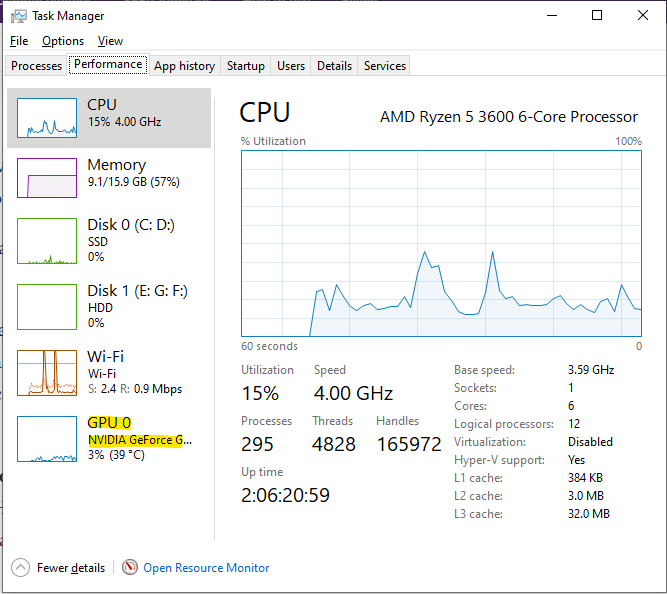
    Through Task Manager, you’ll find out more about your GPU’s details, both for integrated and dedicated graphics.

    • Press CTRL + ALT + DELETE simultaneously
    • Select Task Manager
    • Click on More Details on the bottom side of the Task Manager if you’re only seeing a small window
    • Go to Performance Tab
    • You’ll see GPU o and GPU 1 on this section, which will show you usage for either.

    Using my system as an example, you’ll see that GPU 0 is currently in use while GPU 1 is currently unavailable. This means that I have disabled integrated graphics.

    Task Manager How To Disable Integrated Graphics

    And even if integrated graphics is enabled, it will show that dedicated graphics card will have a higher usage percentage.

    How Do You Disable Integrated Graphics?

    There are two ways on how to disable integrated graphics: through the Device Manager or through BIOS.

    How To Disable Integrated Graphics Card Through Device Manager

    Disabling your integrated graphics via the Device Manager is the easiest thing to do.

    • Press Windows + X simultaneously
    • Go to Device Manager and click Display Adapters to expand it
    • Right click on the Integrated Graphics Driver then click Disable Device
    Disable Device Do You Need a GPU For Your PC

    However, you should know that if your dedicated graphics card malfunctions for some reason and your integrated graphics card is disabled, then your system won’t be able to display anything. But for laptops, the OS will automatically turn on the default Integrated Graphics driver on again if the dedicated GPU fails.

    You can do the same steps for enabling your Integrated GPU via the Device Manager.

    How To Disable Integrated Graphics Through BIOS Settings

    For this section, you’ll need to make sure that your dedicated GPU is set as the primary graphics adapter.

    1. Access the BIOS Settings by pressing either Delete or F2 key as soon as you boot the PC. This depends on the brand of your motherboard.
    2. Once you access the BIOS settings, go to Advanced and then look for “Primary Graphics Adapter”. Other motherboards might have a different name for it.
    3. Then set the Primary Graphics Adapter to PCI/PCIe instead of Auto or IGFX and VGA. This will allow the system to prioritize the dedicated GPU when it comes to running graphics-intensive apps.
    BIOS Example Do You Need a GPU For Your PC

    Should You Really Disable Your Integrated Graphics Card?

    Whether on a desktop or PC, the question to disable integrated graphics cards is a legitimate one. You see, a dedicated video card will always be prioritized by the system when it comes to playing video games or any graphically-intensive apps. It’s rare for integrated graphics to take up the bulk of the graphics processing unless the dedicated GPU malfunctions.

    Practically speaking, you really shouldn’t disable your integrated graphics. The main reason is that the integrated GPU will act as your backup if your dedicated video card is broken or malfunctions at some point. When your dedicated GPU breaks down all of a sudden, the integrated GPU takes over immediately thanks to the operating system.

    For laptops, it will automatically switch between the integrated video card and a dedicated card. If the laptop is unplugged, the laptop will use the integrated video card for all its graphics processing. This will allow the laptop to run on battery mode and efficiently save up energy at the same time.

    Running on an integrated GPU with an unplugged laptop will allow you to do basic web browsing, run Discord, and other office tasks. It’s not recommended and ideal to play video games with an integrated GPU and on battery mode.

    How To Prioritize The Dedicated GPU For Apps On A Laptop

    If you’re a laptop user and you’re reading this, you’re probably wondering how to make sure that your laptop uses the dedicated video card for all graphically-intensive apps and tasks even when it’s plugged in.

    Laptops are built to use both integrated graphics and dedicated graphics when it’s plugged in. If you’re using an old laptop with an old GPU, then it will probably use the integrated GPU to pick up the bulk of the graphics workload.

    For example, let’s say I’m using a laptop with a GeForce GTX video card and I’m doing some video editing. The laptop should remain plugged in if I want to make sure that the dedicated GPU will be used for the entirety of the editing session.

    At any time during the video rendering process or even during the editing process, my laptop may use up the integrated GPU so it has more graphics processing power. You should be able to see the usage percentage in your Task Manager window.

    If you really want to make sure that a certain app or video game will always run on the dedicated GPU, then you’ll need to follow these steps:

    • Press Windows + I to open Settings.
    • Go to System then Display and then Graphics.
    • On the dropdown menu, select the application or video game that you want to run at high performance always.
    • Then select Options and select High Performance.
    • Click Save.

    You may repeat these steps for the rest of your apps. This will allow your laptop to continuously enable the dedicated GPU whenever these apps are being used and provided that the laptop is plugged in.

    High Performance Do You Need a GPU For Your PC

    The Wrap Up

    Now we know how to disable the integrated graphics cards. It’s fairly easy to do and also undo. Take note that you should only disable integrated graphics card when needed. This allows your system to have a backup display adapter in case the dedicated graphics card malfunctions.

  • What’s The Best CPU With Integrated Graphics?

    A dedicated graphics card is the bare minimum for being able to play certain video games. But more often than not, laptops and some desktop PCs aren’t exactly well-equipped to have one. Laptops with their own graphics card end up being more expensive than those without, so you’re often choosing the latter to save up on money.

    Laptops with integrated graphics take their processing power from the CPU, but it doesn’t take away a lot from it. Integrated graphics cards, or iGPUs, are enough to help the laptop display images and videos based on their minimum specifications. For the newest CPUs, you can play video games with the integrated graphics, but don’t expect top notch gaming performance.

    But when you’re PC gaming, you need more than just a CPU with integrated graphics.

    Why Are We Even Talking About Integrated Graphics Card?

    Not every PC or laptop is equipped with the best graphics card, and there are people all over the world who don’t really play video games. It wouldn’t make sense for these people to get a PC or laptop with a discrete GPU unless they’re planning to do some video editing or graphic design.

    In some cases, there are people who’ll shop around intentionally for a laptop with CPU with integrated graphics because it’s more affordable than a laptop with a discrete graphics card.

    A CPU with integrated graphics is also a great lifeline to have if your dedicated graphics card decides to give up. The CPU can pick up the processing workload, but again, don’t expect too much.

    Are CPUs With Integrated Graphics Worth It?

    From a personal and professional point of view, there’s some value to getting CPUs with integrated graphics. They’re worth it so as long as you know what you’re getting out of it. People with integrated graphics are people on a limited budget, so they want to make sure they get everything, from affordable PC cases to graphics cards.

    Desktops that use CPUs with integrated graphics tend to be more power-efficient as there’s no dedicated graphics card. Nowadays, an integrated graphics processor is capable of powering through old video games, at least those that aren’t graphically intensive. You definitely won’t use integrated graphics on high-end prebuilt gaming PCs.

    Laptops that use CPUs with integrated graphics also end up being more affordable and accessible, as well as being more portable than their gaming laptop counterparts. These newer laptops are equipped with the latest AMD and Intel processors that are more than capable of playing old video games and allowing you to watch videos in HD.

    With that being said, we’ll look at our handpicked selection of the best CPUs with integrated graphics. In case you’re looking for a laptop or prebuilt PC with an integrated GPU, then you’ll need to keep an eye out if they have one of these five processors.

    The Top 5 CPUs with Integrated Graphics

    AMD Ryzen 5 5600G

    Best Overall CPU with Integrated Graphics. Hands Down.

    AMD Ryzen 5 5600G Best CPU with Integrated Graphics

    We’re inclined to give this title to the AMD Ryzen 5 5600G as the best CPU with integrated graphics. The AMD Ryzen 5 5600G is a 6-core and 12-thread CPU desktop processor along with Radeon integrated graphics to boost your system’s performance.

    Being an AMD CPU, the AMD Ryzen 5 5600G is relatively more affordable compared to Intel CPUs. We also dubbed this as one of the best integrated graphics processors because of its capability to play Counter-Strike: Global Offensive at 165FPS and up to 165Hz at low to medium settings. That’s more than enough for integrated graphics card, if you ask me.

    Laptops powered by an AMD Ryzen 5 should also be able to enjoy similar levels of gaming performance compared to a desktop.

    Intel Core i5-9400

    2nd Runner Up For Best CPU with Integrated Graphics

    Intel Core i5-9400 Best CPU with Integrated Graphics

    Amongst the Intel CPUs, the Intel Core i5 9400 is probably the one that stands out. We’re talking about a 9th generation Intel Core i5 processor with Turbo Boost Technology, allowing you to do more than just gaming. You’ll be able to do some video editing at 4K resolution and even watch 4K movies.

    The Intel Core i5 9400 is a 6-core, 6-thread CPU and is packed with 9MB cache memory. The Intel Core i5 9400 has an Intel UHD Graphics 630, so gaming performance is also at par compared to the AMD Ryzen 5 5600G.

    What’s interesting to note here is that the Intel Core i5-9400 is based on a Hexacore architecture and supports LGA 1151 socket, so it’s no wonder why this is a popular choice for those who want to build a gaming PC on a budget or pair it with a midrange graphics card such as an Nvidia RTX 2060 or RTX 2070.  

    The bottom line: if the AMD CPU above won’t cut it, the Intel Core i5-9400 is a solid pick from the rest of the CPUs with integrated GPU.

    Intel Core i7-6700K

    Best Midrange CPU with Integrated Graphics

    Intel Core i7-6700K Best CPU with Integrated Graphics

    If we’re talking about the best CPU with integrated graphics at midrange specifications, then the Intel Core i7-6700K is a solid contender. It has a lot to offer, and it’s faster than the Intel Core i5 processor listed above.

    The Intel Core i7-6700K runs on a Skylake architecture and runs at a base clock speed of 4.0GHz and maximum clock speed of 4.2 GHz. The Intel Core i7-6700K comes with an 8MB L3 Cache and a lot of tuning options. Definitely not the best gaming performance from this processor, but the Intel Core i7-6700K is capable of handling high-end productivity apps.

    AMD Ryzen 7 5700G

    A Premium CPU With Integrated Graphics

    AMD Ryzen 7 5700G Top Best CPU with Integrated Graphics in 2022 2023

    If money is not an issue, and if you want the best multi core performance that money can buy, then you’re going to want to buy the AMD Ryzen 5 5700G. The AMD Ryzen 5 5700G is an 8-core and 16-thread CPU. It has a 3.8Ghz base clock speed and a max clock speed of 4.6Ghz. As you can see, that’s a powerful CPU.

    With the Zen 3 Architecture, the AMD Ryzen 5 5700G is capable of gaming at decent enough frame rates. The Vega-based integrated graphics card actually makes it feel like you have a low end dedicated GPU.

    The AMD Ryzen 5 5700G is only a bit less expensive than the Ryzen 9 models, but it’s as powerful.

    AMD Athlon 3000G

    The Best Budget Pick

    AMD Athlon 3000G Best CPU with Integrated Graphics

    Repeat after me: budget does not mean terrible.

    And there’s nothing terrible about using a budget CPU with integrated graphics. If you do decide to go this route, you’re going to want the AMD Athlon 3000G. I know what you’re thinking: wasn’t Athlon like something that came from the 90s or early 2000s?

    You’re right to assume that, and yes, it’s an old line of AMD CPU. AMD Athlon competed for head to head against Intel Pentium, back when both processors were at their peak popularity. But even with Ryzen as the flagship of AMD CPUs, Athlon CPUs are still being produced.

    At $50. the AMD Athlon 3000G is more than enough for basic office and computing tasks, but it struggles with the other high-end productivity programs.

  • What’s The Best Laptop for Photo Editing?

    What’s The Best Laptop for Photo Editing?

    20 or 30-odd years ago, if we told you that laptops were going to be used for something other than doing office work, you’d probably scoff at the thought. After all, a laptop is a compact version of a personal computer and because of its size, you wouldn’t expect it to house powerful hardware. At least, this was what people thought 20 years ago.

    Now, laptops have gone above and beyond doing office work. With all the advancements made in personal computing, we now have GPUs and CPUs designed for laptops. This means that whatever PC specs you could build, you’ll find a laptop that has similar or more powerful specs.

    The downside to high-end laptops is their battery life and usage. By default, laptops will automatically switch to the integrated graphics card (iGPU) when it’s unplugged rather than use the discrete GPU for anything that needs graphics processing power. You’ll still be able to use the laptop for photo editing, but don’t expect the battery to last you an hour or so.

    And speaking of laptops for photo editing, that’s exactly what we’re going to talk about in this article. Even though you’re just editing photos, the processing power required by photo editing software is a bit higher than what you’d need for gaming.

    The photo editing laptops we will be listing in this article all have higher-than-average specs and a hefty price tag. If you’re getting started with photo editing as a career, or if you want to improve your current setup to become more mobile, then these photo editing laptops are up for consideration.

    What Is The Best Laptop For Photo Editing?

    These laptops are not arranged in any particular order, so the decision on what’s the best photo editing laptop will ultimately boil down to what you need and how much you’re willing to shell out.

    MacBook Pro M1 – $2,099 to $2,499

    A High-End MacBook For Photo Editing and More

    MacBook Pro M1 Best Laptop for Photo Editing

    Specs Cheat Sheet

    • CPU: up to 10-core Apple M1 Max
    • GPU: up to 32-core Apple M1 Max GPU
    • RAM: 16GB, with option to upgrade up to 64GB
    • Screen: 16-inch Retina Display with True Tone
    • Storage: Options for 1TB up to 8TB

    Why Consider It?

    • Apple M1 Max chips have incredible performance
    • Up to 64GB RAM on a laptop
    • Amazing screen display

    Why Avoid It?

    • Expensive!

    We’re not playing favorites here, but if you just want to get the best laptop for photo editing, video editing, and other tasks, then the MacBook Pro M1 is a solid pick if you have no qualms with spending about $2,000.

    The MacBook Pro M1 is better than its 2020 predecessors by a mile, breaking through the RAM restrictions and display size. With a 16-inch screen and an option to upgrade to as much as 64GB, photo editors will be more than happy to put this minimalist beast to the test.

    And as for battery life and combined with the M1 chip architecture, you’d be surprised to know that the battery life on the MacBook Pro M1 can go as high as 21 hours even when you’re doing video editing or photo editing. If you want a second monitor, you can easily go for monitors under $100.

    MacBook Pro M2– $1,269 to $1,279

    A Decent Alternative To The MacBook Pro M1

    MacBook Pro M2 Best Laptop for Photo Editing

    Specs Cheat Sheet

    • CPU: 8-Core Apple M2
    • GPU: 10-Core Apple M2 GPU
    • RAM: 8GB default, can be upgraded to as high as 24GB
    • Screen: 13.3-inch Retina Display with True Tone
    • Storage: 256GB base storage space, upgradeable to 2TB SSD

    Why Consider It?

    • Amazing screen quality
    • Excellent performance and portability

    Why Avoid It?

    • 2 USB ports may not be enough for photo editors
    • Small screen size, may not be enough for photo editors or video editors

    If the MacBook Air is way too expensive for you but you still want to go for something made by Apple, then you can’t go wrong choosing the 13-inch MacBook Pro. Even with specs that’re a bit underwhelming compared to the Macbook Air, the MacBook Pro still does a great job for powering through photo editing tasks, video editing tasks, and more.

    And with a price tag that’s almost 50% less than what the MacBook Air would cost you, we believe that the MacBook Pro gives you the best bang for your buck.

    Razer Blade 17 – $3,899 to $5,599

    An All-Around High-End Laptop For Photo Editing and More

    Razer Blade 17 Best Laptop for Photo Editing

    Specs Cheat Sheet

    • CPU: Choice of Intel Core i7 12th Gen or Intel Core i9 12th Gen
    • GPU: Choice of Nvidia GeForce RTX 3060, Nvidia GeForce RTX 3070Ti, or Nvidia GeForce RTX 3080Ti
    • RAM: 32GB
    • Screen: 17.3-inch screen at 2,560×1440 pixel resolution
    • Storage: 1TB SSD

    Why Consider It?

    • Quality display
    • Excellent overall laptop build
    • Powerful specifications packed inside a compact machine

    Why Avoid It?

    • Expensive!

    Probably one of the highest-performing laptops on this list, the Razer Blade 17’s reputation precedes itself for both gamers and creative professionals. With a price tag higher than that of both Apple products listed above combined, you’re getting what you pay for.

    First, you’re getting either an Intel Core i7 or an Intel Core i9. Both are considered powerful processors for gaming, video editing, and more. Then you have the Nvidia GeForce RTX graphics cards for serious graphics processing performance. Tinkering with the options for upgrades, you’ll be spending close to $6,000 for an Intel Core i9 and an RTX 3080Ti combination.

    But even with these specs, is this the best laptop for photo editing? If you don’t mind spending a lot of money on an all-around machine, then this is a solid pick. The hardware will definitely last you for more than five years, and you won’t ever feel the need to upgrade to a newer machine or model of the Razer Blade for the foreseeable future.

    For the budding photo editing professional or creative professional, consider this a hefty but worthwhile investing for growing your career.

    Microsoft Surface Laptop Studio – $1,399

    A Hybrid Laptop/Tablet Combo For Photo Editing

    Microsoft Surface Laptop Studio Best Laptop for Photo Editing

    Specs Cheat Sheet

    • CPU: Intel Core i7 11th Gen
    • GPU: Integrated Intel Irix XE
    • RAM: 16GB base RAM with option to upgrade to 32GB
    • Screen: 14.4-inch 2400×1600 resolution at 120Hz refresh rate
    • Storage: 256GB base SSD storage size with option to upgrade to 2TB SSD

    Why Consider It?

    • Lightweight and portable
    • Excellent Retina display

    Why Avoid It?

    • No HDMI port or memory card slot

    The Microsoft Surface Laptop Studio is possibly one of the most minimalistic laptop/tablet combinations we’ve ever laid our eyes on, and maybe the best laptop for photo editing for the photographer on the go.

    The Microsoft Surface Laptop Studio features a hybrid design so you can convert from laptop to tablet on the fly, but sadly, no 360-degree hinge. Rather, the Microsoft Surface Laptop Studio features a dual-hinge similar to traditional laptops and a secondary hinge located in the middle of the screen so you can prop up the screen.

    Inside the Microsoft Surface Laptop Studio, we have the Intel Core i7 11th gen CPU and room for upgrading up to 32GB RAM and 2TB storage for a minimal cost. At most, you’re spending $1,399 to max out on upgrades.

    Its portability is both its strength and weakness. The absence of a GPU, speakers, and webcam will definitely be a disappointment for those looking for more. But hey, you get what you pay for. This is a photo editing laptop at best with no added features.

    Dell XPS 15 – $2,195 to $2,800

    A Robust All-Around Photo Editing Laptop And More

    Dell XPS 15 Best Laptop for Photo Editing

    Specs Cheat Sheet

    • CPU: Intel Core i9 11th Generation
    • GPU: Nvidia GeForce RTX 3050Ti
    • RAM: 8GB stock RAM, with option to upgrade to 64GB
    • Screen: 15.6-inch IPS LCD screen at 3840×2400 resolution
    • Storage: 512GB SSD, upgradeable to 2TB SSD

    Why Consider It?

    • Excellent performance
    • Decent number of available ports, including SD slot

    Why Avoid It?

    • Mediocre battery life
    • Expensive

    Dell is notoriously good at creating powerful hardware, from their gaming laptops to their prebuilt desktop PC lineups. Coming into this list is the Dell XPS 15, or Dell XPS 9000, and this Windows laptop is absolutely packed to the teeth.

    For the Dell XPS 15, we got the Intel Core i9 processor and an RTX 3050 for excellent graphics performance for gaming and other stuff. The screen’s also what we’d consider to have one of the best configs for photo editors and other creative professionals. The Dell XPS 15 comes with a 4K resolution at a 16:10 ratio, with a 500-nit brightness.

    But this is not a budget laptop either. You’ll need to mix and match certain upgrades to get the performance that you need. But regardless, the Dell XPS 15 is one of the best laptops for photo editing and more.

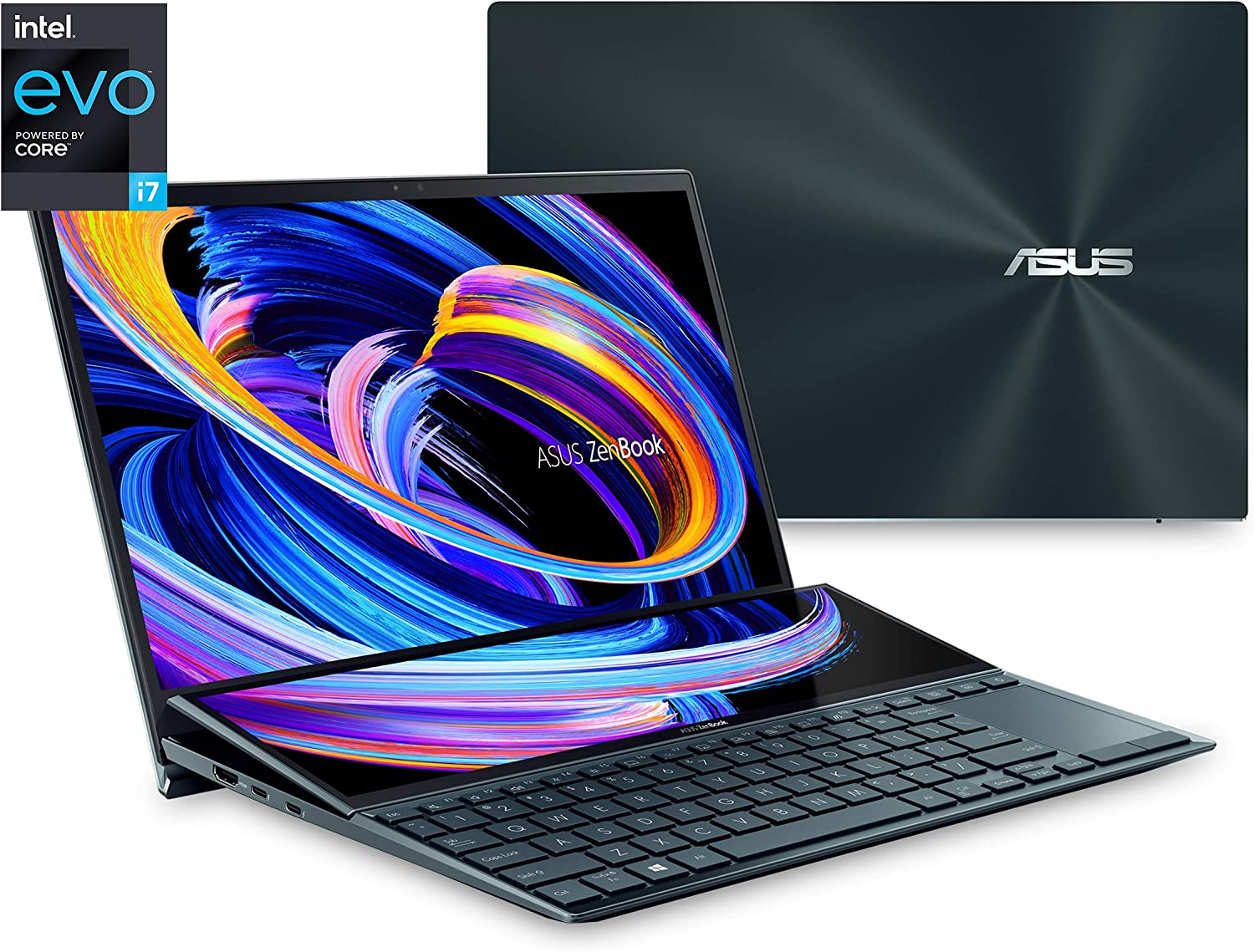
    Asus Zenbook Pro Duo 14 – $1,079 to $1,217

    An Uncompromising Laptop With Specs and Aesthetics To Match

    Asus Zenbook Pro Duo 14 Best Laptop for Photo Editing

    Specs Cheat Sheet

    • CPU: Intel Core i9 12th generation
    • GPU: Intel Iris XE
    • RAM: 8GB stock RAM, with option to upgrade to 32GB
    • Screen: 14.5-inch screen at 2880×1800 screen resolution
    • Storage: 512GB stock SSD storage, with option to upgrade to 1TB SSD

    Why Consider It?

    • Impressive dual screen setup
    • Overall fantastic build

    Why Avoid It?

    • Ergonomically complicated
    • Mediocre battery life

    We’ve got the Asus Zenbook Pro Duo 14 on this list for several reasons, and one of the happens to be its impressive touch-sensitive secondary screen nestled right above the keyboard. The ScreenPad Plus, as Asus named it, can be used as a second monitor so you can display another app. You can even split it into three columns to contain different apps.

    The main monitor is an impressive 14.5-inch OLED display with 100% DCI-P3 color space coverage and a 550-nix max brightness combined with the most beautiful contrast setup you’ll ever gaze your eyes on.

    The Asus Zenbook Pro Duo 14 is quite possibly one of the best laptops for photo editing not just for the screen but also the hardware powering it. The Asus Zenbook Pro Duo 14 comes with an Intel Core i9 Processor and room to upgrade up to 32GB RAM and 2TB SSD.

    But there’s a tradeoff. The available screen real estate has made the ergonomics for keyboard and trackpad in a bit of an awkward spot. But so as long as you get used to the setup, it doesn’t really become that much of a bother. The screen quality of the Asus Zenbook Pro Duo 14 still makes it a decent purchase, especially if you like having more screen real estate than regular Windows laptops.

    HP Spectre x360 – $1,479 to $1,699

    A Spectacular Laptop With Genuine Tablet Functionality

    HP Spectre x360 Best Laptop for Photo Editing

    Specs Cheat Sheet

    • CPU: Up to Intel Core i7 11th generation
    • GPU: Intel Integrated Graphics
    • RAM: 16GB
    • Screen: 13.5-inch OLED screen at 3000×2000 resolution
    • Storage: 512GB SSD

    Why Consider It?

    • Laptop with OLED display
    • Incredible battery life
    • Usable tablet functionality

    Why Avoid It?

    • Not even remotely cheap but not as expensive
    • Limited graphics performance

    If the Microsoft Surface Laptop Studio tickled your fancy, the HP Spectre x360 OLED might be a solid contender for best laptop for photo editing. This might be considered the best laptop for photo editing simply because of its OLED display, and once you go OLED, you’ll never want to settle for anything less.

    For photo editing, the HP Spectre x360 OLED has enough processing power to run even the most demanding photo editing software. The HP Spectre x360 OLED’s build quality is excellent, and it’s actually a usable tablet bunled with input pen (with inking support). And in the tradition of HP laptops, the HP Spectre x360 OLED’s battery life is impressive even with an 11th generation Intel Core i7.

    Razer Blade 15 – $1,938 to $2,213

    An Impressive Gaming Laptop For All-Around Purpose

    Razer Blade 15 Best Laptop for Photo Editing

    Specs Cheat Sheet

    • CPU: Up to 10th-generation Intel Core i7
    • GPU: Nvidia GeForce RTX 2060, upgradeable to RTX 2070
    • RAM: 16GB
    • Screen: 15.6-inch OLED screen with 4K resolution (3840×2160) and touchscreen capabilities
    • Storage: Up to 1TB SSD

    Why Consider It?

    • It’s a gaming laptop
    • Excellent build quality and performance
    • 4K OLED display

    Why Avoid It?

    • A bit bulky to lunk around if you’re on the move a lot.

    Razer Blade 17 made it to this list, but comes with a large price tag. If you want a compact laptop for photo editing, then the Razer Blade 15 is a solid pick. While it’s primarily a gaming laptop, and arguably one of the best built gaming laptops there is, the Razer Blade 15 packs enough power for editing photos, videos, and maybe some 3D work.

    The reason why it’s a contender for the best laptops for photo editing is that it packs a 15.6-inch 4K OLED display. The colors, brightness, and contrast are as vibrant as you can get on a 15-6 inch screen. Oh, it’s got a 300Hz refresh rate and a touch-sensitive screen too. 

    For this Razer laptop, we get the GeForce RTX 2060 graphics card (upgradeable to RTX 2070 or RTX 2080). It’s not one of the RTX 3000-series graphics cards, but it’s still considerably fast and the graphics processing power is impressive.

    The Wrap Up

    So which do you think is the best laptop for photo editing? Well, it boils down to what you need and how much you’re willing to spend. A couple thousand dollars might be over the top if you’re just getting started, but you can’t go wrong with investing in a future-proof gadget either.

  • What’s The Best Curved Monitor for Video Editing?

    What’s The Best Curved Monitor for Video Editing?

    Video editing is complicated and time-consuming. It’s also an expensive venture. You need a high-end PC with a powerful processor and graphics card, and an ultrawide monitor to help you do that.

    Ultrawide monitors aren’t just great for gaming, but they’re also really great for editing due to the added visual real estate.

    In this article, we’ll help you pick out the best curved monitor for video editing based on your budget, needs, and more.

    What Do You Look For In Curved Monitors?

    Whether you’re in the market for curved monitors or just a regular ultra wide flat monitors, it helps to pay attention to the following factors. These are what you’ll mostly find listed on their specs, and we’re here to help translate the technical stuff for you.

    Screen Size

    This is probably the biggest draw if you’re in the market for a new video editing monitor. The screen size is important because it affects the video editing process. It’ll also affect the graphics card’s power to run high-end software like DaVinci Resolve or Adobe Premiere Pro.

    In most cases, you’d do well with a 21:9 monitor as you’d have a wider field of view for video editing. A 34-inch screen is more than enough for video editing, regardless if it’s a flat monitor or curved monitor.

    Screen Resolution

    Resolution measures the number of pixels that comprise the entire screen, and the higher the number of pixels, the better the quality of the video. Higher resolutions also give you sharper and bigger images.

    A 34-inch curved monitor will probably get you an additional 1.3 million pixels, and that’s a handful for graphic designers.

    You should be able to find the numbers on the monitor’s OSD, right alongside their refresh rates and G-Sync.

    High Dynamic Range (HDR) Support

    High resolution quality means a lot for video editing, and if you want high-resolution viewing, you need to find a monitor that has HDR support. The latest curved monitors and flat monitors are equipped with HDR support and other important technology.

    Panel Types

    An important factor to consider is the panel type. IPS and VA panel types are great choices, but they are expensive. IPS panels tend to be more expensive but recent upgrades to technologies used by computer monitors are reducing the effect of panel type on the monitor price.

    A good example is the mini-LED backlight technology and high 8K resolutions are available in IPS monitors.

    Video editors and graphic designers lean towards IPS panels because they have better contrast than other panel types.

    What Is The Best Curved Monitor for Video Editing?

    If you’re ever in the market for a new curved monitor, then you’re in luck. We’ve listed down some of the best curved monitors in the market right now. They’re not arranged in any particular order, so feel free to find which one’s good for video editing.

    Dell UltraSharp U3421WE

    The Best Curved Monitor Money Can Buy

    Dell UltraSharp U3421WE Curved Monitor for Video Editing

    SPECIFICATIONS

    • Screen Size: 34.1-inch
    • Aspect Ratio: 21:9
    • Resolution: 3440 x 1440
    • Curvature radius: 1900R
    • Panel type: IPS

    Why Buy It?

    • Excellent color production
    • USB-C with 90W power delivery

    Why Avoid It?

    • Expensive
    • Only 3440×1440 resolution

    First on the list is the 34-inch Dell Ultrasharp U3421WE, which is probably the best curved monitor for video editing that money can buy. Literally.

    The Dell Ultrasharp U3421WE sports an IPS LCD panel technology, which is uncommon amongst curved monitors, and gives you amazing color and contrast accuracy compared to VA-type curved monitors. Dell Ultrasharp U3421WE’s wide gamut panel also gives you excellent color reproduction at 99% sRGB, 99% Rec. 709, and a whopping 95% of the DCI-P3 color space. This monitor competes with the display systems found on 120Hz gaming laptops.

    However, we’re quite disappointed that the Dell Ultrasharp U3421WE is less than your 4K resolution, so it’s got about a 109ppi pixel density. It’s not crisp enough that you get a Retina-like effect when you look closely at images or videos.

    But all in all, the Dell Ultrasharp U3421WE is a solid choice if you don’t mind that it’s not a 4K monitor.

    Dell UltraSharp 40 Curved U4021QW

    The Best 40 Inch Curved Monitor In The Market

    Dell U4021QW UltraSharp Curved Monitor for Video Editing

    SPECIFICATIONS

    • Screen Size: 39.7-inch
    • Aspect Ratio: 21:9
    • Resolution: 5120 x 2160
    • Curvature radius: 2500R
    • Panel type: IPS

    Why Buy It?

    • Higher than 4K resolution
    • Practical 21:9 Aspect Ratio
    • Excellent color space coverage

    Why Avoid It?

    • Expensive, but worth the money

    All right, if you really want 4K curved monitors then look no further than the Dell UltraSharp 40 Curved WUHD Monitor. This humungous monitor sits at 40-inches and brags a 21:9 ultrawide display with 5120×2160 resolution.

    The Dell UltraSharp 40 Curved WUHD Monitor sports a 2500R screen curvature radius, so you get 929mm viewable screen width, so everything is just visible even within the corners.

    The Dell UltraSharp 40 Curved WUHD Monitor’s resolution gives you genuine 4K/UHD vertical resolution with additional pixels to help you fill in the 21:9 aspect ratio. The color accuracy is just as impressive at 100% sRGB, 100% Rec.709, and 98% DC-P3 color space.

    If money is not an issue, the Dell UltraSharp 40 Curved WUHD Monitor is a solid choice as it goes beyond being just a video editing monitor. Watching movies or gaming on this beast will probably be a unique experience in itself.

    Gigabyte G34WQC

    Best Budget Curved Monitor for Video Editing

    Gigabyte G34WQC Curved Monitor for Video Editing

    SPECIFICATIONS

    • Screen Size: 34-inch
    • Aspect Ratio: 21:9
    • Resolution: 3440 x 1440
    • Curvature radius: 1500R
    • Panel type: VA

    Why Buy It?

    • HDR10 certified
    • Decent color coverage

    Why Avoid It?

    • Not an IPS Panel
    • Less than 4K resolution

    If you don’t want to spend a lot of money on a video edit monitor, then consider the Gigabyte G34WQC.

    The Gigabyte G34WQC is a good example of a budget curved monitor because it doesn’t compromise on screen resolution. It has the same 3440×1440 pixel density as the first monitor, but the Gigabyte G34WQC is way cheaper.

    Now, the compromise you do need to make is the color coverage, the lack of 4K display, and the VA panel type. But these are all minor drawbacks compared to what kind of value you’re getting with the Gigabyte G34WQC. At best, you still get a 1ms response time and 144Hz refresh rate. Combined with the AMD FreeSync support, video editing and gaming on this monitor is going to be a pleasant experience.

    ASUS ProArt Display PA34VC

    Curved Monitor with Excellent Color Accuracy

    ASUS ProArt Display PA34VC Curved Monitor for Video Editing

    SPECIFICATIONS

    • Screen Size: 34-inch
    • Aspect Ratio: 21:9
    • Resolution: 3440 x 1440
    • Curvature radius: 1900R
    • Panel type: IPS

    Why Buy It?

    • 100%R sRGB Coverage
    • Thunderbolt 3 Connectivity
    • Factory Color Calibratd

    Why Avoid It?

    • Expensive
    • Below 4K resolution

    The ASUS ProArt line of monitors is designed with graphic artists and video editors’ needs in mind. And their entry into the curved monitors scene proves that they are good at what they do.

    The ASUS ProArt PA34VC is a 34-inch curved display sitting at 3440×1440 resolution, capable of displaying 100% sRGB color space. It’s also factory color calibrated to the accuracy of Delta-e <2. It’s got uniform back-lighting so you see the image displayed on the entire screen surface.

    And on top of that, the ASUS ProArt PA34VC makes for a good dual monitor setup when paired with a gaming laptop thanks to its Thunderbolt3 USB C ports.

    LG 34WP85C-B

    Best Value Curved Monitor for Video Editors

    LG 34WP85C-B 34-inch Curved Curved Monitor for Video Editing

    SPECIFICATIONS

    • Screen Size: 34 inches
    • Aspect Ratio: 21:9
    • Resolution: 3440 x 1440
    • Curvature radius: 1800R
    • Panel type: IPS

    Why Buy It?

    • 95% P3 color coverage
    • HDR10 support
    • USB-C with power delivery
    • IPS Color Consistency

    Why Avoid It?

    • Not 4K resolution

    The LG 34WL75C may not be the cheapest curved display on here, but it’s also not the most expensive one either. It’s sitting at about $700, give or take. But don’t let the price tag fool you. LG 34WL75C’s a decent monitor for video editing because of its color accuracy and because it’s an IPS display too. The image quality on IPS panels is anything but terrible.

    The LG 34WL75C is also good for video editing because of its HDR10 certification. You get to enjoy HDR content, from gaming to movies to photos, on the fly.

    The downside here is that it’s not a 4K display, so it might be severely lacking compared to the other displays on here that share the same price tag. But again, you get what you paid for. The LG 34WL75C is a good buy, all things considered.

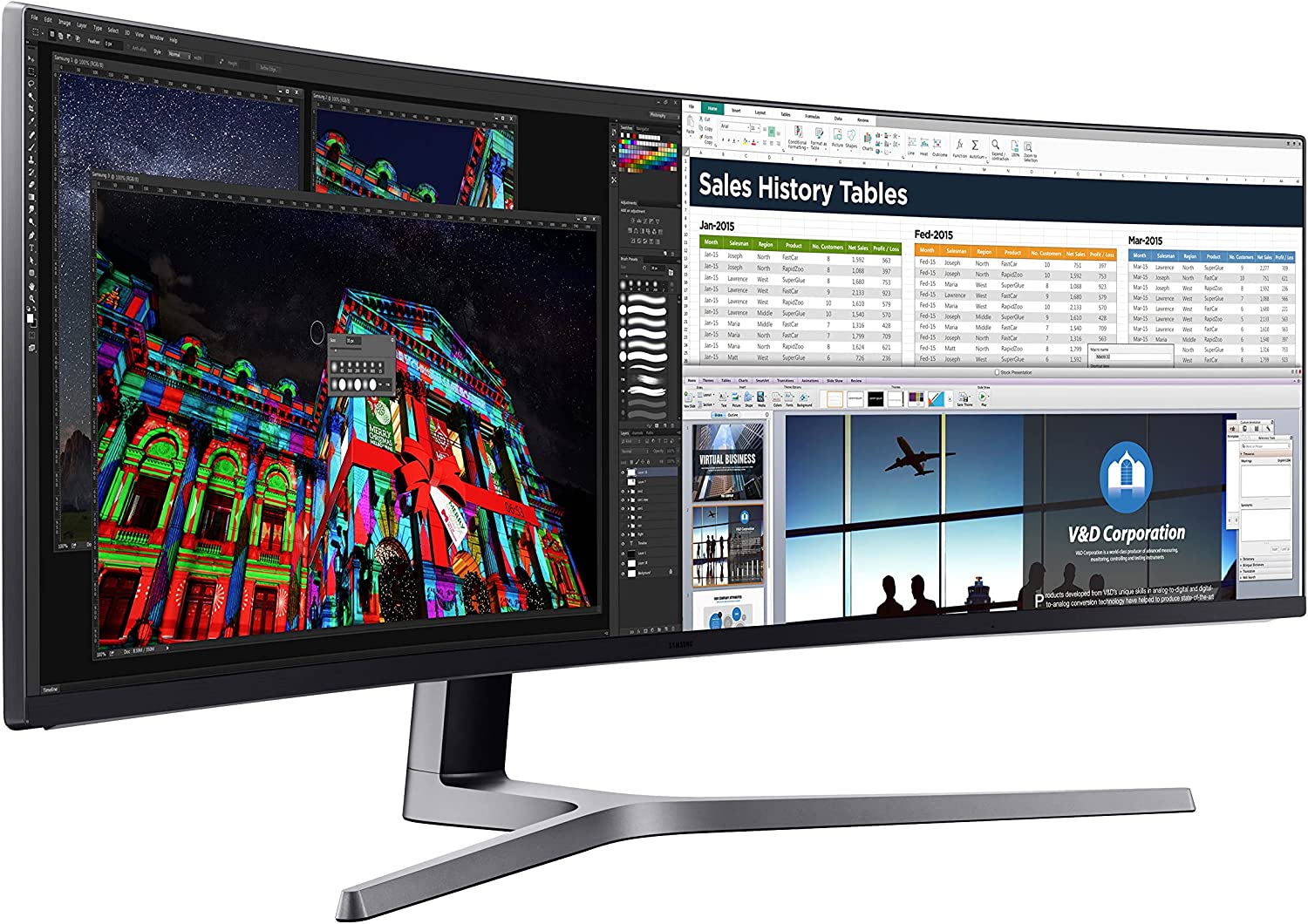
    Samsung CHG90 QLED

    Widest Curved Display That You Could Buy

    Samsung CHG90 QLED Curved Monitor for Video Editing

    SPECIFICATIONS

    • Screen Size: 48.9-inch
    • Aspect Ratio: 32:9
    • Resolution: 3840 x 1080
    • Curvature radius: 1800R
    • Panel type: VA

    Why Buy It?

    • Uber-wide aspect ratio
    • HDR support
    • 92% Adobe RGB coverage

    Why Avoid It?

    • Very expensive
    • 1080p vertical only

    If you want the widest curved monitor for video editing, then the only thing on your list should be the SAMSUNG 49-Inch CHG90, or the Samsung CHG90.

    It measures at a whopping 49.5 inches and it will literally consume a lot of deskspace. But the visual real estate you’re getting beats out dual or multiple displays at any given time.

    The Samsung CHG90 comes in with a 3840×1080 resolution and HDR support. Even though it doesn’t get you 4K resolution, the wide viewing angle makes up for it. Due to its immense size, you should be able to work on different photos and videos better than using multiple monitors.

    The Wrap Up

    So, is a curved monitor good for video editing? If we’re going for screen size here, then a curved screen should just be as competitively useful as flat screens. Screen real estate is the name of the game here, so you really want to make sure that the monitor you get has more than enough for your needs without having you use a secondary smaller screen.

    What’s the best monitor on this list based on what we’ve shown you? Well, if you don’t mind spending the money, the Samsung 49-inch curved display is the best bang for buck if you want a lot screen real estate.

    On the other hand, if you want peak brightness and all the color accuracy for photo editing or video editing, then you can’t go wrong with the Dell Ultrasharp U4021QW 40 Inch Curved.

  • What Is CPU Thermal Throttling And Is It Bad For My PC?

    As a gamer or video editor or animator, you’ve probably heard the terms like CPU throttling or CPU thermal throttling thrown around, but what exactly is it?

    PC owners want their hardware to exceed its potential, so much so that they’re willing to risk breaking them for the sake of power and performance. CPUs and GPUs are two common components that are pushed to their limits, or overclocking as you will.

    CPU on Fire CPU Thermal Throttling

    For CPUs, overclocking is a neat feature and while the new generation of CPUs are built to withstand heat generated, it doesn’t mean that you need to push beyond the threshold. When you do push your CPU to its limit, you’ll get what’s called CPU throttling or thermal throttling.

    But before we discuss what throttling is about, we need to understand a couple of concepts first.

    What Is The CPU Base and Boost Frequency?

    Base frequency refers to the minimum clock speed your CPU is set to operate at, while Turbo Boost Frequency (or boost frequency) refers to the maximum clock speed.

    CPUs will also have different base and boost frequencies. High performance CPUs, usually those used for gaming and heavy processing workloads, have higher base and boost frequencies compared to power saving CPUs. Laptop-grade CPUs will have lower base and boost frequencies by default for certain reasons.

    CPU throttling refers to these two speeds within ideal conditions. Throttling happens the CPU operates between the base and boost frequency levels.

    What Does TDP Stand For?

    Another thing that you need to understand about CPU throttling is something called TDP, or Thermal Design Power. Thermal Design Power is expressed in Watts. This is defined by Intel as the maximum power consumed by your CPU when operating at base frequency with all CPU cores working.

    To help you understand why TDP matters when it comes to throttling, here’s a short cheat sheet:

    • The higher the core count, the higher the TDP
    • The higher the frequency, the higher the TDP
    • The higher the TDP, the more heat it generates
    • The more heat the CPU generates, the more likely it is to throttle when there’s no decent cooling system in place.

    What Exactly Is CPU Throttling Then?

    Now that we know about the different frequencies (base and boost) and TDP (thermal design power), we’ll be able to understand what CPU throttling is and why it happens.

    CPU throttling is caused by a technology called Dynamic Frequency Scaling. This is a technique or technology featured in most processors that allows them to limit power consumption by limiting the power of the CPU.

    What it basically means is that Dynamic Frequency Scaling is the reason why your CPU will slow down whenever you have too much going on. If you have multiple tabs open on a browser and you’re running an AAA game in the background, your CPU will be putting in the work. Without throttling, your CPU will become severely damaged caused by excess heat.

    For laptop CPUs, throttling happens to help you conserve battery life. If you have a gaming laptop, it’ll go through GPU and CPU throttling. Laptops will still be able to carry out basic functions like web browsing and productivity programs. Gaming and other heavy workloads will still be doable at the risk of reducing your battery life faster.

    Dynamic frequency scaling also prevents your laptop from reaching maximum temperature by slowing down intentionally simply because they don’t have the same cooling solution as PC’s.

    What Causes CPU Throttling?

    CPU throttling can be caused by one of three factors, sometimes even three of them happening at the same time:

    1. Battery power (for laptops)
    2. Workload
    3. Heat generation or thermal throttling

    CPU is Running On Battery Power

    Laptops that run on battery power will end up throttling their CPUs to help conserve battery life. Gaming laptops will also switch from discrete GPU to integrated GPU to continue to provide graphics processing power.

    By design, all laptops go through CPU throttling when they’re on battery mode as part of their processor power management feature. Economical power plans will also provide you with longer battery life by cutting down performance on CPU and GPU.

    Some gaming rigs PCs also have some form of power management feature, but doesn’t necessarily mean it will run on battery. These power management features on a PC simply let you manage your power consumption better for when CPU and GPU aren’t in full use.

    Heavy Workload

    CPU throttling also occurs when the processor is under heavy use. Even when you have the best cooling solution possible, CPU throttling is inevitable as the processor tries to slow down, or return to the frequencies at which it was supposed to operate at.

    Thermal Throttling

    CPU Thermal Throttling happens when the CPU becomes too hot. But don’t worry. Thermal throttling is a fail-safe mechanism found in all CPUs for when the cooling system doesn’t function, or when the ambient temperature becomes too hot.

    To prevent thermal throttling, you’ll need to make sure that:

    • Ambient temperature is normal when working heavy loads
    • Reduce poor airflow by cleaning out CPU fans and case fans when possible
    • You give your PC ample time to rest and recover in between heavy workloads

    Poor temperature management can damage your CPU in the long run. It’s an exaggeration to say that your PC will catch on fire, but it does happen when the heat build up becomes too much.

    What Are The Other Causes of CPU Throttling?

    If you really want to know how to stop CPU throttling, you’ll need to understand the different causes as well. We’ve listed down the three most common causes, but there are also other causes that you might want to keep an eye out.

    Wear and Tear

    Processor limits are defined by wear and tear, so under normal circumstances, you’d be able to get the most out of a CPU for about 5 years or so. But if you’re consistently pushing it to its limits, then you’ll get around 3 years, 5 if you’re lucky.

    As the CPU deteriorates, its performance takes a hit though not that much. An old CPU running a new AAA game might struggle at some point, so you’ll get CPU throttling.

    Overheating Caused by Overclocking

    Overclocking CPU Thermal Throttling

    Overclocking is another way of pushing processor limits to the extreme, or at least, to its advertised speeds.

    For example, you have one of the new Intel CPUs with a base clock speed of 3.6GHz and overclock speed of 4.2GHz. So when you require higher processing power, overclocking is your solution but at a cost.

    Overclocking increases CPU temperature, which also speeds up processor wear and tear. And when the CPU reaches a high temperature past its advertised limits, then CPU throttling will happen to protect itself.

    Poor Temperature Management

    Sometimes, your PC or laptop might just be the cause of overheating. Even with adequate cooling solution, increase in CPU temperatures can be caused by an accumulation of dusts in case fans or CPU fans itself.

    Heat is not dissipated fast enough inside the case, so ambient temperature is higher than it should be.

    But Is CPU Throttling Bad?

    Believe it or not, CPU throttling is not as bad as it sounds. Think of it as your car’s emergency brake system. The point of a CPU throttling feature is to make sure that the CPU does not overheat or does not get overworked.

    Yes, throttling is annoying especially when you want consistent high performance from your CPU but things happen. Would you rather have a few minutes of lower frame rates or spend hundreds of dollars in replacing the CPU?

    Can You Turn Off CPU Throttling?

    Thermal Failure CPU Thermal Throttling

    You can manually turn off or alter CPU throttling, but we don’t recommend you do this. Think of it as removing the emergency brake level from your car, if you will.

    When you turn off CPU throttling, you’re going to cause serious damage when the CPU overheats. Remember, because it can’t reduce its performance, you won’t be able to dissipate heat. And sooner or later, you’ll probably set your entire PC on fire.

  • What Is The Best Threadripper Motherboard In The Market?

    What Is The Best Threadripper Motherboard In The Market?

    The AMD Threadripper needs no introduction. Just by the name itself, it’s already considered as one of the best and most powerful processors in the market right now.

    The Threadripper CPU is a masterpiece that showcases AMD’s ability to balance performance, value, and extensibility. Even with a massive price tag, the sheer power you get with any Threadripper CPU makes every penny spent worth it.

    But with such a powerful processor, you need a powerful motherboard. Other motherboards won’t just cut it because Threadripper CPUs need a TRX40 motherboard socket.

    In this article, we’re listing down the best Threadripper motherboards that money can buy. These are not arranged in any particular order, but take note of the pros and cons as they’ll be a huge deciding factor as to whether or not it’s worth buying for you.

    What’s In A TRX40 Motherboard?

    Threadripper CPUs are particular about their motherboards, mostly because of the socket they use. AMD Threadripper needs a TRX40 socket, so you’ll need a motherboard with that socket.

    But even if you don’t have a Threadripper CPU, there are still benefits to buying a TRX40 motherboard.

    1. TRX40 motherboards have optimized power solution, ensuring that it powers not just a Threadripper 3990X easily but other CPUs as well.
    2. In terms of form factor, A TRX40 motherboard is a new type of size: an XL ATX motherboard. This means you’ll need a beefy casing to house this beast.
    3. Incredible PCIe slot spacing is great, especially if you’re using those gigantic RTX graphics cards.
    4. 10G LAN and WiFi6 connectivity options are part and parcel of any TRX40 motherboard.

    Now, an entry level TRX40 motherboard will cost you about $600, but at this point, that doesn’t really matter seeing as how you’ve easily gotten your hands on a Threadripper CPU.

    What’s The Best Threadripper Motherboard In The Market Right Now?

    Listed below are some of the best Threadripper motherboards that money can buy. Every one of them is capable of guaranteeing optimum performance, optimized power delivery, and more.

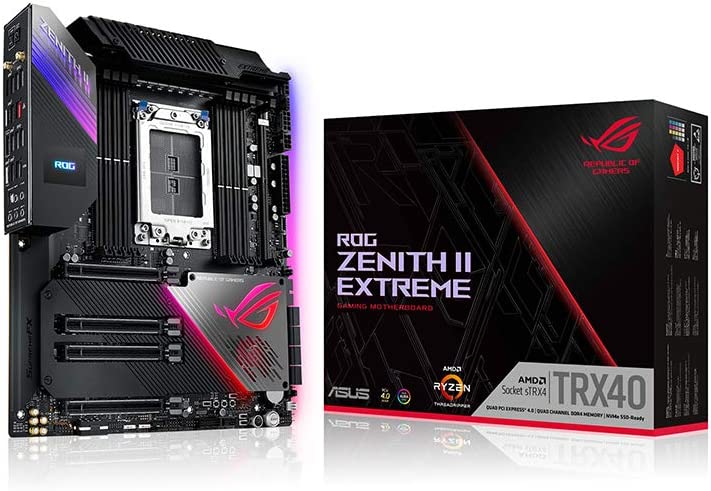
    ASUS ROG Zenith II sTRX4 EATX Motherboard

    ASUS ROG Zenith II sTRX4 EATX Motherboard Best Threadripper Motherboard

    ASUS is a brand that needs no introduction. They’ve always been at the forefront of the motherboard market for many years now because of their high-performing motherboards and now, they’re breaking into other markets such as gaming laptops, paraphernalia, and more.

    On this list, we have the ASUS ROG Zenith II sTRX4 as one of two contenders from their brand. At a glance you get 4 PCIe x 16 slots for your graphics cards, a total of 8 RAM slots, and at least five M.2 PCIe storage slots. It’s literally one of the most robust TRX40 motherboards out there.

    For connectivity, you’re getting Bluetooth 5, WiFi 6 port, an Aquantia ACQ-107 Ethernet port, and 1Gbps LAN port. You also get a 16-phase VRM, guaranteeing optimal power delivery to the new Threadripper CPU. And yes, it’s got enough juice to power the up and coming 64 cores 2990x Threadripper (not released yet).

    It’s one of the best AMD threadripper motherboards out there in the market right now, but it’s also one of the most expensive motherboards on this list.

    Is it worth it? Yes, the ASUS ROG Zenith II sTRX4 is definitely wroth every penny. It’s perfect for quad GPU setups, overclocking, and more.

    ASUS Rog Zenith Extreme Alpha X399

    Asus Rog Zenith Extreme Alpha X399 Best Threadripper Motherboard

    If you’re planning on getting a 70X Threadripper or Ryzen 3960, the ASUS ROG Zenith Extreme Alpha X399 is the perfect motherboard for that.

    Like its big brother, the Zenith II, the ASUS ROG Zenith Extreme Alpha X399 is a high-end gaming motherboard. It comes with the Gamefirst V Network control software, which gives you full control over which applications to prioritize when they’re running at the same time.

    You also get a fancy built-in color OLED LiveDash display that shows you BIOS status updates, CPU temperatures, fan speeds, and more. The lighting effects can be controlled via the Aura Sync Application.

    Enough talk about aesthetics, let’s move on to the boring parts. For slots and VRM, the ASUS ROG Zenith Extreme Alpha X399 couldn’t get any better. Like its big brother, the ASUS ROG Zenith Extreme Alpha X399 comes packed with five PCIe 4.0 M.2 sockets, 8 SATA 6Gbps slots, and 16-phase configuration with TDA21490 A power stages. You get nice connectivity options as well with 802.11ax WiFi 6 and 10GBps LAN speeds thanks to the Aquantia AQC-107C chipset.

    The ASUS ROG Zenith Extreme Alpha X399 is one of the best Threadripper motherboards out there, or if you’re just looking for something to use your Ryzen 3960 processor with.

    ASRock MB TRX40 Taichi

    ASRock MB TRX40 Taichi Best Threadripper Motherboard

    Similar to ASUS, ASRock is one of the most reliable and trusted brands for motherboards. For their TRX4o motherboard entry, we have the ASRock MB TRX40 Taichi and is a solid pick when it comes to housing a Threadripper.

    You get a high-performance cooling system, so overclocking is possible with the ASRock MB TRX40 Taichi. You get four M.2 slots and support for up to six M.2 key-M solid state drives (SSD).

    But the downside to the ASRock MB TRX40 Taichi is that the fan headers and CPU-power are poorly-placed, so it might be stressful when it comes to building up the entire PC.

    Other than that, the ASRock MB TRX40 Taichi is robust and solid for what it has to offer.

    GIGABYTE TRX40 AORUS Xtreme

    GIGABYTE TRX40 AORUS Xtreme Best Threadripper Motherboard

    Gigabyte TRX40 AORUS Xtreme is a powerful TRX40 motherboard since it can accommodate a 3rd generation Threadripper CPU for excellent gaming performance. But the price is very steep.

    Gigabyte TRX40 AORUS Xtreme is equipped with a powerful cooling system that helps keep temperatures in check. The massive heatsink is aesthetically pleasing to look at.

    But you don’t really get the Gigabyte TRX40 AORUS Xtreme for its cooling system. You’re getting it for what it has to offer.

    First, the Gigabyte TRX40 AORUS Xtreme gets you Gen4 A/C Adaptor, four M.2 NVMe slots with thermal guard, and 10 SATA 6GB/s connectors. You also get four PCIe x16 slots for your graphics cards. For audio, you’re getting the Realtek ALC4050H codec that gives you high-quality analog and digital sound.

    Connectivity-wise, you get two Aurois antenna and Bluetooth 5. Other ports also include seven Type-A back panel, and rear and front USB 3.2 Gen2 Type C ports.

    Now, is the Gigabyte TRX40 AORUS Xtreme worth every penny? Yes it is.

    Is it the best Threadripper motherboard? It’s one of the stronger contenders on this list for sure. But we’re not done yet.

    MSI Creator TRX40

    MSI Creator TRX40 Best Threadripper Motherboard

    The MSI Creator TRX40 is a solid gaming motherboard that not only appeases to gamers, but also to custom rig builders. Aesthetics-wise, the MSI Creator TRX40 features Mystic Light, providing support for up to 29 lighting effects and 16.8 million colors. If RGB lighting is your thing, look no further than the MSI Creator TRX40.

    But that’s not the only good thing about this motherboard. You get the enhanced thermal solutions including extended heatsink, Heatpipe, and a frozr heatsink.

    You also get some decent number of USB 3.2 Gen2x2 ports, 8 RAM slots, 6 SATA ports, four PCIe x16 slots with 3-way SLI support, and WiFi 6 connectivity. The MSI Creator TRX40 is fast, packed, and more than capable of being equipped with the latest gaming hardware.

    If you want a solid backbone for your gaming rig, look no further than the MSI Creator TRX40.

    GIGABYTE TRX40 AORUS PRO WiFi

    GIGABYTE TRX40 AORUS PRO Best Threadripper Motherboard
    GIGABYTE TRX40 AORUS PRO Best Threadripper Motherboard

    Another entry from the Gigabyte brand is the Gigabyte TRX40 Aorus Pro WiFi. It’s not as aesthetically pleasing as the MSI motherboards, but the Gigabyte TRX40 Aorus Pro WiFi is a high end motherboard with all the right features necessary to support a Threadripper CPU.

    The Gigabyte TRX40 Aorus Pro WiFi comes with a 16+3 power for robust power delivery for the newest line of Threadrippers. You also get 10 SATA 6Gbps ports, 4 M.2 slots, 4 PCIe x 16 slots, and 8 RAM slots, making it the perfect motherboard for dual GPUs and other extreme gaming rig setups.

    MSI TRX40 PRO 10G

    MSI TRX40 PRO 10G Best Threadripper Motherboard

    Now, we couldn’t really complete this list without a budget option. And by budget option, we mean something that doesn’t really hurt your wallet as much as the other contenders.

    If you’re tight on the budget, then you should secure the MSI TRX40 PRO 10G. It’s a solid budget alternative for supporting AMD Threadripper CPUs. But don’t be fooled by its price. It’s still got a lot of features.

    But what do we like the most about the MSI TRX40 PRO 10G? Well, the heatsink is more powerful than any of the motherboards out there, that’s why the MSI TRX40 PRO 10G is a sought-after motherboard for the AMD Threadripper CPUs.

    The MSI TRX40 PRO 10G uses a 3-phase SOC and 6×2 phase 90A ISL99390 power stages, making it possible to power 3rd generation AMD Threadripper CPUs. Overclocking won’t even be a problem at all.

    The only thing that doesn’t really make the MSI TRX40 PRO 10G stand out from the rest is that it doesn’t have a built-in wireless connection. If it did have wireless connectivity, this would be on top of our list.

    The Wrap Up

    If you want our recommendation for the best threadripper motherboard, we’re torn between the ASUS ROG Zenith II and the Gigabyte TRX40 Aorus PRO Xtreme. Both are great choices and equally expensive, but the features are well worth it. They’ll easily last you at least five to ten years.

  • The Best CPU Cooler for i9 10900k

    One of the most powerful CPUs right now is the Intel Core i9-10900K, and is considered to be one of the best processors for gaming in the market. The processor comes with 10 cores, 20 threads, and enough speed to guarantee the best gaming, rendering, and productivity performance possible.

    But with this power comes heavy drawbacks, namely high power consumption and high temperatures. To keep performance optimal, you need a powerful CPU cooler for the i9-10900K. With this kind of CPU, you have the budget to get the best CPU cooler for i9 10900K.

    And don’t worry. In this article, we’ll list down the best CPU coolers that money can buy, including affordable (but still quality) options. .

    What Is The Best CPU Cooler for i9 10900K?

    Whether you’re looking for air coolers or a liquid cooler for the i9 10900k, the cooling performance on these items on the list is guaranteed to be excellent and will give you the best bang for your buck.

    Editor’s note: These are not arranged in any particular order.

    EK-AIO Elite 360mm D-RGB

    The Best Liquid Cooler for Intel i9 10900k

    EK-AIO Elite 360mm D-RGB CPU Cooler for i9 10900k

    What are the specifications?

    • Type: AIO Liquid Cooler
    • Colors: Black
    • TDP: 200+ W
    • RGB: Yes
    • Radiator Dimensions:  395 x 120 x 27 mm
    • Fan: 6x EK-Vardar S 120ER D-RGB
    • Fan Speed: 550 – 2200 RPM ± 10%
    • Noise: 31.6 dB(A)
    • Socket Support:
      • Intel: LGA 1150, 1151, 1155, 1156, 1200, 2011, 2011-3, 2066, 1200
      • AMD: AM4

    Why buy it?

    • High performing fans
    • Excellent cooling performance
    • Tool-less installation
    • Easy tube adjustment
    • Comes with PWM Connector Hub for RGB lighting and 6 fans

    Why shouldn’t you buy it?

    • Expensive
    • The PWM Conenctor Hub is not magnetic
    • RAM clearance issues

    Much like Noctua, EK is one of the premier brands of liquid coolers. They have everything you need for water cooling, from reservoirs to water blocks, to fittings.

    Out of all the liquid coolers provided by EK, one model stands out that’s perfect for the i9 10900k: the EK-AIO Elite. The EK-AIO Elite is part of their high-end line of AIO coolers, ranging from 280mm to 360mm. For this part, we have the EK-AIO Elite 360mm D-RGB.

    The EK-AIO Elite 360mm D-RGB has a slightly different design compared to the other EK-AIO models. For one, the pump block for the EK-AIO Elite 360mm D-RGB has a grey steel surface, whereas the standard EK-AIO Elite is a white translucent plastic.

    The EK-AIO Elite 360mm D-RGB’s pump has speeds of up to 1000RPM at 25% and can go all the way up to 3300 RPM at 100%. Their pump uses a 400mm long ultra-low evaporation rubber tube with nylon braided sleeves covered with lightweight aluminum.

    As for the fans, the EK-AIO Elite 360mm D-RGB comes with the EK-Vardar S 120mm fans, which is intended for high-performance liquid cooling solutions. The fans can be controlled through the EK-Hub PWM or through the motherboard.

    The EK-Vardar S fans have speeds of up to 2200RPM with an airflow of 66.04 CFM and generate only about 31.6dBA. Talk about being quiet.

    But what we really like about the EK-AIO Elite 360mm D-RGB is its tool-less installation. You only need to install the radiator mount with ruby-cut rotating installations. The RGB Lighting is fully customizable through the EK-Hub PWM.

    The EK-Hub PWM comes with six PWM connectors and six RGB headers. It also comes with two additional connectors for the motherboard A-RGB and the motherboard fan. There’s also a SATA cable for the D-RGB controller.

    The EK-AIO Elite 360mm is one of the coolest looking CPU coolers in the market right now, and yes, they’re just as functional as they’re aesthetically pleasing to look at. If you’re going to invest in an AIO cooler, then the EK-AIO Elite 360mm is a solid choice.

    But don’t hold your breath for the EK-AIO Elite 360mm as we got other options for CPU coolers later below.

    DeepCool AK620

    Best Overall High Performance CPU Cooler

    DeepCool AK620 Best CPU Cooler for i9 10900k

    What are the specifications?

    • Type: Dual-Tower Air Cooler
    • Colors: Black and White
    • TDP: 150+ W
    • RGB: No
    • Dimensions: 129 mm x 138 mm x 160 mm
    • Fan: 2x ML Series 120 PWM RGB Fans
    • Fan Speed: 500~1850 RPM ± 10%
    • Noise: ~ 28 dBA
    • Socket Support
      • Intel: LGA2066 / 2011-v3 / 2011 / 1700 / 1200 / 1151 / 1150 / 1155
      • AMD: AM4

    Why buy it?

    • Air cooler with clean white aesthetics
    • Reasonable price even for a dual tower cooler
    • Excellent performance

    Why shouldn’t you buy it?

    • No RGB lighting
    • Not aesthetically easy to match

    DeepCool is another one of those companies who’re known for their high end air coolers and other cooling system products. But they’re mostly known for the former. On this list, we have a high end air cooler called the DeepCool AK620.

    The DeepCool AK620 is a dual-tower air cooler with a heatsink attached to two fans. The heatsink has 6mm nickel-coated heat pipes running under it, traveling all the way down to the cold base plate.

    It’s a good CPU cooler mostly because the only gripe its users have is its lack of color availability. At this time of writing, the DeepCool AK620 comes in a matte white shade for most of its parts, while the fans and fin arrays are colored black. The heat pipes bear a shiny silver shade. But overall, the DeepCool AK620 is predominantly white in color.

    Speaking of fans, the DeepCool AK620 carries two 120mm DeepCool FK 120 PWM fans connected through a 4-pin connector. However, these are not RGB fans, and only available in black and white. The fan speed is decent enough at 500RPM minimum and a maximum of 1850RPM.

    In terms of size, the DeepCool AK620 is convenient enough where it gives you enough RAM clearance to install standard RAM sticks. If you’re going for larger RAMs, like Corsair RAMs, then you just need to tilt the fans slightly upwards to make more room.

    All in all, the DeepCool AK620 might be the best cooler for the Intel Core i9 10900k, or any other CPU for that matter. It has almost the same performance as its high end competitors, minus the steep price tag.  

    Noctua NH-L9i Chromax.Black

    The Best Low Profile CPU Cooler

    Noctua NH-L9i chromax.Black Best CPU Cooler for i9 10900k

    What are the specifications?

    • Type: Low-Profile Air Cooler
    • Colors: Black and wood brown
    • TDP: 95+ W
    • RGB: No
    • Dimensions:  37 mm x  95 mm x 95 mm
    • Fan: 1x Noctua NF-A9x14 HS-PWM chromax.black 92 mm fan
    • Fan Speed: 600–2500 RPM (+/- 10%), 1800 RPM with LNA 
    • Noise: 23.6 dBA and 14.8 dBA with LNA
    • Socket Support:
      • Intel: Intel LGA1150, LGA1151, LGA1155, LGA1156, LGA1200
      • AMD: AM4 with NM-AM4-L9aL9i

    Why buy it?

    • Maximum airflow is guaranteed
    • Low noise levels
    • Maximum RAM clearance

    Why shouldn’t you buy it?

    • Can’t handle overclocking

    When it comes to the best CPU cooler for i9 10900k, we have the Noctua NH-L9. Best known for its excellent cooling performance and their affordable pricing, Noctua has become popular over the last few years.

    So, if you’re on a tight budget, the Noctua NH-L9 is an excellent option. Under the series, you have the Noctua NH-L9i and Noctua NH-L9a. Both are considered low profile coolers, with the only difference being which processor they’re inteded for. The “i” is for Intel CPUs, and the “a” is for AMD.

    Both models will come in the same color that Noctua is popular for: a shade of wood brown. But the Noctua NH-L9i will come in another shade: an all-block color theme. Everything is painted black, from the fin arrays to the mounting kit to the screws.

    The Noctua NH-L9i is a small form-factor CPU cooler, so there’s no issue with RAM clearance. The heatsink is two 6mm copper-made heat pipes that come in direct contact with the plate’s backside, forming a U-shaped layout. For the base plate, it uses a nickel-plated copper as its main material and has a radial pattern finish, allowing for a better thermal compound spread.

    For performance, the Noctua NH-L9i uses the Noctua NF-A9X14 HS PWM 922mm fan, with a thickness of 14mm. The max speed goes up to 2500RPM, but you can slow it down to as low as 1800RPM if you want to reduce the noise levels. At the bare minimum, however, the fan speeds go as low as 600RPM. Even at maximum RPMs, the Noctua NH-L9i only generates a noise level of 23.6 dBA, and all the way to 14.8 dBA with the help of a low-noise adapter.

    CORSAIR iCUE H100i Elite Capellix

    The Best 240mm Liquid Cooler for Intel i9 10900k

    CORSAIR iCUE H100i Elite Capellix Best CPU Cooler for i9 10900k

    What are the specifications?

    • Type: AIO Liquid Cooler
    • Colors: Black and White
    • TDP: 175+ W
    • RGB: Yes, Corsair’s Capellix LED Technology
    • Radiator Dimensions: 277 mm x 120 mm x 27 mm
    • Fan: 2x ML Series 120 PWM RGB Fans
    • Fan Speed: 2400 RPM 
    • Noise: 37 dB(A)
    • Socket Support
      • Intel: LGA 2066, 2011,  1700, 1366, 1200, 1156, 1155,  1151, 1150
      • AMD: AM4 / AM3 / AM2 / sTR4 / sTRX4

    Why buy it?

    • Translucent pump cover (swappable)
    • LCD pump cover kit is upgradable
    • Special LEDs generate less power and consume less heat
    • PWM Connector Hub for LED light strips and fans

    Why shouldn’t you buy it?

    • Bulky and tall
    • Pump tubes may droop over the graphics card

    Another popular brand of computer hardware is Corsair, and they do everything. They have mice, PC cases, PSUs or power supply units, and then cooling solutions. Do they have the best CPU coolers though? Debatable, but you’ll have some fans say that Corsair is one of the best.

    And for their entry for the best CPU cooler for i9 10900k is the Corsair iCUE H100i Elite Capellix. The Corsair iCUE H100i comes in three variants, namely the H100i Elite Capellix, the H115i Elite Capellix, and the H150i Elite Capellix. All variants come in different sizes, ranging from 240mm to 280mm to 360mm.

    The Corsair iCUE H100i Elite Capellix is the 240mm liquid cooler from their Elite Capellix lineup and looks a lot like its older sibling, the H100i RGB Pro XT, but with some differences.

    First, the Corsair iCUE H100i Elite Capellix has a taller and bigger pump measuring at 50mm. Underneath the pump, you’ll find Corsair’s LED technology, Capellix, hence the name. The Corsair iCUE H100i Elite Capellix has about 33 RGB LED lights to provide a full RGB lighting along the entire cover. This is made possible because the Capellix consumes less power and generates less heat than standard RGB lighting.

    Under the pump is a split-flow cold copper plate, bolted around its circumference. This plate contains 128 micro-skived fins per inch, so the heat dissipation is off the charts. Let’s also add the two fans that Corsair iCUE H100i Elite Capellix uses, which is ML series PWM RGB 120mm fans with magnetically levitated bearings. These bearings allow the fan to spin at faster speeds compared to traditional fans. Fan speeds can go as high as 2400RPM with an airflow of 75CFM and noise level of 37 dBA. Each fan gets 8 RGB leds, all located in the middle.

    Scythe Mugen 5 Black Edition

    A Decent Budget CPU Cooler

    Scythe Mugen 5 Black Edition Best CPU Cooler for i9 10900k

    Specifications

    • Type: Single Tower Air Cooler
    • Colors: Black and Grey-Blue
    • TDP: 150+ W
    • RGB: No
    • Dimensions: 155 x 136 x 110 mm
    • Fan: 1x Kaze Flex 120 Black
    • Fan Speed: 300–1500 RPM 
    • Noise: 29.75 dBA
    • Socket Support
      • Intel: LGA1200, LGA115X, LGA2011 (Square ILM), and LGA2066
      • AMD: AM4, AM3(+), AM2(+), FM2(+), and FM1

    Why buy it?

    • Low noise levels
    • Great fan speed
    • Easy to install

    Why shouldn’t you buy it?

    • Asymmetrical shape
    • No RGB

    Scythe is one of those newer brands of hardware that specialize in air coolers. They get their name from their fan blades’ sharpness, which is far from your typical CPU cooling fan.

    They have a wide range of air coolers out there right now, but the one that’s perfect for the Intel Core i9 10900k is the Scythe Mugen 5 Black Edition, or you could go for the standard Scythe Mugen 5 which has a grey-blue shade. Both editions have the same specs, but the Scythe Mugen 5 Black Edition is $10 more expensive.

    The Scythe Mugen 5 Black Edition uses the Kaze Flex 120 Black and has a max speed of 1500RPM. The standard Kaze Flex 120 only went as fast as 1200RPM, so there’s that to consider as well. At 30 dBA, the Scythe Mugen 5 Black Edition is a silent air cooler.

    The only thing that doesn’t really sit well with us is its asymmetrical design, which looks aesthetically off. However, the design was intended to bring fans forward above the mounting bracket so it doesn’t hit the memory sticks.

    But for the price you’re paying, the Scythe Mugen 5 Black Edition is worth less than $60. Cheaper than most of the air coolers on this list, but it doesn’t mean that the quality and functionality is sub par.

    NZXT Kraken Z53

    One Of the Best White-Themed AIO Liquid Coolers

    What are the specifications?

    • Type: AIO Liquid Cooler
    • Colors: Matte Black and Matte White
    • TDP: 175+W
    • RGB: Yes
    • Radiator Dimensions: 123 x 275 x 30mm
    • Fan: 2x Aer RGB 2 120mm fans
    • Fan Speed: 500 – 1,500 ± 300RPM 
    • Noise: 22 – 33 dBA
    • Socket Support
      • Intel: Socket LGA 1200, 115X, 1366, 2011, 2011-3, 2066
      • AMD: AMD Socket AM4, sTRX4*, TR4* (*Threadripper bracket not included)

    Why buy it?

    • Fully customizable LCD screen
    • Low noise
    • Excellent performance
    • Minimalistic
    • Premium NZXT fans

    Why shouldn’t you buy it?

    • Expensive
    • Fans don’t have RGB

    NZXT is a brand that needs no introduction. When it comes to CPU coolers, from air coolers to AIO liquid coolers, they’re the kings. If you want something to cool your i9 10900k, why not take a crack at the NZXT Kraken Z53 .

    The NZXT Kraken Z53’s pump carries both a SATA port and micro USB port for power. The pump doesn’t have a top cover, but instead, you get a 2.36″ LCD screen that’s customizable. The default screen shows you the current temperature of the CPU, but you can change it so it shows you the GPU temp too.

    The pump’s water block also contains a circular copper base plate and pre-applied thermal paste applied on the base plate. There are two 400mm tubes connected to the radiator made of low-evaporation rubber with nylon braided sleeves. Leaks are next to impossible with this kind of sleeve.

    For the fans, we get the NZXT Aer RGB 2 120mm fans with a minimum fan speed of 500RPM and a maximum fan speed of 1500RPM. Max airflow is about 52.44 CFM and a max noise level of 33dBA. Certainly not the quietest liquid cooler in the market, but definitely still not as loud as the others.

    If you want guaranteed cooling performance, you can’t go wrong with the NZXT Kraken Z53.

    The Wrap Up

    There you have it, our list of the best CPU coolers for the Intel i9 10900k pr0cessor. The list is a good combination of air coolers and liquid coolers, so you really can’t wrong with one or the other.

    If air cooling is your preference, we suggest the Scythe Mugen 5 Black Edition. But if liquid cooling is more your aesthetic and function, then the NZXT Kraken Z53 is the only option on the table.

  • The Best Nvidia Graphics Cards In The Market Right Now (Aug 2026)

    You’re in the market for a new graphics card, but you don’t know what you want to get. You want something robust, future-proof, and excellent performance all around.

    Graphics cards are often measured by how much FPS they can give you for a particular game. But that’s just the tip of the iceberg. There are some who prefer to use graphics cards for their rendering capabilities rather than gaming.

    The previous years have shown prices for graphics cards increasing more than 100% of their MSRP. But with the crackdown on mining and countries heavily regulating cryptocurrency, graphics cards are slowly returning back to their MSRP.

    If you are:

    • A gamer looking to upgrade their rig
    • A content creator looking for more power
    • A builder looking to take their rig to the next level

    Then this is the list for you. We’ll go over the best Nvidia Graphics card list that shows you the best graphics cards for your needs.

    Nvidia GeForce RTX 3090 Ti

    The Fastest Graphics Card for Gaming and Content Creators

    Tech Specs

    GPU: Ampere GA102

    GPU Cores: 10752

    Boost Clock: 1,860 MHz

    Video RAM: 24GB GDDR6X 21 Gbps

    TBP: 450 watts

    Why Should You Buy It?

    • Fastest GPU in the market right now
    • 4K Gaming is easy peasy
    • 8K gaming possible
    • At 24GB, it can handle heavy video editing or 3D rendering workloads

    Why Shouldn’t You Buy It?

    • Twice the cost of the RTX 3080 with only a 30% increase in performance
    • Power requirements are insane
    ASUS TUF Gaming NVIDIA GeForce RTX 3090 Ti OC Edition Nvidia Graphics Card List

    The Nvidia GeForce RTX 3090 Ti is the fastest graphics card on this list, even though it’s priced three times higher than the RTX 3080. But the graphics card performance of the Nvidia GeForce RTX 3090 Ti is only about 30% better than the RTX 3080 and about 10% faster than the RTX 3090. In terms of pricing, the RTX 3090 Ti can go as low as $1,100.

    The Nvidia GeForce RTX 3090 Ti is Nvidia’s top-of-the-line graphics card right now even with the next generation 40-series on the horizon. For 4K gaming and demanding content creation, the RTX 3090 Ti is a solid investment. The 24GB VRAM is great for video editing, 3D rendering, and also gaming at twice the performance and benchmark of the Titan RTX.

    Modern games running on the Nvidia GeForce RTX 3090 Ti is a slice of heaven. The graphics card performance is incredible with ultra settings at 4K resolution, even for the most demanding games.

    Now you could wait for the 40-series Nvidia graphics cards as they’d probably be in the same price range as the Nvidia GeForce RTX 3090 Ti. If you could get your hands on the RTX 3090 Ti for a reasonable price, then just go for it.

    GeForce RTX 3080

    Overall Best Graphics Card For 4K Gaming And More

    Tech Specs:

    GPU: Ampere GA102

    GPU Cores: 8704

    Boost Clock: 1,710 MHz

    Video RAM: 10GB GDDR6X 19 Gbps

    TBP: 320 watts

    Why Should You Buy it?

    • Great performance
    • Best bang for buck
    • 4K Ultra at 60FPS

    Why Shouldn’t You Buy It?

    • Needs more than 320W of power
    • Makes 1080p displays look terrible
    • Prices are still inflated above MSRP
    GeForce RTX 3080 Nvidia Graphics Card List

    On top of every blog’s to-buy list is the Nvidia GeForce RTX 3080, and it goes without saying that we’re including both the RTX 3080TI and the RTX 3080 12GB variants. Depending on where you are located, prices are still a bit inflated for the Nvidia GeForce RTX 3080. At this time of writing, the 10GB variant and the 12GB variant are on the high $700 mark and the RTX 3080 Ti is about $800 to $900 on average.

    If you’re a serious gamer who loves to see all games in their glorious ULTRA settings, then the Nvidia GeForce RTX 3080 should satiate that thirst. It’s more than sufficient for gaming at 1080p (at ultra settings) unless these games are running on ray tracing. This is made possible with Nvidia’s DLSS support.

    However, people are hesitant to get the Nvidia GeForce RTX 3080 because of the advent of the next generation of RTX 40-series graphics cards. This makes it hard to spend anything right now on upgrades as the cards are expected to hit price ranges between $600 and $1000 (speculative). But if you can’t wait for the 40-series and want to get your 4K gaming on, then the Nvidia GeForce RTX 3080 is one of the best Nvidia graphics cards to have right now.

    GeForce RTX 3060 Ti

    Decent Enough For 1440p Gaming

    Tech Specs

    GPU: Ampere GA104

    GPU Cores: 4864

    Boost Clock: 1,665 MHz

    Video RAM: 8GB GDDR6 14 Gbps

    TBP: 200 watts

    Why Should You Buy It?

    • A lot better than the 2080 Super in terms of gaming benchmarks and costs you $300 less
    • Great value graphics card
    • Ray tracing at 1440p with DLSS

    Why Shouldn’t You Buy It?

    • One of the Nvidia graphics cards that’s still inflated or priced above MSRP
    • 8GB VRAM might not be enough if we’re talking about future-proofing
    NVIDIA GeForce RTX 3060 Ti Nvidia Graphics Card List

    The Nvidia GeForce RTX 3060Ti is built the same way as the other 30-series graphics cards and is considered as still a solid pick for most avid gamers. The Nvidia GeForce RTX 3060Ti beats the RTX 2080 by a mile when we’re comparing GPU benchmarks and is only about 9% slower than the RTX 3070.

    The Nvidia GeForce RTX 3060Ti is a solid pick for those using older GeForce GTX cards or RX Vega cards and who want to upgrade their current graphics card. Gaming benchmarks on the RTX 3060 Ti are still pretty impressive, with modern games still sitting at above 60FPS at ultra settings.

    However, the 8GB VRAM might not hold out for too long as some of the more demanding games out there are pushing for a higher VRAM requirement for ultra settings. With the impending release of the 40-series of Nvidia graphics cards, some might even be hesitant to purchase the Nvidia GeForce RTX 3060Ti.

    GeForce RTX 3060

    An Alternative To The RTX 3080 Without Overspending

    Tech Specs

    GPU: Ampere GA106

    GPU Cores: 3840

    Boost Clock: 1,777 MHz

    Video RAM: 12GB GDDR6 15 Gbps

    TBP: 170 watts

    Why Should You Buy It?

    • Great for both 1080p and 4K gaming
    • High VRAM
    • Great bang for buck at the moment

    Why Shouldn’t You Buy It?

    • Performance is tied with the RTX 2070 12GB variant
    • 192-bit bus, which is low for a high-end GPU
    NVIDIA GeForce RTX 3060 V2 OC Edition 12GB GDDR6 Gaming Graphics Card Nvidia Graphics Card List

    The Nvidia GeForce RTX 3060 is on this list for a good reason. The graphics card comes with a 12GB VRAM and 192-bit memory interface, a lot higher than its sibling, the Nvidia GeForce RTX 3050. However, it’s underwhelming when compared to the RTX 3060 Ti.

    The gaming performance of the Nvidia GeForce RTX 3060 is closely similar to the RTX 2070, which was released no more than a couple of years ago. But the value provided by the Nvidia GeForce RTX 3060 is unmatched because of ray tracing and DLSS performance.

    We don’t have any issue with the VRAM capacity. Comparing gaming benchmarks on the RTX 3060 and the RTX 3060Ti, the latter has a minimal lead by about a few FPS on some games. The gaming performance of the Nvidia GeForce RTX 3060 is roughly equal to the AMD RX 5700XT and can easily go head to head against the RX 6800.

    If you have to choose between the Nvidia GeForce RTX 3060 and the RTX 3060 Ti, the latter might be a better choice if you can spend a few more bucks. But this is not to say that the Nvidia GeForce RTX 3060 is a terrible pick either. GPU benchmarks on modern games with the Nvidia GeForce RTX 3060 is still impressive.

    GeForce RTX 3050

    Cheapest RTX Graphics Card for1080p Gaming With DLSS and DXR

    Tech Specs:

    GPU: Ampere GA106

    GPU Cores: 2560

    Boost Clock: 1,777 MHz

    Video RAM: 8GB GDDR6 14 Gbps

    TBP: 130 watts

    Why Should You Buy It?

    • Cheapest RTX graphics card
    • 8GB VRAM is still powerful for 1080p gaming

    Why Shouldn’t You Buy It?

    • The RTX 2060 outperforms the RTX 3050, but not by a lot
    • The RTX 3050 is underperforming compared to the AMD Radeon RX 6600
    • Pricing for the RTX 3050 is still above MSRP
    GIGABYTE GeForce RTX 3050 Gaming OC 8G Graphics Card Nvidia Graphics Card List

    The Nvidia GeForce RTX 3050 was designed to be the “budget” version of the RTX 30-series line of graphics cards. We say budget because it’s affordable enough for people who want to get the RTX 30-series but not able to buy a RTX 3060 or higher.

    But when we asked a few people here in our office between the Nvidia GeForce RTX 3050, a GTX 1660 Super, and RX 5500 XT, a fair majority of them said they’d actually just go for the RTX 3050 when available.

    Comparing gaming benchmarks, the RTX 3050 is about 15% faster compared to the GTX 1660 Super, even without bringing up the DLSS support and ray tracing functionality.

    But we’re not overly concerned with the Nvidia GeForce RTX 3050’s VRAM or its functionality. We are more discouraged over the fact that the RTX 3050 is still inflated, currently making it a bad investment as of this writing. For the price range you’re paying, VRAM, and ray tracing functionality, AMD has better options. If you can find an RTX 3060 or higher, go for those cards when possible.

    GeForce RTX 2060

    Bargain Nvidia Graphics Card With Great Performance

    Tech Specs

    SPECIFICATIONS

    GPU: Turing TU106

    GPU Cores: 1920

    Boost Clock: 1,680 MHz

    Video RAM: 6GB GDDR6 14 Gbps

    TBP: 160 watts

    Why Should You Buy It?

    • Great price
    • 6GB is relatively still better than 4GB VRAM
    • 1080p gaming isn’t a problem

    Why Shouldn’t You Buy It?

    • Why go for 6GB when you can go for 8GB?
    • One of the graphics cards to have limited stocks worldwide
    MSI GeForce RTX 2060 VENTUS Graphics Card Nvidia Graphics Card List

    We’ve moved on from the 30-series Nvidia graphics cards and have made our way to the previous generation, starting with the Nvidia GeForce RTX 2060. Undoubtedly, the Nvidia GeForce RTX 2060 is one of the best graphics cards released to the market, despite compromises to their components.

    Comparing the Nvidia GeForce RTX 2060 to the Nvidia GeForce GTX 1660, the former’s gaming performance is 25% faster than the GTX 1660 Super and only about 8% faster than the RTX 3050. The extra 2GB of VRAM from the Nvidia GeForce RTX 2060 really helped out a lot against the RTX 3050’s gaming benchmarks.

    Amongst all the other RTX graphics cards released by Nvidia, the Nvidia GeForce RTX 2060’s 6GB VRAM is a cause for concern for a lot of gamers but mostly from a future-proofing perspective. Gaming benchmarks and gaming performance on the Nvidia GeForce RTX 2060 is excellent, with modern games clocking in 60FPS at high settings or so without difficulty.

    The biggest issue that we have with the Nvidia GeForce RTX 2060 is its availability. This graphics card was out of stock for almost two years. Now, you’ll find some from EVGA, who decided to stop making graphics cards early this year. We assume that once the current supply of Nvidia GeForce RTX 2060 is gone, they’ll probably disappear from store shelves for a long time.

    How To Choose The Best Graphics Cards

    With the list of Nvidia graphics cards we provided above, how do you choose the best one for you?

    We’re now waiting for the latest RTX 40-series graphics cards to be released to the market within the next few months. Now that mining has slowed down and people are no longer hoarding graphics cards, it’s safe to say that the RTX 40-series will be in the hands of people who actually want to use it for gaming.

    It’s also disappointing to say that some of the graphics cards on this list are still slightly inflated over their MSRP. Whether their pricing will go down once the next gen graphics cards are out, we’ll never know.

    If you’re still using a GeForce GTX 10-series graphics card right now and you want to upgrade, any of the graphics cards listed above is a solid pick. If you’re strapped for cash, the RTX 3050 is worth looking into, or the RTX 2060 if you’re lucky to get your hands on them.

    A lot of the demanding games right now might have you pushing for at least an RTX 3060 if you want ultra settings at 4K resolution.

    Another point of consideration for upgrading is to look at your CPU and PSU. An outdated processor might struggle when paired with an RTX 30-series graphics card in terms of gaming. You’ll notice some dips in the FPS mostly because the CPU can’t keep up with the rendering demands. At this point, you’ll probably have to upgrade your processor as well if you’re thinking about getting higher than an RTX 3050.

    Graphics cards like the RTX 3080 and RTX 3090 will also force you to upgrade your PSU because of their power demand, so you have to think twice about going for any of these cards.

    The Wrap Up

    Buying a graphics card at this time proves to be a challenge. The graphics cards on this list are either inflated or have limited availability. However, we’re quite optimistic that these graphics cards and their pricing will go back to normal within the next few months. The arrival of the RTX 40-series of graphics cards will greatly affect the market for graphics cards.

    Our best advice is this: if you can wait for the RTX 40-series graphics cards, then just wait for them before you decide to upgrade. But if you have to upgrade to a new graphics card because your old one conked out, it doesn’t hurt to pick out a good graphics card from this list.

  • Best Budget Graphics Cards (Aug 2026) For Upgrades and Fresh Builds

    Best Budget Graphics Cards (Aug 2026) For Upgrades and Fresh Builds

    You’re probably thinking that budget and graphics card don’t really go together at this time, especially when they’re hyper-inflated no matter where you shop. At the same, you’re probably thinking too that budget graphics cards are not up to par with the newer and more expensive cards.

    Both assumptions are wrong because a budget GPU will limit you to pixelated and low resolution gameplay. It’s not even possible for a low budget graphics card to hinder you from playing some of the newest games too.

    Today, we’re looking at the best budget graphics cards in the market, coming from different GPU generations. You’ll be looking at graphics cards that are best value and some a bit older but still really powerful than a lot of the newer cards.

    Are These Refurbished Units on the List?

    All the graphics cards you’re going to see here are brand new, and with their original MSRP considered (not the inflated pricing right now).

    Any of the budget GPUs we list down here are capable of playing non demanding games at medium to high settings, and some of the future games at low to medium settings.

    Nvidia GeForce RTX 3050 GPU

    Nvidia GeForce RTX 3050 GPU Best Budget Graphics Card

    First on this list is probably the best value graphics card, simply because it’s an RTX 3000 series. The first of a handful of Nvidia Geforce graphics cards on this list is the Nvidia GeForce RTX 3050, which was first announced back in CES 2022. The RTX 3050 is the company’s budget entry into the graphics card market, starting at $249.

    The RTX 3050 was designed to undercut the company’s first entry level GPU, the RTX 3060. The latter was formerly priced at $329, so you’re looking at spending $80 to get a mid range graphics card that has excellent ray tracing performance and allows you to play some of the more recent games at ultra graphics settings. Its performance can be somewhat compared to the likes of its older brothers, the Nvidia GeForce GTX 1650 and GeForce GTX 1050Ti. There are also gaming laptops in the market that run on the RTX 3050 as well. The newer budget gaming laptops will have an RTX 3050 installed in them too.

    The RTX 3050 runs on a graphics power of 130W, so Nvidia recommends getting at least a 550W PSU to run this GPU. This graphics card is definitely the choice of upgrade if you’re coming from the older 1600 series graphics cards. It’s also a solid pick if you’re going for a midrange PC build.

    Gigabyte GeForce GT 1030

    Gigabyte GeForce GT 1030 Best Budget Graphics Card

    Coming in at a sub-$100 price tag is the Gigabyte GeForce GT 1030, and is probably the cheapest video card on this list. If you’re upgrading your old GPU from an old PC, or you want to build a gaming PC but on a restrictive budget, the GT 1030 is a solid choice.

    It has a 2GB DDR5 integrated memory and while it may not let you play a few games that are graphically demanding at max settings or medium settings, it does a good job at letting you play some of the older games at medium to high settings.

    The GT 1030 is an entry level GPU that may not work for most gamers out there, but if you’re tight on your cash and need a quick GPU upgrade to tide you over before the next Black Friday sale, then the GT 1030 is GeForce card for you.

    AMD Radeon RX 6600

    AMD Radeon RX 6600 Best Budget Graphics Card

    Before the launch of the AMD Radeon RX 6500 XT, AMD introduced the RX 6600 and presented it as the best 1080p option for gamers. The RX 6600 came out October 2021 and was marketed for most gamers who were used to playing games at 1080p but still need the high refresh rates.

    If you wanted to get you hands on the best budget graphics card for 1080p gaming, look no further because the AMD Radeon RX 6600 is everything you need without making you shell out a ton of cash.

    AMD Radeon brags that the RX 6600 can play demanding PC games such as AC Valhalla and Resident Evil: Village at 100FPS and at max settings. This is super impressive for a GPU that’s relatively affordable.

    Like the RX 6500 XT and most of the AMD Radeon GPUs, the RX 6600 is available through partnered OEMs such as Gigabyte, ASRock, ASUS, and so on. The AMD Radeon RX 6600 comes in at a price tag of $329, which is slightly more expensive than the AMD Radeon RX 6500XT and is probably in line with the Nvidia GeForce RTX 3050, but who’s complaining?

    If you’re building a gaming PC, the AMD Radeon RX 6600 is the best choice out of the budget AMD graphics cards on this list if you can’t get your hands on an RTX 3050.

    AMD Radeon RX 5600 XT

    AMD Radeon RX 5600 XT Best Budget Graphics Card

    The second entry for AMD Radeon into the budget graphics cards is the AMD Radeon RX 5600 XT and yes, it’s another GPU meant for gamers who want to play games at 1080p resolution. Considered as one of the best budget graphics cards, the AMD Radeon RX 5600 XT blows out most of the midrange graphic cards and competes right along side the high end ones.

    Being an AMD graphics card, it doesn’t have ray tracing and it’s about close to the $300 price tag. If you’re on a tight budget with a $300 ceiling, stretch it further by just getting the AMD Radeon RX 6600 instead.

    But for what it’s worth, AMD Radeon RX 5600 XT is a solid choice still for cheap graphics cards and should be able to play the not-so demanding games at ultra or max settings (when available).

    EVGA GeForce GTX 1650 Super

    EVGA GeForce GTX 1650 Super Best Budget Graphics Card

    Going back to the Nvidia GPU, we have the Nvidia GeForce GTX 1650 Super and it comes in with a price tag of less than $200. While the RX 5500 XT clearly outperforms the Nvidia GeForce GTX 1650 Super and the RX 580 having more VRAM than the 1650 Super, you’re probably wondering why people should even consider buying this Nvidia card.

    Well it’s still a powerhouse card. You’re looking at a 1755MHz base clock speed, dual fan configuration, and 4GB VRAM. Playing games and doing some video editing won’t be a problem for the Nvidia GeForce GTX 1650 Super. When the price tag of the Nvidia GeForce GTX 1650 Super comes down, this should make it even more enticing to consider buying and might even be a strong contender for best budget Nvidia graphics card.

    AMD Radeon RX 6500 XT

    AMD Radeon RX 6500 XT Best Budget Graphics Card

    Another addition to the AMD Radeon 6000 series is the AMD Radeon 6500 XT. This new AMD card joined the 6000 series back in January 2022 and was marketed as another budget offering (together with the 6600 XT). The AMD Radeon 6500 XT comes in at a $199 price tag, which is cheaper than the RTX 3050 Radeon 6600 XT by a $100 or so.

    Specs-wise, we’re looking at 2,610MHz game frequency and with a boost frequency up to 2,815MHz. It’s a 4GB GDDR6 VRAM with 18Gbps and uses a 64-bit interface to offer more memory bandwidth by as much as 144GB/s. The AMD Radeon 6500 XT requires a 400W PSU to equip this on a new gaming PC.

    For those on a tight budget, the gaming experience with a AMD Radeon 6500 XT compared with the RX 6600 XT and RTX 3050 may not be as impressive. You can still play games at ultra or max settings with the AMD Radeon 6500 XT, or at the very least for the older titles, Future games at ultra and max settings might be too much for the AMD Radeon 6500 XT.

    All in all, when we’re talking about pure graphics card performance on a budget, the AMD Radeon 6500 XT packs a punch and might be one of the best cheap graphics cards out there. The boost clock speed isn’t as fast as the RTX 3050, and it lacks ray tracing cores, but the AMD Radeon 6500 XT is categorically good enough for PC gaming.

    If you’re just looking for graphics cards under $200, the AMD Radeon 6500 XT is a solid pick out of the other AMD cards on this list. AMD’s reference designs are impressive and competes just as well with Nvidia cards that have ray tracing performance.

    Nvidia GeForce GTX 1660 Super

    Nvidia GeForce GTX 1660 Super Best Budget Graphics Card

    Considered as the cream of the crop for budget graphics cards, the Nvidia GeForce GTX 1660 Super is right up there with the RTX 3050. It’s a competitive graphics card for gamers who want to game at 1080p resolution at high or max settings. The Nvidia GeForce GTX 1660 Super sits at about $200 or so, but inflation might drive it up to $300 to $400.

    Compared between the GTX 1660 and the GTX 1660Ti, the Nvidia GeForce GTX 1660 Super sits comfortably right in the middle. It offers a significant increase in performance compared to the GeForce GTX 1660 and easily matches the GeForce 1660 Ti’s performance at $50 less. This makes the Nvidia GeForce GTX 1660 Super one of the best buys for cheap graphics cards that give you unmatched gaming performance without breaking bank.

    Let’s look at the specs. The Nvidia GeForce GTX 1660 Super comes in with a 1,530MHz base clock speed with a 1785MHz boost clock speed. Memory configuration sits at 6GB of GDDR6 VRAM, so on paper it beats the GeForce GTX 1650 and Nvidia GeForce GTX 1660 altogether. The Nvidia GeForce GTX 1660 Super draws in 130W of power and recommends you run with a 500W power supply unit to build a gaming PC with this graphics card.

    So between the Nvidia GeForce GTX 1660 Super and the RTX 3050, which one’s a lot better? The newer models of the Nvidia RTX 3000 series come with Tensor and RT Cores (ray tracing cores) that will let you support ray-tracing and DLSS, but if you don’t really care about those, the Nvidia GeForce GTX 1660 Super is the best bang for buck GPU for 1080p gaming, video editing, and multiple displays.

    Its gaming performance alongside the RTX 3050, previous generation of 2000 series and 1600 series, and other AMD GPUs is marginal at best, meaning it’s not exactly better but it’s not also more underwhelming than the RTX series. But unfortunately, not every GeForce card on this list will be close to what its MSRP is. The Nvidia GeForce GTX 1660 Super is one of those GPUs affected by hyper-inflation brought about by global shortage.

    Gigabyte Radeon RX 580

    Gigabyte Radeon RX 580 Best Budget Graphics Card

    For those who don’t have $200 to purchase a GTX 1660 Super, the next pick is the AMD Radeon RX 580 Gaming Edition. The RX 580 has been around for years but the gaming experience guaranteed by this card is still at par with the other graphics cards on here.

    The AMD Radeon RX 580 Gaming Edition comes with 8GB VRAM and requires a 500W PSU to run it. It also has the WINDFORCE 2X Cooling System that’s also equipped on the RX 5500 XT. While it’s a previous generation AMD GPU, don’t underestimate it. The AMD Radeon RX 580 Gaming Edition has always been one of the go-to budget graphics cards, even today.

    It may not match the RX 5500 XT’s gaming performance, but it doesn’t lag behind as well because it can dish out 1080p gaming without any problem. . If you want to save money on buying a cheap graphics card, the AMD Radeon RX 580 Gaming Edition is a solid choice.

    XFX Radeon RX 570

    XFX Radeon RX 570 Best Budget Graphics Card

    This is probably the best graphics card that’s right around the $150 price point. The XFX Radeon RX 570 may be the last on this list, but definitely not the least performing graphics card. It’s a bit underperforming compared to the RX 5500 XT and RX 580, but the XFX Radeon RX 570 is a beast of a GPU still that it runs games on a 1080p monitor without breaking a sweat.

    The XFX Radeon RX 570 has 4GB of VRAM with 1264MHz, so it’s a powerhouse when you’re not nitpicky about the specs. It’s not nearly as impressive as the other graphic cards on here, but it’s a powerhouse nonetheless.

    Frequently Asked Questions About Budget Graphics Card

    Should You Consider Purchasing Secondhand Graphics Cards?

    When we’re talking about budget graphics cards, we weren’t exactly referring to buying secondhand GPUs, but going for this budget route isn’t exactly a bad idea either. Years from now, the RTX 3000 series and the RX 6000 series will become previous generation graphic cards to make way for the new ones. You’d probably be looking at the 12GB or 16GB GPUs that’s really expensive now, but fall right under the budget graphics card category in the future.

    Picking up a used GPU might be a good idea, but you have some considerations to make. You have to make sure that the GPU hasn’t been abused as much, or hasn’t been overclocked (if it’s capable), or if it works as intended. Personal warranty on a used GPU can only go so far compared to purchasing a new unit with manufacturer warranty.

    Another point of consideration is the price of the used graphics card. The discrepancy between buying a secondhand RTX 3060 and a brand new RTX 3050 might be significant, but will it be worth it to spend more on something that’s used with no added manufacturer protection?

    It boils down to the amount of research you’ve done if you want to purchase a secondhand GPU. You also want to see it for yourself or if you’re not familiar with the hardware jargon, bring along a friend with you when you inspect the unit (when possible).

    Brand new is still the best route for buying cheap graphics cards. The price you pay for used RTX 3060 will never come close to buying an RTX 3050 brand new and with manufacturer warranty.

    Can You Buy a GPU Used For Cryptocurrency Mining?

    This question would’ve probably tied in with purchasing a secondhand unit, but we feel this deserved a separate section. Since 2017, we all saw how GPU prices skyrocketed when scalpers left and right were buying GPUs. This instance created a price bubble for graphics cards and hyper-inflation became the new normal.

    When the cryptocurrency bubble burst, the GPU market suddenly got a huge stockpile of secondhand units that were used for mining. These units were used 24/7 at full capacity for months, or even years. To put it simply, you were looking at video cards that were abused to the full extent of their technological capabilities.

    This would be the equivalent of buying a car that’s been used for drag racing. The salesman might tell you the engine’s still running, but you’re not exactly sure how the other components are after all the driving.

    Now, would it still be worth it to purchase a secondhand unit that was used for mining? Our instinct here would probably be to tell you NO because you’re not exactly sure how long the graphics card will last. Remember, these GPUs were running 24/7 with no break. The hardware and materials have deteriorated to the point where it just might die anytime soon.

    At best, it’s a gamble to purchase a budget GPU used for cryptocurrency mining. You either hit it big with an affordable RTX 3000 series, or lose out on money when that RTX 3000 series bricks.

    Why Are Graphics Cards So Expensive?

    This is a blanket question but not every graphics card out there has been affected by hyper-inflation. The top-tier graphics cards, and some of the graphics cards on here like the GTX 1660 Super, were primarily the big targets for scalpers and miners alike.

    Miners drove the price up to a point where MSRP was no longer being followed. At some point, a graphics card that cost $200 when they first released ended up increasing up to 200% in MSRP. For example, the GTX 1660 Super was about $200 or so and then if you go to Amazon, it’s right about $300 to $400 give or take.

    Scalpers also contributed to the inflation of the GPU market when they hoarded the graphics cards and sell them for double or triple the MSRP. And with a global shortage for GPUs, basic economics dictated that there wasn’t enough supply for a strong demand.

    To prevent this from happening again, manufacturers such as AMD and Nvidia have put certain technological limits on their GPUs to discourage miners from purchasing them. This in turn would lead to higher availability to the actual consumers these graphics cards were meant for.

    What’s The Right Budget For a Graphics Card?

    Ultimately, the better your graphics card is, the higher framerates you get for your games. Most of the graphics cards you see on this list can run most of the new games at medium to high settings. A few might even push that further to 1080p resolution gaming.

    It will boil down to how much money you’re willing to spend on a graphics card that will meet your needs (both gaming and otherwise). If you want to consider a budget graphics card, an ideal price range would be between $150 and $300.

    That’s a price range that allows you for more room for compromise without having to sacrifice performance for price. Playing games such as Rocket League or League of Legends will suffice with a GT 1030 or RX 550, and these cards cost about $80 to $150.

    You also want to consider how powerful you want your graphics card to be if you’re restricted by budget. Sometimes, you’ll find a few gamers here and there who’ll think that paying $150 for a card that could run League of Legends at sub par quality is a waste.

    The bottom line is this: if you just want a cheap upgrade to your old gaming rig, or you want to build a new gaming PC on a budget, any of the graphics cards listed here is more than capable of giving you excellent gaming performance. If you don’t mind the added features such as ray tracing and DLSS, then a graphics card from this list should do just fine.